

DefaultImprovment is a dangerous Mac virus that can put your security at risk
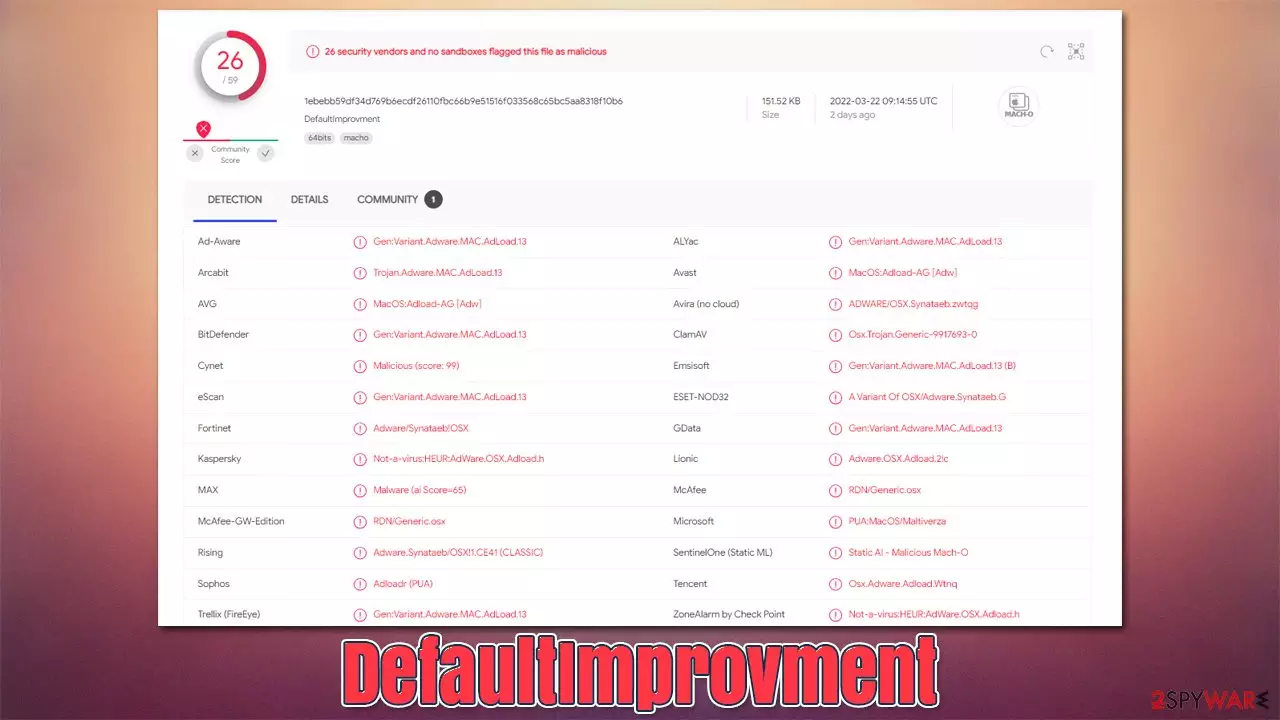
DefaultImprovment is a malicious application designed for Mac operating systems that belongs to a well-established malware family known as Adload. Users might get infected whenever they download pirated software from illegal websites or after being tricked by fake Flash Player updates/other fake ads.[1]
Once established, it would import its own settings files and establish new profiles and login items – actions that improve the persistence. With the help of the local AppleScript, DefaultImprovment would also put itself into the exclusions section in the built-in Gatekeeper and XProtect,[2] as it would otherwise be removed automatically.
The virus also appends an extension to Safari or another web browser, which is distinctively marked by the magnifying glass icon. With the help of the extension, it hijacks the homepage and new tab feature of the browser, which consequently produces results via another provider, such as Yahoo or Safe Finder.
At the top, users would see sponsored links and ads that might not always be accurate or even safe to click, so we recommend not interacting with them. Additionally, a significant increase of pop-ups, auto-play, interstitial, and other types can also be observed while browsing the web, as the main goal of the app is monetizing users' clicks on ads.
If you have found this infection on your system, please follow the detailed guide to remove it effectively, otherwise, you may suffer from other malware infections, sensitive data leaks, or financial losses due to online scams you are so likely to encounter so much more while being infected.
| Name | DefaultImprovment |
| Type | Mac virus, adware |
| Malware family | Adload strain that targets macOS devices |
| Installation | Usually spread via fake Flash Player installers or bundled along illegal software downloaded from torrent and similar sites |
| Symptoms | Installs a browser extension that can not be deleted easily; changes homepage/new tab to Safe Finder or something else; redirects lead to potentially malicious or scam sites, promotes suspicious software, etc. |
| Removal | Although not recommended to novice users, manual elimination of Mac malware is possible – we provide instructions below. Alternatively, use SpyHunterCombo Cleaner and remove all the malicious components automatically |
| System optimization | After you terminate the infection with all its associated components, we recommend you also scan your machine with FortectIntego for best results |
More about Adload
Adload as a malware strain was first seen back in 2018, and since then, hundreds of variants have been released – OnlinePlatform, ProfessionalHelper, and ColossusAspect being one of the latest versions. While the operation and distribution principles of the threat are relatively simple, they are extremely effective, as many people are getting infected.
DefaultImprovment consists of two elements – the main app installed on the system level and the browser extension which gets attached to Safari, Chrome, or another web browser. Besides showing ads, it also has another dangerous trait – it is capable of harvesting sensitive information typed into the browser, which includes:
Permissions for “DefaultImprovment”:
Webpage Contents
Can read sensitive information from webpages, including passwords, phone numbers, and credit cars on all webpagesBrowsing History
Can see when you visit all webpages
It goes without saying that this can be particularly dangerous – users might be the focus of future phishing[3] campaigns and have their personal accounts stolen. We recommend you avoid using any accounts before the removal of the virus is complete.

Removal of DefaultImprovment virus
Due to malware's advanced capabilities, we strongly recommend you rely on powerful security software, such as SpyHunterCombo Cleaner or MalwarebytesMalwarebytes, to remove malicious apps from your device. Many components of the virus are connected to one another and might be difficult to eliminate. If you still want to try doing that, please continue with the instructions below.
1. Remove the main app
Background processes could hinder the elimination of the malicious application. Therefore, before you do anything, force-close all the suspicious processes running in the background:
- Open Applications folder
- Select Utilities
- Double-click Activity Monitor
- Here, look for suspicious processes related to adware and use the Force Quit command to shut them down
- Go back to the Applications folder
- Find ExtendedService in the list and move it to Trash.
2. Get rid of Login Items and unwanted Profiles
Removal of the malicious application might not be possible before Login Items and Profiles of the virus are eliminated.
- Go to Preferences and select Accounts
- Click Login items and delete everything suspicious
- Next, pick System Preferences > Users & Groups
- Find Profiles and remove unwanted profiles from the list.
3. Get rid of leftover files
Finally, it would help if you looked for leftovers – .plist files. These are configuration files that might enable adware to work more efficiently:
- Select Go > Go to Folder.
- Enter /Library/Application Support and click Go or press Enter.
- In the Application Support folder, look for any suspicious entries and then delete them.
- Now enter /Library/LaunchAgents and /Library/LaunchDaemons folders the same way and delete all the related .plist files.


4. Check your browsers
Browsers are important elements of the DefaultImprovment functionality. In fact, they are the main tool used to show advertisements, redirect to suspicious sites, and expose users to various phishing messages. Therefore, you should always make sure that the unwanted extension is eliminated and browser caches are cleared. If you wish not to bother with manual steps, we recommend using FortectIntego for the job instead.
Safari
- Click Safari > Preferences…
- In the new window, pick Extensions.
- Select the unwanted extension and select Uninstall.


Google Chrome
- Open Google Chrome, click on the Menu (three vertical dots at the top-right corner) and select More tools > Extensions.
- In the newly opened window, you will see all the installed extensions. Uninstall all the suspicious plugins that might be related to the unwanted program by clicking Remove.


Note that you might not be able to eliminate the extension effectively due to its persistence mechanisms. In such a case, we recommend resetting the browser:
Safari
- Click Safari > Preferences…
- Go to the Advanced tab.
- Tick the Show Develop menu in the menu bar.
- From the menu bar, click Develop, and then select Empty Caches.


Google Chrome
- Click on Menu and select Settings.
- In the Settings, scroll down and click Advanced.
- Scroll down and locate Reset and clean up section.
- Now click Restore settings to their original defaults.
- Confirm with Reset settings.


If the extension was removed successfully, make sure you clean the web browser's caches in order to prevent tracking cookies from doing their job:
Safari
- Click Safari > Clear History…
- From the drop-down menu under Clear, pick all history.
- Confirm with Clear History.


Google Chrome
- Click on Menu and pick Settings.
- Under Privacy and security, select Clear browsing data.
- Select Browsing history, Cookies and other site data, as well as Cached images and files.
- Click Clear data.


Did this guide help?
Be the first to comment