

Adfoc.us is a link shortening service that may bring malware to your computer
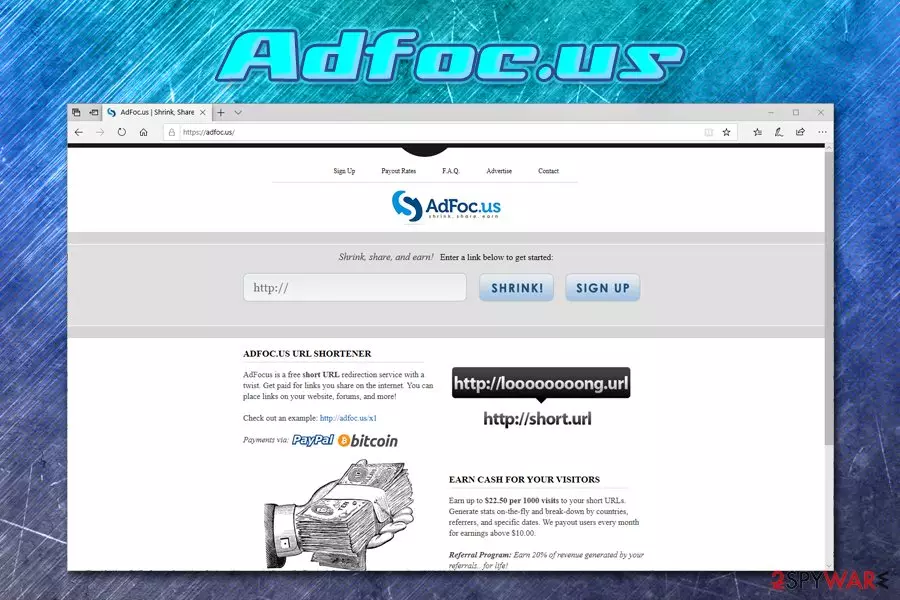
Adfoc.us is a legitimate service that offers to shorten links for convenience the other purposes, and also claims that users can earn money by doing so. Link shortening services are extremely popular and benefit both parties – the providers can earn pay-per-click ad revenue, and the users can enjoy clutter-free links. However, despite all these benefits, there are certain security risks involved in using Adfoc.us links carelessly.
The safe usage of Adfoc.us highly depends on who is using the service, as cybercriminals can be one of them – they can create a site that hides a malicious code inside of it, and use the shortened link to disguise the origin of the site. These links can then be populated all across the internet by using social media platforms, adware,[1], and other methods. In other words, Adfoc.us platform can only be trusted when they are coming from somebody you know online, or if they are embedded on a trusted site. Otherwise, we do not recommend clicking on Adfoc.us links.
Besides the links that can lead to malware, the frequent appearance of Adfoc.us ads might also indicate adware infection, so it is important to check the system with a security program if suspicious browser behavior is observed.
| Name | Adfoc.us |
| Type | Link shortening service, browser redirect or adware |
| Developer | AdFoc.us Limited |
| Similar services | Adf.ly, Gestyy.com, Ouo.io, Loptelink.pro, etc. |
| Dangers | Threat actors can use the service in order to disguise malicious links and populate them online by using different methods – the click may, in some cases, lead to the proliferation of malware. Additionally, the ad networks Adfoc.us uses might not always display secure content – gambling, “click allow to continue,” fake update and other prompts are common |
| Termination | Adfoc.us ads can result in the installation of potentially unwanted programs and malware. To get rid of all the unwanted and malicious programs from your device, check the details below; a scan with anti-malware software is also recommended |
| Recovery | In case your system got infected with adware or other malware, your system may start malfunctioning after its removal. In such a case, we suggest you scan your machine with FortectIntego to fix virus damage |
To use the Adfoc.us service, users are urged to register for an account, which asks for an e-mail, and a password – these details are collected by the site, according to its privacy policy. Without creating an account, users are unable to monetize on the shortened links, which can earn them as much as $22.50 per 1000 visits:
EARN CASH FOR YOUR VISITORS
Earn up to $22.50 per 1000 visits to your short URLs. Generate stats on-the-fly and break-down by countries, referrers, and specific dates. We payout users every month for earnings above $10.00.
While this may seem like a great deal, keep in mind that those who will use the Adfoc.us shortened links will be exposed to a large number of advertisements, and some of them might not be as secure. Quite often, various services employ not so secure advertisement networks that promote relatively unsafe content, such as gambling or suspicious online gaming sites with hidden fees.
In some cases, Adfoc.us might even show fraudulent notifications about outdated applications that seemingly need to be updated, or prompts that ask users to download browser extensions or potentially unwanted applications in order to proceed. In other words, an “Adfoc.us virus” term might very much be applicable in these cases.
We advise you not to download anything offered by the Adfoc.us ads and do not interact with buttons, as well as other content that is displayed before viewing the link, as you may end up installing useless software like scareware or potentially unwanted application like adware. In such a case, however, you will need to remove Adfoc.us apps or even malware from your machine.

The easiest way to perform Adfoc.us removal is to scan the computer with a reputable anti-malware program – it will quickly determine whether you installed something unwanted or malicious on your device. If that is the case, experts[2] also recommend resetting Google Chrome, Mozilla Firefox, Safari, and all the other installed browsers to delete cookies[3] and other settings the PUP may have introduced. Finally, if you experience system crashes or errors, use FortectIntego to fix virus-affected system files.
Watch out for malicious links and never install software that is promoted deceptively
It is not a secret that shortening link service earns money by showing users ads – it is a legitimate practice that is used by many high-profile websites. However, some ads might be just more dangerous than others, and it is important to take them into account. Some ads do not focus on regular advertising practices, such as promoting the service, application, or other products, but rather use deception or even fraud.
For example, quite often, users are presented with fake notifications that claim virus infections, accuse users of doing something illegal, their software needs to be updated, or insist that their machines have been blocked entirely.
As evident, all these claims are fake and should not be paid attention to. However, there are plenty of users that would believe the fake alerts, and that is precisely what malicious ad authors are counting for. Having that said, means that deliver such unfair advertisements should also be counted as malicious, and should never be trusted.
Quite often, link shortening services rely on shady advertising networks that pay more but put users' online safety at risk. Additionally, the adware may also bring users to these insecure sites that want to steal personal information, promote malicious apps, or make users pay for fake tech support services.[4]
To avoid this, users are advised to be very careful when browsing the web – never click on suspicious ads that try to intimidate with various claims, offer get-rich-fast-schemes, claim outdated software was detected, and similar fraudulent content.[5] As a countermeasure, however, an ad-blocking application can be employed – it would remove all the malicious ads from the doily web browsing routine. Additionally, security experts recommend installing a comprehensive security application and downloading software from trusted sources only, all while avoiding pirated and crack installers.

Adfoc.us removal options
To remove Adfoc.us virus-related programs, you can check the instructions below – you should access the installed app list and get rid of everything that you do not recognize (was installed without your direct permission). Additionally, you should also reset all the installed browsers to ensure that the PUP-altered settings do not interfere with your daily web browsing routine. You can find how to do that below as well.
As a general rule, Adfoc.us removal should always consist of scanning your machine with anti-malware software, especially if you downloaded and installed something after being prompted by an unsafe advertisement. Thus, download powerful anti-malware, enable the PUP detection feature and perform an in-depth computer scan. Anti-malware will ensure that all the malicious components are eliminated from your machine at once and will also protect you from online dangers in the future.
Uninstall from Windows
Uninstall from Windows 10/8:
- Type Control Panel into the Windows search box and open the result.
- Under Programs, select Uninstall a program.


Uninstall from Windows 7/XP:
- Click on Windows Start > Control Panel (Windows XP users should click on Add/Remove Programs).
- In Control Panel, select Programs > Uninstall a program.


Remove the unwanted program:
- In the Programs and Features window, look for any recently installed suspicious entries, select them, and click Uninstall.
- If User Account Control appears, click Yes to confirm, then complete the removal.


Delete from macOS
Remove the unwanted application:
- From the menu bar, select Go > Applications.
- In the Applications folder, look for any suspicious entries, then drag them to Trash (or right-click and pick Move to Trash).


Delete leftover files and folders:
- Select Go > Go to Folder.
- Enter /Library/Application Support and remove any suspicious folders related to the unwanted program.
- Repeat the same check in the /Library/LaunchAgents and /Library/LaunchDaemons folders, deleting any suspicious entries.

- Finally, empty the Trash to permanently remove the leftovers.

Reset Internet Explorer
Remove dangerous add-ons:
- Open Internet Explorer, click on the Gear icon (IE menu) on the top-right corner of the browser
- Pick Manage Add-ons.
- You will see a Manage Add-ons window. Here, look for suspicious plugins. Click on these entries and select Disable.


Change your homepage if it was altered:
- Open IE and click on the Gear icon.
- Select Internet Options.
- In the General tab, delete the Home page address and replace it by your preferred one (for example, Google.com).
- Click Apply and then select OK.


Delete temporary files:
- Press on the Gear icon and select Internet Options.
- Under Browsing history, click Delete...
- Select relevant fields and press Delete.


Reset Internet Explorer:
- Click on Gear icon > Internet options and select Advanced tab.
- Select Reset.
- In the new window, check Delete personal settings and select Reset.


Remove from Microsoft Edge
Delete unwanted extensions from MS Edge:
- Select Menu (three horizontal dots at the top-right of the browser window) and pick Extensions.
- From the list, pick the extension and click on the Gear icon.
- Click Remove.


Clear cookies and other browser data:
- Click on the Menu (three horizontal dots at the top-right of the browser window) and select Settings > Privacy, search, and services..
- Under Clear browsing data, pick Choose what to clear.
- Select Cookies and other site data and Cached images and files. (apart from passwords, although you might want to include Media licenses as well, if applicable) and click on Clear.


Restore new tab and homepage settings:
- Click the menu icon and choose Settings.
- Then find On startup section.
- Click Remove next to any suspicious startup page.
Reset MS Edge if the above steps did not work:
- Press on Ctrl + Shift + Esc to open Task Manager.
- Click on More details arrow at the bottom of the window.
- Select Details tab.
- Now scroll down and locate every entry with Microsoft Edge name in it. Right-click on each of them and select End Task to stop MS Edge from running.


Instructions for Chromium-based Edge
Delete extensions from MS Edge (Chromium):
- Open Edge and click select Settings > Extensions.
- Delete unwanted extensions by clicking Remove.


Clear cache and site data:
- Click on Menu and go to Settings.
- Select Privacy, search and services.
- Under Clear browsing data, pick Choose what to clear.
- Under Time range, pick All time.
- Select Clear now.


Reset Chromium-based MS Edge:
- Click on Menu and select Settings.
- On the left side, pick Reset settings.
- Select Restore settings to their default values.
- Confirm with Reset.
- This will disable extensions and reset startup pages but will not delete bookmarks, saved passwords, or browsing history.


Remove from Mozilla Firefox (FF)
Remove dangerous extensions:
- Open Mozilla Firefox browser and click on the Menu (three horizontal lines at the top-right of the window).
- Select Add-ons.
- In here, select the unwanted extension and click Remove.


Reset the homepage:
- Click three horizontal lines at the top right corner to open the menu.
- Choose Settings.
- Under Home, set your preferred homepage and new tab settings.
Clear cookies and site data:
- Click Menu and pick Settings.
- Go to Privacy & Security section.
- Scroll down to locate Cookies and Site Data.
- Click on Clear Data...
- Select Cookies and Site Data and Temporary cached files and pages, then click Clear.


Reset Mozilla Firefox
If clearing the browser as explained above did not help, reset Mozilla Firefox:
- Open Mozilla Firefox browser and click the Menu.
- Go to Help and then choose Troubleshooting Information.

- Under Give Firefox a tune up section, click on Refresh Firefox...
- Once the pop-up shows up, confirm the action by pressing on Refresh Firefox.



Remove from Google Chrome
Delete malicious extensions from Google Chrome:
- Open Google Chrome, click on the Menu (three vertical dots at the top-right corner) and select More tools > Extensions.
- In the newly opened window, you will see all the installed extensions. Uninstall all suspicious extensions related to the unwanted program by clicking Remove.


Clear cache and web data from Chrome:
- Click on Menu and pick Settings.
- Under Privacy and security, select Clear browsing data.
- Select Browsing history, Cookies and other site data, as well as Cached images and files.
- Click Clear data.


Change your homepage:
- Click menu and choose Settings.
- Look for a suspicious site in the On startup section.
- Click on Open a specific or set of pages and click on three dots to find the Remove option.
Reset Google Chrome:
If the previous methods did not help you, reset Google Chrome to eliminate all the unwanted components:
- Click on Menu and select Settings.
- In the Settings, scroll down and click Advanced.
- Scroll down and locate Reset and clean up section.
- Now click Restore settings to their original defaults.
- Confirm with Reset settings.


Delete from Safari
Remove dangerous extensions:
- Open Safari, click Safari in the menu at the top-left of the screen, and select Preferences.
- Go to the Extensions tab, look for any suspicious entries, and click Uninstall to remove them.


Clear history and website data:
- Click Safari in the menu and pick Clear History.
- Set Clear to all history and confirm with Clear History.


Reset Safari:
- Click Safari in the menu and select Preferences > Advanced.
- Enable Show Develop menu in menu bar.
- From the menu bar, click Develop and select Empty Caches.


Did this guide help?
3 comments
Melissa
I heard that this service is a scam too. Fortunately, I havent installed this application.
Afton
indeed this, application spreads in the software package. not sure with which one I got it... Ive recently installed a bunch of programs.
zahra
I hate these programs that collect information about users! I need more privacy on the Web!