

Advancemactools.live – a scam network that promotes Advanced Mac Cleaner
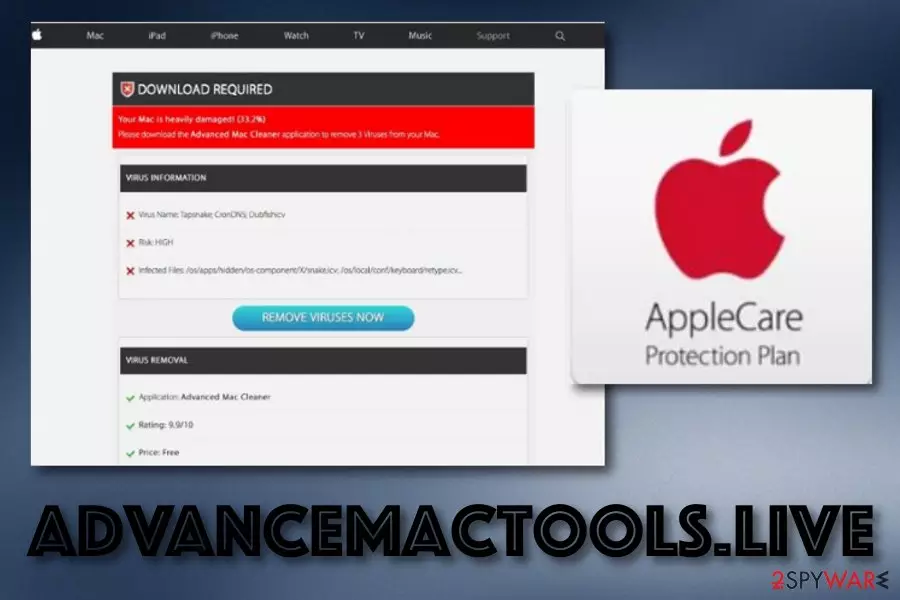
Advancemactools.live is an entire chain of scam pages that promote suspicious security software for Macs. Once you are infected with this PUP,[1] you can easily be taken to a site such as Apple.com-monitor.live, Apple.com-fasting.live, Apple.com-clear.live, and similar. Here you will be provided with a message that announces about 3 viruses found on your computer. Additionally, the scam encourages users to make a deep scan by pressing the “Scan Now” button. If you opt for this key, you might be urged to download and install suspicious security software such as Advanced Mac Cleaner.
| Name | Advancemactools.live |
|---|---|
| Type | PUP/Scam |
| Cause | This scam can appear due to an adware program |
| Aim | To promote suspicious cleaning tools |
| Affiliates | Apple.com-monitor.live, Apple.com-fasting.live, Apple.com-clear.live, etc. |
| Promoted software | Advanced Mac Cleaner |
| False malware | The scam claims that malware such as Tapsnake, CronDNS, and Dubfishcv was discovered |
| Deletion | Use FortectIntego |
Advancemactools.live virus can redirect to suspicious scams which claim about notorious threats found. Usually, hackers provide Tapsnake, CronDNS, and Dubfishcv as the high-risk malware found on the targetted mac computer. Furthermore, the alert notification might provide fake names of infected files.
As a result, Advancemactools.live offers to “REMOVE VIRUSES NOW” by downloading Advanced Mac Cleaner as a “free” application. Of course, this tool is free if all you want to do is scan your system for a check-up. However, other questionable features will definitely require more or less money to be transferred.
Once dealing with Advancemactools.live and its websites it promotes, there is a big chance of receiving this type of scam message:
Your OS Sierra is infected with (3) viruses!
Your OS Sierra is infected with (3) viruses. Our security check found traces of 2 malware and 1 phishing/spyware. System damage: 28.1% – Immediate removal required!
The immediate removal of the viruses is required to prevent further system damage, loss of Apps, Photos or other files. Traces of 1 phishing/spyware were found on your OS Sierra with.
Personal and banking information are at risk.
To avoid more damage click on ‘Scan Now’ immediately. Our deep scan will provide help immediately!
0 minutes and 00 seconds remaining before damage is permanent.
Our suggestion would be to avoid Advancemactools.live as much as possible. Do not click on any content it provides as you might not only get redirected to affiliate pages but also land on a malicious website. Note that this is one of the most popular ways of getting infected with dangerous malware (e.g. Trojan virus).

Additionally, do not take any offers that are suggested to you by Advancemactools.live as you will supposedly be left only with unwanted monetary losses. Furthermore, be careful with ads that might come from this website as these components might also try to attract your attention with satisfying offers, deals, and sales.
The best thing to do is to opt for Advancemactools.live removal. The entire process can be completed with the help of anti-malware software such as FortectIntego or by using manual instructions that are posted at the end of the page. These guidelines are suitable for your Mac OS X machine and different types of web browsers.
If there is an adware program that has been forcing the appearance of this scam, you need to remove Advancemactools.live together with the ad-supported application. Also, browser cleaning needs to be done here. If any type of “helper object” such as extension will be left, the potentially unwanted program might return easily.

Distribution sources of PUPs (potentially unwanted programs)
Potentially unwanted programs can come in software bundles of original products. However, this type of software is found not only on official websites but also on third-party sources.[2] This is why we always offer to use ONLY trustworthy and official software download pages. Also, make sure that the product comes from its official developer.
According to cybersecurity specialists from LesVirus.fr,[3] adware programs and similar products can be integrated into third-party hyperlinks and ads. Keeping a distance from all unknown Internet sources and their provided components should decrease the risk of catching a suspicious threat infection.
However, always ensure not only manual but also automatical protection. Be aware if your antivirus tool is working properly or not. For no problems to occur, you need to make sure that the software you have chosen is trustworthy. Furthermore, performing all required updates is also a crucial move to take.
Advanced removal guidelines for Advancemactools.live scam
The appearance of Advancemactools.live virus can be caused by adware programs or similar potentially unwanted applications that enter your system through bundling. Note that you will supposedly not be able to get rid of the scam until the potentially unwanted program is lurking on your machine/device.
To complete Advancemactools.live removal fully, use reliable anti-malware programs and complete system check-ups through which all suspicious content will be detected. You can choose to download software from our below-provided list or pick any other tool of your own likings. Of course, make sure that it can be trusted.
Also, if you are likely to, you can remove Advancemactools.live from your Mac computer system by using manual guidelines. What you have to do is investigate browsers for possible infection sources. They might be various adware-added extensions and appear in any kinds of browser apps, for example, Chrome, Firefox, Safari, Explorer.
Delete from macOS
Remove the unwanted application:
- From the menu bar, select Go > Applications.
- In the Applications folder, look for any suspicious entries, then drag them to Trash (or right-click and pick Move to Trash).


Delete leftover files and folders:
- Select Go > Go to Folder.
- Enter /Library/Application Support and remove any suspicious folders related to the unwanted program.
- Repeat the same check in the /Library/LaunchAgents and /Library/LaunchDaemons folders, deleting any suspicious entries.

- Finally, empty the Trash to permanently remove the leftovers.

Reset Internet Explorer
Remove dangerous add-ons:
- Open Internet Explorer, click on the Gear icon (IE menu) on the top-right corner of the browser
- Pick Manage Add-ons.
- You will see a Manage Add-ons window. Here, look for suspicious plugins. Click on these entries and select Disable.


Change your homepage if it was altered:
- Open IE and click on the Gear icon.
- Select Internet Options.
- In the General tab, delete the Home page address and replace it by your preferred one (for example, Google.com).
- Click Apply and then select OK.


Delete temporary files:
- Press on the Gear icon and select Internet Options.
- Under Browsing history, click Delete...
- Select relevant fields and press Delete.


Reset Internet Explorer:
- Click on Gear icon > Internet options and select Advanced tab.
- Select Reset.
- In the new window, check Delete personal settings and select Reset.


Remove from Mozilla Firefox (FF)
Remove dangerous extensions:
- Open Mozilla Firefox browser and click on the Menu (three horizontal lines at the top-right of the window).
- Select Add-ons.
- In here, select the unwanted extension and click Remove.


Reset the homepage:
- Click three horizontal lines at the top right corner to open the menu.
- Choose Settings.
- Under Home, set your preferred homepage and new tab settings.
Clear cookies and site data:
- Click Menu and pick Settings.
- Go to Privacy & Security section.
- Scroll down to locate Cookies and Site Data.
- Click on Clear Data...
- Select Cookies and Site Data and Temporary cached files and pages, then click Clear.


Reset Mozilla Firefox
If clearing the browser as explained above did not help, reset Mozilla Firefox:
- Open Mozilla Firefox browser and click the Menu.
- Go to Help and then choose Troubleshooting Information.

- Under Give Firefox a tune up section, click on Refresh Firefox...
- Once the pop-up shows up, confirm the action by pressing on Refresh Firefox.



Remove from Google Chrome
Delete malicious extensions from Google Chrome:
- Open Google Chrome, click on the Menu (three vertical dots at the top-right corner) and select More tools > Extensions.
- In the newly opened window, you will see all the installed extensions. Uninstall all suspicious extensions related to the unwanted program by clicking Remove.


Clear cache and web data from Chrome:
- Click on Menu and pick Settings.
- Under Privacy and security, select Clear browsing data.
- Select Browsing history, Cookies and other site data, as well as Cached images and files.
- Click Clear data.


Change your homepage:
- Click menu and choose Settings.
- Look for a suspicious site in the On startup section.
- Click on Open a specific or set of pages and click on three dots to find the Remove option.
Reset Google Chrome:
If the previous methods did not help you, reset Google Chrome to eliminate all the unwanted components:
- Click on Menu and select Settings.
- In the Settings, scroll down and click Advanced.
- Scroll down and locate Reset and clean up section.
- Now click Restore settings to their original defaults.
- Confirm with Reset settings.


Delete from Safari
Remove dangerous extensions:
- Open Safari, click Safari in the menu at the top-left of the screen, and select Preferences.
- Go to the Extensions tab, look for any suspicious entries, and click Uninstall to remove them.


Clear history and website data:
- Click Safari in the menu and pick Clear History.
- Set Clear to all history and confirm with Clear History.


Reset Safari:
- Click Safari in the menu and select Preferences > Advanced.
- Enable Show Develop menu in menu bar.
- From the menu bar, click Develop and select Empty Caches.


Did this guide help?
Be the first to comment