

Amarktflow is the advertising campaign causing fake winner messages
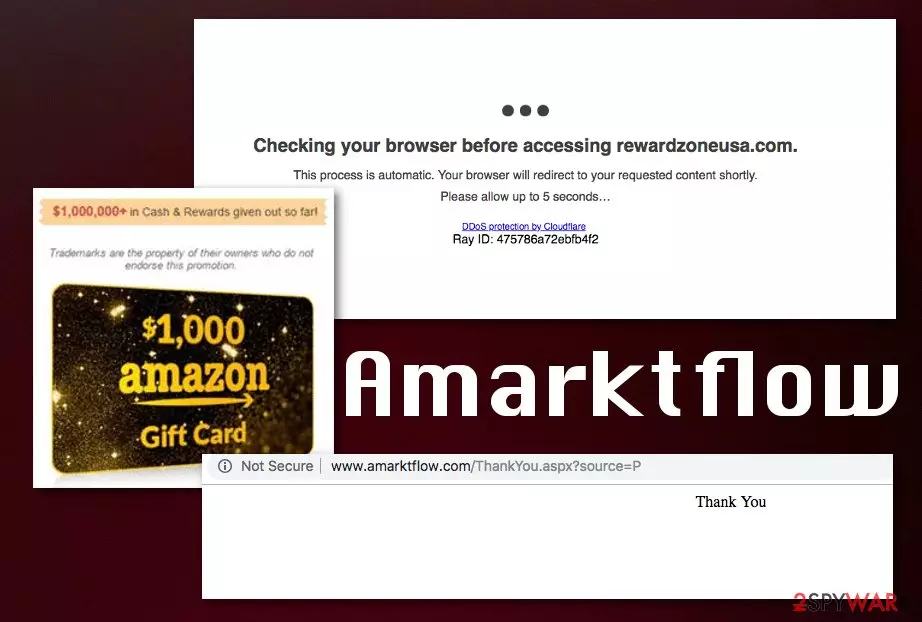
Amarktflow is a rewards scam that lures people into revealing their sensitive information. It offers them to answer several questions and solve the puzzle to win free iPhone X, Amazon Gift card, Walmart Gift card, Chipotle Gift card, etc. However, next, it asks to enter your information, e.g. email address or even credit card details. You should never fall for such phishing techniques [1] because you can become a victim of privacy issues or identity theft. Beware that you can run into Amarktflow Amazon Gift Card Scam not only on Google; this scam has also been noticed on the YouTube, Twitter and Facebook platforms. Based on deceptive techniques and promotional content it delivers, it falls into the category of potentially unwanted programs and adware.
| Name | Amarktflow |
|---|---|
| Type | Adware\scam |
| Category | Potentially unwanted program |
| Symptoms | Delivers intrusive ads promising such prizes:
|
| Main aim | To lure people into signing up for useless services, make them pay or reveal personal information |
| Distribution | Bundled software, deceptive ads |
| Elimination | Reset your web browsers to get rid of a PUP that hijacked it. Then, download FortectIntego to prevent system errors and completely finish the virus removal |
Advertisements related to this scam are typically used to catch users' attention by offering various gift cards from Amazon, Chipotle, Nike, Walmart, or Apple companies. These deceptive campaigns have been actively spread via fake ads on search engines, social media platforms, and even spam.
If you have been wondering is Amarktflow real or legit, you may run into the animated video presenting reviews about positive people's feelings and, of course, received prizes after using these reward campaigns. However, note that this is social engineering[2] used to trick victims into providing their personal information.
Amarktflow virus acts almost identical as USArewardspot or National Consumer Center scams. Its developers are hackers who made the persistent threat. Various social media accounts used for distributing this scam are either hacked, stolen or automatically generated and fake because the only content coming from those Facebook or Twitter accounts are promotional ads with hyperlinks.
This gift card scam may deliver various messages using the following slogans:
- $1000 Amazon Gift Card is reserved for you!
- Cash & Reward for a few questions!
- You won $1000 Amazon Gift Card!
- You won $100 Visa Gift Card!
- Receive Your AMAZON Gift Card
- Win a $1000 Amazon gift card
- Congratulations! You've been selected for a chance to get the $1000 Amazon Gift Card, Apple iPhone X or Samsung Galaxy S8!
You need to remove Amarktflow from the system as soon as possible because there is a possibility of additional content installed without your permission. Keep in mind that the scam is related to adware which occupied your web browser to launch numerous campaigns right after you start using it for browsing. A thorough scan with anti-spyware should help you remove it. Then, use SpyHunterCombo Cleaner or MalwarebytesMalwarebytes to double-check the system for viruses installed behind your back.

Users notice and ignore deceptive content, so PUP can spread freely
Amarktflow.com is the leading website used to promote the scam. Users complain about the activity related to this rewards scam online[3] and state that promotional messages even came in email boxes or cell phones. One of the victims commented:
Received an email saying that I had won a $1000 Walmat gift card. ALL I had to do was take a survey that would take a few min. Well those min ended up being a good 20 min until I got to the last survey and it was this one that I'm reporting. Click start and nothing happening. At end of survery. Answer all question. Things that are suppose to be FREE, always have a S/H charge and it's so high. Not to mention the 3rd party calls you will start to get. The personal question that are ask for something on an item that you supposedly have won. What me owing a home are what my income is have to do with something that a person has won. But still after a person does all this you can't complete the survey do to the offer is really to get your info for 3rd partys.
The intruder promotes scams all over the world and this Fall it was especially active. People state about money is taken out of their accounts or strange activity on their social media, online banking services. Users also report direct emails containing promotions or hyperlinks to YouTube videos or advertisements. A lot of customers state that this program keeps coming back and there is no fast way to get rid of it:
I was on a website about dogs when all of a sudden I was brought to amarktflow.com and couldn't get out no matter how many times I got rid of the tab. It kept coming back.

You need to use reputable anti-malware tools for Amarktflow removal because its relation with adware and additional PUPs may cause additional problems on your system or web browsers. However, remember that closing scam messages is not enough if you want to delete the cyber threat, you need to perform a full system scan on the device and remove all related programs, browser extensions. Tools like SpyHunterCombo Cleaner or MalwarebytesMalwarebytes can work perfectly for the job. Finish the task with FortectIntego to ensure that there is no virus damage done.
Machines get affected when people do not pay enough attention to possibly dangerous conent
This adware might be distributed using third-party freeware installations or questionable download sites. Both of these methods have one common feature – bundling. Software bundles can be unpacked during installations if you choose Advanced or Custom options but choosing Default or Quick processes may affect the security of your system significantly.
Getting your software, applications, or anything also from questionable sites or p2p networks keeps you at risk of getting additional apps installed. During Default installations, you agree to everything at once, and you get applications you might not even want to get.
Always opt for Advanced installations, de-select unwanted content, and check if the source is legitimate. Choose official distributors and authentic sources, keep your anti-malware up-to-date, and this way avoid any cyber infiltrations in the future.
Try to fully get rid of the shady Amarktflow by using the anti-malware tool
To remove the virus, you need to scan the device thoroughly and indicate all possible threats. Since this scam is related to other PUPs, it is possible that adware is not the only intruder on your computer. Using anti-malware tools for virus termination can give you the best results because programs like these detect various content that might be dangerous.
Automatic Amarktflow removal is advisable by many researchers[4] because anti-malware improves the performance of your device while cleaning the system entirely. Check our suggestions below and follow instructions to make sure that all PUPs are removed.
Uninstall from Windows
Uninstall from Windows 10/8:
- Type Control Panel into the Windows search box and open the result.
- Under Programs, select Uninstall a program.


Uninstall from Windows 7/XP:
- Click on Windows Start > Control Panel (Windows XP users should click on Add/Remove Programs).
- In Control Panel, select Programs > Uninstall a program.


Remove the unwanted program:
- In the Programs and Features window, look for any recently installed suspicious entries, select them, and click Uninstall.
- If User Account Control appears, click Yes to confirm, then complete the removal.


Delete from macOS
Remove the unwanted application:
- From the menu bar, select Go > Applications.
- In the Applications folder, look for any suspicious entries, then drag them to Trash (or right-click and pick Move to Trash).


Delete leftover files and folders:
- Select Go > Go to Folder.
- Enter /Library/Application Support and remove any suspicious folders related to the unwanted program.
- Repeat the same check in the /Library/LaunchAgents and /Library/LaunchDaemons folders, deleting any suspicious entries.

- Finally, empty the Trash to permanently remove the leftovers.

Remove from Microsoft Edge
Delete unwanted extensions from MS Edge:
- Select Menu (three horizontal dots at the top-right of the browser window) and pick Extensions.
- From the list, pick the extension and click on the Gear icon.
- Click Remove.


Clear cookies and other browser data:
- Click on the Menu (three horizontal dots at the top-right of the browser window) and select Settings > Privacy, search, and services..
- Under Clear browsing data, pick Choose what to clear.
- Select Cookies and other site data and Cached images and files. (apart from passwords, although you might want to include Media licenses as well, if applicable) and click on Clear.


Restore new tab and homepage settings:
- Click the menu icon and choose Settings.
- Then find On startup section.
- Click Remove next to any suspicious startup page.
Reset MS Edge if the above steps did not work:
- Press on Ctrl + Shift + Esc to open Task Manager.
- Click on More details arrow at the bottom of the window.
- Select Details tab.
- Now scroll down and locate every entry with Microsoft Edge name in it. Right-click on each of them and select End Task to stop MS Edge from running.


Instructions for Chromium-based Edge
Delete extensions from MS Edge (Chromium):
- Open Edge and click select Settings > Extensions.
- Delete unwanted extensions by clicking Remove.


Clear cache and site data:
- Click on Menu and go to Settings.
- Select Privacy, search and services.
- Under Clear browsing data, pick Choose what to clear.
- Under Time range, pick All time.
- Select Clear now.


Reset Chromium-based MS Edge:
- Click on Menu and select Settings.
- On the left side, pick Reset settings.
- Select Restore settings to their default values.
- Confirm with Reset.
- This will disable extensions and reset startup pages but will not delete bookmarks, saved passwords, or browsing history.


Remove from Mozilla Firefox (FF)
Remove dangerous extensions:
- Open Mozilla Firefox browser and click on the Menu (three horizontal lines at the top-right of the window).
- Select Add-ons.
- In here, select the unwanted extension and click Remove.


Reset the homepage:
- Click three horizontal lines at the top right corner to open the menu.
- Choose Settings.
- Under Home, set your preferred homepage and new tab settings.
Clear cookies and site data:
- Click Menu and pick Settings.
- Go to Privacy & Security section.
- Scroll down to locate Cookies and Site Data.
- Click on Clear Data...
- Select Cookies and Site Data and Temporary cached files and pages, then click Clear.


Reset Mozilla Firefox
If clearing the browser as explained above did not help, reset Mozilla Firefox:
- Open Mozilla Firefox browser and click the Menu.
- Go to Help and then choose Troubleshooting Information.

- Under Give Firefox a tune up section, click on Refresh Firefox...
- Once the pop-up shows up, confirm the action by pressing on Refresh Firefox.



Remove from Google Chrome
Delete malicious extensions from Google Chrome:
- Open Google Chrome, click on the Menu (three vertical dots at the top-right corner) and select More tools > Extensions.
- In the newly opened window, you will see all the installed extensions. Uninstall all suspicious extensions related to the unwanted program by clicking Remove.


Clear cache and web data from Chrome:
- Click on Menu and pick Settings.
- Under Privacy and security, select Clear browsing data.
- Select Browsing history, Cookies and other site data, as well as Cached images and files.
- Click Clear data.


Change your homepage:
- Click menu and choose Settings.
- Look for a suspicious site in the On startup section.
- Click on Open a specific or set of pages and click on three dots to find the Remove option.
Reset Google Chrome:
If the previous methods did not help you, reset Google Chrome to eliminate all the unwanted components:
- Click on Menu and select Settings.
- In the Settings, scroll down and click Advanced.
- Scroll down and locate Reset and clean up section.
- Now click Restore settings to their original defaults.
- Confirm with Reset settings.


Delete from Safari
Remove dangerous extensions:
- Open Safari, click Safari in the menu at the top-left of the screen, and select Preferences.
- Go to the Extensions tab, look for any suspicious entries, and click Uninstall to remove them.


Clear history and website data:
- Click Safari in the menu and pick Clear History.
- Set Clear to all history and confirm with Clear History.


Reset Safari:
- Click Safari in the menu and select Preferences > Advanced.
- Enable Show Develop menu in menu bar.
- From the menu bar, click Develop and select Empty Caches.


Did this guide help?
Be the first to comment