

Amazon Assistant is a browser-based program that creates issues with performance and browsing activities
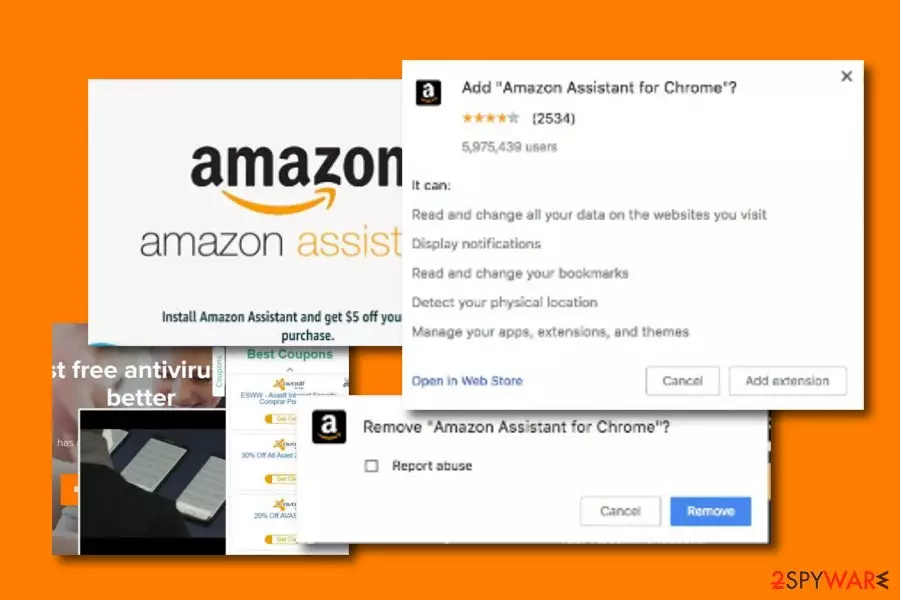
Amazon Assistant is a browser extension created to share attractive-looking deals and offers with its users. This type of browser tool can be downloaded from Amazon's official website or found in original e-stores such as Google Play Store, App store, etc. However, this application can be bundled with other programs also and force unwanted changes on web browser apps. As a result of stealth infiltration, you might experience modifications with your homepage and search engine. Nevertheless, the app might start pushing intrusive ads on your screen and promoting various sales. Even though this plugin is a legitimate one, it can cause too many annoying activities and is linked to the PUP category.
| Names | Amazon Assistant, aa.hta, Amazon Browser Bar |
|---|---|
| Category | Potentially unwanted program (PUP) |
| Danger level | Low. Does not cause damage to the OS |
| Operating systems affected | Windows XP, 7, 8, 10, Mac OS X |
| Distribution ways | Software bundles, Google Play store, Firefox add-on store, etc. |
| Prevention guide | Custom/Advanced configuration allows managing all downloads safely |
| Travels together | Amazon Web Search, Amazon Smart Search |
| Infiltration symptoms | Changes the homepage/default search engine, causes pop up messages |
| You can install FortectIntego to improve the operation of your machine | |
Initially, the program was designed as a handy tool that would make the shopping experience for users better. However, as shown by Amazon Assistant reviews,[1] the application got quite a bit of negative feedback. Users are unhappy about its functionality, as it does not fulfill what it promises – all the functionality can be simply accomplished when visiting the official Amazon site.
Probably the most concerning part of this application is the information tracking that it performs during its operation on users' browsers.[2] Search queries, IP address, sites visited, links clicked, and similar non-personally identifiable data are carefully gathered to compile a profile that is later targeted by pop-ups, in-text links, promotional offers, deals, and other intrusive content.
Finally, the questionable- considered program Amazon Assistant changes the homepage, search engine, and the new tab address to Amazon Smart Search – this is a clear indication of browser hijacking functionalities, and this technique is used to display altered search results, filling them with sponsored links.
Though it is not technically a virus, it still raises speculations for IT experts that it might be related to Amazon virus. Even though it is legitimate, the key dilemma lies in its security. The application not only causes browsing-related problems but might put the user’s privacy at risk due to suspicious data tracking activities.[3] As a result, people have already started using Amazon Assistant virus terms while trying to describe their issues on the Internet.[4]

The application is compatible with Google Chrome, Mozilla Firefox, and other browsers on both Windows and Mac operating systems. However, after the installation of the extension, browser performance deteriorates due to these reasons:
- Ability to change the homepage or default search engine (e.g., Browser Bar, Amazon Web Search);
- Delivery of aggressive pop-ups;
- Displaying too many shopping offers;
- Opening new browser’s windows;
- Inability to uninstall it.[5]
Many computer users report that they were having problems with Amazon Assistant removal. Despite the fact, they remove the extension from the browser, it still comes back after a system reboot. If it happens to you too, you should opt for the automatic elimination method with anti-malware software.
If you are looking for a quick way how to get rid of this add-on, remove the threat faster with the assistance of SpyHunterCombo Cleaner or MalwarebytesMalwarebytes. However, in some cases, a browser reset is needed too. We have given the instructions on how to do it at the end of the article.

According to LosVirus.es specialists,[6] browser, hijackers sometimes have the capability of redirecting to affiliate pages. So, if you did not prompt for the Amazon Assistant installation by yourself but the app somehow appeared on your computer system, do not be surprised that it is there to promote various suspicious activities.
Talking about the redirecting itself, it can be not only annoying but also dangerous. Amazon Assistant is not malware itself and it is not dangerous but its redirecting can relate to some harm. If you are frequently experiencing such activity, you have a chance of landing on an infected website and facing malware there.
Potentially dangerous activities of the browser extension
Many users ask if this service is considered a virus. However, technically speaking it's not. It’s a browser extension that is categorized as a potentially unwanted program because it may negatively affect the performance of the browser. Hence, the term “virus” is not correct to describe this cyber infection. However, it’s still a popular definition among people who used this tool.
Talking about the negative features of this suspicious extension,[7] Amazon Assistant virus Windows 10 version seems to be very annoying and aggressive. Many users report that this application opens new browser’s tabs or windows:[8]
Each time I start up my laptop PC Amazon assistant opens all by itself new windows (one after the other filling the whole screen) indicating “C:\Program Files(x86)\Amazon\Amazon Assisitant\aa.hta”.
However, older Windows OS, as well as Mac OS X, users report having problems with pop-ups and redirect related to this virus. Soon after this application is installed on the browser, it starts displaying various commercial offers suggesting buying goods on Amazon.

According to the reports, the extension displays tons of pop-ups, banners, in-text, and other types of ads soon after the installation. Typically, these advertisements are based on the user’s search keywords and browsing history. This activity raises another important issue related to the extension's data tracking activities. The add-on might collect the following information about the user:
- visited websites and pages;
- clicked ads;
- search queries;
- IP address;
- location;
- etc.
There’s no doubt that aggregated information is used for advertising purposes. However, security specialists warn that this data might be shared or sold to third parties, including advertising networks.[9] The problem is that such advertising networks often get compromised and can display malicious ads. After clicking on such a commercial offer, you may be redirected to the domain of suspicious origin, for instance, a phishing website that is used for stealing personal information, including credit card information.
The browser extension can be downloaded directly, but it’s not the only possible distribution method
The shopping assistant is available to download on the amazon.com website, Google Play store, as well as Mozilla Firefox add-on store. In addition, you may spot this browser add-on being promoted on certain affiliated domains or even via other freeware. Specifically, you should be careful not to install unwanted and irrelevant applications while managing the installation process.

Note that often users accidentally install new applications by overlooking attached add-ons. Thus, it is recommended to choose “Custom” settings. Only when you are sure that no additional tools are installed, proceed further. If you can find an offer to change your browser settings, make sure you untick it. Now let us proceed to the removal section. For that, you should always opt for Custom or Advanced installation methods.
Detailed explanation on how to remove the virus
To remove the Amazon Assistant virus from your browser, you need to get rid of every, even the smallest component related to this add-on. While it is easier to entrust the process to a malware removal tool, you can also get rid of this app by refreshing each of your web browsers.
In the case of automatic removal, you should select one of the tools that are given below and let them do their work after updating them to their full versions. These programs will not take long to eradicate the extension fully. However, keeping in mind that it is not a serious computer threat, you can also think about manual elimination.
To perform manual Amazon Assistant removal on your computer, you may check instructions designed by our experts. Technically, you should run thru your recently installed programs on Control Panel and get rid of the ones that seem suspicious. Then, you need to reset your web browser if you suspect any of the files to be remaining. Upon choosing a new search engine or browser extension, check its reviews on independent user forums.
Uninstall from Windows
Uninstall from Windows 10/8:
- Type Control Panel into the Windows search box and open the result.
- Under Programs, select Uninstall a program.


Uninstall from Windows 7/XP:
- Click on Windows Start > Control Panel (Windows XP users should click on Add/Remove Programs).
- In Control Panel, select Programs > Uninstall a program.


Remove the unwanted program:
- In the Programs and Features window, look for any recently installed suspicious entries, select them, and click Uninstall.
- If User Account Control appears, click Yes to confirm, then complete the removal.


Delete from macOS
Remove the unwanted application:
- From the menu bar, select Go > Applications.
- In the Applications folder, look for any suspicious entries, then drag them to Trash (or right-click and pick Move to Trash).


Delete leftover files and folders:
- Select Go > Go to Folder.
- Enter /Library/Application Support and remove any suspicious folders related to the unwanted program.
- Repeat the same check in the /Library/LaunchAgents and /Library/LaunchDaemons folders, deleting any suspicious entries.

- Finally, empty the Trash to permanently remove the leftovers.

Remove from Microsoft Edge
Delete unwanted extensions from MS Edge:
- Select Menu (three horizontal dots at the top-right of the browser window) and pick Extensions.
- From the list, pick the extension and click on the Gear icon.
- Click Remove.


Clear cookies and other browser data:
- Click on the Menu (three horizontal dots at the top-right of the browser window) and select Settings > Privacy, search, and services..
- Under Clear browsing data, pick Choose what to clear.
- Select Cookies and other site data and Cached images and files. (apart from passwords, although you might want to include Media licenses as well, if applicable) and click on Clear.


Restore new tab and homepage settings:
- Click the menu icon and choose Settings.
- Then find On startup section.
- Click Remove next to any suspicious startup page.
Reset MS Edge if the above steps did not work:
- Press on Ctrl + Shift + Esc to open Task Manager.
- Click on More details arrow at the bottom of the window.
- Select Details tab.
- Now scroll down and locate every entry with Microsoft Edge name in it. Right-click on each of them and select End Task to stop MS Edge from running.


Instructions for Chromium-based Edge
Delete extensions from MS Edge (Chromium):
- Open Edge and click select Settings > Extensions.
- Delete unwanted extensions by clicking Remove.


Clear cache and site data:
- Click on Menu and go to Settings.
- Select Privacy, search and services.
- Under Clear browsing data, pick Choose what to clear.
- Under Time range, pick All time.
- Select Clear now.


Reset Chromium-based MS Edge:
- Click on Menu and select Settings.
- On the left side, pick Reset settings.
- Select Restore settings to their default values.
- Confirm with Reset.
- This will disable extensions and reset startup pages but will not delete bookmarks, saved passwords, or browsing history.


Remove from Mozilla Firefox (FF)
Remove dangerous extensions:
- Open Mozilla Firefox browser and click on the Menu (three horizontal lines at the top-right of the window).
- Select Add-ons.
- In here, select the unwanted extension and click Remove.


Reset the homepage:
- Click three horizontal lines at the top right corner to open the menu.
- Choose Settings.
- Under Home, set your preferred homepage and new tab settings.
Clear cookies and site data:
- Click Menu and pick Settings.
- Go to Privacy & Security section.
- Scroll down to locate Cookies and Site Data.
- Click on Clear Data...
- Select Cookies and Site Data and Temporary cached files and pages, then click Clear.


Reset Mozilla Firefox
If clearing the browser as explained above did not help, reset Mozilla Firefox:
- Open Mozilla Firefox browser and click the Menu.
- Go to Help and then choose Troubleshooting Information.

- Under Give Firefox a tune up section, click on Refresh Firefox...
- Once the pop-up shows up, confirm the action by pressing on Refresh Firefox.



Remove from Google Chrome
Delete malicious extensions from Google Chrome:
- Open Google Chrome, click on the Menu (three vertical dots at the top-right corner) and select More tools > Extensions.
- In the newly opened window, you will see all the installed extensions. Uninstall all suspicious extensions related to the unwanted program by clicking Remove.


Clear cache and web data from Chrome:
- Click on Menu and pick Settings.
- Under Privacy and security, select Clear browsing data.
- Select Browsing history, Cookies and other site data, as well as Cached images and files.
- Click Clear data.


Change your homepage:
- Click menu and choose Settings.
- Look for a suspicious site in the On startup section.
- Click on Open a specific or set of pages and click on three dots to find the Remove option.
Reset Google Chrome:
If the previous methods did not help you, reset Google Chrome to eliminate all the unwanted components:
- Click on Menu and select Settings.
- In the Settings, scroll down and click Advanced.
- Scroll down and locate Reset and clean up section.
- Now click Restore settings to their original defaults.
- Confirm with Reset settings.


Delete from Safari
Remove dangerous extensions:
- Open Safari, click Safari in the menu at the top-left of the screen, and select Preferences.
- Go to the Extensions tab, look for any suspicious entries, and click Uninstall to remove them.


Clear history and website data:
- Click Safari in the menu and pick Clear History.
- Set Clear to all history and confirm with Clear History.


Reset Safari:
- Click Safari in the menu and select Preferences > Advanced.
- Enable Show Develop menu in menu bar.
- From the menu bar, click Develop and select Empty Caches.


Did this guide help?
Be the first to comment