

Domain Quality is a malicious browser extension that uses aggressive distribution methods
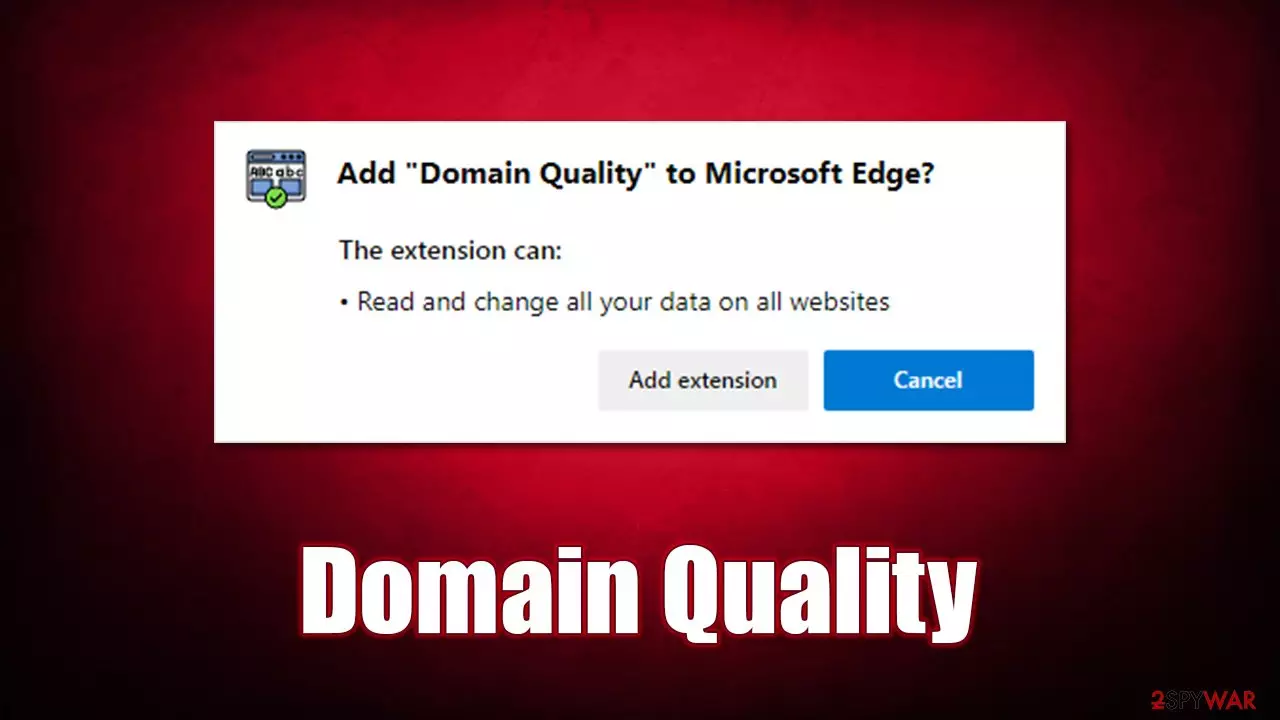
Whether you use Google Chrome, Mozilla Firefox, MS Edge, or Safari, you are likely to have certain settings changed and add-ons installed. This allows customizing the web browsing experience, enhancing it in many ways. Unfortunately, some extensions are not there to help you but rather generate revenue for its creators, all while providing little to no benefits. Domain Quality is one of the apps that meet this description – it is categorized as adware with browser hijacking[1] traits.
One of its main malicious qualities is its distribution methods. While the app was previously hosted on official sources such as Chrome and Firefox web stores (they were referred to stores from its official website as well), it was shorty removed due to suspicious operation practices. Now it can be observed being distributed on random websites as a force-install prompt, as well as in software bundles downloaded from third-party websites.
Nonetheless, Domain Quality's main operation starts after the installation. According to the extension's description, it is capable of providing information about every encountered website's reputation, allegedly advising users whether or not they should trust it. The criteria for the measurement are unclear, so we strongly advise refraining from trusting this rating system.
The main goal of the application is to show users pop-ups, banners, deals, offers, and all types of other ads when they browse the web. They might encounter advertisements in their search results, as in-text links on various websites, or as a virtual layer on top of the currently viewed website.
In the background, adware is also set to collect user data, which, in some cases, might include personal information. This can easily put people's privacy at risk. Likewise, the infections of malware are more common due to ads of unknown origin. If you have found a Domain Quality extension on your computer, please do not delay its removal. Below we explain how to do that thoroughly and ensure your browser and the system are secure.
| Name | Domain Quality |
|---|---|
| Type | Adware, browser hijacker |
| Alleged functionality | Checks website's reputation |
| Distribution | Software bundles, third-party websites, deceptive ads, fake Flash Player updates |
| Symptoms | Installed unknown browser extension or application; intrusive deals, coupons, discounts, offers, and other advertisements; possible homepage and new tab address changes; redirects to ad-filled, scam, phishing, and other dangerous websites |
| Dangers | Ads might include links to potentially dangerous or even malicious websites, resulting in malware infection, personal information disclosure, or financial losses |
| Removal | To get uninstall unwanted apps manually, you can follow our removal guide below. If the unwanted ads and other disruptive behavior does not stop, you should scan your computer with security software and delete all threats automatically |
| Additional tips | Malware or adware infections can diminish the performance of your computer or cause serious stability issues. Use FortectIntego to remediate your device and ensure that the virus damage is fixed |
Distribution of adware and other unwanted software
Browser hijackers and adware are extremely common (examples of such apps we already talked about are MinePass, Color ssc, Total Ask, and many others), mainly because they are relatively easy to produce and may provide a large profit if spread around well. In order to increase this probability, developers and distributors employ various deceptive and even malicious marketing and promotion methods.
In this particular case, Domain Quality promotions are likely to be encountered as notifications or pop-ups upon entry of certain malicious websites. This is likely to happen when browsing sites of dubious origin, including torrents, cracks,[2] adult-oriented, and similar. These sites are rarely regulated well, hence malicious scripts and links could be waiting on any page.
After accessing a malicious site, you would likely find a pop-up that would ask you to install the extension. Even pressing cancel of the cross at the top-right corner of the window would make the tab go into the full-screen mode, where some people might even panic. This is one of the methods used in a malicious manner, even though it is really easy to deal with.
If you happen to be in such a situation, use F11 on your keyboard to exit the full screen more or press Ctrl + Shift + Esc to open the Task Manager and shut down the browser.
To avoid entering malicious websites in the first place, make sure you stay away from pirated program distribution, illegal video streaming, X-rated, and similar sites. Employing an ad-blocking browser extension and updating all the software on your system immediately could help you from malicious scripts being executed.

Trust reputable tools to protect you from malicious content online
The extensions you could choose from to customize your browsing experience are plenty, and sometimes it might be difficult to determine which ones are actually useful and which ones might have deceptive or even malicious qualities. Domain Quality might seem like a good addition for security purposes, as it allegedly shows which websites are trustworthy and which ones should be rather avoided.
All while believing that this app is beneficial, people might install it intentionally. In the meantime, they would be exposed to potentially dangerous links and an increased number of ads and browser redirects – an activity that would greatly diminish the web browsing experience. Thus, instead of being useful, the extension brings its own nasties to your browser.
There are plenty of tools that can be used for this exact purpose. There are websites that specialize in showing user ratings and other criteria for determining whether the site is safe and trustworthy. Likewise, SpyHunterCombo Cleaner, MalwarebytesMalwarebytes, or similar security software can warn you about incoming dangers online. Special browser extensions that prevent entry to malicious sites can also be used. Without a doubt, considering the app is adware, we strongly recommend you remove it with the help of the instructions we provide in the next section of the article.
Domain Quality removal explained
The first step to get rid of the unwanted redirects, ads, and other disruptive browser behavior is to uninstall the related extension. Usually, this poses no difficulties to users, although if you have no done this before (for example, you have no idea where the app came from in the first place), then refer to the instructions as follows.
Google Chrome
- Open Google Chrome, click on the Menu (three vertical dots at the top-right corner) and select More tools > Extensions.
- In the newly opened window, you will see all the installed extensions. Uninstall all the suspicious plugins that might be related to the unwanted program by clicking Remove.


Mozilla Firefox
- Open Mozilla Firefox browser and click on the Menu (three horizontal lines at the top-right of the window).
- Select Add-ons.
- In here, select the unwanted plugin and click Remove.


MS Edge
- Open Edge and click select Settings > Extensions.
- Delete unwanted extensions by clicking Remove.


MS Edge (legacy)
- Select Menu (three horizontal dots at the top-right of the browser window) and pick Extensions.
- From the list, pick the extension and click on the Gear icon.
- Click on Uninstall at the bottom.


Safari
- Click Safari > Preferences…
- In the new window, pick Extensions.
- Select the unwanted extension and select Uninstall.


If this process was not possible due to one reason or another, you should instead employ SpyHunterCombo Cleaner or another anti-malware that could remove adware for you automatically. Security software could also check your device for other potentially unwanted or malicious software (you can also check on how to uninstall programs installed on the system level below).
Once you have removed all the potentially unwanted programs and malware, you should clean your browsers to prevent the intrusive ads from showing up repeatedly, as some caches could store this data inside them. Additionally, web data such as cookies[3] might be used for data tracking, so removing them is recommended.
You can refer to the manual guide below or instead use the automatic method with FortectIntego maintenance and repair utility. It can also be used to fix various malware-caused damage to the system and other unrelated issues.
Google Chrome
- Click on Menu and pick Settings.
- Under Privacy and security, select Clear browsing data.
- Select Browsing history, Cookies, and other site data, as well as Cached images and files.
- Click Clear data.


Mozilla Firefox
- Click Menu and pick Options.
- Go to Privacy & Security section.
- Scroll down to locate Cookies and Site Data.
- Click on Clear Data…
- Select Cookies and Site Data, as well as Cached Web Content, and press Clear.


MS Edge (Chromium)
- Click on Menu and go to Settings.
- Select Privacy and services.
- Under Clear browsing data, pick Choose what to clear.
- Under Time range, pick All time.
- Select Clear now.


MS Edge (legacy)
- Click on the Menu (three horizontal dots at the top-right of the browser window) and select Privacy & security.
- Under Clear browsing data, pick Choose what to clear.
- Select everything (apart from passwords, although you might want to include Media licenses as well, if applicable) and click on Clear.


Safari
- Click Safari > Clear History…
- From the drop-down menu under Clear, pick all history.
- Confirm with Clear History.


Uninstall from Windows
Uninstall from Windows 10/8:
- Type Control Panel into the Windows search box and open the result.
- Under Programs, select Uninstall a program.


Uninstall from Windows 7/XP:
- Click on Windows Start > Control Panel (Windows XP users should click on Add/Remove Programs).
- In Control Panel, select Programs > Uninstall a program.


Remove the unwanted program:
- In the Programs and Features window, look for any recently installed suspicious entries, select them, and click Uninstall.
- If User Account Control appears, click Yes to confirm, then complete the removal.


Delete from macOS
Remove the unwanted application:
- From the menu bar, select Go > Applications.
- In the Applications folder, look for any suspicious entries, then drag them to Trash (or right-click and pick Move to Trash).


Delete leftover files and folders:
- Select Go > Go to Folder.
- Enter /Library/Application Support and remove any suspicious folders related to the unwanted program.
- Repeat the same check in the /Library/LaunchAgents and /Library/LaunchDaemons folders, deleting any suspicious entries.

- Finally, empty the Trash to permanently remove the leftovers.

Did this guide help?
Be the first to comment