A step-by-step removal guide for affected devices. Follow the verified procedure below — most readers complete it in under 10 minutes.
Alice Woods· Likes to teach users about virus prevention
Global System Mechanic is suspicious optimization tool which reports fake issues
Global System Mechanic is advertised as a powerful system optimizer which can take care of outdated registry entries and similar system components that slow down PC's work. However, this self-proclaimed security tool has questionable functionality and falls into PUP[1] (potentially unwanted program) category. While it has nothing to do with viruses, we recommend you to uninstall it.
Global System Mechanic is almost identical to Master PC Cleaner, Smart PC Mechanic, Wise System Mechanic and few other programs that mislead users into thinking that they need them to improve their computers. However, right after downloading, they start suffering from annoying alerts about exaggerated computer errors and continuous offers to purchase the licensed program's version. As a result, many users have started calling this program a Global System Mechanic virus.
In addition, the program has been actively spread with the help of bundling. Quite often, users skip installation steps and rush thru the whole process. As a result, they infect their machines with PUPs and other unwanted apps, and have no idea where did they come from. If this program entered your device without your knowledge, we suggest you to think what free software have you recently downloaded to the system. Additionally, make sure you remove Global System Mechanic.
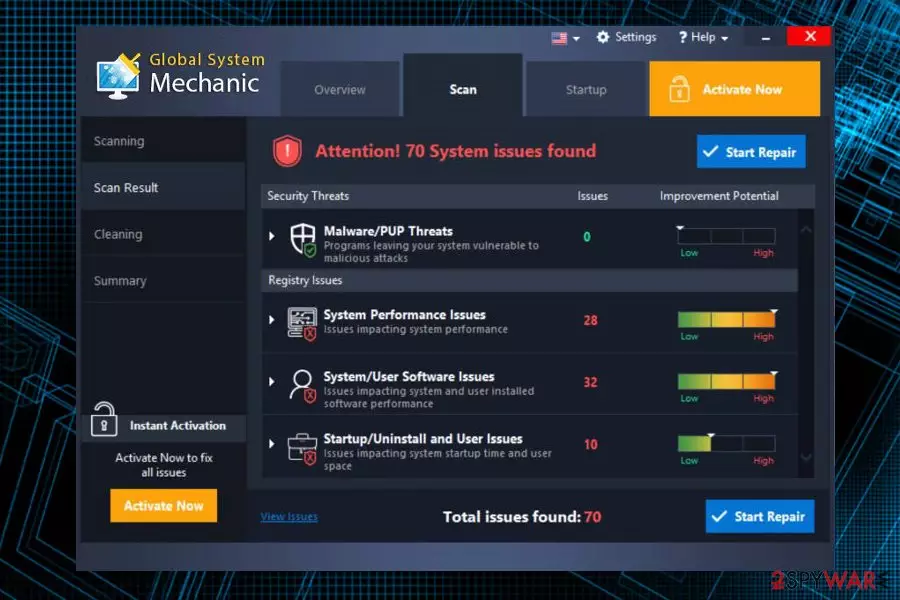
As soon as the program is installed, it performs a scan, later claiming that multiple issues have been detected. It can be anything from malware/PUP threats to system performance issues. If the user proceeds with the repair, he/she is promoted to buy a full version of Global System Mechanic. All the apps mentioned above behave this way and try to convince the user that a fix is required for a “faster, better and safer” performance.
However, we can assure you that most “issues” found by Global System Mechanic are bogus. In most cases, the problems encountered are usually related to old registry entries which barely take few kilobytes of space and have no influence over computer performance whatsoever. Thus, before you decide to pay for the full version, we advise you to reconsider.
If you proceed with buying the licensed version, you might be risking exposing your personal details[2] to unknown sources. The developer does not handle the payments directly; hence, your credit card details, name, address and other data are stored by third-parties. We advise you not to risk and let criminals use your personal information for illicit purposes. This activity can be extremely risky and lead to stolen money or even identity theft.
If you want to protect your computer from malware, PUPs and tools like this one, IT experts[3] advise picking security software which does not invade computers without permission. FortectIntego is an excellent example of a reliable anti-malware program which can keep your machine safe and help with a quick Global System Mechanic removal.
Improper software installation might lead to infiltration of PUPs
Potentially unwanted programs are called like that for a reason. It means that users are exposed to the software they initially did not ask for. In most cases, unwanted apps have questionable functionality and are entirely useless to a regular user. They slow down computer performance and sometimes try to trick victims into paying money for services they do not require.
Thus, it is an essential task for everybody to avoid PUPs, adware, spyware, and malware. To do that, you have to be extremely cautious while browsing the internet and installing free software attained online. Therefore, we suggest you follow these guidelines when using your machine:
When installing free software, read the EULA and Privacy Policy carefully. The information provided might be utterly significant and you might agree to something you otherwise would not;
When installing free software, pick “Advanced/Custom” installation mode. Despite developers’ recommendations, “Recommended/Default” settings might hide information which is valuable to the end user;
If you notice any pre-ticked check boxes, make sure you de-select them. Add-ons, system optimizers, toolbars, search engines and similar are not needed for a regular user; therefore, avoid these apps entirely;
Invest into a robust security software and keep it up to date;
Avoid visiting P2P, gambling, online dating, and adult sites.
Uninstall Global System Mechanic and do not waste money on useless software
As we have already reported, the program is classified as PUP. If you obtained it via bundling, it is quite likely that you might have other unwanted apps installed on your computer. Hence, you should employ a robust anti-virus software which can scan and remove Global System Mechanic with other PUPs from your machine.
If you would like to proceed with Global System Mechanic removal without additional software installment, we suggest you follow our instructions below. Nevertheless, only individuals with decent computer skills should perform this procedure.
Finally, we would like to remind you that the program is NOT a virus and will not harm your computer. However, we are confident that there are much better tools which can help you with internet security.
Uninstall from Windows
Uninstall from Windows 10/8:
Type Control Panel into the Windows search box and open the result.
Under Programs, select Uninstall a program.
Uninstall from Windows 7/XP:
Click on Windows Start > Control Panel (Windows XP users should click on Add/Remove Programs).
In Control Panel, select Programs > Uninstall a program.
Remove the unwanted program:
In the Programs and Features window, look for any recently installed suspicious entries, select them, and click Uninstall.
If User Account Control appears, click Yes to confirm, then complete the removal.
Delete from macOS
Remove the unwanted application:
From the menu bar, select Go > Applications.
In the Applications folder, look for any suspicious entries, then drag them to Trash (or right-click and pick Move to Trash).
Delete leftover files and folders:
Select Go > Go to Folder.
Enter /Library/Application Support and remove any suspicious folders related to the unwanted program.
Repeat the same check in the /Library/LaunchAgents and /Library/LaunchDaemons folders, deleting any suspicious entries.
Finally, empty the Trash to permanently remove the leftovers.
Reset Internet Explorer
Remove dangerous add-ons:
Open Internet Explorer, click on the Gear icon (IE menu) on the top-right corner of the browser
Pick Manage Add-ons.
You will see a Manage Add-ons window. Here, look for suspicious plugins. Click on these entries and select Disable.
Change your homepage if it was altered:
Open IE and click on the Gear icon.
Select Internet Options.
In the General tab, delete the Home page address and replace it by your preferred one (for example, Google.com).
Click Apply and then select OK.
Delete temporary files:
Press on the Gear icon and select Internet Options.
Under Browsing history, click Delete...
Select relevant fields and press Delete.
Reset Internet Explorer:
Click on Gear icon > Internet options and select Advanced tab.
Select Reset.
In the new window, check Delete personal settings and select Reset.
Remove from Microsoft Edge
Delete unwanted extensions from MS Edge:
Select Menu (three horizontal dots at the top-right of the browser window) and pick Extensions.
From the list, pick the extension and click on the Gear icon.
Click Remove.
Clear cookies and other browser data:
Click on the Menu (three horizontal dots at the top-right of the browser window) and select Settings > Privacy, search, and services..
Under Clear browsing data, pick Choose what to clear.
Select Cookies and other site data and Cached images and files. (apart from passwords, although you might want to include Media licenses as well, if applicable) and click on Clear.
Restore new tab and homepage settings:
Click the menu icon and choose Settings.
Then find On startup section.
Click Remove next to any suspicious startup page.
Reset MS Edge if the above steps did not work:
Press on Ctrl + Shift + Esc to open Task Manager.
Click on More details arrow at the bottom of the window.
Select Details tab.
Now scroll down and locate every entry with Microsoft Edge name in it. Right-click on each of them and select End Task to stop MS Edge from running.
Instructions for Chromium-based Edge
Delete extensions from MS Edge (Chromium):
Open Edge and click select Settings > Extensions.
Delete unwanted extensions by clicking Remove.
Clear cache and site data:
Click on Menu and go to Settings.
Select Privacy, search and services.
Under Clear browsing data, pick Choose what to clear.
Under Time range, pick All time.
Select Clear now.
Reset Chromium-based MS Edge:
Click on Menu and select Settings.
On the left side, pick Reset settings.
Select Restore settings to their default values.
Confirm with Reset.
This will disable extensions and reset startup pages but will not delete bookmarks, saved passwords, or browsing history.
Remove from Mozilla Firefox (FF)
Remove dangerous extensions:
Open Mozilla Firefox browser and click on the Menu (three horizontal lines at the top-right of the window).
Select Add-ons.
In here, select the unwanted extension and click Remove.
Reset the homepage:
Click three horizontal lines at the top right corner to open the menu.
Choose Settings.
Under Home, set your preferred homepage and new tab settings.
Clear cookies and site data:
Click Menu and pick Settings.
Go to Privacy & Security section.
Scroll down to locate Cookies and Site Data.
Click on Clear Data...
Select Cookies and Site Data and Temporary cached files and pages, then click Clear.
Reset Mozilla Firefox
If clearing the browser as explained above did not help, reset Mozilla Firefox:
Open Mozilla Firefox browser and click the Menu.
Go to Help and then choose Troubleshooting Information.
Under Give Firefox a tune up section, click on Refresh Firefox...
Once the pop-up shows up, confirm the action by pressing on Refresh Firefox.
Remove from Google Chrome
Delete malicious extensions from Google Chrome:
Open Google Chrome, click on the Menu (three vertical dots at the top-right corner) and select More tools > Extensions.
In the newly opened window, you will see all the installed extensions. Uninstall all suspicious extensions related to the unwanted program by clicking Remove.
Clear cache and web data from Chrome:
Click on Menu and pick Settings.
Under Privacy and security, select Clear browsing data.
Select Browsing history, Cookies and other site data, as well as Cached images and files.
Click Clear data.
Change your homepage:
Click menu and choose Settings.
Look for a suspicious site in the On startup section.
Click on Open a specific or set of pages and click on three dots to find the Remove option.
Reset Google Chrome:
If the previous methods did not help you, reset Google Chrome to eliminate all the unwanted components:
Click on Menu and select Settings.
In the Settings, scroll down and click Advanced.
Scroll down and locate Reset and clean up section.
Now click Restore settings to their original defaults.
Confirm with Reset settings.
Delete from Safari
Remove dangerous extensions:
Open Safari, click Safari in the menu at the top-left of the screen, and select Preferences.
Go to the Extensions tab, look for any suspicious entries, and click Uninstall to remove them.
Clear history and website data:
Click Safari in the menu and pick Clear History.
Set Clear to all history and confirm with Clear History.
Reset Safari:
Click Safari in the menu and select Preferences > Advanced.
Enable Show Develop menu in menu bar.
From the menu bar, click Develop and select Empty Caches.






















































Be the first to comment