

Joker ransomware is a widespread malware variant that affects hundreds of users
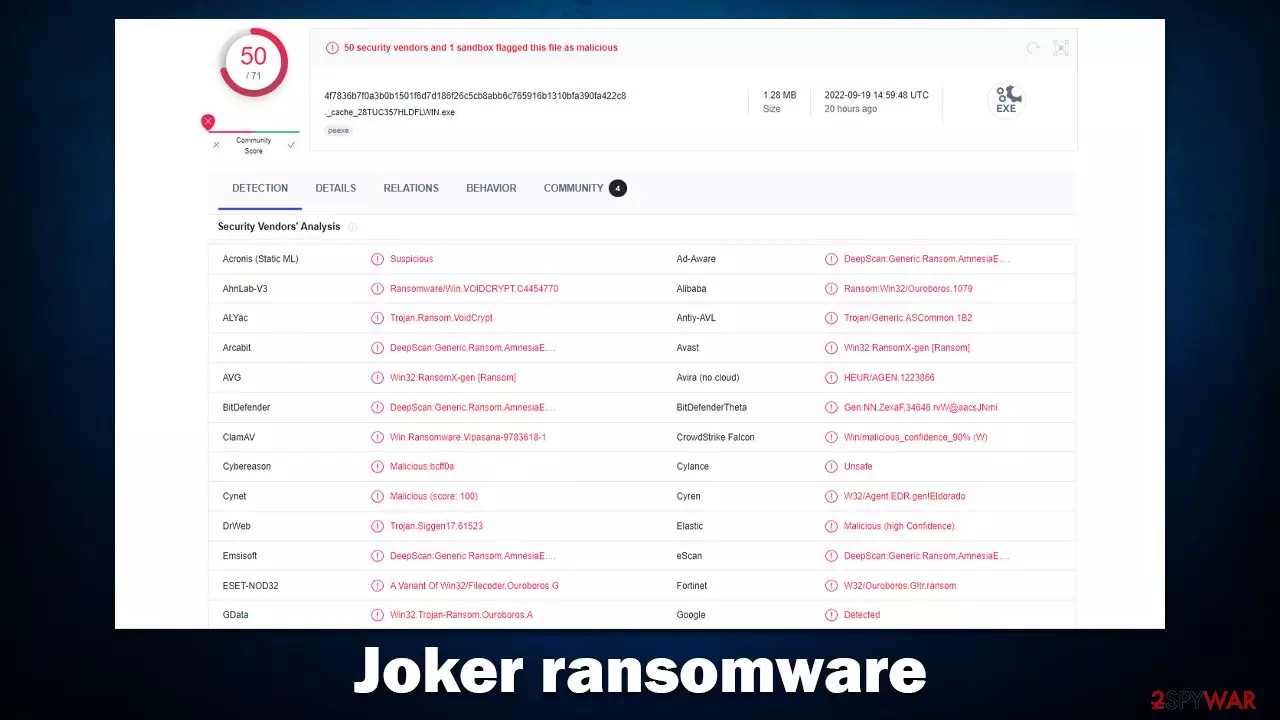
Joker ransomware is a piece of malicious code written by hackers and designed for Windows computers. The main goal of malware is to ensure that all personal files located on it are locked and inaccessible to their owners. It reaches that goal by using a sophisticated encryption algorithm, which also appends the following extension to each of the pictures, videos, documents, databases, and other important files:
- .(ID)(suppransomeware@tutanota.com).Joker
After all personal files have been locked, Joker ransomware provides two ransom notes – Decryption-Guide.HTA and Decryption-Guide.txt. Both of these represent messages from the attackers and serve as the main communication means. Within the notes, victims can find the contact information, which includes suppransomeware@tutanota.com and suppransomeware@mailfence.com emails, and also read more about what actually happened to their files.
Joker virus stems from a well-established ransomware family known as VoidCrypt, variants of which we have already described in our previous articles – a few examples include CRPT, Ballacks, HIP1, Angry, etc. In this article, we will explain how to deal with ransomware infection and how to attempt to restore files without paying criminals.
| Name | Joker virus |
|---|---|
| Type | Ransomware, file-locking virus |
| Malware family | VoidCrypt |
| File extension | .(ID)(suppransomeware@tutanota.com).Joker |
| Ransom note | Decryption-Guide.HTA and Decryption-Guide.txt |
| Contact | suppransomeware@tutanota.com and suppransomeware@mailfence.com |
| File Recovery | Data backups are the only safe option to recover files. Possibilities for recovery are quite restricted if they are unavailable or were also encrypted; we list all potential alternatives below |
| Malware removal | After disconnecting the computer from the network and the internet, do a complete system scan using the SpyHunterCombo Cleaner security software |
| System fix | Once installed on the system, malware might seriously damage some system files, resulting in crashes, errors, and other stability issues. You can employ FortectIntego PC repair to fix any of such damage automatically by replacing system corruption |
Ransomware delivers two ransom notes – a pop-up window and a text file
VoidCrypt is a widespread ransomware threat that first surfaced back in 2020 and has been going strong ever since. Malware is known for its usage of extensions containing several components, usually cybercriminals' email addresses and unique IDs assigned to each of the victims. The ransom note, which is one of the main components of any ransomware nowadays, is also shown in two different versions – a pop-up and a regular text file.
In the case of Joker ransomware, both of the ransom notes provide identical information, so it is likely that two notes are used just as a backup in case one of them fails to be delivered or may not be noticed by the victim. Both of the notes provide the following message from malware authors:
Your Files Are Has Been Locked
Your Files Has Been Encrypted with cryptography Algorithm
If You Need Your Files And They are Important to You, Dont be shy Send Me an Email
Send Test File + The Key File on Your System (File Exist in C:/ProgramData example : RSAKEY-SE-24r6t523 pr RSAKEY.KEY) to Make Sure Your Files Can be Restored
Make an Agreement on Price with me and Pay
Get Decryption Tool + RSA Key AND Instruction For Decryption Process
Attention:
1- Do Not Rename or Modify The Files (You May loose That file)
2- Do Not Try To Use 3rd Party Apps or Recovery Tools ( if You want to do that make an copy from Files and try on them and Waste Your time )
3-Do not Reinstall Operation System(Windows) You may loose the key File and Loose Your Files
4-Do Not Always Trust to Middle mans and negotiators (some of them are good but some of them agree on 4000usd for example and Asked 10000usd From Client) this Was happened
Your Case ID :
OUR Email :suppransomeware@tutanota.com
in Case of no answer: suppransomeware@mailfence.com
As is typical for any ransomware extortionists, these ones also try to convince people that their best bet of restoring files back to normal is to pay the demanded ransom. While it is true that data may get damaged during alternative file recovery procedures, there's a way around this – to make a copy of locked data before proceeding.

And no, cybercriminals don't know whether or not the recovery tool would be successful or not in this regard, so you should ignore everything they say and use an alternative route when tacking Joker ransomware infection. We explain all the steps below.
Removal steps
Many users who get infected with ransomware are actually first-timers in that regard, and many are not aware of how this particular malware operates or how they should deal with it. Some people might straight-out panic when realizing that their data is no longer accessible. While it is an understandable reaction, there's no need for that, as once ransomware infects the system and locks files, the deed is already done, and you should look into how to resolve the situation quickly.
While some ransomware tends to self-destruct after performing encryption, this may not always be true. For example, it is commonly spread along with other malware, such as data-stealers or keyloggers, so it is important that all malware components are eliminated at once. The easiest way of doing that is by employing powerful anti-malware software, such as SpyHunterCombo Cleaner or MalwarebytesMalwarebytes. It is best to disconnect the system from the internet before using the security app.
Note that security software's operation may be hindered by malware in some cases, which may result in incomplete removal or other issues. In such a case, you can access Safe Mode and perform Joker virus removal from there:
Windows 7 / Vista / XP
- Click Start > Shutdown > Restart > OK.
- When your computer becomes active, start pressing the F8 button (if that does not work, try F2, F12, Del, etc. – it all depends on your motherboard model) multiple times until you see the Advanced Boot Options window.
- Select Safe Mode with Networking from the list.


Windows 10 / Windows 8
- Right-click on the Start button and select Settings.
- Scroll down to pick Update & Security.
- On the left side of the window, pick Recovery.
- Now scroll down to find the Advanced Startup section.
- Click Restart now.
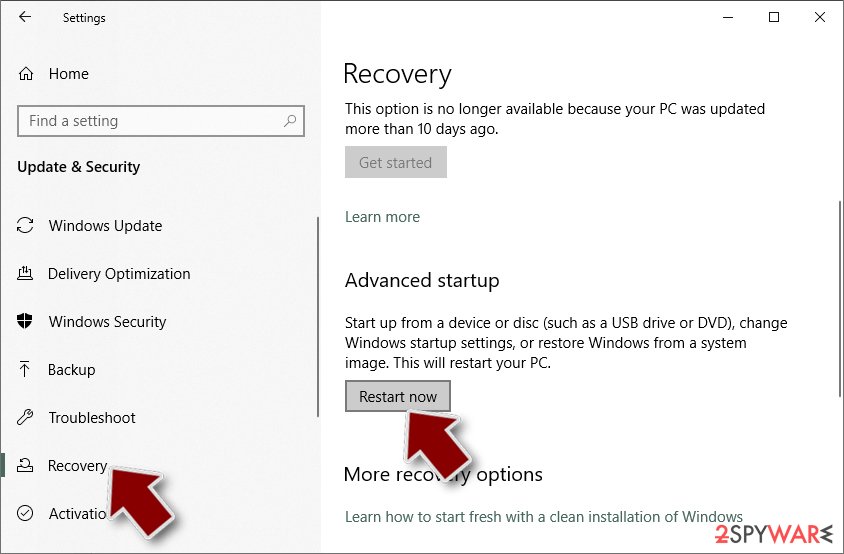
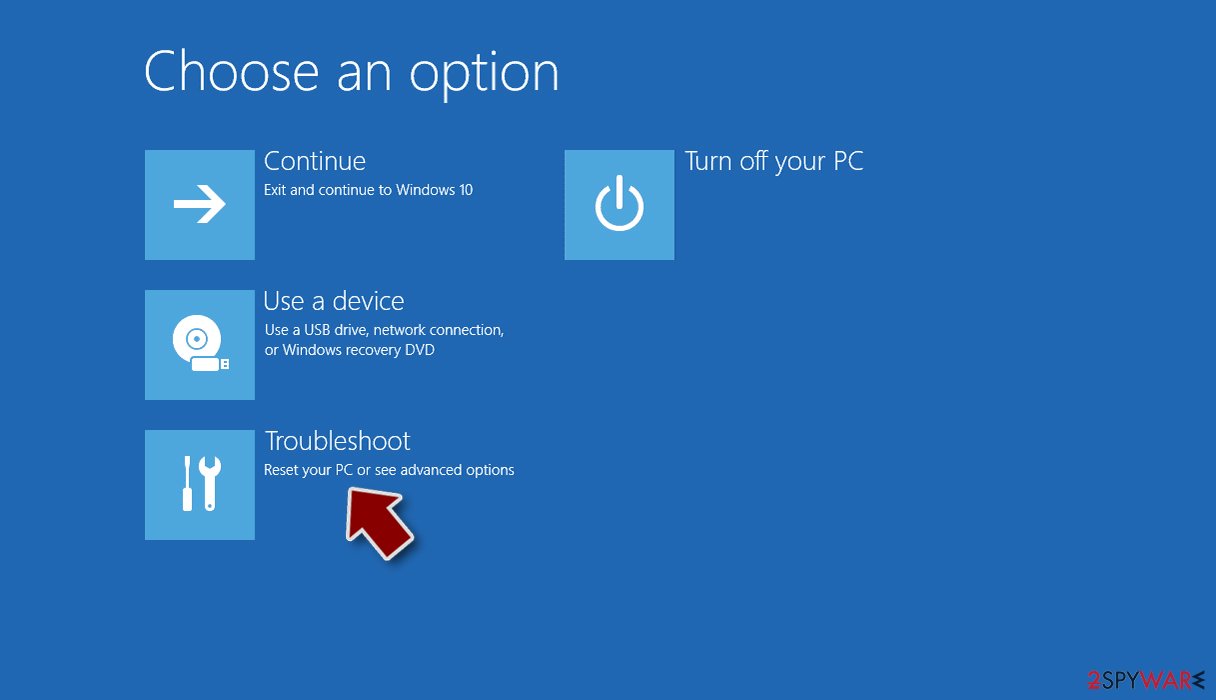
- Select Troubleshoot.
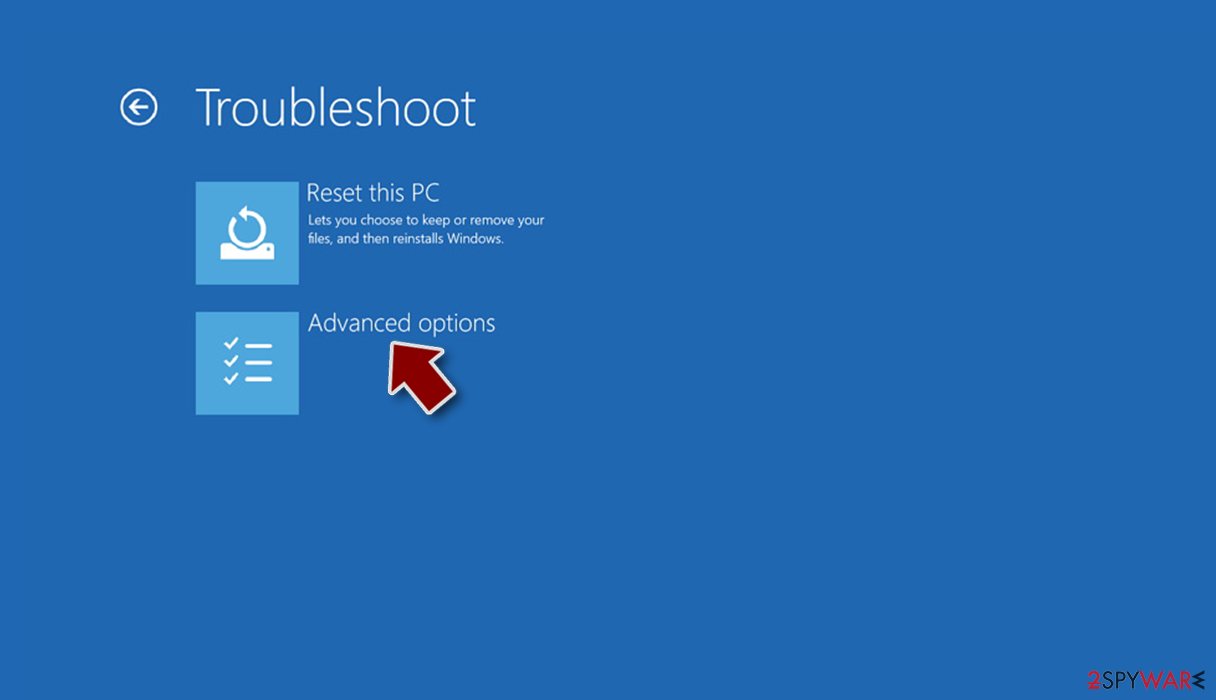
- Go to Advanced options.
- Select Startup Settings.
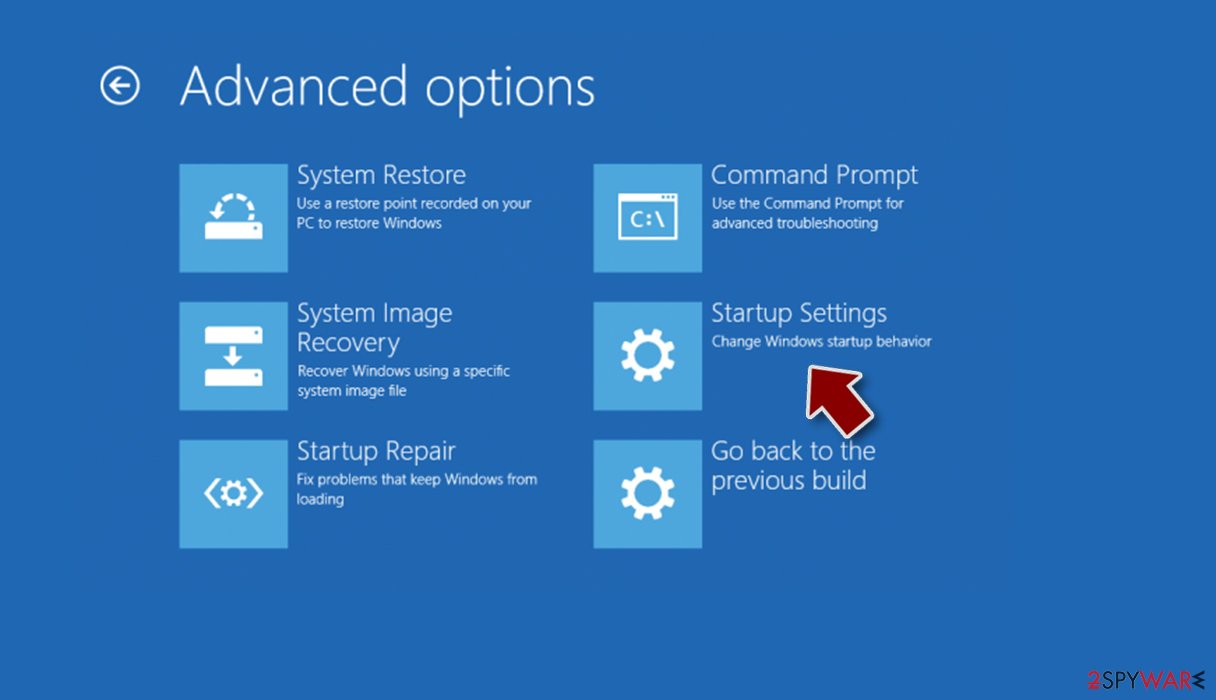
- Click Restart.
- Press 5 or click 5) Enable Safe Mode with Networking.


Fix damaged system components
Malware alters a computer's operating system so that it no longer functions as designed. An infection, for instance, has the ability to remove or corrupt DLL[1] files, change the Windows registry database, harm essential boot up and other sections, etc. Antivirus software cannot repair system files once they have been corrupted by malware, leaving them in their current state. As a result, customers may have problems with performance, stability, and usability to the point where a complete reinstallation of Windows is necessary.
Thus, you should employ specialized PC repair software capable of targeting system file corruption and replacing it with brand new, working files. As a result, you can easily forget crashes, BSODs[2], errors, and other issues stemming from the aftermath of malware infection.
- Download FortectIntego
- Click on the ReimageRepair.exe
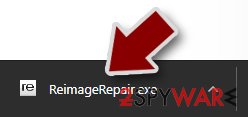
- If User Account Control (UAC) shows up, select Yes
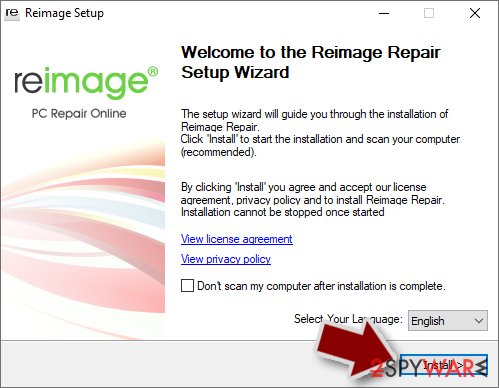
- Press Install and wait till the program finishes the installation process
- The analysis of your machine will begin immediately
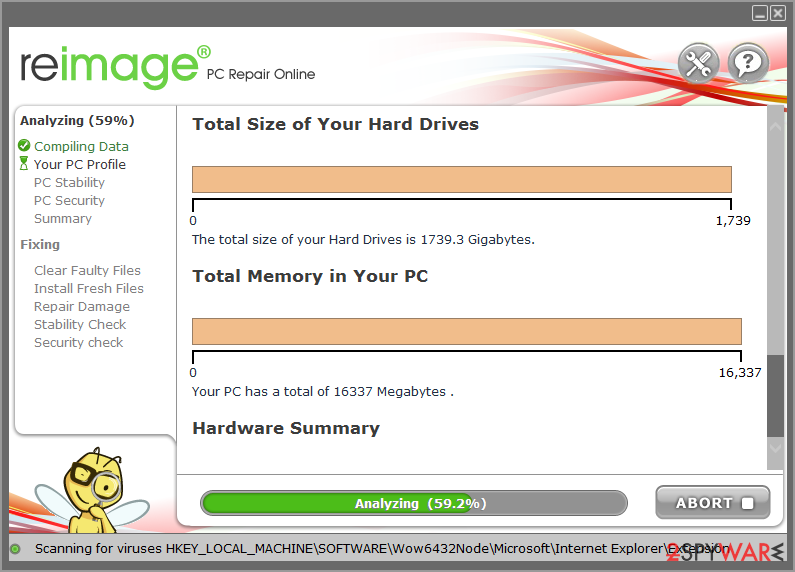
- Once complete, check the results – they will be listed in the Summary
- You can now click on each of the issues and fix them manually
- If you see many problems that you find difficult to fix, we recommend you purchase the license and fix them automatically.



Data recovery and other tips
After having your files encrypted by ransomware, you may find yourself in a tough spot: paying crooks does not guarantee that they will send you the promised decryption software, but you also want to recover your data. As mentioned, it is not advised to pay.
Experts in the field of digital forensics are frequently employed on decryption tools for prominent ransomware variants. In some circumstances, flaws in the encryption method may be identified or criminal servers seized by law authorities agencies.[3] While this may not always be the case, we recommend keeping an eye out for such tools surfacing at some point, although keep in mind that it may never happen. So far, VoidCrypt variants have not been cracked yet.
- No More Ransom Project
- Free Ransomware Decryptors by Kaspersky
- Free Ransomware Decryption Tools from Emsisoft
- Avast decryptors

Another way for data recovery is specialized third-party software. While it is not originally designed to decrypt files locked by ransomware, it may, in some cases (when Shadow Copies failed to be deleted by the virus, for example), manage to retrieve them from the hard drive. Before proceeding, make sure you back up encrypted files or they may get destroyed in the process.
- Download Data Recovery Pro.
- Double-click the installer to launch it.

- Follow on-screen instructions to install the software.
- As soon as you press Finish, you can use the app.
- Select Everything or pick individual folders which you want the files to be recovered from.
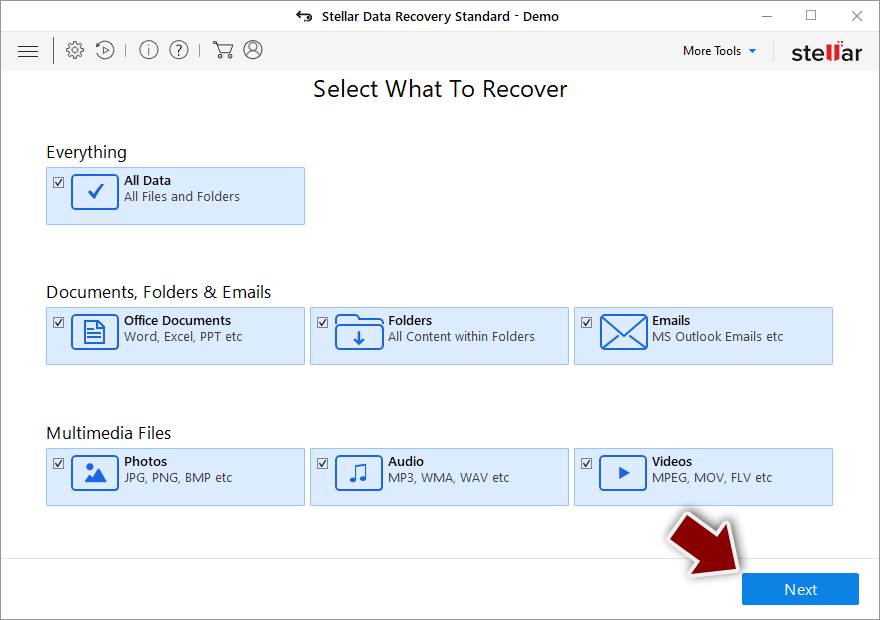
- Press Next.
- At the bottom, enable Deep scan and pick which Disks you want to be scanned.

- Press Scan and wait till it is complete.
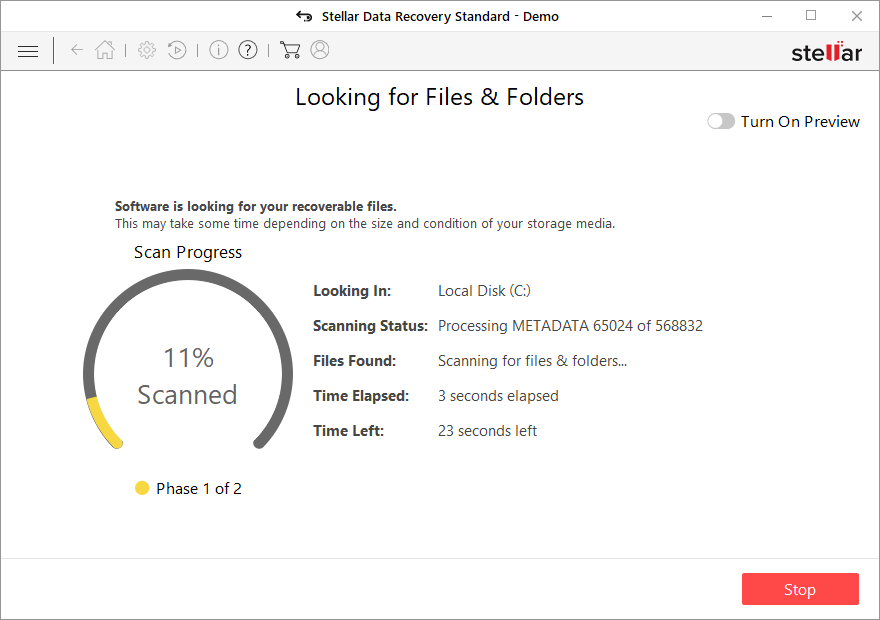
- You can now pick which folders/files to recover – don't forget you also have the option to search by the file name!
- Press Recover to retrieve your files.


Did this guide help?
Be the first to comment