

Julypromob2.click ads show misleading messages to make people purchase questionable software
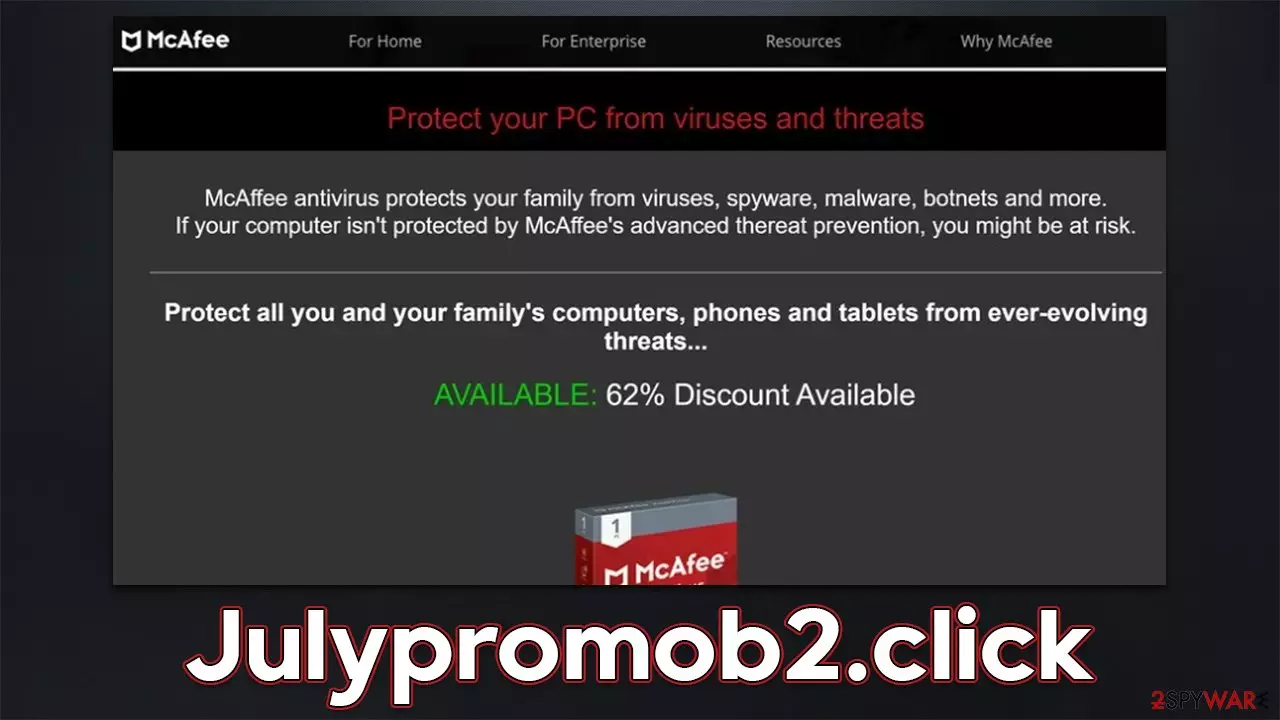
Julypromob2.click is a scam website designed by scammers to profit from affiliate marketing schemes. Initially, users might access this website due to adware[1] that is secretly running on their systems or because they stumbled upon another malicious link somewhere else. Regardless of how people get here, they are always caught off guard, which makes them more vulnerable to making mistakes.
Upon entering the Julypromob2.click site, users are presented with deliberately misleading material, which makes many people alarmed about their computer health. To be more precise, the page claims that the system has been infected with viruses or that it is in danger because no security software was detected. The site also represents itself as a McAfee security vendor, which is not true at all.
Those who believe the message would be automatically redirected to the download page of the alleged security software. While this may be a legitimate page, you might sometimes be redirected to a fake one, resulting in malware infections and similar issues. We recommend you do not download anything from sites that use unfair practices to distribute software. Instead, you should rely on reputable tools to ensure that no adware is present on your system.
| Name | Julypromob2.click |
| Type | Scam, phishing, redirect, adware |
| Operation | Uses deceptive, misleading messages to make people install potentially unwanted or even malicious programs/extensions |
| Distribution | Redirects from other websites, adware |
| Risks | Installation of PUPs or malware, sensitive information disclosure, financial losses |
| Removal | Interacting with the scam might result in malware or PUP infection and pose privacy risks. Don't forget to check your system with reputable anti-malware |
| Other tips | Third parties can employ cookies to continue tracking your online activities, so we recommended clearing browser caches and other leftover PUP files with FortectIntego |
The scam scheme explained
Websites imitating McAfee or Norton security software scans have been on the rise, and we have seen plenty of websites that want to capitalize on that trend. Just recently, we described Antivirus-here.com, Protectwatch.xyz, Antivirus-click.com, Magmaaffiliate.store, and many more websites that operate in exactly the same manner.
Upon entering the website, users are shown what seems to be a virus scan by a reputable security vendor. After a short while, they are presented with alleged results, which claim that the system has been infected with malware and that the security software needs to be installed, updated, or subscribed to remove the infections. There are a few message variations, but here's one of the examples:
McAfee
Your PC is infected with 5 viruses!
ACTION REQUIRED!
Your Norton Subscription Has Expired!
Renew now to keep your pc protected.
If your PC is unprotected, it is at risk for viruses and other malware.
None of the websites are capable of finding and reporting malware located on your system – only a dedicated security application can do that. What looks like anti-virus scans are actually modified pop-up windows that have nothing to do with the original security vendor – it's done only to frighten users.

Find and remove malicious software from your system
Most commonly, users encounter scam websites whenever they are already visiting a high-risk site. For example, illegal movie streaming sites or torrents are known for their insertion of fake “Download” buttons and even malicious scripts.[2] Users might be taken to any suspicious website from there, including Julypromob2.click.
Alternatively, if you see that your browser is redirecting you to ad-filled or otherwise suspicious websites, it is time to check your device for infections. Adware, for example, is dubious software that specializes in exposing users to deals, offers, pop-ups, redirects, and other intrusive advertisements and also tracks user data in the background.
Therefore, to get rid of Julypromob2.click redirects, you should find and remove adware from your device. One of the most convenient and effective ways of doing that is by scanning the system with SpyHunterCombo Cleaner, MalwarebytesMalwarebytes, or another powerful anti-malware application. It would ensure that malware is found and removed at once.
While the manual steps are not necessary if you have already used security software, clearing web browsers is advisable because it can help to protect your privacy. For an automatic solution, use FortectIntego instead – it can also fix any inconsistencies or damage done to the system.
To check the programs installed on the system level, you should access the list of the installed applications as follows:
Windows
- Enter Control Panel into Windows search box and hit Enter or click on the search result.
- Under Programs, select Uninstall a program.

- From the list, find the entry of the suspicious program.
- Right-click on the application and select Uninstall.
- If User Account Control shows up, click Yes.
- Wait till uninstallation process is complete and click OK.



Mac
While moving apps into Trash is how you delete most normal applications, adware tends to create additional files for persistence. Thus, you should look for .plist and other files that could be related to the virus. If you are not sure, skip this step entirely.
- From the menu bar, select Go > Applications.
- In the Applications folder, look for all related entries.
- Click on the app and drag it to Trash (or right-click and pick Move to Trash)


To fully remove an unwanted app, you need to access Application Support, LaunchAgents, and LaunchDaemons folders and delete relevant files:
- Select Go > Go to Folder.
- Enter /Library/Application Support and click Go or press Enter.
- In the Application Support folder, look for any dubious entries and then delete them.
- Now enter /Library/LaunchAgents and /Library/LaunchDaemons folders the same way and terminate all the related .plist files.
Adware can also be installed as an extension on your browser. It is easy to get rid of it – all you have to do is click the “Extensions” button at the top-right of the corner of your browser and then uninstall everything suspicious. If you have many add-ons installed and aren't sure which one is causing suspicious behavior, simply uninstall them all. To clean your browsers from cookies[3] and other trackers, please follow these steps:
Google Chrome
- Click the Menu and pick Settings.
- Under Privacy and security, select Clear browsing data.
- Select Browsing history, Cookies and other site data, as well as Cached images and files.
- Click Clear data.


Mozilla Firefox
- Click Menu and pick Options.
- Go to Privacy & Security section.
- Scroll down to locate Cookies and Site Data.
- Click on Clear Data…
- Select Cookies and Site Data, as well as Cached Web Content and press Clear.


MS Edge (Chromium)
- Click on Menu and go to Settings.
- Select Privacy and services.
- Under Clear browsing data, pick Choose what to clear.
- Under Time range, pick All time.
- Select Clear now.


Safari
- Click Safari > Clear History…
- From the drop-down menu under Clear, pick all history.
- Confirm with Clear History.


Did this guide help?
Be the first to comment