

Notice-booster.site – an infection that changes calendar entries with deceptive alerts and ads
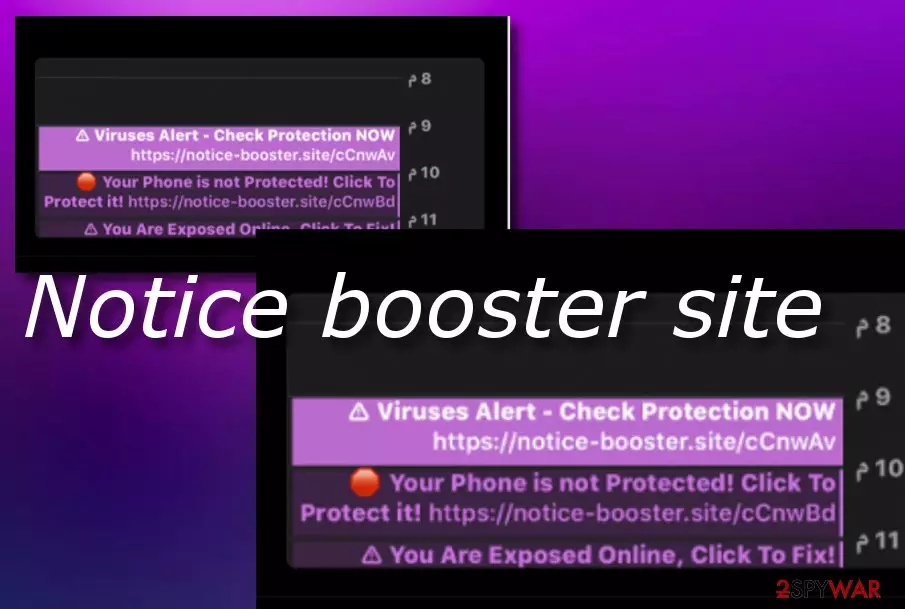
Notice Booster site is a potentially unwanted program[1] that targets iPhones and macOS devices and changes their calendar events. Regarding this fact, the app refers to the iPhone virus and Mac virus categories. Once this threat infects a machine, it usually goes straight for web browsers such as Google Chrome, Mozilla Firefox, and Safari.
The infection can interfere with specific browser settings such as the homepage, new tab URL. Also, you are likely to start receiving an entire flood of incoming ads and get redirected to sponsored online sources. It also targets the calendar app that is placed on the affected device. It includes misleading and fake virus warnings as calendar events and when the set time comes the user receives a notification.
This type of scamming technique is widely employed by the developers of the Calendar virus. Notice-booster.site is not the only application that holds this type of functionality, the are tons of similar infections that also seek to replace the calendar's events with their own notifications.
| Name | Notice-booster.site |
|---|---|
| Type | Potentially unwanted program (PUP) |
| Category | iPhone virus, Mac virus, Calendar virus |
| Targets | This suspicious application has been discovered mostly targetting iPhone devices but it can also appear on macOS computers |
| Functions | One of the main goals of this PUP is to hack the calendar that is found on the affected device and include suspicious notifications such as misleading virus alerts as calendar events that show up at the chosen time. Furthermore, this app can infiltrate web browsers and start producing intrusive pop-ups, pop-unders, banner ads, begin redirecting the user to affiliate pages some of which might be malware-laden |
| Spreading | Potentially unwanted programs are mostly spread with the help of a deceptive technique that is known as “bundling”. This way the suspicious app enters computers and devices through other free packages of software when the Recommended or Quick downloading mode is set as default |
| Elimination | If you are wondering how to properly get rid of the threat, we recommend using reliable anti-malware software that would be capable of detecting the PUP and removing it within a few minutes of time. Also, you can try using the manual step-by-step guidelines that have been included at the end of this article |
| Fix tip | If you have discovered any system compromisation which is definitely possible, you should try repairing the altered areas with automatical software such as FortectIntego |
Notice-booster iPhone appears on systems that have set the Recommended or Quick downloading option as default. The infiltration process often happens by employing a deceptive strategy known as “software bundling”. When the user aims for a download of some type of third-party app, he also receives the PUP as an “additional prize”.
Even though the application is not as harmful as serious malware (ransomware, trojans), it still completes unwanted alterings to web browsers and system components such as the calendar app that gets completely hacked.
Notice booster site has a goal to intrude users with its pop-up notifications that appear whenever the set calendar event comes to time. Usually, the PUP will spam you with misleading alerts claiming that there is some type of virus, system damage, or data exposure happening that can be fixed by clicking on the suggested hyperlink.
We strongly recommend not to fall for believing in any type of content that comes from the infection as it all is misleading and has shady aims. Do not click on the notifications and hyperlinks that you are provided with. The links can lead you to some types of sponsored websites some of which might be potentially dangerous.

Furthermore, the treacherous site might try to encourage you to purchase some rogue security software as a way to “solve all of the problems”. However, you will be suggested to download a questionable cleaner or optimizer that would not bring you any true value. If you decide to get the offered app, you will just end up wasting your money.
Notice Booster site can also provide you with fake prize claims and surveys. Do not fall for believing in this type of content as it is also a scam. The developers might seek to swindle your money or reveal some personal information. Do not provide these people with any sensitive details as you risk getting your identity or credentials stolen.
As we have already mentioned, the site aims to alter web browser setting such as the homepage and new tab URL. You might also find your Safari or another web browser filled with unknown extensions and plug-ins. Nevertheless, all of these changes can be permanently reversed only by deleting the guilty potentially unwanted program.
If Notice-booster.site hacks your browser apps, you are likely to get redirected to affiliate pages while using the infected web browser. This type of activity might not seem a big deal for you at first but it can slightly slow down your browsing work. Nevertheless, you risk ending up on a potentially malicious website and get your device infected with malware.

The parasite site can also trigger intrusive advertisements on the infected web browser. Pop-ups, pop-unders, banners, and in-text ads might start appearing whenever you try to browse the web. The display of advertising content and users' clicks on it helps the developers gain monetary benefits by employing the pay-per-click marketing strategy.
Notice-booster.site might also be capable of tracking browsing-related details by including objects such as HTTP cookies,[2] beacons, or pixels into the hacked web browsers. The PUP can aim to target data such as recently visited websites, clicked links, saved bookmarks, your IP, and share the details with other parties for monetary income.
Its removal is the only thing that would prevent or stop such activities. Besides, if you want your calendar to stop spamming you with misleading notifications, you should definitely get rid of the threat that is responsible for such activity. Also, eliminating the PUP is the only way to get your web browsers back to normal, you can do that either manually, or with MalwarebytesMalwarebytes, SpyHunterCombo Cleaner, or similar anti-malware software.
If you are looking for a way to remove Notice Booster site, we suggest employing reliable antimalware software that will complete the process in a few minutes. Also, you can use our step-by-step guide that is added at the end of this article. For repairing all alterings on your system, try downloading and launching a tool such as FortectIntego.
Opt-out of installing PUPs by choosing the right installation mode
Technology experts from Virusai.lt[3] claim that potentially unwanted programs can be tracked down easily if the user gains some knowledge in their distribution field and takes responsibility for his computer safety. According to reports, PUPs are very likely to get delivered through a deceptive strategy named “software bundling”.[4] This technique allows injecting the adware into an entire package of software and downloading it to the system unknowingly.
Such downloads succeed when the user has chosen the Quick or Recommended installation technique for completing product downloading. This type of option does not outline the additional components that come in an entire package of software and allows the adware or another PUP to infiltrate the machine without the user's permission. To avoid encountering unwanted apps on your PC or another device, opt for the Custom configuration and stay safe.
This type of mode allows tracking all incoming objects that the user is downloading from the Internet. While using this feature, you should go through the entire list of downloads and deselect those objects that look suspicious to you. Also, you should avoid downloading software from secondary sources such as cnet.com and softonic.com. Last but not least, download and install a reliable antivirus tool that will drop alerts if a deceptive website is ahead.
Get rid of the parasite from your Apple device
Notice Booster site is a spam campaign that attacks Apple devices such as mobile phones. Due to the increasing popularity of such infections and a big number of iPhone users affected, we decided to provide some step-by-step guidelines on the removal process of this virus. Here are some steps that you can complete with your mobile device:
- If you have been encountering suspicious device changes and activities lately, you should navigate to the Settings section.
- When you are there, find the General option and tap on it.
- Then, select to Erase All Contents. Afterward, check if the unwanted tasks persist or have been terminated.
The potentially unwanted program that is responsible for the appearance of Notice Booster site can also initiate some unwanted rerouting to affiliate domains or start pushing sponsored advertisements by employing your infected web browser app. If you want to prevent all of the advertising and redirecting activities, try completing the following steps:
- Open the Settings section once more.
- Find and tap on the Safari web browser icon.
- Afterward, choose Clear History and Website Data.
- Close the browser window and see if this method has helped.
Remove the threat and restore the overall health of your device
Removal is a necessary step to take if you want to get rid of the spam campaign that has ettled on your Apple Machine. If you do not terminate the cause of this app that usually is a potentially unwanted program, the intrusive spamming activities will likely not stop.
You should remove Notice Booster site with the help of automatic software that will detect the rogue application and get rid of it. This type of process will take only a few minutes of time. Also, you can try to get rid of the cyber threat and all additional content with the help of the manual step-by-step guidelines that have been added to the end of this article.
When the virus is gone from your computer, do not forget to check and clean web browsers such as Google Chrome, Safari, and Mozilla Firefox as these apps can also be filled with unexpected content and have gotten their settings such as the default homepage and new tab URL bar modified by the responsible adware.
Delete from macOS
Remove the unwanted application:
- From the menu bar, select Go > Applications.
- In the Applications folder, look for any suspicious entries, then drag them to Trash (or right-click and pick Move to Trash).


Delete leftover files and folders:
- Select Go > Go to Folder.
- Enter /Library/Application Support and remove any suspicious folders related to the unwanted program.
- Repeat the same check in the /Library/LaunchAgents and /Library/LaunchDaemons folders, deleting any suspicious entries.

- Finally, empty the Trash to permanently remove the leftovers.

Remove from Mozilla Firefox (FF)
Remove dangerous extensions:
- Open Mozilla Firefox browser and click on the Menu (three horizontal lines at the top-right of the window).
- Select Add-ons.
- In here, select the unwanted extension and click Remove.


Reset the homepage:
- Click three horizontal lines at the top right corner to open the menu.
- Choose Settings.
- Under Home, set your preferred homepage and new tab settings.
Clear cookies and site data:
- Click Menu and pick Settings.
- Go to Privacy & Security section.
- Scroll down to locate Cookies and Site Data.
- Click on Clear Data...
- Select Cookies and Site Data and Temporary cached files and pages, then click Clear.


Reset Mozilla Firefox
If clearing the browser as explained above did not help, reset Mozilla Firefox:
- Open Mozilla Firefox browser and click the Menu.
- Go to Help and then choose Troubleshooting Information.

- Under Give Firefox a tune up section, click on Refresh Firefox...
- Once the pop-up shows up, confirm the action by pressing on Refresh Firefox.



Remove from Google Chrome
Delete malicious extensions from Google Chrome:
- Open Google Chrome, click on the Menu (three vertical dots at the top-right corner) and select More tools > Extensions.
- In the newly opened window, you will see all the installed extensions. Uninstall all suspicious extensions related to the unwanted program by clicking Remove.


Clear cache and web data from Chrome:
- Click on Menu and pick Settings.
- Under Privacy and security, select Clear browsing data.
- Select Browsing history, Cookies and other site data, as well as Cached images and files.
- Click Clear data.


Change your homepage:
- Click menu and choose Settings.
- Look for a suspicious site in the On startup section.
- Click on Open a specific or set of pages and click on three dots to find the Remove option.
Reset Google Chrome:
If the previous methods did not help you, reset Google Chrome to eliminate all the unwanted components:
- Click on Menu and select Settings.
- In the Settings, scroll down and click Advanced.
- Scroll down and locate Reset and clean up section.
- Now click Restore settings to their original defaults.
- Confirm with Reset settings.


Delete from Safari
Remove dangerous extensions:
- Open Safari, click Safari in the menu at the top-left of the screen, and select Preferences.
- Go to the Extensions tab, look for any suspicious entries, and click Uninstall to remove them.


Clear history and website data:
- Click Safari in the menu and pick Clear History.
- Set Clear to all history and confirm with Clear History.


Reset Safari:
- Click Safari in the menu and select Preferences > Advanced.
- Enable Show Develop menu in menu bar.
- From the menu bar, click Develop and select Empty Caches.


Did this guide help?
Be the first to comment