

Quick Search Tool is a browser hijacker that seeks to profit from intrusive advertisements
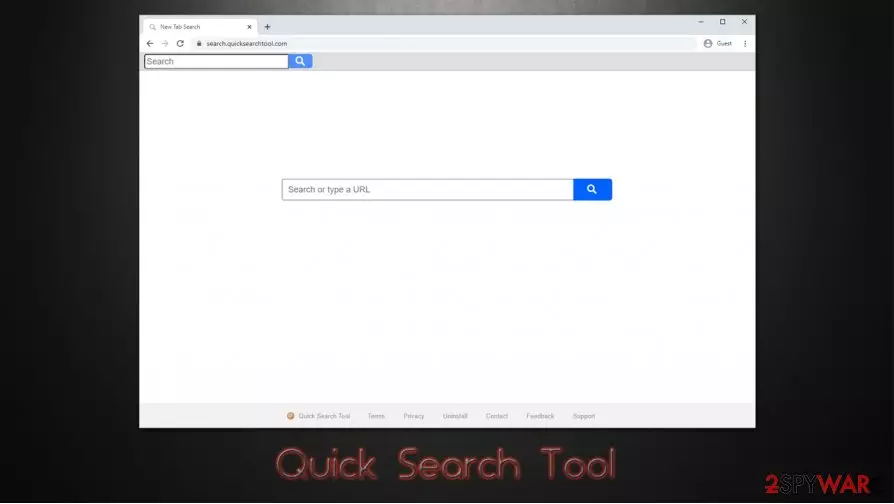
Quick Search Tool is a browser extension that users might download from Google Web store or other reputable sources, although it is most commonly installed along other software downloaded from third-party websites. Since the app is distributed via software bundles (which usually results in unintentional installation), it is categorized as a potentially unwanted program.[1]
It uses typical techniques to change Google Chrome, Mozilla Firefox, MS Edge, Safari, or another web browser settings:
- Changes homepage/new tab URL to search.quicksearchtool.com
- Redirects all searches to search.yahoo.com
- Fills search results with sponsored links and ads.
Besides, the Quick Search Tool virus is also designed to track users' web browsing activities in the background and use these details to deliver targeted advertisements, monetizing ad clicks, or software installs in the process.
| Name | Quick Search Tool |
| Type | Browser hijacker, potentially unwanted program |
| Distribution | Official sources such as Google Web Store, software bundle packages, deceptive advertisements, fake update prompts |
| Symptoms | The browser extension installed on the web browser; homepage and the new tab URL is set to search.quicksearchtool.com; all searches are redirected to Yahoo; search results are littered with sponsored links and other advertisements |
| Dangers | Other potentially unwanted app installation, personal information disclosure to unknown parties, financial losses |
| Removal | You can uninstall most of the potentially unwanted applications with the help of powerful anti-malware software or by following our elimination guide below |
| System fix | In case an anti-malware scan found viruses on your machine, your machine might no longer operate as it did previously. FortectIntego can detect corrupted or deleted system files and restore them for the best computer performance after a malware infection |
This browser hijacker might be often referred to as the virus due to its deceptive infiltration techniques. As noted, PUPs often use software bundles for distribution purposes – these often result in an unintentional installation by the user. As a result, users simply find the add-on or a program installed on their machine, even though they believe that they never gave permission for the software to be installed in the first place.
However, it is not entirely true, as browser hijackers such as Quick Search Tool are installed by users themselves, regardless if it was done without asking them for direct permission. Thus, authors of such apps can point at Terms and Conditions that were accepted during the installation procedure.
Once inside a computer, Quick Search Tool browser hijacker quickly changes the settings of the browser it was installed on. Therefore, one of the first symptoms of infections is the homepage and the new tab URL changes that are usually spotted by users. Nonetheless, we noticed that the app tries to imitate Google's search engine but removes the search bar, making users search the web via its domain.
The next change that users might notice is that the search results are redirected to Yahoo – a legitimate IT company that has been around for years. At the top of the results, several sponsored links, marked as ads, are located, although they are presented in a manner that would make users believe that they are genuine.
The redirect feature that shows users these sponsored links and ads, as Yahoo itself has nothing to do with these. Then again, if the search engine of this reputable company is used, then why not avoid advertisements, as well as potentially dangerous sites and remove Quick Search Tool altogether? You can do that with SpyHunterCombo Cleaner or MalwarebytesMalwarebytes tools.

Another reason for Quick Search Tool removal is its data gathering and sharing practices. All the users who have this browser extension installed on their systems are being tracked – this information (IP address, device information, browser settings, language preferences, system activity, installed extensions, etc.)[2] is even provided once the app is inserted into the browser:
Add “Quick Search Tool”?
It canL
Read and change your data on all quicksearchtool.com sites
Read your browsing history
Change search settings to: search.quicksearchtool.com
Thus, we recommend you uninstall Quick Search Tool virus immediately, as it does not provide any value, but rather tracks you in order to deliver ads during your web browsing sessions. You can eliminate the extension by accessing your web browser settings.
If the elimination process is not successful or ads and other suspicious activity does not stop, we suggest you scan your machine with anti-malware software, reset the web browser as explained below, and then attempt to repair your system with FortectIntego if such need arises.
Stay away from shady ads to avoid potentially unwanted programs
Potentially unwanted programs such as browser hijackers are not considered to be major security threats as ransomware, Trojans, or other malicious programs are. However, security researchers[3] always advise keeping the machine clutter-free, as PUPs can serve as one of the reasons why malware gains access to the computer in the first place. Redirects, deceptive ads, and online scam sites can be encountered at any time, and less experienced users might be tricked into installing malware on their systems.
Besides, browser hijackers are also often used as major information-gathering tools – this data is later shared with affiliates and other parties for marketing purposes. The main goal of PUPs is to deliver minimal functionality for maximum user exposure to advertisements.
To avoid potentially unwanted applications, you should first ensure that you proceed with freeware installations carefully, as software bundling is often used. Thus, never rush the installation process, watch out for pre-ticked boxes, decline all the offers, and always choose Advanced settings instead of the Recommended ones when prompted.
Finally, a comprehensive security program can also warn you about incoming threats, as long as it includes a PUP detection feature.

Eliminate Quick Search Tool virus from your browser immediately
There are several reasons why you should remove Quick Search Tool, although the main concern should be security and privacy. It is not uncommon for browser hijackers and other potentially unwanted programs to travel together, so there is a possibility that other PUPs or malware are present on your machine.
Thus, you should first eliminate the hijacker that you know is attached to your web browser. In most cases, all the installed extensions should be visible right away, although some apps might deliberately hide their presence. In such a case, accessing the “Extensions” section of your web browser should suffice to perform a full Quick Search Tool removal.
If the browser changes remain, you should reset Google Chrome, Mozilla Firefox, or another web browser the extension is attached to. If that does not help and you still see ads and redirects, you should perform a full system scan with anti-malware software.
Uninstall from Windows
Uninstall from Windows 10/8:
- Type Control Panel into the Windows search box and open the result.
- Under Programs, select Uninstall a program.


Uninstall from Windows 7/XP:
- Click on Windows Start > Control Panel (Windows XP users should click on Add/Remove Programs).
- In Control Panel, select Programs > Uninstall a program.


Remove the unwanted program:
- In the Programs and Features window, look for any recently installed suspicious entries, select them, and click Uninstall.
- If User Account Control appears, click Yes to confirm, then complete the removal.


Delete from macOS
Remove the unwanted application:
- From the menu bar, select Go > Applications.
- In the Applications folder, look for any suspicious entries, then drag them to Trash (or right-click and pick Move to Trash).


Delete leftover files and folders:
- Select Go > Go to Folder.
- Enter /Library/Application Support and remove any suspicious folders related to the unwanted program.
- Repeat the same check in the /Library/LaunchAgents and /Library/LaunchDaemons folders, deleting any suspicious entries.

- Finally, empty the Trash to permanently remove the leftovers.

Reset Internet Explorer
Remove dangerous add-ons:
- Open Internet Explorer, click on the Gear icon (IE menu) on the top-right corner of the browser
- Pick Manage Add-ons.
- You will see a Manage Add-ons window. Here, look for suspicious plugins. Click on these entries and select Disable.


Change your homepage if it was altered:
- Open IE and click on the Gear icon.
- Select Internet Options.
- In the General tab, delete the Home page address and replace it by your preferred one (for example, Google.com).
- Click Apply and then select OK.


Delete temporary files:
- Press on the Gear icon and select Internet Options.
- Under Browsing history, click Delete...
- Select relevant fields and press Delete.


Reset Internet Explorer:
- Click on Gear icon > Internet options and select Advanced tab.
- Select Reset.
- In the new window, check Delete personal settings and select Reset.


Remove from Microsoft Edge
Delete unwanted extensions from MS Edge:
- Select Menu (three horizontal dots at the top-right of the browser window) and pick Extensions.
- From the list, pick the extension and click on the Gear icon.
- Click Remove.


Clear cookies and other browser data:
- Click on the Menu (three horizontal dots at the top-right of the browser window) and select Settings > Privacy, search, and services..
- Under Clear browsing data, pick Choose what to clear.
- Select Cookies and other site data and Cached images and files. (apart from passwords, although you might want to include Media licenses as well, if applicable) and click on Clear.


Restore new tab and homepage settings:
- Click the menu icon and choose Settings.
- Then find On startup section.
- Click Remove next to any suspicious startup page.
Reset MS Edge if the above steps did not work:
- Press on Ctrl + Shift + Esc to open Task Manager.
- Click on More details arrow at the bottom of the window.
- Select Details tab.
- Now scroll down and locate every entry with Microsoft Edge name in it. Right-click on each of them and select End Task to stop MS Edge from running.


Instructions for Chromium-based Edge
Delete extensions from MS Edge (Chromium):
- Open Edge and click select Settings > Extensions.
- Delete unwanted extensions by clicking Remove.


Clear cache and site data:
- Click on Menu and go to Settings.
- Select Privacy, search and services.
- Under Clear browsing data, pick Choose what to clear.
- Under Time range, pick All time.
- Select Clear now.


Reset Chromium-based MS Edge:
- Click on Menu and select Settings.
- On the left side, pick Reset settings.
- Select Restore settings to their default values.
- Confirm with Reset.
- This will disable extensions and reset startup pages but will not delete bookmarks, saved passwords, or browsing history.


Remove from Mozilla Firefox (FF)
Remove dangerous extensions:
- Open Mozilla Firefox browser and click on the Menu (three horizontal lines at the top-right of the window).
- Select Add-ons.
- In here, select the unwanted extension and click Remove.


Reset the homepage:
- Click three horizontal lines at the top right corner to open the menu.
- Choose Settings.
- Under Home, set your preferred homepage and new tab settings.
Clear cookies and site data:
- Click Menu and pick Settings.
- Go to Privacy & Security section.
- Scroll down to locate Cookies and Site Data.
- Click on Clear Data...
- Select Cookies and Site Data and Temporary cached files and pages, then click Clear.


Reset Mozilla Firefox
If clearing the browser as explained above did not help, reset Mozilla Firefox:
- Open Mozilla Firefox browser and click the Menu.
- Go to Help and then choose Troubleshooting Information.

- Under Give Firefox a tune up section, click on Refresh Firefox...
- Once the pop-up shows up, confirm the action by pressing on Refresh Firefox.



Remove from Google Chrome
Delete malicious extensions from Google Chrome:
- Open Google Chrome, click on the Menu (three vertical dots at the top-right corner) and select More tools > Extensions.
- In the newly opened window, you will see all the installed extensions. Uninstall all suspicious extensions related to the unwanted program by clicking Remove.


Clear cache and web data from Chrome:
- Click on Menu and pick Settings.
- Under Privacy and security, select Clear browsing data.
- Select Browsing history, Cookies and other site data, as well as Cached images and files.
- Click Clear data.


Change your homepage:
- Click menu and choose Settings.
- Look for a suspicious site in the On startup section.
- Click on Open a specific or set of pages and click on three dots to find the Remove option.
Reset Google Chrome:
If the previous methods did not help you, reset Google Chrome to eliminate all the unwanted components:
- Click on Menu and select Settings.
- In the Settings, scroll down and click Advanced.
- Scroll down and locate Reset and clean up section.
- Now click Restore settings to their original defaults.
- Confirm with Reset settings.


Delete from Safari
Remove dangerous extensions:
- Open Safari, click Safari in the menu at the top-left of the screen, and select Preferences.
- Go to the Extensions tab, look for any suspicious entries, and click Uninstall to remove them.


Clear history and website data:
- Click Safari in the menu and pick Clear History.
- Set Clear to all history and confirm with Clear History.


Reset Safari:
- Click Safari in the menu and select Preferences > Advanced.
- Enable Show Develop menu in menu bar.
- From the menu bar, click Develop and select Empty Caches.


Did this guide help?
Be the first to comment