

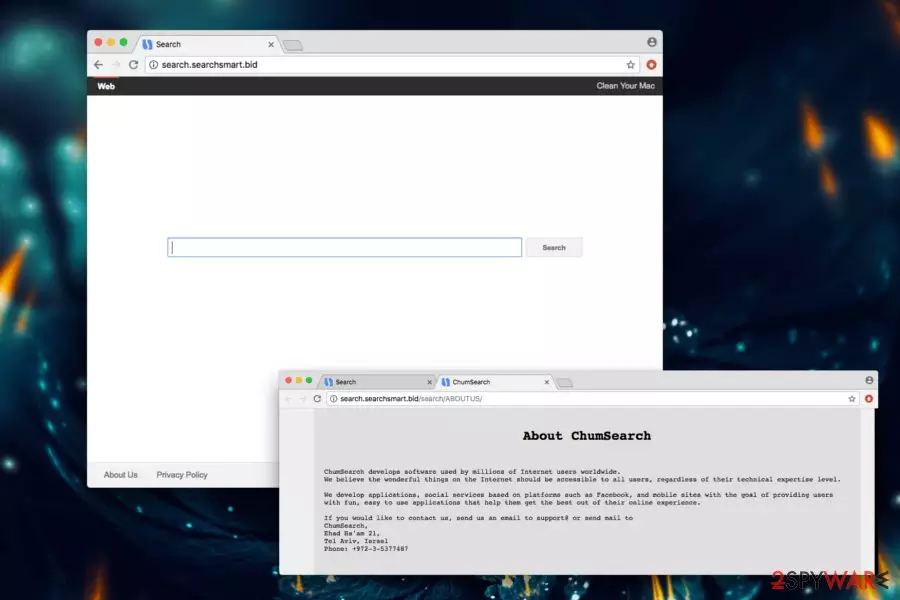
Search.searchsmart.bid is a potentially unwanted application developed by ChumSearch
| Name | Search.searchsmart.bid |
|---|---|
| Type | Browser hijacker |
| Category | Potentially unwanted program |
| Distribution | Freeware installation procedures include techniques like software bundling, so you should remember that when you download applications from the internet |
| Removal | Anti-malware tools should be employed for the proper system cleaning |
| System fix | System optimization and repair tools can find and fix the damage. Try FortectIntego |
Visually, Searchsmart Search looks identical to many other browser hijackers created by ChumSearch – my-search-start.com, chumsearch.com, coolasearch.com, and others. All these applications were designed to generate financial benefits in exchange for compromised users’ computers. Thus, we feel that this tactic is unfair; hence dubious apps should be uninstalled ASAP.
Similarly, as by other hijackers that belong to ChumSearch, the notorious MacKeeper virus is advertised excessively. It is a dubious optimization tool that is known for its questionable functionality and aggressive advertisement techniques (bundling[2] and countless ads).
Unlike most browser hijackers this site does not look attractive at all – it seems like its creators did not even try to impress users. There is a plain search engine in the middle and no shortcuts to any popular websites (this a very known feature of most browser hijackers).
SearchsmartDS is not that dangerous on its own (it does not corrupt system files or damage them in any other way). However, we must note that consequences after using PUP for a prolonged period might be severe. We urge you not to postpone the PUP removal before you put your computer and personal data safety at risk. Rely on SpyHunterCombo Cleaner or MalwarebytesMalwarebytes and get rid of the intrusive app.
Numerous redirects this suspicious app generates might lead you to dangerous websites where malware might be obtained – spyware, trojans, or even ransomware. The latter is an immensely perilous threat that might permanently delete all your files.
The search hijack might affect your browser in other ways – download and install additional PUPs, add-ons, fake toolbars, and similar crapware – all without your permission. Research shows[3] that the modified browser might suffer from continuous lags and crashes, making browsing sessions utterly unenjoyable and annoying.
You should remove search.searchsmart.bid because it might track a variety of non-PII. Thus, every search query, website visited, etc. might be recorded and sold to third parties for profit. Do not let developers of questionable applications monetize at the expense of your disturbed browsing sessions and possibly stolen personal and non-personal information.

Installing free software attentively can protect you from browser hijacks
In most cases, users do not search for applications that would make changes to their browsers on purpose. PUP developers are aware of that. Therefore, they employ a bundling tactic – a viral marketing campaign that distributes (usually) undesirable applications.
This technique lets freeware developers disguise PUPs and adware within installation managers. If the Advanced mode is not used, users unknowingly accept the installation of additional components. Thus, we suggest you never pick Recommended settings, as removal of unwanted apps is usually impossible in this mode. Additionally, we would like to suggest you invest in robust security software which will keep your machine safe.
Two different ways you can eliminate browser threats from your machine
Search.searchsmart.bid removal can be performed either manually or automatically. We have written a manual you can find below this article. This deletion method is not very convenient as it takes a considerable amount of time. Additionally, we do not recommend attempting manual removal if you are not that familiar with computer processes.
To remove the Search virus automatically, you will have to download and install professional anti-malware software. This method can be executed by everybody – even by individuals who never used security software before. Simply follow installation instructions for the desired application and bring it up to date. Then, perform a full computer scan.
Uninstall from Windows
Uninstall from Windows 10/8:
- Type Control Panel into the Windows search box and open the result.
- Under Programs, select Uninstall a program.


Uninstall from Windows 7/XP:
- Click on Windows Start > Control Panel (Windows XP users should click on Add/Remove Programs).
- In Control Panel, select Programs > Uninstall a program.


Remove the unwanted program:
- In the Programs and Features window, look for any recently installed suspicious entries, select them, and click Uninstall.
- If User Account Control appears, click Yes to confirm, then complete the removal.


Delete from macOS
Remove the unwanted application:
- From the menu bar, select Go > Applications.
- In the Applications folder, look for any suspicious entries, then drag them to Trash (or right-click and pick Move to Trash).


Delete leftover files and folders:
- Select Go > Go to Folder.
- Enter /Library/Application Support and remove any suspicious folders related to the unwanted program.
- Repeat the same check in the /Library/LaunchAgents and /Library/LaunchDaemons folders, deleting any suspicious entries.

- Finally, empty the Trash to permanently remove the leftovers.

Remove from Microsoft Edge
Delete unwanted extensions from MS Edge:
- Select Menu (three horizontal dots at the top-right of the browser window) and pick Extensions.
- From the list, pick the extension and click on the Gear icon.
- Click Remove.


Clear cookies and other browser data:
- Click on the Menu (three horizontal dots at the top-right of the browser window) and select Settings > Privacy, search, and services..
- Under Clear browsing data, pick Choose what to clear.
- Select Cookies and other site data and Cached images and files. (apart from passwords, although you might want to include Media licenses as well, if applicable) and click on Clear.


Restore new tab and homepage settings:
- Click the menu icon and choose Settings.
- Then find On startup section.
- Click Remove next to any suspicious startup page.
Reset MS Edge if the above steps did not work:
- Press on Ctrl + Shift + Esc to open Task Manager.
- Click on More details arrow at the bottom of the window.
- Select Details tab.
- Now scroll down and locate every entry with Microsoft Edge name in it. Right-click on each of them and select End Task to stop MS Edge from running.


Instructions for Chromium-based Edge
Delete extensions from MS Edge (Chromium):
- Open Edge and click select Settings > Extensions.
- Delete unwanted extensions by clicking Remove.


Clear cache and site data:
- Click on Menu and go to Settings.
- Select Privacy, search and services.
- Under Clear browsing data, pick Choose what to clear.
- Under Time range, pick All time.
- Select Clear now.


Reset Chromium-based MS Edge:
- Click on Menu and select Settings.
- On the left side, pick Reset settings.
- Select Restore settings to their default values.
- Confirm with Reset.
- This will disable extensions and reset startup pages but will not delete bookmarks, saved passwords, or browsing history.


Remove from Mozilla Firefox (FF)
Remove dangerous extensions:
- Open Mozilla Firefox browser and click on the Menu (three horizontal lines at the top-right of the window).
- Select Add-ons.
- In here, select the unwanted extension and click Remove.


Reset the homepage:
- Click three horizontal lines at the top right corner to open the menu.
- Choose Settings.
- Under Home, set your preferred homepage and new tab settings.
Clear cookies and site data:
- Click Menu and pick Settings.
- Go to Privacy & Security section.
- Scroll down to locate Cookies and Site Data.
- Click on Clear Data...
- Select Cookies and Site Data and Temporary cached files and pages, then click Clear.


Reset Mozilla Firefox
If clearing the browser as explained above did not help, reset Mozilla Firefox:
- Open Mozilla Firefox browser and click the Menu.
- Go to Help and then choose Troubleshooting Information.

- Under Give Firefox a tune up section, click on Refresh Firefox...
- Once the pop-up shows up, confirm the action by pressing on Refresh Firefox.



Remove from Google Chrome
Delete malicious extensions from Google Chrome:
- Open Google Chrome, click on the Menu (three vertical dots at the top-right corner) and select More tools > Extensions.
- In the newly opened window, you will see all the installed extensions. Uninstall all suspicious extensions related to the unwanted program by clicking Remove.


Clear cache and web data from Chrome:
- Click on Menu and pick Settings.
- Under Privacy and security, select Clear browsing data.
- Select Browsing history, Cookies and other site data, as well as Cached images and files.
- Click Clear data.


Change your homepage:
- Click menu and choose Settings.
- Look for a suspicious site in the On startup section.
- Click on Open a specific or set of pages and click on three dots to find the Remove option.
Reset Google Chrome:
If the previous methods did not help you, reset Google Chrome to eliminate all the unwanted components:
- Click on Menu and select Settings.
- In the Settings, scroll down and click Advanced.
- Scroll down and locate Reset and clean up section.
- Now click Restore settings to their original defaults.
- Confirm with Reset settings.


Delete from Safari
Remove dangerous extensions:
- Open Safari, click Safari in the menu at the top-left of the screen, and select Preferences.
- Go to the Extensions tab, look for any suspicious entries, and click Uninstall to remove them.


Clear history and website data:
- Click Safari in the menu and pick Clear History.
- Set Clear to all history and confirm with Clear History.


Reset Safari:
- Click Safari in the menu and select Preferences > Advanced.
- Enable Show Develop menu in menu bar.
- From the menu bar, click Develop and select Empty Caches.


Did this guide help?
Be the first to comment