

Spreediscount.com is a deceptive site that can lead its victims to the data loss by tricking them into participating in fake contests
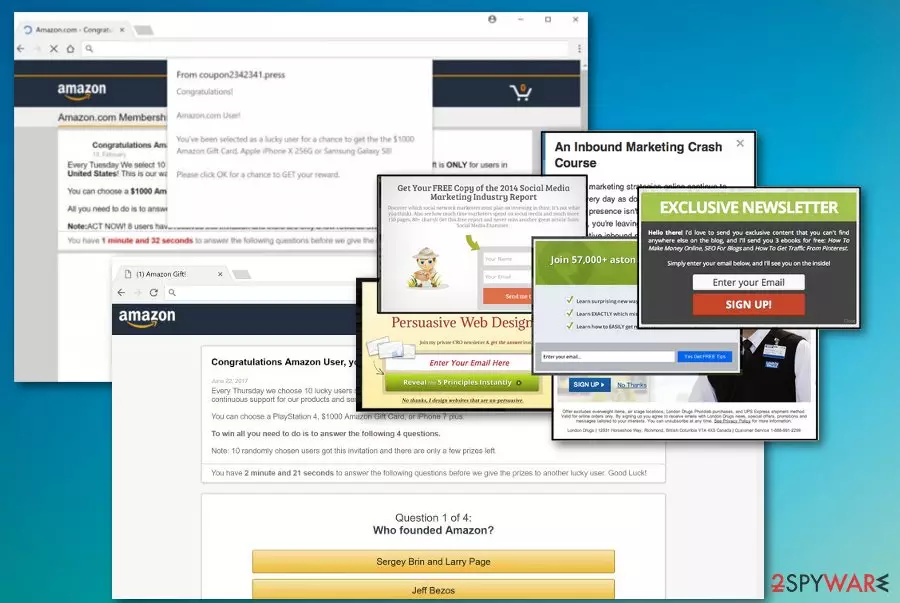
Spreediscount.com is an adware which has been actively causing redirects on Mac operating system. If you got redirected to this site unwillingly, your device is infected with a potentially unwanted program[1] that initiates various redirects and intrusive commercial content each time you start using the affected web browser. While the most of potentially unwanted applications have one purpose of generating revenue, this PUP is seeking to trick its victims into revealing their personal information. Scams that are used by this adware include Congratulations Amazon user, Amazon Membership Rewards, Google Customer Reward Program, and similar scams.
| Name | Spreediscount.com |
|---|---|
| Type | Adware/PUA |
| Symptoms | Redirects your online browsing traffic to malicious sites, deliver intrusive ads seeking to swindle sensitive information |
| related scams |
|
| Affects | Mac computer users |
| Distribution | Software bundles, deceptive ads |
| Elimination | Download and use FortectIntego for detecting malware on your computer |
Spreediscount.com works as a scam stating about a possibility to win valuable prizes like smartphones, Amazon gift cards, and similar useful things. Working similarly to other scams,[2] this program suggests people answer various questions and supposedly maximize their chances to win. Unfortunately, the questionnaire is not going to give you any positive results because it is designed to collect information about your habits online and even your sensitive data.
People often call this website a Spreediscount.com virus because of the unwanted activity that the site causes. However, you are suffering from constant redirects because of the related adware installed on your web browser. While it is not a malicious virus, you shouldn't leave this program on your device because it can easily lead you to serious browsing-related issues and even the loss of important data.
Hackers know that people tend to believe this scam using the name of a well-known company like Amazon. Besides, they claim that the company is giving an opportunity to win an iPhone X or other prizes. However, these surveys are used just to accumulate specific information about the victim, including:
- email address;
- full name;
- the computer's IP address;
- residence;
- browser's type used by the victim,
- search queries;
- most visited websites;
Also, you may be asked to enter more personal details about you. Adware can track your Twitter activity or even ask you to put in the credit card information. This data collecting issue should be the first red flag encouraging you to remove Spreediscount.com virus from the system.
If you want to perform a proper Spreediscount.com removal and improve the performance of your PC, you need to get rid of the virus and fix the damage that it caused. To see if your computer is infected, use FortectIntego. This step is important because silent infections like adware can install other applications and programs without your permission. Besides, they can alter the Registry, add or remove specific files and initiate other changes on the system.

Potentially dangerous programs can be found in software bundles
If you have ever used p2p network sites or other similar services for downloading freeware on your computer, you need to remember that you need to opt for Advanced or Custom options during the installation. According to numerous security researchers,[3] each of these options could help you see the full list of programs bundled together with the app you are willing to install. This step also gives an opportunity to de-select additional applications from the list.
Also, to prevent adware and scams on your browser, you should avoid getting any updates or software from randomly appearing pop-up ads and update alerts. Purchasing apps this way can cause even more issues than occasional PUP. Keeping your software up-to-date using reputable providers can make a huge difference in the security of your device.
Eliminate Spreediscount.com and fix system changes that it caused
To fix the damage this adware program has caused, and to remove Spreediscount.com completely, you should use anti-malware tools like FortectIntego, SpyHunterCombo Cleaner or MalwarebytesMalwarebytes. These programs can detect various cyber infections and silent intruders right after being launched. The scan should take 5 minutes or so to indicate which software needs to be fixed or removed from the system.
It is easy to perform an automatic Spreediscount.com removal using these tools. However, you can follow the manual elimination steps that we provided down below and get rid of the unwanted redirects this way. Clean all of your browsers and remove additional extensions or tools to get rid of the intrusive activity.
Delete from macOS
Remove the unwanted application:
- From the menu bar, select Go > Applications.
- In the Applications folder, look for any suspicious entries, then drag them to Trash (or right-click and pick Move to Trash).


Delete leftover files and folders:
- Select Go > Go to Folder.
- Enter /Library/Application Support and remove any suspicious folders related to the unwanted program.
- Repeat the same check in the /Library/LaunchAgents and /Library/LaunchDaemons folders, deleting any suspicious entries.

- Finally, empty the Trash to permanently remove the leftovers.

Reset Internet Explorer
Remove dangerous add-ons:
- Open Internet Explorer, click on the Gear icon (IE menu) on the top-right corner of the browser
- Pick Manage Add-ons.
- You will see a Manage Add-ons window. Here, look for suspicious plugins. Click on these entries and select Disable.


Change your homepage if it was altered:
- Open IE and click on the Gear icon.
- Select Internet Options.
- In the General tab, delete the Home page address and replace it by your preferred one (for example, Google.com).
- Click Apply and then select OK.


Delete temporary files:
- Press on the Gear icon and select Internet Options.
- Under Browsing history, click Delete...
- Select relevant fields and press Delete.


Reset Internet Explorer:
- Click on Gear icon > Internet options and select Advanced tab.
- Select Reset.
- In the new window, check Delete personal settings and select Reset.


Remove from Mozilla Firefox (FF)
Remove dangerous extensions:
- Open Mozilla Firefox browser and click on the Menu (three horizontal lines at the top-right of the window).
- Select Add-ons.
- In here, select the unwanted extension and click Remove.


Reset the homepage:
- Click three horizontal lines at the top right corner to open the menu.
- Choose Settings.
- Under Home, set your preferred homepage and new tab settings.
Clear cookies and site data:
- Click Menu and pick Settings.
- Go to Privacy & Security section.
- Scroll down to locate Cookies and Site Data.
- Click on Clear Data...
- Select Cookies and Site Data and Temporary cached files and pages, then click Clear.


Reset Mozilla Firefox
If clearing the browser as explained above did not help, reset Mozilla Firefox:
- Open Mozilla Firefox browser and click the Menu.
- Go to Help and then choose Troubleshooting Information.

- Under Give Firefox a tune up section, click on Refresh Firefox...
- Once the pop-up shows up, confirm the action by pressing on Refresh Firefox.



Remove from Google Chrome
Delete malicious extensions from Google Chrome:
- Open Google Chrome, click on the Menu (three vertical dots at the top-right corner) and select More tools > Extensions.
- In the newly opened window, you will see all the installed extensions. Uninstall all suspicious extensions related to the unwanted program by clicking Remove.


Clear cache and web data from Chrome:
- Click on Menu and pick Settings.
- Under Privacy and security, select Clear browsing data.
- Select Browsing history, Cookies and other site data, as well as Cached images and files.
- Click Clear data.


Change your homepage:
- Click menu and choose Settings.
- Look for a suspicious site in the On startup section.
- Click on Open a specific or set of pages and click on three dots to find the Remove option.
Reset Google Chrome:
If the previous methods did not help you, reset Google Chrome to eliminate all the unwanted components:
- Click on Menu and select Settings.
- In the Settings, scroll down and click Advanced.
- Scroll down and locate Reset and clean up section.
- Now click Restore settings to their original defaults.
- Confirm with Reset settings.


Delete from Safari
Remove dangerous extensions:
- Open Safari, click Safari in the menu at the top-left of the screen, and select Preferences.
- Go to the Extensions tab, look for any suspicious entries, and click Uninstall to remove them.


Clear history and website data:
- Click Safari in the menu and pick Clear History.
- Set Clear to all history and confirm with Clear History.


Reset Safari:
- Click Safari in the menu and select Preferences > Advanced.
- Enable Show Develop menu in menu bar.
- From the menu bar, click Develop and select Empty Caches.


Did this guide help?
Be the first to comment