

VirtualDetail – a malicious Mac application that might insert other malware and track your personal data
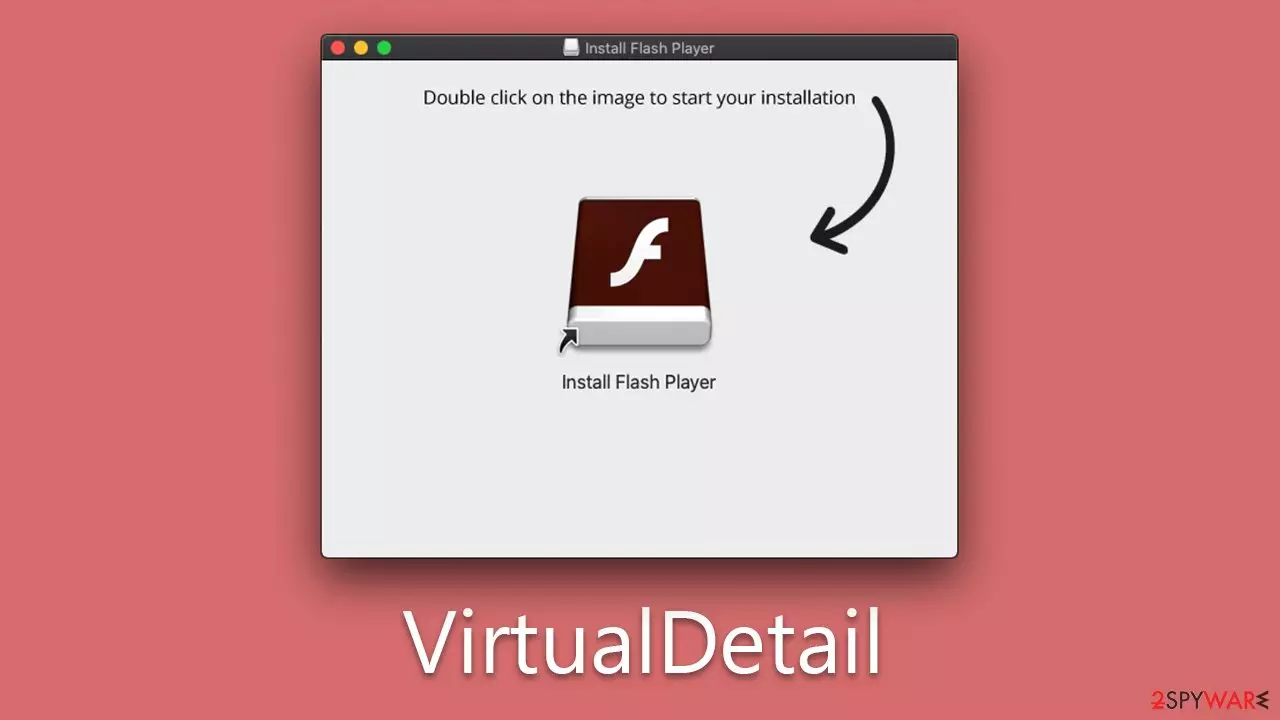
VirtualDetail is a Mac virus belonging to the notorious Adload malware family. This pervasive threat is known for modifying browser settings, inserting intrusive ads during web sessions, and pilfering sensitive personal information like passwords and credit card details. Its primary proliferation technique lies in masquerading as Flash Player installers or other seemingly legitimate software, but in reality, these installers serve as a Trojan horse for the malware's delivery.
Once inside the system, VirtualDetail gains root access and can install other variants of itself or additional malicious components, further endangering system security. Its ad-insertion capabilities not only disrupt the user experience but also pose a risk of additional infections as users could unknowingly click on malicious links or ads.
One of the most distinctive infection symptoms is that users' Safari, Chrome, or other browser settings are changed to Safe Finder or similar suspicious fake search providers.
The risk that VirtualDetail poses to users' privacy and online safety is significant. Users should avoid downloading suspicious software and keep their system and antivirus software updated to lessen potential threats. If your device is exposed to this malware, please follow the information below to remove it successfully.
| Name | VirtualDetail |
| Type | Mac virus, adware, browser hijacker |
| Malware family | Adload |
| Distribution | Fake Flash Player installers or bundled software from malicious sources |
| Symptoms | A new extension is installed on the browser, along with an application of the same name; search and browsing settings altered to an alternative search provider; new profiles and login items set up on the account; intrusive ads and redirects |
| Removal | The easiest way to remove Mac malware is to perform a full system scan with SpyHunterCombo Cleaner security software. We also provide a manual guide below |
| Other tips | After you terminate the infection with all its associated components, we recommend you also scan your device with FortectIntego to clean your browsers and other leftover files from the virus |
Adload: malware strain that won't leave Mac users alone
Adload, a prominent malware family faced by users worldwide, originated around 2017. Developed by an anonymous cybercriminal group, it has evolved into hundreds of versions over the years, with recent ones including LoyalShroud, EssentialLoop, and AdjustableFormat, among others. VirtualDetail is one of the latest addition to the malware family.
Distinct to Adload versions is an icon, typically represented by a teal, blue, or green icon, often featuring a magnifying glass. Owing to the unrestricted system access it enjoys, the malware can autonomously initiate the installation of additional malicious software without user consent. As a result, multiple harmful programs could coexist on a single infected computer.
Upon system penetration, malware promptly executes numerous components, adeptly bypassing Mac's built-in security. This allows the malware to infiltrate the system deeply and take control of certain parts. A common indication of infection includes the appearance of unfamiliar browser extensions on Safari, Chrome, or other web browsers.
Some key features and implications of the VirtualDetail and other versions of malware include:
- Rapid installation and high stealth: Once it infiltrates the system, Adload quickly deploys various components, effortlessly bypassing Mac's inherent security mechanisms.
- Invasive control: It has the capacity to alter key system components, exemplified when users find unanticipated browser extensions added to their internet browsers.
- Association with significant threats: Adload is known to align with other severe malware like the Shlayer Trojan or Crescent Core, escalating the risk and severity of the infection.
- Introduction of a man-in-the-middle proxy: This feature facilitates the diversion of internet traffic via servers controlled by cybercriminals, exposing users to potentially malicious websites and ads.
This wide-ranging and sophisticated strategy of attack underscores the severity of malware, demonstrating its potential to compromise both system integrity and user privacy.

How to avoid malware infections
Avoiding VirtualDetail, a malware that primarily spreads through counterfeit Flash Player updates and cracked software installers, demands a combination of vigilance and effective security measures.
- Always download software updates from official sources. Adload commonly disguises itself as legitimate updates, particularly for Flash Player. By sticking to official websites or using built-in update functions, you can dodge this infection route.
- Steer clear of cracked software. These illegitimate installers are notorious for harboring hidden malware. Adload takes advantage of this tactic to infiltrate systems. Ensuring all software comes from authorized and reputable sources is a crucial step in preventing such intrusions.
- Keeping your operating system and applications regularly updated is also key. These updates often include security enhancements that can fortify your system against vulnerabilities that malware might exploit.
- Invest in a robust antivirus solution. Quality antivirus software can provide real-time protection, promptly identifying and neutralizing threats before they cause damage.
While these measures specifically target Adload's primary infection methods, bear in mind that other malware may employ different strategies. These include malicious email attachments, infected USB drives, and compromised websites. Therefore, it's important to apply a general sense of caution to all online activities.
VirtualDetail removal from Mac
Adload variants, such as VirtualDetail, while not overly complex in their design, are notoriously persistent. Their evasion tactics persistently surpass Apple's defenses, allowing multiple newer versions to slip past Mac's security systems. This persistence means that unless removed using specialized techniques, the malware could lurk and operate undetected in your system for an extended period.
Third-party security software like SpyHunterCombo Cleaner or MalwarebytesMalwarebytes can greatly expedite the elimination process. The virus, upon infection, spawns a plethora of files within the system. Therefore, manual removal can be quite intricate and may necessitate a certain level of computer expertise. The virus's persistent nature means that if any of these files are missed during the removal process, it could potentially regenerate, continuing its malicious activities.
If you're considering manual malware removal, be vigilant when dealing with your browsers. Achieving optimal privacy requires you to meticulously clear cookies and other residual files from browser caches. These files could be potential gateways for the virus to regain control. You can find all the manual steps below the article.
After the removal of the virus, system optimization is essential to regain peak performance. This is where tools like FortectIntego come into play. While it doesn't remove malware, FortectIntego can significantly contribute to system recovery post-infection. It's adept at optimizing your system, cleaning junk files, and repairing any damaged files resulting from the malware's activity.
This helps your Mac return to optimal functioning while minimizing the potential residual impact of the malware. Thus, a combination of a reliable antivirus solution and a system optimization tool can provide a comprehensive approach to restoring your Mac's health post-virus infection.
Delete from macOS
Remove the unwanted application:
- From the menu bar, select Go > Applications.
- In the Applications folder, look for any suspicious entries, then drag them to Trash (or right-click and pick Move to Trash).


Delete leftover files and folders:
- Select Go > Go to Folder.
- Enter /Library/Application Support and remove any suspicious folders related to the unwanted program.
- Repeat the same check in the /Library/LaunchAgents and /Library/LaunchDaemons folders, deleting any suspicious entries.

- Finally, empty the Trash to permanently remove the leftovers.

Remove from Microsoft Edge
Delete unwanted extensions from MS Edge:
- Select Menu (three horizontal dots at the top-right of the browser window) and pick Extensions.
- From the list, pick the extension and click on the Gear icon.
- Click Remove.


Clear cookies and other browser data:
- Click on the Menu (three horizontal dots at the top-right of the browser window) and select Settings > Privacy, search, and services..
- Under Clear browsing data, pick Choose what to clear.
- Select Cookies and other site data and Cached images and files. (apart from passwords, although you might want to include Media licenses as well, if applicable) and click on Clear.


Restore new tab and homepage settings:
- Click the menu icon and choose Settings.
- Then find On startup section.
- Click Remove next to any suspicious startup page.
Reset MS Edge if the above steps did not work:
- Press on Ctrl + Shift + Esc to open Task Manager.
- Click on More details arrow at the bottom of the window.
- Select Details tab.
- Now scroll down and locate every entry with Microsoft Edge name in it. Right-click on each of them and select End Task to stop MS Edge from running.


Instructions for Chromium-based Edge
Delete extensions from MS Edge (Chromium):
- Open Edge and click select Settings > Extensions.
- Delete unwanted extensions by clicking Remove.


Clear cache and site data:
- Click on Menu and go to Settings.
- Select Privacy, search and services.
- Under Clear browsing data, pick Choose what to clear.
- Under Time range, pick All time.
- Select Clear now.


Reset Chromium-based MS Edge:
- Click on Menu and select Settings.
- On the left side, pick Reset settings.
- Select Restore settings to their default values.
- Confirm with Reset.
- This will disable extensions and reset startup pages but will not delete bookmarks, saved passwords, or browsing history.


Remove from Mozilla Firefox (FF)
Remove dangerous extensions:
- Open Mozilla Firefox browser and click on the Menu (three horizontal lines at the top-right of the window).
- Select Add-ons.
- In here, select the unwanted extension and click Remove.


Reset the homepage:
- Click three horizontal lines at the top right corner to open the menu.
- Choose Settings.
- Under Home, set your preferred homepage and new tab settings.
Clear cookies and site data:
- Click Menu and pick Settings.
- Go to Privacy & Security section.
- Scroll down to locate Cookies and Site Data.
- Click on Clear Data...
- Select Cookies and Site Data and Temporary cached files and pages, then click Clear.


Reset Mozilla Firefox
If clearing the browser as explained above did not help, reset Mozilla Firefox:
- Open Mozilla Firefox browser and click the Menu.
- Go to Help and then choose Troubleshooting Information.

- Under Give Firefox a tune up section, click on Refresh Firefox...
- Once the pop-up shows up, confirm the action by pressing on Refresh Firefox.



Remove from Google Chrome
Delete malicious extensions from Google Chrome:
- Open Google Chrome, click on the Menu (three vertical dots at the top-right corner) and select More tools > Extensions.
- In the newly opened window, you will see all the installed extensions. Uninstall all suspicious extensions related to the unwanted program by clicking Remove.


Clear cache and web data from Chrome:
- Click on Menu and pick Settings.
- Under Privacy and security, select Clear browsing data.
- Select Browsing history, Cookies and other site data, as well as Cached images and files.
- Click Clear data.


Change your homepage:
- Click menu and choose Settings.
- Look for a suspicious site in the On startup section.
- Click on Open a specific or set of pages and click on three dots to find the Remove option.
Reset Google Chrome:
If the previous methods did not help you, reset Google Chrome to eliminate all the unwanted components:
- Click on Menu and select Settings.
- In the Settings, scroll down and click Advanced.
- Scroll down and locate Reset and clean up section.
- Now click Restore settings to their original defaults.
- Confirm with Reset settings.


Delete from Safari
Remove dangerous extensions:
- Open Safari, click Safari in the menu at the top-left of the screen, and select Preferences.
- Go to the Extensions tab, look for any suspicious entries, and click Uninstall to remove them.


Clear history and website data:
- Click Safari in the menu and pick Clear History.
- Set Clear to all history and confirm with Clear History.


Reset Safari:
- Click Safari in the menu and select Preferences > Advanced.
- Enable Show Develop menu in menu bar.
- From the menu bar, click Develop and select Empty Caches.


Did this guide help?
Be the first to comment