

Adobe Flash Player is out of date is a fake alert that misleads users and makes them install malware on their macOS and Windows machines
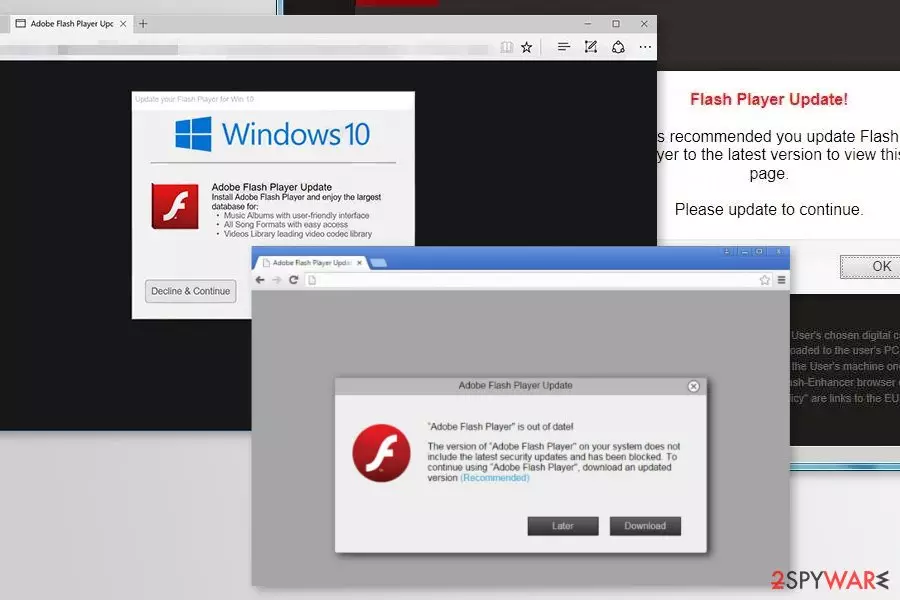
“Adobe Flash Player is out of date” is a scam that you may encounter at any time while browsing the web via Google Chrome, Safari, Mozilla Firefox, or another browser. While in some cases, this might indicate that you simply landed on a malicious site, other times, it may suggest that adware has infiltrated your machine. “Adobe Flash Player is out of date” pop-up message should never be trusted, as its primary goal is to make users download and install adware or malware like Trojan.BitcoinMiner.
Adobe Flash Player is out of date scam is only one of many examples of the virus seeking to scare users into downloading a fake update. Be sure to stay away from Apple wants to make changes, Urgent Chrome update, Apple Security Breach, and similar scams using social engineering to attack unaware macOS and Windows computer users. If you keep seeing such ads while browsing the Internet, make sure you scan your system with reliable security software to make sure it is not infected.
| Name | Adobe Flash Player is out of date |
| Type | Adware/scam |
| OS affected | Windows, MacOS, iOS |
| Main signs | Fake ads offering updates for Adobe Flash Player are displayed each time you start your browsing |
| Main danger | Infection of additional malware, the loss of financial or other personal information, etc. |
| Prevention | Using only official websites to download software or its updates |
| Elimination | You can get rid of adware that causes fake update prompts manually – check for details below. However, in case you installed the unknown app on your computer, make sure you scan it with powerful anti-malware software |
| System fix | Adware or malware can seriously impact your computer (e.g., modify Windows registry). To undo these changes and fix virus damage, scan your machine with FortectIntego |
In most of the cases, Adobe Flash Player is out of date! virus popup shows up when the user starts browsing the web. While it can appear while visiting a malicious website, in most cases, it has nothing to do with the trustworthiness of the domain. Mostly, such fake ads are typically related to malicious browser extensions and similar components installed on the system behind the user's back. For that, scammers have been actively using software bundling, and the fake Adobe Player update prompts.
There are many different versions of the Adobe Flash Player is out of date virus, as there hundreds of malicious actors that try to imitate a legitimate company. You should remember that every pop-up that asks you to update Flash should be treated with suspicion, as this plugin is highly recognized, making users believe that these prompts are real.
Here is a few Adobe Flash Player is out of date scam examples:
Adobe Flash Player is out of date!
The version of “Adobe Flash Player” on your system does not include the latest security updates and has been blocked. To continue using “Adobe Flash Player”, download an updated version.
Adobe Flash Player Update
Install Adobe Flash Player and enjoy the largest database for:
Music Albums with user-friendly interface
All Song Formats with easy access
Videos Library leading video codec library
Latest version of Adobe Flash Player is required to encode and/or decode (Play) audio files in high quality. –
Click here to update for latest version.
Software update
It is also worth mentioning that crooks are eager to infect Mac users as well – fake Flash updates became one of the main attack vectors that bring such malicious software like Shlayer Trojan. As revealed by security researchers from Kaspersky, one in ten macOs systems running this security software is infected by the mentioned Trojan.[1]

This is just one of many Adobe Flash Player is out of date scam virus examples that macOS users may encounter inside their web browsers:
Apple.com recommends:
Your current Adobe Flash Player version is out of date.
Please update the latest version of Flash player.
However, none of these “Adobe Flash Player is out of date” ads are real. If you click “Install,” “Download” or “Update” button, you will install a malicious program. Security experts remind that fake Flash Player update scams were used to spread Bad Rabbit ransomware[2], InstallCore[3] and many other cyber threats. Thus, you should be careful.
Receiving a fake update pop-up might be a one-time thing if you visit highly suspicious websites, such as illegal movie streaming sites, adult-themed, gambling or similar websites. However, if fake Adobe Flash update[4] pop-ups are repeated, you should look up for the adware installed on the system.
You can suspect that “Adobe Flash Player is out of date” virus was installed on the system if you noticed these activities:
- delivery of banners or other ads on each website you visit;
- pop-ups appear on the browser promoting various software downloads or fake updates;
- turning random text on the news portals or other sites into hyperlinks;
- redirects to questionable or potentially dangerous websites;
- installation of third-party add-ons, extensions or toolbars.
Security specialists from dieviren.de[5] also report that this cyber threat might also track information about the user. For instance, browsing history, search terms, downloaded files, and similar data. Aggregated details might not only be used for marketing purposes but shared or sold to third-parties. Thus, Adobe Flash Player is out of date virus removal can prevent from privacy-related issues.
To remove “Adobe Flash Player is out of date” virus from the system entirely, we highly recommend using anti-malware software like SpyHunterCombo Cleaner or MalwarebytesMalwarebytes. Updated security software can quickly identify and eliminate all cyber threats residing on the machine. In case your system was damaged as well, you can fix it with the help of PC repair tool FortectIntego.
Adware responsible for spreading fake update alerts travels in software bundles
Fake Flash updates and adware that is already present on the computer go hand in hand – each of these unwanted computer threats complements each other. In case the machine is infected with adware (which usually happens due to software bundle installers downloaded from third-party websites), users may start seeing redirects to fake Flash update prompts. These scams can lead to the infiltration of more adware or even malware that can compromise users' online security and computer safety.
Because Adobe Flash is such a common name and many users know (something) about it, it makes it an attractive tool for cybercriminals. In reality, the plugin is heavily flawed[6] and genuinely useless to regular users – most modern browsers use a different technology called HTML5 for animation and browser-based games. Besides, Flash will be discontinued at the end of 2020.

Nevertheless, software bundles are the primary distribution method for potentially unwanted programs (PUPs). It allows adding adware in freeware or shareware package. Such software bundles are commonly named after one free program’s name and do not notify about bonus apps that are attached to it.
We recommend installing new software using the Advanced or Custom installation mode to deselect the suggestions to install additional free apps. Just after doing so, you can calmly finish the installation process. Keep in mind that Recommended or Quick settings are traps that seek to deceive users that this method is optimal – it's primary goal is to make them skip the optional components and sneak them into their systems unnoticed.
Get rid of Adobe Flash Player is out of date scam virus
Fortunately, Adobe Flash Player is out of date virus is easy to uninstall. You need to find and uninstall the program that is responsible for displaying these fake update alerts. Based on your skills and knowledge, you can do it by yourself or dedicate this task for anti-malware software.
If you want to remove Adobe Flash Player is out of date manually, you may find our prepared guide below handy. It will help to investigate the system, uninstall suspicious programs or browser extensions, and reset each of the web browsers.
However, if this Adobe Flash Player is out of date removal method seems complicated or time-consuming, switch to the second option. To eliminate adware automatically, you have to scan the system with updated anti-malware[7] or anti-spyware software. Finally, we highly recommend using one of these email addresses to report the fake alert to the manufacturer: phishing@adobe.com; abuse@adobe.com.
Uninstall from Windows
Uninstall from Windows 10/8:
- Type Control Panel into the Windows search box and open the result.
- Under Programs, select Uninstall a program.


Uninstall from Windows 7/XP:
- Click on Windows Start > Control Panel (Windows XP users should click on Add/Remove Programs).
- In Control Panel, select Programs > Uninstall a program.


Remove the unwanted program:
- In the Programs and Features window, look for any recently installed suspicious entries, select them, and click Uninstall.
- If User Account Control appears, click Yes to confirm, then complete the removal.


Delete from macOS
Remove the unwanted application:
- From the menu bar, select Go > Applications.
- In the Applications folder, look for any suspicious entries, then drag them to Trash (or right-click and pick Move to Trash).


Delete leftover files and folders:
- Select Go > Go to Folder.
- Enter /Library/Application Support and remove any suspicious folders related to the unwanted program.
- Repeat the same check in the /Library/LaunchAgents and /Library/LaunchDaemons folders, deleting any suspicious entries.

- Finally, empty the Trash to permanently remove the leftovers.

Reset Internet Explorer
Remove dangerous add-ons:
- Open Internet Explorer, click on the Gear icon (IE menu) on the top-right corner of the browser
- Pick Manage Add-ons.
- You will see a Manage Add-ons window. Here, look for suspicious plugins. Click on these entries and select Disable.


Change your homepage if it was altered:
- Open IE and click on the Gear icon.
- Select Internet Options.
- In the General tab, delete the Home page address and replace it by your preferred one (for example, Google.com).
- Click Apply and then select OK.


Delete temporary files:
- Press on the Gear icon and select Internet Options.
- Under Browsing history, click Delete...
- Select relevant fields and press Delete.


Reset Internet Explorer:
- Click on Gear icon > Internet options and select Advanced tab.
- Select Reset.
- In the new window, check Delete personal settings and select Reset.


Remove from Microsoft Edge
Delete unwanted extensions from MS Edge:
- Select Menu (three horizontal dots at the top-right of the browser window) and pick Extensions.
- From the list, pick the extension and click on the Gear icon.
- Click Remove.


Clear cookies and other browser data:
- Click on the Menu (three horizontal dots at the top-right of the browser window) and select Settings > Privacy, search, and services..
- Under Clear browsing data, pick Choose what to clear.
- Select Cookies and other site data and Cached images and files. (apart from passwords, although you might want to include Media licenses as well, if applicable) and click on Clear.


Restore new tab and homepage settings:
- Click the menu icon and choose Settings.
- Then find On startup section.
- Click Remove next to any suspicious startup page.
Reset MS Edge if the above steps did not work:
- Press on Ctrl + Shift + Esc to open Task Manager.
- Click on More details arrow at the bottom of the window.
- Select Details tab.
- Now scroll down and locate every entry with Microsoft Edge name in it. Right-click on each of them and select End Task to stop MS Edge from running.


Instructions for Chromium-based Edge
Delete extensions from MS Edge (Chromium):
- Open Edge and click select Settings > Extensions.
- Delete unwanted extensions by clicking Remove.


Clear cache and site data:
- Click on Menu and go to Settings.
- Select Privacy, search and services.
- Under Clear browsing data, pick Choose what to clear.
- Under Time range, pick All time.
- Select Clear now.


Reset Chromium-based MS Edge:
- Click on Menu and select Settings.
- On the left side, pick Reset settings.
- Select Restore settings to their default values.
- Confirm with Reset.
- This will disable extensions and reset startup pages but will not delete bookmarks, saved passwords, or browsing history.


Remove from Mozilla Firefox (FF)
Remove dangerous extensions:
- Open Mozilla Firefox browser and click on the Menu (three horizontal lines at the top-right of the window).
- Select Add-ons.
- In here, select the unwanted extension and click Remove.


Reset the homepage:
- Click three horizontal lines at the top right corner to open the menu.
- Choose Settings.
- Under Home, set your preferred homepage and new tab settings.
Clear cookies and site data:
- Click Menu and pick Settings.
- Go to Privacy & Security section.
- Scroll down to locate Cookies and Site Data.
- Click on Clear Data...
- Select Cookies and Site Data and Temporary cached files and pages, then click Clear.


Reset Mozilla Firefox
If clearing the browser as explained above did not help, reset Mozilla Firefox:
- Open Mozilla Firefox browser and click the Menu.
- Go to Help and then choose Troubleshooting Information.

- Under Give Firefox a tune up section, click on Refresh Firefox...
- Once the pop-up shows up, confirm the action by pressing on Refresh Firefox.



Remove from Google Chrome
Delete malicious extensions from Google Chrome:
- Open Google Chrome, click on the Menu (three vertical dots at the top-right corner) and select More tools > Extensions.
- In the newly opened window, you will see all the installed extensions. Uninstall all suspicious extensions related to the unwanted program by clicking Remove.


Clear cache and web data from Chrome:
- Click on Menu and pick Settings.
- Under Privacy and security, select Clear browsing data.
- Select Browsing history, Cookies and other site data, as well as Cached images and files.
- Click Clear data.


Change your homepage:
- Click menu and choose Settings.
- Look for a suspicious site in the On startup section.
- Click on Open a specific or set of pages and click on three dots to find the Remove option.
Reset Google Chrome:
If the previous methods did not help you, reset Google Chrome to eliminate all the unwanted components:
- Click on Menu and select Settings.
- In the Settings, scroll down and click Advanced.
- Scroll down and locate Reset and clean up section.
- Now click Restore settings to their original defaults.
- Confirm with Reset settings.


Delete from Safari
Remove dangerous extensions:
- Open Safari, click Safari in the menu at the top-left of the screen, and select Preferences.
- Go to the Extensions tab, look for any suspicious entries, and click Uninstall to remove them.


Clear history and website data:
- Click Safari in the menu and pick Clear History.
- Set Clear to all history and confirm with Clear History.


Reset Safari:
- Click Safari in the menu and select Preferences > Advanced.
- Enable Show Develop menu in menu bar.
- From the menu bar, click Develop and select Empty Caches.


Did this guide help?
4 comments
lennon
been receiving these pop-ups for quite a while, but somehow i managed to ignore them for some reason. i asked my friend yesterday what those pop-ups mean and he told me it could be a virus. so i decided to look this up online. and look what i found!
iggy
how to remove this from microsoft edge?
greg87
It is the same removal method like removing it from Internet Explorer. look for it up there^^^
iggy
thanks