

Anysearch is the internet search engine that supposed to show improved results but it only promotes other Mac hijacking tools
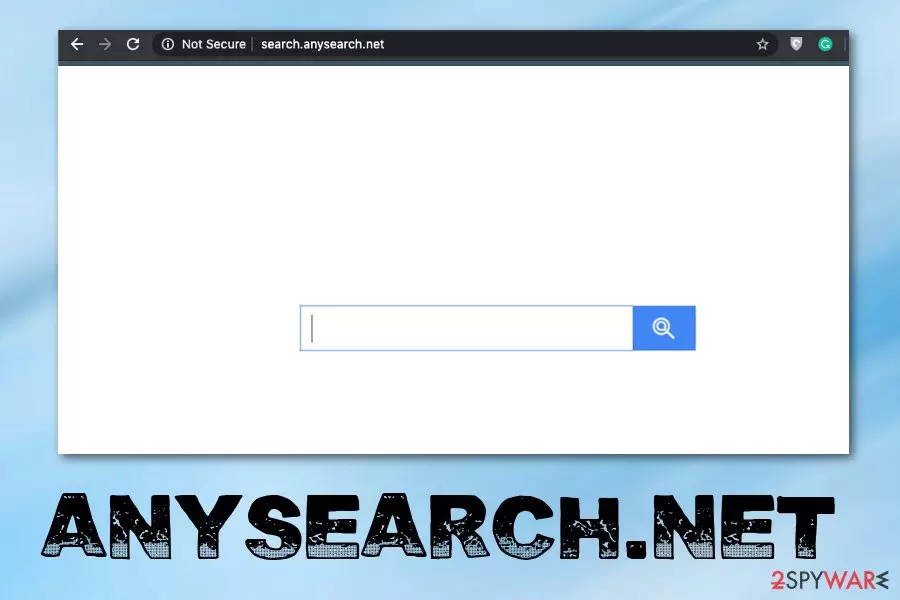
Even when Any Search appears as a useful search engine, you should consider it to be dangerous because many deceptive sites promote the application and initially the PUP appears out of nowhere on the system because it gets installed behind your back as any other cyber intruder. It is believed that Mac OS is safe from malware, but this particular hijacker that targets only Apple products shows the opposite. Try not to click on any commercial content delivered to your screen and avoid installing applications you don't trust until you remove the intruder completely.
| Name | Anysearch.net |
|---|---|
| Type | Browser hijacker |
| Symptoms | The machine becomes slower due to continuous pop-ups, banners, and links with advertisements injected on the list of search results. Such material triggers redirects and exposes users to possibly harmful content. Browser settings and preferences like default search engine, homepage, and new tab get reset to the hijackers' site to maximize the traffic to needed affiliated pages |
| Danger | Advertisers and PUP creators all can access various details about browsing history and preferences when you visit sites, click on commercial pop-ups and so on. Such behavior leads to privacy issues and targeted scams where details about you can be used besides personalized ads and malvertising |
| Distribution | Freeware bundling is the technique that mainly allows PUPs to spread freely. deceptive pages, torrent services also lead to automatic PUP installations without users' consent |
| Mainly affects | Mac OS devices |
| Elimination | Anysearch.net removal requires more than your interference. The best results can be achieved by using professional anti-malware tools and scanning the machine because all PUP traces can be eliminated this way |
| Repair | You may also need to run FortectIntego or a similar cleaner to repair the damage or at least check for affected parts of the OS. This way you can improve the performance further |
Anysearch.net is a browser hijacker that targets Mac operating systems.[1] Once installed, it adds Any Search to the Applications folder and might also add an identically named extension to each of your browsers. No matter that it seems that it is closely related to Yahoo, do NOT fall for this image.
Although Anysearch.net seems to be a regular search app that can hardly pose a threat to your computer, we suggest reading our opinion about this program. First of all, we must say that this Mac OS X add-on is considered to be a browser hijacker[2] which takes over your browser and starts redirecting you to third-party websites.
The search engine which is promoted by Anysearch.net virus is identical or related to:
- Search.anysearch.com
- Search.anysearchplus.com
- SafeFinder virus
- Linkury
- Search.anysearchmac.com
- Search.anysearchresults.com
- Search.anysearchmanager.com
The primary purpose of all these apps is to hijack the device and get an opportunity to show people sponsored search results, inject every attempt with affiliated content that redirects to needed sites and generates views, visits for monetization. Pay-per-click is the aim of these commercial content creators. Any Search removal is crucial if you want to avoid privacy issues because advertisers focus on tracking data about every visitor because it is valuable information for their advertising campaigns.
For this reason, intruder changes some settings in the victim’s browser and on the system directly. First of all, it makes search.anysearch.net the default search engine and homepage in the browser – whether it is Chrome, Safari, Firefox or other. Then this program injects bookmarks to the browser and can even install other extensions or add-ons without permission of the user. 
Consequently, the user has to experience redirects to the described search page and use the Anysearch search engine without a request to do so. When trying to revert these changes on Mac, you may find out that this option is disabled. Right after rebooting your computer, you can find this PUP on your Chrome, Safari, and other browsers.
The worst part of Any Search activity is sponsored search results. Beware that these results will be full of pop-up ads, in-text links, banner ads, and similar content promoting similar services and applications. Some cybersecurity experts suggest that they are slightly altered to provide targeted ads and useful content to the user.
According to Any Search privacy policy, the developer claims that he is not:
responsible for any third party advertisements, offers, statements, information, claims, promotion, surveys, questionnaires, free trials, memberships, subscriptions, etc.
So, clicking on such advertisements caused by malware or engaging with the content that it provides is at your sole risk. The developer of this search tool hardly cares about what parties it promotes – as long as they pay money to it. This is why there's no one who can guarantee that your machine is not exposed to malicious content. To avoid these risks, we highly recommend you to uninstall Anysearch.net from Mac and check for anything related to the intruder.
We do not think that you should suffer from this Any Search browser hijacker, especially when there are hundreds of more reliable search engines on the Internet. Besides, if this hijacker redirects you to a malware-infested website, you may get infected with a more serious cyber threat, e.g. trojan horse, fake PC optimization software, etc.
If you need a quick fix, remove Any search from the system using anti-malware tools and make sure to follow through all the suggested steps. To revert any system changes and damage made by this PUP, use FortectIntego software that may repair needed system files or recover essential settings. 
Common ways used for distribution of browser-hijacking software
Browser hijackers fall into the category of potentially unwanted programs due to their capabilities to track victim’s activity online and intrusive advertising material delivery. Such programs are usually distributed with the help of software bundling. It is a very efficient, yet annoying technique that helps to force inattentive PC users to install complimentary programs without knowing about it[3].
If you do not want to be lured into installing unnecessary programs on your PC, you might want to try to drop them before clicking that “Install” button. All that you need to do is to choose Custom or Advanced settings (whichever are available) and deselect all additions presented to you.
Contrary to popular belief, Default or Standard settings aren’t trustworthy. They are filled with terms that benefit the developers of the software, but not the user. Usually, these settings contain statements granting the victim’s permission to add unnecessary additions to the system.
Get rid of Any Search virus from Mac once and for all
If your device acts suspiciously and you experience continuous redirects to dubious websites filled with ads and other possibly dangerous content when using your computer, remove Any Search via Control Panel and reset your web browsers to default to reverse unwanted changes of settings. As you must have already understood, this application can hardly increase the quality of web browsing and has no value or usefulness.
You can clean the system with an anti-spyware or anti-malware software compatible with Mac OS. Applications that you can use are provided below. However, you can also read Anysearch.net removal instructions we provided and manually check if the system gets cleaned properly.
If you succeed, the browser hijacker won’t bother you anymore. Just do not forget to be careful when browsing the world wide web and never agree to add suspicious apps or browser extensions to your OS. If you avoid getting additional threats you may forget about Any Search virus altogether.
Delete from macOS
Remove the unwanted application:
- From the menu bar, select Go > Applications.
- In the Applications folder, look for any suspicious entries, then drag them to Trash (or right-click and pick Move to Trash).


Delete leftover files and folders:
- Select Go > Go to Folder.
- Enter /Library/Application Support and remove any suspicious folders related to the unwanted program.
- Repeat the same check in the /Library/LaunchAgents and /Library/LaunchDaemons folders, deleting any suspicious entries.

- Finally, empty the Trash to permanently remove the leftovers.

Reset Internet Explorer
Remove dangerous add-ons:
- Open Internet Explorer, click on the Gear icon (IE menu) on the top-right corner of the browser
- Pick Manage Add-ons.
- You will see a Manage Add-ons window. Here, look for suspicious plugins. Click on these entries and select Disable.


Change your homepage if it was altered:
- Open IE and click on the Gear icon.
- Select Internet Options.
- In the General tab, delete the Home page address and replace it by your preferred one (for example, Google.com).
- Click Apply and then select OK.


Delete temporary files:
- Press on the Gear icon and select Internet Options.
- Under Browsing history, click Delete...
- Select relevant fields and press Delete.


Reset Internet Explorer:
- Click on Gear icon > Internet options and select Advanced tab.
- Select Reset.
- In the new window, check Delete personal settings and select Reset.


Remove from Microsoft Edge
Delete unwanted extensions from MS Edge:
- Select Menu (three horizontal dots at the top-right of the browser window) and pick Extensions.
- From the list, pick the extension and click on the Gear icon.
- Click Remove.


Clear cookies and other browser data:
- Click on the Menu (three horizontal dots at the top-right of the browser window) and select Settings > Privacy, search, and services..
- Under Clear browsing data, pick Choose what to clear.
- Select Cookies and other site data and Cached images and files. (apart from passwords, although you might want to include Media licenses as well, if applicable) and click on Clear.


Restore new tab and homepage settings:
- Click the menu icon and choose Settings.
- Then find On startup section.
- Click Remove next to any suspicious startup page.
Reset MS Edge if the above steps did not work:
- Press on Ctrl + Shift + Esc to open Task Manager.
- Click on More details arrow at the bottom of the window.
- Select Details tab.
- Now scroll down and locate every entry with Microsoft Edge name in it. Right-click on each of them and select End Task to stop MS Edge from running.


Instructions for Chromium-based Edge
Delete extensions from MS Edge (Chromium):
- Open Edge and click select Settings > Extensions.
- Delete unwanted extensions by clicking Remove.


Clear cache and site data:
- Click on Menu and go to Settings.
- Select Privacy, search and services.
- Under Clear browsing data, pick Choose what to clear.
- Under Time range, pick All time.
- Select Clear now.


Reset Chromium-based MS Edge:
- Click on Menu and select Settings.
- On the left side, pick Reset settings.
- Select Restore settings to their default values.
- Confirm with Reset.
- This will disable extensions and reset startup pages but will not delete bookmarks, saved passwords, or browsing history.


Remove from Mozilla Firefox (FF)
Remove dangerous extensions:
- Open Mozilla Firefox browser and click on the Menu (three horizontal lines at the top-right of the window).
- Select Add-ons.
- In here, select the unwanted extension and click Remove.


Reset the homepage:
- Click three horizontal lines at the top right corner to open the menu.
- Choose Settings.
- Under Home, set your preferred homepage and new tab settings.
Clear cookies and site data:
- Click Menu and pick Settings.
- Go to Privacy & Security section.
- Scroll down to locate Cookies and Site Data.
- Click on Clear Data...
- Select Cookies and Site Data and Temporary cached files and pages, then click Clear.


Reset Mozilla Firefox
If clearing the browser as explained above did not help, reset Mozilla Firefox:
- Open Mozilla Firefox browser and click the Menu.
- Go to Help and then choose Troubleshooting Information.

- Under Give Firefox a tune up section, click on Refresh Firefox...
- Once the pop-up shows up, confirm the action by pressing on Refresh Firefox.



Remove from Google Chrome
Delete malicious extensions from Google Chrome:
- Open Google Chrome, click on the Menu (three vertical dots at the top-right corner) and select More tools > Extensions.
- In the newly opened window, you will see all the installed extensions. Uninstall all suspicious extensions related to the unwanted program by clicking Remove.


Clear cache and web data from Chrome:
- Click on Menu and pick Settings.
- Under Privacy and security, select Clear browsing data.
- Select Browsing history, Cookies and other site data, as well as Cached images and files.
- Click Clear data.


Change your homepage:
- Click menu and choose Settings.
- Look for a suspicious site in the On startup section.
- Click on Open a specific or set of pages and click on three dots to find the Remove option.
Reset Google Chrome:
If the previous methods did not help you, reset Google Chrome to eliminate all the unwanted components:
- Click on Menu and select Settings.
- In the Settings, scroll down and click Advanced.
- Scroll down and locate Reset and clean up section.
- Now click Restore settings to their original defaults.
- Confirm with Reset settings.


Delete from Safari
Remove dangerous extensions:
- Open Safari, click Safari in the menu at the top-left of the screen, and select Preferences.
- Go to the Extensions tab, look for any suspicious entries, and click Uninstall to remove them.


Clear history and website data:
- Click Safari in the menu and pick Clear History.
- Set Clear to all history and confirm with Clear History.


Reset Safari:
- Click Safari in the menu and select Preferences > Advanced.
- Enable Show Develop menu in menu bar.
- From the menu bar, click Develop and select Empty Caches.


Did this guide help?
Be the first to comment