

Pushails.com – a dubious website which might indicate adware infection
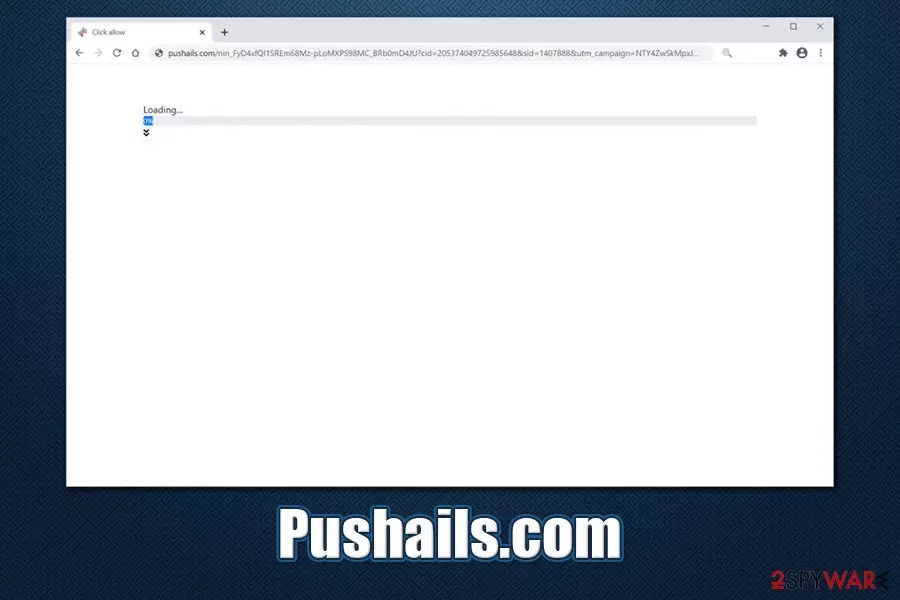
Pushails.com is a push notification virus that users might encounter accidentally while browsing the web or after being redirected on Google Chrome, Mozilla Firefox, Safari, MS Edge, or another web browser. The page itself might present a variety of phishing[1] messages that ask users to allow notifications to be shown. If agreed, pop-up ads of dubious nature will show up in users' screens without warning, even when the web browser is off.
While the Pushails.com website does not pose any danger as long as nothing is downloaded/clicked on, frequent redirects to scam and other malicious places on the internet might be a symptom of adware[2] infection. These ad-supported applications are often spread via software bundles (access users' computers without permission) or fake update prompts, display intrusive ads, and gather a wide range of information about users in the background.
| Name | Pushails.com |
| Type | Push notification virus, adware |
| Distribution | Adware is usually downloaded alongside freeware acquired from third-party sources. Push notifications start appearing on users' desktops soon after they press “Allow” on the push notification prompt within the Pushails.com website |
| Symptoms | Intrusive pop-ups, auto-play, interstitial, banners, in-text links, and other types of ads show up on many of the visited websites; web browsers' search engine and the homepage address might be altered to something different (e.g., Yahoo); redirects lead to suspicious or even malicious sites; pop-up notifications show up directly on the desktop |
| Risks | The consequences of adware infection may vary, depending on user input. In some cases, users might be tricked into installing malicious software/PUPs, disclose their personal information, suffer from financial losses due to scams, and even experience identity theft |
| Termination | To stop push notifications, you should access settings of your web browser, as explained below. In case the adware is involved, eliminate it either manually or automatically |
| Recovery | In some cases, adware or malware infections might leave the machine almost unusable due to significant changes and system file damage. To avoid reinstallation or if a quick fix for crashes/errors is required, perform a scan with FortectIntego repair software |
Pop-ups, ads, redirects, and other suspicious browser behavior can sometimes be difficult to untangle and find the root cause for. Nevertheless, the first thing that you should check for is adware – it might redirect you not only to Pushails.com, but also to X-rated, scam, and malicious script-equipped websites.
Adware is deceptive software that is almost never installed intentionally, as its developers often rely on deceptive distribution methods such as software bundling or fake update/virus infection alerts. Unfair individuals create fake websites which claim that something is missing from their computer, or that Flash player is out of date, and they are urged to download those items. Therefore, users are unsure where the Pushails.com redirects came from in the first place.
Typically, Pushails.com virus infection can exhibit the following symptoms:
- Intrusive pop-ups and similar ads show up on various websites;
- Browser settings altered without permission (never-seen extensions installed, homepage changed, etc.);
- Search results are often littered with sponsored links;
- Redirects lead to spam, scam, phishing, adult-content, and similar sites;
- Web browser fails to load certain pages, operates slower, etc.
Since adware brings to suspicious sites, Pushails.com might be one of them. As soon as users access the site, they are met with the following message:
Pushails.com wants to Show notifications
Click Allow to watch the video
While the notification prompt is legitimate feature of most browsers, malicious actors are abusing it for their own advantage. The message implies that, as soon as users click “Allow,” Pushails.com will disclose some type of video. However, this is just a trick to make users to subscribe for notifications, and no video will ever be shown to them afterwards.
Quite often, users cannot make a connection between the notification prompt and the ads that start showing up on their desktops. Thus, they do not know how to remove Pushails.com ads once they start showing up. What makes matters worse is that links displayed pop-ups might lead to more malicious sites, and make users install other PUPs or malware, or make them disclose their personal information.

Thus, Pushails.com removal is very important for computer security reasons. To eliminate notifications if such were subscribed to, you should visit the settings of your web browser – we explain how below. However, if the notifications and ads do not stop even after tweaking web browser settings, there is a high chance that adware is involved and should be eliminated as well.
To do that, you can either rely on manual guide we provide at the bottom of this article. Additionally, in some cases, a full browser reset might be necessary. Finally, we recommend scanning machine with anti-malware program, as well as a repair tool such as FortectIntego for fix virus damage that may have been caused to your system.
Protect your computer from PUPs
Potentially unwanted programs are called so for a reason – apps of dubious value that are promoted as useful tools with obscure functionality. In most cases, such programs do not bring any significant benefits to end-users, as their functionality is worthless (for example, a toolbar which is meant to display “enhanced search results” actually feeds users with ads in order to monetize on clicks). While many ad-supported applications are relatively harmless, some behave more like malware – modify various settings without permission, and then establish persistence, preventing users from performing their removal.
In other words, you should never trust adware, and never invite it to your computer in the first place. Here are some tips from security experts[3] that could help you achieve just that:
- If you encounter a suspicious notification which claims that something is missing from your computer (Adobe Flash Player is out of date, Flash Player Update!), or that your machine is riddled with malware (System Warning, Your system is infected with 3 viruses), never trust these prompts and never install anything – these messages are scams;
- If possible, download programs from official sources, such as Microsoft Store;
- When dealing with third-party websites that host freeware/shareware, always ensure you are clicking on the correct “Download” button, as there are typically many fake ones that would make you download PUPs/malware instead;
- During the installation of freeware, always opt for Advanced settings instead of Recommended ones so you can remove all the ticks from the pre-ticked boxes;
- Watch out for various tricks, such as misplaced buttons, misleading offers, fine print text, etc.
Stop Pushails.com notifications and browser redirects
Pushails.com removal can be performed in different ways, as it highly depends on user actions and whether or not adware is installed. In the case of the latter, you should access the list of the installed applications as per instructions below and look for anything suspicious: download managers, toolbars, system optimizers, driver updaters, and similar apps should be uninstalled. If you are not sure about this process, you can instead scan your machine with anti-malware, which would eliminate adware for you automatically.
To remove Pushails.com pop-up notifications that are displayed directly on your screen, you would have to access the settings of your web browser and perform the following actions:
- Open Google Chrome and click on Menu > Settings
- Under Privacy and security, choose Site settings
- Select Notifications
- Scroll down to locate Pushails.com (should be under “Allow”)
- Click on More actions and pick Block

If you are using Mozilla Firefox, perform these actions:
- Open Firefox and select Menu > Options
- Go to Privacy & Security section
- Scroll down to Permissions and click on Notifications
- Click on Pushails.com and select Remove Website
In case Pushails.com remains on your web browser, you should reset it, as explained below.
Uninstall from Windows
Uninstall from Windows 10/8:
- Type Control Panel into the Windows search box and open the result.
- Under Programs, select Uninstall a program.


Uninstall from Windows 7/XP:
- Click on Windows Start > Control Panel (Windows XP users should click on Add/Remove Programs).
- In Control Panel, select Programs > Uninstall a program.


Remove the unwanted program:
- In the Programs and Features window, look for any recently installed suspicious entries, select them, and click Uninstall.
- If User Account Control appears, click Yes to confirm, then complete the removal.


Delete from macOS
Remove the unwanted application:
- From the menu bar, select Go > Applications.
- In the Applications folder, look for any suspicious entries, then drag them to Trash (or right-click and pick Move to Trash).


Delete leftover files and folders:
- Select Go > Go to Folder.
- Enter /Library/Application Support and remove any suspicious folders related to the unwanted program.
- Repeat the same check in the /Library/LaunchAgents and /Library/LaunchDaemons folders, deleting any suspicious entries.

- Finally, empty the Trash to permanently remove the leftovers.

Reset Internet Explorer
Remove dangerous add-ons:
- Open Internet Explorer, click on the Gear icon (IE menu) on the top-right corner of the browser
- Pick Manage Add-ons.
- You will see a Manage Add-ons window. Here, look for suspicious plugins. Click on these entries and select Disable.


Change your homepage if it was altered:
- Open IE and click on the Gear icon.
- Select Internet Options.
- In the General tab, delete the Home page address and replace it by your preferred one (for example, Google.com).
- Click Apply and then select OK.


Delete temporary files:
- Press on the Gear icon and select Internet Options.
- Under Browsing history, click Delete...
- Select relevant fields and press Delete.


Reset Internet Explorer:
- Click on Gear icon > Internet options and select Advanced tab.
- Select Reset.
- In the new window, check Delete personal settings and select Reset.


Remove from Microsoft Edge
Delete unwanted extensions from MS Edge:
- Select Menu (three horizontal dots at the top-right of the browser window) and pick Extensions.
- From the list, pick the extension and click on the Gear icon.
- Click Remove.


Clear cookies and other browser data:
- Click on the Menu (three horizontal dots at the top-right of the browser window) and select Settings > Privacy, search, and services..
- Under Clear browsing data, pick Choose what to clear.
- Select Cookies and other site data and Cached images and files. (apart from passwords, although you might want to include Media licenses as well, if applicable) and click on Clear.


Restore new tab and homepage settings:
- Click the menu icon and choose Settings.
- Then find On startup section.
- Click Remove next to any suspicious startup page.
Reset MS Edge if the above steps did not work:
- Press on Ctrl + Shift + Esc to open Task Manager.
- Click on More details arrow at the bottom of the window.
- Select Details tab.
- Now scroll down and locate every entry with Microsoft Edge name in it. Right-click on each of them and select End Task to stop MS Edge from running.


Instructions for Chromium-based Edge
Delete extensions from MS Edge (Chromium):
- Open Edge and click select Settings > Extensions.
- Delete unwanted extensions by clicking Remove.


Clear cache and site data:
- Click on Menu and go to Settings.
- Select Privacy, search and services.
- Under Clear browsing data, pick Choose what to clear.
- Under Time range, pick All time.
- Select Clear now.


Reset Chromium-based MS Edge:
- Click on Menu and select Settings.
- On the left side, pick Reset settings.
- Select Restore settings to their default values.
- Confirm with Reset.
- This will disable extensions and reset startup pages but will not delete bookmarks, saved passwords, or browsing history.


Remove from Mozilla Firefox (FF)
Remove dangerous extensions:
- Open Mozilla Firefox browser and click on the Menu (three horizontal lines at the top-right of the window).
- Select Add-ons.
- In here, select the unwanted extension and click Remove.


Reset the homepage:
- Click three horizontal lines at the top right corner to open the menu.
- Choose Settings.
- Under Home, set your preferred homepage and new tab settings.
Clear cookies and site data:
- Click Menu and pick Settings.
- Go to Privacy & Security section.
- Scroll down to locate Cookies and Site Data.
- Click on Clear Data...
- Select Cookies and Site Data and Temporary cached files and pages, then click Clear.


Reset Mozilla Firefox
If clearing the browser as explained above did not help, reset Mozilla Firefox:
- Open Mozilla Firefox browser and click the Menu.
- Go to Help and then choose Troubleshooting Information.

- Under Give Firefox a tune up section, click on Refresh Firefox...
- Once the pop-up shows up, confirm the action by pressing on Refresh Firefox.



Remove from Google Chrome
Delete malicious extensions from Google Chrome:
- Open Google Chrome, click on the Menu (three vertical dots at the top-right corner) and select More tools > Extensions.
- In the newly opened window, you will see all the installed extensions. Uninstall all suspicious extensions related to the unwanted program by clicking Remove.


Clear cache and web data from Chrome:
- Click on Menu and pick Settings.
- Under Privacy and security, select Clear browsing data.
- Select Browsing history, Cookies and other site data, as well as Cached images and files.
- Click Clear data.


Change your homepage:
- Click menu and choose Settings.
- Look for a suspicious site in the On startup section.
- Click on Open a specific or set of pages and click on three dots to find the Remove option.
Reset Google Chrome:
If the previous methods did not help you, reset Google Chrome to eliminate all the unwanted components:
- Click on Menu and select Settings.
- In the Settings, scroll down and click Advanced.
- Scroll down and locate Reset and clean up section.
- Now click Restore settings to their original defaults.
- Confirm with Reset settings.


Delete from Safari
Remove dangerous extensions:
- Open Safari, click Safari in the menu at the top-left of the screen, and select Preferences.
- Go to the Extensions tab, look for any suspicious entries, and click Uninstall to remove them.


Clear history and website data:
- Click Safari in the menu and pick Clear History.
- Set Clear to all history and confirm with Clear History.


Reset Safari:
- Click Safari in the menu and select Preferences > Advanced.
- Enable Show Develop menu in menu bar.
- From the menu bar, click Develop and select Empty Caches.


Did this guide help?
Be the first to comment