

ScalableRemote – useless app that might steal your sensitive information
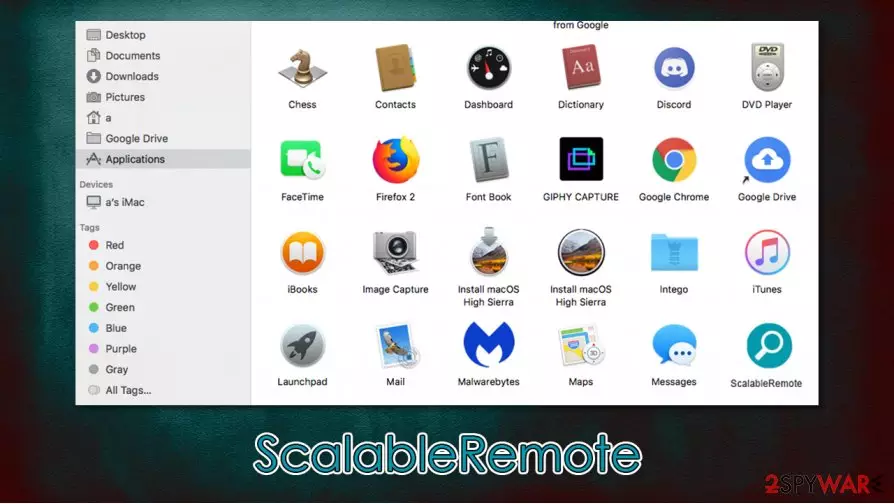
ScalableRemote is one of many potentially unwanted applications that targets macOS platforms exclusively and belongs to the Adload adware campaign. Its main distribution methods remain software bundles downloaded from insecure sites, and fake Flash Player update prompts, which means that users install the application unintentionally. Nonetheless, since the virus is installed from unofficial sources, users themselves type in the AppleID credentials to allow its infiltration, although they are tricked into doing so.
Once installed, it promotes a fake search engine (usually Safe Finder), appends an extension to Safari, Google Chrome, Mozilla Firefox, or another web browser, and establishes persistence mechanisms that make ScalableRemote removal quite difficult, especially for novice computer users. Additionally, the app is capable of reading sensitive user information via the installed extension, so it can cause serious privacy issues if kept for a prolonged timeframe.
| Name | ScalableRemote |
| Type | Mac virus, adware |
| Malware family | Adload adware campaign |
| Installation | Adload apps are typically installed on users' machines by using deception – software bundles from insecure websites are often used, as well as fake Flash Player update prompts |
| Symptoms | Unknown browser extensions/apps installed on the system; search and browsing settings altered to Safe Finder or another search provider; New profiles setup on the account; excessive ads and redirects lead to malicious sites |
| Removal | You can get rid of Mac malware with the help of powerful security tools. If you want to attempt to get rid of the infection yourself, check the manual instructions below |
| System optimization | Malware and adware can meddle with your system, reducing its performance. If you want to quickly fix various issues, we recommend you try using automated tools like FortectIntego |
Along with Bundlore, Adload is one of the largest adware campaigns that target macOS devices. ScalableRemote is just one of the hundreds of apps that are virtually indistinguishable – OperativeFraction, LookupShare, ExpandedSkill, and AccessibleBoost to name the few. All of these apps have an identical extension that incorporates a magnifying glass icon on a teal, blue, green, or sometimes red, background. Functionality, however, remains the same.
Initially, you might not even notice that you have ScalableRemote virus installed on your system. However, the symptoms are noticed almost immediately after the web browser is opened – here are some of them:
- Scalable Remote browser extension installed with elevated permissions
- New homepage and new tab address assigned to the web browser
- Searches might be redirected though other web addresses, such as akamaihd.net
- Redirects can lead to potentially malicious websites, etc.
However, the biggest danger of the infection lies within its background activities. The app drops several .plist files into various folders on the system, establishes a new Profile, and begins tracking user activities around the web. To make matters worse, the extension is capable of reading sensitive information that should never be allowed to most apps:
Permissions for “ScalableRemote”
Webpage contents
Can read sensitive information from webpages, including passwords, phone numbers, and credit cards on: all webpagesBrowsing History
Can see when you visit: all webpages
Another important reason to perform ScalableRemote removal is that its presence might be associated with much more harmful malware, including CrescentCore, as well as the infamous Shlayer Trojan.[1] These malicious programs specialize in bypassing Mac defenses, redirecting user traffic, and installing other dangerous apps on the system without permission. They can also leak very sensitive user data, such as login credentials or banking details.

Unfortunately, it is not that easy to remove ScalableRemote manually, as typical payload delivery to Trash will not suffice. Besides, the browser extension might also be impossible to uninstall as it was installed with elevated permissions. Nonetheless, we provide a detailed guide on full malware removal below.
You should keep in mind that reputable anti-malware such as SpyHunterCombo Cleaner or MalwarebytesMalwarebytes can delete the infection automatically, and FortectIntego can serve as an excellent tool for system remediation. If not all the ruminants are deleted when trying to eliminate the virus manually, it might reinstall itself later, so a full system scan is always recommended when dealing with the ScalableRemote infection.
Mac is not immune to malware – protect yourself with these simple tips
For a very long time, the macOS community was ensured that malware is something that they would never have to deal with, as these machines used a sandbox environment to install apps and also have built-in defenses such as Gatekeeper or XProtect. Security researchers who analyzed multiple strains of Mac malware still struggle to convince users that they need to be extremely careful online, even if they use a Mac. Experts[2] also advise using a third-party security tool that would add an extra layer of protection. According to Malwarebytes researchers, the malware was more likely to target Macs than Windows – an extremely alarming statistic.[3]
Therefore, malicious programs targeting macOS exist, and unintentional installation might result in various unforeseen consequences, such as the installation of other malware, monetary losses, sensitive information leak, or even identity theft. Here are a few tips that could help you reduce the probability of infection:
- Never update or download Flash Player, Java, or other apps via notifications on random websites – check the URL;
- If possible download apps from official sources only;
- Do not visit pirated software or crack sites;
- Install powerful anti-malware that could help keep your computer secure;
- When installing new apps, always choose Advanced/Custom settings to stay in control of the whole process from start to finish.

Delete ScalableRemote virus to secure your online safety
ScalableRemote virus can be spotted almost right away when a web browser is used – you would see the extension of the same name, altered homepage and search results, etc. While in other cases, this would not indicate anything serious (just a browser hijacker), this time, you should not ignore these changes. Malware is dangerous and can cause significant harm to your computer and your online security, so you should remove ScalableRemote as soon as possible.
As mentioned above, there are two ways you can delete the infection from your Mac – either manually or automatically, although you can use a combination of both if you like. Moving the app to trash will not be enough, so you should delete unwanted .plish entries in ApplicationSupport, LaunchAgents, and other folders – check for more info below. You should also check System Preferences > Accounts> Login Items and System Preferences > Users&Groups > Profiles sections.
Keep in mind that ScalableRemote removal can be performed automatically with anti-malware software. If you can't eliminate the extension manually or automatically, you should reset your web browser to delete all the leftover components from it.
Delete from macOS
Remove the unwanted application:
- From the menu bar, select Go > Applications.
- In the Applications folder, look for any suspicious entries, then drag them to Trash (or right-click and pick Move to Trash).


Delete leftover files and folders:
- Select Go > Go to Folder.
- Enter /Library/Application Support and remove any suspicious folders related to the unwanted program.
- Repeat the same check in the /Library/LaunchAgents and /Library/LaunchDaemons folders, deleting any suspicious entries.

- Finally, empty the Trash to permanently remove the leftovers.

Remove from Mozilla Firefox (FF)
Remove dangerous extensions:
- Open Mozilla Firefox browser and click on the Menu (three horizontal lines at the top-right of the window).
- Select Add-ons.
- In here, select the unwanted extension and click Remove.


Reset the homepage:
- Click three horizontal lines at the top right corner to open the menu.
- Choose Settings.
- Under Home, set your preferred homepage and new tab settings.
Clear cookies and site data:
- Click Menu and pick Settings.
- Go to Privacy & Security section.
- Scroll down to locate Cookies and Site Data.
- Click on Clear Data...
- Select Cookies and Site Data and Temporary cached files and pages, then click Clear.


Reset Mozilla Firefox
If clearing the browser as explained above did not help, reset Mozilla Firefox:
- Open Mozilla Firefox browser and click the Menu.
- Go to Help and then choose Troubleshooting Information.

- Under Give Firefox a tune up section, click on Refresh Firefox...
- Once the pop-up shows up, confirm the action by pressing on Refresh Firefox.



Remove from Google Chrome
Delete malicious extensions from Google Chrome:
- Open Google Chrome, click on the Menu (three vertical dots at the top-right corner) and select More tools > Extensions.
- In the newly opened window, you will see all the installed extensions. Uninstall all suspicious extensions related to the unwanted program by clicking Remove.


Clear cache and web data from Chrome:
- Click on Menu and pick Settings.
- Under Privacy and security, select Clear browsing data.
- Select Browsing history, Cookies and other site data, as well as Cached images and files.
- Click Clear data.


Change your homepage:
- Click menu and choose Settings.
- Look for a suspicious site in the On startup section.
- Click on Open a specific or set of pages and click on three dots to find the Remove option.
Reset Google Chrome:
If the previous methods did not help you, reset Google Chrome to eliminate all the unwanted components:
- Click on Menu and select Settings.
- In the Settings, scroll down and click Advanced.
- Scroll down and locate Reset and clean up section.
- Now click Restore settings to their original defaults.
- Confirm with Reset settings.


Delete from Safari
Remove dangerous extensions:
- Open Safari, click Safari in the menu at the top-left of the screen, and select Preferences.
- Go to the Extensions tab, look for any suspicious entries, and click Uninstall to remove them.


Clear history and website data:
- Click Safari in the menu and pick Clear History.
- Set Clear to all history and confirm with Clear History.


Reset Safari:
- Click Safari in the menu and select Preferences > Advanced.
- Enable Show Develop menu in menu bar.
- From the menu bar, click Develop and select Empty Caches.


Did this guide help?
Be the first to comment