

MovieSearchOnline browser hijacker changes homepage and new tab to show you alternative search results
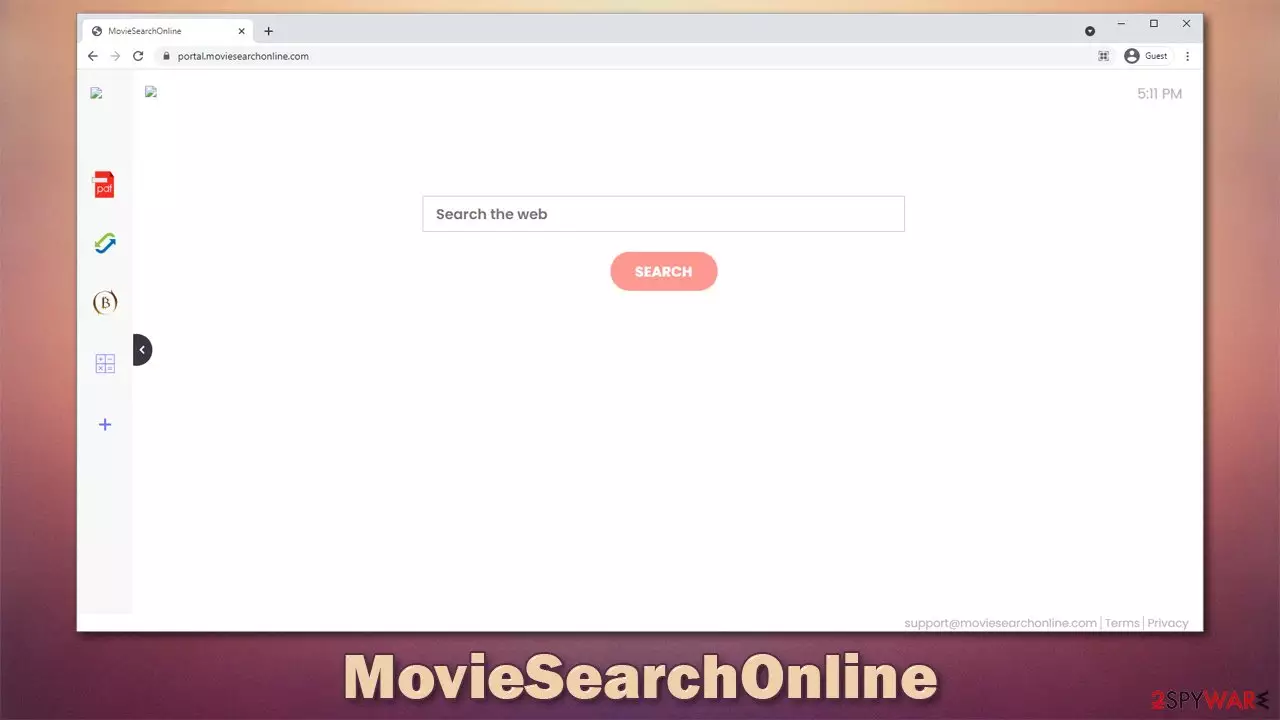
Browser hijackers such as MovieSearchOnline belong to a category of potentially unwanted programs – a type of software that is commonly installed without users' permission. This happens due to a popular distribution technique known as bundling, where several apps are compiled into since installer package; often, the presence of these optional components is not adequately disclosed, and users end up with several apps instead of just one they intended to install in the first place.
As soon as the browser hijacking of Google Chrome, Mozilla Firefox, MS Edge, or another browser occurs, users would see immediate changes:
- Homepage and new tab address swapped to moviesearchonline.com;
- A new extension is present on the web browser;
- Alternative search box inserted into the homepage, which redirects all searches to Yahoo, Bing, or nearbyme.io;
- Search results are littered with ads and links that lead to sponsored websites.
These changes are visible immediately, although there is plenty happening in the background as well. To retain maximum revenue from targeted advertising,[1] MovieSearchOnline browser hijacker also collects various information about user's browsing habits, their device technical data, and much more, putting their privacy at risk.
| Name | MovieSearchOnline |
|---|---|
| Type | Browser hijacker |
| IP address | 172.67.130.46 |
| Distribution | Potentially unwanted programs are not usually installed intentionally as they are distributed via software bundles, fake updates, or other deceptive methods |
| Symptoms | Alternation to the homepage, new tab (moviesearchonline.com) and the search engine; searches redirected to Yahoo, Bing, or nearbyme.io; ads and sponsored links at the top of search results |
| Risks | While browser hijackers rarely pose a danger in terms of security point of view, users might end up installing other suspicious or unwanted software, suffer monetary losses due to ads, as have their privacy compromised |
| Removal | The browser extension can be removed via browser settings, although we strongly recommend you scan your computer with SpyHunterCombo Cleaner or another reputable security software |
| Additional steps | If you want to clean your web browsers quicker, use FortectIntego |
MovieSearchOnline browser hijacker: where it comes from
As we already mentioned, potentially unwanted programs are commonly installed without acquired user consent due to software bundling. This technique is commonly applied on third-party websites, where people download freeware from.
Likewise, insecure websites that distribute pirated software also use it, although the consequences can be much worse. In fact, you should stay away from program cracks and similar illegal installers, as you might infect your computer with ransomware,[2] permanently losing your files.
Several tricks are used in order to male users install additional programs. For example, it is always recommended to go for “Recommended” or “Quick” installation settings instead of “Advanced” or “Custom ones – the latter would allow users to remove the ticks from pre-selected boxes, while the former option treats it as an acceptance from the user.
While software bundle packages are not inherently bad, but their implementation matters a lot. It is not an issue when users are being offered additional software, although when that software is hidden from their sight, the practice becomes deceptive at best.
Therefore, you should always be wary when downloading new apps from the internet. Always pick the “Advanced” mode, remove all the ticks from pre-ticked boxes, read the fine print, watch out for misleading button placements, and, most importantly, never rush through the installation steps. Also, installing powerful security software such as SpyHunterCombo Cleaner can prevent you from installing PUPs and malware.
More about the hijacker and how to remove it
Browser hijackers are considered minor infections that typically reside in the browser, i.e., they are installed as extensions. While nowhere near as dangerous as ransomware, trojans, or similar type of malware, they should not be disregarded completely, as there are plenty of negative aspects to them.
In this case, we are talking about a broader family of browser hijackers that MovieSearchOnline belongs to. We have previously talked about the similarities of other versions such as ClickPDFSearch, SocialSearchConverter, ClickPDFSearch, and many others, and for a reason.

These types of apps have been around for several years now – created by an unknown developer. Most of them use a combination of three words for the naming process, which apparently should explain what the app is actually useful for. In this case, it is implied that MovieSearchOnline should somehow help people find movies online, although this is far from the truth.
In reality, it brings little use for the users (apart from minor implementations such as a calculator or a currency converter) and possesses a basic search function that uses a borrowed search provider. All of these apps are mere copies of one another, just branded differently.
The main goal of the hijacker is to insert ads into users' searches and get revenue from user clicks while exposing them to as many ads as possible – it is a simple monetization scheme. Besides, the data tracking is rather unnecessary from a user standpoint, as it does not bring any benefits apart from more ads.
In order to regain control of your web browser and your search provider, you need to remove MovieSearchOnline from your browser. In this case, you should check the browser extension settings as explained below.
Google Chrome
- Open Google Chrome, click on the the Menu (three vertical dots at the top-right corner) and select More tools > Extensions.
- In the newly opened window, you will see all the installed extensions. Uninstall all the suspicious plugins that might be related to the unwanted program by clicking Remove.


Mozilla Firefox
- Open Mozilla Firefox browser and click on the Menu (three horizontal lines at the top-right of the window).
- Select Add-ons.
- In here, select the unwanted plugin and click Remove.


MS Edge
- Open Edge and click select Settings > Extensions.
- Delete unwanted extensions by clicking Remove.


Safari
- Click Safari > Preferences…
- In the new window, pick Extensions.
- Select the unwanted extension and select Uninstall.


Note that if a program is installed on a system level, you would have to uninstall it via the Control Panel (Windows) or Applications (Mac), although this is unlikely to be the case. Nonetheless, you might want to check for other potentially unwanted programs installed in these sections, especially if you found an app installed without your permission.
Additional security tips
Removing browser extensions that hijack your browser is usually not difficult – it takes just a few minutes. However, some potentially unwanted programs go much further to prevent users from uninstalling them. For example, some browser hijackers set the “Managed by your organization” setting, which grays out the extension entirely. This trick is rather malicious and puts apps like Conf Search or Flare search close to malware.
If this happened to you, employ a powerful anti-malware tool such as SpyHunterCombo Cleaner to eliminate a more persistent hijacker from your system automatically. It is also vital to check whether malicious programs are running in the background, so make sure you execute a full system scan regardless.
Another issue is data tracking. If you had a PUP installed on your browser or your system, the chances are that you will continue being tracked, even after the said software is deleted, thanks to tracking technologies[3] such as cookies. Thus, you should clean your web browsers as explained below.
Google Chrome
- Click on Menu and pick Settings.
- Under Privacy and security, select Clear browsing data.
- Select Browsing history, Cookies and other site data, as well as Cached images and files.
- Click Clear data.


Mozilla Firefox
- Click Menu and pick Options.
- Go to Privacy & Security section.
- Scroll down to locate Cookies and Site Data.
- Click on Clear Data…
- Select Cookies and Site Data, as well as Cached Web Content and press Clear.


MS Edge
- Click on Menu and go to Settings.
- Select Privacy and services.
- Under Clear browsing data, pick Choose what to clear.
- Under Time range, pick All time.
- Select Clear now.


Safari
- Click Safari > Clear History…
- From the drop-down menu under Clear, pick all history.
- Confirm with Clear History.


If you want to avoid this tedious process altogether, we strongly recommend you instead employ a potent PC repair and maintenance software FortectIntego. It can remove cookies, cache, and other web data, taking care of your privacy automatically. Besides, the app is also great when dealing with the aftermath of malware or more persistent PUP infections.
Did this guide help?
Be the first to comment