

WebAdblockSearch is the unwanted program that is named a browser hijacker for manipulation of web browser settings and injects ads
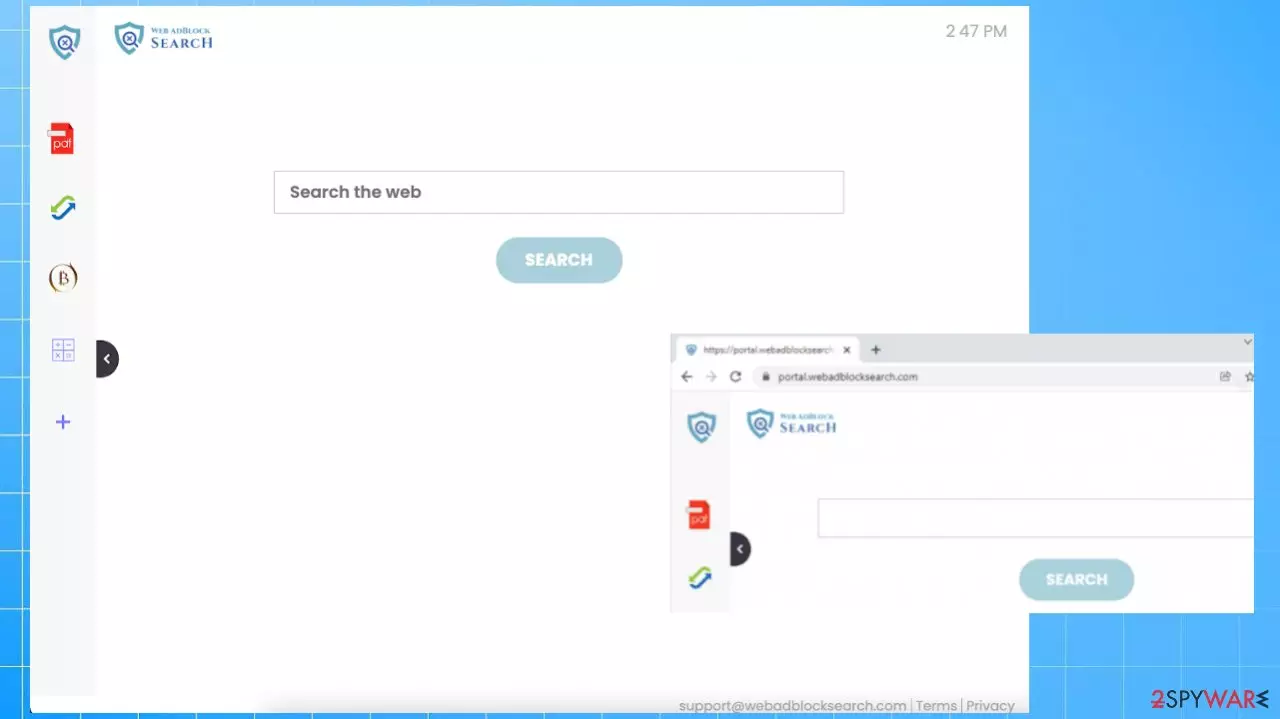
WebAdblockSearch controls the online traffic by altering the homepage, new tab, a new page, default search engine settings. This browser hijacker shows various promotional ads and causes redirects to other pages to look like the useful search engine that could be considered needed. Users mainly get tricked into installing the program like this, however. The main method used to spread these PUPs around includes freeware delivering platforms, services like torrents, promotional content, and ads that push useless apps to clueless people.
This potentially unwanted application is none other than a browser-based threat affecting the common devices and browsing tools like Google Chrome, Mozilla Firefox, Internet Explorer, Safari. If you notice that your browser's settings got altered, you can be sure that the PUP is already on the machine and that there are additional changes and issues that this intruder can cause.
Besides being intrusive, the browser hijacker can inject other extensions, install system programs on the machine without having your initial permission. You need to fully clear the system to eliminate the application and related programs or even cyber threats. The full reset sometimes is the only method that helps get rid of the leftovers and affected applications.
| Name | WebAdblockSearch |
|---|---|
| Type | Browser hijacker, redirect, unwanted browser extension |
| Category | Potentially unwanted program |
| Issues | The site triggers ads and other content that exposes users to commercial content and possibly dangerous material. PUPs are closely related to third-party advertisers and companies that rely on data tracking functionalities[1] |
| Symptoms | Homepage, new tab, search engine preferences get altered, and the browsing online gets affected when each attempt is injected with ads, links, banners |
| Distribution | Freeware installations and program downloads from insecure sources result in PUP infiltration |
| URL | portal.webadblocksearch.com |
| Elimination | The full system cleaning procedure can help with the proper thread removal |
| Repair | If the machine is affected by the PUP, performance suffers a lot, so a tool like FortectIntego should help with leftovers of the infection and system repair |
WebAdblockSearch browser hijacker is one of the many applications looking and behaving exactly the same. This is the version of a group of questionable search engines that try to lure people into using the pages as the default search on purpose with themed appearance and promotional content. JustVideoSearch, SocialCouponSearch, GoCouponSearch, QuickConverterz, SocialCouponSearch, TheSearchMaps, and many more.
Get rid of the PUP to stop unwanted behavior
The intruder is related to another known redirect and browser hijacker that is possible to run on the so-called immune to viruses OS – mac.[2] All of the related programs rely on redirecting searches through this search engine Nearbyme. So once you use the WebAdblockSearch as a search engine, you get rerouted via a shady service like this.
The process of browsing online becomes unpleasant because all search attempts become the process when the list of results gets filled with sponsored material and shows various ads, links, banners where they are not supposed to appear. This is the main symptom that indicates the particular potentially unwanted program running on the system, so you need to take action into your own hands as soon as you notice these redirects, changes in browser settings, or general performance issues.
If you are a victim of any type of infection, you should employ anti-malware software for the best removal. Some threats can interfere with the settings, add other programs on the machine and then self-destruct. However, even silent malware might leave various data-stealing modules or could operate in conjunction with other programs and expose the system to security risks.

SpyHunterCombo Cleaner or MalwarebytesMalwarebytes can detect and eliminate all threats. PUPs also can be caught. The security software is really easy to use and does not require any prior IT knowledge to succeed in the malware removal process. Keeping these tools running on the machine can also improve the security and alert about possible intruders, so issues with threats like WebAdblockSearch hijacker should become the thing of the past.
Clear issues with the web browser
Even though you can remove the intruder with the automatic AV-detection tools there is a need for manual interference when web browsing tools are directly affected. Changing the homepage, search engine, new tab settings are the most important, but sometimes additional programs get installed too, so major changes can only be solved with a full reset. If you need the full browser reset – follow the guide at the end, but try these instructions first.
Delete malicious extensions from Google Chrome:
- Open Google Chrome, click on the Menu (three vertical dots at the top-right corner) and select More tools > Extensions.
- In the newly opened window, you will see all the installed extensions. Uninstall all the suspicious plugins that might be related to the unwanted program by clicking Remove.


Change your homepage:
- Click menu and choose Settings.
- Look for a suspicious site in the On startup section.
- Click on Open a specific or set of pages and click on three dots to find the Remove option.
Remove dangerous add-ons:
- Open Internet Explorer, click on the Gear icon (IE menu) on the top-right corner of the browser
- Pick Manage Add-ons.
- You will see a Manage Add-ons window. Here, look for suspicious plugins. Click on these entries and select Disable.


Change your homepage if it was altered:
- Open IE and click on the Gear icon.
- Select Internet Options.
- In the General tab, delete the Home page address and replace it by your preferred one (for example, Google.com).
- Click Apply and then select OK.


Delete unwanted extensions from MS Edge:
- Select Menu (three horizontal dots at the top-right of the browser window) and pick Extensions.
- From the list, pick the extension and click on the Gear icon.
- Click on Uninstall at the bottom.


Restore new tab and homepage settings:
- Click the menu icon and choose Settings.
- Then find On startup section.
- Click Disable if you found any suspicious domain.
Remove unwanted extensions from Safari:
- Click Safari > Preferences…
- In the new window, pick Extensions.
- Select the unwanted extension and select Uninstall.


Ways to avoid unwanted applications
WebAdblockSearch is not a virus or malicious program that could be considered dangerous and damaging. However, people who get to experience all the inconvenient and unpleasant issues related to the browser hijacker call this program a virus. Experts[3] note that there are major issues with potentially unwanted applications like this and the techniques used to spread the intruder round. People still ignore those tips and warnings, and pirating is popular to this day.
Cracking programs, using cheats for games, and pirating legitimate software can get you to insecure installation processes and random sources. The best protection against malware of any type is avoiding questionable sites, download prompts, update messages, random program promotions.
Official download sites and platforms should be the only trusted source, so this WebAdblockSearch browser hijacker infiltration is not happening again. There are some additional issues – the type of installation process. If you go for the Advanced or Custom installations, you can see the list in full with all the programs included in the package.
If that is not the case and you chose the Recommended or Quick options when installing freeware, you automatically allow the pre-bundled pieces to get installed alongside the free program you wanted to get in the first place. Unfortunately, users tend to go for the quicker option, and this is why those browser-based applications and unwanted programs like WebAdblockSearch spread around so often.
You might think it is a threat because it appears out of nowhere and causes issues with the performance, speed, adds other applications, but there are ways to get rid of the intruder. You can run the full system scan and remove the PUP that controls the various processes, but do not forget about the issues with browsers and follow the tips listed below.
Uninstall from Windows
Uninstall from Windows 10/8:
- Type Control Panel into the Windows search box and open the result.
- Under Programs, select Uninstall a program.


Uninstall from Windows 7/XP:
- Click on Windows Start > Control Panel (Windows XP users should click on Add/Remove Programs).
- In Control Panel, select Programs > Uninstall a program.


Remove the unwanted program:
- In the Programs and Features window, look for any recently installed suspicious entries, select them, and click Uninstall.
- If User Account Control appears, click Yes to confirm, then complete the removal.


Delete from macOS
Remove the unwanted application:
- From the menu bar, select Go > Applications.
- In the Applications folder, look for any suspicious entries, then drag them to Trash (or right-click and pick Move to Trash).


Delete leftover files and folders:
- Select Go > Go to Folder.
- Enter /Library/Application Support and remove any suspicious folders related to the unwanted program.
- Repeat the same check in the /Library/LaunchAgents and /Library/LaunchDaemons folders, deleting any suspicious entries.

- Finally, empty the Trash to permanently remove the leftovers.

Remove from Microsoft Edge
Delete unwanted extensions from MS Edge:
- Select Menu (three horizontal dots at the top-right of the browser window) and pick Extensions.
- From the list, pick the extension and click on the Gear icon.
- Click Remove.
Clear cookies and other browser data:
- Click on the Menu (three horizontal dots at the top-right of the browser window) and select Settings > Privacy, search, and services..
- Under Clear browsing data, pick Choose what to clear.
- Select Cookies and other site data and Cached images and files. (apart from passwords, although you might want to include Media licenses as well, if applicable) and click on Clear.


Restore new tab and homepage settings:
- Click the menu icon and choose Settings.
- Then find On startup section.
- Click Remove next to any suspicious startup page.
Reset MS Edge if the above steps did not work:
- Press on Ctrl + Shift + Esc to open Task Manager.
- Click on More details arrow at the bottom of the window.
- Select Details tab.
- Now scroll down and locate every entry with Microsoft Edge name in it. Right-click on each of them and select End Task to stop MS Edge from running.


Instructions for Chromium-based Edge
Delete extensions from MS Edge (Chromium):
- Open Edge and click select Settings > Extensions.
- Delete unwanted extensions by clicking Remove.


Clear cache and site data:
- Click on Menu and go to Settings.
- Select Privacy, search and services.
- Under Clear browsing data, pick Choose what to clear.
- Under Time range, pick All time.
- Select Clear now.


Reset Chromium-based MS Edge:
- Click on Menu and select Settings.
- On the left side, pick Reset settings.
- Select Restore settings to their default values.
- Confirm with Reset.
- This will disable extensions and reset startup pages but will not delete bookmarks, saved passwords, or browsing history.


Remove from Mozilla Firefox (FF)
Remove dangerous extensions:
- Open Mozilla Firefox browser and click on the Menu (three horizontal lines at the top-right of the window).
- Select Add-ons.
- In here, select the unwanted extension and click Remove.


Reset the homepage:
- Click three horizontal lines at the top right corner to open the menu.
- Choose Settings.
- Under Home, set your preferred homepage and new tab settings.
Clear cookies and site data:
- Click Menu and pick Settings.
- Go to Privacy & Security section.
- Scroll down to locate Cookies and Site Data.
- Click on Clear Data...
- Select Cookies and Site Data and Temporary cached files and pages, then click Clear.


Reset Mozilla Firefox
If clearing the browser as explained above did not help, reset Mozilla Firefox:
- Open Mozilla Firefox browser and click the Menu.
- Go to Help and then choose Troubleshooting Information.

- Under Give Firefox a tune up section, click on Refresh Firefox...
- Once the pop-up shows up, confirm the action by pressing on Refresh Firefox.



Remove from Google Chrome
Delete malicious extensions from Google Chrome:
- Open Google Chrome, click on the Menu (three vertical dots at the top-right corner) and select More tools > Extensions.
- In the newly opened window, you will see all the installed extensions. Uninstall all suspicious extensions related to the unwanted program by clicking Remove.
Clear cache and web data from Chrome:
- Click on Menu and pick Settings.
- Under Privacy and security, select Clear browsing data.
- Select Browsing history, Cookies and other site data, as well as Cached images and files.
- Click Clear data.


Change your homepage:
- Click menu and choose Settings.
- Look for a suspicious site in the On startup section.
- Click on Open a specific or set of pages and click on three dots to find the Remove option.
Reset Google Chrome:
If the previous methods did not help you, reset Google Chrome to eliminate all the unwanted components:
- Click on Menu and select Settings.
- In the Settings, scroll down and click Advanced.
- Scroll down and locate Reset and clean up section.
- Now click Restore settings to their original defaults.
- Confirm with Reset settings.


Delete from Safari
Remove dangerous extensions:
- Open Safari, click Safari in the menu at the top-left of the screen, and select Preferences.
- Go to the Extensions tab, look for any suspicious entries, and click Uninstall to remove them.
Clear history and website data:
- Click Safari in the menu and pick Clear History.
- Set Clear to all history and confirm with Clear History.


Reset Safari:
- Click Safari in the menu and select Preferences > Advanced.
- Enable Show Develop menu in menu bar.
- From the menu bar, click Develop and select Empty Caches.


Did this guide help?
Be the first to comment