

“Apple wants to make changes” is a phenomenon Mac users have been encountering for awhile and might be related to multiple malware infections
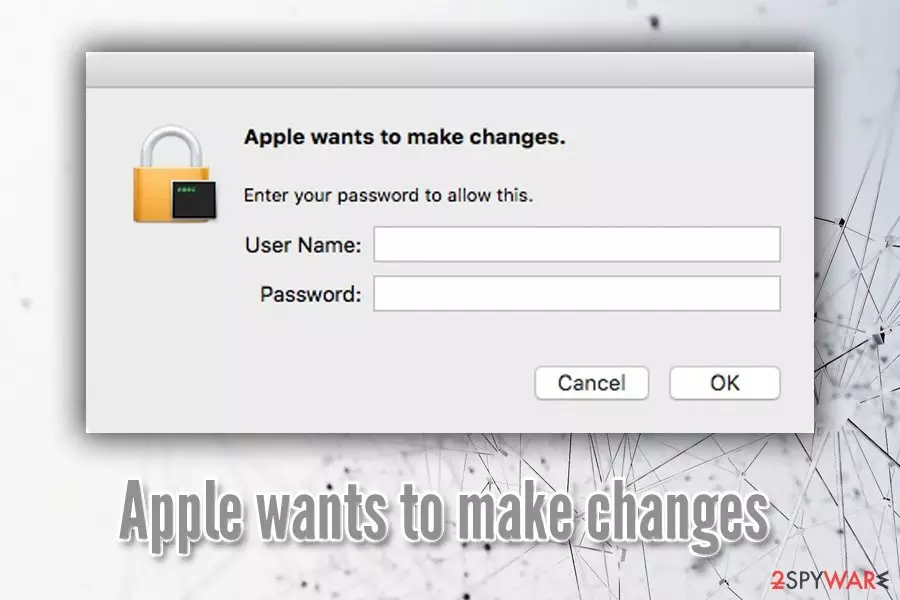
“Apple wants to make changes” is a mysterious pop-up message that macOS or Mac OS X users might encounter during the computer operation. The prompt appearance is not related to the running Google Chrome, Safari, Mozilla Firefox or another browser, and appears independently. For that reason, users might think that “Apple wants to make changes” pop-up is genuine.
However, “Apple wants to make changes” alert is a scam and should not be trusted. Users are asked to provide their login credentials in the following message:
Apple wants to make changes.
Enter your password to allow this.
Username:
Password:
It is not clear what is to be changed and for what reason and users should immediately question this. The goal of “Apple wants to make changes” is to make users provide their login credentials or install potentially unwanted programs/malware on their computers.
However, it is also worth mentioning that the reason for “Apple wants to make changes” prompt to show up is most likely an adware[1] extension that is attached to one of the browsers, or even malware. To stop these annoying prompts, users need to terminate this malicious software from their machines as soon as possible either manually or by using anti-malware software.
| SUMMARY | |
| Name | Apple wants to make changes |
| Category | Adware/Malware |
| Type | Scam |
| Infection means | Freeware downloads from third-party sites, insecure websites, torrents, fake updates |
| Symptoms | Suspicious pop-ups asking to provide personal details, other advertisement content |
| Possibly related applications | SafeFinder, TechTool Pro, CleanMyMac, Drive Genius, CockTail |
| Related entries | Sombrisec, Tituricsec |
| Detection and elimination | Use reputable anti-malware software or check manual guide below (be aware that it might be difficult to eliminate this threat manually) |
| System repair | Use FortectIntego to fix the damage done to the system |
In some cases, the suspicious “Apple wants to make changes” pop-up might also be embedded on a particular site. In such a case, it might be triggered as soon as users get redirected from another malicious website. Then, the only way to stop “Apple wants to make changes” notifications is by using ad-blocking apps like Ad-block or uBlock. Otherwise, the termination of adware is the only way to get rid of the pop-ups.
“Apple wants to make changes” virus is mimicking legitimate pop-ups that require users to enter their login details, for example, “Finder wants to make changes.” This is done to make users believe that the pop-up is genuine and that the information is required for certain activities to be performed.
Nonetheless, there are no details of what exactly is being changed or why. Additionally, Apple would never use its name in such notifications. Therefore, users should not enter any details into the bogus window and hurry up with “Apple wants to make changes” removal.
There are several other similar scams triggered by adware, including:
- Immediately Call Apple Support scam;
- Updates were released for your version of Chrome scam;
- AppleCare And Warranty;
- ManPerformance;
- Osascript wants to control Safari, etc.
While authors of these scams typically try to make users pay for useless software, “Apple wants to make changes” scam might use Mac's credentials to remotely access it and install malicious software, such as keyloggers, ransomware,[2] or crypto-mining malware.
However, as it turns out, “Apple wants to make changes” is a just a part of the scheme that crooks use to mislead users into providing their personal information and downloading unwanted software or malware. “Apple” is not the only words that are chosen for the scam scheme, as users also observed pop-ups like “Network Layer wants to make changes” – this is no accident, as the malware behind the prompt uses a predetermined list of words and changes them from time to time.[3]
One of the infected users' computer examination showed that the prompts were very likely started due to Sombrisec – this component is the one that initiates the admin prompts and is a part of backdoor Trojan.[4] Additionally, the Tituricsec should be immediately eliminated if found on the system as well, as it is a part of the notorious SafeFinder virus.

Adware is closely related to “Apple wants to make changes” pop-up spam
“Apple wants to make changes” pop-ups might stem due to several computer infection on the system, including Trojans and Adware.
Adware is an ad-supported application that usually delivers pop-ups, banners, tech support scams and other commercial content to the used browsers. Its goal is to advertise products or services of sponsored parties and obtain revenue that way. However, some adware is straight out malicious and initiates pop-ups like “Apple wants to make changes” seeking to swindle users' personal data and make then install other potentially malicious software.
In most of the cases, users get infected with adware after installing applications not from the official App store or after being prompted online to install fake Flash[5] or other updates. Because most do not recognize that what they downloaded onto their Mac is not an update, the malicious software can operate in the background and show the “Apple wants to make changes” alerts and similar messages.
Such infections are prevalent and extremely dangerous, as it poses serious privacy risks, like stealing money or even identity theft. Thus, do not enter any details if you see this fake message, and simply close it down. However, the fact that these fake alerts are present on your machine indicates an infection of a potentially unwanted program. To remove “Apple wants to make changes” pop-ups, you should scan your computer using anti-malware software.
As soon as all the suspicious applications are uninstalled, you should check for traces left by the PUP. We recommend using automatic tools like FortectIntego for such a process.
Along with the deceptive pop-up, users will most likely notice the increased amount of ads. If clicked, users can be redirected to malicious websites and prompt the installation of other rogue software. Additionally, users have to deal with constant rerouting problems, as well as bogus search results. Thus, it is vital to stay away from any links that are encountered while “Apple wants to make changes” pop-up window is present in the system.

Some adware can pose a serious risk – avoid its installation entirely
Some aggressive adware might as well be treated like malware, as the goal of it is to steal private information, money, or inject viruses on the computer. Therefore, avoiding such threats in the first place could save you a lot of distress. Security experts from bedynet.ru[6] advise users to take these precaution measures:
- Stay away from questionable websites (torrent, file sharing, porn, gambling, etc.);
- Before downloading any software, make sure you check reviews online;
- When installing the app, make sure you read through Terms and Conditions and Privacy Policy;
- Do not skip steps by pressing the “Next” button several times;
- To avoid bundled software (aka potentially unwanted programs), pick Advanced installation settings instead of Recommended ones;
- When prompted remove all the ticks from browser extensions, system optimizers, download managers, add-ons, toolbars, and similar useless software;
- Make sure the installed program is not initiating suspicious pop-ups or redirects to questionable sites. The deceptive application that you primarily wanted to install might be adware itself;
- Scan your computer with anti-malware software and keep it up to date.
Get rid of malicious programs causing “Apple wants to make changes” prompt
Many users on official Apple forums were asking about the message in question. The answer is simple: the pop-up is fake and “Apple wants to make changes” removal is the only way to stop it. In order to achieve that, users will have to eliminate adware and malware from their Macs.
While it is possible to remove “Apple wants to make changes” virus manually, we do not recommend doing so. After eliminating suspicious applications, traces of the PUP can still be left on the machine. Therefore, by using reliable anti-virus software, you will not have to worry about the malicious pop-ups coming back. The real-time protection is particularly important when it comes to the infection of new threats.
If you choose to remove malware manually, you should check the following locations for malicious entries on your Mac:
- ~/Library/LaunchAgents
- ~/Library/Application Support
- ~/Library/LaunchDaemons
- Settings > General > Profiles
Please check if you have these entries. If so, remove them immediately:
- ~/Library/LaunchAgents/com.Sorimbrsec.plist
- ~/Library/LaunchAgents/com.logmein.GoToMeeting.G2MUpdate.plist
- ~/Library/LaunchAgents/com.Tituricsec.plist
- ~/Library/Application Support/com.Sorimbrsec/Sorimbrsec r
- ~/Library/Application Support/com.Tituricsec/Tituricsec r
Delete from macOS
Remove the unwanted application:
- From the menu bar, select Go > Applications.
- In the Applications folder, look for any suspicious entries, then drag them to Trash (or right-click and pick Move to Trash).


Delete leftover files and folders:
- Select Go > Go to Folder.
- Enter /Library/Application Support and remove any suspicious folders related to the unwanted program.
- Repeat the same check in the /Library/LaunchAgents and /Library/LaunchDaemons folders, deleting any suspicious entries.

- Finally, empty the Trash to permanently remove the leftovers.

Reset Internet Explorer
Remove dangerous add-ons:
- Open Internet Explorer, click on the Gear icon (IE menu) on the top-right corner of the browser
- Pick Manage Add-ons.
- You will see a Manage Add-ons window. Here, look for suspicious plugins. Click on these entries and select Disable.


Change your homepage if it was altered:
- Open IE and click on the Gear icon.
- Select Internet Options.
- In the General tab, delete the Home page address and replace it by your preferred one (for example, Google.com).
- Click Apply and then select OK.


Delete temporary files:
- Press on the Gear icon and select Internet Options.
- Under Browsing history, click Delete...
- Select relevant fields and press Delete.


Reset Internet Explorer:
- Click on Gear icon > Internet options and select Advanced tab.
- Select Reset.
- In the new window, check Delete personal settings and select Reset.


Remove from Microsoft Edge
Delete unwanted extensions from MS Edge:
- Select Menu (three horizontal dots at the top-right of the browser window) and pick Extensions.
- From the list, pick the extension and click on the Gear icon.
- Click Remove.


Clear cookies and other browser data:
- Click on the Menu (three horizontal dots at the top-right of the browser window) and select Settings > Privacy, search, and services..
- Under Clear browsing data, pick Choose what to clear.
- Select Cookies and other site data and Cached images and files. (apart from passwords, although you might want to include Media licenses as well, if applicable) and click on Clear.


Restore new tab and homepage settings:
- Click the menu icon and choose Settings.
- Then find On startup section.
- Click Remove next to any suspicious startup page.
Reset MS Edge if the above steps did not work:
- Press on Ctrl + Shift + Esc to open Task Manager.
- Click on More details arrow at the bottom of the window.
- Select Details tab.
- Now scroll down and locate every entry with Microsoft Edge name in it. Right-click on each of them and select End Task to stop MS Edge from running.


Instructions for Chromium-based Edge
Delete extensions from MS Edge (Chromium):
- Open Edge and click select Settings > Extensions.
- Delete unwanted extensions by clicking Remove.


Clear cache and site data:
- Click on Menu and go to Settings.
- Select Privacy, search and services.
- Under Clear browsing data, pick Choose what to clear.
- Under Time range, pick All time.
- Select Clear now.


Reset Chromium-based MS Edge:
- Click on Menu and select Settings.
- On the left side, pick Reset settings.
- Select Restore settings to their default values.
- Confirm with Reset.
- This will disable extensions and reset startup pages but will not delete bookmarks, saved passwords, or browsing history.


Remove from Mozilla Firefox (FF)
Remove dangerous extensions:
- Open Mozilla Firefox browser and click on the Menu (three horizontal lines at the top-right of the window).
- Select Add-ons.
- In here, select the unwanted extension and click Remove.


Reset the homepage:
- Click three horizontal lines at the top right corner to open the menu.
- Choose Settings.
- Under Home, set your preferred homepage and new tab settings.
Clear cookies and site data:
- Click Menu and pick Settings.
- Go to Privacy & Security section.
- Scroll down to locate Cookies and Site Data.
- Click on Clear Data...
- Select Cookies and Site Data and Temporary cached files and pages, then click Clear.


Reset Mozilla Firefox
If clearing the browser as explained above did not help, reset Mozilla Firefox:
- Open Mozilla Firefox browser and click the Menu.
- Go to Help and then choose Troubleshooting Information.

- Under Give Firefox a tune up section, click on Refresh Firefox...
- Once the pop-up shows up, confirm the action by pressing on Refresh Firefox.



Remove from Google Chrome
Delete malicious extensions from Google Chrome:
- Open Google Chrome, click on the Menu (three vertical dots at the top-right corner) and select More tools > Extensions.
- In the newly opened window, you will see all the installed extensions. Uninstall all suspicious extensions related to the unwanted program by clicking Remove.


Clear cache and web data from Chrome:
- Click on Menu and pick Settings.
- Under Privacy and security, select Clear browsing data.
- Select Browsing history, Cookies and other site data, as well as Cached images and files.
- Click Clear data.


Change your homepage:
- Click menu and choose Settings.
- Look for a suspicious site in the On startup section.
- Click on Open a specific or set of pages and click on three dots to find the Remove option.
Reset Google Chrome:
If the previous methods did not help you, reset Google Chrome to eliminate all the unwanted components:
- Click on Menu and select Settings.
- In the Settings, scroll down and click Advanced.
- Scroll down and locate Reset and clean up section.
- Now click Restore settings to their original defaults.
- Confirm with Reset settings.


Delete from Safari
Remove dangerous extensions:
- Open Safari, click Safari in the menu at the top-left of the screen, and select Preferences.
- Go to the Extensions tab, look for any suspicious entries, and click Uninstall to remove them.


Clear history and website data:
- Click Safari in the menu and pick Clear History.
- Set Clear to all history and confirm with Clear History.


Reset Safari:
- Click Safari in the menu and select Preferences > Advanced.
- Enable Show Develop menu in menu bar.
- From the menu bar, click Develop and select Empty Caches.


Did this guide help?
Be the first to comment