

ERROR # 0x6a4-0xf9fx3999 scam is a fake alert that attempt to convince users to call bogus help line
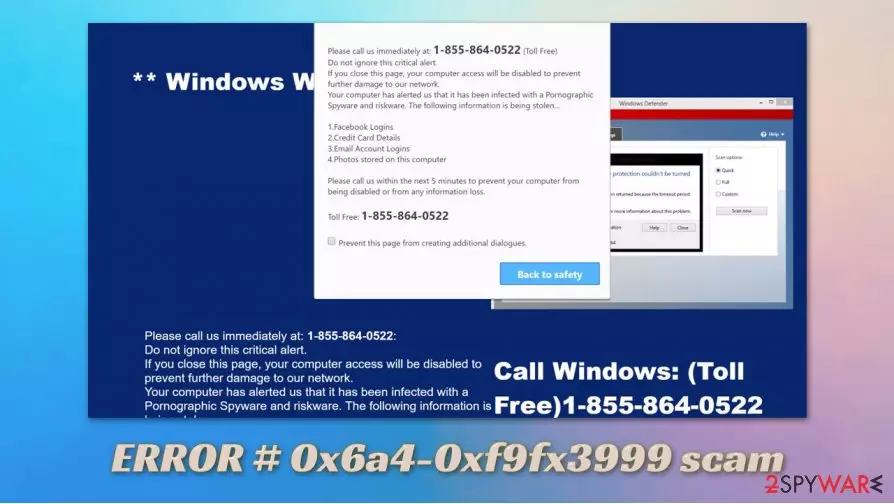
ERROR # 0x6a4-0xf9fx3999 scam is one of thousands of tech support scams spreading around the internet. Once users visit a malicious website, they are presented what seems to be a warning from Microsoft. It claims that the computer login will be disabled due to an alleged infection of “Storm Worm” and “Riskware,” and that bank account details, email, social media logins, and images stored on the machine are at risk of being stolen/compromised.
If you are asking how this terrible ERROR # 0x6a4-0xf9fx3999 virus infection managed to get into your PC, you should not look far for answers – the alert is a simple page designed by cybercriminals to scare users and make them call the provided phone number. Once they are on the line, they will be further fed fake facts about their computer health state, so that money could be later extorted for the “provided help.”
| Name | ERROR # 0x6a4-0xf9fx3999 scam |
| Type | Fake alert, phishing, tech support scam |
| Claim | Users are informed that their machines are infected with “Storm Worm” and “Riskware,” and that their personal details are being stolen; additionally, crooks also attempt to scare victims by claiming that they Windows login will be disabled if the alert is closed |
| Aim | To make users call the alleged Microsoft support and make them pay money for provided “services” |
| Distribution | Malicious websites, adware |
| Risks | Financial losses, malware infections, personal file loss/compromise, privacy issues |
| Removal | You are not in danger, as long as you do not engage with the fraudulent message in any way. Simply close down the tab to leave the page. If you are unable to, call up the Task Manager and shut down the process of your used browser. You should also check your system for adware or other malicious software – all the instructions below |
| Further steps | If you called fraudsters and paid money, contact your bank and try to revert the payment. If your security software flagged something, you should also reset the installed web browsers and perform system fix with tools like FortectIntego |
ERROR # 0x6a4-0xf9fx3999 scam can be encountered on multiple different website URL's, e.g., “freepchelp88.azurewebsites.net” on any web browser, including Google Chrome, Mozilla Firefox, MS Edge, or Internet Explorer. In other words, the scam is browser-based, and notification has nothing to do with Windows system alerts you might be accustomed to seeing (the page attempts to imitate Windows Blue Screen of Death).
However, we can assure you that ERROR # 0x6a4-0xf9fx3999 scam is fake and has nothing to do with real Microsoft technicians. There are several similar scams that aim to mislead users in the same way by pretending to be tech support from Microsoft – a few examples include:
- “Windows Error Code: DLL011150” scam
- Pornographic virus alert from Microsoft
- Virus alert from Microsoft
- Your device has been blocked
While these scams might look slightly different and provide different messages, they are fundamentally identical. They all attempt to imitate legitimate Microsoft website or alerts, claim about virus infections/personal information compromise, and ask to call the provided number to resolve the seemingly disastrous situation.
Upon entering a malicious site, ERROR # 0x6a4-0xf9fx3999 scam message would popup, which is almost identical to the one presented in the background
** MicroSoft Alert **
ERROR # 0x6a4-0xf9fx3999(3)
Please call us immediately at:
+1-844-311-7591 ( Toll Free)
Do not ignore this critical alert.
If you close this page, your computer login will be disabled to prevent further damage to our Internet.
Your computer has warned us that it has been infected with a Storm Worm and Riskware. The following information is being stolen…1.Social Media Logins
2.Bank Account Details
3.Email Account Login
4.Images stored on this computerYou must contact us now so that our engineers can walk you through the removal process over the phone or via Remote Access to protect your identity and computer.
Call Windows: +1-844-311-7591 (Toll Free)
As you can see, the ERROR # 0x6a4-0xf9fx3999 popup is designed to scare users and make them panic – this is one of the main social engineering tactics that is surprisingly very effective when it comes to fraud. In reality, the “Storm Worm” does not exist, and “riskware” is just a name for a particular malware type.
Malicious actors behind the scam attempt to exploit inexperienced users by stuffing their minds with words they are not familiar with. Indeed, ERROR # 0x6a4-0xf9fx3999 might seem like something Microsoft would use to describe legitimate errors with. However, you should always keep in mind that real company would never ask you to call a provided tech support number – this is generally true for all the companies.

Unfortunately for those who get tricked by scammers, the ordeal might end up pretty badly. As soon as users call the allegedly toll-free number +1-844-311-7591 (which might actually be a number charged at premium rate), they will be immediately told that they have a serious problem. As the call progresses, crooks might ask callers to provide remote access to their devices, ask them to download malicious software or ask them for credit card details.
Thus, you should not fall for this, and remove ERROR # 0x6a4-0xf9fx3999 scam from your screen as soon as you see it. If you are incapable of doing so, you should call up the Task Manager and shut down the process of Google Chrome, Mozilla Firefox, or another browser that you are using.
While ERROR # 0x6a4-0xf9fx3999 alert might be encountered after being redirected from another website, random redirects can indicate that there is an adware program installed on your system. These potentially unwanted programs typically find their ways into users' machines without asking for a direct permission, and then begin to show intrusive advertisements, inject popups, redirect to suspicious or malicious websites, etc.
Therefore, ERROR # 0x6a4-0xf9fx3999 removal might consist of adware/malware elimination – it can be performed manually as per instructions below or automatically with security tools such as SpyHunterCombo Cleaner or MalwarebytesMalwarebytes. Additionally, experts recommend performing additional scans with repair tools such as FortectIntego.
Tips to avoid being scammed online
Fraud has been around for hundreds of years, so there is no surprise there that the malicious practice was transferred to online sphere as soon as there was a possibility for that to happen. Unsurprisingly, cybercriminals use various tactics to install malware on users' devices, steal their personal information, or scam them and and make them pay for services that do not exist or a re of a horrendous quality.
There are several ways of how you can get tricked online. Crooks employ built-in features to deliver misleading content to users all the time. For example, a page can be constructed in a way to look like a legitimate login page of MS Outlook – users who visit it might believe that it is genuine, and provide their credentials to cybercriminals without realizing it. Website spoofing, along with email spoofing, are among the most popular techniques that result in malware infiltration for thousands of users.
Tech support scams, however, are much easier to recognize, as they are fundamentally flawed in many ways. Here's what you should look out for:
- Claims that your computer is infected with viruses, trojans, worms, or other malware;
- All personal and sensitive information, such as Facebook login, banking details, and other data, is being leaked by cybercriminals;
- Fake virus names, error code names;
- A threat of consequences (“your computer will be corrupted,” “your information will be stolen,” “your hard drive will be corrupted,” etc.)
- A phone number that is meant to be used for resolving all the issues (typically varies to prevent being caught by authorities).
Also, you could employ powerful security software with real-time protection feature that would warn you about spoofing, phishing, tech support scam, and other malicious websites.

Ways to deal with ERROR # 0x6a4-0xf9fx3999 scam
Just to make it clear – if you remove ERROR # 0x6a4-0xf9fx3999 scam from your screen before you engage with any components inside or call the fake number, you should be safe. However, you should perform checks for adware and malware – you can do that either manually or automatically. If you want to find potentially unwanted programs yourself, follow the guide we provide below. Nonetheless, to find invisible malware and ensure proper elimination, we suggest you employ anti-malware software instead.
There are additional steps you should take if you called the number provided in the ERROR # 0x6a4-0xf9fx3999 scam message. For example, you should call your bank ask it to revert the payment if you made one. Additionally, if you granted a remote access to your PC, you should also change all your passwords at once. This is also another reason to scan your machine with security software.
Note: you should also reset your web browsers if your security software flagged adware or malware, as unwanted components might remain even after the infection is eliminated.
Uninstall from Windows
Uninstall from Windows 10/8:
- Type Control Panel into the Windows search box and open the result.
- Under Programs, select Uninstall a program.


Uninstall from Windows 7/XP:
- Click on Windows Start > Control Panel (Windows XP users should click on Add/Remove Programs).
- In Control Panel, select Programs > Uninstall a program.


Remove the unwanted program:
- In the Programs and Features window, look for any recently installed suspicious entries, select them, and click Uninstall.
- If User Account Control appears, click Yes to confirm, then complete the removal.


Reset Internet Explorer
Remove dangerous add-ons:
- Open Internet Explorer, click on the Gear icon (IE menu) on the top-right corner of the browser
- Pick Manage Add-ons.
- You will see a Manage Add-ons window. Here, look for suspicious plugins. Click on these entries and select Disable.


Change your homepage if it was altered:
- Open IE and click on the Gear icon.
- Select Internet Options.
- In the General tab, delete the Home page address and replace it by your preferred one (for example, Google.com).
- Click Apply and then select OK.


Delete temporary files:
- Press on the Gear icon and select Internet Options.
- Under Browsing history, click Delete...
- Select relevant fields and press Delete.


Reset Internet Explorer:
- Click on Gear icon > Internet options and select Advanced tab.
- Select Reset.
- In the new window, check Delete personal settings and select Reset.


Remove from Microsoft Edge
Delete unwanted extensions from MS Edge:
- Select Menu (three horizontal dots at the top-right of the browser window) and pick Extensions.
- From the list, pick the extension and click on the Gear icon.
- Click Remove.


Clear cookies and other browser data:
- Click on the Menu (three horizontal dots at the top-right of the browser window) and select Settings > Privacy, search, and services..
- Under Clear browsing data, pick Choose what to clear.
- Select Cookies and other site data and Cached images and files. (apart from passwords, although you might want to include Media licenses as well, if applicable) and click on Clear.


Restore new tab and homepage settings:
- Click the menu icon and choose Settings.
- Then find On startup section.
- Click Remove next to any suspicious startup page.
Reset MS Edge if the above steps did not work:
- Press on Ctrl + Shift + Esc to open Task Manager.
- Click on More details arrow at the bottom of the window.
- Select Details tab.
- Now scroll down and locate every entry with Microsoft Edge name in it. Right-click on each of them and select End Task to stop MS Edge from running.


Instructions for Chromium-based Edge
Delete extensions from MS Edge (Chromium):
- Open Edge and click select Settings > Extensions.
- Delete unwanted extensions by clicking Remove.


Clear cache and site data:
- Click on Menu and go to Settings.
- Select Privacy, search and services.
- Under Clear browsing data, pick Choose what to clear.
- Under Time range, pick All time.
- Select Clear now.


Reset Chromium-based MS Edge:
- Click on Menu and select Settings.
- On the left side, pick Reset settings.
- Select Restore settings to their default values.
- Confirm with Reset.
- This will disable extensions and reset startup pages but will not delete bookmarks, saved passwords, or browsing history.


Remove from Mozilla Firefox (FF)
Remove dangerous extensions:
- Open Mozilla Firefox browser and click on the Menu (three horizontal lines at the top-right of the window).
- Select Add-ons.
- In here, select the unwanted extension and click Remove.


Reset the homepage:
- Click three horizontal lines at the top right corner to open the menu.
- Choose Settings.
- Under Home, set your preferred homepage and new tab settings.
Clear cookies and site data:
- Click Menu and pick Settings.
- Go to Privacy & Security section.
- Scroll down to locate Cookies and Site Data.
- Click on Clear Data...
- Select Cookies and Site Data and Temporary cached files and pages, then click Clear.


Reset Mozilla Firefox
If clearing the browser as explained above did not help, reset Mozilla Firefox:
- Open Mozilla Firefox browser and click the Menu.
- Go to Help and then choose Troubleshooting Information.

- Under Give Firefox a tune up section, click on Refresh Firefox...
- Once the pop-up shows up, confirm the action by pressing on Refresh Firefox.



Remove from Google Chrome
Delete malicious extensions from Google Chrome:
- Open Google Chrome, click on the Menu (three vertical dots at the top-right corner) and select More tools > Extensions.
- In the newly opened window, you will see all the installed extensions. Uninstall all suspicious extensions related to the unwanted program by clicking Remove.


Clear cache and web data from Chrome:
- Click on Menu and pick Settings.
- Under Privacy and security, select Clear browsing data.
- Select Browsing history, Cookies and other site data, as well as Cached images and files.
- Click Clear data.


Change your homepage:
- Click menu and choose Settings.
- Look for a suspicious site in the On startup section.
- Click on Open a specific or set of pages and click on three dots to find the Remove option.
Reset Google Chrome:
If the previous methods did not help you, reset Google Chrome to eliminate all the unwanted components:
- Click on Menu and select Settings.
- In the Settings, scroll down and click Advanced.
- Scroll down and locate Reset and clean up section.
- Now click Restore settings to their original defaults.
- Confirm with Reset settings.


Delete from Safari
Remove dangerous extensions:
- Open Safari, click Safari in the menu at the top-left of the screen, and select Preferences.
- Go to the Extensions tab, look for any suspicious entries, and click Uninstall to remove them.


Clear history and website data:
- Click Safari in the menu and pick Clear History.
- Set Clear to all history and confirm with Clear History.


Reset Safari:
- Click Safari in the menu and select Preferences > Advanced.
- Enable Show Develop menu in menu bar.
- From the menu bar, click Develop and select Empty Caches.


Did this guide help?
Be the first to comment