

Nxt01.club – a website that causes tons of redirects to questionable sites when the default in-browser search engine gets changed
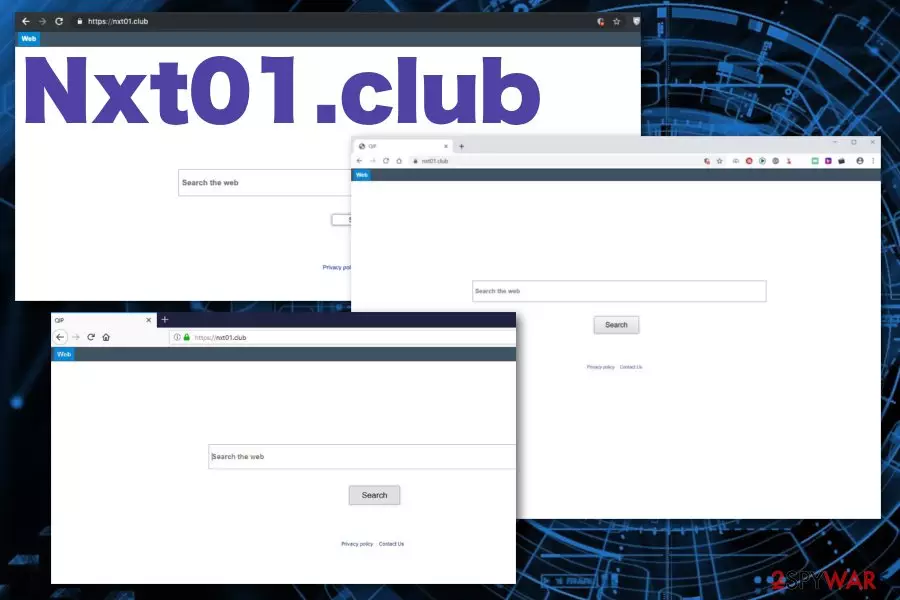
Nxt01.club is the browser hijacker that changes the default search engine of the browser and installs additional plugins or extensions. This potentially unwanted program changes the homepage, new tab, and default search engine settings on the browser.
Internet Explorer, Google Chrome, Mozilla Firefox, and other browsers get significantly affected by this intrusive behavior and additional content like extensions, plugins, and add-ons or toolbars. The slowness of your browser and installed questionable content alongside the changed search engine indicates that the PUP that infected your machine can be categorized as a browser hijacker.[1]
This PUP is developed by a well-known developer who is responsible for various OxSearch toolbars, extensions, and hijackers like Nxt01.club. All of them get delivered to the system either bundled with freeware or offered through advertisements and promotional content. Users cannot say how this program got onto their device since all the methods involve deceptive techniques and leave the user puzzled where those changes came from.
| Name | Nxt01.club |
|---|---|
| Type | Browser hijacker |
| Category | Potentially unwanted program |
| Similar to | |
| Distribution | Bundled software during insecure downloads, websites with advertisements |
| Main danger | Tracks and collects information about the user[2] |
| Symptoms | Web browser starts running slow and crashing, settings get changed, redirects and pop-up ads fill up the screen |
| Elimination | Get a proper anti-malware tool and remove all unwelcomed guests with a push of a button |
| System health | Repair the virus caused damages by running system diagnostics with the FortectIntego PC optimizer |
Nxt01.club virus gets this name because of the unwanted and intrusive behavior, but this is a PUP, not malware. The browser hijacker is designed with the primary purpose of modifying the internet browser without users permission and affects every on-browser search with altered results, involving links to sponsored sites and tons of advertisements.
Once the PUP infiltrates the targeted system, various files, and programs get installed on the machine including browser extensions, add-ons, and plugins. This way various background processes can get added to the PC and while they run the performance of the infected machine significantly diminishes.
The main infiltration symptoms include:
- Changed homepage, new tab settings.
- Default search engine set to Nxt01.club.
- In-browser searches show altered, in most cases, useless results.
- QxSearch extensions and additional browser content get installed.
It's a typical browser hijacker that can be found on various browsers and operating systems. These programs can often pose as useful tools and applications or even legitimate software that offers safe and improved web browsing. Unfortunately, this is not a valuable neither trustworthy search engine.

The Privacy Policy section of the website even states about the data tracking issue that is a huge reason why you need to remove Nxt01.club as soon as possible besides the intrusive commercial content and unwanted changes. The section “information we collect” reads the following:
QxSearch may collect two types of information: 1) Personal Information, and 2(Anonymous Information. Personal Information means information that may directly or indirectly identify you, such as your name, address, email address, and telephone number. Anonymous Information means information that does not directly or indirectly identify you, such as the number of page views, link clicks, and login times. We may use both Personal and Anonymous Information to create Aggregate Information. Aggregate Information, is the grouping of Personal and Anonymous Information into groups and/or categories, which does not identify you directly or indirectly. Through you use of the Site we may collect the following Personal Information: you name; email address; information you provided in public forums and/or social networks; information you provided us including your device identifier or IP address when you use the Site.
The article's culprit's associates advertisers and various commercial content creators what makes this data tracking a standard feature for various potentially unwanted programs.[2] Details get accessed immediately after the infiltration and:
- can get tracked by the website from each visit on the site or view;
- can get tracked from clicks on pop-up advertisements or banners;
- gets revealed when you use any of the stealthily installed programs or tools.
To get rid of all this content and reverse the needed changes, you need to get a professional antimalware tool and perform an automatic Nxt01.club removal during which all these useless browser extensions and so on get deleted completely. For this task, we recommend using MalwarebytesMalwarebytes or SpyHunterCombo Cleaner.
Since this potentially unwanted program can leave various traces in the registry and other system directories and settings, you must perform system diagnostics. According to many user reviews, the FortectIntego PC repair tool can fix all virus damage and delete tracking cookies in the process.
Common cyber infections found on the internet
Browser hijackers, push notifications viruses, browser redirects, adware programs, and similar intrusive applications attempt to infect computers daily. However, only when users pay not enough attention to processes happening on their device, PUPs get to infiltrate the system.
They are designed to appear as legitimate software or useful tools, so the user gets tricked into downloading the application on purpose. But in most cases, PUPs come to the targeted system as an additional part of the freeware installation setup because software providers pack their products with various unwanted programs.
During an insecure installation process, all of those extra programs get downloaded and installed automatically. When Default or Quick options get selected, the user agrees to obtain all included applications. Installing setup did not disclose the list of programs during this type of process.
However, choosing Advanced or Custom installations allows seeing all programs included in the setup and when you have the opportunity, you can de-select programs you don't want or need to get. This software bundling technique is used in p2p services and other sites where you can get free applications.
Experts[3] note all the time how dangerous free-sharing networks and questionable software providers, websites can be. You should always choose a reputable and trustworthy source for your applications and go for the official website of the developers to ensure that the program is legitimate.
Terminate Nxt01.club and eliminate all the possible damage with an antivirus program and a full system scan
To remove Nxt01.club from the system completely, manual methods are not enough. You can eliminate browser extensions, change settings back to default and do all those additional changes, cleaning processes manually. However, the main PUP cannot be terminated by the user without any extra help.
You should get a professional anti-malware tool for the automatic removal because this is a persistent intruder that often causes more changes on the machine than the browser hijacking. To reverse those registry changes and similar damage, you need a thorough system scan.
Uninstall from Windows
Uninstall from Windows 10/8:
- Type Control Panel into the Windows search box and open the result.
- Under Programs, select Uninstall a program.


Uninstall from Windows 7/XP:
- Click on Windows Start > Control Panel (Windows XP users should click on Add/Remove Programs).
- In Control Panel, select Programs > Uninstall a program.


Remove the unwanted program:
- In the Programs and Features window, look for any recently installed suspicious entries, select them, and click Uninstall.
- If User Account Control appears, click Yes to confirm, then complete the removal.


Delete from macOS
Remove the unwanted application:
- From the menu bar, select Go > Applications.
- In the Applications folder, look for any suspicious entries, then drag them to Trash (or right-click and pick Move to Trash).


Delete leftover files and folders:
- Select Go > Go to Folder.
- Enter /Library/Application Support and remove any suspicious folders related to the unwanted program.
- Repeat the same check in the /Library/LaunchAgents and /Library/LaunchDaemons folders, deleting any suspicious entries.

- Finally, empty the Trash to permanently remove the leftovers.

Remove from Microsoft Edge
Delete unwanted extensions from MS Edge:
- Select Menu (three horizontal dots at the top-right of the browser window) and pick Extensions.
- From the list, pick the extension and click on the Gear icon.
- Click Remove.


Clear cookies and other browser data:
- Click on the Menu (three horizontal dots at the top-right of the browser window) and select Settings > Privacy, search, and services..
- Under Clear browsing data, pick Choose what to clear.
- Select Cookies and other site data and Cached images and files. (apart from passwords, although you might want to include Media licenses as well, if applicable) and click on Clear.


Restore new tab and homepage settings:
- Click the menu icon and choose Settings.
- Then find On startup section.
- Click Remove next to any suspicious startup page.
Reset MS Edge if the above steps did not work:
- Press on Ctrl + Shift + Esc to open Task Manager.
- Click on More details arrow at the bottom of the window.
- Select Details tab.
- Now scroll down and locate every entry with Microsoft Edge name in it. Right-click on each of them and select End Task to stop MS Edge from running.


Instructions for Chromium-based Edge
Delete extensions from MS Edge (Chromium):
- Open Edge and click select Settings > Extensions.
- Delete unwanted extensions by clicking Remove.


Clear cache and site data:
- Click on Menu and go to Settings.
- Select Privacy, search and services.
- Under Clear browsing data, pick Choose what to clear.
- Under Time range, pick All time.
- Select Clear now.


Reset Chromium-based MS Edge:
- Click on Menu and select Settings.
- On the left side, pick Reset settings.
- Select Restore settings to their default values.
- Confirm with Reset.
- This will disable extensions and reset startup pages but will not delete bookmarks, saved passwords, or browsing history.


Remove from Mozilla Firefox (FF)
Remove dangerous extensions:
- Open Mozilla Firefox browser and click on the Menu (three horizontal lines at the top-right of the window).
- Select Add-ons.
- In here, select the unwanted extension and click Remove.


Reset the homepage:
- Click three horizontal lines at the top right corner to open the menu.
- Choose Settings.
- Under Home, set your preferred homepage and new tab settings.
Clear cookies and site data:
- Click Menu and pick Settings.
- Go to Privacy & Security section.
- Scroll down to locate Cookies and Site Data.
- Click on Clear Data...
- Select Cookies and Site Data and Temporary cached files and pages, then click Clear.


Reset Mozilla Firefox
If clearing the browser as explained above did not help, reset Mozilla Firefox:
- Open Mozilla Firefox browser and click the Menu.
- Go to Help and then choose Troubleshooting Information.

- Under Give Firefox a tune up section, click on Refresh Firefox...
- Once the pop-up shows up, confirm the action by pressing on Refresh Firefox.



Remove from Google Chrome
Delete malicious extensions from Google Chrome:
- Open Google Chrome, click on the Menu (three vertical dots at the top-right corner) and select More tools > Extensions.
- In the newly opened window, you will see all the installed extensions. Uninstall all suspicious extensions related to the unwanted program by clicking Remove.


Clear cache and web data from Chrome:
- Click on Menu and pick Settings.
- Under Privacy and security, select Clear browsing data.
- Select Browsing history, Cookies and other site data, as well as Cached images and files.
- Click Clear data.


Change your homepage:
- Click menu and choose Settings.
- Look for a suspicious site in the On startup section.
- Click on Open a specific or set of pages and click on three dots to find the Remove option.
Reset Google Chrome:
If the previous methods did not help you, reset Google Chrome to eliminate all the unwanted components:
- Click on Menu and select Settings.
- In the Settings, scroll down and click Advanced.
- Scroll down and locate Reset and clean up section.
- Now click Restore settings to their original defaults.
- Confirm with Reset settings.


Delete from Safari
Remove dangerous extensions:
- Open Safari, click Safari in the menu at the top-left of the screen, and select Preferences.
- Go to the Extensions tab, look for any suspicious entries, and click Uninstall to remove them.


Clear history and website data:
- Click Safari in the menu and pick Clear History.
- Set Clear to all history and confirm with Clear History.


Reset Safari:
- Click Safari in the menu and select Preferences > Advanced.
- Enable Show Develop menu in menu bar.
- From the menu bar, click Develop and select Empty Caches.


Did this guide help?
Be the first to comment