

PracticalProcesser is a potentially unwanted application that can track your personal information
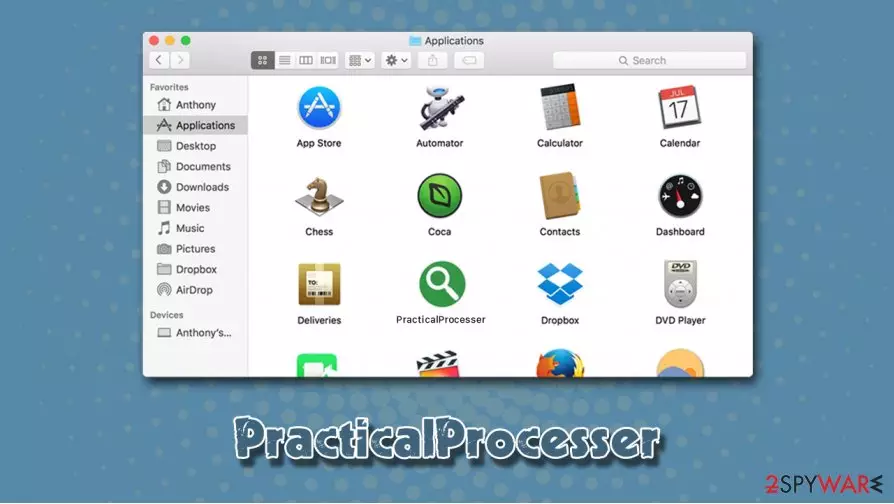
PracticalProcesser is an adware that has a variety of unwanted or dangerous traits – it belongs to a well-known malware campaign known as Adload. The potentially unwanted application targets Mac computers exclusively and spreads via pirated software installers downloaded from insecure websites, as well as fake Flash Player or other deceptive prompts. Once inside the computer, it appends a browser extension to all the installed browsers (Safari, Google Chrome, Mozilla Firefox, etc.) and changes web browser settings without permission, setting Safe Finder, adjustablesample.com, or another dubious tool as the main search provider.
This allows the PracticalProcesser virus to promote deals, offers, coupons, and other ads via popups, in-text links, or flashing windows. While this activity might disrupt any users' online activities, it is important to mention that this adware can also pose a serious security threat, as it can be related to Mac malware such as Shlayer Trojan and sometimes capable of reading sensitive information via the extension on the browser.
| Name | PracticalProcesser |
| Type | Adware, Mac virus |
| Family | Adload |
| Distribution | The app is usually not installed purposely: it is either installed via software bundle packages when rushing the installation of freeware or after being tricked by fake updates |
| Symptoms | Unknown browser extensions are installed on the web browser with elevated permissions; search engine and new tab address altered to something else; redirects bring to unknown/malicious/scam sites, etc. |
| Risks | Installation of other potentially unwanted applications/malware, sensitive data disclosure to cybercriminals, monetary losses |
| Removal | To get rid of malware from your system automatically, download and install powerful security software – we recommend using SpyHunterCombo Cleaner or MalwarebytesMalwarebytes |
| Optimization | To repair virus damage and tweak the system for its best performance, perform a full system scan with FortectIntego |
Most browser hijackers or/and adware are relatively harmless (even though it became a huge problem to Mac users in recent years), as browser changes can be quickly reverted, and the control of the search tool regained. However, it is not uncommon for users to suffer from PracticalProcesser removal difficulties – and for a reason.
As already mentioned, PracticalProcesser belongs to the Adload adware family, other members of which include OperativeFraction, BufferKey, AccessibleBoost, CreativeSearch, MainReady, and many others. All of these apps are identical, as they use the same magnifying glass icon in the teal/green/red background, and all perform some type of unsolicited changes to the web browser and the computer.
Possibly the most dangerous feature of PracticalProcesser malware is that it injects several components into the machine by abusing the built-in AppleScript, which allows the establishment of new profiles, Login Items, and dropping malicious .plist files in Library and other folders. Therefore, even if users are aware of the infection, they can often struggle to remove PracticalProcesser from their systems.
To make matters worse, the installed browser extension is often applied with elevated permissions that can seriously compromise one's privacy. In most cases, Adload adware browser extensions are installed with the following permissions:
PracticalProcesser 1.0
Permissions for “PracticalProcesser”:
Webpage contents
Can read sensitive information from webpages, including passwords, phone numbers, and credit cards on all webpagesBrowsing history
Can see when you visit all webpages
Without a doubt, users who are subjected to sensitive data theft can suffer from various financial losses or even identity theft if the harvested information ends up in cybercriminals' hands. Unfortunately, even if users attempt to uninstall the PracticalProcesser extension, they are most likely will not be able to, as it might set the “Managed by your organization” status on the web browser.

The installer of PracticalProcesser can be stopped by several anti-malware applications, detected under the following names:[1]
- Adware.OSX.Adload.2!c
- MacOS:AdAgent-L [Adw]
- OSX.Trojan.Gen
- A Variant Of OSX/Adware.Synataeb.C
- Adware.MAC.Adload.WN
- PUA:Win32/Presenoker
- Not-a-virus:HEUR:AdWare.OSX.Adload.i, etc.
Thus, we highly advise you to uninstall PracticalProcesser as soon as possible, as it can greatly compromise your online safety and result in additional malware installation. However, this process might be a bit more complicated than it may seem. You should not worry much, as we provided precise instructions on how to get rid of this annoying Mac virus infection.
While we do not recommend manual elimination, you can find detailed instructions below. For the quickest removal, you should instead use security tools such as SpyHunterCombo Cleaner or MalwarebytesMalwarebytes, and then perform an additional scan with FortectIntego.
Mac malware is serious threat – do not allow it to compromise your online safety
There has been many debates whether Macs can get infected in the first place – and to this day people believe that these machines are immune to malware. However, the statistics and research performed by many security research teams claim the opposite. In fact, Mac malware has outpaced Windows focused malware for the first time in 2019, which marks the increase of infections by 400% from the previous year, according to researchers.[2]
Therefore, if you owe a Mac, it does not mean that you are safe from malware and especially adware. Cybercriminals are now focusing on Macs much more, as the OS is becoming much more popular. There are very simple measures that would keep your macOS secure, as experts[3] say:
- Do not download apps from dangerous sites. While third-parties can get you infected with adware, it is very unlikely to be persistent and/or malicious. However, torrents and similar websites that allow the installation of pirated software are one of the main reasons why users get infected.
- Listen to Mac's warnings. Do not just bypass the prompts by instantaneously entering your credentials.
- Never install the alleged “malware removal tools” from pages that claim your system is infected with viruses.
- Flash Player is only needed in very rare circumstances, so assume that all the prompts to install its updates are fake.
- Install a powerful anti-malware solution that would warn you about incoming infections.

Delete PracticalProcesser safely
As mentioned above, PracticalProcesser removal may be a real pain, as the adware drops several malicious components scattered among various directories. Besides, the browser extension might also be grayed out, which means that you will not be able to uninstall it in a regular way.
The best way to remove PracticalProcesser virus is to scan your computer with powerful anti-malware software, which would find and delete all the malicious files automatically. If you do not wish to install additional software and would like to locate unwanted files yourself, check the following locations on your device:
System Preferences > Accounts> Login Items
System Preferences > Users&Groups > Profiles
~/Library/LaunchAgents
~/Library/Application Support
~/Library/LaunchDaemons
When it comes to the browser, however, it is highly advised to reset it after the elimination process of adware and malware is complete. For that, follow the instructions we provide below.
Delete from macOS
Remove the unwanted application:
- From the menu bar, select Go > Applications.
- In the Applications folder, look for any suspicious entries, then drag them to Trash (or right-click and pick Move to Trash).


Delete leftover files and folders:
- Select Go > Go to Folder.
- Enter /Library/Application Support and remove any suspicious folders related to the unwanted program.
- Repeat the same check in the /Library/LaunchAgents and /Library/LaunchDaemons folders, deleting any suspicious entries.

- Finally, empty the Trash to permanently remove the leftovers.

Remove from Mozilla Firefox (FF)
Remove dangerous extensions:
- Open Mozilla Firefox browser and click on the Menu (three horizontal lines at the top-right of the window).
- Select Add-ons.
- In here, select the unwanted extension and click Remove.


Reset the homepage:
- Click three horizontal lines at the top right corner to open the menu.
- Choose Settings.
- Under Home, set your preferred homepage and new tab settings.
Clear cookies and site data:
- Click Menu and pick Settings.
- Go to Privacy & Security section.
- Scroll down to locate Cookies and Site Data.
- Click on Clear Data...
- Select Cookies and Site Data and Temporary cached files and pages, then click Clear.


Reset Mozilla Firefox
If clearing the browser as explained above did not help, reset Mozilla Firefox:
- Open Mozilla Firefox browser and click the Menu.
- Go to Help and then choose Troubleshooting Information.

- Under Give Firefox a tune up section, click on Refresh Firefox...
- Once the pop-up shows up, confirm the action by pressing on Refresh Firefox.



Remove from Google Chrome
Delete malicious extensions from Google Chrome:
- Open Google Chrome, click on the Menu (three vertical dots at the top-right corner) and select More tools > Extensions.
- In the newly opened window, you will see all the installed extensions. Uninstall all suspicious extensions related to the unwanted program by clicking Remove.


Clear cache and web data from Chrome:
- Click on Menu and pick Settings.
- Under Privacy and security, select Clear browsing data.
- Select Browsing history, Cookies and other site data, as well as Cached images and files.
- Click Clear data.


Change your homepage:
- Click menu and choose Settings.
- Look for a suspicious site in the On startup section.
- Click on Open a specific or set of pages and click on three dots to find the Remove option.
Reset Google Chrome:
If the previous methods did not help you, reset Google Chrome to eliminate all the unwanted components:
- Click on Menu and select Settings.
- In the Settings, scroll down and click Advanced.
- Scroll down and locate Reset and clean up section.
- Now click Restore settings to their original defaults.
- Confirm with Reset settings.


Delete from Safari
Remove dangerous extensions:
- Open Safari, click Safari in the menu at the top-left of the screen, and select Preferences.
- Go to the Extensions tab, look for any suspicious entries, and click Uninstall to remove them.


Clear history and website data:
- Click Safari in the menu and pick Clear History.
- Set Clear to all history and confirm with Clear History.


Reset Safari:
- Click Safari in the menu and select Preferences > Advanced.
- Enable Show Develop menu in menu bar.
- From the menu bar, click Develop and select Empty Caches.


Did this guide help?
Be the first to comment