

ConvertersCoolSearch is a browser hijacker that changes browser settings to promote various sponsored content
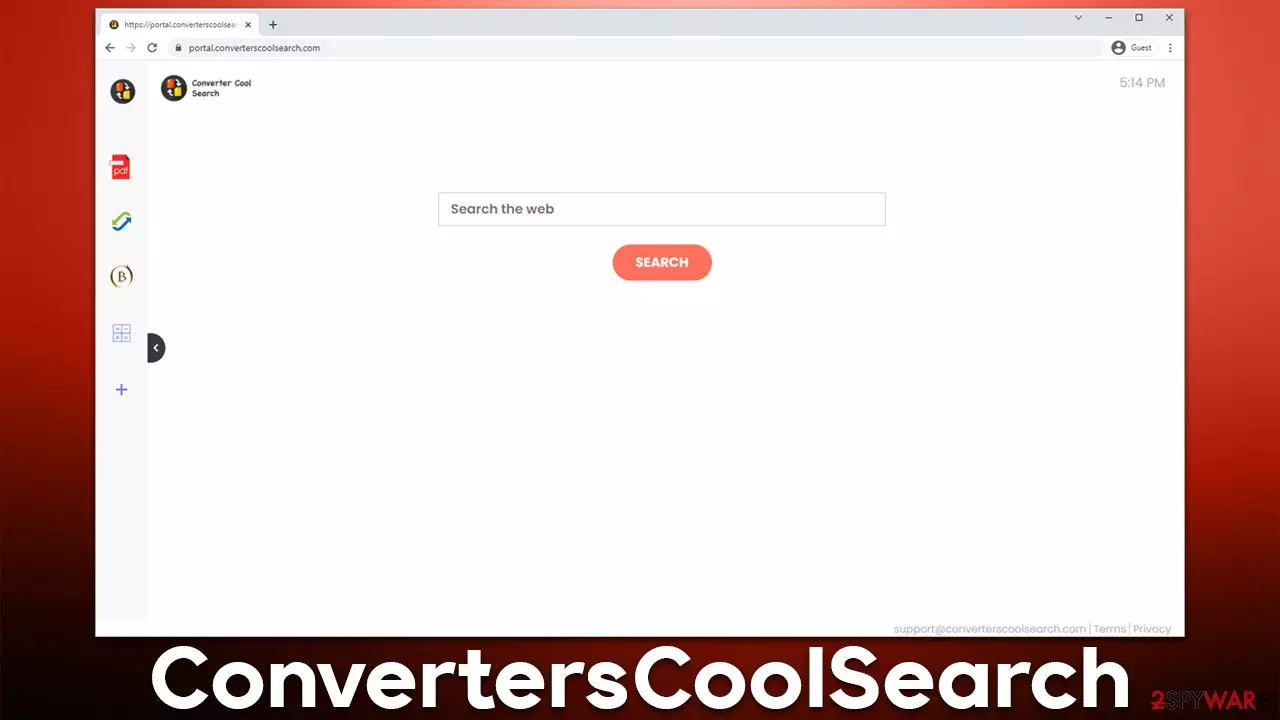
If you are searching for a reliable file converter tool, you should probably not go for ConvertersCoolSearch, as it is categorized as a potentially unwanted application. To be more precise, it is a typical browser hijacker that commonly spreads via software bundles[1] or other deceptive methods, which results in users installing it unintentionally. In other cases, people might install the app without realizing that it is practically useless and possess unwanted features.
The extension is immediately visible on Google Chrome, Mozilla Firefox, MS Edge, or another compatible browser as soon as the hijacker is installed. However, the first thing that most users notice is the change to the homepage, which is now set to portal.converterscoolsearch.com. This allows the hijacker to replace the default search box, making users rely on the alternative one – and it is not that good of a change, as it turns out.
First of all, the search tool alters the provider that generates the results thus many are surprised that the search queries returned are quite a bit different. There are several providers that might be used by the hijacker, including:
There are a few factors that decide which one is used, e.g., your location or default browser references. While the latter two options are perfectly renowned and popular providers, they act quite a bit differently when users are affected by a redirect virus – ConvertersCoolSearch in this case. Also, the former two should not be trusted at all, as they are commonly used by various potentially unwanted or even dangerous programs.
Evidently, since the provider users differ, the results differ too. One of the major differences is that there would be a lot of sponsored links that are always being shown at the top, and these might not always be accurate. In some cases, other potentially unwanted programs or useless services might be advertised. Due to this, many users end up visiting websites they otherwise wouldn't, which might cause all sorts of issues.
| Name | ConvertersCoolSearch |
|---|---|
| Type | Browser hijacker, potentially unwanted browser extension |
| Distribution | Software bundling, fake updates, misleading ads |
| Symptoms | Homepage and new tab address is set to portal.converterscoolsearch.com; all search results are displayed through an alternative search provider; ads and promotional links are shown at the top of the results |
| Risks | While browser hijackers rarely pose a danger in terms of security point of view, users might end up installing other suspicious or unwanted programs, suffer financial losses, and have their privacy compromised |
| removal | You can get rid of potentially unwanted applications manually, although performing a full system scan with SpyHunterCombo Cleaner or another security software is also recommended |
| Remediation | Cleaning your browsers is just as important as removing the extension that caused the unwanted activities. For that, check the instructions below or employ FortectIntego for a quicker solution |
The popular hijacker family
ConvertersCoolSearch comes from a much broader family of browser hijackers – there have been hundreds of versions already released. The developer, which remains unknown, is known for previously releasing hijackers like CoolMapSearch, SocialCouponSearch, or BestMusicSearches. If looking closely, similarities between the naming can immediately be established – all of the names use a combination of three or sometimes two words, which usually include the word “search.”
It is also followed by the theme of the hijacker – it is meant to hint at the functionality of the app. Evidently, ConvertersCoolSearch is meant to help users with file conversion. However, this couldn't be further from the truth, and none of the extensions mentioned above have any additional functionality apart from a calculator and a few other features that are easily accessible through a simple Google search.
All the versions from this browser hijacker family are actually mere copies of one another, and the only difference is the name and the logo used by that particular app. Considering that the main purpose of the app is to insert advertisements into search results, it makes it rather useless.

Removal steps
Browser hijackers typically reside in browsers, which means that the main app which should be removed in order to eliminate the PUP is an extension embedded in the browser. If you have never dealt with browser add-ons, we provide comprehensive instructions below.
Before you proceed with the elimination steps, we strongly recommend you perform a full system scan with powerful security software, for example, SpyHunterCombo Cleaner or MalwarebytesMalwarebytes. This is especially important if you frequent websites that are considered high-risk (torrents, software cracks, illegal video streaming, etc.) and if you do not have powerful security software running in the background at all times.
Google Chrome
- Open Google Chrome, click on the Menu (three vertical dots at the top-right corner) and select More tools > Extensions.
- In the newly opened window, you will see all the installed extensions. Uninstall all the suspicious plugins that might be related to the unwanted program by clicking Remove.


Mozilla Firefox
- Open Mozilla Firefox browser and click on the Menu (three horizontal lines at the top-right of the window).
- Select Add-ons.
- In here, select unwanted plugin and click Remove.


MS Edge
- Open Edge and click select Settings > Extensions.
- Delete unwanted extensions by clicking Remove.


ME Edge (legacy)
- Select Menu (three horizontal dots at the top-right of the browser window) and pick Extensions.
- From the list, pick the extension and click on the Gear icon.
- Click on Uninstall at the bottom.


Safari
- Click Safari > Preferences…
- In the new window, pick Extensions.
- Select the unwanted extension and select Uninstall.


Do this for better privacy
Once you are finished with the removal of the extension from your browser, it might seem like you are done. While it can be effective, we strongly recommend not abandoning additional elimination steps that should make your overall privacy and security much better – we are talking about the tracking capabilities of the hijacker.
As soon as the ConvertersCoolSearch extension is installed on the device, it places small files locally – they are called cookies.[2] Thanks to them and a few other tracking technologies, the PUP might follow all of your steps online, recording which websites you visit, links you click, and even search queries you enter into the search box. These activities are well described in the privacy policy of the app developer:[3]
Non-Personal Information may be automatically transmitted by the user's device. When using our Service, we assign your device with a log file, a cookie (session or persistent), web beacons or other related technologies, to collect Non-Personal Information with respect to your activity in connection with our Service.
Therefore, you should eliminate cookies and other items that might still remain on your browser after hijacker elimination. You can do that quickly with the help of FortectIntego (it can also fix various common issues with your computer due to malware infections or other reasons) or refer to the instructions below to do it manually:
Google Chrome
- Click on Menu and pick Settings.
- Under Privacy and security, select Clear browsing data.
- Select Browsing history, Cookies and other site data, as well as Cached images and files.
- Click Clear data.


Mozilla Firefox
- Click Menu and pick Options.
- Go to Privacy & Security section.
- Scroll down to locate Cookies and Site Data.
- Click on Clear Data…
- Select Cookies and Site Data, as well as Cached Web Content and press Clear.


MS Edge
- Click on Menu and go to Settings.
- Select Privacy and services.
- Under Clear browsing data, pick Choose what to clear.
- Under Time range, pick All time.
- Select Clear now.


MS Edge (legacy)
- Click on the Menu (three horizontal dots at the top-right of the browser window) and select Privacy & security.
- Under Clear browsing data, pick Choose what to clear.
- Select everything (apart from passwords, although you might want to include Media licenses as well, if applicable) and click on Clear.


Safari
- Click Safari > Clear History…
- From the drop-down menu under Clear, pick all history.
- Confirm with Clear History.


Did this guide help?
Be the first to comment