

LinkSet is a malicious application that infects hundreds of Mac users daily
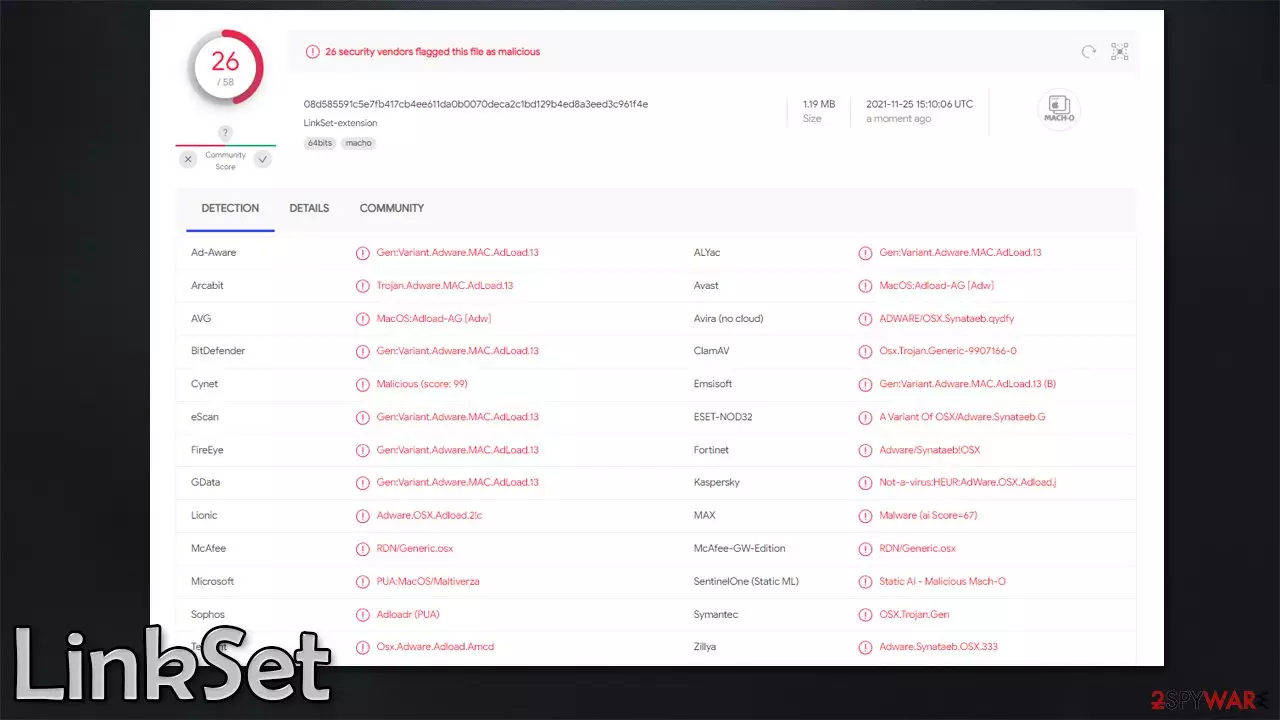
The number of threats targeting Macs has been rising with every passing year, and adware remains the main problem of this operating system. Adload, which the LinkSet virus belongs to, is one of the adware families that has been targeting macOS devices for quite a few years now, each with each version not differing much from the previous. That being said, cybercriminals behind the strain have been tweaking their creations to increase the persistence and scope of the infection.
The main goal of this malicious app is to gain as much revenue from ads as possible. Since the strain is connected with many other potentially unwanted applications and malicious websites, it is not uncommon for users to encounter all sorts of nasties while browsing the web after being infected; it includes phishing sites, online scams, malicious links, and more. While it is true that not every encountered pop-up or link is malicious, one can never know which one of them is secure to click on.
In order to monetize ads, the virus makes immediate changes to Safari, Google Chrome, or Mozilla Firefox upon infiltration, with the most notable change being the homepage. It is usually swapped to something different, such as Safe Finder – another malicious entity that targets Mac users exclusively.
Likewise, searches are commonly redirected through various channels before the endpoint is reached. The search results are often also what not people are expecting, as the default search provider is switched for another one (for example, Bing or Yahoo), and tons of ads are placed at the top. These links are not safe to click, as LinkSet might promote malicious websites that host other malware or ask to subscribe to fictional services.
If you have found any traces of the app running on your Mac, you should immediately take action to remove it from your device as soon as possible because your privacy and online safety are at risk as long as it is running in the background.
| Name | LinkSet |
| Type | Mac virus, adware, browser hijacker |
| Malware family | Adload |
| Previous versions | ProductionElements, EdgeAdvanced, FlexInterval |
| Installation | Illegal application installers from torrent and similar sites, Fake Flash Player installers |
| Symptoms | A suspicious browser extension installed on the web browser; search and browsing settings altered to Safe Finder or another provider; increased number of ads and redirects; new profiles and other elements created on the accounts |
| Elimination | You can remove Mac malware with the help of powerful security tools, such as SpyHunterCombo Cleaner or MalwarebytesMalwarebytes. We also provide manual removal steps below |
| System optimization | After you terminate the infection with all its associated components, we recommend you also scan your machine with FortectIntego to clean your browsers and junk that might have been left by the infection |
Distribution tactics and avoidance tips
As with everything else this app does, LinkSet's distribution is not genuine. It is not a secret that nobody would install a malicious application on their systems knowingly, hence the creators need to come up with some ideas for their illegal business to succeed. Unfortunately, all of these methods are successful because users themselves allow it to happen.
The first method the crooks use is fake update prompts. These could be encountered at any time while browsing the web, although they could be a result of an already running potentially unwanted application. This is why it is important to periodically perform a full system scan with SpyHunterCombo Cleaner or another reputable anti-malware.
In order to avoid being tricked by fake alerts, simply never agree to download anything offered on random websites that threaten or claim that something is missing from your system. For example, a popular technique is to make people believe that Flash Player is needed to display a website's content – it is absolutely false, as Adobe, the developer of the plugin, discontinued it a while ago due to security issues it was plagued with.[1] Likewise, other popular software can be used, such as Google Chrome or Media Player.

It is even more likely for users to get infected with LinkSet by downloading illegal software from torrent websites. Pirated software and cracks are commonly infested with malicious code and, once executed, can infect the system immediately. Likewise, optional components within the installer could be offered in a deceptive manner, e.g., pre-ticked boxes, misleading button placements, or fine print text can be used.
Thus, always pay attention to the installation process of new apps – pick Advanced installation mode instead of Recommended and read the instructions carefully. Most importantly, do not install apps from insecure sources, as it can result in malware infection very quickly.
Virus removal explained
Adload is not a new malware strain and has been around for several years now. It uses a distinctive icon – a magnifying glass – in the blue, green, or teal background and is installed as a standalone application along with a browser extension. Both of these components ensure that infected users are fed with ads as frequently as possible.
Once users allow the app to be installed, they give it a lot of permissions. With the help of simple but effective misuse of AppleScript,[2] the virus is capable of installing itself with higher permissions. This explains why the extension can gather sensitive user data, such as credit card details and passwords. Without a doubt, such behavior can be extremely dangerous and result in identity theft or other privacy issues.
Thanks to system settings changes, LinkSet adware actively communicates with a remote server and avoids the detection and removal by Xprotect/Gatekeeper.[3] Therefore, if you want to remove the virus automatically, you should install a powerful third-party security tool, such as SpyHunterCombo Cleaner or MalwarebytesMalwarebytes, and perform a full system scan.
If you want to try eliminating this malicious software manually, you will find all the details below. However, keep in mind that this process is not necessarily going to be successful because the app's components are intertwined with one another. For regular users, we strongly recommend sticking to the automatic elimination method.
Remove the main app
First of all, you need to shut down all the suspicious processes that could be running in the background. Keep in mind that the name of the process might not necessarily correlate with the name of the app – in this case, LinkSet – so it might be difficult to determine which entry is responsible.
- Open Applications folder
- Select Utilities
- Double-click Activity Monitor
- Here, look for suspicious processes and use the Force Quit command to shut them down
- Go back to the Applications folder
- Find the malicious entry and place it in Trash.
Get rid of the extension
Keep in mind that this step might not be possible without you executing the other steps shown here. If you are unsuccessful in removing the extension from your browser, proceed with the other instructions below.
- Click Safari > Preferences…
- In the new window, pick Extensions.
- Select the unwanted extension and select Uninstall.


Note: if you are using Google Chrome or Mozilla Firefox, check for the instructions at the bottom of the article.
Remove profiles and login items
Malicious applications create new profiles and login items in order to establish persistence. If you can remove them manually, it would be easier to delete other malware's components
- Go to Preferences and pick Accounts
- Click Login items and delete everything suspicious
- Next, pick System Preferences > Users & Groups
- Find Profiles and remove unwanted profiles from the list.
Clean or reset your browser
Removing web cache and browser data can mean a lot when trying to eliminate the traces of potentially unwanted applications. Adware often uses cookies and other tracking technologies to capture user information and later shares it with third parties, which can compromise one's privacy.
It is also recommended to clean browsers for security reasons, as cookie hijacking can be a very dangerous occurrence. In any case, you can clear all caches automatically with the help of FortectIntego maintenance utility or perform the steps below:
- Click Safari > Clear History…
- From the drop-down menu under Clear, pick all history.
- Confirm with Clear History.


If some or all of the steps above were impossible to do, you could always opt for a browser reset.
- Click Safari > Preferences…
- Go to the Advanced tab.
- Tick the Show Develop menu in the menu bar.
- From the menu bar, click Develop, and then select Empty Caches.


Remove leftover plist and other files
- Select Go > Go to Folder.
- Enter /Library/Application Support and click Go or press Enter.
- In the Application Support folder, look for any dubious entries and then delete them.
- Now enter /Library/LaunchAgents and /Library/LaunchDaemons folders the same way and delete all the related .plist files.


Remove from Mozilla Firefox (FF)
Remove dangerous extensions:
- Open Mozilla Firefox browser and click on the Menu (three horizontal lines at the top-right of the window).
- Select Add-ons.
- In here, select the unwanted extension and click Remove.


Reset the homepage:
- Click three horizontal lines at the top right corner to open the menu.
- Choose Settings.
- Under Home, set your preferred homepage and new tab settings.
Clear cookies and site data:
- Click Menu and pick Settings.
- Go to Privacy & Security section.
- Scroll down to locate Cookies and Site Data.
- Click on Clear Data...
- Select Cookies and Site Data and Temporary cached files and pages, then click Clear.


Reset Mozilla Firefox
If clearing the browser as explained above did not help, reset Mozilla Firefox:
- Open Mozilla Firefox browser and click the Menu.
- Go to Help and then choose Troubleshooting Information.

- Under Give Firefox a tune up section, click on Refresh Firefox...
- Once the pop-up shows up, confirm the action by pressing on Refresh Firefox.



Remove from Google Chrome
Delete malicious extensions from Google Chrome:
- Open Google Chrome, click on the Menu (three vertical dots at the top-right corner) and select More tools > Extensions.
- In the newly opened window, you will see all the installed extensions. Uninstall all suspicious extensions related to the unwanted program by clicking Remove.


Clear cache and web data from Chrome:
- Click on Menu and pick Settings.
- Under Privacy and security, select Clear browsing data.
- Select Browsing history, Cookies and other site data, as well as Cached images and files.
- Click Clear data.


Change your homepage:
- Click menu and choose Settings.
- Look for a suspicious site in the On startup section.
- Click on Open a specific or set of pages and click on three dots to find the Remove option.
Reset Google Chrome:
If the previous methods did not help you, reset Google Chrome to eliminate all the unwanted components:
- Click on Menu and select Settings.
- In the Settings, scroll down and click Advanced.
- Scroll down and locate Reset and clean up section.
- Now click Restore settings to their original defaults.
- Confirm with Reset settings.


Did this guide help?
Be the first to comment