

Lp.macsmart-cleanupc.club – a pop-up scam that tries to push Smart Mac Booster to the users' machines
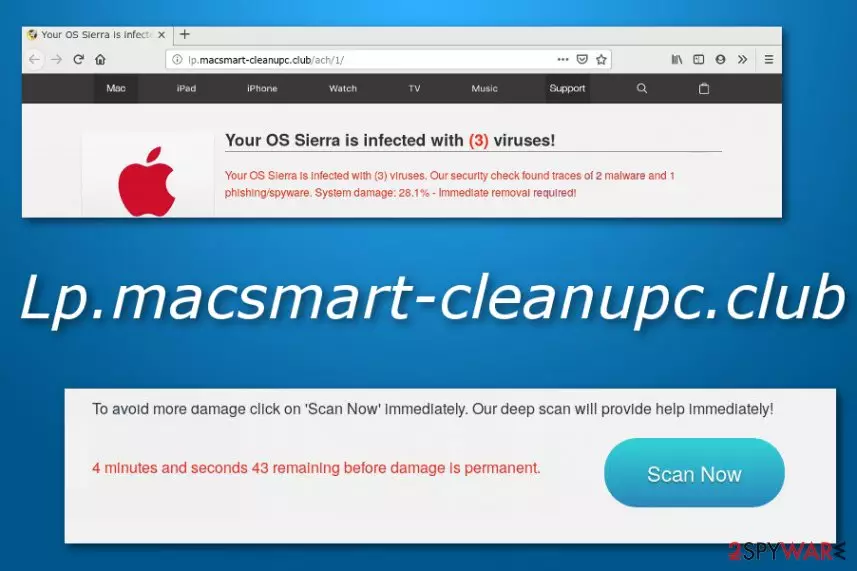
Lp.macsmart-cleanupc.club is an Apple-based scam that aims to support rogue security software such as Smart Mac Booster. An adware application might be hidden on your computer system and provoking this scam to appear. However, once you are loaded with the scamming message, you will be provided with an alert that your Mac is infected with 3 viruses two of which are detected as malware and the other one falls into the spyware[1] category. Therefore, Lp.macsmart-cleanupc.club will urge you to take immediate actions and click the “Scan Now” button. If you press this key, you will be prompted to download a suspicious security tool which ends up on your machine via the maccleaner.pkg file.
| Name | Lp.macsmart-cleanupc.club |
|---|---|
| Type | Adware/pop-up scam |
| Category | Mac virus |
| Related file | Once this scam appears, it brings bogus security products by downloading and installing the maccleaner.pkg file to your computer system |
| Promoted software | Smart Mac Booster is the main security product that is promoted by this scamming application for income-collecting purposes |
| Similar to | There are many similar scams lurking in the cybersphere. Some of them are apple.com-fasting.live, apple.com-monitor.live, apple.com-clear.live, apple.com-optimize.live |
| Distribution | Usually, such scams are the sign of an adware infection. PUPs often reach targeted systems through bundled products or unsecured third-party websites |
| Removal | You can employ FortectIntego to scan the entire system for possible infection strings. Afterward, use manual or automatical instructions for carrying out the elimination. Find all of the steps at the end of this article |
Lp.macsmart-cleanupc.club domain comes from the 69.162.126.230 IP address and often is a sign of a PUP (potentially unwanted program) infection. We have made research and found out that very similar scams carry almost identical messages like this one. Here is a list of some that are also included in our database:
Lp.macsmart-cleanupc.club virus is also a popular term between Mac users as this program aims to state false things. Once appeared, the bogus scam window will claim that about 28.1% of your system has been damaged and you have approximately 4-5 minutes to click the “Scan Now” button and “save” your computer.
Note that all this information that comes from Lp.macsmart-cleanupc.club cannot be trusted as it is only another scam that tries to gather income from Mac users by providing Smart Mac Booster as the only option to fix things. Be aware that another message like this one might also pop out while dealing with the scam application:
IMMEDIATE ACTION REQUIRED!
You Mac OS might be infected.
Press OK to begin the repair process.
Do not press any buttons to avoid the risk of Lp.macsmart-cleanupc.club redirects. You might be accidentally taken to a malicious place and get your system infected with a virus. Besides, if an adware program is working behind this scam, redirecting is supposedly also one of the activities that are promoted by the PUP.

Developers use redirecting to take the users to affiliate networks and push through some bogus-looking products. Also, if an adware is provoking Lp.macsmart-cleanupc.club pop-up scam to appear, be prepared to receive an excessive amount of advertisements on your computer screen during browsing activities and sessions.
Adware can perform a big variety of tasks including advertising, redirecting, collecting information about your browsing sessions, modifying your browser's homepage, overusing the CPU's power and slowing down your entire machine. For this not to happen, you should remove Lp.macsmart-cleanupc.club from your Mac OS X completely.
Lp.macsmart-cleanupc.club removal instructions have been provided at the end of the article. You can use manual steps if you think of yourself as an advanced user. As an alternative, you can employ reliable antimalware software such as FortectIntego and scan the entire system for possible infection strains. Afterward, terminate the threat automatically.
Adware distributes via packages of bundled programs
Developers often promote their products via third-party downloading websites where the software can be installed for free. Suspicious components are able to enter the computer system through download configuration that is marked as “Basic” or “Recommended”. Regarding this, you should switch the installing option to “Custom” or “Advanced”.
Besides, adware programs and their additional products can be downloaded from various third-party forums, websites, and p2p networks[2] such as The Pirate Bay, Torrents, eMule, and similar. Prevent yourself from visiting these places and do not click on any bogus content such as hyperlinks of advertisements that pops out randomly.
Technology experts from NoVirus.uk[3] claim that you should take care of your computer system automatically too. For this purpose, find and download a reliable antivirus program and make sure that you update the software once in a while.

Removal instructions for Lp.macsmart-cleanupc.club pop-up scam
Lp.macsmart-cleanupc.club removal process can be carried out in two different ways one of which is automatical and the other one is manual. For automatical elimination, we suggest using reliable antivirus products and getting rid of the adware that is hiding under the scan.
In addition, you can remove Lp.macsmart-cleanupc.club with the help of the manual removal instructions that are listed below. These steps show you how to uninstall the potentially unwanted program from your Mac OS X and you can follow them if you consider yourself able to.
Cleaning browsers from Lp.macsmart-cleanupc.club virus added products is a necessity as the adware that is hiding under the scam might have placed bogus extensions and plug-ins in web browser applications such as Google Chrome, Mozilla Firefox, and Safari.
Delete from macOS
Remove the unwanted application:
- From the menu bar, select Go > Applications.
- In the Applications folder, look for any suspicious entries, then drag them to Trash (or right-click and pick Move to Trash).


Delete leftover files and folders:
- Select Go > Go to Folder.
- Enter /Library/Application Support and remove any suspicious folders related to the unwanted program.
- Repeat the same check in the /Library/LaunchAgents and /Library/LaunchDaemons folders, deleting any suspicious entries.

- Finally, empty the Trash to permanently remove the leftovers.

Remove from Mozilla Firefox (FF)
Remove dangerous extensions:
- Open Mozilla Firefox browser and click on the Menu (three horizontal lines at the top-right of the window).
- Select Add-ons.
- In here, select the unwanted extension and click Remove.


Reset the homepage:
- Click three horizontal lines at the top right corner to open the menu.
- Choose Settings.
- Under Home, set your preferred homepage and new tab settings.
Clear cookies and site data:
- Click Menu and pick Settings.
- Go to Privacy & Security section.
- Scroll down to locate Cookies and Site Data.
- Click on Clear Data...
- Select Cookies and Site Data and Temporary cached files and pages, then click Clear.


Reset Mozilla Firefox
If clearing the browser as explained above did not help, reset Mozilla Firefox:
- Open Mozilla Firefox browser and click the Menu.
- Go to Help and then choose Troubleshooting Information.

- Under Give Firefox a tune up section, click on Refresh Firefox...
- Once the pop-up shows up, confirm the action by pressing on Refresh Firefox.



Remove from Google Chrome
Delete malicious extensions from Google Chrome:
- Open Google Chrome, click on the Menu (three vertical dots at the top-right corner) and select More tools > Extensions.
- In the newly opened window, you will see all the installed extensions. Uninstall all suspicious extensions related to the unwanted program by clicking Remove.


Clear cache and web data from Chrome:
- Click on Menu and pick Settings.
- Under Privacy and security, select Clear browsing data.
- Select Browsing history, Cookies and other site data, as well as Cached images and files.
- Click Clear data.


Change your homepage:
- Click menu and choose Settings.
- Look for a suspicious site in the On startup section.
- Click on Open a specific or set of pages and click on three dots to find the Remove option.
Reset Google Chrome:
If the previous methods did not help you, reset Google Chrome to eliminate all the unwanted components:
- Click on Menu and select Settings.
- In the Settings, scroll down and click Advanced.
- Scroll down and locate Reset and clean up section.
- Now click Restore settings to their original defaults.
- Confirm with Reset settings.


Delete from Safari
Remove dangerous extensions:
- Open Safari, click Safari in the menu at the top-left of the screen, and select Preferences.
- Go to the Extensions tab, look for any suspicious entries, and click Uninstall to remove them.


Clear history and website data:
- Click Safari in the menu and pick Clear History.
- Set Clear to all history and confirm with Clear History.


Reset Safari:
- Click Safari in the menu and select Preferences > Advanced.
- Enable Show Develop menu in menu bar.
- From the menu bar, click Develop and select Empty Caches.


Did this guide help?
Be the first to comment