

Apple.com-clear.live is the website showing fake virus alerts to encourage people to download promoted software
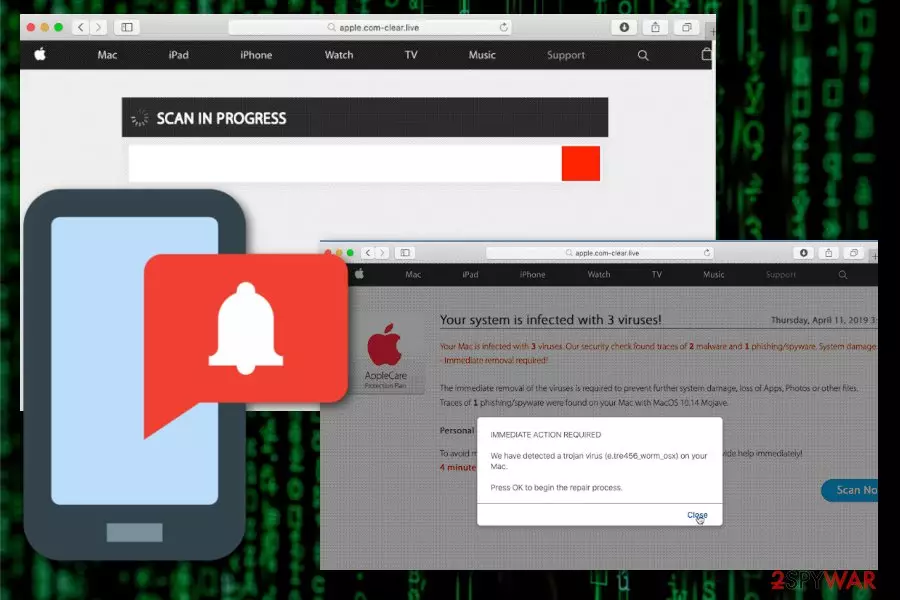
Then Apple.com-clear.live promotes the program and offers to remove viruses with the anti-malware program. However, those system optimizers that this adware promotes has no features capable of removing viruses or even potentially unwanted programs. When Advanced Mac Cleaner or any similar rogue tool gets downloaded, system immediately gets infected with another intrusive application that provides no value. All this unwanted behavior affects the general performance of the machine and the speed of the affected computer, browsers.
| Name | Apple.com-clear.live |
|---|---|
| Type | Adware/ Scareware[1] |
| Category | Potentially unwanted program |
| Main danger | Tracks and collects information about online browsing habits and preferences, exposes to malicious content |
| Symptoms | Makes device running slow, delivers intrusive content, redirects to shady websites |
| Distribution | Software bundling, deceptive advertisements |
| Elimination | Use FortectIntego and clean the system. Get rid of Apple.com-clear.live with reputable anti-malware |
The dubious application cannot be trusted because Apple.com-clear.live virus presents fake message stating that the alert is from Apple company. Information provided about virus detection is not real and your device, in most, cases has no severe malware installed, besides this adware itself.
Apple.com-clear.live displays false data to promote rogue software, system tools and generate revenue from people. It is a program targeting MacOS users. Although people may think Mac devices are immune to malware, Mac virus is one of the more common types of cyber threats.[2]
Apple.com-clear.live is the rogue software provider like many other sites claiming to deliver messages from the real Apple company:
- Apple.com-repair-os.live;
- Apple.com-clean-os.live;
- Apple.com-fixing.live;
- Apple.com-speed-macos.live;
- Apple.com-cleaning-os.live;
- Apple.com-scan-macbook.live;
- Apple.com-optimize.live.
Apple.com-clear.live presents different messages and system alerts, but in most cases, the alert shows the following;
Your system is infected with 3 viruses! Friday, April 12, 2019 1:18 AM
Your Mac is infected with 3 viruses. Our security check found traces of 2 malware and 1 phishing/spyware. System damage: 28.1% – Immediate removal required!
The immediate removal of the viruses is required to prevent further system damage, loss of Apps, Photos or other files.
Traces of 1 phishing/spyware were found on your Mac with MacOS 10.14 Mojave.Personal and banking information is at risk.
To avoid more damage click on 'Scan Now' immediately. Our deep scan will provide help immediately!
4 minute and 31 seconds remaining before damage is permanent.
Then additional pop-up windows may appear from Apple.com-clear.live. When you interact with the window, redirects and the browser, in general, you may encounter processes like a virus scan on the machine or suggestions to remove malware, get the program and so on.

Apple.com-clear.live is the product used to scam people and trick them into purchasing possibly harmful tools or programs. The cyber intruder is not a tool that experts[3] could recommend using for the system cleaning or even virus removal processes.
However, for the proper Apple.com-clear.live removal you need to get the reputable anti-malware program that can detect all intrusive programs and clean the machine entirely. This is the best solution for a potentially unwanted program, especially for this type of scam.
Get a tool like FortectIntego or antivirus program and scan the system. When the adware gets indicated remove Apple.com-clear.live and other detected programs. However, to end this intrusive behavior, you additionally need to check your browsers and fix the damage there.
It is not that difficult with your step-by-step guides down below. Make sure to delete all extensions, add-ons or plugins associated with Apple.com-clear.live or block/ remove the page from the list of notifications.
Potentially unwanted programs installed unintentionally
When the intrusive advertisement gets clicked, the malicious script can get executed and cause various automatic downloads of applications, tools or direct malware payloads. In this case, when the intruder is adware-type programs or in other words a scam, the spreading technique mostly involves deceptive sites and insecure freeware installations.
Getting programs or software updates from questionable sources like p2p services or free download websites can get your device infected with various PUPs or even malware. During such installations freeware providers pack their products with PUPs and deliver them when the user selects Default installations.
Opting for Advanced or Custom processes gives the advantage of seeing the full list of programs involved in the downloading process. This way you can de-select unwanted programs or tools and get the program you need only. Advanced installations ensure that all contents are revealed for the user and nothing gets hidden behind the setup.
Also, keeping the system up-to-date using reputable sources and official providers lessens the risk of cyber infections. You should also keep the antivirus program on the machine and running from time to time, so all harmful program get eliminated before affecting the PC significantly.
Clear the machine with professional tools and remove Apple.com-clear.live
Users that encountered redirects, fake virus detection alerts, and similar intrusive behavior should note that there is no easy way to remove Apple.com-clear.live completely. Manual methods are not recommended because the website is not the main threat that needs to get deleted from the machine.
Automatic Apple.com-clear.live removal with professional and trustworthy anti-malware tools is the best solution because this is the only way to clean the machine terminating all associated files, programs, and browser extensions. However, you should additionally check your browsers to reset them to Default, if needed.
Delete from macOS
Remove the unwanted application:
- From the menu bar, select Go > Applications.
- In the Applications folder, look for any suspicious entries, then drag them to Trash (or right-click and pick Move to Trash).


Delete leftover files and folders:
- Select Go > Go to Folder.
- Enter /Library/Application Support and remove any suspicious folders related to the unwanted program.
- Repeat the same check in the /Library/LaunchAgents and /Library/LaunchDaemons folders, deleting any suspicious entries.

- Finally, empty the Trash to permanently remove the leftovers.

Remove from Mozilla Firefox (FF)
Remove dangerous extensions:
- Open Mozilla Firefox browser and click on the Menu (three horizontal lines at the top-right of the window).
- Select Add-ons.
- In here, select the unwanted extension and click Remove.


Reset the homepage:
- Click three horizontal lines at the top right corner to open the menu.
- Choose Settings.
- Under Home, set your preferred homepage and new tab settings.
Clear cookies and site data:
- Click Menu and pick Settings.
- Go to Privacy & Security section.
- Scroll down to locate Cookies and Site Data.
- Click on Clear Data...
- Select Cookies and Site Data and Temporary cached files and pages, then click Clear.


Reset Mozilla Firefox
If clearing the browser as explained above did not help, reset Mozilla Firefox:
- Open Mozilla Firefox browser and click the Menu.
- Go to Help and then choose Troubleshooting Information.

- Under Give Firefox a tune up section, click on Refresh Firefox...
- Once the pop-up shows up, confirm the action by pressing on Refresh Firefox.



Remove from Google Chrome
Delete malicious extensions from Google Chrome:
- Open Google Chrome, click on the Menu (three vertical dots at the top-right corner) and select More tools > Extensions.
- In the newly opened window, you will see all the installed extensions. Uninstall all suspicious extensions related to the unwanted program by clicking Remove.


Clear cache and web data from Chrome:
- Click on Menu and pick Settings.
- Under Privacy and security, select Clear browsing data.
- Select Browsing history, Cookies and other site data, as well as Cached images and files.
- Click Clear data.


Change your homepage:
- Click menu and choose Settings.
- Look for a suspicious site in the On startup section.
- Click on Open a specific or set of pages and click on three dots to find the Remove option.
Reset Google Chrome:
If the previous methods did not help you, reset Google Chrome to eliminate all the unwanted components:
- Click on Menu and select Settings.
- In the Settings, scroll down and click Advanced.
- Scroll down and locate Reset and clean up section.
- Now click Restore settings to their original defaults.
- Confirm with Reset settings.


Delete from Safari
Remove dangerous extensions:
- Open Safari, click Safari in the menu at the top-left of the screen, and select Preferences.
- Go to the Extensions tab, look for any suspicious entries, and click Uninstall to remove them.


Clear history and website data:
- Click Safari in the menu and pick Clear History.
- Set Clear to all history and confirm with Clear History.


Reset Safari:
- Click Safari in the menu and select Preferences > Advanced.
- Enable Show Develop menu in menu bar.
- From the menu bar, click Develop and select Empty Caches.


Did this guide help?
Be the first to comment