

AccessibleBoost is a potentially unwanted program that might be related to a Trojan infection
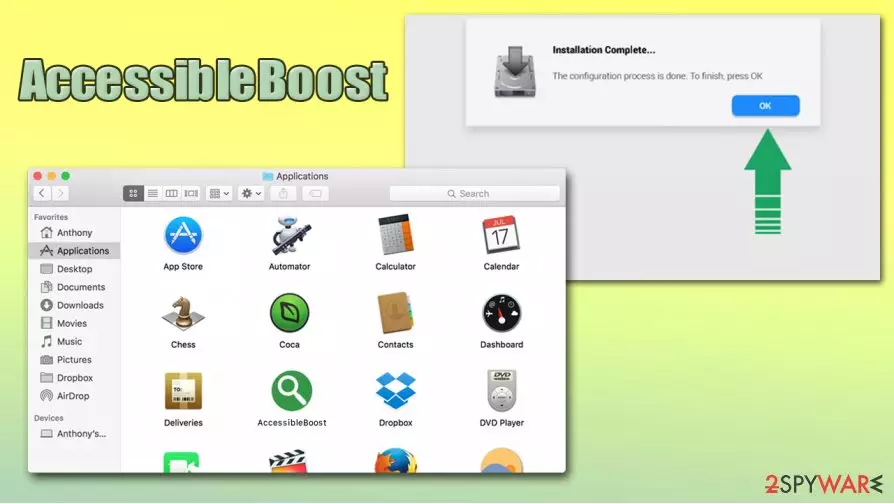
AccessibleBoost is a Mac virus[1] that can infiltrate your computer at any time via fake Flash updates or software bundles downloaded from insecure websites. Since the main functionality of this parasite is to deliver intrusive advertisement campaigns to users, popups, deals, offers, coupons, in-text links, and other ads are frequent occurrences on Google Chrome, Safari, Mozilla Firefox, or other web browsers.
While unwanted ads and redirects might seem bad enough, AccessibleBoost virus is capable of much more. In the background, the app can engage in sensitive information theft via the installed browser extension or prevent users from using their default search provider, as it sets Safe Finder or z6airr.com instead. Besides, since AccessibleBoost uses built-in macOS resources to elevate its permissions on the system, victims might also see other programs installed without permission on their devices.
| Name | AccessibleBoost |
|---|---|
| Type | Mac virus, adware |
| Family | Adload |
| Distribution | Malicious installers downloaded from insecure websites (torrents, software bundles), fake Flash Player update or bogus virus infection prompts |
| Detection | Adware is detected by multiple anti-malware vendors under the following names:
|
| Symptoms | Unknown browser extension installed on the system that is impossible to eliminate; homepage and new tab address altered to something else; browser redirects bring to potentially dangerous and scam sites, etc. |
| Termination | You can get rid of the infection by following our guide provided below or by performing a full system scan with anti-malware software designed for Macs |
| Optimization | For best results, we recommend resetting the installed web browsers and then using FortectIntego |
Since the malicious app uses fake Flash Player installers or software bundles to gain access to Macs, many users might not even notice that they have been infected. Hence, they will not know that they need to remove AccessibleBoost to prevent various suspicious activities, which may include:
- Unknown browser extension installed on the web browser;
- Suspicious apps and .plist files spread across the computer;
- New profiles or Login items appended;
- Homepage and new tab address altered to something else;
- Search results are filled with sponsored links
- Redirects occur through various URLs, including akamaihd.net. or z6airr.com
AccessibleBoost belongs to Mac malware family known as Adload – a set of malicious programs that use same magnifying glass icon but have identical functionality. Therefore, apps such as BufferKey, ArchimedesLookup, SectionBrowser, CreativeSearch, SearchMainInfo, and many others, are just copies of one another that is spread across the internet in various deceptive methods.
Unfortunately, AccessibleBoost gains elevated permissions on the system by using the built-in Apple script. Therefore, users might find unknown applications or malware installed on their computers that come with their own set of capabilities – one of the most prominent infections that might be associated with Adload is Shlayer Trojan.

Speaking of capabilities, AccessibleBoost adware is capable of stealing sensitive data via the browser the extension is installed on:
AccessibleBoost 1.0
Permissions for “AccessibleBoost”:
Webpage contents
Can read sensitive information from webpages, including passwords, phone numbers, and credit cards on all webpagesBrowsing history
Can see when you visit all webpages
Thus, by continuing to use your browser while infected with AccessibleBoost, you are risking of sensitive data exposure to unknown parties or even cybercriminals. Later on, you might be a target of phishing or scam campaigns, might get your money stolen from your bank account, or even suffer from identity theft.
To make matters worse, AccessibleBoost removal might be a total pain, as the installed components do not allow its complete elimination. Thus, even if you drag the unwanted app to Trash, you will still see the extension present on your browser, and redirects and ads will continue. To stop this, you need to locate and eliminate all the related elements of the AccessibleBoost virus.
To do that, you can either rely on a reputable anti-malware solution (which is highly recommended, as it allows effortless elimination) or find the malicious entries yourself. If you are up for the latter, you can check the manual guide we provide in the last section of this article.
To complete AccessibleBoost uninstall, you should also reset all the installed web browsers and then perform a full system scan with FortectIntego optimization software.
You can effectively prevent your Mac from being infected
Most users who have Mac malware installed on their systems are not even aware of it, as it is most commonly spread in various deceptive techniques. While potentially unwanted programs such as adware or browser hijackers are not uncommon, it is important to note that Adload-related apps typically come from dubious sources. There are two main methods that should be taken into consideration:
- Fake alerts that ask you to update something or prevent malware from stealing your data;
- Pirated software installers or software cracks downloaded from torrent sites or similar sources.
Keep in mind that, before you install a malicious application on your Mac, you are asked to enter your AppleID. However, if you believe that you are installing something as seemingly harmless as a Flash Player update, malware manages to break your Mac's security by deceiving you with social engineering tricks.

Thus, it is important to be vigilant and practice safe online behavior. First of all, reputable anti-malware tools can protect you from most malware that is designed for Macs. Also, you should avoid downloading pirated applications from torrent sites. Finally, Flash Player is no longer needed for any modern web browsers, so experts[2] recommend staying away even from the legitimate version of this flawed[3] plugin.
Recommended method to remove AccessibleBoost is to scan the computer with anti-malware
Unlike most other potentially unwanted programs, AccessibleBoost removal might be much more complicated. Since the app gains persistence with the help of various components that it establishes during the infection routine, it might be difficult to find all of them manually, especially for those that are novice macOS users.
Thus, we recommend you remove AccessibleBoost automatically with the help of a powerful security application. Although, make sure you download an app that is trustworthy, as there are plenty of fake security tools such as Advanced Mac Cleaner or Quick Mac Fixer.
Nonetheless, if you are keen on trying to eliminate AccessibleBoost virus yourself, check the following locations for the suspicious entries and delete them at once:
- System Preferences > Accounts> Login Items
- System Preferences > Users&Groups > Profiles
- ~/Library/LaunchAgents
- ~/Library/Application Support
- ~/Library/LaunchDaemons
Delete from macOS
Remove the unwanted application:
- From the menu bar, select Go > Applications.
- In the Applications folder, look for any suspicious entries, then drag them to Trash (or right-click and pick Move to Trash).


Delete leftover files and folders:
- Select Go > Go to Folder.
- Enter /Library/Application Support and remove any suspicious folders related to the unwanted program.
- Repeat the same check in the /Library/LaunchAgents and /Library/LaunchDaemons folders, deleting any suspicious entries.

- Finally, empty the Trash to permanently remove the leftovers.

Remove from Mozilla Firefox (FF)
Remove dangerous extensions:
- Open Mozilla Firefox browser and click on the Menu (three horizontal lines at the top-right of the window).
- Select Add-ons.
- In here, select the unwanted extension and click Remove.


Reset the homepage:
- Click three horizontal lines at the top right corner to open the menu.
- Choose Settings.
- Under Home, set your preferred homepage and new tab settings.
Clear cookies and site data:
- Click Menu and pick Settings.
- Go to Privacy & Security section.
- Scroll down to locate Cookies and Site Data.
- Click on Clear Data...
- Select Cookies and Site Data and Temporary cached files and pages, then click Clear.


Reset Mozilla Firefox
If clearing the browser as explained above did not help, reset Mozilla Firefox:
- Open Mozilla Firefox browser and click the Menu.
- Go to Help and then choose Troubleshooting Information.

- Under Give Firefox a tune up section, click on Refresh Firefox...
- Once the pop-up shows up, confirm the action by pressing on Refresh Firefox.



Remove from Google Chrome
Delete malicious extensions from Google Chrome:
- Open Google Chrome, click on the Menu (three vertical dots at the top-right corner) and select More tools > Extensions.
- In the newly opened window, you will see all the installed extensions. Uninstall all suspicious extensions related to the unwanted program by clicking Remove.


Clear cache and web data from Chrome:
- Click on Menu and pick Settings.
- Under Privacy and security, select Clear browsing data.
- Select Browsing history, Cookies and other site data, as well as Cached images and files.
- Click Clear data.


Change your homepage:
- Click menu and choose Settings.
- Look for a suspicious site in the On startup section.
- Click on Open a specific or set of pages and click on three dots to find the Remove option.
Reset Google Chrome:
If the previous methods did not help you, reset Google Chrome to eliminate all the unwanted components:
- Click on Menu and select Settings.
- In the Settings, scroll down and click Advanced.
- Scroll down and locate Reset and clean up section.
- Now click Restore settings to their original defaults.
- Confirm with Reset settings.


Delete from Safari
Remove dangerous extensions:
- Open Safari, click Safari in the menu at the top-left of the screen, and select Preferences.
- Go to the Extensions tab, look for any suspicious entries, and click Uninstall to remove them.


Clear history and website data:
- Click Safari in the menu and pick Clear History.
- Set Clear to all history and confirm with Clear History.


Reset Safari:
- Click Safari in the menu and select Preferences > Advanced.
- Enable Show Develop menu in menu bar.
- From the menu bar, click Develop and select Empty Caches.


Did this guide help?
Be the first to comment