

OperativeFraction is a potentially unwanted program designed to infect Mac users
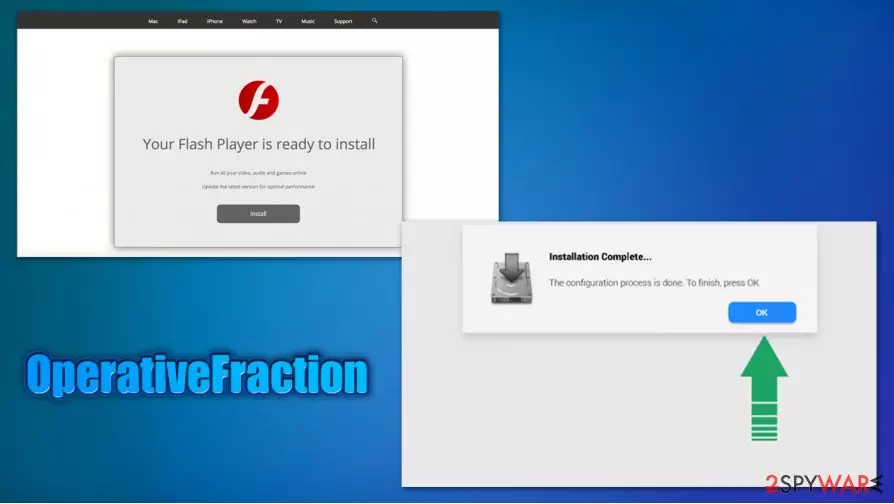
OperativeFraction is one of many applications belonging to the Adload malware family that has been spreading around the internet via fake Flash Player installers or pirated software downloads. The infection, which exclusively targets Mac users, has some of the browser hijacking capabilities, as it changes new tab and homepage address without permission, appends, and extension to the web browser and then delivers sponsored links via search results. Besides, OperativeFraction will also make Google Chrome, Safari, Mozilla Firefox, or another web browser to push popups, in-text links, deals, banners, offers, and other intrusive advertisements.
While the functions of OperativeFraction might seem like those of a regular adware/browser hijacker, it is important to note that its delivery and operation methods are closely related to those of malware. Besides being delivered via fake Flash Player updates, it also establishes persistence on the system, preventing users from successful OperativeFraction uninstall. Also, some versions of the app are capable of harvesting sensitive information via the browser, such as banking details.
| Name | OperativeFraction |
| Type | Mac virus, adware |
| Family | Adload |
| Distribution | Fake Flash Player update prompts, rogue websites that distribute pirated software or cracks |
| Symptoms | Unknown browser extension installed on the system that is impossible to eliminate; homepage and new tab address altered to Safe Finder, Akamaihd, 0yrvtrh.com, or something else; redirects lead to potentially malicious or scam sites, etc. |
| Detection |
The virus is detected under several names on Virus Total:[1]
|
| Elimination | Download and install powerful anti-malware software or perform manual elimination steps provided at the bottom section of this article |
| Optimization | In case your computer suffers from lag, crashes, and other issues after malware/adware infection, scan your system with FortectIntego repair software |
OperativeFraction belongs to a broad malware family designed for Mac systems. These potentially unwanted or borderline malicious programs use the same icon – green or teal color circle with a magnifying glass. Other members of the family include AccessibleBoost, BufferKey, SectionBrowser, ArchimedesLookup, DataQuest, and many others. Essentially, all these apps are exact copies of each other, they only use a different name. It is yet unknown who the developer behind OperativeFraction malware is.
As previously mentioned, one of the most prevalent features of the OperativeFraction virus is its distribution techniques. In most cases, users do not install the app deliberately but instead are tricked into doing so. Once installed, adware uses the built-in AppleScript in order to perform various system changes, e.g., establishes new login items or profiles. These modifications might result in difficulty when trying to remove OperativeFraction in a regular way.
Besides the invisible changes, OperativeFraction initiates system hijack that can be noticed right away. Some of the infection symptoms include:
- New tab and homepage address of the web browser is set to an unknown provider (e.g., Safe Finder);
- All search results are filled with sponsored links;
- OperativeFraction extension installed on the web browser and can not be eliminated;
- Unknown applications or browser extensions installed without permission.
In most cases, users who attempt to uninstall OperativeFraction extension from their browsers fail to do so, as various persistence mechanisms prevent them from doing so. However, this is not the only malicious trait of the add-on, as it can also read sensitive data that type in via the web browser – banking information, login credentials, and other details are no longer safe.

Besides privacy issues, OperativeFraction hijack can also be extremely frustrating to deal with, as users who have the unwanted app installed on their systems will notice that popups, deals, offers, coupons, and other intrusive commercial content is present all over the web. Note that this can be blocked with the help of effective ad-blockers. While most of the OperativeFraction ads will provide relatively harmless content, some popups and redirects can lead to scam, phishing, or even malware-laden sites.
Finally, another good reason for OperativeFraction removal is the fact that it can be closely associated with Shlayer Trojan or another Mac malware. These malicious programs are designed to flood users' browsers with background connections (to generate revenue for cybercriminals) and install more unwanted applications without permission.
Thus, if you spotted a suspicious magnifying glass icon on your Mac, do not way and terminate it immediately. You can follow our guidelines below. If you can not uninstall OperativeFraction from your browser, you can reset it. For best results, we also recommend using FortectIntego – it will find and remove all the useless junk files from the system to boost its speed.
Mac system is secure as long as you do not let malicious software in
Some things that might seem simple are actually not. Security experts[2] are constantly reminding that Macs are relatively safe operating systems – as long as users are not tricked into letting malware or adware in. Indeed, in the study conducted by security researchers in early 2020, it was discovered that Mac malware is outpacing Windows malware when it comes to detection rate.[3]
As evident, Mac users are always asked to enter their AppleID every time they attempt to install an application from an unauthorized source, for example, a torrent site. However, many are keen on ignoring the built-in warnings and let the app get installed regardless. While in some cases, users deliberately avoid listening to security advice, others are simply tricked into letting malware in.
One of the main problems for Macs is fake updates – these can show up on many malicious websites and ask users to download and install a seemingly needed Flash Player update. However, what users are downloading is not a plugin update, but rather a malicious application instead.

Uninstall OperativeFraction from your computer as soon as possible
Most of the adware programs are relatively harmless, as they do not establish persistence mechanisms on the system – they can be uninstalled by dragging the PUP to Trash. However, some apps are just way more difficult to eliminate in a regular way – and so can be the OperativeFraction removal.
If you want to attempt to remove OperativeFraction manually, you should check the following locations on your system and eliminate all the suspicious entries:
- System Preferences > Accounts> Login Items
- System Preferences > Users&Groups > Profiles
- ~/Library/LaunchAgents
- ~/Library/Application Support
- ~/Library/LaunchDaemons
Since the OperativeFraction virus installs an extension on Safari, Google Chrome, or Mozilla Firefox, you should also reset the browser to get rid of all the malicious plugins. However, instead of worrying about how to eliminate this persistent malware by yourself, you could instead use a powerful anti-malware solution and perform a full system scan – this would find all the unwanted software/malware and terminate it automatically.
Delete from macOS
Remove the unwanted application:
- From the menu bar, select Go > Applications.
- In the Applications folder, look for any suspicious entries, then drag them to Trash (or right-click and pick Move to Trash).


Delete leftover files and folders:
- Select Go > Go to Folder.
- Enter /Library/Application Support and remove any suspicious folders related to the unwanted program.
- Repeat the same check in the /Library/LaunchAgents and /Library/LaunchDaemons folders, deleting any suspicious entries.

- Finally, empty the Trash to permanently remove the leftovers.

Remove from Mozilla Firefox (FF)
Remove dangerous extensions:
- Open Mozilla Firefox browser and click on the Menu (three horizontal lines at the top-right of the window).
- Select Add-ons.
- In here, select the unwanted extension and click Remove.


Reset the homepage:
- Click three horizontal lines at the top right corner to open the menu.
- Choose Settings.
- Under Home, set your preferred homepage and new tab settings.
Clear cookies and site data:
- Click Menu and pick Settings.
- Go to Privacy & Security section.
- Scroll down to locate Cookies and Site Data.
- Click on Clear Data...
- Select Cookies and Site Data and Temporary cached files and pages, then click Clear.


Reset Mozilla Firefox
If clearing the browser as explained above did not help, reset Mozilla Firefox:
- Open Mozilla Firefox browser and click the Menu.
- Go to Help and then choose Troubleshooting Information.

- Under Give Firefox a tune up section, click on Refresh Firefox...
- Once the pop-up shows up, confirm the action by pressing on Refresh Firefox.



Remove from Google Chrome
Delete malicious extensions from Google Chrome:
- Open Google Chrome, click on the Menu (three vertical dots at the top-right corner) and select More tools > Extensions.
- In the newly opened window, you will see all the installed extensions. Uninstall all suspicious extensions related to the unwanted program by clicking Remove.


Clear cache and web data from Chrome:
- Click on Menu and pick Settings.
- Under Privacy and security, select Clear browsing data.
- Select Browsing history, Cookies and other site data, as well as Cached images and files.
- Click Clear data.


Change your homepage:
- Click menu and choose Settings.
- Look for a suspicious site in the On startup section.
- Click on Open a specific or set of pages and click on three dots to find the Remove option.
Reset Google Chrome:
If the previous methods did not help you, reset Google Chrome to eliminate all the unwanted components:
- Click on Menu and select Settings.
- In the Settings, scroll down and click Advanced.
- Scroll down and locate Reset and clean up section.
- Now click Restore settings to their original defaults.
- Confirm with Reset settings.


Delete from Safari
Remove dangerous extensions:
- Open Safari, click Safari in the menu at the top-left of the screen, and select Preferences.
- Go to the Extensions tab, look for any suspicious entries, and click Uninstall to remove them.


Clear history and website data:
- Click Safari in the menu and pick Clear History.
- Set Clear to all history and confirm with Clear History.


Reset Safari:
- Click Safari in the menu and select Preferences > Advanced.
- Enable Show Develop menu in menu bar.
- From the menu bar, click Develop and select Empty Caches.


Did this guide help?
Be the first to comment