

ManagerAnalog – an app that might damage your Mac and reduce your online safety
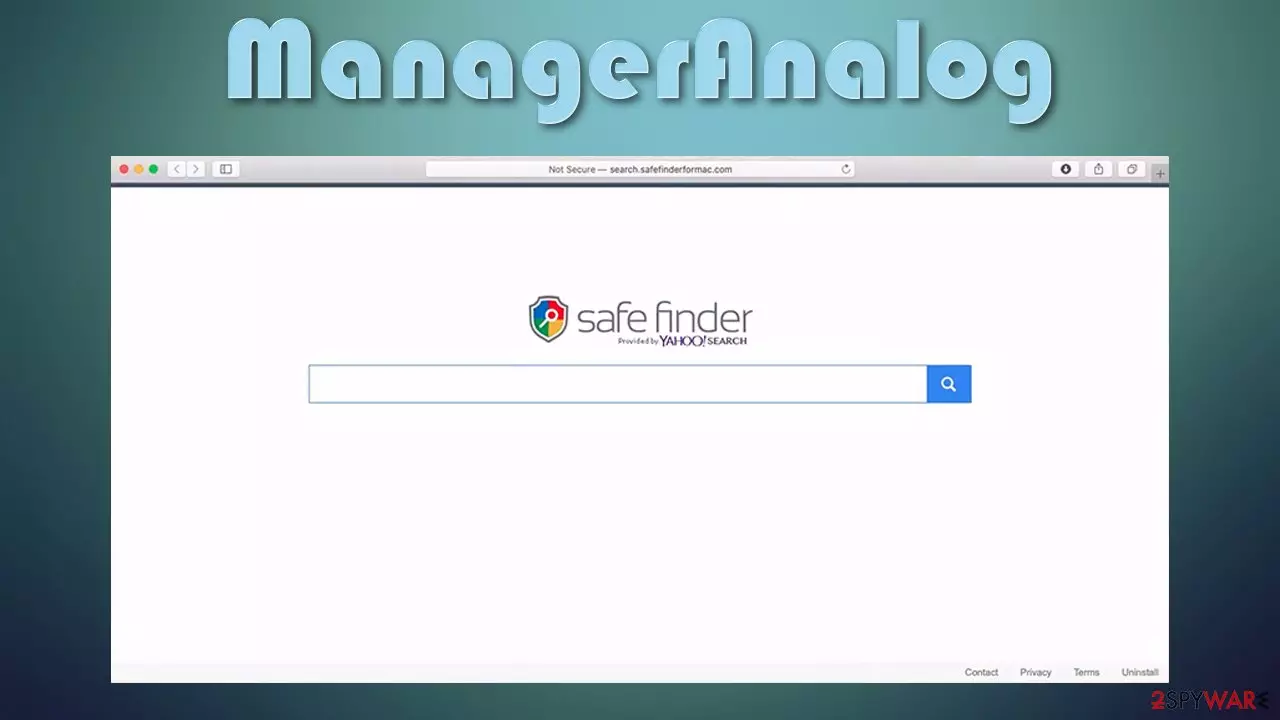
ManagerAnalog is a rogue app that you might find installed on your macOS seemingly out of nowhere. However, you are likely to install it after being tricked by a fake Flash Player update[1] prompt or after downloading applications from insecure sources, especially those that distributed cracks and pirated software (keep in mind that you have to enter your Apple ID in order to let apps from unknown sources in).
The main goal of ManagerAnalog is to promote suspicious software, deliver ads, track your (personal) information, and compromise the security of your device. To do that, the app appends an extension to your browser, escalates its privileges, establishes new startup items, and performs much more in the background. Without a doubt, you should not ignore the presence of this malicious application, as your online security will be compromised. Read below on how to deal with this annoying Mac infection, as ManagerAnalog removal might prove to be difficult.
| Name | ManagerAnalog |
|---|---|
| Type | Adware, Mac virus, potentially unwanted program |
| Family | Adload |
| Distribution | Fake Flash Player updates, software bundles, torrent sites, illegal software installers |
| Symptoms | Appends an extension to browser that can not be deleted; changes homepage/new tab to Safe Finder, Akamaihd, or something else; redirects lead to potentially malicious or scam sites, promotes suspicious software, etc. |
| Dangers | Sensitive information disclosure to crybercriminals that might lead to identity theft, financial losses, additional malware/PUP infection, etc. |
| Elimination | You can eliminate potentially unwanted applications with the help of our manual removal guide below, although this might not be successful due to the large number of components that the malware drops on the system. Hence, make sure you scan your device with reputable anti-malware, such as SpyHunterCombo Cleaner or MalwarebytesMalwarebytes |
| Further steps | After you terminate the infection with all its associated components, we recommend you also scan your machine with FortectIntego for best results |
This malicious software belongs to an extensive family of Adload – adware that targets macOS and has dozens of versions released previously, including ExpandedSkill, RequestPlan, ActivityConfig, WizardUpdate, and many others. The distinctive feature of this family's members is that it uses a unique icon – a magnifying class placed on a green, blue or teal background.
However, the app icon is not the only trait that ties all these apps together – their distribution and functionality are practically identical. In most cases, ManagerAnalog does not get installed on the machine purposely, i.e., users are tricked into doing so. Thus, you should always be careful where you install the apps from and avoid pirated software distribution sites altogether.
Once installed, the so-called ManagerAnalog virus would perform a variety of changes on a Mac:
- Installs an extension under the same name on Safari, Google Chrome, Mozilla Firefox, or another browser;
- Sets homepage and new tab address to Safe Finder or another suspicious provider;
- Establishes permissions that allow the app to harvest your personal information, such as banking details;
- Delivers intrusive ads – pop-ups, deals, offers, banners, and other annoying content;
- Establishes persistence by abusing the built-in AppleScript.[2]
Precisely due to the latter, you might not be able to remove ManagerAnalog as you would normally do. To be precise, the extension on your browser would be grayed out, and after moving the app to trash, you'd soon see it reinstalled soon after.
To make matters worse, the advanced functionality of Adload apps is what allows other potentially unwanted programs to be installed automatically without requiring your permission. This might also end up with your computer being infected with another malware, such as CrescentCore or Shlayer Trojan.
Thus, if you have found the ManagerAnalog virus on your Mac, you should get rid of it immediately. Otherwise, your personal information, such as passwords and credit card details, might be leaked and delivered to cybercriminals. Consequently, your money might be stolen, or you may suffer from identity theft.

Not to mention that the presence of the browser changes will not leave you alone. You will be provided with an alternative search provider you will not be able to change on demand. You will also have to deal with intrusive ads on every website that you visit.
That being said, you should delete the app from your Mac as soon as possible. You can try doing so yourself by following the guidelines below. However, keep in mind that there are many variations of the virus, so you might not be able to find and delete all malicious files.
Therefore, you should instead rely on automatic tools that could help you with the process of ManagerAnalog elimination. We recommend you download and install SpyHunterCombo Cleaner or MalwarebytesMalwarebytes and perform a full system scan. Don't forget the cleaning your browsers is a big part of the process, so follow the steps below or employ FortectIntego for this purpose.
Tips to avoid Mac malware
Macs were long thought to be immune to infections by many power users and even experts. However, as time went on and this operating system became more popular, cybercriminals realized that there is a buck to be made from Apple users in addition to Windows users.
While it is true that the malicious code can't spread across Mac operating system, the apps that are installed by users unintentionally can still cause significant damage, compromises the system's overall security. Therefore, it is important to take steps in order to avoid infections such as adware on macOS altogether.
Security experts[3] advise installing a robust anti-malware application that would provide an extra layer of protection in addition to the built-in Gatekeeper and Xprotect. You should also never install Flash updates from random prompts online, as these are 100% fake (Flash support is now over – the plugin is no longer needed). Also, as we already mentioned, stay away from pirated software distribution websites, as these portals are a cesspool for malware.

Automatic ManagerAnalog removal is the best option for you
Unless you are familiar with macOS intricacies and how the system works, we highly advise you to proceed with automatic ManagerAnalog removal. Powerful security applications can locate all the malicious files and delete them at once. This also applies to the established new profiles and the malicious browser extensions.
If you still rather try to remove ManagerAnalog yourself, here are the places you should look at (for more detailed instructions, check the guide below):
- System Preferences > Accounts> Login Items
- System Preferences > Users&Groups > Profiles
- ~/Library/LaunchAgents
- ~/Library/Application Support
- ~/Library/LaunchDaemons
After you eliminate the malicious app, you should remember to clean Safari, Google Chrome, or any other web browser you are using accordingly. You can also either do it manually or automatically with tools such as system optimizers.
Delete from macOS
Remove the unwanted application:
- From the menu bar, select Go > Applications.
- In the Applications folder, look for any suspicious entries, then drag them to Trash (or right-click and pick Move to Trash).


Delete leftover files and folders:
- Select Go > Go to Folder.
- Enter /Library/Application Support and remove any suspicious folders related to the unwanted program.
- Repeat the same check in the /Library/LaunchAgents and /Library/LaunchDaemons folders, deleting any suspicious entries.

- Finally, empty the Trash to permanently remove the leftovers.

Remove from Mozilla Firefox (FF)
Remove dangerous extensions:
- Open Mozilla Firefox browser and click on the Menu (three horizontal lines at the top-right of the window).
- Select Add-ons.
- In here, select the unwanted extension and click Remove.


Reset the homepage:
- Click three horizontal lines at the top right corner to open the menu.
- Choose Settings.
- Under Home, set your preferred homepage and new tab settings.
Clear cookies and site data:
- Click Menu and pick Settings.
- Go to Privacy & Security section.
- Scroll down to locate Cookies and Site Data.
- Click on Clear Data...
- Select Cookies and Site Data and Temporary cached files and pages, then click Clear.


Reset Mozilla Firefox
If clearing the browser as explained above did not help, reset Mozilla Firefox:
- Open Mozilla Firefox browser and click the Menu.
- Go to Help and then choose Troubleshooting Information.

- Under Give Firefox a tune up section, click on Refresh Firefox...
- Once the pop-up shows up, confirm the action by pressing on Refresh Firefox.



Remove from Google Chrome
Delete malicious extensions from Google Chrome:
- Open Google Chrome, click on the Menu (three vertical dots at the top-right corner) and select More tools > Extensions.
- In the newly opened window, you will see all the installed extensions. Uninstall all suspicious extensions related to the unwanted program by clicking Remove.


Clear cache and web data from Chrome:
- Click on Menu and pick Settings.
- Under Privacy and security, select Clear browsing data.
- Select Browsing history, Cookies and other site data, as well as Cached images and files.
- Click Clear data.


Change your homepage:
- Click menu and choose Settings.
- Look for a suspicious site in the On startup section.
- Click on Open a specific or set of pages and click on three dots to find the Remove option.
Reset Google Chrome:
If the previous methods did not help you, reset Google Chrome to eliminate all the unwanted components:
- Click on Menu and select Settings.
- In the Settings, scroll down and click Advanced.
- Scroll down and locate Reset and clean up section.
- Now click Restore settings to their original defaults.
- Confirm with Reset settings.


Delete from Safari
Remove dangerous extensions:
- Open Safari, click Safari in the menu at the top-left of the screen, and select Preferences.
- Go to the Extensions tab, look for any suspicious entries, and click Uninstall to remove them.


Clear history and website data:
- Click Safari in the menu and pick Clear History.
- Set Clear to all history and confirm with Clear History.


Reset Safari:
- Click Safari in the menu and select Preferences > Advanced.
- Enable Show Develop menu in menu bar.
- From the menu bar, click Develop and select Empty Caches.


Did this guide help?
Be the first to comment