

SimpleConverters browser hijacker alters your search results to promote ads
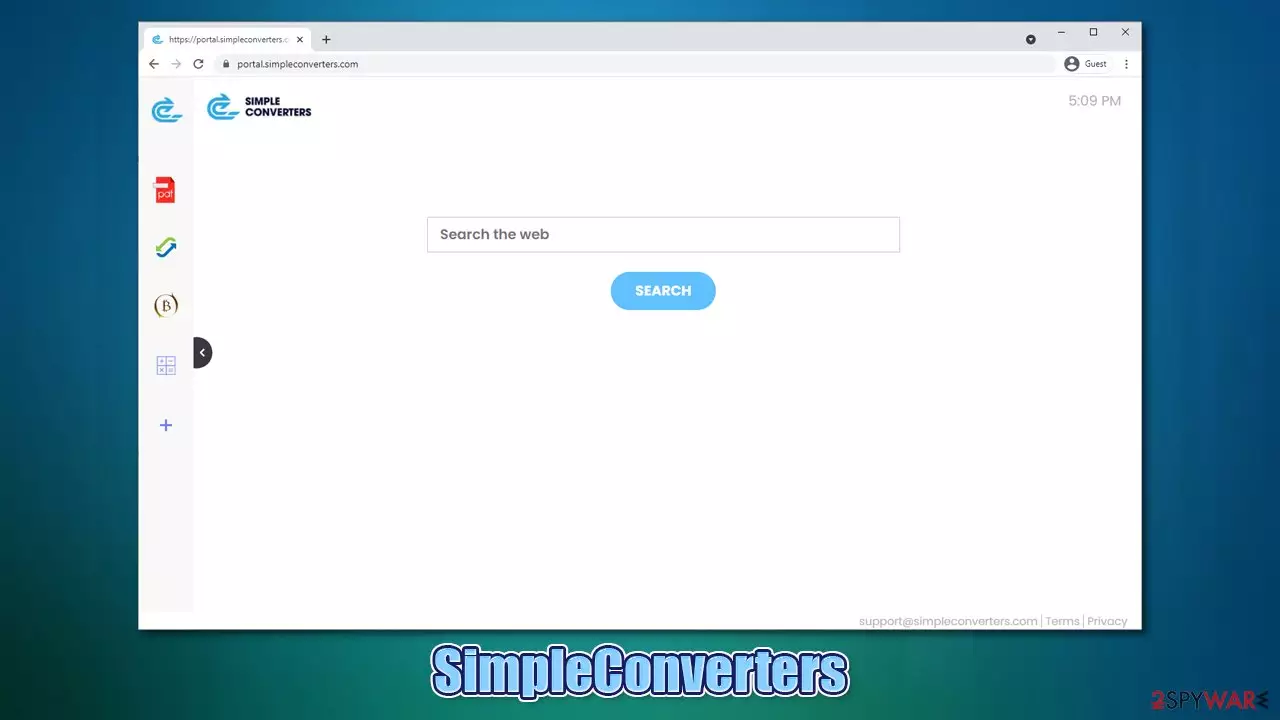
We are all used to our web browsing routines – it is a combination of the browser preference, bookmarks added, add-ons installed, and homepage chosen. These settings allow a great deal of customization, and everybody can choose from many different options. Unfortunately, these preferences can be easily destroyed by an unwelcome guest on your computer – a browser hijacker.
One such app, known as SimpleConverters, has been spreading around the internet in the past couple of weeks. Coming from a much broader family of browser hijackers, it spreads via third-party sources (most commonly, within a bundle of freeware)[1] and is usually not installed intentionally.
As soon as it manages to enter the device as a browser extension, it immediately changes the homepage and a new tab address to portal.simpleconverters.com or feed.simpleconverters.com. It also appends a customized search engine to the middle of the start page, which redirects search results to one of the following providers:
- Yahoo
- Bing
- nearbyme.io
When trying to search for the information online, the hijacked web browser (be it Chrome, Firefox, Edge, or Safari) would show a set of alternative search results; they usually include various ads/promotional links that lead to affiliated pages. Ads can be easily confused with organic results, making users more likely to click on them. In the meantime, the promoted content might not always be accurate or relevant, which diminishes the web browsing experience by a lot.
| Name | SimpleConverters |
| Type | Browser hijacker |
| Infiltration | Hijackers are not typically installed intentionally; spread in software bundles or via deceptive websites/ads |
| Symptoms | SimpleConverters extension on application installed on the browser; homepage is set to portal.simpleconverters.com; all searches redirected to Bing, Yahoo, or nearbyme.io; search results filled with sponsored links |
| Risks | Installation of other potentially unwanted programs/malware, personal data disclosure to unknown parties, financial losses |
| Elimination | You can uninstall the extension by right-clicking on it or by accessing the settings of your browser. There could be other PUPs installed on the system level, so you should check it out too – use SpyHunterCombo Cleaner security software to do it quickly |
| Additional steps | After browser hijacker elimination, you should also clean your web browsers; you can check the instructions below or choose a faster option – FortectIntego |
Browser hijackers in detail
Browser hijackers have been around for many years. The early versions of hijackers are now easily identified as malware by researchers and the security community – apps like Ask Toolbar come to mind.[2] Initially meant to generate revenue, they were programmed to be extremely difficult to remove and remain on the infected system for as long as possible.
Nowadays, most browser hijackers come in the form of a browser extension and are nowhere near as dangerous as they used to be, all thanks to better security regulations implemented by various authority agencies and tech giants such as Google.
Despite not being malicious, these potentially unwanted programs (PUPs) still retained many of the features that are considered to be undesirable by many. Here are a few examples:
- Changed homepage and new tab web address;
- Altered search provider;
- Alternative search results;
- Search results being filled with sponsored links;
- Sneaky infiltration via software bundling or deceptive ads;
- Information gathering practices.
This is the tip of the iceberg for some browser hijackers (namely Mazy Search, Kwiqsearch.com, and some others). They use a sneaky technique that allows them to lock the browser/apply the “Managed by your organization” setting by modifying group policies on Windows machines. This prevents users from modifying their browser settings and removing unwanted extensions as required. Such behavior, without a doubt, is not only undesirable but also malicious.
SimpleConverters and how to remove it
SimpleConverters is a browser hijacker that comes from a larger family, versions of which we discussed previously (TigerVideoSearches, ProVideoSearch, TopPDFSearch, etc.). The developer of these apps is not defined for relatively obvious reasons. Namely, potentially unwanted program developers often fail to provide any contact details or names in case of controversy – they can continue producing new apps if something goes wrong.
Speaking of which, there is a reason why new versions of this browser hijacker family keep expanding constantly. Many security solutions block these apps (or at least warn users), or they receive bad publicity. This is why the authors just keep rebranding them without providing any new features or improvements.

The only difference is the name of the app, as well as some changes in logos. These also use precisely the same features – currency converter, calculator, PDF creator (although it does not always work), etc. These perks, while supposedly useful, might come at a price.
First of all, let's talk about the change of the browser preferences. The altered homepage makes users use an alternative search box, which directs all results to Yahoo, Bing, or nearbyme.io, depending on your location. While the first two are reliable search providers, most users prefer Google for various reasons. Besides, the results using these providers would still not be genuine, as the hijacker would insert its own ads at the results.
However, the other provider is not widely known and presents sponsored links as genuine ones – it is a typical deception technique to make users click on ads, monetizing user clicks via a pay-per-click scheme. To make this scheme successful, users are tracked as long as the program is installed.
Targeted advertising can benefit companies and users, although it is commonly correlated with privacy risks, as it requires third parties to gather information. In this case, IP address, search queries, browser/language settings, links clicked, technical device details, and other data are gathered via cookies[3] and other tracking technologies.
You should have no problems with SimpleConverters removal, as all you have to do is find a browser extension under the same name and eliminate it at once. However, these two things should be taken into consideration:
- There could be other unwanted or malicious apps/programs installed on your system. In order to check this, simply use SpyHunterCombo Cleaner or another powerful security software to scan your computer thoroughly and remove everything found. Alternatively, you can try finding PUP yourself – we provide instructions below;
- After PUP/malware removal, don't forget to clean your web browsers; otherwise, the removal process can not be considered complete.
You can clean your browsers by following the instructions below. Keep in mind that this process can take some time – you might want to avoid that by using a PC utility FortectIntego which can clean your browsers and remove junk from your system automatically. Besides, it can also fix any malware-related damage if such is present on your machine.
Google Chrome
- Click on Menu and pick Settings.
- Under Privacy and security, select Clear browsing data.
- Select Browsing history, Cookies and other site data, as well as Cached images and files.
- Click Clear data.


Mozilla Firefox
- Click Menu and pick Options.
- Go to Privacy & Security section.
- Scroll down to locate Cookies and Site Data.
- Click on Clear Data…
- Select Cookies and Site Data, as well as Cached Web Content and press Clear.


MS Edge (Chromium)
- Click on Menu and go to Settings.
- Select Privacy and services.
- Under Clear browsing data, pick Choose what to clear.
- Under Time range, pick All time.
- Select Clear now.


Safari
- Click Safari > Clear History…
- From the drop-down menu under Clear, pick all history.
- Confirm with Clear History.


Bonus: tips to avoid unexpected browser hijack
As previously mentioned, many users install PUPs unintentionally and see ads or browser changes unexpectedly. This is a very common occurrence, and most people only realize that they have installed something unwanted when they make ends meet. In other cases, some potentially unwanted programs might not be that visible initially, especially for those who are not that proficient with using computers.
Here are a few tips provided by experts that could help you avoiding browser hijackers, adware, scamware, and other unwanted stuff:
- Only install apps from official sources and avoid third-party ones;
- Never download pirated programs or software cracks;
- If you encounter a message which claims that something is missing from your system (e.g., Java, Flash Player) or that your computer has been infected with a virus (e.g., YahLover.worm, Tor.jack malware), leave the site immediately and do not fulfill any requests to download software;
- During the installation process of new programs, always pick “Advanced/Custom” mode instead of “Recommended/Quick” one;
- Remove all the ticks from pre-ticked boxes and decline all the deals/offers;
- Use powerful anti-malware software to protect yourself from PUPs and malware.
Uninstall from Windows
Uninstall from Windows 10/8:
- Type Control Panel into the Windows search box and open the result.
- Under Programs, select Uninstall a program.


Uninstall from Windows 7/XP:
- Click on Windows Start > Control Panel (Windows XP users should click on Add/Remove Programs).
- In Control Panel, select Programs > Uninstall a program.


Remove the unwanted program:
- In the Programs and Features window, look for any recently installed suspicious entries, select them, and click Uninstall.
- If User Account Control appears, click Yes to confirm, then complete the removal.


Delete from macOS
Remove the unwanted application:
- From the menu bar, select Go > Applications.
- In the Applications folder, look for any suspicious entries, then drag them to Trash (or right-click and pick Move to Trash).


Delete leftover files and folders:
- Select Go > Go to Folder.
- Enter /Library/Application Support and remove any suspicious folders related to the unwanted program.
- Repeat the same check in the /Library/LaunchAgents and /Library/LaunchDaemons folders, deleting any suspicious entries.

- Finally, empty the Trash to permanently remove the leftovers.

Did this guide help?
Be the first to comment