

Chrome adware infects your browser to serve untrustworthy sponsored content
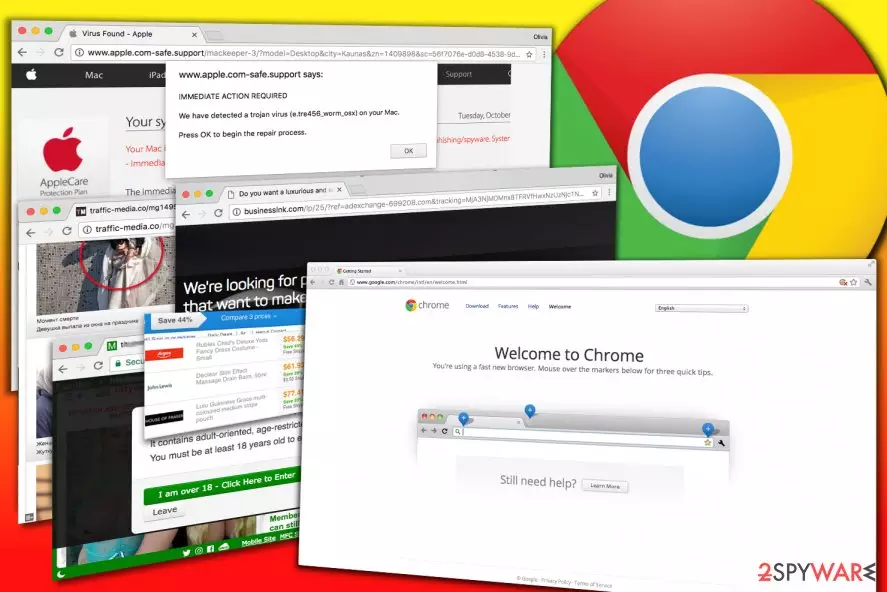
Chrome adware is a deceptive software designed to display pop-ups, banners, or in-text ads for Google Chrome users. Once installed, it can alter Windows Registry settings[1], add browser extensions or even compromise browser shortcuts in order to serve bothersome ads daily. Various versions of the adware can compromise both Windows and Mac OS computers.
Each of ad-supported Chrome viruses mainly generates pay-per-click type revenue for their developers by promoting certain websites, products or services. These programs are designed to spy on user’s online activities and use collected data for loading interest-based ads for the user.
The number of ads generated by Chrome malware often bothers computer users and shortly after installation of ad-supported software they start looking for browser cleanup tools that could stop the never-ending flow of annoying ads. Sadly, installation of fake system cleaners can simply worsen the situation and result in even more problems such as system slowdowns, browser crashes or even privacy infringement.
There are several types of Chrome-based adware, and there are several ways to identify them. Below, you can find a list of methods on how to spot an adware designed for the Google web browser.
-
Look for a suspicious link that flashes in browser’s URL bar right before redirecting you to a questionable ad page. The URL in the browser bar might change a couple of times, but if you manage to figure out what is the link that always leads you to various ads, you can find a solution on our website by searching the threat database we regularly update.
Some of the most prevalent URLs associated with ad-supported programs are Onclickmax.com, Trackingclick.com, Querylead.com, Adsbtrack.com, and others. These links will likely contain an ad id which will disappear as it loads a specific Internet page and its commercial content.
Such redirects typically lead to adult-only sites, sites asking to join binary option trading networks, or pages promoting questionable system tools that urge you to clean the computer system for a specific price.
- You may also recognize Chrome adware from its name on pop-ups and banners it generates. Although the majority of ad-supported viruses no longer provide their name on the ads, you might see some suspicious lines such as “powered by [adware name]” or “[adware name] ads.”
The name provided on the ads reveals the infection that’s causing your browser act slow, and you can quickly identify and remove it via Control Panel or browser’s settings. One of the most prevalent adware variants are QkSee, DNS Unlocker, Settings Manager.
- Fake Chromium browsers can also become a problem that will force you to look for Chrome malware removal tools. As you may know, the most popular web browser in the world is based on Chromium project, which is open-source and is available for everyone who wants to create a customized version of the popular Internet browsing software.
Sadly, fraudsters often exploit the code to create adware that replaces shortcuts of the real browser and loads third-party ads in short intervals daily. Some of these unwanted browsers are called Chromium virus, Chroomium, eFast, Tortuga or Olcinium.
- Finally, Chrome malware that displays fake virus warning alerts also belongs to adware category, although it is far more deceptive software. Its main purpose is to deceive the inexperienced computer users and make one believe that the system is severely infected.
Sadly, failure to identify a tech support scam[2] displaying “Apple Security Alert,” “Internet Explorer Critical ERROR,” “Internet Security Alert” or similar warnings can lead to critical problems such as financial or data loss, malware infections and other privacy and security-related issues.
The main detail that helps to recognize a phishing attack trying to get you in touch with scammers is so-called “toll-free” numbers provided on the screen. The deceptive messages usually appear via browser and are hard to close as they tend to proliferate rapidly.
In some cases, an anti-malware or anti-spyware program is the only one that can identify and remove Chrome adware for you. In today’s market, you can find numerous spyware removal tools, but our team relies on FortectIntego or MalwarebytesMalwarebytes options only.
These programs proved to be excellent removal tools when it comes to adware or other ad-supported virtual annoyances. A complete system scan is required to identify the virus sending you ads, so stay patient until the security software completes its job successfully.

There is an extensive number of infections that perform unnecessary alterations to Chrome settings and serve commercial content without user’s permission, and usually, it is very hard to identify the one that’s implementing unwanted activities on your computer. That is another reason why we recommend using automated spyware removal solutions.
You can find a list of them right below the article. We have also prepared a manual guide on how to kill the ad-supported software displaying ads on a daily basis, but be extremely vigilant while reading it – missing even one step can result in unsuccessful Chromium virus removal.
Distribution of adware that displays ads via your Internet browser
Chrome virus, in general terms, does not belong to malware category since it uses legitimate distribution methods. That, however, cannot be said about absolutely all ad-supported programs that affect this browser. However, the vast majority of spyware-type applications use the same technique to infiltrate unprotected computer systems, and it is called product bundling.
Software bundling relies on modified installers that sneakily suggest installing a couple of extra programs alongside the main program. Therefore, instead of installing the program they are supposed to install, these installation wizards extract and place components of potentially unwanted programs that come in a bundle with the primary application.
Shortly after, the victim notices unwanted toolbars or extensions in the browser, as well as new homepage and search engine settings that s/he did not alter manually.
The reason that causes infiltration of potentially unwanted programs is tied with the tendency to rush during software installation. Many people believe that choosing “recommended” installation options guarantees a quick and safe installation of the selected software, however, the reality is quite different. Software bundling allows placing additional software on the system, and the “recommended” installation options guarantee user’s permission to do it legally.
Since statements about additional programs are typically written in fine print, the user hardly notices them. The VirusActivity.com[3] team advises choosing Custom or Advanced settings to install the downloaded programs because these options give the user the freedom of choosing which components to install and which ones to drop.
As soon as you switch the installation option to one of the ones suggested by the security experts, make sure to find checkboxes granting your permission to install extra software and make those ticks disappear from them.
Remove adware from Chrome on Mac or Windows with ease
Users looking for Chrome adware removal guidelines should look no further. The guide presented below explains where to look for files and settings firmly connected with the virus that influences your favorite web browser in a negative or simply intolerable way. To fix the issues caused by the adware, uninstall each component that belongs to the potentially unwanted programs on your system.
In case you love to save time, and you would like to remove Chrome adware virus automatically, check out the security software recommended by us. These programs proved to be excellent helpers when it comes to adware removal, and we entirely trust them. If you decide to download one of them, make sure you download the latest update for it. Afterward, check your system by running a thorough system scan.
Uninstall from Windows
Uninstall from Windows 10/8:
- Type Control Panel into the Windows search box and open the result.
- Under Programs, select Uninstall a program.


Uninstall from Windows 7/XP:
- Click on Windows Start > Control Panel (Windows XP users should click on Add/Remove Programs).
- In Control Panel, select Programs > Uninstall a program.


Remove the unwanted program:
- In the Programs and Features window, look for any recently installed suspicious entries, select them, and click Uninstall.
- If User Account Control appears, click Yes to confirm, then complete the removal.


Delete from macOS
Remove the unwanted application:
- From the menu bar, select Go > Applications.
- In the Applications folder, look for any suspicious entries, then drag them to Trash (or right-click and pick Move to Trash).


Delete leftover files and folders:
- Select Go > Go to Folder.
- Enter /Library/Application Support and remove any suspicious folders related to the unwanted program.
- Repeat the same check in the /Library/LaunchAgents and /Library/LaunchDaemons folders, deleting any suspicious entries.

- Finally, empty the Trash to permanently remove the leftovers.

Remove from Google Chrome
Delete malicious extensions from Google Chrome:
- Open Google Chrome, click on the Menu (three vertical dots at the top-right corner) and select More tools > Extensions.
- In the newly opened window, you will see all the installed extensions. Uninstall all suspicious extensions related to the unwanted program by clicking Remove.


Clear cache and web data from Chrome:
- Click on Menu and pick Settings.
- Under Privacy and security, select Clear browsing data.
- Select Browsing history, Cookies and other site data, as well as Cached images and files.
- Click Clear data.


Change your homepage:
- Click menu and choose Settings.
- Look for a suspicious site in the On startup section.
- Click on Open a specific or set of pages and click on three dots to find the Remove option.
Reset Google Chrome:
If the previous methods did not help you, reset Google Chrome to eliminate all the unwanted components:
- Click on Menu and select Settings.
- In the Settings, scroll down and click Advanced.
- Scroll down and locate Reset and clean up section.
- Now click Restore settings to their original defaults.
- Confirm with Reset settings.


Delete from Safari
Remove dangerous extensions:
- Open Safari, click Safari in the menu at the top-left of the screen, and select Preferences.
- Go to the Extensions tab, look for any suspicious entries, and click Uninstall to remove them.


Clear history and website data:
- Click Safari in the menu and pick Clear History.
- Set Clear to all history and confirm with Clear History.


Reset Safari:
- Click Safari in the menu and select Preferences > Advanced.
- Enable Show Develop menu in menu bar.
- From the menu bar, click Develop and select Empty Caches.


Did this guide help?
Be the first to comment