

Yeabests.cc virus hijacks browser shortcuts to stay on the computer system
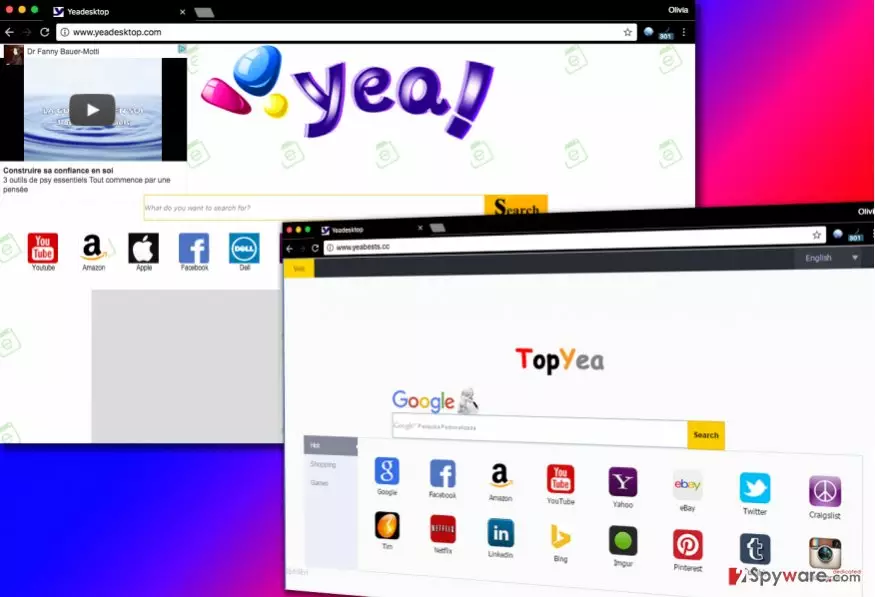
Yeabests.cc virus is categorized as a potentially unwanted (PUP) and a browser hijacker which is closely related to another shady search tool TopYea Search. This suspicious application might hijack the most popular web browser and alter their settings. As a result, users may find an unknown search engine set as their default homepage.
However, developers of the search engine would not agree with this classification. Yeabests.cc is presented as legitimate and useful search service. This tool is supposed to deliver improved search results from Google. Though, these improvements are nothing more than commercial content. The browser hijacker might not only deliver misleading ads but also include sponsored links into search results. It functions very similarly to other related browser-hijacking search tools such as:
Sadly, Yeabests.cc redirect tendencies are not safe and credible. One click on the search result or ad might lead to the potentially dangerous third-party website where you can be tricked into installing bogus software or suffer from phishing[1] or tech support scam.
Indeed, the biggest problems are related to this corrupted search engine that modifies results. It includes lots of commercial content and sponsored links in order to boost traffic to particular websites. If you found this search tool installed without your permission, you must remove Yeabests.cc immediately with a help of FortectIntego.
Yeabests redirect virus often travels in the software bundles and hijacks web browsers unnoticed. However, the signs of the infection are loud. It might replace default homepage, search engine, and new tab address. What is more, it might append arguments to various Windows shortcuts and install browser helper objects to protect its presence.
Thus, Yeabests.cc removal might be slightly complicated.[2] However, at the end of the article, you will find illustrated instructions that will help you to take back control over your browser. Furthermore, you have probably noticed that this search engine also provides a facility to access shopping and gaming websites right from the homepage.
However, such functionality might turn out to be quite damaging rather than beneficial. This is because the browser hijacker is despised for its TopYea redirect ability. If you get tempted into entering the websites from the app platform displayed on the homepage, you might reach the web page of your interest after several redirects to advertising, gaming or even adult-content sites.
Though the former web pages are quite harmless, the latter might cause damaging effects to your computer. Some of the redirect websites mislead to another web pages “enhanced” with destructive malware[3] and viruses.

Furthermore, Yeabests hijack might also be damaging in a sense that the PUP collects NPII (non-personally identifiable information).[4] It comprises of your search queries, visited websites, the data of the operating system, and geographical location. This data might slip into the hands of third-parties which display their ads to you.
Once they get a hold of it, they analyze the information. Furthermore, scammers generate new advertisements which are specifically designed for particular users matching their personal preferences and interests. Thus, depending on the number of clicks of these pay-per-view ads, authors collect quite a decent income. After all, if you dislike the idea of being constantly surveyed, then you should remove http://Yeabests.cc/ at once.
TopYea distribution techniques
If you did not visit its official web page, then, most likely, CC virus has infiltrated your computer via freely downloadable software packages. Browser hijacker might end up on your PC if you have recently installed a new audio player, photo editing software, updated Flash Player or Java. Probably, you have noticed that there was an add-on entitled as “yeabests.cc” pinned inside the software package.
This is exactly how the browser hijacker settled on your computer. Such mistakes are common to the countless number of users worldwide. Most of them might argue that they do not have time for reading installation instructions. As you can see, it takes considerably more time to get rid of similar malware afterward.
All in all, if you want to prevent a browser hijacker from rummaging through your computer,[5] take note and choose “Custom” installation” mode rather than “Recommended” settings when installing new software on your PC. Then, make sure you uncheck the unnecessary pre-marked applications. Also, do not forget that you have to choose only reliable and safe sources for software downloads. File sharing websites or Torrents are not one of them. Always choose official developers' website.
Remove Yeabests.cc redirect virus manually or using anti-malware software
If you are interested in all of the Yeabests.cc removal options, you can first check the manual elimination guidelines just below the article. Make sure you do not miss any of the indicated steps. Otherwise, some affiliate files with the virus might be left. Thus, the probability of getting hijacked by this PUP significantly increases.
If you have already tried the manual removal but Yeabests.cc keeps coming back, and you can install an anti-spyware application and scan your PC with it. It will guarantee that the hijacker is completely eliminated. This software comes in handy not only in dealing with this particular unwanted application but with other various types of malware as well.
Lastly, we would like to advise you to stick to the legitimate and trustworthy Google or Bing search engines rather than opting for new but highly insecure alternatives. If you are experiencing difficulties and can’t remove Yeabests.cc or any other browser hijacker from your computer, do not hesitate to contact us and we will try to help.
We have also noticed that this browser redirect virus is extremely prevalent in Poland. In case you are a Polish-speaking computer user, consider visiting usunwirusa.pl site for CC virus removal guidelines[6].
IMPORTANT. If you encounter “1.0.0.1 YeaDesktop verification code” error when trying to delete the hijacker's components from the system, you should follow this tutorial to fix the problem.
Uninstall from Windows
Uninstall from Windows 10/8:
- Type Control Panel into the Windows search box and open the result.
- Under Programs, select Uninstall a program.


Uninstall from Windows 7/XP:
- Click on Windows Start > Control Panel (Windows XP users should click on Add/Remove Programs).
- In Control Panel, select Programs > Uninstall a program.


Remove the unwanted program:
- In the Programs and Features window, look for any recently installed suspicious entries, select them, and click Uninstall.
- If User Account Control appears, click Yes to confirm, then complete the removal.


Delete from macOS
Remove the unwanted application:
- From the menu bar, select Go > Applications.
- In the Applications folder, look for any suspicious entries, then drag them to Trash (or right-click and pick Move to Trash).


Delete leftover files and folders:
- Select Go > Go to Folder.
- Enter /Library/Application Support and remove any suspicious folders related to the unwanted program.
- Repeat the same check in the /Library/LaunchAgents and /Library/LaunchDaemons folders, deleting any suspicious entries.

- Finally, empty the Trash to permanently remove the leftovers.

Reset Internet Explorer
Remove dangerous add-ons:
- Open Internet Explorer, click on the Gear icon (IE menu) on the top-right corner of the browser
- Pick Manage Add-ons.
- You will see a Manage Add-ons window. Here, look for suspicious plugins. Click on these entries and select Disable.


Change your homepage if it was altered:
- Open IE and click on the Gear icon.
- Select Internet Options.
- In the General tab, delete the Home page address and replace it by your preferred one (for example, Google.com).
- Click Apply and then select OK.


Delete temporary files:
- Press on the Gear icon and select Internet Options.
- Under Browsing history, click Delete...
- Select relevant fields and press Delete.


Reset Internet Explorer:
- Click on Gear icon > Internet options and select Advanced tab.
- Select Reset.
- In the new window, check Delete personal settings and select Reset.


Remove from Microsoft Edge
Delete unwanted extensions from MS Edge:
- Select Menu (three horizontal dots at the top-right of the browser window) and pick Extensions.
- From the list, pick the extension and click on the Gear icon.
- Click Remove.


Clear cookies and other browser data:
- Click on the Menu (three horizontal dots at the top-right of the browser window) and select Settings > Privacy, search, and services..
- Under Clear browsing data, pick Choose what to clear.
- Select Cookies and other site data and Cached images and files. (apart from passwords, although you might want to include Media licenses as well, if applicable) and click on Clear.


Restore new tab and homepage settings:
- Click the menu icon and choose Settings.
- Then find On startup section.
- Click Remove next to any suspicious startup page.
Reset MS Edge if the above steps did not work:
- Press on Ctrl + Shift + Esc to open Task Manager.
- Click on More details arrow at the bottom of the window.
- Select Details tab.
- Now scroll down and locate every entry with Microsoft Edge name in it. Right-click on each of them and select End Task to stop MS Edge from running.


Instructions for Chromium-based Edge
Delete extensions from MS Edge (Chromium):
- Open Edge and click select Settings > Extensions.
- Delete unwanted extensions by clicking Remove.


Clear cache and site data:
- Click on Menu and go to Settings.
- Select Privacy, search and services.
- Under Clear browsing data, pick Choose what to clear.
- Under Time range, pick All time.
- Select Clear now.


Reset Chromium-based MS Edge:
- Click on Menu and select Settings.
- On the left side, pick Reset settings.
- Select Restore settings to their default values.
- Confirm with Reset.
- This will disable extensions and reset startup pages but will not delete bookmarks, saved passwords, or browsing history.


Remove from Mozilla Firefox (FF)
Remove dangerous extensions:
- Open Mozilla Firefox browser and click on the Menu (three horizontal lines at the top-right of the window).
- Select Add-ons.
- In here, select the unwanted extension and click Remove.


Reset the homepage:
- Click three horizontal lines at the top right corner to open the menu.
- Choose Settings.
- Under Home, set your preferred homepage and new tab settings.
Clear cookies and site data:
- Click Menu and pick Settings.
- Go to Privacy & Security section.
- Scroll down to locate Cookies and Site Data.
- Click on Clear Data...
- Select Cookies and Site Data and Temporary cached files and pages, then click Clear.


Reset Mozilla Firefox
If clearing the browser as explained above did not help, reset Mozilla Firefox:
- Open Mozilla Firefox browser and click the Menu.
- Go to Help and then choose Troubleshooting Information.

- Under Give Firefox a tune up section, click on Refresh Firefox...
- Once the pop-up shows up, confirm the action by pressing on Refresh Firefox.



Remove from Google Chrome
Delete malicious extensions from Google Chrome:
- Open Google Chrome, click on the Menu (three vertical dots at the top-right corner) and select More tools > Extensions.
- In the newly opened window, you will see all the installed extensions. Uninstall all suspicious extensions related to the unwanted program by clicking Remove.


Clear cache and web data from Chrome:
- Click on Menu and pick Settings.
- Under Privacy and security, select Clear browsing data.
- Select Browsing history, Cookies and other site data, as well as Cached images and files.
- Click Clear data.


Change your homepage:
- Click menu and choose Settings.
- Look for a suspicious site in the On startup section.
- Click on Open a specific or set of pages and click on three dots to find the Remove option.
Reset Google Chrome:
If the previous methods did not help you, reset Google Chrome to eliminate all the unwanted components:
- Click on Menu and select Settings.
- In the Settings, scroll down and click Advanced.
- Scroll down and locate Reset and clean up section.
- Now click Restore settings to their original defaults.
- Confirm with Reset settings.


Delete from Safari
Remove dangerous extensions:
- Open Safari, click Safari in the menu at the top-left of the screen, and select Preferences.
- Go to the Extensions tab, look for any suspicious entries, and click Uninstall to remove them.


Clear history and website data:
- Click Safari in the menu and pick Clear History.
- Set Clear to all history and confirm with Clear History.


Reset Safari:
- Click Safari in the menu and select Preferences > Advanced.
- Enable Show Develop menu in menu bar.
- From the menu bar, click Develop and select Empty Caches.


Did this guide help?
2 comments
Tim
Thanks for the warning!
Zelda
I find this search engine quite strange.