

“You Have Won A Google Gift” is a common scam which offers to answer survey questions for the opportunity to get a free gift
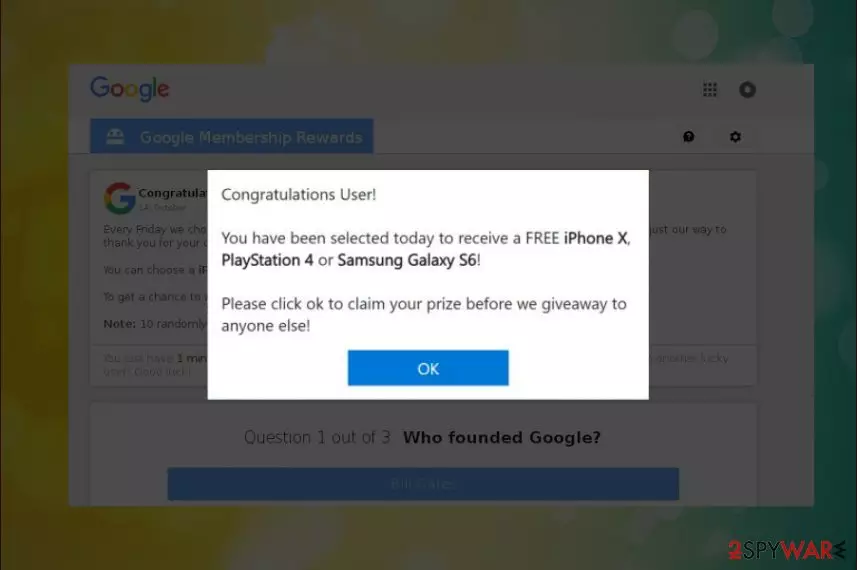
You Have Won A Google Gift (or You Have Received a Free Prize from Google, You Have Received a Free Prize, etc.) is a scam message that indicates the presence of the adware program on your computer. This is one of the many survey scam[1] messages lurking on the Internet. The hoax mainly tries to convince users that they are eligible for an expensive gift and it will be sent out as soon as the user answers a few uncomplicated questions. Various valuable gifts promised in these deceptive messages and the lottery may differ from version to version. The main prize that lures people in is the smartphone or other devices. However, the Google Win a Free Gift pop-up is a scam and is most likely caused by adware program installed on the PC. Additionally, adware-type programs deliver unwanted content and collect information about your time online.[2]
| Name | You Have Won A Google Gift |
| Type | Survey scam (typically caused by adware) |
| Sub-type | Google theme scams |
|
Versions |
|
| Danger level | Medium. Exposed personal information might be used for illegal purposes |
| Symptoms | Pop-ups, ads, banners, offers, etc. injected directly into browsers |
| Distribution Method | Software bundling, redirects from malicious websites |
You Have Won A Google Gift scam is similar to Amazon Gift Card scam, Google Survey scam, YouTube Reward Center and many others. All of these fake alerts promise users an expensive reward for answering just a few simple questions. In reality, cybercrooks want personal information which can later be used for shady purposes.
Crooks use social engineering[3] to get people excited about the possibility to get a free gift. When users are redirected to the shady website, they are usually greeted with a similar message:
Congratulations Google User, you have won a Google gift! Every Friday We select 10 lucky users randomly once a day to receive a gift from our sponsors. This is just our way to thank you for your continuous support for our products and services.
You can choose a iPhone 7, iPad Air 2 or Samsung Galaxy S6.
To get a chance to win, all you need to do is to answer the following 3 questions.
NOTE: 10 randomly chosen users got this invitation and there are just a few prizes.
There are tons of scams similar to You Have Won A Google Gift virus that use the same strategy and tactics to lure people. However, the main strategy is to use the name of the service or company which people tend to commonly see online. Google is the name that gets used in scams more recently and can look deceptive because of the displayed message.
You can notice various versions of Google gift scams:
- Google Customer Reward Program is a scam
- Google Prize scam
- “Google Survey” scam
- Google Membership Reward
Authors of survey scams usually rely on adware programs in order to reach potential victims. Such a potentially unwanted program (PUP) might be installed on the machine without the user's permission. However, soon after the hijack, it starts displaying intrusive ads and redirecting to the malicious website. In this case, you need to remove You Have Won A Google Gift adware immediately.

The message displayed on the screen may differ from scam to scam and from OS to OS. One of the variants displays the following:
Google Membership Rewards
Congratulations Google User, you have won a Google gift!
Every Wednesday we select 10 lucky Google users randomly to receive a gift from our sponsors. The free gift is ONLY for users in United States! This is our way of thanking you for your constantly support for our products and services. You can choose a free $1000 Walmart Giftcard, iPhone X 256 G or Samsung Galaxy S8. To win all you need to do is to answer the following 3 questions. Note: ACT NOW! 8 users have received this invitation and there are only 2 prizes to be won. You have 1 minute and 30 seconds to accuser the following questions before we give the prizes to another lucky user! Good luck!
The scam contains a countdown clock, which gives the potential victim 2 minutes to answer the questions, promising an iPhone, iPad Air or Samsung Galaxy in return. That's a psychological technique that creates the feeling of urgency and people often fall for the “You Have Won A Google Gift” scam and answer the given questions, which are usually easy to answer, for instance, “Who founded Google” or “Where is Google based.”

Information that you can lose after completing the fake survey
After completing the survey, the fake “You Have Won A Google Gift” alert requires to enter the following contact information:
- First name;
- Second name;
- Telephone number;
- Email address;
- Home address.
Although the pop-up can't harm your PC except disrupt your web browsing activities, the You Have Won A Google Gift survey scam can expose you to risk of identity theft and money loss. Once you submit the survey and disclose personal information, it can further be used for subscribing services that require paying a monthly fee. Dieviren.de[4] experts point out that it can be used for shady affiliate marketing and other questionable activities.
The “You Have Won A Google Gift” pop-up is not the only thing users should be concerned about. The main danger is that adware which is responsible for spreading scam might also force to visit other suspicious websites. Adware creators have no control over the linked content; thus, victims might end up on malware-ridden, phishing or other dangerous sites. This way, the PC is exposed to extreme risks, such as spyware or ransomware infections.
For this reason, users should remove You Have Won A Google Gift virus from the system without delay. Keep in mind that Google or any other popular company is not giving prizes in this way. Hence, if your browser continuously shows this hoax, it's the sign that your computer is infected.
For quick and simple You Have Won A Google Gift removal, we suggest obtaining a reputable anti-malware software. Tools like FortectIntego can locate and delete all adware-related components and stop unwanted redirects to this scam website. However, if you prefer manual removal option, you can find the guide below.

Additional components get installed from freeware bundles
Scam alerts, such as google giveaway iPhone 7 or Google prize winner iPhone rely on adware-type programs. While sometimes they can be generated by infected websites, people seldom visit such domains so the prevalence would not be so high.
To increase the number of potential victims, developers spread fake alerts in the form of browser extensions attached to freeware and shareware. Those attachments may be represented in an equivocal way, but due to the fact that they may be disclosed only under Advanced or Custom installation option.
If the user does not check the expanded terms and conditions, he or she permits the installation of PUPs without being aware of that. Thus, avoid selecting Quick and Basic installation and take the time read the EULA and Privacy Policy section.
“You Have Won A Google Gift” virus termination is important because you need to remove the main adware program
It goes without saying that PUPs installed on the system can initiate questionable activities to generate profit for its developers and partners. While sometimes those activities are only irritating, “You Have Won A Google Gift” virus poses a risk of information leakage and identity theft, which is why it's crucial to eliminate it.
The quickest way to remove Google Win a free gift scam messages entirely is by employing powerful anti-malware software. All you have to do is simply download and install one of the programs mentioned below, update it to the latest version and perform a full system scan. Remember, adware might have installed additional components without your knowledge, so using an automated procedure is always a good idea.
However, those of you who are familiar with computers and their processes can also use our guide which was written by our security experts. Every effort has been made to make it as clear as possible, so please follow each step attentively. Otherwise, You Have Won A Google Gift removal will fail, and you will have to continue using a compromised computer.
Uninstall from Windows
Uninstall from Windows 10/8:
- Type Control Panel into the Windows search box and open the result.
- Under Programs, select Uninstall a program.


Uninstall from Windows 7/XP:
- Click on Windows Start > Control Panel (Windows XP users should click on Add/Remove Programs).
- In Control Panel, select Programs > Uninstall a program.


Remove the unwanted program:
- In the Programs and Features window, look for any recently installed suspicious entries, select them, and click Uninstall.
- If User Account Control appears, click Yes to confirm, then complete the removal.


Delete from macOS
Remove the unwanted application:
- From the menu bar, select Go > Applications.
- In the Applications folder, look for any suspicious entries, then drag them to Trash (or right-click and pick Move to Trash).


Delete leftover files and folders:
- Select Go > Go to Folder.
- Enter /Library/Application Support and remove any suspicious folders related to the unwanted program.
- Repeat the same check in the /Library/LaunchAgents and /Library/LaunchDaemons folders, deleting any suspicious entries.

- Finally, empty the Trash to permanently remove the leftovers.

Reset Internet Explorer
Remove dangerous add-ons:
- Open Internet Explorer, click on the Gear icon (IE menu) on the top-right corner of the browser
- Pick Manage Add-ons.
- You will see a Manage Add-ons window. Here, look for suspicious plugins. Click on these entries and select Disable.


Change your homepage if it was altered:
- Open IE and click on the Gear icon.
- Select Internet Options.
- In the General tab, delete the Home page address and replace it by your preferred one (for example, Google.com).
- Click Apply and then select OK.


Delete temporary files:
- Press on the Gear icon and select Internet Options.
- Under Browsing history, click Delete...
- Select relevant fields and press Delete.


Reset Internet Explorer:
- Click on Gear icon > Internet options and select Advanced tab.
- Select Reset.
- In the new window, check Delete personal settings and select Reset.


Remove from Microsoft Edge
Delete unwanted extensions from MS Edge:
- Select Menu (three horizontal dots at the top-right of the browser window) and pick Extensions.
- From the list, pick the extension and click on the Gear icon.
- Click Remove.


Clear cookies and other browser data:
- Click on the Menu (three horizontal dots at the top-right of the browser window) and select Settings > Privacy, search, and services..
- Under Clear browsing data, pick Choose what to clear.
- Select Cookies and other site data and Cached images and files. (apart from passwords, although you might want to include Media licenses as well, if applicable) and click on Clear.


Restore new tab and homepage settings:
- Click the menu icon and choose Settings.
- Then find On startup section.
- Click Remove next to any suspicious startup page.
Reset MS Edge if the above steps did not work:
- Press on Ctrl + Shift + Esc to open Task Manager.
- Click on More details arrow at the bottom of the window.
- Select Details tab.
- Now scroll down and locate every entry with Microsoft Edge name in it. Right-click on each of them and select End Task to stop MS Edge from running.


Instructions for Chromium-based Edge
Delete extensions from MS Edge (Chromium):
- Open Edge and click select Settings > Extensions.
- Delete unwanted extensions by clicking Remove.


Clear cache and site data:
- Click on Menu and go to Settings.
- Select Privacy, search and services.
- Under Clear browsing data, pick Choose what to clear.
- Under Time range, pick All time.
- Select Clear now.


Reset Chromium-based MS Edge:
- Click on Menu and select Settings.
- On the left side, pick Reset settings.
- Select Restore settings to their default values.
- Confirm with Reset.
- This will disable extensions and reset startup pages but will not delete bookmarks, saved passwords, or browsing history.


Remove from Mozilla Firefox (FF)
Remove dangerous extensions:
- Open Mozilla Firefox browser and click on the Menu (three horizontal lines at the top-right of the window).
- Select Add-ons.
- In here, select the unwanted extension and click Remove.


Reset the homepage:
- Click three horizontal lines at the top right corner to open the menu.
- Choose Settings.
- Under Home, set your preferred homepage and new tab settings.
Clear cookies and site data:
- Click Menu and pick Settings.
- Go to Privacy & Security section.
- Scroll down to locate Cookies and Site Data.
- Click on Clear Data...
- Select Cookies and Site Data and Temporary cached files and pages, then click Clear.


Reset Mozilla Firefox
If clearing the browser as explained above did not help, reset Mozilla Firefox:
- Open Mozilla Firefox browser and click the Menu.
- Go to Help and then choose Troubleshooting Information.

- Under Give Firefox a tune up section, click on Refresh Firefox...
- Once the pop-up shows up, confirm the action by pressing on Refresh Firefox.



Remove from Google Chrome
Delete malicious extensions from Google Chrome:
- Open Google Chrome, click on the Menu (three vertical dots at the top-right corner) and select More tools > Extensions.
- In the newly opened window, you will see all the installed extensions. Uninstall all suspicious extensions related to the unwanted program by clicking Remove.


Clear cache and web data from Chrome:
- Click on Menu and pick Settings.
- Under Privacy and security, select Clear browsing data.
- Select Browsing history, Cookies and other site data, as well as Cached images and files.
- Click Clear data.


Change your homepage:
- Click menu and choose Settings.
- Look for a suspicious site in the On startup section.
- Click on Open a specific or set of pages and click on three dots to find the Remove option.
Reset Google Chrome:
If the previous methods did not help you, reset Google Chrome to eliminate all the unwanted components:
- Click on Menu and select Settings.
- In the Settings, scroll down and click Advanced.
- Scroll down and locate Reset and clean up section.
- Now click Restore settings to their original defaults.
- Confirm with Reset settings.


Delete from Safari
Remove dangerous extensions:
- Open Safari, click Safari in the menu at the top-left of the screen, and select Preferences.
- Go to the Extensions tab, look for any suspicious entries, and click Uninstall to remove them.


Clear history and website data:
- Click Safari in the menu and pick Clear History.
- Set Clear to all history and confirm with Clear History.


Reset Safari:
- Click Safari in the menu and select Preferences > Advanced.
- Enable Show Develop menu in menu bar.
- From the menu bar, click Develop and select Empty Caches.


Did this guide help?
Be the first to comment