

Google Membership Rewards is the scam that encourages users to take part in a survey campaign
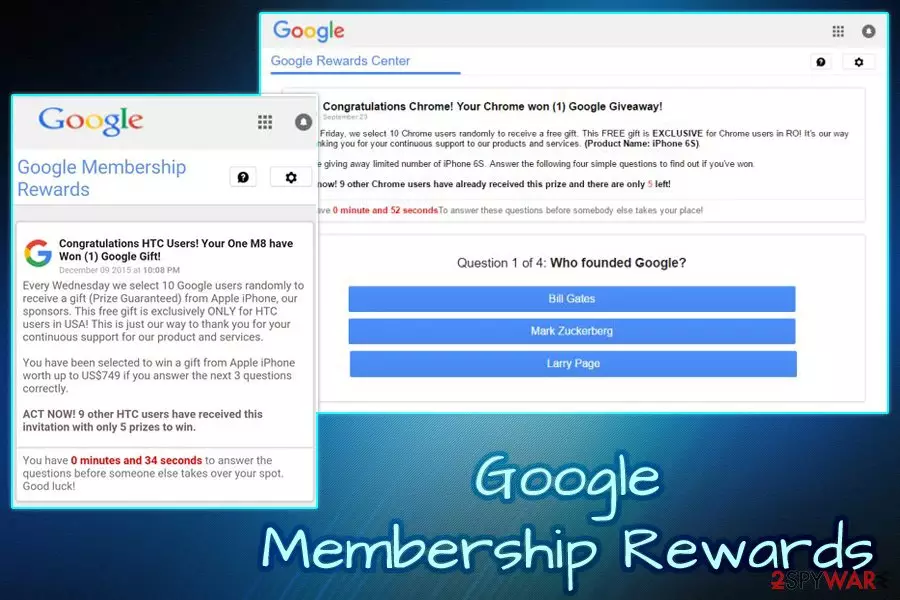
Google Membership Rewards is a survey scam[1] that has been offered to Google Chrome users for more than a year while trying to trick them out of their personal data. If you have been seeing this popup constantly, it means that your system is infected with an adware. While trying to reach their fraudulent goals, crooks claim that the user was “selected” to participate in the survey and has to answer a few simple questions in exchange for an expensive gift, usually an iPhone, iPad, Samsung Galaxy, PlayStation 4, or other valuable items. Bad actors have also been claiming that several users have already claimed the reward successfully, and the victim has a limited amount of time to participate. Nevertheless, this is a hoax and users should never take part in it.
| Summary | |
| Name | Google Membership Rewards |
| Related viruses | |
| Category | Adware |
| Sub-category | PUP |
| OS affected | Windows OS, iOS, Mac OS X |
| Type | Survey Scam |
| Distribution | Software bundling, malicious websites, etc. |
| Prevention | Keep a distance from odd pages, do not download unknown programs, always have an active anti-malware program |
| Symptoms | Fake pop-ups, advertisements, redirects to questionable websites, etc. |
| Elimination | Use anti-malware tools for a quick solution; alternatively, check our manual removal guide below |
| Repair | You should rely on FortectIntego that can find and fix virus damage |
Internet users typically encounter fake pop-ups on iPhone, iPad, Android, Windows computers and similar devices when they open a suspicious which redirects them to another website. While it does not happen often, those who face the fake alerts regularly, are probably infected with adware.[2] Potentially unwanted programs are not initially malicious, as they do not directly damage or otherwise change system files that would hinder the operation of the PC.
However, some adware viruses, responsible for showing the scammy popup, are known to alter Windows Registry, DNS[3] settings and even create certain scheduled tasks. Combine these modifications with a frequent appearance of pop-ups, fake updates, and other dubious advertisements, and the term “Google Membership Reward virus” becomes acceptable.
The Google Membership Rewards scam itself does not differ from many other ones created before, such as:

In the beginning, users are asked to answer seemingly obvious questions for an expensive prize. There are several versions available, the only difference is the variables, such as the prize pool, the alleged winner count and the main retailer allegedly offering the reward.
One of the scam message examples reads the following:
Google Membership Rewards
Congratulations Google User, you have won a Google gift!
Every Monday we select 10 lucky Google users randomly to receive a gift from our sponsors. The free gift is ONLY for users in United States! This is our way of thanking you for your constantly support for our products and services. You can choose a free $1000 Walmart Giftcard, iPhone X 256 G or Samsung Galaxy S8. To win all you need to do is to answer the following 3 questions. Note: ACT NOW!9 users have received this invitation and there are only 5 prizes to be won. You have 0 minutes and 26 seconds to answer the following questions before we give the prizes to another lucky user! Good luck!
Users should not participate in this hoax and merely remove Google Membership Rewards survey scam from their iPad, phone or other devices immediately. To do that, get rid of adware that is initiating these fake alerts. For a quick solution, try using security software such as SpyHunterCombo Cleaner, MalwarebytesMalwarebytes. Alternatively, manual elimination can be achieved by using our detailed instructions below.

However, those who proceed answering the questions presented by Google Membership Rewards will be asked to enter personal details at the end of the survey or prompted to enter credit card details for a silly $1 payment for the alleged price shipping costs. All of these techniques are used by crooks to extort valuable personal data or make users purchase useless products or subscribe to bogus services.
Thus, do not get fooled by this trick. If you encountered redirects to suspicious websites, pop-up ads, the slowdown of the browser and other symptoms, take care of the virus removal as soon as possible, as the presence of adware can compromise privacy and computer safety, security experts[4] report.
Moreover, if an adware program has been hiding under the appearance of Google Membership Rewards scam, you might start experiencing other suspicious activities such as display of advertising content for revenue collecting. Additionally, you might be redirected to other developer-sponsored websites and accidentally land somewhere malicious.
If you often receive the pop-up and ignore it, do not be surprised if an excessive number of ads will show up and interfere with your browsing sessions. Later on, this content might end up causing regular system slowdowns, forcing software and various products to crash and relate to slow computing work.
Avoid potentially unwanted programs and do not get involved with extortionists
Adware and other PUPs typically get injected into users' machines during the installation of shareware and freeware.[5] The free program developers usually contract adware authors. Thus, one party receives income for every install made (pay-per-install), while the other increased the means of distribution of the software. While both parties benefit, the end-user is merely abused in a giant money-making machine and has to suffer from the adverse PUP effects.
Software bundling is a legal practice. While users can do nothing to prevent such collaboration, there are several things that can be done in order to avoid the installation of potentially unwanted programs:
- Avoid questionable websites and do not download software before reading some reviews or articles about it;
- In the installation Wizard, pay attention to detail and read the instructions carefully;
- Do not press Next several times until the process is complete;
- When prompted, pick Advanced or Custom installation mode instead of Recommended/Quick one;
- Remove all the tick marks that are present next to PDF converters, registry cleaners, codec packs, download managers and similar useless software and only then proceed with the installation
Additionally, several Av engines block the infiltration of potentially unwanted programs. Simply make sure that the real-time feature is enabled at all times. Besides, do not be afraid to invest in reputable anti-malware software as the tool might appear to be handy in many ways. Spending money on advanced protection is definitely a better option then paying a specialist for computer repair frequently.
Eliminate Google Membership Rewards from your device

Users might think that closing down the browser is the only thing they need to do to remove Google Membership Rewards alerts permanently. It can be true in some cases. However, if the redirects to questionable websites occur during all browsing sessions, the elimination of adware is the only solution to the problem, because the symptoms of infection will not stop.
Threat removal can be performed either manually or automatically. You can employ reputable security software, and it will take care of everything for you. All you have to do is run a full system scan. Alternatively, you can use our manual instruction below to get rid of Google Membership Reward virus. However, beware that this process might be too complicated to users who are not that experienced in handling computers.
To get rid of Google membership rewards on iPhone/iPad, rest the device to its factory settings.
- Restart the device: hold down the power button until you see “Slide to Power Off” button. Slide this option to turn off the device and turn it on.
- Restore iPad to a recent backup by navigating to “Apps & Data” settings and choose one of the available restore solutions.
- Perform the factory reset by navigating to “Settings” -> “General” -> “Reset” -> “Erase All Content and Settings”.
Uninstall from Windows
Uninstall from Windows 10/8:
- Type Control Panel into the Windows search box and open the result.
- Under Programs, select Uninstall a program.


Uninstall from Windows 7/XP:
- Click on Windows Start > Control Panel (Windows XP users should click on Add/Remove Programs).
- In Control Panel, select Programs > Uninstall a program.


Remove the unwanted program:
- In the Programs and Features window, look for any recently installed suspicious entries, select them, and click Uninstall.
- If User Account Control appears, click Yes to confirm, then complete the removal.


Delete from macOS
Remove the unwanted application:
- From the menu bar, select Go > Applications.
- In the Applications folder, look for any suspicious entries, then drag them to Trash (or right-click and pick Move to Trash).


Delete leftover files and folders:
- Select Go > Go to Folder.
- Enter /Library/Application Support and remove any suspicious folders related to the unwanted program.
- Repeat the same check in the /Library/LaunchAgents and /Library/LaunchDaemons folders, deleting any suspicious entries.

- Finally, empty the Trash to permanently remove the leftovers.

Remove from Microsoft Edge
Delete unwanted extensions from MS Edge:
- Select Menu (three horizontal dots at the top-right of the browser window) and pick Extensions.
- From the list, pick the extension and click on the Gear icon.
- Click Remove.


Clear cookies and other browser data:
- Click on the Menu (three horizontal dots at the top-right of the browser window) and select Settings > Privacy, search, and services..
- Under Clear browsing data, pick Choose what to clear.
- Select Cookies and other site data and Cached images and files. (apart from passwords, although you might want to include Media licenses as well, if applicable) and click on Clear.


Restore new tab and homepage settings:
- Click the menu icon and choose Settings.
- Then find On startup section.
- Click Remove next to any suspicious startup page.
Reset MS Edge if the above steps did not work:
- Press on Ctrl + Shift + Esc to open Task Manager.
- Click on More details arrow at the bottom of the window.
- Select Details tab.
- Now scroll down and locate every entry with Microsoft Edge name in it. Right-click on each of them and select End Task to stop MS Edge from running.


Instructions for Chromium-based Edge
Delete extensions from MS Edge (Chromium):
- Open Edge and click select Settings > Extensions.
- Delete unwanted extensions by clicking Remove.


Clear cache and site data:
- Click on Menu and go to Settings.
- Select Privacy, search and services.
- Under Clear browsing data, pick Choose what to clear.
- Under Time range, pick All time.
- Select Clear now.


Reset Chromium-based MS Edge:
- Click on Menu and select Settings.
- On the left side, pick Reset settings.
- Select Restore settings to their default values.
- Confirm with Reset.
- This will disable extensions and reset startup pages but will not delete bookmarks, saved passwords, or browsing history.


Remove from Mozilla Firefox (FF)
Remove dangerous extensions:
- Open Mozilla Firefox browser and click on the Menu (three horizontal lines at the top-right of the window).
- Select Add-ons.
- In here, select the unwanted extension and click Remove.


Reset the homepage:
- Click three horizontal lines at the top right corner to open the menu.
- Choose Settings.
- Under Home, set your preferred homepage and new tab settings.
Clear cookies and site data:
- Click Menu and pick Settings.
- Go to Privacy & Security section.
- Scroll down to locate Cookies and Site Data.
- Click on Clear Data...
- Select Cookies and Site Data and Temporary cached files and pages, then click Clear.


Reset Mozilla Firefox
If clearing the browser as explained above did not help, reset Mozilla Firefox:
- Open Mozilla Firefox browser and click the Menu.
- Go to Help and then choose Troubleshooting Information.

- Under Give Firefox a tune up section, click on Refresh Firefox...
- Once the pop-up shows up, confirm the action by pressing on Refresh Firefox.



Remove from Google Chrome
Delete malicious extensions from Google Chrome:
- Open Google Chrome, click on the Menu (three vertical dots at the top-right corner) and select More tools > Extensions.
- In the newly opened window, you will see all the installed extensions. Uninstall all suspicious extensions related to the unwanted program by clicking Remove.


Clear cache and web data from Chrome:
- Click on Menu and pick Settings.
- Under Privacy and security, select Clear browsing data.
- Select Browsing history, Cookies and other site data, as well as Cached images and files.
- Click Clear data.


Change your homepage:
- Click menu and choose Settings.
- Look for a suspicious site in the On startup section.
- Click on Open a specific or set of pages and click on three dots to find the Remove option.
Reset Google Chrome:
If the previous methods did not help you, reset Google Chrome to eliminate all the unwanted components:
- Click on Menu and select Settings.
- In the Settings, scroll down and click Advanced.
- Scroll down and locate Reset and clean up section.
- Now click Restore settings to their original defaults.
- Confirm with Reset settings.


Delete from Safari
Remove dangerous extensions:
- Open Safari, click Safari in the menu at the top-left of the screen, and select Preferences.
- Go to the Extensions tab, look for any suspicious entries, and click Uninstall to remove them.


Clear history and website data:
- Click Safari in the menu and pick Clear History.
- Set Clear to all history and confirm with Clear History.


Reset Safari:
- Click Safari in the menu and select Preferences > Advanced.
- Enable Show Develop menu in menu bar.
- From the menu bar, click Develop and select Empty Caches.


Did this guide help?
Be the first to comment