

Apple.com-shield-guard.live is a website that displays a scary message about specific malware to redirect your online traffic to shady sites
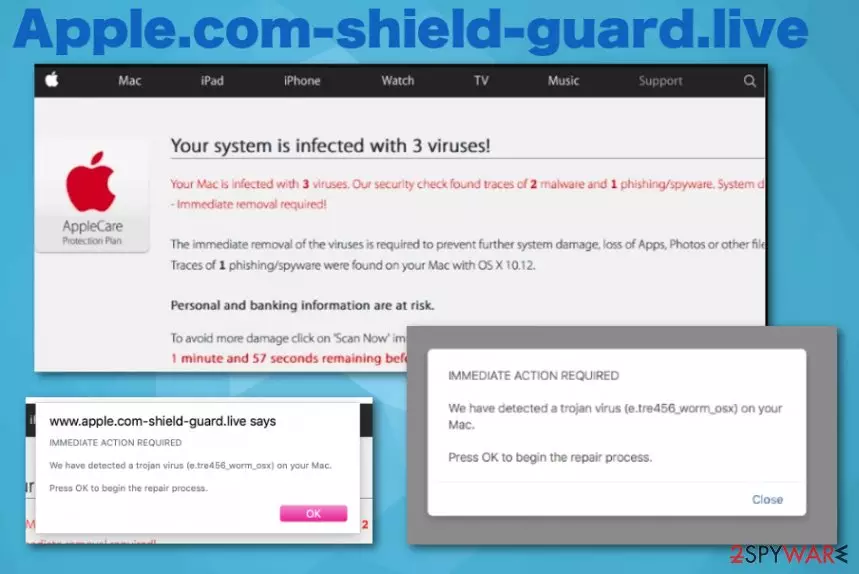
Apple.com-shield-guard.live is the potentially unwanted program that causes fake warnings about viruses or even damage and aims to promote system tools. This program can be called a scam because all the claims about system damage, data loss, and hacker access are false and relate other adware programs that are designed to show commercial material and redirect online traffic to questionable pages.
All those features are typical for potentially unwanted programs like Apple.com-shield-guard.live virus because PUPs are created with the same purposes – generating views, visits, and creating revenue for the publisher. Unfortunately, those redirects, pop-up ads, banners, and other suspicious content ensures ad-tracking processes.[1] this behavior can create privacy issues and lead to more significant problems than the slowness of the device or diminished performance.
| Name | Apple.com-shield-guard.live |
|---|---|
| Type | Adware/ Scam |
| Affected system | Mac OS |
| Symptoms | Misleading windows with false claims about malware infiltrations appear out of nowhere, other commercial content keeps the user from accessing wanted sites |
| Distribution | Freeware installations, bundled packages, deceptive websites |
| Elimination | Get anti-malware tool for Apple.com-shield-guard.live removal. Clean the machine from virus damage with FortectIntego |
Apple.com-shield-guard.live is a scam that belongs to a whole group of websites delivering the same fake message about malware infection. This is a false pop-up browser window that aims to get information from the person visiting the shady domain or lead to the installation of a useless system tool. Other copies of the same adware-type intruder:
- Apple.com-monitor.live;
- Apple.com-fasting.live;
- Apple.com-faster.live;
- Apple.com-fast.live;
- Apple.com-clear.live;
- Apple.com-optimize.live;
- Apple.com-scan.live.
This shady scam is caused by a potentially unwanted program that shows questionable pop-ups, banners, and other content besides redirecting to Apple.com-shield-guard.live site directly. This is nothing more just a scam that aims to install rogue software on your Mac device.
Apple.com-shield-guard.live content either promotes fake system tools and optimizers or installs them on the machine without your permission. Advanced Mac Cleaner, Cleanup My Mac and other shady software show up on the screen as the tool helpful for all the listed issues. However, you need to avoid these windows and programs to keep the machine virus-free.
All those claims that Apple.com-shield-guard.live pop-ups show are pre-determined and cannot cause any harm to your machine. If you interact with the program and allow the system scan, this program shows even more scary results to trick you into installing the program willingly.

Avoid clicking on banners, pop-ups, and other content related to this adware and remove Apple.com-shield-guard.live as soon as possible. You should note that potentially unwanted programs come bundled and without your permission, so your machine may have more than one intruder already.
The shady Apple.com-shield-guard.live scam message shows the following:
Your system is infected with (3) viruses!
Your Mac is infected with 3 viruses. Our security check found traces of 2 malware and 1 phishing/spyware.
Immediate removal required!
The immediate removal of the viruses is required to prevent further system damage, loss of Apps, Photos or other files.
Traces of 1 phishing/spyware were found on your Mac with OS x 10.12.
Personal and banking information are at risk.
To avoid more damage click on ‘Scan Now‘ immediately. Our deep scan will provide help immediately!
1 minute and 57 seconds remaining before damage is permanent.
Remember that the message is false and your machine is not affected by any malware, except Apple.com-shield-guard.live adware. To avoid further damage and more severe cyber infections, you need to clean the system as soon as the message appears and starts causing more redirects.
Apple.com-shield-guard.live removal may seem difficult and impossible, but you can achieve the total PUP elimination if you choose proper tools. Anti-malware programs like FortectIntego can scan the machine and find intruders, useless files and even indicate vulnerabilities that need to get patches.[2]
Questionable websites present deceptive information and lead to PUP infiltration
Scammers focus on various techniques and use methods that allow them to spread malicious products directly on users' machines. Deceptive websites and pop-ups, banners with shady content allow PUPs to get directly on the device. In most cases, the only thing the victim needs to do is click on the advertisement or redirect.
However, the typical PUP distribution method is insecure freeware installations during which packages with pre-bundled programs get automatically on the machine. If you choose less than reliable sources, skip through steps during the installation, you get all those bundled pieces automatically.
Experts[3] always talk about the importance of paying attention to such processes and choosing Advanced or Custom options. By doing so, you can see the full list of programs and de-select unwanted ones. This is the best way to avoid shady installations and cyber infections.
Apple.com-shield-guard.live virus termination requires malware removal tools
Apple.com-shield-guard.live removal is not the most difficult process, but it requires your attention. This PUP can alter some crucial parts of the system, including startup preferences, registry entries, and in-browser settings. For that reason, you need a thorough scan and system check with anti-malware tool.
To remove Apple.com-shield-guard.live completely from the system, you should get a tool and run it on the device. Then, to make sure that the computer or mobile phone is virus-free, you can check web browsers one by one and eliminate suspicious programs or applications. You can follow the guide below.
Delete from macOS
Remove the unwanted application:
- From the menu bar, select Go > Applications.
- In the Applications folder, look for any suspicious entries, then drag them to Trash (or right-click and pick Move to Trash).


Delete leftover files and folders:
- Select Go > Go to Folder.
- Enter /Library/Application Support and remove any suspicious folders related to the unwanted program.
- Repeat the same check in the /Library/LaunchAgents and /Library/LaunchDaemons folders, deleting any suspicious entries.

- Finally, empty the Trash to permanently remove the leftovers.

Remove from Mozilla Firefox (FF)
Remove dangerous extensions:
- Open Mozilla Firefox browser and click on the Menu (three horizontal lines at the top-right of the window).
- Select Add-ons.
- In here, select the unwanted extension and click Remove.


Reset the homepage:
- Click three horizontal lines at the top right corner to open the menu.
- Choose Settings.
- Under Home, set your preferred homepage and new tab settings.
Clear cookies and site data:
- Click Menu and pick Settings.
- Go to Privacy & Security section.
- Scroll down to locate Cookies and Site Data.
- Click on Clear Data...
- Select Cookies and Site Data and Temporary cached files and pages, then click Clear.


Reset Mozilla Firefox
If clearing the browser as explained above did not help, reset Mozilla Firefox:
- Open Mozilla Firefox browser and click the Menu.
- Go to Help and then choose Troubleshooting Information.

- Under Give Firefox a tune up section, click on Refresh Firefox...
- Once the pop-up shows up, confirm the action by pressing on Refresh Firefox.



Remove from Google Chrome
Delete malicious extensions from Google Chrome:
- Open Google Chrome, click on the Menu (three vertical dots at the top-right corner) and select More tools > Extensions.
- In the newly opened window, you will see all the installed extensions. Uninstall all suspicious extensions related to the unwanted program by clicking Remove.


Clear cache and web data from Chrome:
- Click on Menu and pick Settings.
- Under Privacy and security, select Clear browsing data.
- Select Browsing history, Cookies and other site data, as well as Cached images and files.
- Click Clear data.


Change your homepage:
- Click menu and choose Settings.
- Look for a suspicious site in the On startup section.
- Click on Open a specific or set of pages and click on three dots to find the Remove option.
Reset Google Chrome:
If the previous methods did not help you, reset Google Chrome to eliminate all the unwanted components:
- Click on Menu and select Settings.
- In the Settings, scroll down and click Advanced.
- Scroll down and locate Reset and clean up section.
- Now click Restore settings to their original defaults.
- Confirm with Reset settings.


Delete from Safari
Remove dangerous extensions:
- Open Safari, click Safari in the menu at the top-left of the screen, and select Preferences.
- Go to the Extensions tab, look for any suspicious entries, and click Uninstall to remove them.


Clear history and website data:
- Click Safari in the menu and pick Clear History.
- Set Clear to all history and confirm with Clear History.


Reset Safari:
- Click Safari in the menu and select Preferences > Advanced.
- Enable Show Develop menu in menu bar.
- From the menu bar, click Develop and select Empty Caches.


Did this guide help?
Be the first to comment