
How to check for malware on Android: signs, scan and removal
To check for malware on Android, look for the warning signs, run a Google Play Protect scan, go through your apps and special permissions, and test in safe mode. If anything harmful turns up, uninstall it, change your passwords from another device and, if it will not go away, reset the phone.
Facts checked October 12, 2026. Steps checked against Apple's and Google's current documentation and the reports we cite. We have not run the app or the link on a phone ourselves.
Do it yourself · free Remove malware on Android yourself 7 steps, about 21 minutes, no software needed.
Start the steps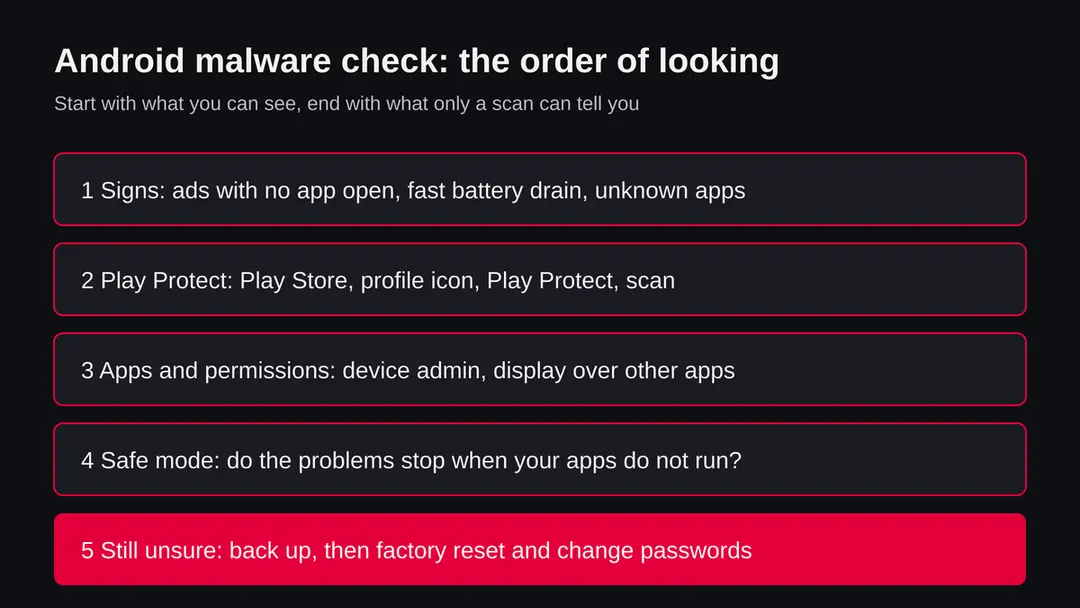
Malware on Android: summary
| Type | How to check an Android phone for malware: harmful apps, adware, spyware and scam apps |
|---|---|
| Risk | Depends on what is found: pushy ads are a nuisance, spyware or a banking trojan can cost money and privacy |
| Symptoms | Ads or store pages with no app open, unknown apps, changed browser start page, fast battery drain, messages you did not send, unexplained charges |
| How to get rid of it | Play Protect scan, uninstall the app (switch off device admin first if needed), safe mode test, change passwords, factory reset as the last step |
| Our check | A how to guide: no address or app was tested. Steps come from Google's and the FTC's pages, read on 12 October 2026 |
| Running since/first seen | Not applicable: this is a method, not one threat |
Show 8 more facts
| Devices | Android phones and tablets; menu names differ by maker and Android version |
|---|---|
| Microsoft detection | No Microsoft detection name is known: this is a method for Android phones, not a Windows threat |
| Name | How to check for malware on Android |
| Evidence | 0 write-ups by security sites; details still limited |
| First seen | 12 October 2026 |
| Distribution | Typically fake installers, cracked programs, e-mail attachments, fake "verify you are human" pages and ads for popular apps |
| Damage | Installs other malware, often several programs at once |
| Facts checked | 12 October 2026 |
Facts checked on 12 October 2026 against Google's Play Protect help pages and the FTC's malware page. No phone, app or address was tested; our check was a desk check only.
How to check for malware on Android in short
You check an Android phone for malware in four passes: the signs you can see, a Google Play Protect scan, your list of apps and special permissions, and a restart in safe mode. If one pass finds a harmful app, uninstall it, change your passwords from another device and run the scan again.
No single pass is final. Play Protect can miss an app, the signs can have harmless causes, and safe mode only tells you that one of your own apps is involved.
That is why this guide uses all four and ends with a factory reset for the cases that will not clear. It also says plainly where the public record is silent, because nobody can see your phone from outside, including us.
We made no test of an address or an app for this page. It is a method guide. Every menu path below comes from Google's help pages or the Federal Trade Commission, read on 12 October 2026. Menu names differ between Samsung, Pixel, Xiaomi and other makers and between Android versions, so where a name is not on your screen, open Settings and use the search box.
- Built in tool
- Google Play Protect: Google Play > profile icon > Play Protect
- Quick test
- Restart in safe mode: apps you installed do not run, so a problem that stops points to one of them
- Places to look
- App list, Device admin apps, Display over other apps, Accessibility, Install unknown apps
- Last resort
- Back up photos and contacts, factory reset, reinstall apps only from Google Play
- What a clean result means
- Nothing was found on this check, not a promise that the phone is clean
Can an Android phone get a virus?
Yes, but the usual problem is a harmful app, not a virus in the old computer sense. Harmful apps include adware that shows ads, spyware that watches you, banking trojans that steal logins and apps that charge for services you never asked for.
Google's own page tells us this is a real problem.
It says Google Play Protect checks apps from Google Play before you download them and scans the device for potentially harmful apps from other sources, and that it can warn about apps that hide or misrepresent important information, send privacy alerts about apps that use personal data against Google's Developer Policy, and block installation of unverified apps that ask for sensitive permissions commonly used in financial scams.
How a harmful app gets onto a phone is mostly a human step. Typical routes are an app installed from a link or file outside Google Play, a permission granted to an app that did not need it, and a fake update or fake cleaner offered by an ad or a message.
We do not have one named family in mind for this guide, and we do not claim how many phones are affected, since we found no source we could cite for a number.
What malware on Android does on an infected phone
Signs your Android phone may have malware
The signs are ads or store pages that open with no app in use, apps you did not install, a changed browser start page, a phone that slows or crashes, a battery and data use that jump, and messages or charges you do not recognise. One sign alone is rarely proof.
The FTC's page on malware lists signs that hold for phones as well as computers: the device slows down, freezes or crashes, the browser home page changes or you are sent to sites you did not choose, new toolbars or add on programs appear, you see many pop up ads, you get repeated error messages, built in tools are disabled, and emails or social media messages appear that you did not write.
The FTC adds that security software may not catch malware right away, so the signs matter even when protection is on.
For Android we add the things people report most:
- an app you do not remember
- an app that will not uninstall
- a battery that empties far faster than before
- data use you cannot explain
These are our reading from how harmful apps behave, not a list from one source, so use them to decide where to look, not to decide that the phone is infected.
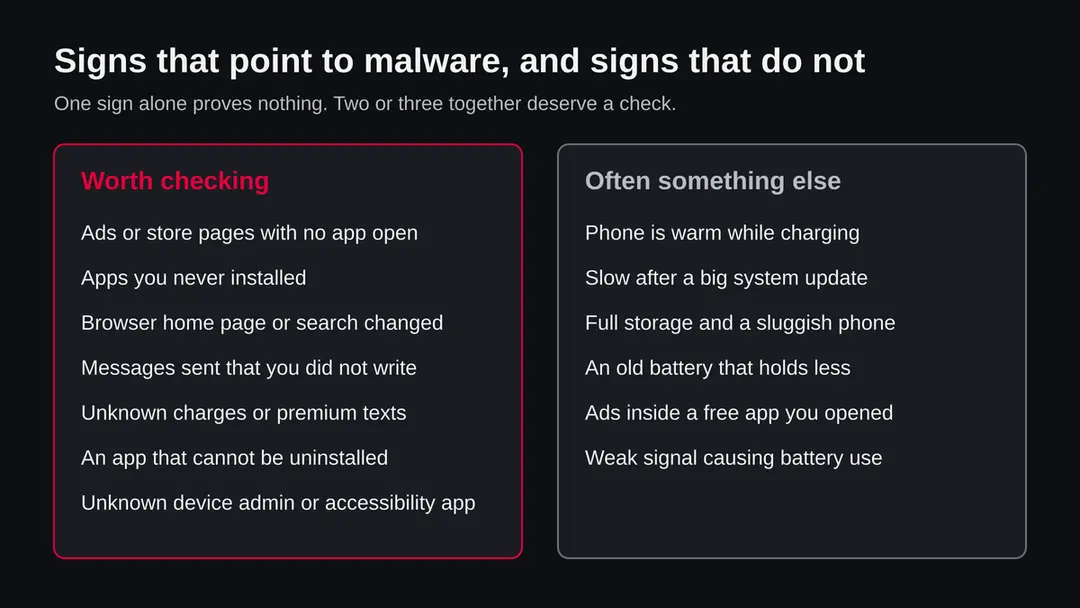
| What you notice | Could be malware if | Often harmless when |
|---|---|---|
| Ads or the Play Store open by themselves | It happens with no app open, or on the home screen | It happens inside a free game that shows ads |
| Battery drains fast | The phone is warm in your pocket and a background app uses a lot | The battery is old or the signal is weak |
| Phone is slow or crashes | It started after you installed something and safe mode fixes it | Storage is nearly full or a big update is running |
| Unknown app in the list | You did not install it and it asks for admin or Accessibility rights | It is a maker's system app or a Google service |
| Browser start page or search changed | You did not change it and it returns after you reset it | You or a family member changed it |
| Messages or calls you did not make | Your contacts say they received them | Your account was used on another device and the phone is fine |
| Unknown charges | They match an app you installed or premium messages | A subscription you forgot |
If your phone shows a warning that it is infected
A page or pop up that says your phone is infected and tells you to install a cleaner is a scam far more often than a real alert. Close it and install nothing it offers. Real alerts come from Play Protect, from the system or from an app you already installed.
The FTC's guidance says never to call a phone number shown in a pop up warning and not to download software from ads. Go to a company's website by typing the address yourself. This matters on Android in particular, because the fake cleaner is often the malware: it asks for Accessibility or Install unknown apps and then does what the scammer wants.
If you already installed such an app, treat it as a harmful app:
- uninstall it
- run the Play Protect scan
- follow the steps below
If you gave card details or a password, change the password from another device and tell your bank.
What we checked for this guide, and what we could not
We read Google's pages on Play Protect and on getting apps, and the FTC's page on malware, on 12 October 2026. We did not install a harmful app, scan a phone or test any security product.
How to check for malware on Android · desk check · 12 October 2026
- Play Protect pathGoogle Play > profile icon > Play Protect > Settings > Scan apps with Play Protect, as given on Google's help page.
- Signs of malwareTaken from the FTC's page, which is written for devices in general, and extended with our own reading for Android.
- What to do after an infectionFTC: stop using sensitive accounts, run a full security scan, change passwords and turn on two factor authentication.
- Safe mode and special permission pathsThe Google pages we could read did not carry full steps for every phone, so we name the settings to search for and say that menus differ by maker.
- Manual scan buttonGoogle's page does not describe a manual scan option for every Android version. We say so rather than guess.
- Your phoneNot tested. We cannot see your phone, your apps or what Play Protect has seen.
A method guide: general advice, no phone tested The method is sound and sourced, but it is a general method. It cannot clear a particular phone, and a clean result only means nothing was found this time.
Ads that open by themselves: adware or just an aggressive app
Ads inside a free app you are using are normal, even if they are annoying. Ads or store pages that appear on the home screen, with no app open, point to an app with Display over other apps, or to a site that has your permission to send notifications.
To find the cause, note which app was on screen when it happened, then check Display over other apps for apps that should not have it. If the ads come as notifications, open Chrome, go to the site that sends them and switch notifications off for it. Restarting in safe mode separates the two cases: ads that vanish in safe mode come from an app you installed.
Our guide to click.liftoff.io on iPhone and Android explains one example of this pattern in detail. We do not say it is the cause of your ads, only that the steps are the same:
- find the app
- remove it or limit it
- switch off ad tracking
How malware on Android got on your phone
Most harmful apps arrive because a person installs them or grants a permission, not because the phone is attacked from outside. The common routes are apps from outside Google Play, fake updates and cleaners, links in messages and apps that ask for far more than they need.
Google says Play Protect may block the installation of unverified apps that request sensitive permissions commonly used in financial scams. That tells us which permissions scammers want. The FTC adds the usual human routes:
- unexpected emails and attachments
- downloads from ads and free music
- movie
- game downloads from unfamiliar sites
We found no source giving a share of infections per route, so we do not give one.
- High
Apps installed from a file or link
An APK from a message, a site or a forum skips the review Google Play does. Install unknown apps is the switch that allows it.
- High
Fake cleaners and fake updates
Offered by pop ups that say the phone is infected. The offer itself is the threat.
- Medium
Permissions granted too easily
Accessibility, device admin and Display over other apps give an app far more power than it needs.
- Medium
Links in messages
A link in a text or chat that leads to a login page or an app download.
- Low
Ad supported free apps
Usually only show ads, but some are aggressive. See the section on pushy ads.
How to remove malware on Android
How to check for and remove malware on Android
These steps check an Android phone in order and remove what they find.
They are written for Android only; on an iPhone the steps differ and Apple's own pages apply. Menu names differ by maker and Android version, so use the search box in Settings when a name is missing.
Step 1: Note the signs on your Android phone
On your Android phone, write down what you see: ads with no app open, unknown apps, a changed start page, battery drain or charges you do not know.
Note which app was on screen when it happened. This tells you where to look and lets you see later whether the fix worked. The FTC lists the same kinds of signs for malware on any device.
The order of checks used in this plan. Step 2: Run Google Play Protect on Android
On Android, open Google Play, tap your profile icon > Play Protect and let it scan, as Google's help page describes. Open Settings there and keep Scan apps with Play Protect on.
If it flags an app, tap the notification and choose Uninstall. A clean result means nothing was found this time, so go on to the next steps.
Step 3: Read your app list and special permissions
Open Settings > Apps and look for names you do not know. Then search Settings for Device admin apps, Display over other apps, Accessibility and Install unknown apps.
Switch off what an app does not need. Menu names differ between makers, so use the search box.
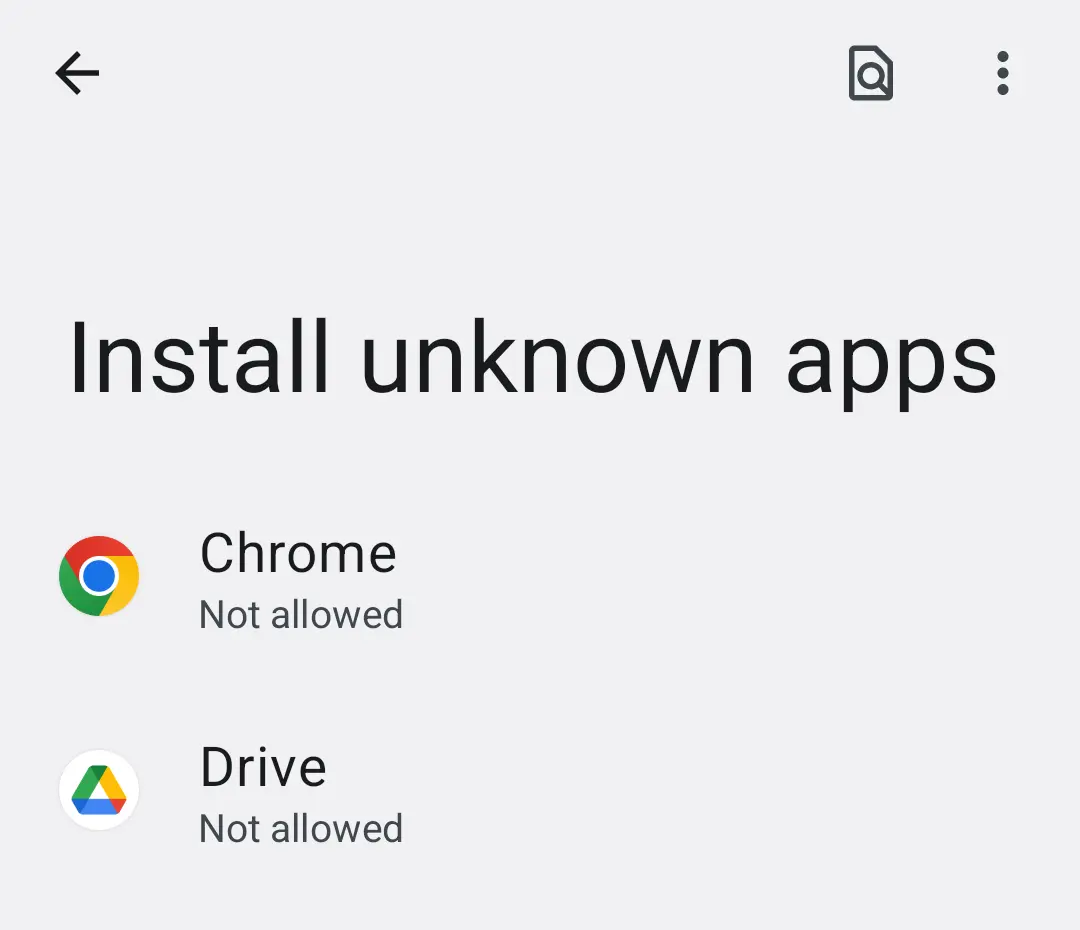
Android 14: Settings, Install unknown apps. Keep it off for the browser and messengers unless you need it. Step 4: Uninstall what does not belong
Touch and hold the app icon and choose Uninstall, or use Settings > Apps. If Uninstall is greyed out, open Device admin apps, switch the app off and try again. Run the Play Protect scan once more afterwards to confirm nothing else is flagged.
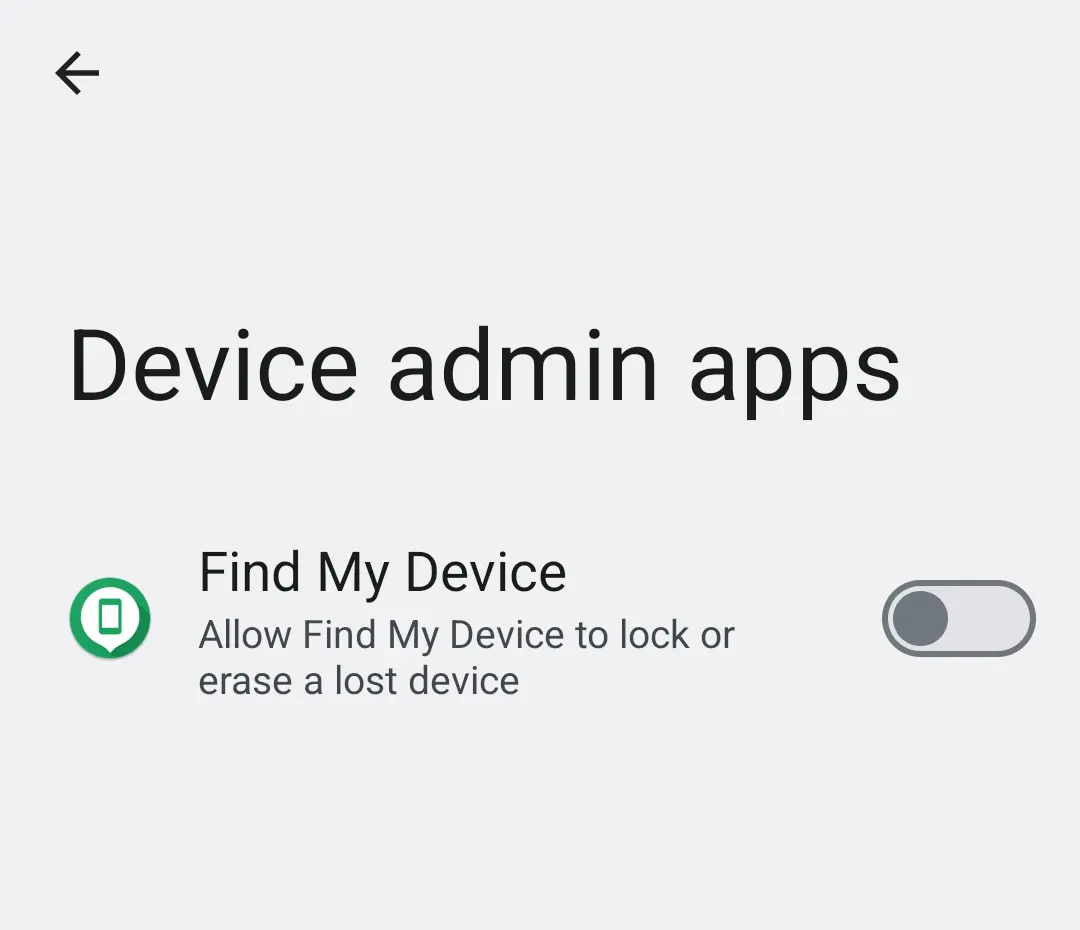
Android 14: Settings, Device admin apps. Switch off an unknown app here before you uninstall it. Step 5: Test in safe mode on Android
On Android, press and hold the power button, touch and hold Power off and confirm the restart in safe mode; the way differs by maker. Apps you installed do not run there.
If the problem stops, remove recently installed apps one at a time and restart after each, as Google's help page advises. Leave safe mode with a normal restart.
Step 6: Change passwords and check your money
From another device, change your Google account and e-mail passwords, then banking and social media, and turn on two factor authentication.
Check statements and phone bills for things you did not do. The FTC advises the same order. Report scams at ReportFraud.ftc.gov in the United States.
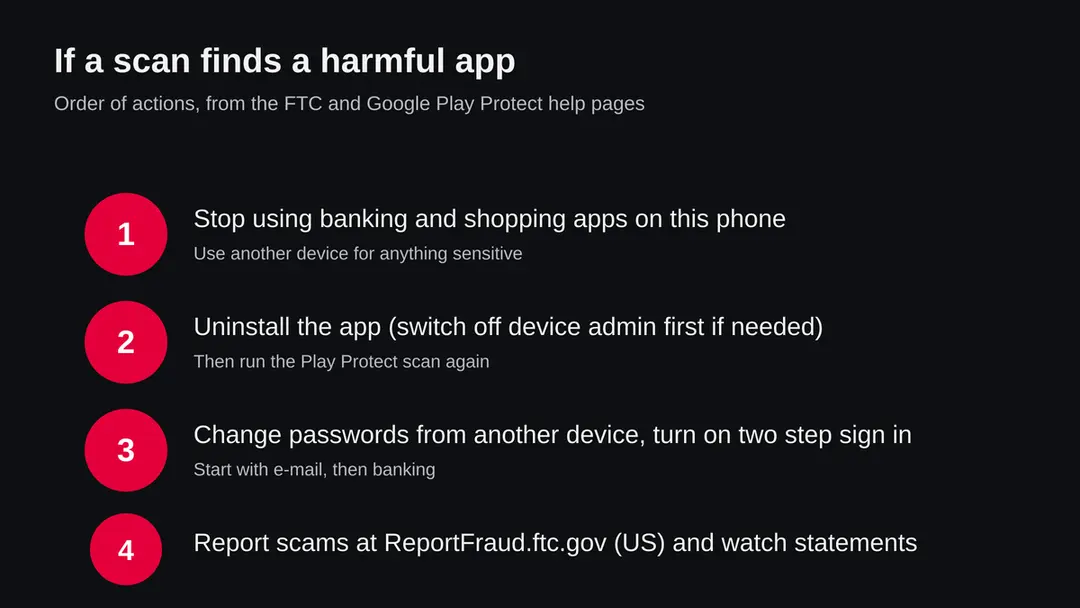
The order of actions after a scan finds a harmful app. Step 7: Reset the phone if nothing else works
If the app will not go, spyware may be present or money was taken, back up photos and contacts, then do a factory reset from the system settings.
Set the phone up as new, install apps only from Google Play and avoid restoring a full copy. The FTC also says you can ask the maker about warranty and support.
Step 1: run a Google Play Protect scan
Open the Google Play app, tap your profile icon at the top right, tap Play Protect and let it scan. Then open its settings and make sure Scan apps with Play Protect is on.
Google's help page gives the path: Play Store > profile icon > Play Protect > Settings, and there you turn Scan apps with Play Protect on. It is on by default and Google recommends keeping it on. In the same menu Improve harmful app detection lets Play Protect send unknown apps to Google, which helps with apps from outside Google Play, and Permissions for unused apps shows what was reset.
If Play Protect finds something, it may send a notification, disable the app until you uninstall it or remove it by itself. Google's page says to tap the notification and then Uninstall. The page does not say what Play Protect cannot find, and it does not describe a manual scan button for every phone version, so a clean scan is a good sign, not a guarantee.
- 1
Open Play Protect
Open Google Play, tap your profile icon at the top right and tap Play Protect.
- 2
Scan
Tap the scan option on that screen and wait for the result. A harmful app is listed with a button to uninstall it.
- 3
Check the settings
Tap the Settings icon and make sure Scan apps with Play Protect is on. Turn on Improve harmful app detection if you want unknown apps sent to Google.
- 4
Act on a warning
If a notification says an app is harmful, tap it and choose Uninstall. Do not open the app again first.
Step 2: go through your apps and permissions
Open Settings > Apps and read the list slowly. An app you do not know, or one that asks for rights it has no use for, is the best clue a person can find without tools.
Look at three groups. First, names you do not remember: if you cannot say why an app is there, search for its package name, which you can see in its app info, before you decide. Second, apps with powerful rights:
- Device admin apps
- Display over other apps and Accessibility are the permissions that adware
- spyware misuse most often
An ad or flashlight app has no reason to hold them. Third, Install unknown apps: it lists which apps may install other apps, and a browser or messenger on it is a risk.
Google's help pages cover app permissions and special access, but the text we could read did not give one menu path for every phone, and makers rename these screens. We therefore give the names to search for in Settings rather than one fixed path. Our own phone library has a picture of the Android 14 Device admin apps screen, shown in the plan below.
| Setting to search in Settings | What it lets an app do | What to do |
|---|---|---|
| Device admin apps | Lock the screen, wipe the phone, resist uninstall | Switch off any app you do not trust; an ad or tool app has no reason to be on |
| Display over other apps | Draw on top of other apps, which can show ads or fake screens | Switch off for apps that do not need it |
| Accessibility | Read the screen and act for you; legitimate for helpers, abused by banking trojans | Keep only services you set up yourself |
| Install unknown apps | Let an app install other apps from files | Switch off for the browser and messengers unless you need it |
| Notification access | Read and dismiss your notifications, including codes | Remove from apps you do not recognise |
Step 3: restart in safe mode
Safe mode starts Android without the apps you installed. If the ads, pop ups or slowness stop there, one of your apps is the cause. It is a test, not a cleaner.
On most phones you press and hold the power button, touch and hold Power off and confirm the restart in safe mode. The exact way differs between makers, so search your phone's manual if it does not work.
Google's help page for problem apps says that if the problem stops in safe mode you should remove recently downloaded apps one at a time and restart after each, to find the one that causes it.
If the trouble stays in safe mode, an app is less likely to be the cause. Look at storage space, battery health, the network and system updates instead. Leave safe mode with a normal restart. We could not read Google's safe mode page in full for this guide, so we describe only what is common to most phones and what Google's page on Play Protect points to.
After removal: passwords, accounts and prevention
If you find a harmful app
Stop using banking and shopping apps on that phone, uninstall the harmful app, run the Play Protect scan again and change your passwords from another device. The FTC gives the same order: stop logging in to sensitive accounts, run a full scan, change passwords and use two factor authentication.
If Uninstall is greyed out, the app probably holds device admin rights. Search Settings for Device admin apps, switch the app off there and then uninstall it. If it is not on that list, restart in safe mode and try again. An app that fights its own removal is a warning sign in itself.
- 1
Use another device for sensitive things
Until the phone is clean, check your bank and e-mail from a computer or another phone, because a keylogger or screen reader sees what you type.
- 2
Remove the app and scan again
Uninstall, then run Play Protect again to confirm nothing else is flagged.
- 3
Change passwords
Change the password of your Google account and e-mail first, then banking and social media, and turn on two factor authentication.
- 4
Check money and messages
Look at bank statements, phone bills and sent messages for things you did not do, and tell your bank at once if you see any.
- 5
Report it
In the United States the FTC takes reports of malicious ads, sites or e-mails at ReportFraud.ftc.gov, and identity theft at IdentityTheft.gov. Elsewhere use your national fraud service.
When a factory reset is the right step
Reset when you cannot remove an app, when the trouble survives your tests, when you found spyware or a remote control app you did not install, or when money was taken. It is the most certain fix, not the first.
Back up photos and contacts first, and do not copy apps or files from a folder you suspect. After the reset set the phone up as new, install apps from Google Play by hand and avoid restoring a full copy that may carry the bad app back. Then change your passwords again from the clean phone.
The FTC's page says that if you need more help you can contact the device maker to see whether a warranty applies, get support from a company you trust or ask a knowledgeable friend or family member. We agree, and add that a reset is not shameful: it is routine.
How to keep malware off your Android phone
Do
- Install apps from Google Play and keep Scan apps with Play Protect on.
- Keep Android, Google Play and your apps updated.
- Read the permissions an app asks for; a flashlight does not need Accessibility.
- Type a company's address yourself instead of following an ad or a message.
- Use two factor authentication on your Google account and on banking.
Don't
- Install an app because a pop up says the phone is infected.
- Switch on Install unknown apps for a browser or messenger without a reason.
- Call a phone number shown in a pop up warning.
- Give device admin or Accessibility to an app you do not trust.
- Pay for a cleaner or booster offered by an ad.
Questions about malware on Android
How do I check if my Android phone has malware?
Look at four things in this order. First, the signs: ads or store pages that open with no app in use, apps you never installed, a changed browser start page, messages you did not send, or charges you do not know. Second, open Google Play, tap your profile icon, tap Play Protect and let it scan.
Third, go through your app list, device admin apps and permissions. Fourth, restart in safe mode and see whether the trouble stops. No single check is final, so use all four and treat a clean result as 'nothing found today', not as proof.
Can Android phones get viruses?
Yes, although the word virus is a loose fit. Phones get malicious apps:
- fake tools
- hidden adware
- spyware
- banking trojans
- apps that charge for services you never asked for
Google says Play Protect scans apps from Google Play and from other sources for harmful behaviour, which shows that such apps exist and that outside sources are part of the risk.
Most infections start when a person installs an app from outside Google Play, approves a permission such as Accessibility, or follows a link in a message. Keeping to Google Play and the built in protections lowers the risk a lot, but it does not remove it.
How do I run a malware scan on Android?
Open the Google Play app, tap your profile icon at the top right, tap Play Protect and tap the scan option.
In its settings keep Scan apps with Play Protect switched on; Google's page says it is on by default and recommends keeping it on. If you also turn on Improve harmful app detection, unknown apps can be sent to Google for checking.
Google's page does not describe a manual scan button in every version, and menu names differ by phone, so if you do not see a scan option, open Settings and search for Play Protect. A second opinion from a known security vendor's app is also reasonable.
What are the signs of malware on an Android phone?
The FTC lists signs that hold for phones too:
- the device slows down
- freezes or crashes
- the browser start page changes or sends you to sites you did not choose
- new toolbars or programs appear
- you see many pop up ads
- you get repeated error messages
- built in tools are switched off
- messages appear that you did not write
For Android add apps you do not remember installing, a battery that empties much faster than before, data use you cannot explain, and an app that refuses to uninstall. Each sign alone has harmless causes, so look for two or three together.
How do I find a hidden app that is spying on my phone?
Go through Settings > Apps and read the whole list, including system apps shown with the filter on, and look for names you do not know or generic names such as Update or Service. Then check Device admin apps and the special permissions Display over other apps and Accessibility, since misused apps often hold them.
Restart in safe mode: apps you installed do not run there, so if the trouble stops, one of your apps is the cause. We cannot name every hiding trick; some spyware is built to avoid an app list, and a factory reset is the sure way to clear it.
Does restarting in safe mode remove malware?
No, safe mode removes nothing. It starts the phone without the apps you installed, so it is a test. If ads, pop ups or slowness stop in safe mode, one of your apps is the cause, and Google's help page says to remove recently downloaded apps one at a time, restarting after each one.
If the trouble continues in safe mode, an app is less likely to be the cause and you should look at the phone's settings, storage, battery and network. The way to enter safe mode differs between makers, usually by holding the power button, then touching and holding Power off.
Do I need an antivirus app on Android?
Not always. Google Play Protect is built in, scans apps from Google Play and other sources and can disable or remove harmful apps, and the FTC advises using security software and keeping it updated. A second security app is an option if you often install apps from outside Google Play or want another opinion.
We cannot say that any named product removes any named threat, and an app that scares you into paying is a warning sign. Free tools from known vendors are enough for a check. Keep the system, Play Store and apps updated, and install only what you need.
What should I do if I find malware on my Android phone?
Stop logging in to banking and shopping accounts from that phone, as the FTC advises. Uninstall the harmful app, first switching off its device admin right if Uninstall is greyed out, and run the Play Protect scan again. Change your passwords from another device, starting with e-mail, and turn on two step sign in.
Watch your bank and phone statements. If the problem comes back or you cannot remove the app, back up photos and contacts only, then do a factory reset and restore apps from Google Play by hand, not by restoring a full copy that may include the bad app.
Is a factory reset the only way to be sure?
It is the most certain way, not the first one. Many cases end with one uninstalled app and a fresh scan, and a reset costs you time and settings.
Consider it when you cannot remove an app, when the trouble survives safe mode tests, when you found spyware or a remote control app you did not install, or when money was taken.
Back up photos and contacts first, but do not copy apps or files from a folder you suspect. After the reset, set up as a new phone, install apps from Google Play only and change your account passwords. We have no way to see your phone, so this is general advice.
Sources
- Google Help: Google Play Protect, scan settings and flagged apps (no longer online) (read October 12, 2026)
- Google Play Help: How Google Play Protect works (no longer online) (read October 12, 2026)
- FTC Consumer Advice: How to recognize, remove and avoid malware (read October 12, 2026)
- Google Help: Download apps on Android, permissions and unknown sources (read October 12, 2026)