
Clicksor ads: what it is and how to remove it
Clicksor virus (alternatively known as serv.clicksor.net and ads.clicksor.com) happens to be adware program devised for online advertisers . If you have launched your new website or application, you might be interested in additional advertising tips.
Facts checked October 6, 2026. Removal steps tested on Windows 11 (26H2) and checked against Microsoft's and the browser makers' current documentation. Sections marked as our earlier report are the original text: they describe the threat as it was then and have not been reviewed since. The 2026 status, the removal steps and the questions are current.
Automatic
Get a free scan and check if your PC is infected.
Fortect finds malware, unwanted programs and the Windows damage they leave behind, and repairs it in one pass.
Clicked a notification from serv.clicksor.net and installed something? A free scan checks programs and browsers in one pass.
Do it yourself · free Remove Clicksor ads yourself 2 steps, about 6 minutes, no software needed.

Clicksor ads: summary
| Detection names | No Microsoft detection name is known |
|---|---|
| Distribution | Not recorded in the old report |
| Damage | Not recorded in the old report |
| Name | Clicksor ads |
| Type | Push-notification spam site |
| Symptoms | Notification spam from a website |
| Removal | Scan the PC with security software to find and remove the malware and anything installed with it. Fortect scans Windows for malware and repairs the system files and settings it damaged. Remove it nowTo use the full-featured product, you have to purchase a license for Fortect. The scan is free. |
Show 7 more facts
| Evidence | 6 write-ups by security sites; details still limited |
|---|---|
| Domains | serv.clicksor.net |
| Ads shown as | Desktop notifications |
| Browsers | Chrome, Edge and Firefox |
| Installed on the PC | Nothing; a browser notification permission only |
| First seen | 11 April 2017 |
| Facts checked | 6 October 2026 |
Is Clicksor ads dangerous?
From our report of Apr 2017 · not reviewed since
Analysis of Clicksor
Clicksor virus (alternatively known as serv.clicksor.net and ads.clicksor.com) happens to be adware program devised for online advertisers .
If you have launched your new website or application, you might be interested in additional advertising tips. For that purpose, users may find a myriad of websites and services offered for such purpose. However, choosing a right application might not be an easy task. Crooks of various ilk stuff the Internet with countless shady applications.
Their only motive is maximizing profits. However, the security and effectiveness of such applications are highly questionable. Likewise, this application has been labeled as adware program as well . In order to earn your trust, due to targeting technique or cookies, you might be bombarded with ads .
After clicking on them, you might be accidentally or deliberately directed to other domains. What is more, your malware elimination tool may label this as potentially unwanted application and quarantine. Even if this website provides an address and extensive review about the company and services, it fails to provide a privacy policy which is crucial for every reliable website.
According to the reports, this adware counterfeits fake positive users reviews and the number of visits. Summing up, it is recommended to remove Clicksor rather than keep it. More information on why this program might have a negative impact on the system and your business find in the following sections.
Earning easy money online is one of the most common online aspirations. While cyber criminals engage in illegal activities and generate ransomware , other crooks opt for less risky ways. In comparison, Clicksor.com is not harmful like a normal virus, but it still might become a hindrance. Similar PUP programs try to leave a positive impression with a professional design and practical services.
Clicksor offers useful features for a new website: diverse and attractive ad formats, easy payment options, etc. What is more, they also offer a referral program. They will grant you extra 10% income if you refer this website to another advertiser. However, in order to achieve that you might be suggested to use automated frequent ads.
Whether you advertise your services for an advertiser fellow or a customer, excessive advertising might be a rather deteriorating factor rather than a complement phenomenon for your business . When the news broke out about the latest Congress decision enabling advertising companies to collect users' data without their approval, your website crammed with commercial offers might only ward off potential customers.
Taking into account that this web page has security drawbacks, such unwanted activities as redirects to unknown websites might not be a rare occurrence. Accidentally you might be directed to a fishy website. We suggest you weigh yup the pros and cons and decide whether it is safe to use the services of this website. If you have already decided to remove it, perform Clicksor.com removal with .

From our report of Apr 2017 · not reviewed since
Getting rid of Clicksor
While it is not difficult to remove Clicksor virus or any other PUP, the elimination process requires attention and precision.
In order to save time, you may use the services of an anti-spyware program which deals with adware elements faster. You might also benefit from manual removal instructions as well. Next time you look for an advertising facilitating program, check whether it provides full credentials, terms of use, privacy policy, and provides moderate but effective advertising policy.
You should also dedicate some time to give a proper attention to other people's reviews on the Internet. Usually, they can help you decide which program is good and whch program is bad.
How Clicksor ads got into your browser
From our report of Apr 2017 · not reviewed since
Similar advertising websites usually promote their activities on the official website.
If you have been looking for advertising tricks, it is not surprising if you came across this application. On the 0ther hand, other types of PUPs are promoted quite in a bothersome way. They come as add-ons attached to freeware. Due to users' inattentiveness during the installation process, they end up installing unwanted programs as well.
The problem that not only bothersome adware settles on the device, but such carelessness might accelerate the hijack of a real virus. Clicksor hijack hardly ever happens. If you installed or signed up already, uninstall its program and remove its features from the browser.
Check your browser and PC
- Address:
serv.clicksor.net
How to remove Clicksor ads
How to stop Clicksor ads notifications
Do this in every browser you use, and in every profile inside it: each keeps its own list of sites allowed to send notifications.
Nothing has to be uninstalled for the notifications themselves.
Which browser shows the ads?
Step 1: Remove serv.clicksor.net from Chrome's notification list
Chrome keeps a list of every site you once allowed to send notifications, and
serv.clicksor.netis on it. Pastechrome://settings/content/notificationsinto the address bar, find serv.clicksor.net under Allowed to send notifications, open the three-dot menu next to it and pick Remove.Then click Add next to Not allowed to send notifications and type serv.clicksor.net, so the site cannot ask a second time. Repeat it in every Chrome profile you use on Windows 11 or Windows 10, since each profile has its own list.
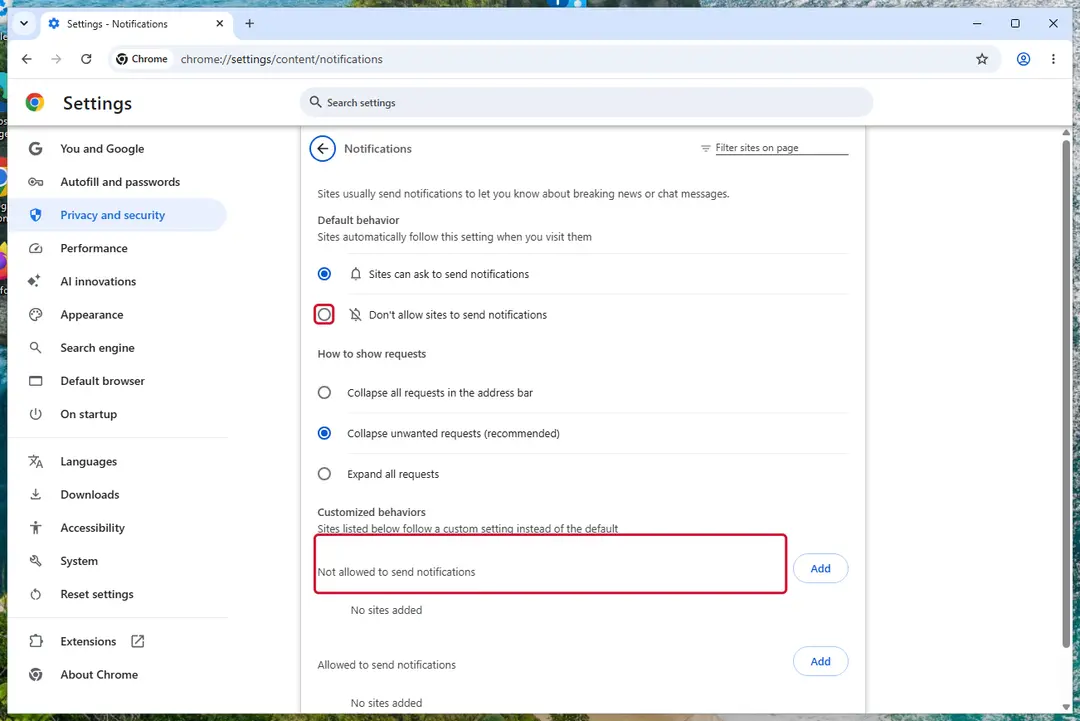
Chrome on Windows 11: Settings > Privacy and security > Site settings > Notifications. Full procedure with screenshots: Stop website notifications and pop-ups
Instructions for Google Chrome
Remove from Google Chrome
It is of utmost importance that you eliminate all associated elements with Clicksor.com virus. Browser reset might be a proper option as well.
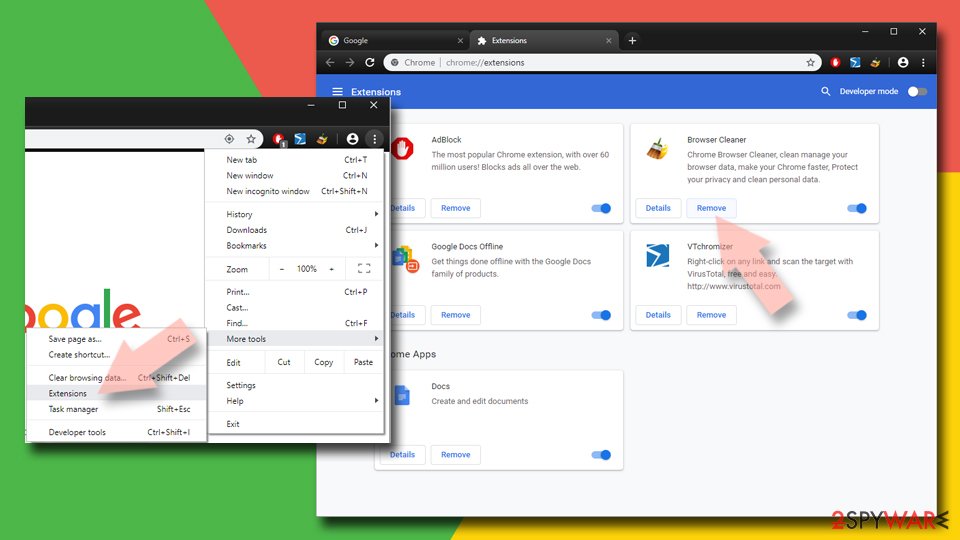
Delete malicious extensions from Google Chrome:
- Open Google Chrome, click on the Menu (three vertical dots at the top-right corner) and select More tools > Extensions.
- In the newly opened window, you will see all the installed extensions. Uninstall all suspicious extensions related to the unwanted program by clicking Remove.
Clear cache and web data from Chrome:
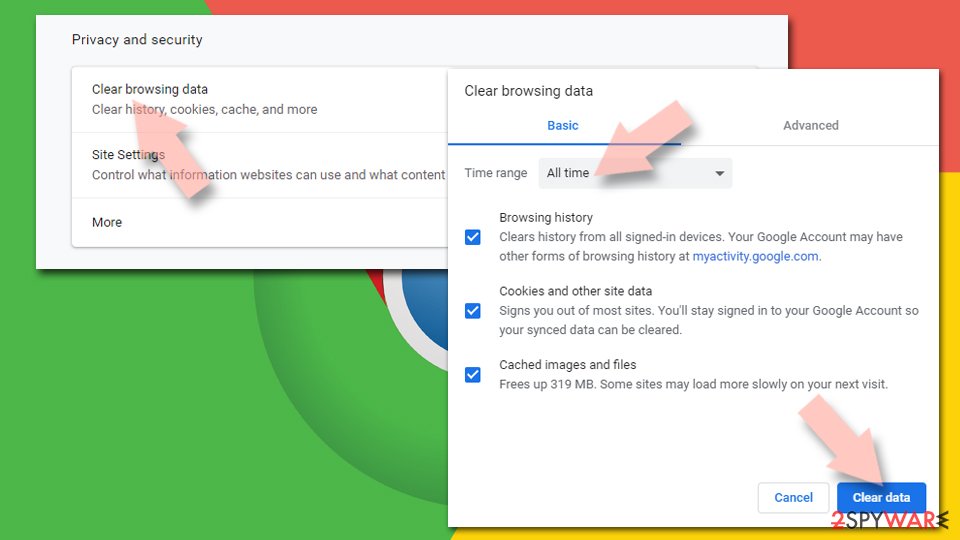
- Click on Menu and pick Settings.
- Under Privacy and security, select Clear browsing data.
- Select Browsing history, Cookies and other site data, as well as Cached images and files.
- Click Clear data.
Change your homepage:
- Click menu and choose Settings.
- Look for a suspicious site in the On startup section.
- Click on Open a specific or set of pages and click on three dots to find the Remove option.
Reset Google Chrome:
If the previous methods did not help you, reset Google Chrome to eliminate all the unwanted components:
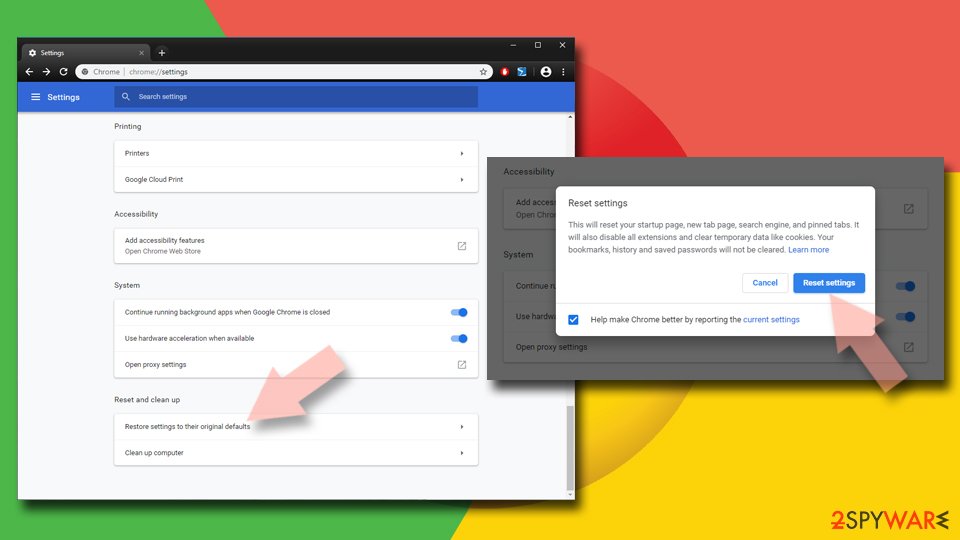
- Click on Menu and select Settings.
- In the Settings, scroll down and click Advanced.
- Scroll down and locate Reset and clean up section.
- Now click Restore settings to their original defaults.
- Confirm with Reset settings.
Step 1: Remove serv.clicksor.net from Edge's notification list
Open Settings and more (the three dots) > Settings > Privacy, search, and services > Site permissions > All permissions > Notifications. Remove
serv.clicksor.netfrom the Allowed list, then click Add site next to Not allowed to send notifications and enter it there.Edge is built into both Windows 11 and Windows 10, so check it even if you normally use another browser. If the notifications came with the Edge logo, this is the browser that holds the permission.
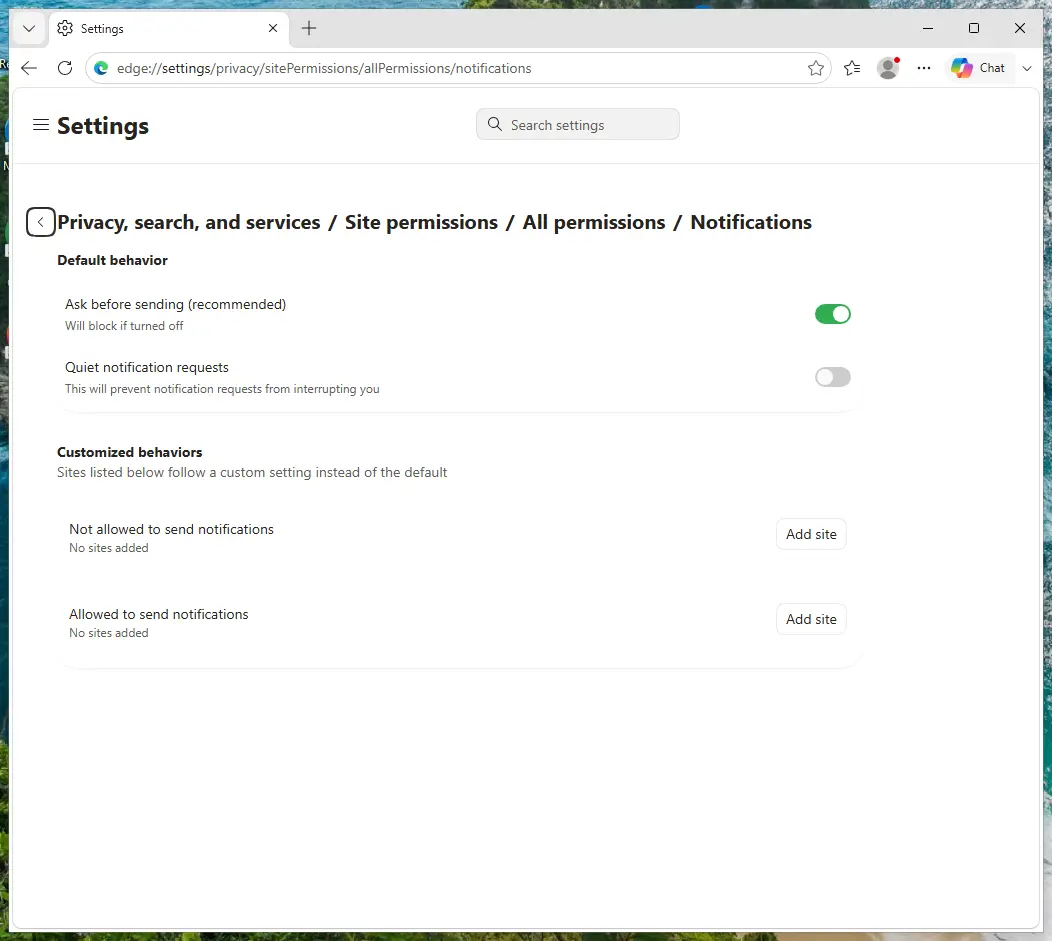
Edge on Windows 11: Site permissions > All permissions > Notifications. Full procedure with screenshots: Stop website notifications and pop-ups
Instructions for Microsoft Edge
Remove from Microsoft Edge
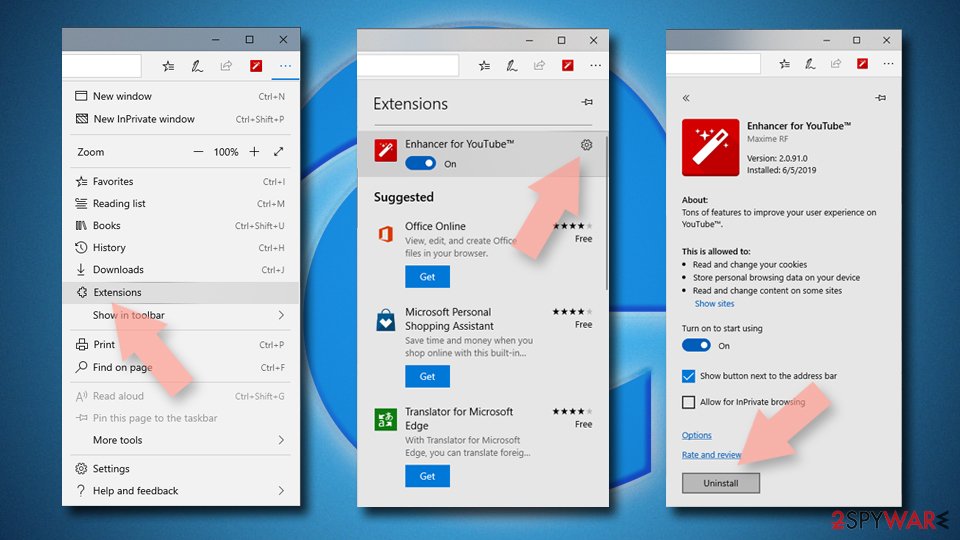
Delete unwanted extensions from MS Edge:
- Select Menu (three horizontal dots at the top-right of the browser window) and pick Extensions.
- From the list, pick the extension and click on the Gear icon.
- Click Remove.
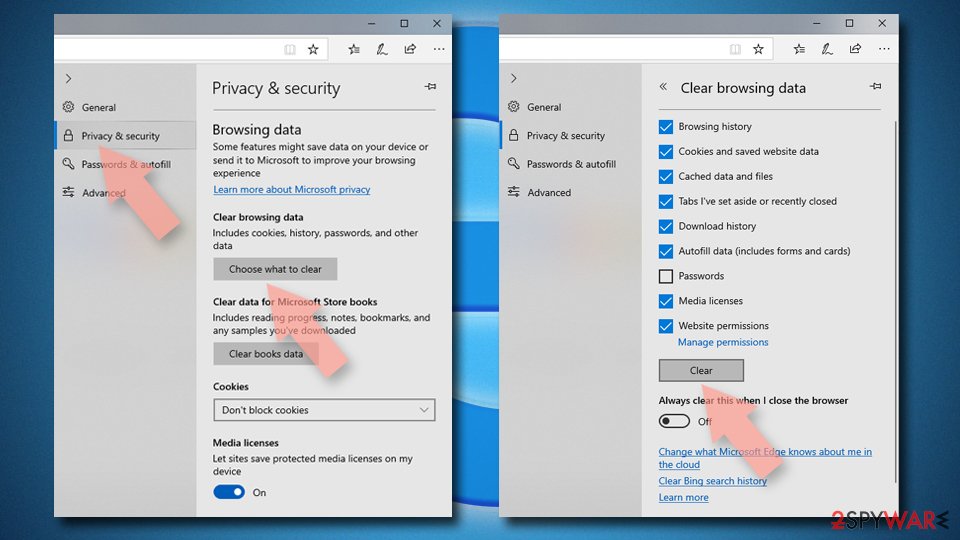
Clear cookies and other browser data:
- Click on the Menu (three horizontal dots at the top-right of the browser window) and select Settings > Privacy, search, and services..
- Under Clear browsing data, pick Choose what to clear.
- Select Cookies and other site data and Cached images and files. (apart from passwords, although you might want to include Media licenses as well, if applicable) and click on Clear.
Restore new tab and homepage settings:
- Click the menu icon and choose Settings.
- Then find On startup section.
- Click Remove next to any suspicious startup page.
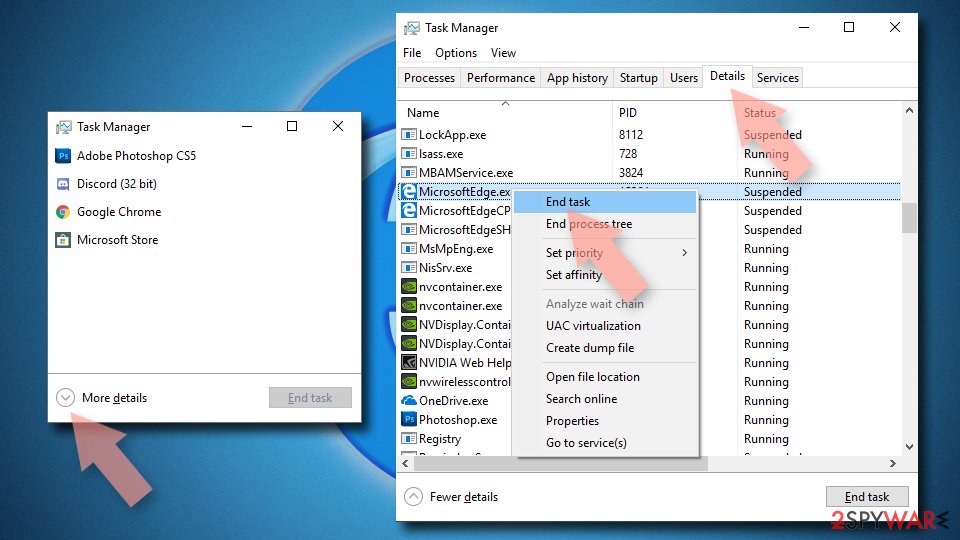
Reset MS Edge if the above steps did not work:
- Press on Ctrl + Shift + Esc to open Task Manager.
- Click on More details arrow at the bottom of the window.
- Select Details tab.
- Now scroll down and locate every entry with Microsoft Edge name in it. Right-click on each of them and select End Task to stop MS Edge from running.
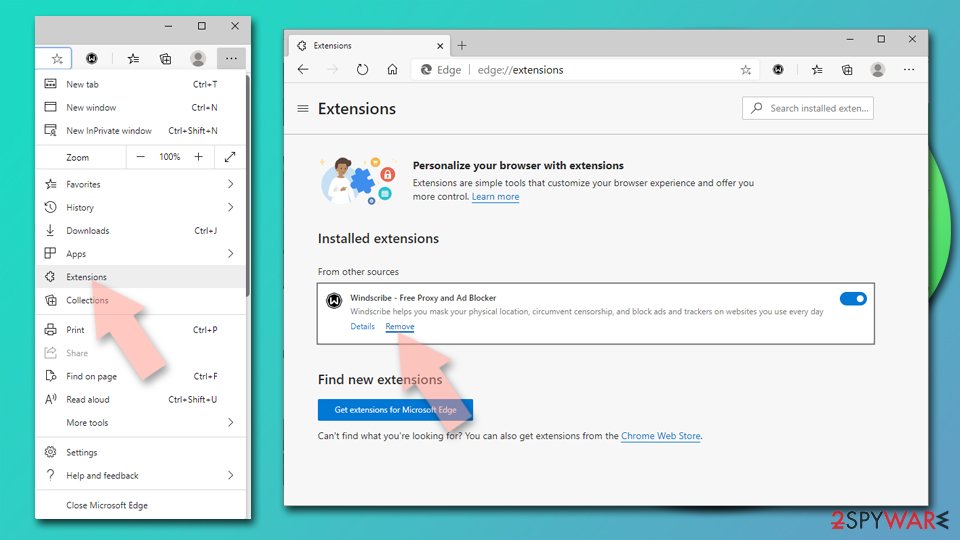
Delete extensions from MS Edge (Chromium):
- Open Edge and click select Settings > Extensions.
- Delete unwanted extensions by clicking Remove.
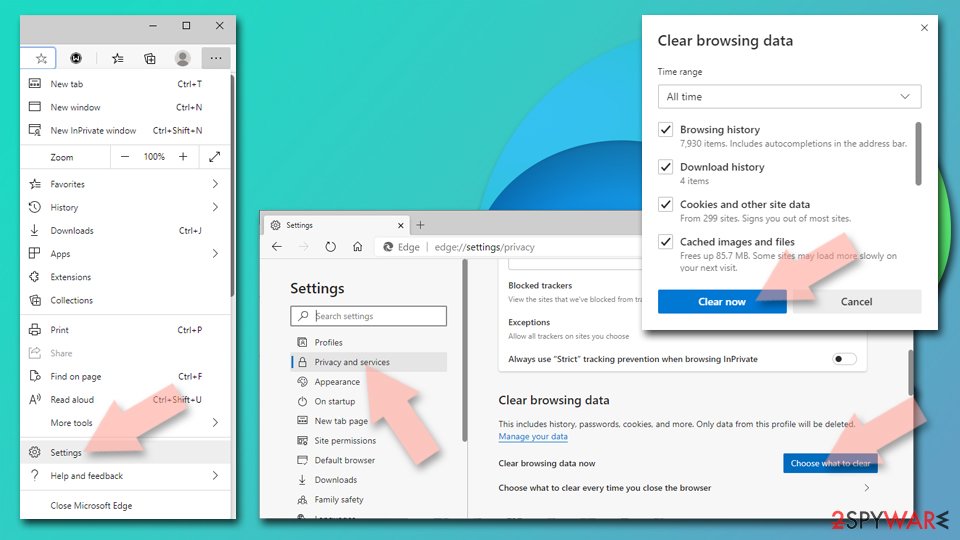
Clear cache and site data:
- Click on Menu and go to Settings.
- Select Privacy, search and services.
- Under Clear browsing data, pick Choose what to clear.
- Under Time range, pick All time.
- Select Clear now.
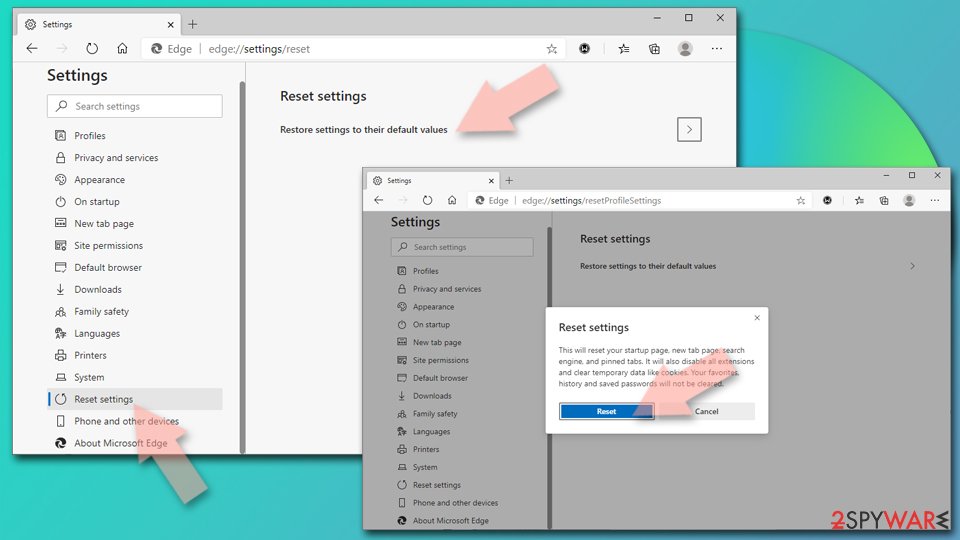
Reset Chromium-based MS Edge:
- Click on Menu and select Settings.
- On the left side, pick Reset settings.
- Select Restore settings to their default values.
- Confirm with Reset.
- This will disable extensions and reset startup pages but will not delete bookmarks, saved passwords, or browsing history.
Step 1: Remove serv.clicksor.net from Firefox's notification permissions
Open the menu (three lines) > Settings and click Permissions and data in the left list, then Notifications. Select
serv.clicksor.net, click Remove Website and confirm with Save Changes.In versions older than Firefox 152 the same list sits under Privacy & Security, behind a Settings button next to Notifications. Firefox shows these notifications only while it is running, on Windows 11 and Windows 10 alike.
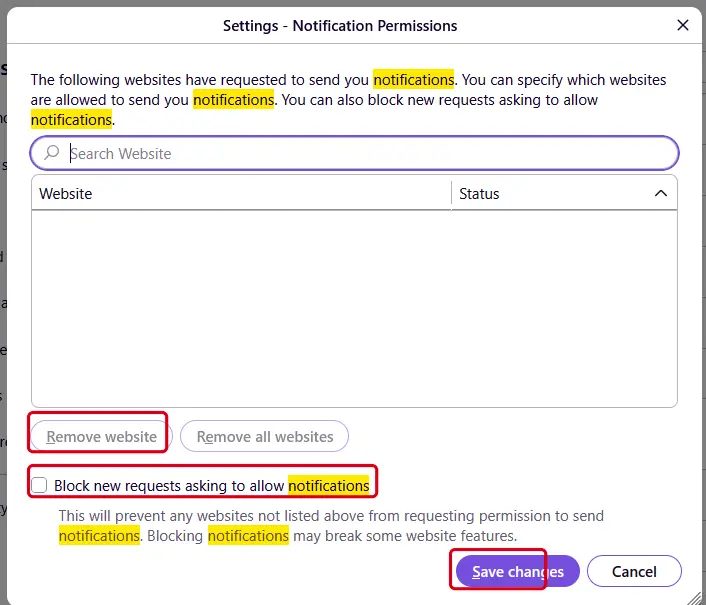
Firefox on Windows 11: the Notification Permissions window. Full procedure with screenshots: Stop website notifications and pop-ups
Instructions for Mozilla Firefox
Remove from Mozilla Firefox (FF)
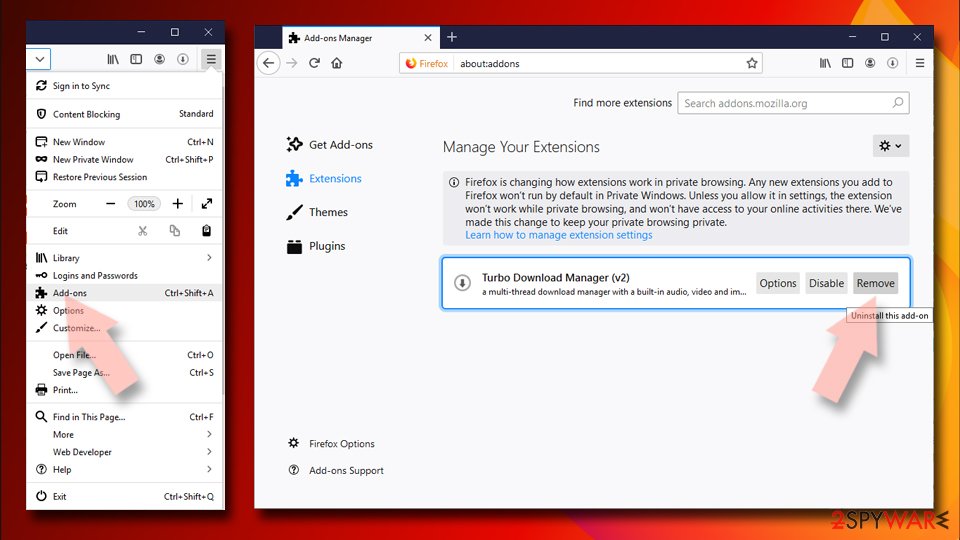
Remove dangerous extensions:
- Open Mozilla Firefox browser and click on the Menu (three horizontal lines at the top-right of the window).
- Select Add-ons.
- In here, select the unwanted extension and click Remove.
Reset the homepage:
- Click three horizontal lines at the top right corner to open the menu.
- Choose Settings.
- Under Home, set your preferred homepage and new tab settings.
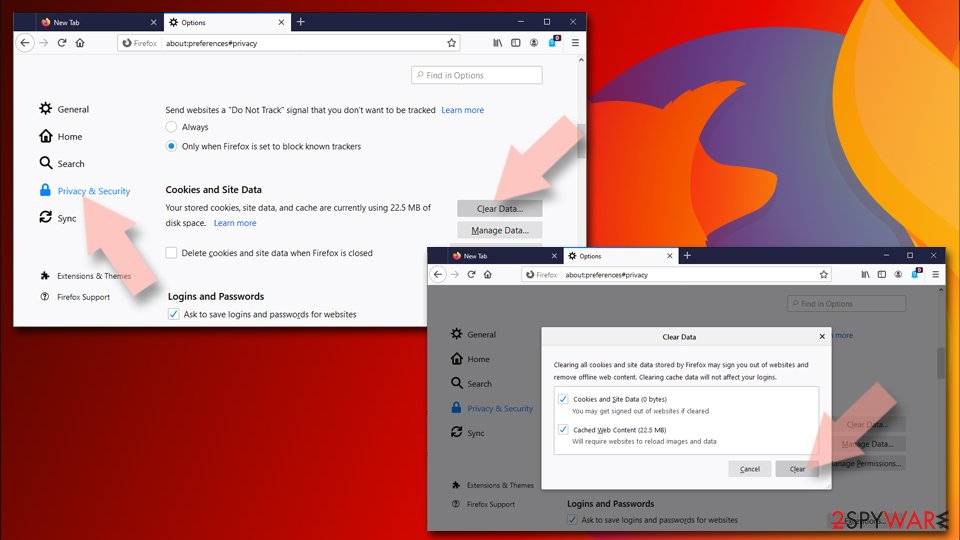
Clear cookies and site data:
- Click Menu and pick Settings.
- Go to Privacy & Security section.
- Scroll down to locate Cookies and Site Data.
- Click on Clear Data...
- Select Cookies and Site Data and Temporary cached files and pages, then click Clear.
Reset Mozilla Firefox
If clearing the browser as explained above did not help, reset Mozilla Firefox:
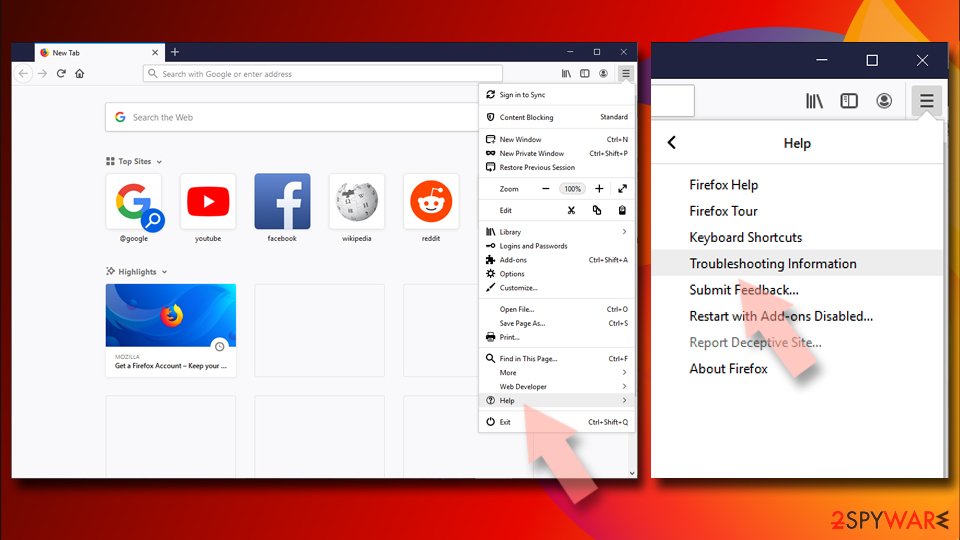
- Open Mozilla Firefox browser and click the Menu.
- Go to Help and then choose Troubleshooting Information.
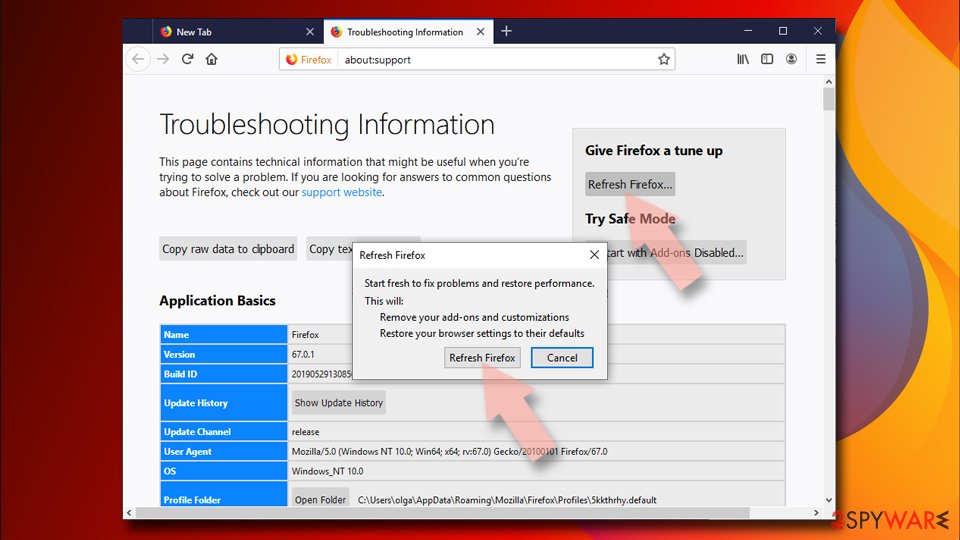
- Under Give Firefox a tune up section, click on Refresh Firefox...
- Once the pop-up shows up, confirm the action by pressing on Refresh Firefox.
Our tested steps are for Windows 11 and 10. For Safari (Mac), use the instructions below.
Instructions for Safari (Mac)
Delete from Safari
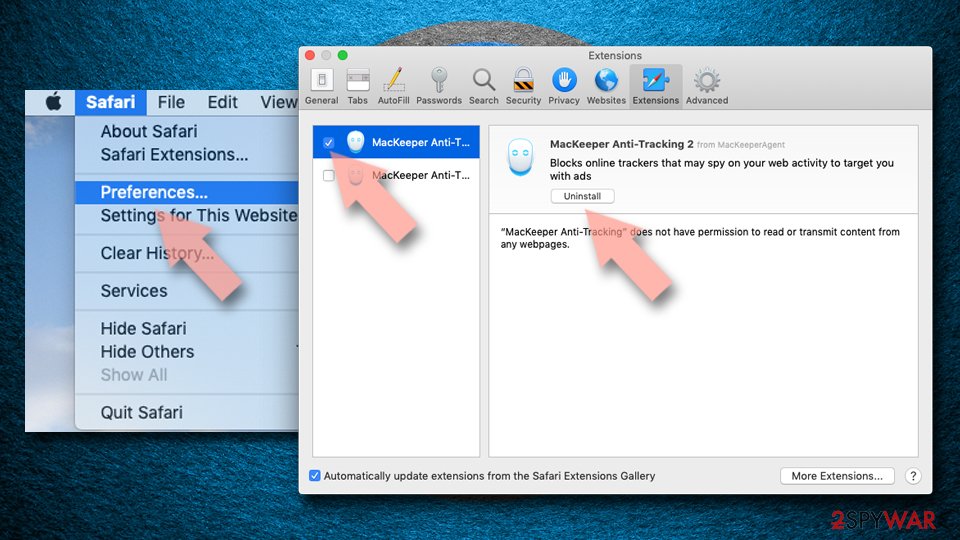
Remove dangerous extensions:
- Open Safari, click Safari in the menu at the top-left of the screen, and select Preferences.
- Go to the Extensions tab, look for any suspicious entries, and click Uninstall to remove them.
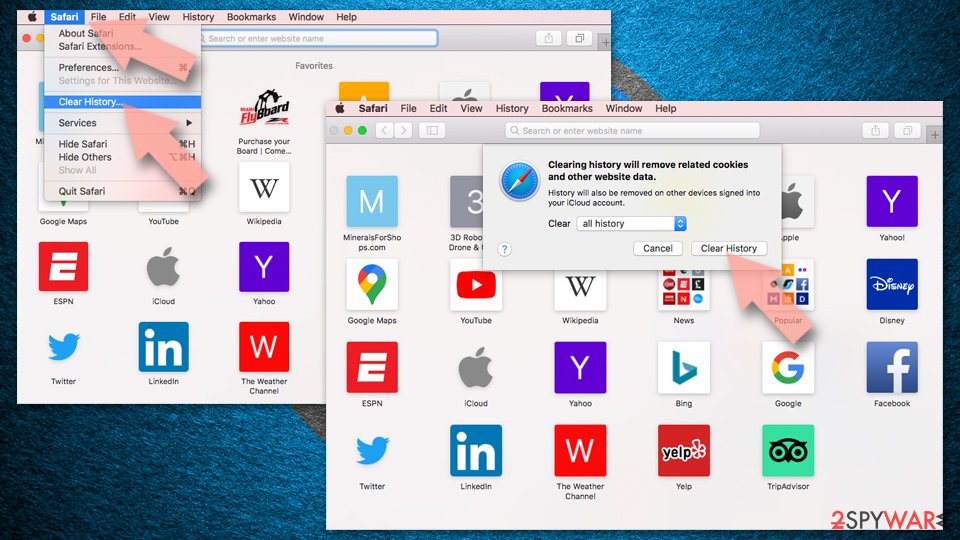
Clear history and website data:
- Click Safari in the menu and pick Clear History.
- Set Clear to all history and confirm with Clear History.
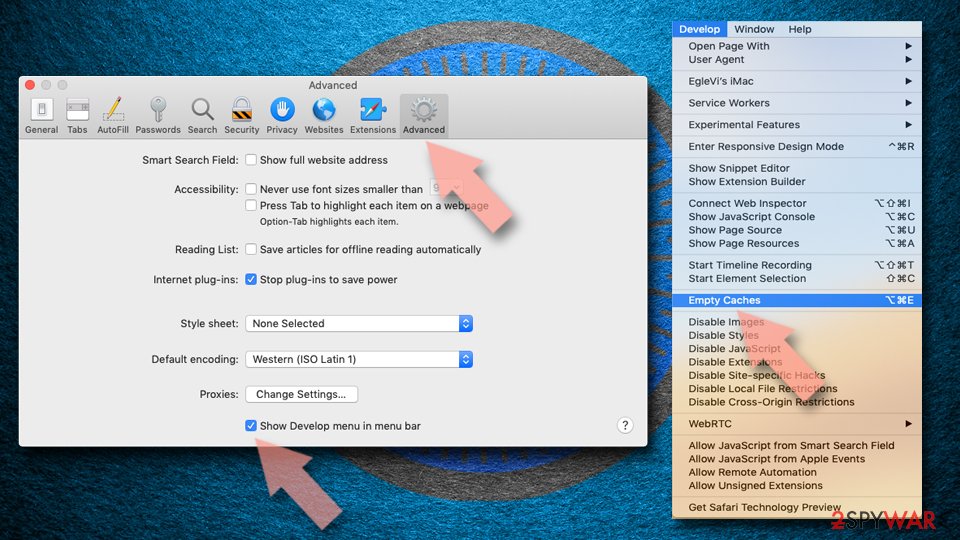
Reset Safari:
- Click Safari in the menu and select Preferences > Advanced.
- Enable Show Develop menu in menu bar.
- From the menu bar, click Develop and select Empty Caches.
Delete from macOS
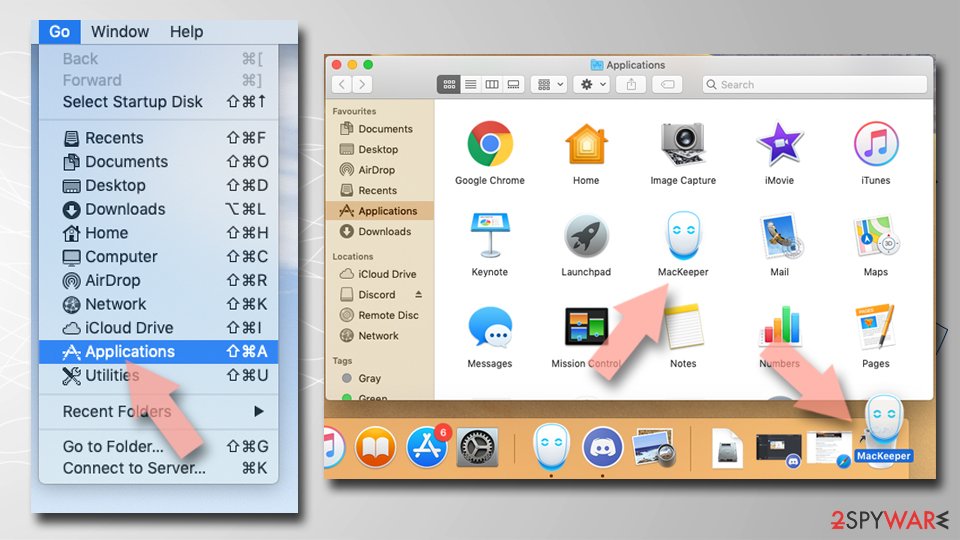
Remove the unwanted application:
- From the menu bar, select Go > Applications.
- In the Applications folder, look for any suspicious entries, then drag them to Trash (or right-click and pick Move to Trash).
Delete leftover files and folders:
- Select Go > Go to Folder.
- Enter /Library/Application Support and remove any suspicious folders related to the unwanted program.
- Repeat the same check in the /Library/LaunchAgents and /Library/LaunchDaemons folders, deleting any suspicious entries.
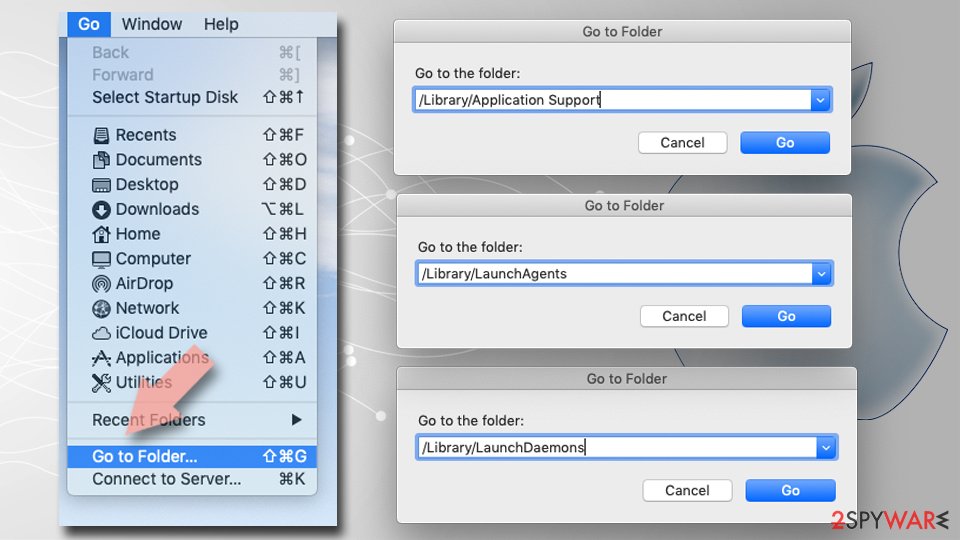
- Finally, empty the Trash to permanently remove the leftovers.
Then, whichever browser you use
Step 2: Scan the PC if you downloaded anything from the ads
If you only saw the notifications and clicked nothing, you can stop before this step. If a notification led you to download or run something, delete that file, then scan Windows.
In Windows Security > Virus & threat protection > Scan options, run a Full scan, then choose Microsoft Defender Antivirus (offline scan) and Scan now. The offline scan restarts the PC and takes about 15 minutes on Windows 11 and Windows 10.

Windows 11: Windows Security > Virus & threat protection > Scan options. Full procedure with screenshots: Run a Microsoft Defender Offline scan
More removal instructions
For programs installed on the PC and older browsers. Open the one you need.
Uninstall from Windows
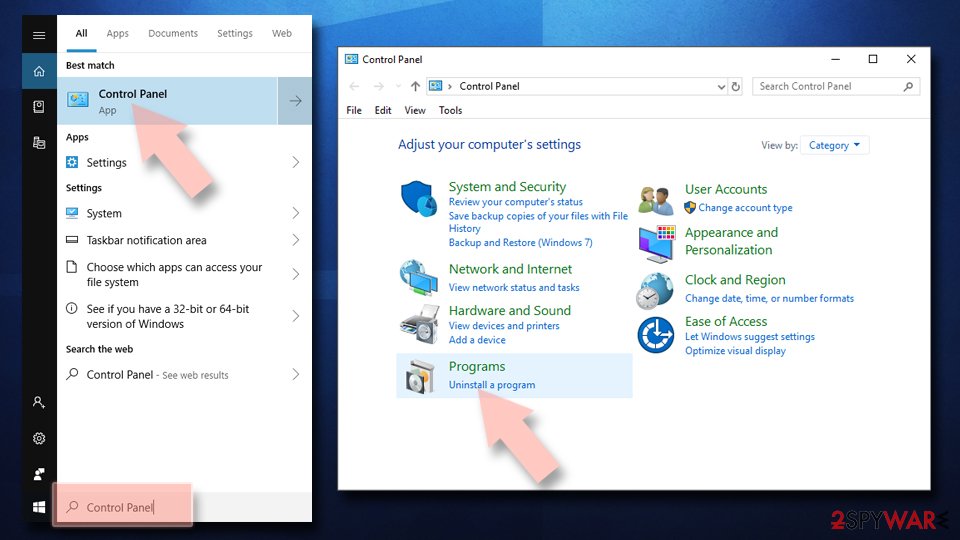
Uninstall from Windows 10/8:
- Type Control Panel into the Windows search box and open the result.
- Under Programs, select Uninstall a program.
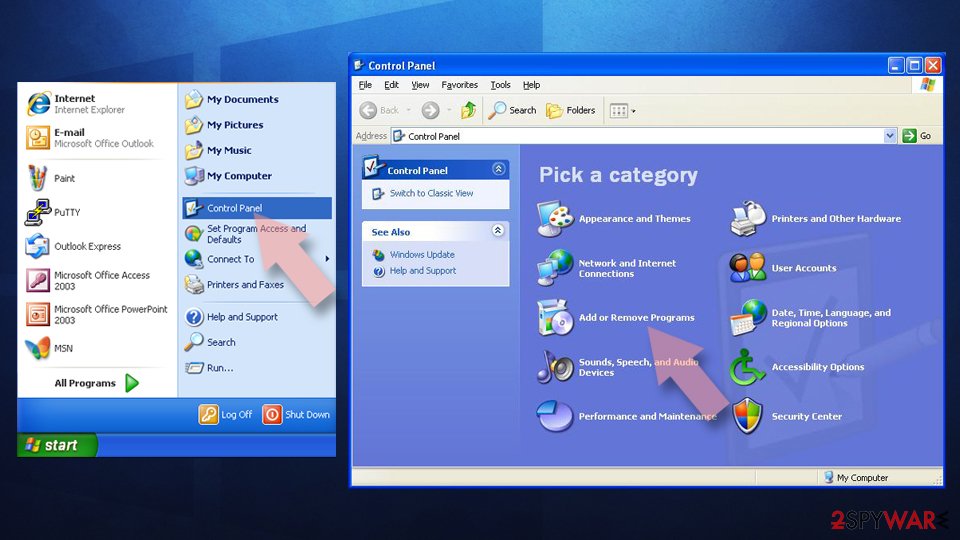
Uninstall from Windows 7/XP:
- Click on Windows Start > Control Panel (Windows XP users should click on Add/Remove Programs).
- In Control Panel, select Programs > Uninstall a program.
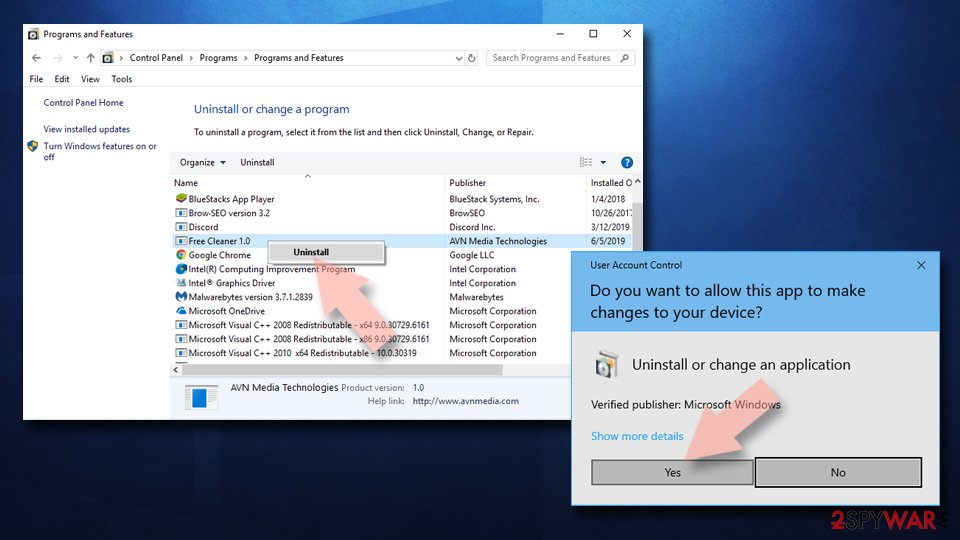
Remove the unwanted program:
- In the Programs and Features window, look for any recently installed suspicious entries, select them, and click Uninstall.
- If User Account Control appears, click Yes to confirm, then complete the removal.
Reset Internet Explorer
Remove dangerous add-ons:
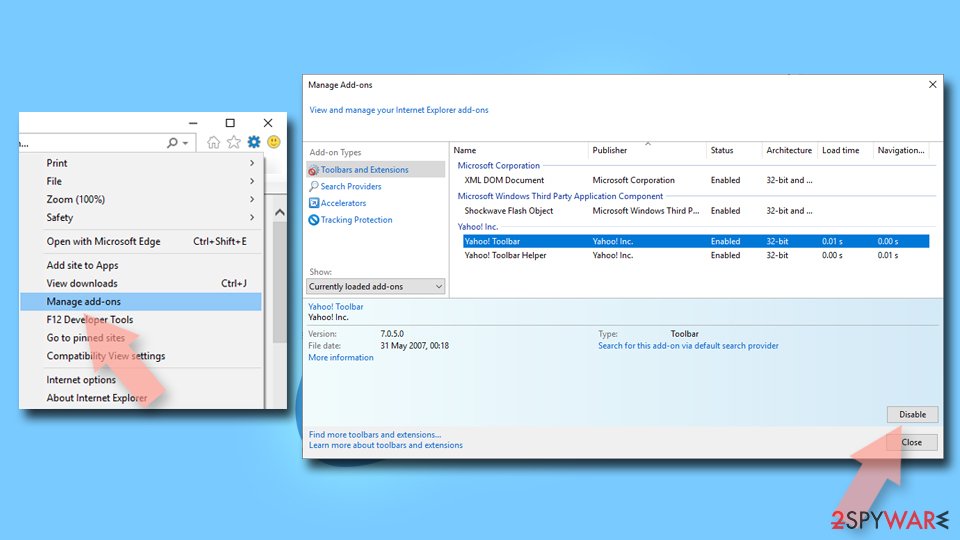
- Open Internet Explorer, click on the Gear icon (IE menu) on the top-right corner of the browser
- Pick Manage Add-ons.
- You will see a Manage Add-ons window. Here, look for suspicious plugins. Click on these entries and select Disable.
Change your homepage if it was altered:
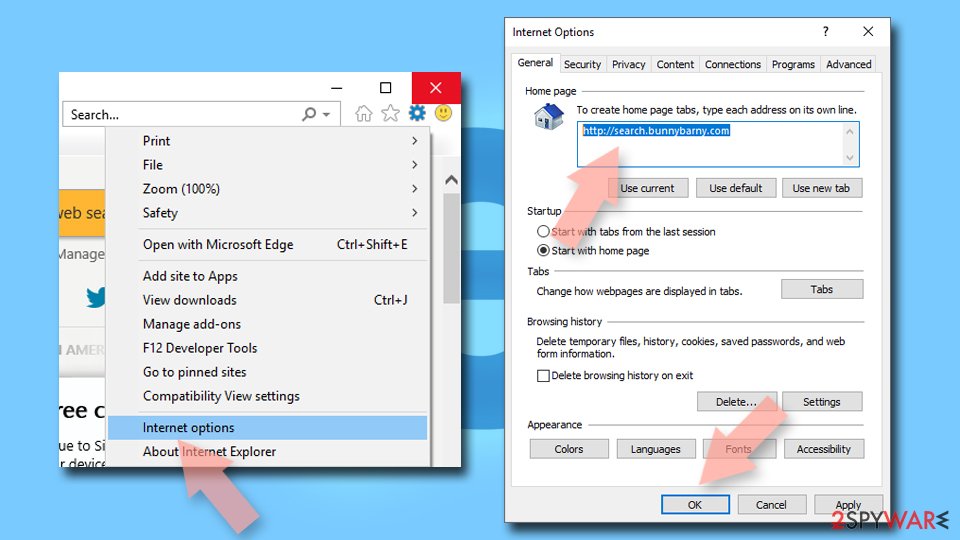
- Open IE and click on the Gear icon.
- Select Internet Options.
- In the General tab, delete the Home page address and replace it by your preferred one (for example, Google.com).
- Click Apply and then select OK.
Delete temporary files:
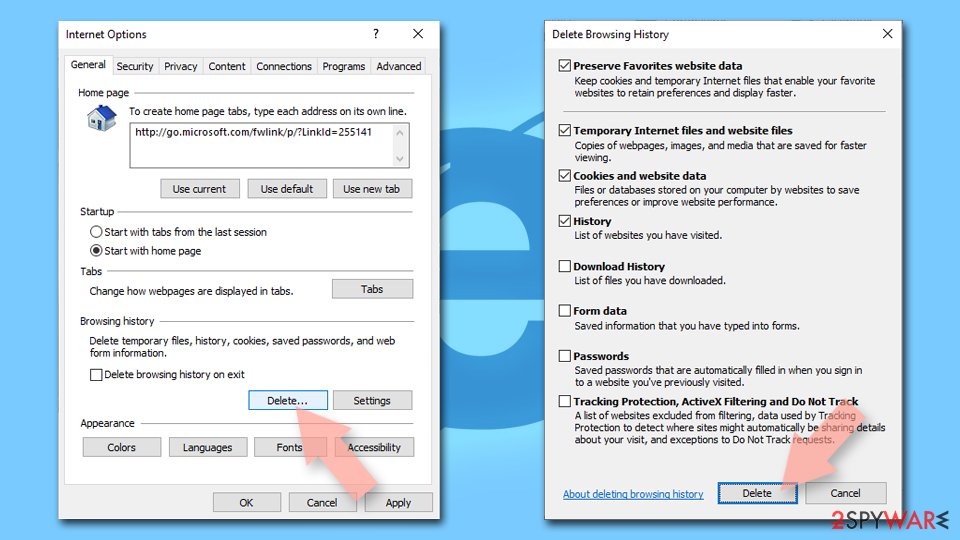
- Press on the Gear icon and select Internet Options.
- Under Browsing history, click Delete...
- Select relevant fields and press Delete.
Reset Internet Explorer:
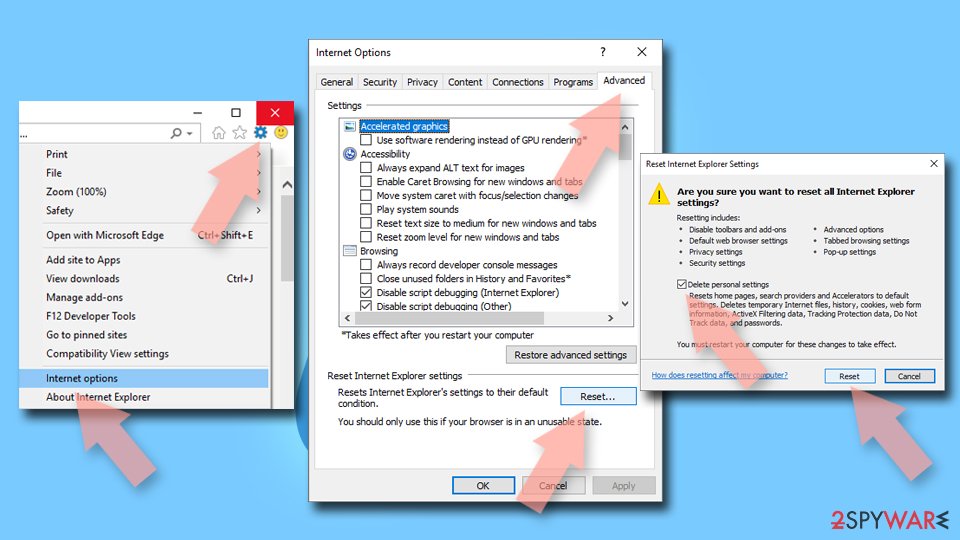
- Click on Gear icon > Internet options and select Advanced tab.
- Select Reset.
- In the new window, check Delete personal settings and select Reset.
Do not let government spy on you
The government has many issues in regards to tracking users' data and spying on citizens, so you should take this into consideration and learn more about shady information gathering practices.
Avoid any unwanted government tracking or spying by going totally anonymous on the internet.
You can choose a different location when you go online and access any material you want without particular content restrictions. You can easily enjoy internet connection without any risks of being hacked by using VPN.
Control the information that can be accessed by government any other unwanted party and surf online without being spied on. Even if you are not involved in illegal activities or trust your selection of services, platforms, be suspicious for your own security and take precautionary measures by using the VPN service.
Backup files for the later use, in case of the malware attack
Computer users can suffer from data losses due to cyber infections or their own faulty doings.
Ransomware can encrypt and hold files hostage, while unforeseen power cuts might cause a loss of important documents. If you have proper up-to-date backups, you can easily recover after such an incident and get back to work. It is also equally important to update backups on a regular basis so that the newest information remains intact - you can set this process to be performed automatically.
When you have the previous version of every important document or project you can avoid frustration and breakdowns. It comes in handy when malware strikes out of nowhere. Use for the data restoration process.
Questions about Clicksor ads
How do I stop notifications from serv.clicksor.net?
Remove its permission in the browser. The bottom line of each notification names the browser, so open that browser's notification settings and look under Allowed. Remove serv.clicksor.net and any other site you do not recognise.
In Chrome and Edge this is under the site settings for notifications; in Firefox it is under Settings, Permissions and data, Notifications. Do this in every browser profile, because each one keeps its own list.
Restart the browser and wait a few minutes. If a message still arrives, read its bottom line again: the sending address can differ from the site you remember, and that is the entry still left in the list.
The serv.clicksor.net notification said my PC is infected. Is it true?
No. Notifications from serv.clicksor.net are adverts written to look like system messages. A website cannot scan your files, so it has no way to know whether your PC is infected; it shows the same warning to everyone who allowed its notifications. Real Windows Security messages name Windows Security in the bottom line, not a browser and a website.
If you want to be sure, open Windows Security from the Start menu and run a quick scan there. Then remove serv.clicksor.net from the browser's notification settings so the fake warnings stop arriving. Do not call any number or buy anything the notification or its page suggests.
Why does Clicksor ads show me ads?
Because that is its whole purpose. Clicksor ads is a push-notification spam site, and its operators are paid for every ad it displays and every click it gets. In this case the ads take the form of desktop notifications.
They are chosen by ad networks that accept almost any advertiser, which is why so many look like warnings or prizes. The ads are not a sign that your PC is broken or infected with something worse; they are a sign that something on it, or in the browser, has permission to advertise. Removing that permission or program stops them.
Is serv.clicksor.net safe to visit?
No. The site serv.clicksor.net exists to push visitors towards ads, and the pages it leads to include fake virus warnings, fake updates, prize scams and notification prompts. Visiting it once does not infect an up-to-date PC, but anything you click or download there is a gamble.
Do not enter personal details, do not allow notifications and do not call phone numbers it shows. If it opens by itself, close the tab and check the browser's extensions and notification permissions. Blocking the single domain helps little, because the operators register new names regularly.
Which browser is sending the serv.clicksor.net notifications?
Each notification shows the name of the browser and the site in its small print. In the cases we saw, the messages from serv.clicksor.net came through Chrome, Edge and Firefox. Permissions are stored per browser and per profile, so removing the site in one browser does not affect another.
If you use several Chrome or Edge profiles, check each one. If you sync the browser with an account, remove the permission while signed in, otherwise another computer may still hold it and keep receiving the same messages.
How do I know the ads come from Clicksor ads?
Look for notifications from serv.clicksor.net. That is the trace Clicksor ads leaves, and it shows up as desktop notifications. Ads that appear on every site, including ones that never carried ads before, point to something on your PC or in the browser rather than to the sites themselves.
A quick test is a private window, where extensions are off by default: if the ads disappear there, an extension is responsible. If they appear even with the browser closed, the source is a notification permission or a program in Windows.
Why didn't my antivirus catch Clicksor ads?
Many security products do not block adware or notification sites by default, because users often agreed to them, even through a misleading prompt. Notification spam installs nothing at all, so there is no file to detect.
In Windows 11 you can make Microsoft Defender block potentially unwanted apps: open Windows Security > App & browser control > Reputation-based protection settings and turn on Potentially unwanted app blocking. If notifications caused the pop-ups, no scanner will report them; the fix is in the browser's site settings.
Will Focus or Do not disturb stop the notifications?
Only for as long as it is on. Do not disturb in Windows 11 holds back notifications from all apps, including browsers, and releases them to the notification centre later. The site still has permission and the messages still arrive.
Use the browser's notification settings to remove the site instead: once its permission is gone, it cannot send anything, whatever Windows is set to. Keep Do not disturb for what it is meant for, such as meetings, presentations and quiet hours.
An ad showed a phone number and I called it. What now?
The number belongs to scammers, not to Microsoft or an antivirus company. If you only talked, hang up and do not call back. If you let them connect to the PC, disconnect it from the internet, uninstall the remote access program they used, such as AnyDesk, TeamViewer, ScreenConnect or UltraViewer, and run a full and offline scan.
If you paid or gave bank details, call your bank at once on the number printed on your card. Change any passwords you typed while they were connected, and report the call.
Will Fortect remove Clicksor ads?
No program removes Clicksor ads itself, because there is nothing on the PC to remove: the notifications come through a permission saved in the browser, and only the browser's settings take it away, as the steps above show.
What Fortect can do is check the rest of Windows. Its free scan looks for malware, unwanted programs and damaged system files, which is useful if you clicked the ads, downloaded something from the pages they opened, or are not sure what else changed on the PC.
If the scan finds nothing and the notifications stopped after you removed the permission, this problem is solved. Use Microsoft Defender as a second opinion whenever you have downloaded files from pages like these.
Sources
- MTA Martech advisor: Malvertising is a Problem for Everyone because it can Impact every part of What we do on the Internet (read October 6, 2026)
- Google Chrome Help: Use notifications to get alerts (no longer online) (read October 6, 2026)
- FTC: How to recognize, remove and avoid malware (read October 6, 2026)
- Microsoft Learn: Microsoft Defender Offline (read October 6, 2026)
- Microsoft Learn: How Microsoft names malware (read October 6, 2026)