
How-to
How to run a Microsoft Defender Offline scan
A Microsoft Defender Offline scan restarts the PC and scans it from outside the running copy of Windows, so malware that hides or defends itself while Windows is loaded has a harder time. It is built into Windows Security on Windows 11 and Windows 10; it takes about 15 minutes and restarts the PC twice.
When you need this
- A normal scan finds nothing, but the PC still shows signs of malware.
- Windows Security tells you to run an offline scan, or a threat keeps coming back after removal.
- A removal guide on this site tells you to run a Microsoft Defender Offline scan.
Windows 11
Written for Windows 11 (screenshots: Windows 11 Pro 26H2, build 26300, 2026-10-03). Microsoft gives the same steps for Windows 10 version 1607 and later.. Steps checked against Microsoft Learn, Microsoft Support and our Windows 11 screenshots on October 3, 2026.
Save your work and close your programs first: the scan restarts the PC.
If BitLocker is on for the system drive, suspend it first.
Microsoft warns that otherwise you may be asked for the BitLocker recovery key when the PC restarts into the scan.
Open Windows Security > Virus & threat protection and click Scan options.
Select Microsoft Defender Antivirus (offline scan).
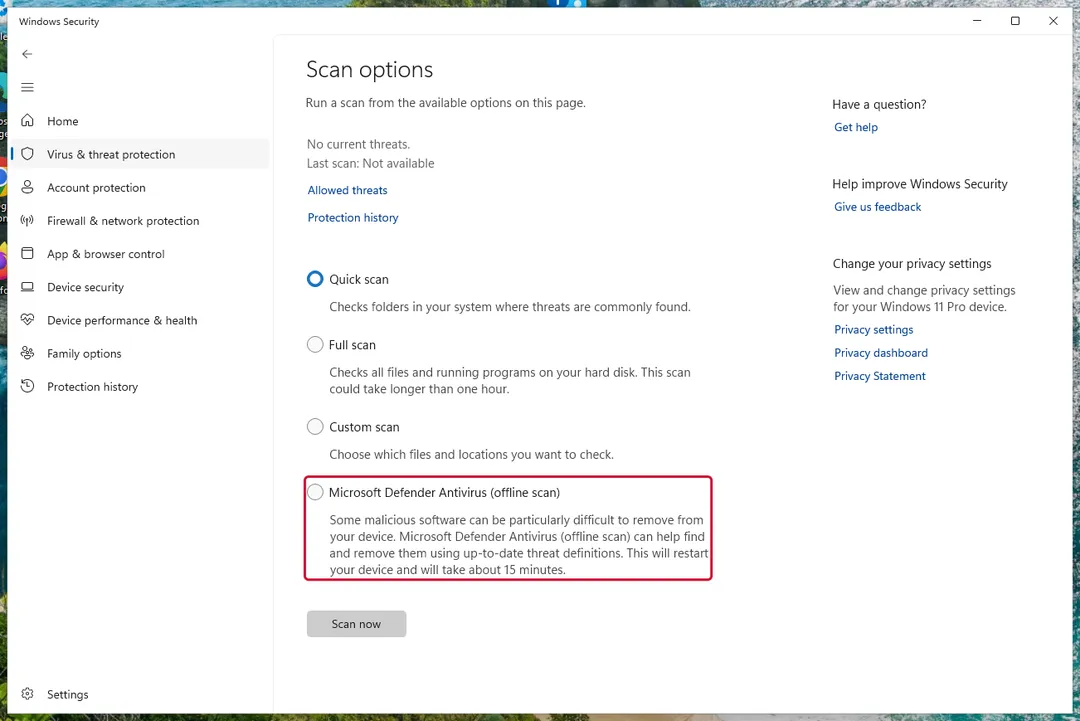
Windows 11: Windows Security > Virus & threat protection > Scan options. Click Scan now.
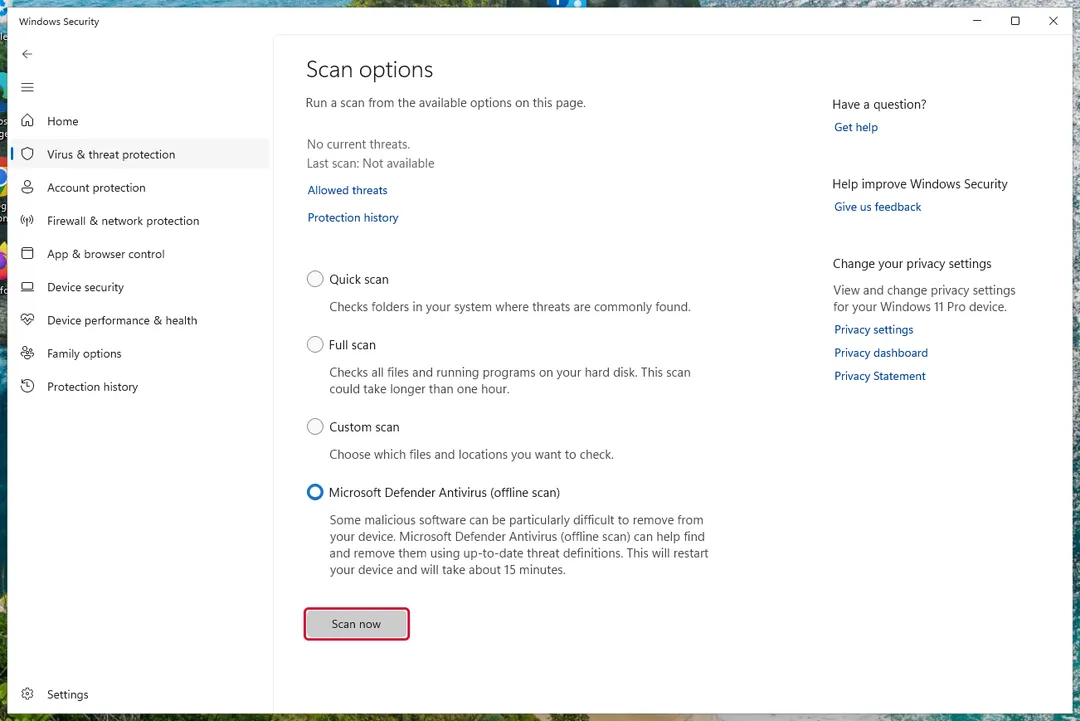
Windows 11: the offline scan selected, then Scan now. In the prompt to save your work, click Scan, then Yes in the permission prompt.
Windows signs you out and restarts within a minute.
Wait while the scan runs outside Windows.
Microsoft says it takes about 15 minutes. The screen looks different from a normal scan. The PC restarts into Windows by itself when it is done.
Sign in and open Windows Security > Virus & threat protection > Protection history to see what was found.
Windows 10: the same option is in Windows Security > Virus & threat protection > Scan options; Microsoft gives the same steps.
From PowerShell (as administrator): Start-MpWDOScan starts the same scan and restarts the PC at once.
Windows on ARM: Microsoft's documentation says the offline scan does not apply to ARM versions of Windows 11 and Windows 10. On our ARM test PC the option was still shown; we did not confirm that the scan runs there.
Another antivirus installed? Microsoft says Defender must be your primary antivirus (not in passive mode) for the offline scan to get its updates.
Sources
- Microsoft Learn: Run and review the results of a Microsoft Defender Offline scan (read October 3, 2026)
- Microsoft Support: Virus and Threat Protection in the Windows Security App (read October 3, 2026)
If the steps did not help
The PC restarts but no scan runs
Microsoft says the offline scan needs the Windows Recovery Environment. If it is switched off, the scan silently does not run, with no error message.
Open Command Prompt as administrator.
Run
reagentc /infoand look at the status line.If it says Disabled, run
reagentc /enable, then start the offline scan again.
How to check that the scan was scheduled
- Open Event Viewer > Applications and Services Logs > Microsoft > Windows > Windows Defender > Operational.
- Look for event ID
2030: Microsoft describes it as the offline scan being downloaded and configured to run on the next restart. - If the offline scan shows a blue-screen error, Microsoft's advice is to restart and run it again, and contact Microsoft Support if it repeats.
Questions
How long does a Microsoft Defender Offline scan take?
Microsoft says about 15 minutes. The PC restarts into the scan and restarts back into Windows when it is done.
Does the offline scan delete my files?
No. It removes or quarantines what it detects as malware, like a normal Defender scan. Check Protection history afterwards.
Do I need an internet connection?
Not during the scan itself; it runs outside Windows with the definitions downloaded beforehand. Update Windows Security before you start so the definitions are current.