
How-to
How to stop website notifications and pop-up spam
Most "virus alert" and prize pop-ups in the corner of the screen are browser notifications: you (or a fake "click Allow to continue" page) once let a site send them. Taking that permission back stops them. The steps differ per browser; blocking the site is enough, and you can also stop all sites from asking.
When you need this
- Ads, fake virus warnings or prize messages pop up in the corner of the screen, even when the site is not open.
- A notification names a site you do not remember allowing.
- A removal guide on this site tells you to remove a site's notification permission.
Chrome
Written for Google Chrome on Windows (screenshots: Windows 11 26H2, 2026-10-03). Steps checked against Google's Chrome Help and our Windows 11 screenshot on October 3, 2026.
Note the site's address from one of the notifications first; Chrome shows it in the notification.
Open More (the three dots) > Settings > Privacy and security > Site settings > Notifications.
You can also paste
chrome://settings/content/notificationsinto the address bar.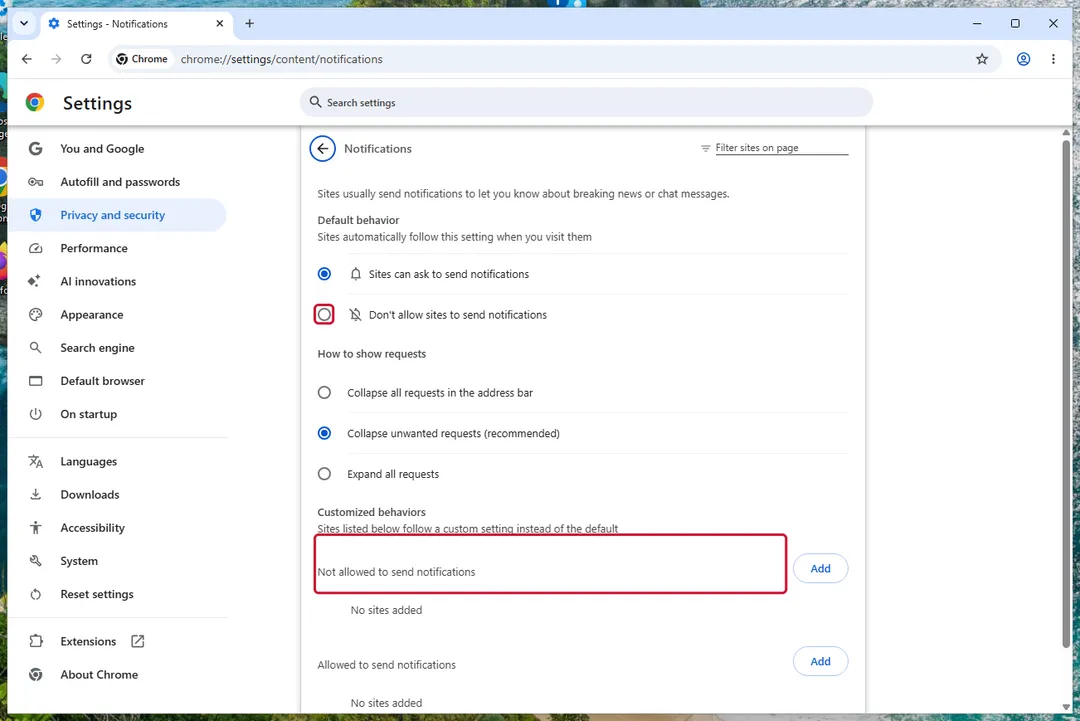
Chrome on Windows 11: Settings > Privacy and security > Site settings > Notifications. Next to Not allowed to send notifications, click Add, type the site's address and click Add.
A block entry overrides an earlier allow.
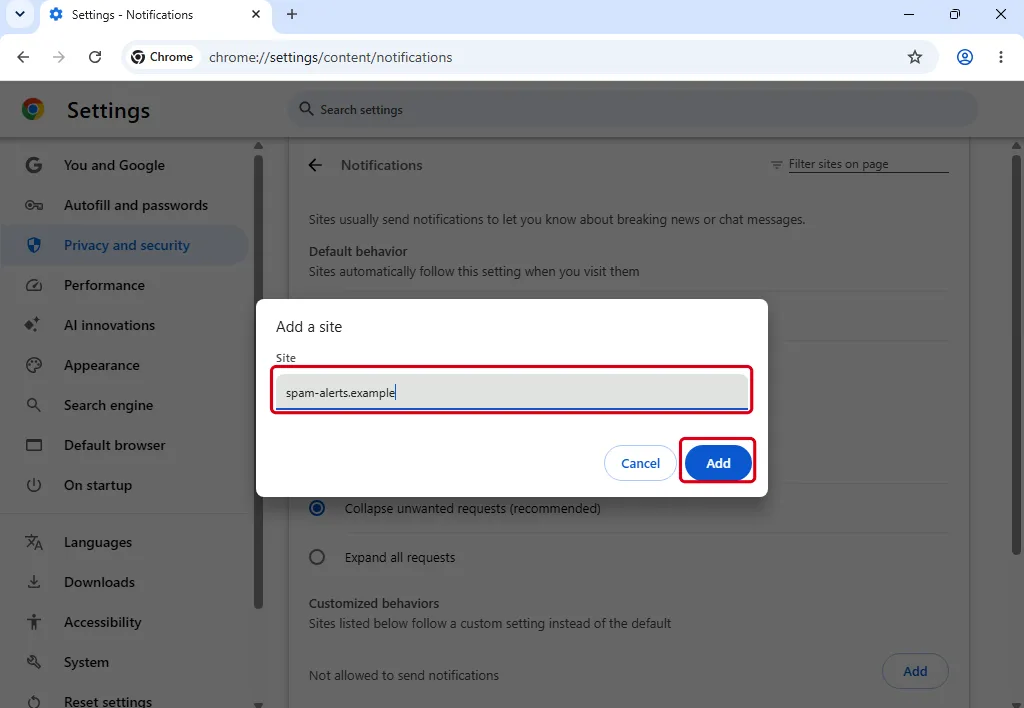
Windows 11: Chrome, Add a site to the Not allowed list. To stop every site from asking, select Don't allow sites to send notifications on the same page.
Or block one site from the site itself: open it, click View site information (left of the address), then Site settings, and set Notifications to Block.
Changes save automatically.
Pop-ups are a separate setting. Chrome blocks pop-ups by default. To check it, open Settings > Privacy and security > Site settings > Pop-ups and redirects and choose the option that does not allow them. A site you added under the allowed list there can still open pop-ups.
Chrome can remove notification permission by itself from sites you have not visited in a while, and lists that under Safety Check. It can also block notifications from sites it judges abusive.
Still getting alerts after blocking? An extension may be showing them. Check your extensions.
Sources
- Google Chrome Help: Use notifications to get alerts (Computer) (read October 3, 2026)
- Google Chrome Help: Change site settings permissions (Computer) (read October 3, 2026)
- Google Chrome Help: Block or allow pop-ups in Chrome (Computer) (read October 3, 2026)
Edge
Written for Microsoft Edge on Windows (screenshots: Windows 11 26H2, 2026-10-03). Steps checked against Microsoft Support and our Windows 11 screenshots on October 3, 2026.
Open Settings and more (the three dots) > Settings > Privacy, search, and services > Site permissions > All permissions > Notifications.
Next to Not allowed to send notifications, click Add site, type the site's address and add it.
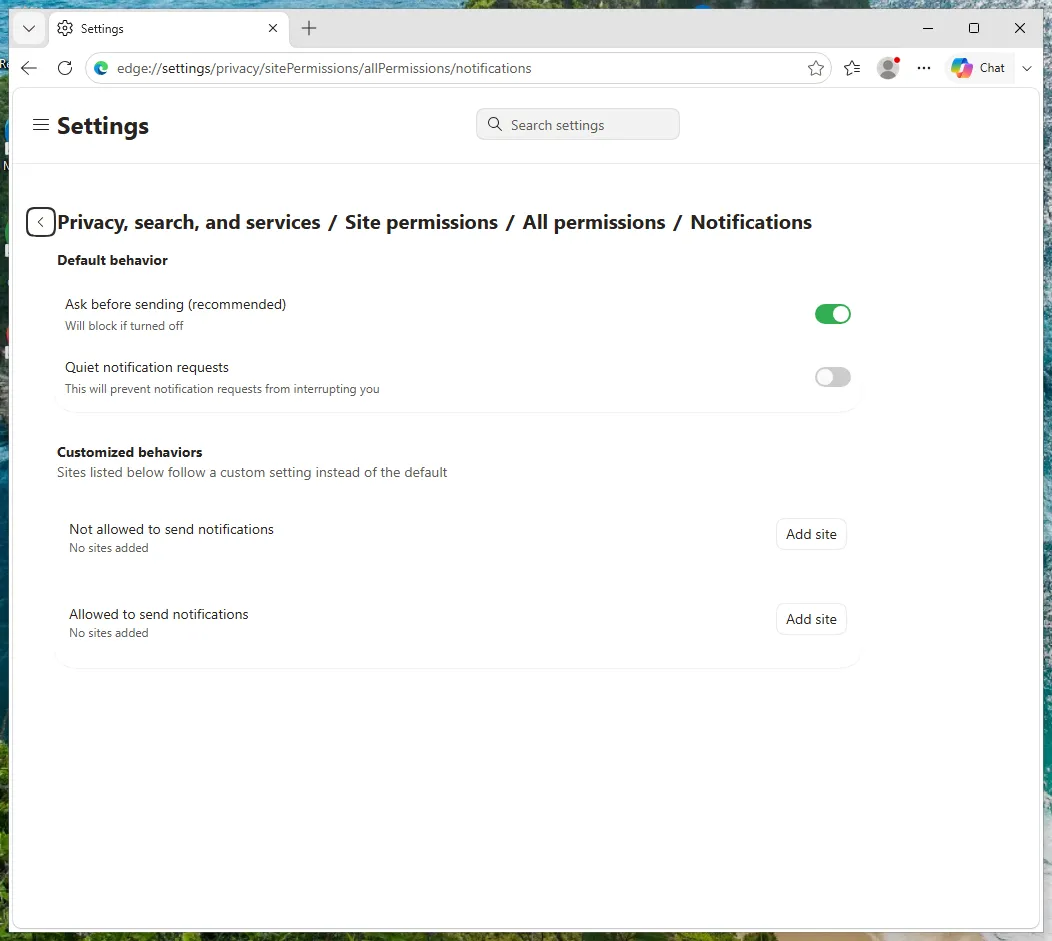
Windows 11: Edge Settings, Site permissions > All permissions > Notifications. To stop every site from asking, switch off Ask before sending (recommended) on the same page.
Edge's own note under the switch says it will block if turned off.
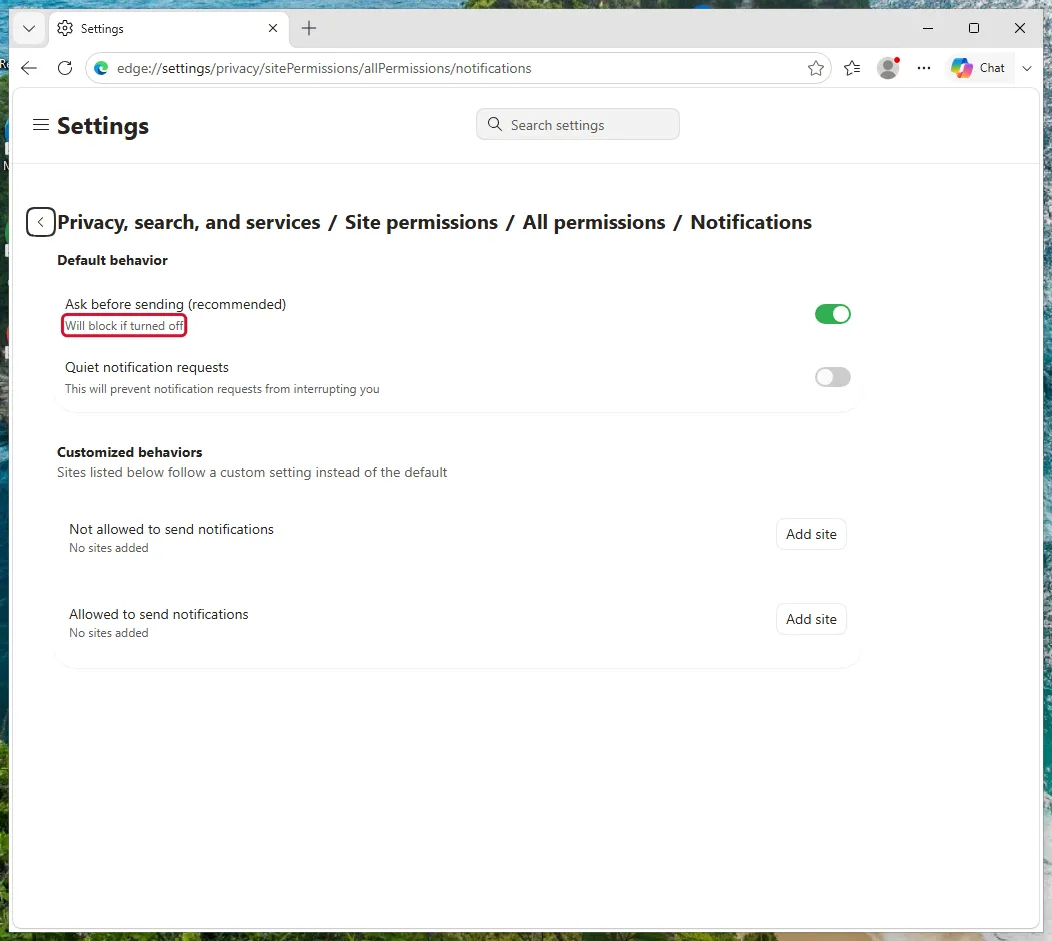
Windows 11: Edge, Ask before sending (recommended) under Default behavior. Or block one site from the site itself: click View site information (left of the address) and, under Permissions for this site, set Notifications to Block.
Microsoft's page describes a second Settings route: Site permissions > All sites, click the site, then set Notifications to Block.
Microsoft says website notifications can still show when Edge is closed, so closing the browser is not enough.
Sources
- Microsoft Support: Manage website notifications in Microsoft Edge (read October 3, 2026)
Firefox
Written for Mozilla Firefox on Windows (screenshot: Windows 11 26H2, 2026-10-03). Steps checked against Mozilla Support and our Windows 11 screenshot on October 3, 2026.
Open the menu (three lines) > Settings, and click Permissions and data in the left list.
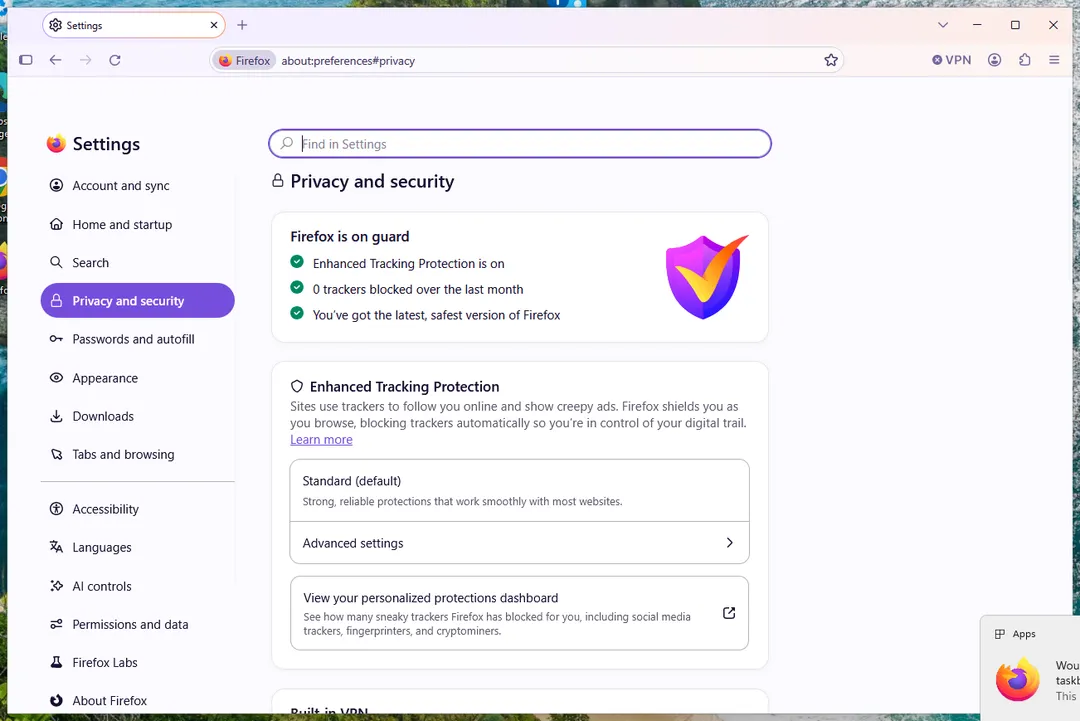
Windows 11: Firefox Settings; Permissions and data is near the bottom of the left list. Under Permissions, click Notifications.
Before Firefox 152 this was a Settings… button next to Notifications, under Privacy & Security.
Select the site and click Remove Website, or set its status to block so it cannot ask again.
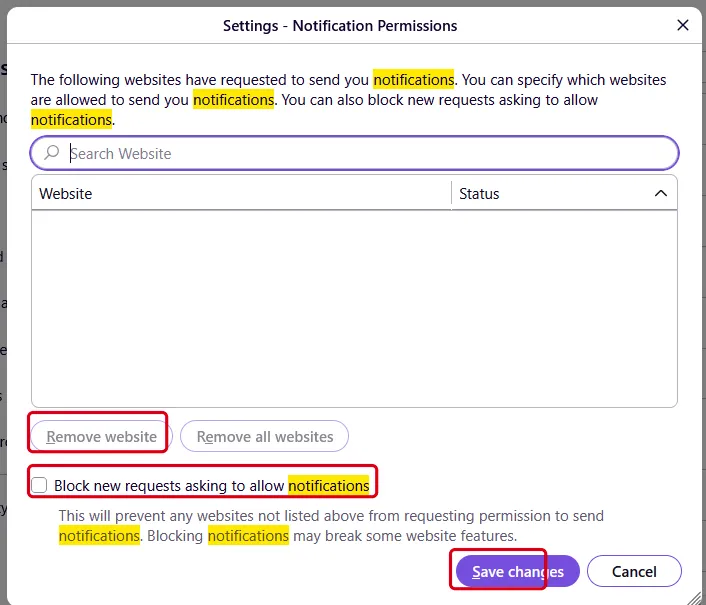
Windows 11: Firefox, Notification Permissions. Click Save Changes.
From the site itself: click the permissions icon in the address bar and click the × next to the notification permission.
To clear every site at once, use Remove All Websites in the same Notifications window.
On a computer, Firefox shows web push notifications only while Firefox is running.
Sources
- Mozilla Support: Web Push notifications in Firefox (read October 3, 2026)
- Mozilla Support: Firefox settings, preferences and other options (read October 3, 2026)
If the steps did not help
The notifications keep coming
- You blocked the wrong address. The notification shows the sending site, which is often a different domain from the page you visited. Block the address shown in the notification.
- Another browser or profile is sending them. Each browser, and each profile inside a browser, keeps its own list. Check them all.
- An extension or program shows them. Alerts that do not name a website usually come from an extension or an installed program: remove the extension, or Uninstall a program or app in Windows On uGetFix.
- Waiting for the site to disappear does not help. Notifications are delivered through the browser maker's push service, not the site itself, so they can continue after the site goes offline. Removing the permission is what stops them.
Questions
Are website notifications a virus?
No. They are a browser permission the site got when someone clicked Allow. They can still lead to scam pages, so do not click them; remove the permission instead.
Will blocking notifications stop all pop-ups?
It stops notification pop-ups from that site. Pop-up windows inside the browser are a separate setting (in Chrome: Site settings > Pop-ups and redirects), and ads injected by adware need the program or extension removed.
Do I have to block each site separately?
To clean up existing ones, yes, or use the remove-all option where the browser has one. To prevent new requests, turn off the option that lets sites ask.