
How to get a virus off your phone: iPhone and Android steps that work
To get a virus off your phone, first work out which of four things you have: a fake virus warning on a web page, notification spam, a bad app, or a profile or account that someone else controls. On iPhone and Android the fix is the same in outline:
- close the warning
- remove the app or profile that does not belong
- scan with Play Protect on Android
- reset the phone only as a last resort
Facts checked October 17, 2026. Steps checked against Apple's and Google's current documentation and the reports we cite. We have not run the app or the link on a phone ourselves.
Do it yourself · free Remove virus on a phone yourself 7 steps, about 21 minutes, no software needed.
Start the steps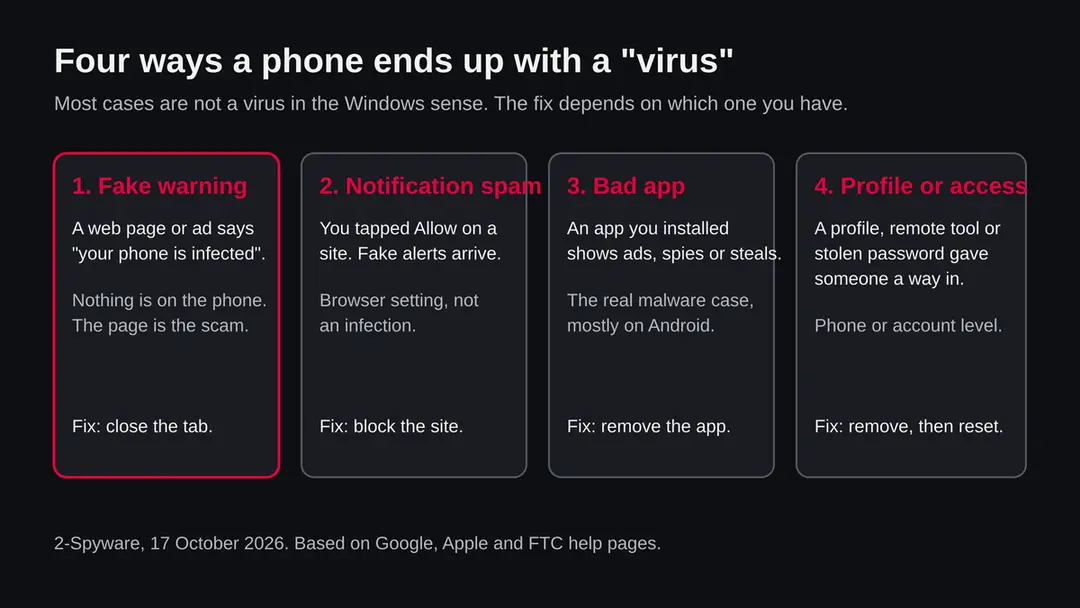
Virus on a phone: summary
| Name | Virus on a phone (iPhone and Android) |
|---|---|
| Type | Not one threat: fake virus warnings, notification spam, malicious or unwanted apps, rogue profiles, remote access |
| Risk | From none (a scare page) to serious (an app that steals passwords or a scammer with remote access) |
| Symptoms | A pop-up that says the phone is infected, alerts from a browser site, ads outside apps, new apps you did not install, a battery or data use you cannot explain |
| How to get rid of it | Close the page, remove the app or profile, scan with Play Protect (Android), block site notifications, change passwords from another device, reset only if the rest fails |
| Our check (17 October 2026) | Topic guide: no single address to test. Steps checked against Apple, Google and FTC help pages |
Show 8 more facts
| Devices | iPhone, iPad and Android phones and tablets |
|---|---|
| Microsoft detection | No single name covers a phone virus. Microsoft lists Android families such as Trojan:AndroidOS/FakeInst.G and TrojanSpy:AndroidOS/FakeSecSuit.A in its Security Intelligence encyclopedia; they are examples, not what your phone has |
| Evidence | 0 write-ups by security sites; details still limited |
| Program | A fake virus warning, an unwanted app or an unknown profile on an iPhone or Android phone |
| First seen | 17 October 2026 |
| Distribution | Typically ad scripts on free streaming, file-hosting and adult sites, typo domains and hacked websites |
| Damage | Redirects to scam pages, fake updates and tech support scams |
| Facts checked | 17 October 2026 |
Facts checked on 17 October 2026 against Google's Play Protect help, Apple's pages on configuration profiles and Safari data, and the FTC's advice on fake tech support warnings. We did not test a phone with malware for this guide, and a phone does not have one single virus to remove.
What people mean by a virus on a phone
A virus on a phone is usually one of four different problems, and the fix depends on which one it is. A web page that claims your phone is infected is a scam page, not an infection. A bad app is a real problem that you remove. Notification spam is a browser permission you switch off. A profile or a stolen password is a control problem that needs a different cleanup.
The word virus comes from computers, where a program copies itself from file to file. Phones work differently. Apps are kept apart from one another, so most trouble on a phone comes from something you installed, something you allowed, or something you were talked into. That is why a good answer to the question is a short list of checks, not a single removal tool.
This page follows that list. It tells you how to recognise each case, what to do on iPhone and on Android, what to do if you already tapped, paid or gave someone access, and when a full reset is the right call. Every menu path comes from Apple or Google help pages we read on 17 October 2026, and where a path differs by phone maker, we say so.
| What you see | What it most likely is | First fix |
|---|---|---|
| A full-screen page says your phone has a virus and gives a number to call | A scam page | Close the tab; do not call |
| Alerts keep arriving from a browser, even when it is closed | A site you allowed to send notifications | Block that site in the browser settings |
| Ads over the home screen, a new app you did not choose, a flashlight app asking for odd permissions | A bad or unwanted app | Remove the app; scan with Play Protect on Android |
| A settings profile you do not recognise, or someone knows what is on your phone | A rogue profile, remote access or a stolen account | Delete the profile, change passwords from another device |
| The phone is slow, hot or the battery drains fast | Often normal causes; sometimes an app | Restart, update, check which app uses the battery |
Can an iPhone or an Android phone get a virus?
Yes, both can have malicious software, but it is far more common on Android, and most scares on iPhone are scam pages. A phone is harmed mainly by apps you install and permissions you give, not by a page that merely loads.
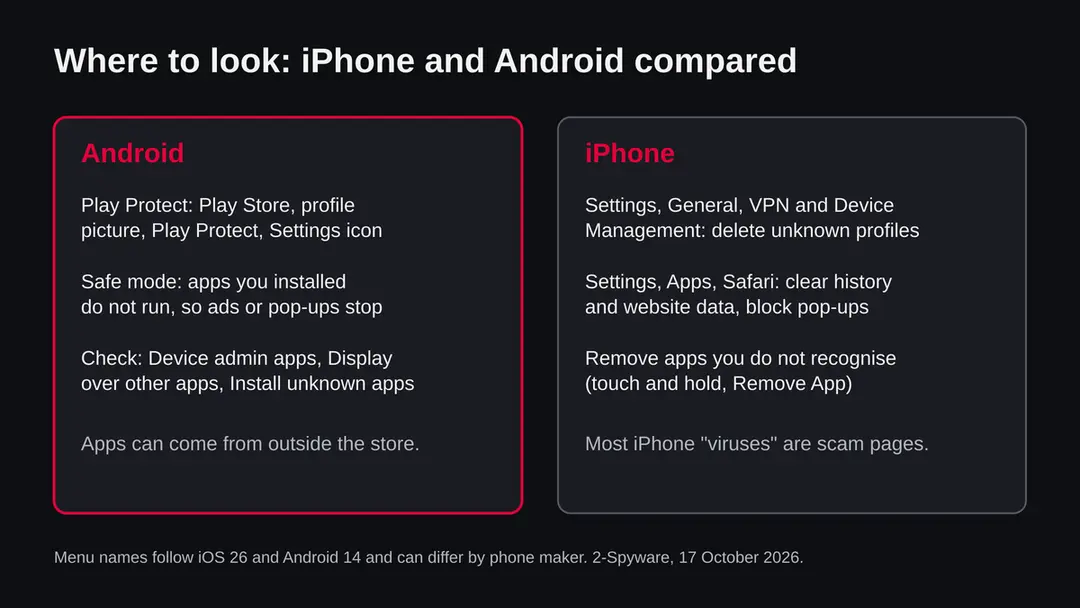
On Android, apps can come from Google Play and also from other sources if you allow it. Google says Play Protect checks apps when you install them and periodically scans the device, and that it also checks apps from outside the Play Store.
If it finds a potentially harmful app, it may send a notification, disable the app until you uninstall it, or remove it automatically. That helps, but it is not a promise that nothing slips through, so treat it as one layer.
On iPhone, apps normally come from the App Store, where each app is reviewed before it is listed. That makes a classic virus rare. The things that do happen are different:
- scam pages in Safari
- calendar and notification spam
- an unwanted configuration profile that you were tricked into installing
- stolen Apple Account passwords
In some regions Apple allows other app marketplaces; if you installed an app from one, apply the same caution as on Android. We did not test any phone for this guide, so these are the general rules from the vendors' own help pages, not findings about a particular infection.
Signs that something is wrong with your phone
No single sign proves an infection, and most signs have harmless causes. Look for a cluster: ads you see outside any app, apps you did not install, settings that change on their own, and charges or messages you did not make.
A slow phone or a battery that drains faster than usual is the most common worry. It is also the weakest sign, because an old battery, a large update, poor signal or a heavy game explains it just as well. On both systems, the battery and storage screens in Settings show which app used the most, and an app you do not remember using near the top deserves a look.
- High
Someone else controls the phone
A screen-sharing or remote-control app you did not choose, messages sent from your number that you did not write, or a person who knows things only the phone could tell them.
- High
Money or passwords gone
Charges you did not make, a bank login that was used from another place, or a password reset e-mail you did not ask for.
- Medium
Ads and pop-ups outside apps
Ads on the home screen or store pages that open by themselves usually point to an unwanted app or a site with notification permission.
- Medium
Unknown apps and profiles
An app you never installed, or a profile under VPN and Device Management on iPhone that you cannot explain.
- Low
Slow phone, hot phone, quick battery drain
Very often normal causes. Restart, update and check the battery screen before you assume malware.
Is virus on a phone dangerous?
What we checked for this guide, and what we could not
This guide covers a question, not one malicious address, so there was no single site to test. We read the help pages of Google, Apple and the US Federal Trade Commission on 17 October 2026 and wrote the steps from them. We did not test a phone with malware.
Virus on a phone · desk check · 17 October 2026
- Android scanningGoogle's Play Protect help describes scanning on install and periodic checks, and a switch called Scan apps with Play Protect under Play Store, profile picture, Play Protect, Settings.
- iPhone profilesApple's help describes where installed profiles are listed (Settings, General, VPN & Device Management) and how to delete one.
- Fake warningsThe FTC says real security pop-up warnings never ask you to call a phone number, and that scammers ask for remote access and payment by gift card, transfer, cryptocurrency or payment app.
- Android safe mode and factory resetGoogle's page we read links to a separate safe mode article which we did not read; the safe mode key combination and the reset menu names differ by phone maker, so we give the general path and tell you to check your maker's help.
- Your phoneWe could not see your phone. No quiet test clears a phone: some bad apps hide from the user, and a clean scan is one data point.
Depends on which of the four cases you have The first three cases are fixed with free steps in the phone's own settings. The fourth, remote access or a stolen account, can be serious and needs the account steps below.
The fake virus warning: the most common case
If a web page, an ad or a pop-up says your phone has a virus and tells you to call a number, install a cleaner or pay, it is a scam. The page is only a page; it cannot scan your phone from the browser. Close it and do not call.
The FTC describes the pattern. The pop-up looks as if it comes from a well-known company and pushes you to call a phone number. Real security warnings, it says, never ask you to call a number, and legitimate tech companies do not contact you by phone, e-mail or text about a problem with your device.
If you call, the person asks for remote access, claims to find malware and offers to remove it for a fee, often asking for payment by gift card, bank transfer, cryptocurrency or a payment app.
On iPhone, close the tab from the tab switcher. If the page will not let you leave, switch to another app, open Safari again and close the tab. If the warning returns every time you open Safari, clear the history and website data (steps below).
On Android, close the tab in Chrome or your browser; if it keeps coming back, check the notification permission further down. A warning that appears inside a browser does not mean anything was installed, unless you tapped to install something.
Do
- Close the tab or the browser and leave the page.
- Check your phone's own settings for anything you installed after the warning.
- Report the scam at ReportFraud.ftc.gov if you are in the United States.
Don't
- Call the number on the page.
- Install a cleaner, a security app or a profile because a page told you to.
- Give anyone remote access, a code you received by text or a card number.
How to remove virus on a phone
How to get a virus off your iPhone or Android phone
Start with the cheap steps and stop when the problem is gone.
Most cases end at step two or three. The steps use menu names from iOS 26 and Android 14, which can differ by phone maker.
Step 1: Close the warning and do not follow it
Close the tab or the browser.
Warning: Do not call a number on the page, install a cleaner or give anyone access.
The FTC says real security warnings never ask you to call a number. If the page returns when you open the browser, go on to step four. If you already called or paid, jump to the section on what to do after that.
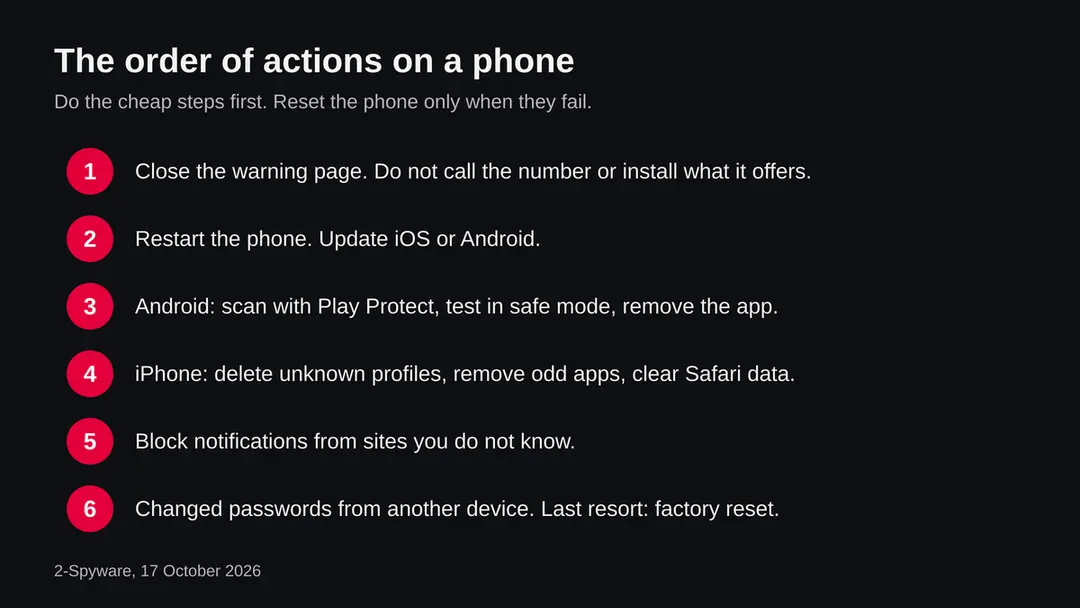
The order of actions on iPhone and Android, from the cheapest step to the factory reset. Step 2: Restart the phone and install updates
Restart the phone, then open Settings and install any system update. On iPhone the path is Settings > General > Software Update. On Android look under Settings > System or Software update, which differs by maker.
Updates close known flaws in the system and the browser. A restart also ends scripts that were running in a browser page.
Step 3: Android: scan with Play Protect and remove the app
Open the Play Store, tap your profile picture, choose Play Protect, tap the Settings icon and turn on Scan apps with Play Protect (Google Play help, Android 14). If it flags an app, tap Uninstall.
If the problem continues, restart in safe mode and uninstall recently installed apps one by one under Settings > Apps. Switch off device admin rights for an app that will not uninstall.
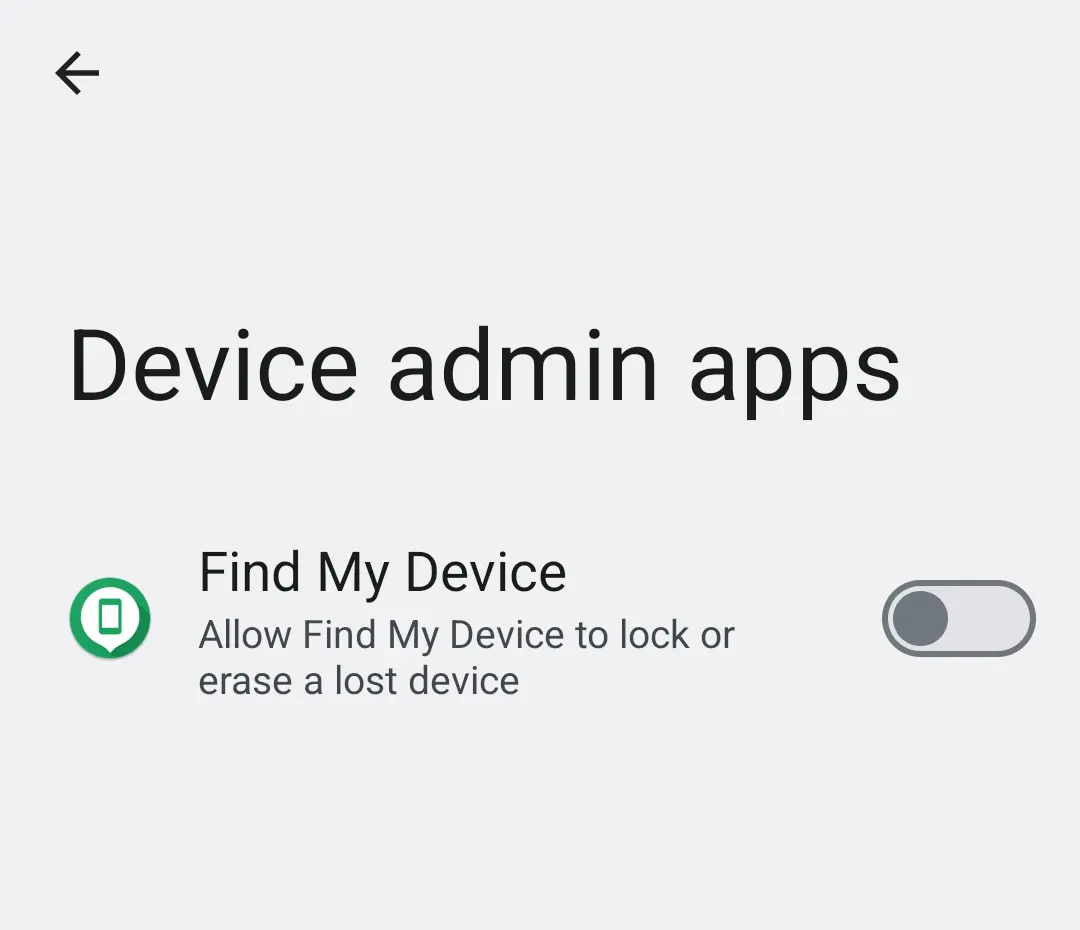
Android 14: Settings, Device admin apps. An ad or cleaner app has no reason to appear here switched on. Step 4: iPhone: remove odd apps and profiles
Touch and hold an app you do not recognise and choose Remove App. Then open Settings > General > VPN & Device Management.
Apple says that if no profiles are listed, none is installed; if one is, tap it and choose Delete Profile, then restart (iOS 26). Employer or school profiles may be locked.
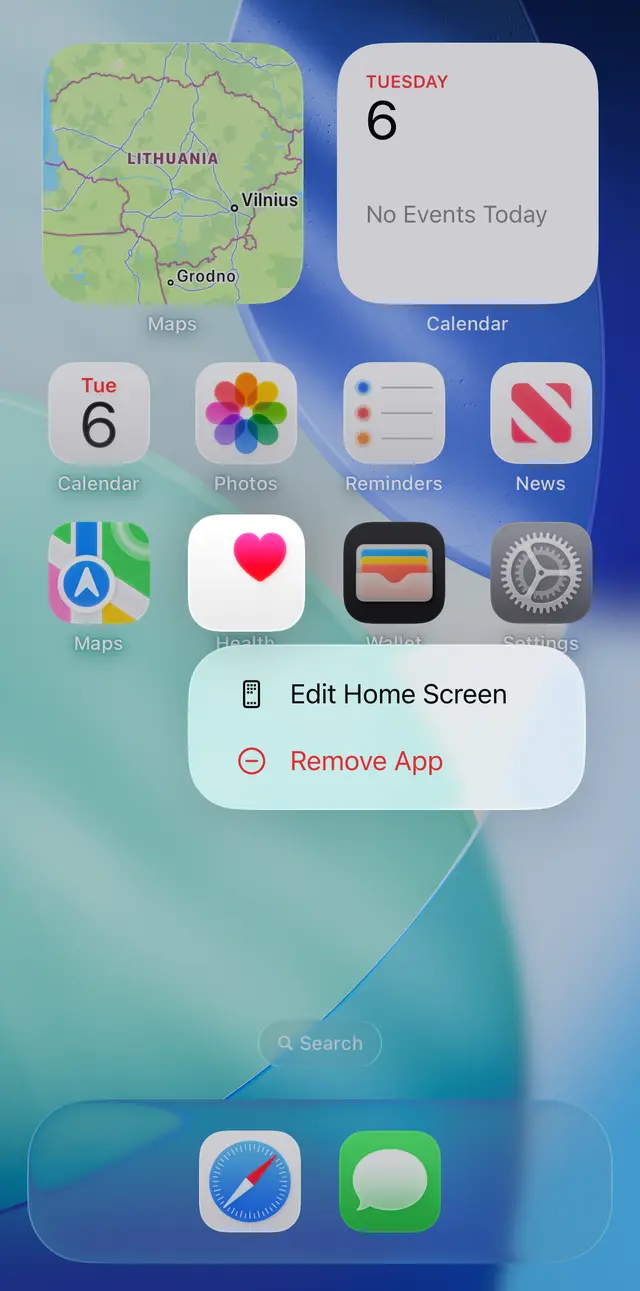
iOS 26: touch and hold an app icon on the Home Screen, then choose Remove App. Step 5: Clean the browser and block pop-ups
On iPhone open Settings > Apps > Safari, switch on Block Pop-ups and Fraudulent Website Warning, then tap Clear History and Website Data (iOS 26).
On Android open Chrome, go to Settings > Site settings > Notifications and block sites you do not know. This stops a scare page from coming back.
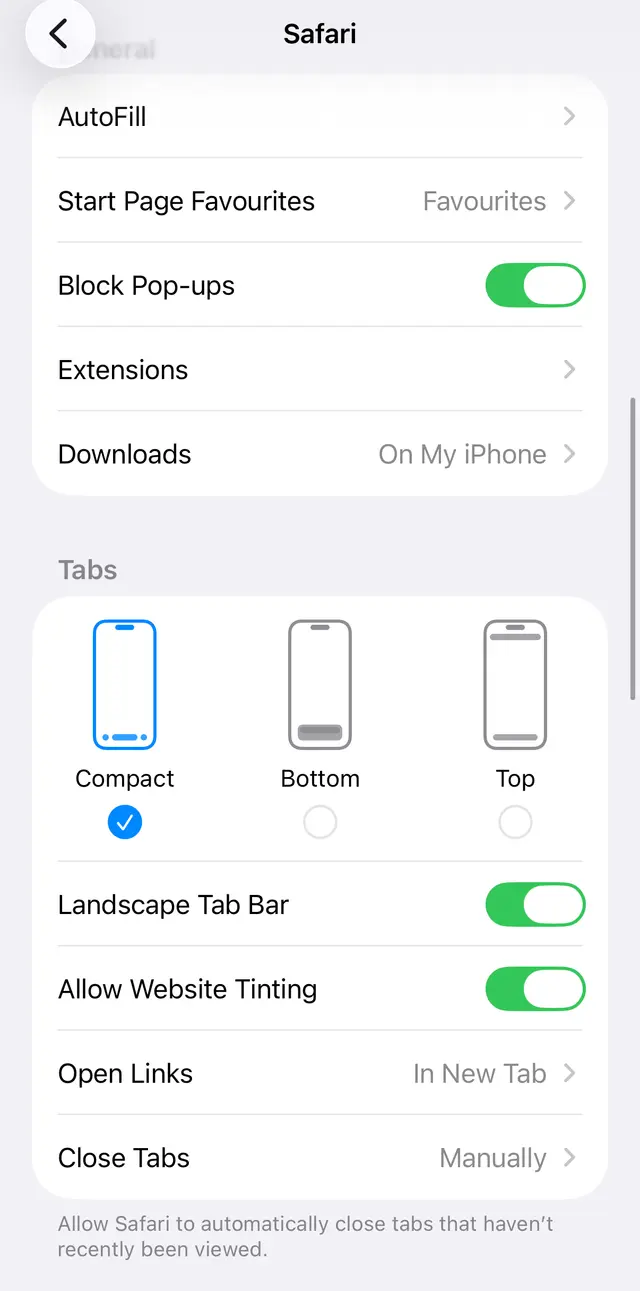
iOS 26: Settings, Apps, Safari. Keep Block Pop-ups on. Step 6: Block unknown install sources on Android
Search Settings for Install unknown apps and switch it off for the browser and for messengers. Apps installed from outside the store are the main way real malware reaches an Android phone.
Remove any app you installed from a link or a file. Play Protect also checks apps from outside the store.
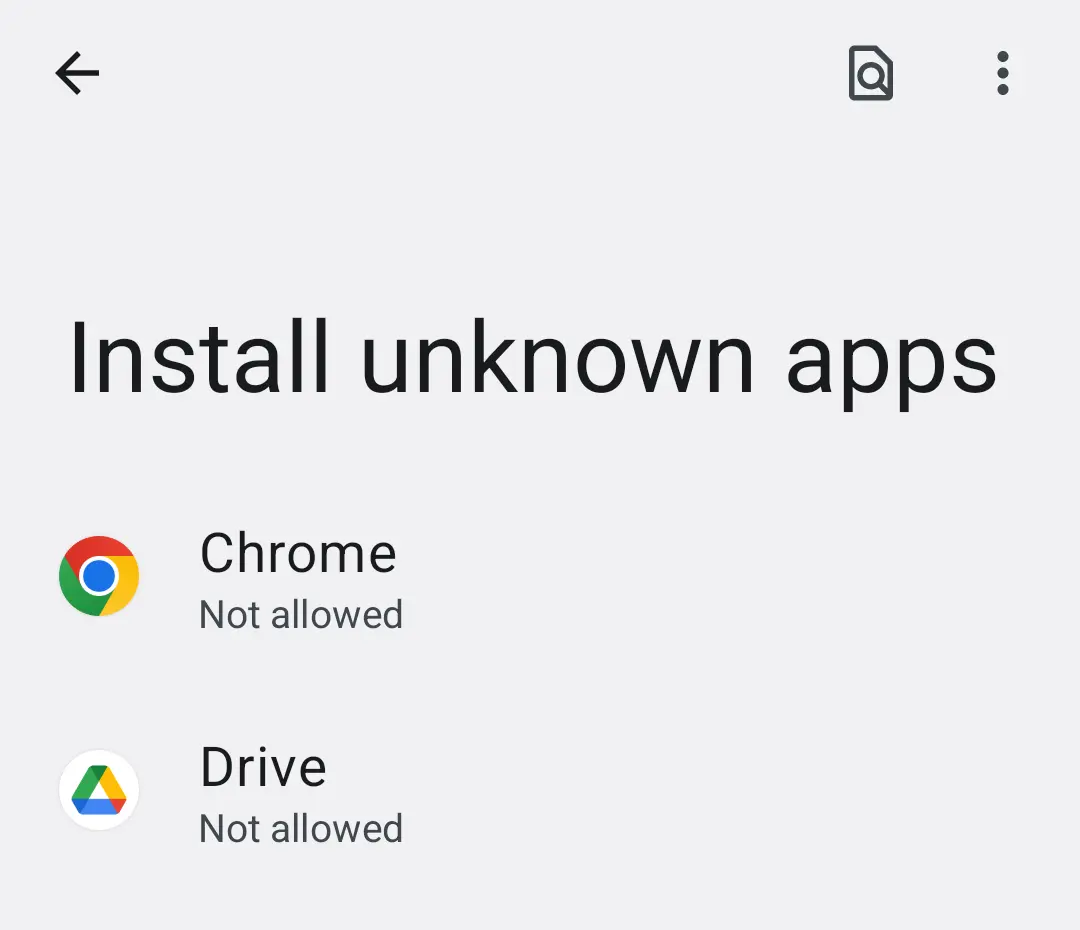
Android 14: Settings, Install unknown apps. Keep it off for browsers and messengers. Step 7: Change passwords and reset if needed
From another device, change the password of your Apple Account or Google Account, your e-mail and your bank, and turn on two-step verification.
If the phone still misbehaves, or someone had remote access, back up what you trust and reset it: Settings > General > Transfer or Reset iPhone > Erase All Content and Settings, or on Android usually Settings > System > Reset options. Check your maker's help for the exact names.
Android: find and remove the bad app
On Android, the usual route is: scan with Play Protect, restart in safe mode to see if the problem stops, and then remove the apps you installed recently until it does. Wording of menus differs between Samsung, Pixel and other phones, so use the search box at the top of Settings if a name does not match.
- 1
Turn on and run Play Protect
Open the Play Store, tap your profile picture at the top right, tap Play Protect, then the Settings icon, and make sure Scan apps with Play Protect is on. Google says Play Protect may warn you, disable an app until you uninstall it, or remove it itself. If it sends a notification, tap it and then Uninstall.
- 2
Test in safe mode
Hold the power button, then touch and hold Power off and confirm the restart in safe mode. The exact way differs by maker, so check your phone maker's help if this does not work. Apps you installed do not run in safe mode. If the ads, pop-ups or slowness stop there, one of your apps is the cause.
- 3
Remove apps, newest first
Open Settings > Apps, sort by recently installed if your phone offers it, and uninstall the apps you do not need or do not remember, starting with the newest. Restart after each removal and see whether the problem is gone. Pay extra attention to flashlight, cleaner, battery saver, wallpaper and free VPN apps.
- 4
Look at what the apps are allowed to do
Search Settings for Device admin apps, Display over other apps, Accessibility and Install unknown apps. An app with no reason to be in those lists, such as a game or a cleaner, should have the permission switched off. If an app will not uninstall, switching off its device admin right in Device admin apps usually lets you remove it.
- 5
Restart normally and check again
Leave safe mode by restarting. Watch the phone for a day. If a message or ad returns, note which app was open, and look at Settings > Battery for an app that uses a lot while you were not using it.
iPhone: profiles, apps and Safari
On iPhone there is no antivirus scan to run. You check for three things: a profile you did not install, an app you do not recognise, and website data in Safari that keeps a scam page alive.
- 1
Check for profiles
Open Settings > General > VPN & Device Management. Apple says deleting a profile also deletes the settings, apps and data tied to it. If you see no profiles, no device management profile is installed. If you see one you do not know, tap it and choose Delete Profile, then restart the iPhone as Apple suggests. Some profiles come from your employer or school and may not be removable by you.
- 2
Remove apps you do not recognise
Touch and hold the app icon on the Home Screen and choose Remove App. Look through the App Library for apps you do not remember installing. Also check Settings > Subscriptions (tap your name first) for charges you did not start.
- 3
Clear Safari history and website data
Open Settings > Apps > Safari, scroll down, tap Clear History and Website Data, choose the time range and tap Clear History. Apple notes this does not change your AutoFill information. To remove only data kept by websites, use Advanced > Website Data > Remove All Website Data instead.
- 4
Update iOS and restart
Open Settings > General > Software Update and install what is offered. Updates carry the latest fixes for browser and system flaws. Then restart the iPhone.
Notification spam that looks like a virus
If alerts such as Your phone is infected arrive as notifications while no app is open, a website you allowed to send notifications is the likely source. Block that site; nothing needs to be uninstalled.
Notification spam starts when a page asks to show notifications and you tap Allow, often to dismiss a prompt or to continue to a video. From then on, the site can send alerts through the browser even if the page is closed. These alerts often copy the look of a security warning.
On Android, long-press the notification, open the site's settings and turn notifications off, or open Chrome, go to the site, tap the page info icon, then Permissions and Notifications, and switch them off. On iPhone, a website can only send notifications if you added it to the Home Screen as a web app, so check Settings > Notifications for an unfamiliar app name and turn Allow Notifications off for it.
After removal: keep the ads from coming back
If you tapped, paid or gave someone access
What you do next depends on what you gave away. A tap on a scam page costs nothing. A password, a card number or remote access needs action the same day.
- 1
You only saw the page
Nothing to do except close it. Clear Safari data on iPhone or check notification permission on Android if it keeps returning.
- 2
You gave a password
The FTC says to change the password right away, and every other account that uses the same password, and to create a new strong one. Do it from another device if you think the phone is not yours alone.
- 3
You paid or shared a card
Check your card or bank account for the charge and report an unauthorized transaction to your card company or bank. Ask for a new card number if the old one was shared.
- 4
You gave remote access
Remove the remote-control app you were asked to install, restart the phone, change the passwords for your bank, e-mail and Apple Account or Google Account from another device, and tell your bank. If the access was to a phone with banking apps, consider a factory reset after you back up what you need.
- 5
Report it
In the United States, report tech support scams at ReportFraud.ftc.gov. In other countries, use your national fraud reporting service.
When to reset the phone
A factory reset is the last resort. It removes every app and setting and is worth it when you gave a scammer remote access, a profile or app keeps coming back, or you cannot tell what is installed.
Before you reset, back up photos, contacts and documents that you trust, but do not restore a full app backup from the time the problem started if you suspect an app. Restoring a clean account backup after the reset is safer than restoring every app.
On iPhone the reset is under Settings > General > Transfer or Reset iPhone > Erase All Content and Settings. On Android it is usually under Settings > System > Reset options > Erase all data (factory reset), but the names differ by maker.
We did not read your maker's page, so check it first. After the reset, set the phone up as new, install only the apps you need from the official store, and change your passwords again from the clean phone.
Spyware and stalkerware: a different question
If you think a person you know put an app on your phone to watch you, removing it may alert them. Think about your safety first and get help before you change anything.
Signs that apply here are not the pop-ups discussed above. They are things like someone knowing your messages or location, an app with a plain name that has many permissions, or a profile you did not install.
The steps above for apps, device admin, permissions and profiles still apply, but they may tell the person that the app was removed. If you are at risk, use a phone the person cannot reach, contact a local support organisation for people in abusive relationships, and decide about removal with their advice.
How to keep a phone clean
Do
- Install apps only from Google Play or the App Store, and check the publisher and the permissions before you tap Install.
- Keep Play Protect on (Android) and keep iOS or Android up to date.
- Keep Block Pop-ups and Fraudulent Website Warning on in Safari.
- Use a different password for each account and turn on two-step verification.
- Look at Settings > General > VPN & Device Management on iPhone now and then.
Don't
- Allow Install unknown apps for the browser or a messenger.
- Tap Allow on a notification prompt from a site you do not know.
- Call a number from a pop-up or install a cleaner an ad offered.
- Give a stranger remote access, even to fix a problem you did not report.
Questions about virus on a phone
How do I get a virus off my phone?
Work through the cheap steps in order. Close any page that claims your phone is infected, restart the phone and install updates. On Android, run Play Protect and remove apps you do not trust, newest first, testing in safe mode if the problem continues.
On iPhone, remove apps you do not recognise, delete unknown profiles under Settings > General > VPN & Device Management and clear Safari data. Change your passwords from another device. Reset the phone only if all of this fails or someone had remote access to it.
Can an iPhone get a virus?
A classic virus is rare on an iPhone, because apps come mainly from the reviewed App Store and are kept apart from one another. What does happen is scam pages that claim your iPhone is infected, unwanted configuration profiles, malicious apps installed from outside the App Store where that is allowed, and stolen Apple Account passwords.
If your iPhone shows a virus warning in Safari, close the tab, clear Safari history and website data, and check VPN & Device Management for profiles you did not install.
Can Android phones get viruses?
Yes. Malicious apps for Android exist, and they reach phones mostly through apps installed from outside Google Play, or through unwanted apps that look harmless. Google says Play Protect checks apps when you install them and scans the device periodically, including apps from outside the Play Store.
Keep it on, install apps only from the official store, and keep Install unknown apps switched off for your browser and messengers. If you suspect an app, restart in safe mode and uninstall recently installed apps one at a time.
What does a virus warning on my phone mean?
A web page or ad that says your phone has a virus is almost always a scam, not a scan result. A browser page cannot scan the phone.
The FTC says real security pop-up warnings never ask you to call a phone number, and that scammers who answer such calls ask for remote access, claim to find malware and charge to remove it.
Close the page, do not call and do not install what it offers. A warning from the phone's own system or from Play Protect looks different and does not ask for a call.
How do I know if my phone has a virus?
Look for a cluster of signs, not one. Ads outside any app, apps you did not install, settings or profiles that changed, charges or messages you did not make, and someone knowing what is on your phone point to a problem. A slow or warm phone or a quick battery drain alone is usually normal.
On Android, run Play Protect and check Device admin apps. On iPhone, check VPN & Device Management and your installed apps. No test clears a phone for good, so stay watchful for a few days.
Do I need an antivirus app on my phone?
Not for most people. Android already has Play Protect, which is on by default in Google Play, and iPhone apps are kept apart by the system. A free cleaner or booster that an ad offers is a common trap and can itself be the unwanted app.
If you want an extra layer on Android, pick a well-known security vendor from the official store, read its permissions and do not pay a person who called you. The settings in this guide do more than a cleaner that tells you the phone is infected.
Will a factory reset remove a virus?
It removes every app and setting on the phone, so it removes any malicious app or profile installed on it. It is the last resort when you gave a scammer remote access, an app keeps returning, or you cannot tell what is installed.
Back up photos and contacts first and do not restore a full app backup from the time the problem began. Setting the phone up as new and changing your passwords afterwards matters, because stolen passwords do not disappear with the reset.
I called the number on a virus pop-up. What now?
Stop the call and do not pay. If you gave a password, change it at once and change it on every account that uses it. If you gave a card number or paid, contact your card company or bank and report the charge.
If you let the person control your phone, remove the remote-control app, restart, change your bank, e-mail and Apple or Google passwords from another device and consider a factory reset. Report the scam at ReportFraud.ftc.gov if you are in the United States.
Why do alerts say my phone is infected when no app is open?
On Android, a site you allowed to send notifications can send alerts even when the browser is closed. Open Chrome, visit the site, tap the page info icon, choose Permissions and switch off Notifications, or press and hold the alert and open its settings.
On iPhone, notifications from websites work only when the site was added to the Home Screen as a web app, so look in Settings > Notifications for an unfamiliar name. These alerts copy the look of a security warning; ignore them and do not tap their buttons.
Sources
- Google Play Help: Google Play Protect, how it checks apps and how to turn on scanning (no longer online) (read October 17, 2026)
- Google Android Help: Play Protect and harmful apps (no longer online) (read October 17, 2026)
- FTC Consumer Advice: How to spot, avoid and report tech support scams (read October 17, 2026)
- Apple Support: Install or remove configuration profiles on iPhone (read October 17, 2026)
- Apple Support: Delete your Safari history, cache, and cookies on iPhone (read October 17, 2026)