
XJR Antivirus: what it is and how to remove it
XJR Antivirus is a rogue anti-spyware program that displays fake security alerts and reports false infections to scare you into thinking that your computer is infected with spyware, adware and other malware. The rogue program is a clone of Your PC Protector scareware and it is promoted mostly through the use of Trojans and fake online anti-malware scanners.
Facts checked October 7, 2026. Removal steps tested on Windows 11 (26H2) and checked against Microsoft's and the browser makers' current documentation. Sections marked as our earlier report are the original text: they describe the threat as it was then and have not been reviewed since. The 2026 status, the removal steps and the questions are current.
Automatic
Get a free scan and check if your PC is infected.
Fortect finds malware, unwanted programs and the Windows damage they leave behind, and repairs it in one pass.
If Antivirus.exe returns after removal, a full scan can find the entry that brings it back.
Do it yourself · free Remove XJR Antivirus yourself 5 steps, about 15 minutes, no software needed.
Start the steps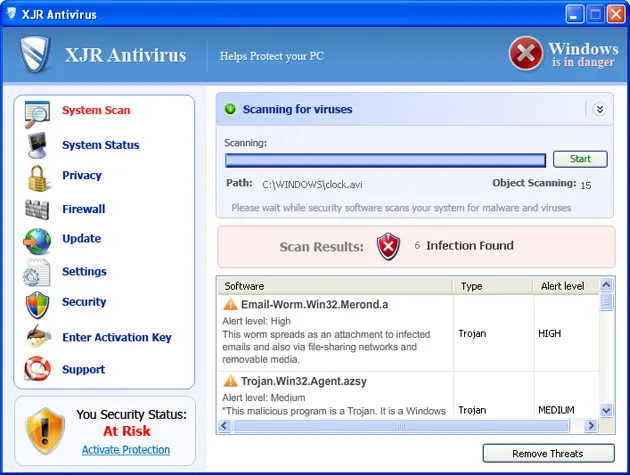
XJR Antivirus: summary
| Detection names | No Microsoft detection name is known |
|---|---|
| Distribution | Not recorded in the old report |
| Damage | Not recorded in the old report |
| Name | XJR Antivirus |
| Type | Rogue antivirus |
| Symptoms | An unknown process in Task Manager |
| Removal | Scan the PC with security software to find and remove the malware and anything installed with it. Fortect scans Windows for malware and repairs the system files and settings it damaged. Remove it nowTo use the full-featured product, you have to purchase a license for Fortect. The scan is free. |
Show 4 more facts
| Files and processes | Antivirus.exe |
|---|---|
| Evidence | One write-up by a security site; details still limited |
| First seen | 26 April 2021 |
| Facts checked | 7 October 2026 |
From our report of Apr 2021 · not reviewed since
What XJR Antivirus is
XJR Antivirus is a rogue anti-spyware program that displays fake security alerts and reports false infections to scare you into thinking that your computer is infected with spyware, adware and other malware. The rogue program is a clone of Your PC Protector scareware and it is promoted mostly through the use of Trojans and fake online anti-malware scanners.
Once installed, XJR Antivirus will run a fake system scan and display a list of malware infections. Of course, the scan results are totally false. The rogue program detects legitimate programs and files as infections, that's why don't manually delete any of those reported files as it may cause serious problems to your computer.
When running, XJRAntivirus will flood your computer with fake and very annoying security alerts claiming that your computer is seriously compromised and that you should activate XJR Antivirus to ensure full system protection.
What is more, this fake program will blocks legit antivirus and anti-spyware programs to protect itself from being removed. It will claim that your anti-virus or any other program actually is infected. Some of the fake alerts read:
Is XJR Antivirus a real security program?
Names and addresses to look for
- File:
Antivirus.exe
How to remove XJR Antivirus
Nothing it reports is real.
These steps remove it and undo a payment if you made one.
Step 1: Do not pay, and undo a payment if you made one
XJR Antivirus reports problems to sell a licence: the "threats" or "errors" it lists are invented or harmless leftovers. If you already paid, ask your card issuer to dispute the charge and cancel the subscription both in the seller's account and through your bank.
If you called a phone number it showed and let someone connect, treat the PC as remotely accessed and remove the remote tool. Uninstalling it from Windows 11 or Windows 10 does not cancel a subscription by itself.
Full procedure with screenshots: What to do after paying a scammer
Step 2: Uninstall programs you did not mean to install
Open Settings > Apps > Installed apps in Windows 11, or Settings > Apps > Apps & features in Windows 10, and sort the list by install date. Look at what appeared around the day the problem started and uninstall every program you do not recognise or did not choose.
Free converters, PDF and video tools, "system optimizers" and unknown browsers are the usual carriers of XJR Antivirus. If a name is unclear, search for it before you remove it, so you do not uninstall a driver or a Windows component.
Full procedure with screenshots: Uninstall a program or app in Windows On uGetFix
Step 3: Remove it from startup
Whatever XJR Antivirus installed usually starts with Windows. Open Task Manager with Ctrl + Shift + Esc, go to Startup apps in Windows 11 or the Startup tab in Windows 10, and disable what you do not know, starting with entries that have an empty Publisher column.
Open file location on the right-click menu shows the file, which helps you decide and tells you what to delete later. Disabling is safe: if something you need stops working, switch it back on.
Full procedure with screenshots: Stop apps from opening at startup On uGetFix
Step 4: Delete the folders left behind
What the uninstaller leaves behind is usually in the user folders. Open File Explorer, switch on View > Show > Hidden items (in Windows 10 View > Hidden items), and go through
%LocalAppData%,%AppData%, %ProgramData% and the two Program Files folders.Sort by Date modified and delete folders that appeared together with the problem and belong to no program you use. Folders with random names that hold
.exe,.dll, .js or .ps1 files are the strongest sign.Full procedure with screenshots: Remove what malware leaves behind in Windows
Step 5: Scan the PC, then run the offline scan
Open Windows Security > Virus & threat protection > Scan options, run a Full scan and remove everything it finds. Then select Microsoft Defender Antivirus (offline scan) and click Scan now: the PC restarts and scans before Windows loads, which finds files that hide while Windows runs.
Save your work first, because the offline scan takes about 15 minutes. Both scans are built into Windows 11 and Windows 10, and a second scanner from another vendor is a useful extra opinion.

Windows 11: Windows Security > Virus & threat protection > Scan options. Full procedure with screenshots: Run a Microsoft Defender Offline scan
Protect your privacy - employ a VPN
There are several ways how to make your online time more private - you can access an incognito tab.
However, there is no secret that even in this mode, you are tracked for advertising purposes. There is a way to add an extra layer of protection and create a completely anonymous web browsing practice with the help of VPN. This software reroutes traffic through different servers, thus leaving your IP address and geolocation in disguise.
Besides, it is based on a strict no-log policy, meaning that no data will be recorded, leaked, and available for both first and third parties. The combination of a secure web browser and VPN will let you browse the Internet without a feeling of being spied or targeted by criminals.
No backups? No problem. Use a data recovery tool
If you wonder how data loss can occur, you should not look any further for answers - human errors, malware attacks, hardware failures, power cuts, natural disasters, or even simple negligence.
In some cases, lost files are extremely important, and many straight out panic when such an unfortunate course of events happen. Due to this, you should always ensure that you prepare proper data backups on a regular basis.
If you were caught by surprise and did not have any backups to restore your files from, not everything is lost. is one of the leading file recovery solutions you can find on the market - it is likely to restore even lost emails or data located on an external device.
Questions about XJR Antivirus
Is Antivirus.exe safe?
It depends on where the file is and who signed it, not on the name. Open Task Manager, go to the Details tab, right-click Antivirus.exe and choose Open file location. A file inside Program Files or System32 with a valid digital signature from a known company is usually part of a legitimate program.
A file in AppData, Temp or ProgramData with no signature, especially one that restarts itself after you end it, is suspicious. If you cannot tie the process to anything you installed, uninstall recent unfamiliar programs and run a Microsoft Defender Offline scan.
Can I delete the Antivirus.exe file?
Only after you know what it belongs to. If Antivirus.exe is part of a program, uninstall that program through Settings instead, so its services and tasks go too. If it belongs to nothing and is unsigned, end the process, disable whatever starts it and then delete its folder.
Do not delete files from the Windows folder or files signed by Microsoft: those are part of the system, and removing them can stop Windows from starting. When in doubt, run a Microsoft Defender scan first and let it decide.
I called the number from XJR Antivirus. What now?
End the call and do not let them reconnect. If they installed a remote-access tool, disconnect the PC from the internet and uninstall that tool from Installed apps. Change passwords for e-mail, banking and anything you typed during the call, using another device.
If you paid, contact the bank today for a chargeback. Report the number to the authorities in your country. The program behind an unfamiliar process called Antivirus.exe in Task Manager still needs removing: follow the plan in this guide, then run a full scan in Windows Security.
I let a technician connect to my PC because of XJR Antivirus. Is it safe now?
Not until you check. While connected, the caller could install other programs, create a user account or look at saved passwords. Disconnect from the internet, uninstall the remote access program and anything else installed during the call, and run a full scan and the Microsoft Defender offline scan.
From another device, change your e-mail and banking passwords and turn on two-step verification. If the caller opened your online banking, call the bank today. A reset of Windows is the safest option if you cannot tell what was done.
Should I reset my PC because of XJR Antivirus?
Only if the signs point to deeper access. Reset when you see an unfamiliar process called Antivirus.exe in Task Manager again after removal, when Windows Security cannot start or update, when remote access tools you did not install keep appearing, or when you simply cannot trust the PC any more.
Otherwise, the plan in this guide plus an offline scan is enough. If you do reset, choose Remove everything and Cloud download for a fresh copy of Windows, restore only documents and photos, and reinstall programs from their official sites. Change important passwords from the clean system afterwards.
Why does XJR Antivirus look so official?
Because copying the design costs nothing and makes people trust it. The program behind an unfamiliar process called Antivirus.exe in Task Manager borrows Windows colours, icons and wording, sometimes even the name of a well-known security brand. None of that gives it access to real security information.
A real alert can be checked in seconds: open Windows Security from the Start menu and look at Protection history. If nothing is listed there, the official-looking window is fake, and the program that draws it is what needs to be removed.
Do I need to buy antivirus after removing XJR Antivirus?
No. Windows 11 and Windows 10 include Microsoft Defender in Windows Security, which provides real-time protection, scheduled scans, the offline scan and protection against unwanted apps at no cost. Keep it switched on and updated, and turn on Reputation-based protection under App & browser control.
If you prefer a third-party product, buy it from the vendor's own site after reading independent test results, never from a pop-up or a phone call. The lesson of XJR Antivirus is that security offers which arrive unasked are the ones to avoid.
What is XJR Antivirus?
XJR Antivirus is a rogue anti-spyware program that displays fake security alerts and reports false infections to scare you into thinking that your computer is infected with spyware, adware and other malware. The rogue program is a clone of Your PC Protector scareware and it is promoted mostly through the use of Trojans and fake online anti-malware scanners.
The summary table at the top of this guide lists the type, the detection names, the symptoms and the damage of XJR Antivirus. Reading it first helps you decide whether your computer shows the same signs.
Will Fortect remove XJR Antivirus?
Fortect scans Windows for malware and unwanted programs and repairs the system files and settings they change, and its free scan shows what it finds on your PC before you decide anything.
For XJR Antivirus, follow the plan above as well: the browser steps take back permissions and settings that no scanner treats as a threat, and uninstalling the program that brought it removes the source.
Run Microsoft Defender's full scan and, if anything was found, its offline scan as a second opinion. If the symptoms are gone after the plan and both scans are clean, there is nothing more to do.
Sources
- FTC: How to recognize, remove and avoid malware (read October 7, 2026)
- Microsoft Learn: Microsoft Defender Offline (read October 7, 2026)
- Microsoft Learn: How Microsoft names malware (read October 7, 2026)