
How-to
How to remove what malware leaves behind in Windows
Uninstalling a program, or a scan that quarantines its main file, often leaves the pieces that start it again: a scheduled task, a startup entry, a service, a folder in your user profile or a browser shortcut with a web address added to it. This page goes through each place in the order that stops the program from coming back, on Windows 11 and Windows 10.
When you need this
- A program, pop-up or web page comes back after you uninstalled it or after a scan removed it.
- A browser opens a page by itself at sign-in, or the browser shortcut opens a site you did not choose.
- A removal guide on this site tells you to delete a scheduled task, a startup entry, a folder or a registry value.
Windows 11 and 10
Written for Windows 11 (26H2) and Windows 10 (22H2). The tools are the same; where a menu differs, the Windows 10 name is given in brackets.. Steps checked against Microsoft Support, Microsoft Learn and our Windows 11 screenshots on October 4, 2026.
Do the steps in this order: what restarts the program first (tasks, startup, services), then its files, then the browser shortcuts. Use an administrator account. If something you need stops working, every change here except deleting files can be undone.
Uninstall the program first, if it is still listed in Settings > Apps > Installed apps (Apps & features in Windows 10).
Note its name, publisher and install date: the leftovers usually carry the same name or were created on the same day.
Open Task Scheduler from the Start menu and select Task Scheduler Library.
Select each task you do not recognise and read the Actions tab. A task that starts a file in
%AppData%,%LocalAppData%or%Temp%, runspowershellorwscriptwith a long line, or opens a web address is suspicious. Right-click it and choose Delete. Check the subfolders in the library too; adware often puts its task in a folder named like a real updater.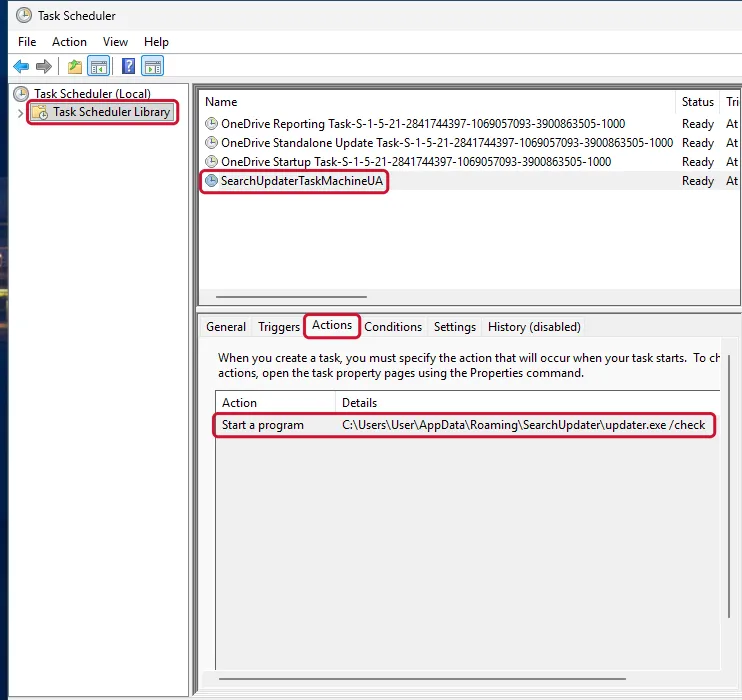
Windows 11: Task Scheduler Library, the task selected, the Actions tab shows the file it runs. Open Task Manager with Ctrl + Shift + Esc, select Startup apps (the Startup tab in Windows 10) and disable entries you do not recognise.
Right-click an entry and choose Open file location first, so you know which file to delete later. An empty Publisher column is a warning sign.
Check the registry startup keys that Task Manager does not always show.
Back up the registry first (Back up the registry before editing it On uGetFix). Press Windows + R, type
regeditand open, one by one,HKEY_CURRENT_USER\Software\Microsoft\Windows\CurrentVersion\Run,...\RunOnce, and the same two keys underHKEY_LOCAL_MACHINE. Delete a value only when its data points to the program you removed or to a file in%AppData%or%Temp%that you identified as malicious.Press Windows + R, type
services.mscand look for a service with the program's name or a random name.Double-click it and read Path to executable. If it points to the program's folder, set Startup type to Disabled and click Stop. Do not disable services from Microsoft or your hardware makers.
Delete the program's folders.
Paste these into the File Explorer address bar one at a time:
%LocalAppData%,%AppData%,%ProgramData%,C:\Program Files,C:\Program Files (x86). Delete folders with the program's or publisher's name, or with random names created on the install date that hold.exe,.dll,.jsor.ps1files. If a file is in use, restart and delete it before opening anything else, or do it in Safe Mode (Start Windows or a Mac in Safe Mode On uGetFix).Check the browser shortcuts: right-click each one > Properties > Shortcut tab > Target.
The target must end with the browser's program file in quotes, for example
"C:\Program Files\Google\Chrome\Application\chrome.exe". Remove any web address after it and click OK. For a taskbar shortcut, right-click the icon, then right-click the browser name in the menu to reach Properties.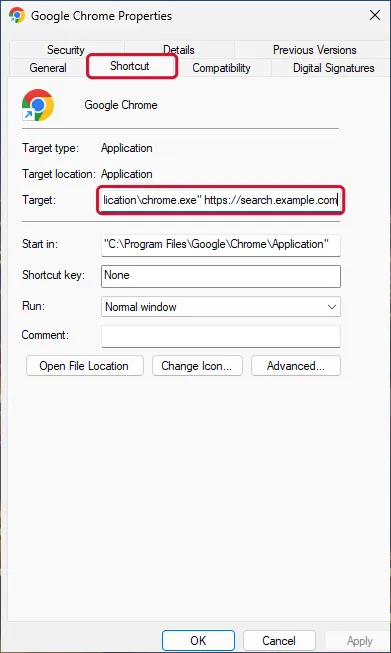
Windows 11: the Shortcut tab; everything after the closing quote in Target was added by a hijacker. Restart Windows and check that nothing came back, then run a full scan.
Look again at Task Scheduler, Startup apps and the folders you cleaned. Finish with a Microsoft Defender full scan and an offline scan (Run a Microsoft Defender Offline scan).
Keep notes as you go: the task name, the file path and the registry value. If the program returns, they show which piece you missed.
Browser settings changed by the program (search engine, start page, extensions) are fixed in the browser: see reset your browser and remove a browser extension.
Sources
- Microsoft Learn: Run and RunOnce registry keys (read October 4, 2026)
- Microsoft Support: Configure startup applications in Windows (read October 4, 2026)
- Microsoft Learn: Task Scheduler (read October 4, 2026)
- Microsoft Support: How to back up and restore the registry in Windows (read October 4, 2026)
If the steps did not help
It still comes back
- Another program reinstalls it. Look in Installed apps for anything else installed on the same day and remove it (Uninstall a program or app in Windows On uGetFix).
- A browser policy forces it. If the browser says "Managed by your organization", see managed by your organization.
- The browser syncs it back. Remove the extension on every computer signed in to the same browser account, or pause extension sync until all are clean.
- The scan finds it again after every removal. The system may be too damaged to trust: back up your files and reinstall Windows (Reinstall Windows without losing files On uGetFix).
What not to delete
- Tasks and services from Microsoft, your PC's maker (for example Dell, HP, Lenovo) and your graphics or audio driver.
- Folders of programs you use, even when the name is unfamiliar: search for the name first.
- Whole registry keys. Delete single values that you identified, never
Runitself.
Questions
Why does a program come back after I uninstall it?
Because the uninstaller removed the program but not what starts it: a scheduled task, a startup or Run registry entry, a service, or another program from the same bundle that reinstalls it. Remove those, then restart and check again.
Is it safe to delete scheduled tasks?
Deleting a task from an unknown program is safe. Leave the Microsoft folder and tasks from your hardware makers alone, and check the Actions tab before deleting anything you are not sure about.
How do I find where a startup program is located?
In Task Manager, open Startup apps (the Startup tab in Windows 10), right-click the entry and choose Open file location. File Explorer opens the folder with the file selected.