
Arcade Swim ads: what it is and how to remove it
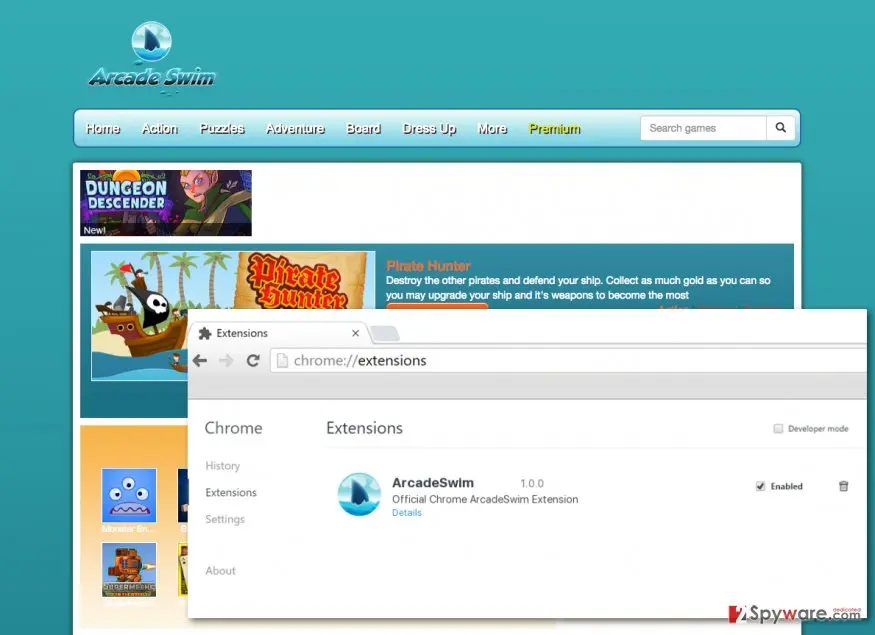
Don't get yourself overly emerged into the online gaming world and keep a lookout for the Arcade Swim virus. You should be very attentive because this website may not look any different from other sites that you are accustomed to visiting when you play games on the Internet.
Facts checked October 6, 2026. Removal steps tested on Windows 11 (26H2) and checked against Microsoft's and the browser makers' current documentation. Sections marked as our earlier report are the original text: they describe the threat as it was then and have not been reviewed since. The 2026 status, the removal steps and the questions are current.
Automatic
Get a free scan and check if your PC is infected.
Fortect finds malware, unwanted programs and the Windows damage they leave behind, and repairs it in one pass.
Clicked a notification from arcadeswim.com and installed something? A free scan checks programs and browsers in one pass.
Do it yourself · free Remove Arcade Swim ads yourself 2 steps, about 6 minutes, no software needed.
Arcade Swim ads: summary
| Detection names | No Microsoft detection name is known |
|---|---|
| Distribution | Not recorded in the old report |
| Damage | Not recorded in the old report |
| Name | Arcade Swim ads |
| Type | Push-notification spam site |
| Symptoms | Notification spam from a website |
| Removal | Scan the PC with security software to find and remove the malware and anything installed with it. Fortect scans Windows for malware and repairs the system files and settings it damaged. Remove it nowTo use the full-featured product, you have to purchase a license for Fortect. The scan is free. |
Show 7 more facts
| Evidence | One write-up by a security site; details still limited |
|---|---|
| Domains | arcadeswim.com |
| Ads shown as | Desktop notifications |
| Browsers | Chrome, Edge and Firefox |
| Installed on the PC | Nothing; a browser notification permission only |
| First seen | 31 August 2016 |
| Facts checked | 6 October 2026 |
Is Arcade Swim ads dangerous?
From our report of Aug 2016 · not reviewed since
Why using Arcade Swim can be dangerous?
Don't get yourself overly emerged into the online gaming world and keep a lookout for the Arcade Swim virus.
You should be very attentive because this website may not look any different from other sites that you are accustomed to visiting when you play games on the Internet. It's just as colorful and inviting, and does not fall back with the latest trends too. But some nasty secrets lie behind the surface.
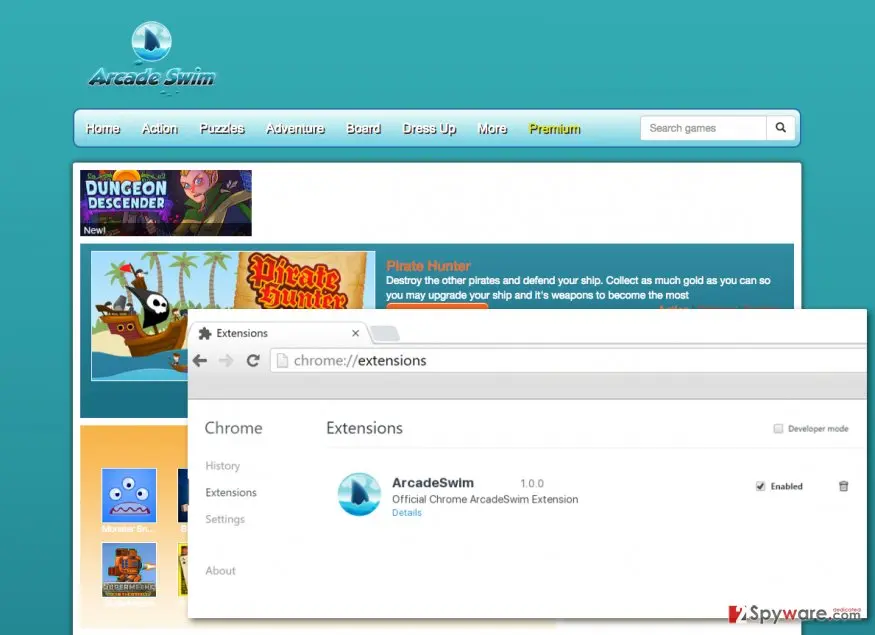
First of all, ArcadeSwim installs as an extension which supposedly provides the users with a quicker access and generally improved gaming experience. In reality, this additional browser component is implemented with a completely different purpose. If you are familiar with adware viruses, you probably already guessed what it is. If not, it would be a high time to get acquainted with the pay-per-click advertising.
This is a form of marketing which allows the free software creators to monetize their products through promoting third-party content. ArcadeSwim.com seems to be highly involved in this business because even if you do not register as a member and do not download the browser extension, you will still see sponsored ads when trying to play some of the offered games.
But some more serious issues arise after the extension is installed. If you wish to play online games, you better do it safely and remove Arcade Swim from your computer. The most effective adware elimination can be achieved automatically, using or other trustworthy anti-virus software.
To elaborate more on the Arcade Swim ads, we should point out that when this program is installed it will become virtually unpredictable where these pop-ups, banners, video or audio ads appear and what they advertise. Most likely, they will flood your most visited websites, but over time, they may take over every single page you visit.
Ads by Arcade Swim often suggest purchasing some products, services, encourage to fill some online surveys or summon you to check out particular websites. You should always keep a distance from such advertisements because they can often be infectious. Don't allow them to put your computer at risk. It would be even better if you performed the Arcade Swim removal before experiencing any of the mentioned problems.
How Arcade Swim ads got into your browser
From our report of Aug 2016 · not reviewed since
Usually, the Arcade Swim users install this extension on their computers themselves, simply because they are unaware that it is capable of triggering any trouble.
However, the program may also install along with other freeware or shareware applications even if you are not interested in online gaming whatsoever. Luckily, you can outsmart the malware creators and expose the stealthy installation before it takes place.
To do that, you have to run the program's setup in "Advanced" or "Custom" modes and check whether no additional programs are included the software package. If there are, inspect them carefully and in case you have any doubts, cancel their installation immediately and stop programs like Arcade Swim from ruining your gaming experience.
Check your browser and PC
- Address:
arcadeswim.com
How to remove Arcade Swim ads
How to stop Arcade Swim ads notifications
Do this in every browser you use, and in every profile inside it: each keeps its own list of sites allowed to send notifications.
Nothing has to be uninstalled for the notifications themselves.
Which browser shows the ads?
Step 1: Remove arcadeswim.com from Chrome's notification list
Open More (the three dots) > Settings > Privacy and security > Site settings > Notifications, or paste
chrome://settings/content/notificationsinto the address bar.Under Allowed to send notifications, open the menu next to
arcadeswim.comand choose Remove or Block, and do the same for any other address you do not recognise.Next to Not allowed to send notifications, click Add and enter arcadeswim.com, so the site cannot ask again. The menus are the same in Chrome on Windows 11 and Windows 10, and each Chrome profile keeps its own list.
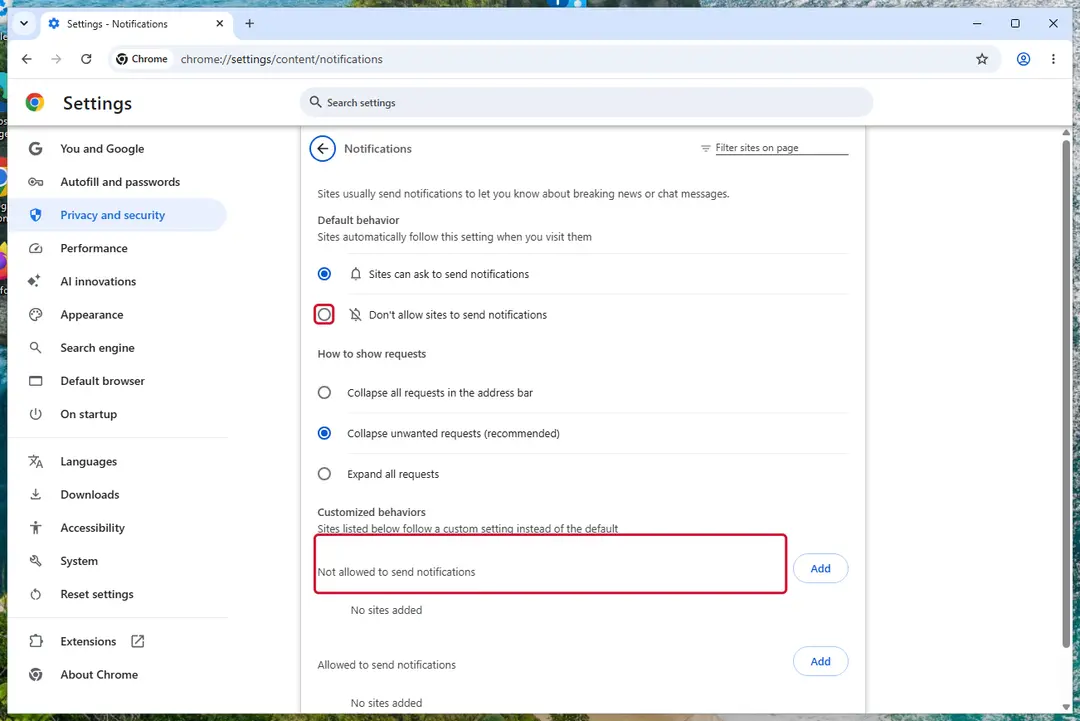
Chrome on Windows 11: Settings > Privacy and security > Site settings > Notifications. Full procedure with screenshots: Stop website notifications and pop-ups
Instructions for Google Chrome
Remove from Google Chrome
Delete malicious extensions from Google Chrome:
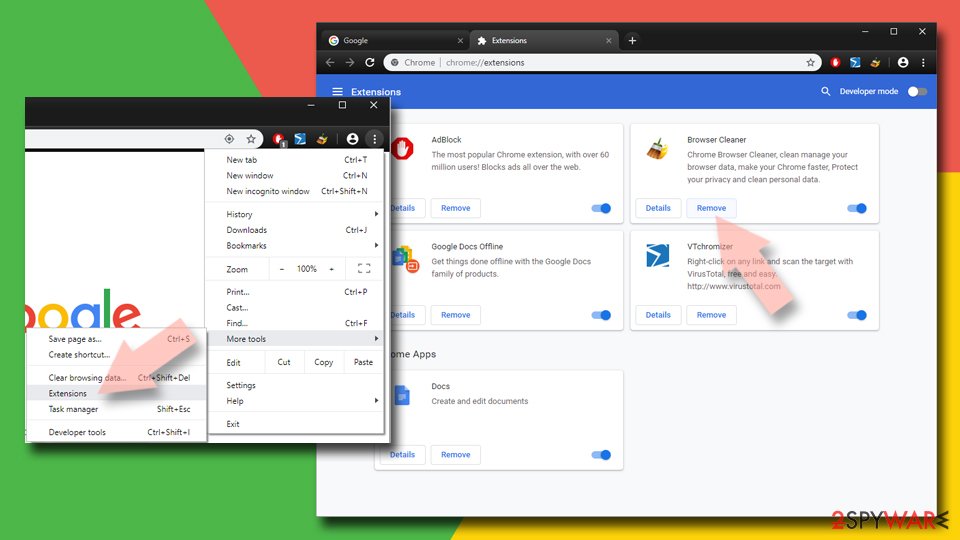
- Open Google Chrome, click on the Menu (three vertical dots at the top-right corner) and select More tools > Extensions.
- In the newly opened window, you will see all the installed extensions. Uninstall all suspicious extensions related to the unwanted program by clicking Remove.
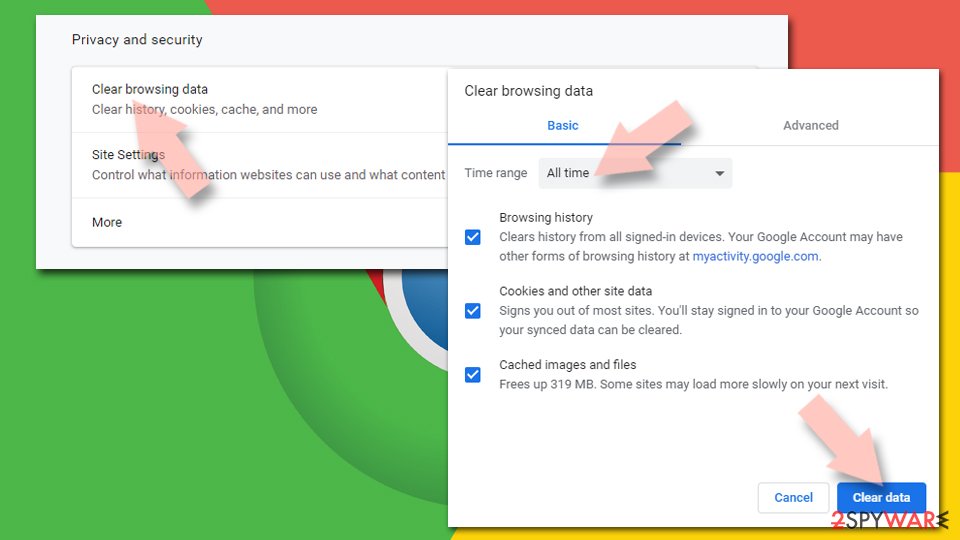
Clear cache and web data from Chrome:
- Click on Menu and pick Settings.
- Under Privacy and security, select Clear browsing data.
- Select Browsing history, Cookies and other site data, as well as Cached images and files.
- Click Clear data.
Change your homepage:
- Click menu and choose Settings.
- Look for a suspicious site in the On startup section.
- Click on Open a specific or set of pages and click on three dots to find the Remove option.
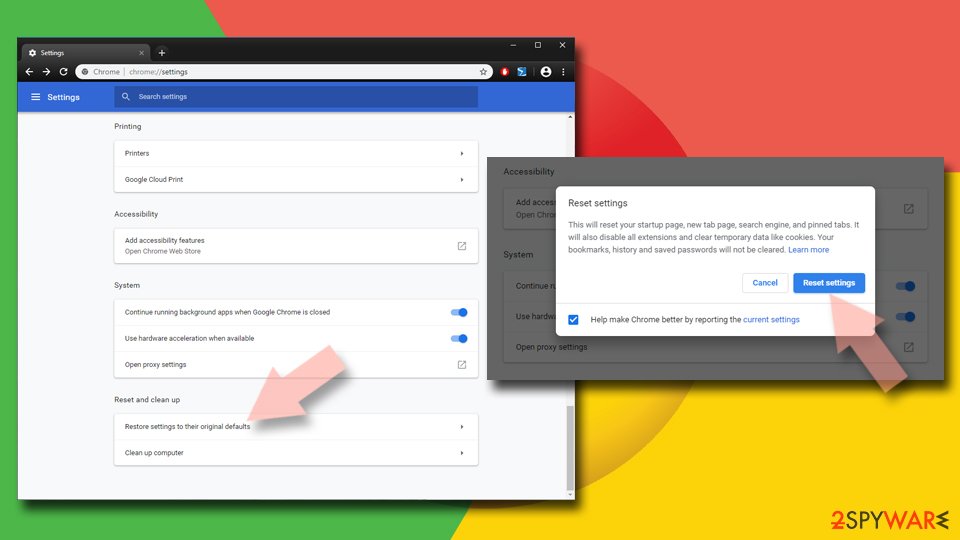
Reset Google Chrome:
If the previous methods did not help you, reset Google Chrome to eliminate all the unwanted components:
- Click on Menu and select Settings.
- In the Settings, scroll down and click Advanced.
- Scroll down and locate Reset and clean up section.
- Now click Restore settings to their original defaults.
- Confirm with Reset settings.
Step 1: Remove arcadeswim.com from Edge's notification list
Edge stores its own permission list, separate from Chrome's, and it is often the browser behind these pop-ups on Windows 11 and Windows 10.
Go to Settings > Privacy, search, and services > Site permissions > All permissions > Notifications, or paste
edge://settings/content/notifications. Removearcadeswim.comfrom Allowed, then add it under Not allowed to send notifications. Notifications that show the Edge logo come from this list.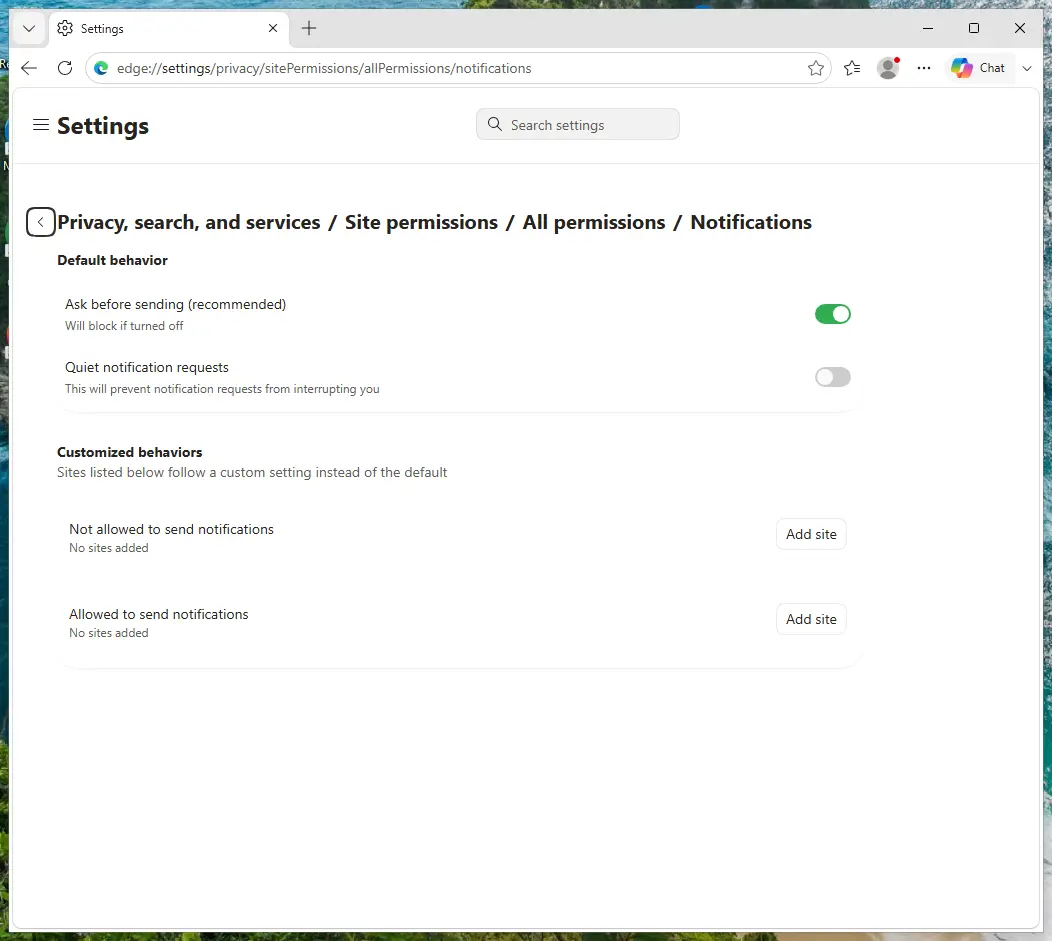
Edge on Windows 11: Site permissions > All permissions > Notifications. Full procedure with screenshots: Stop website notifications and pop-ups
Instructions for Microsoft Edge
Remove from Microsoft Edge
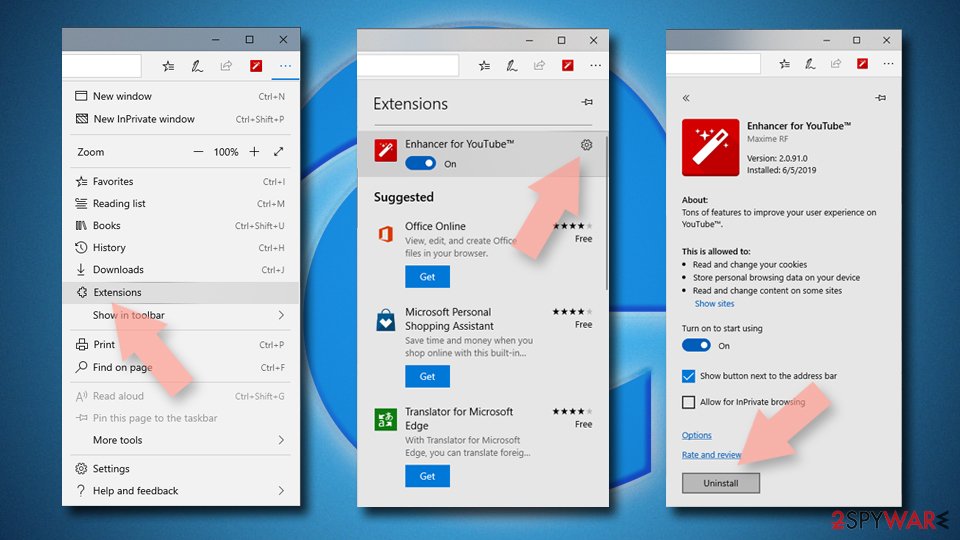
Delete unwanted extensions from MS Edge:
- Select Menu (three horizontal dots at the top-right of the browser window) and pick Extensions.
- From the list, pick the extension and click on the Gear icon.
- Click Remove.
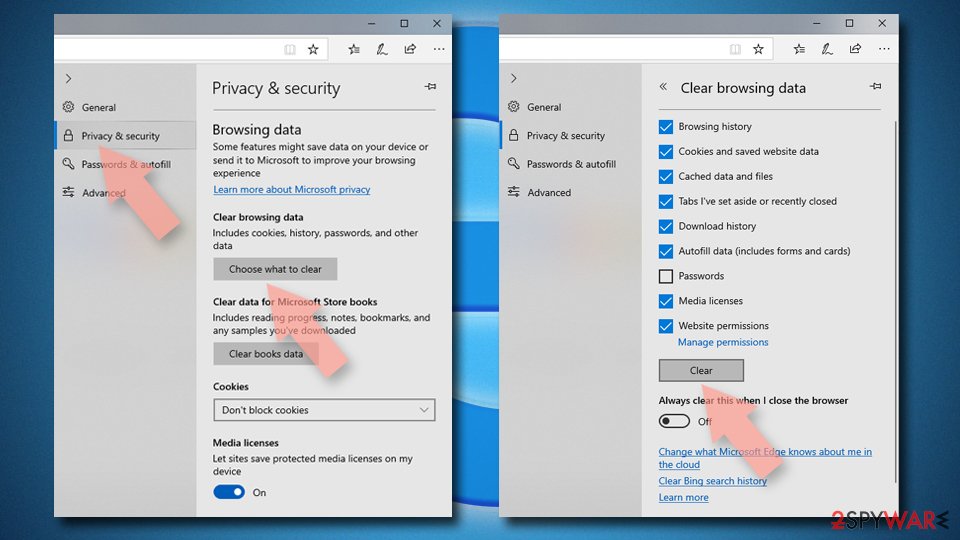
Clear cookies and other browser data:
- Click on the Menu (three horizontal dots at the top-right of the browser window) and select Settings > Privacy, search, and services..
- Under Clear browsing data, pick Choose what to clear.
- Select Cookies and other site data and Cached images and files. (apart from passwords, although you might want to include Media licenses as well, if applicable) and click on Clear.
Restore new tab and homepage settings:
- Click the menu icon and choose Settings.
- Then find On startup section.
- Click Remove next to any suspicious startup page.
Reset MS Edge if the above steps did not work:
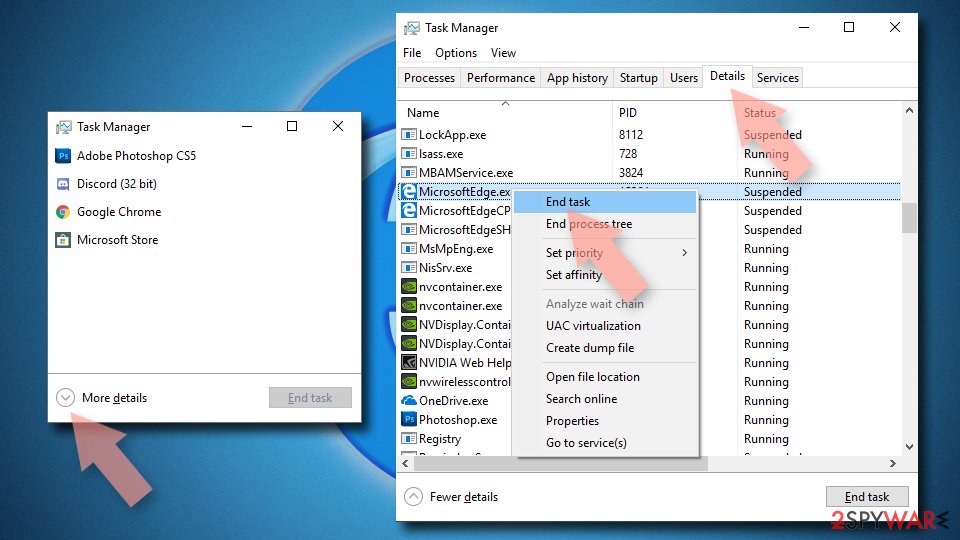
- Press on Ctrl + Shift + Esc to open Task Manager.
- Click on More details arrow at the bottom of the window.
- Select Details tab.
- Now scroll down and locate every entry with Microsoft Edge name in it. Right-click on each of them and select End Task to stop MS Edge from running.
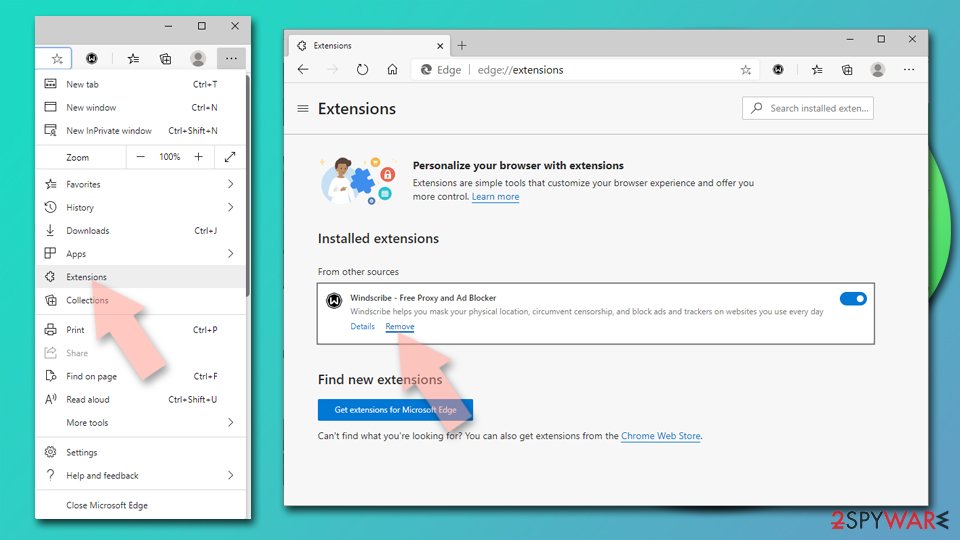
Delete extensions from MS Edge (Chromium):
- Open Edge and click select Settings > Extensions.
- Delete unwanted extensions by clicking Remove.
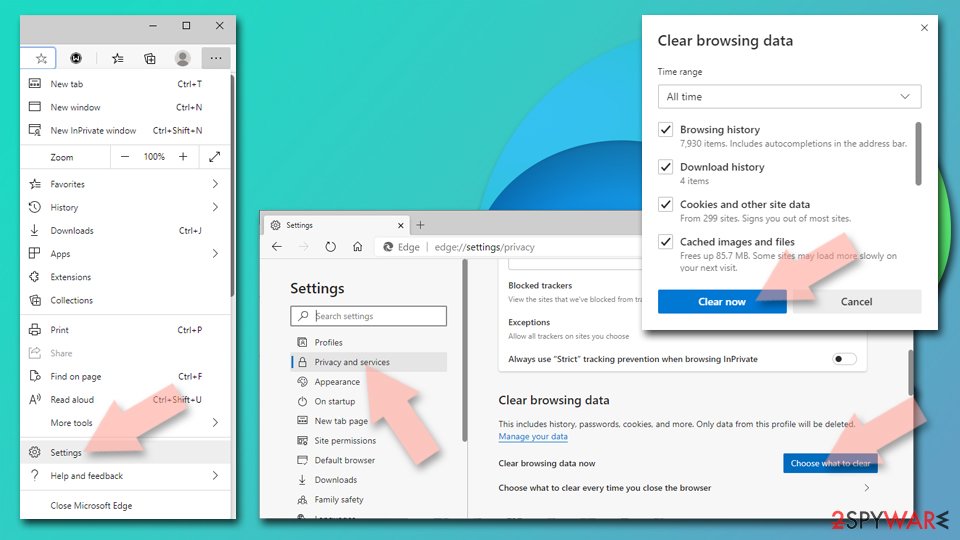
Clear cache and site data:
- Click on Menu and go to Settings.
- Select Privacy, search and services.
- Under Clear browsing data, pick Choose what to clear.
- Under Time range, pick All time.
- Select Clear now.
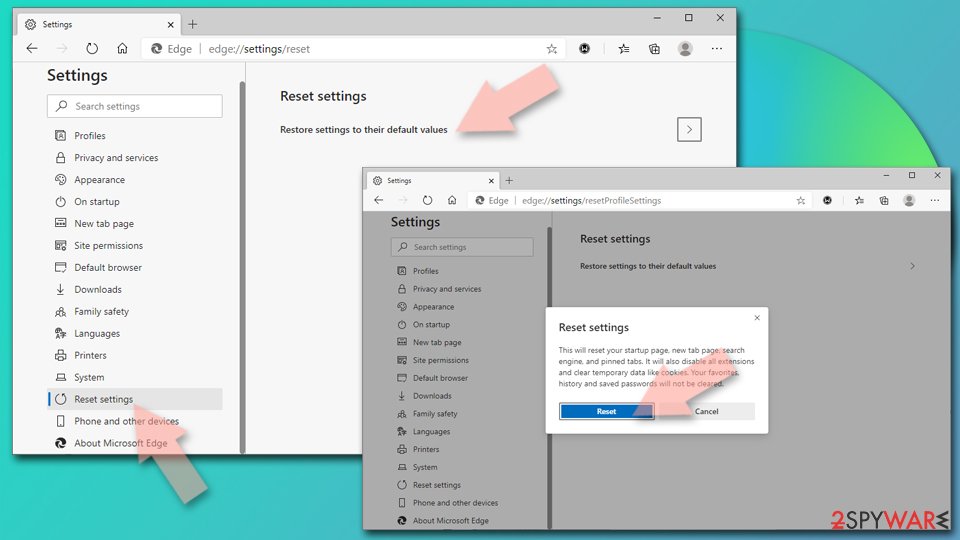
Reset Chromium-based MS Edge:
- Click on Menu and select Settings.
- On the left side, pick Reset settings.
- Select Restore settings to their default values.
- Confirm with Reset.
- This will disable extensions and reset startup pages but will not delete bookmarks, saved passwords, or browsing history.
Step 1: Remove arcadeswim.com from Firefox's notification permissions
In Firefox the permission sits in Settings > Permissions and data > Notifications (in older versions Privacy & Security > Notifications > Settings). Select
arcadeswim.comin the list, click Remove Website, and confirm with Save Changes.Firefox only shows these notifications while it is open, so if they stopped after closing Firefox, this is the browser to clean. The steps are the same on Windows 11 and Windows 10.
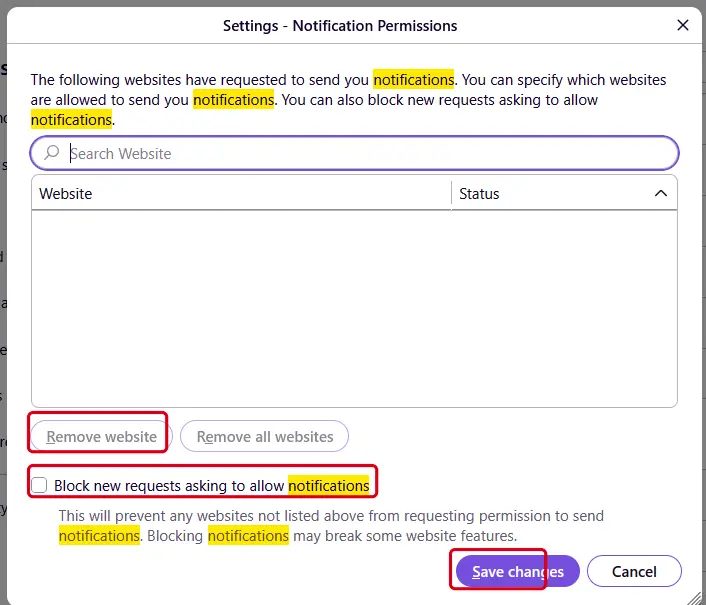
Firefox on Windows 11: the Notification Permissions window. Full procedure with screenshots: Stop website notifications and pop-ups
Instructions for Mozilla Firefox
Remove from Mozilla Firefox (FF)
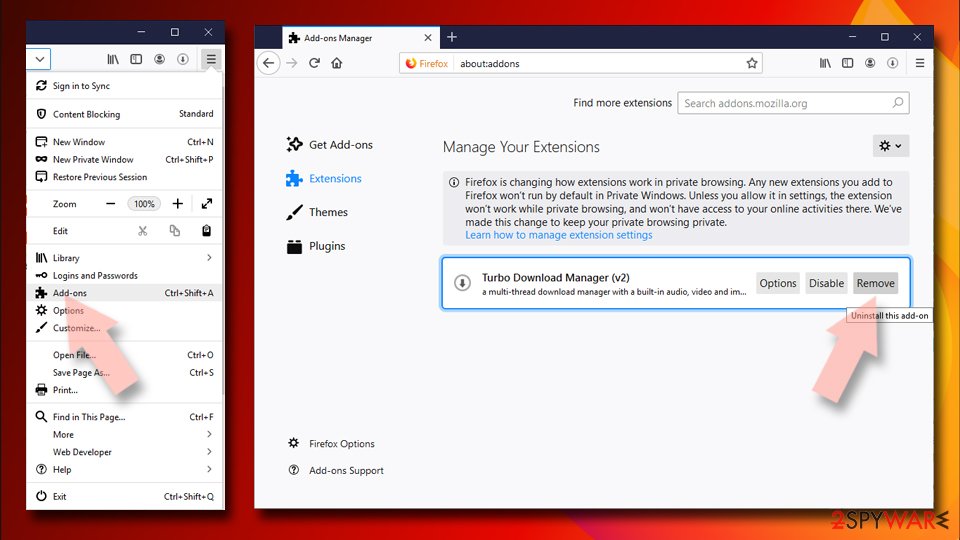
Remove dangerous extensions:
- Open Mozilla Firefox browser and click on the Menu (three horizontal lines at the top-right of the window).
- Select Add-ons.
- In here, select the unwanted extension and click Remove.
Reset the homepage:
- Click three horizontal lines at the top right corner to open the menu.
- Choose Settings.
- Under Home, set your preferred homepage and new tab settings.
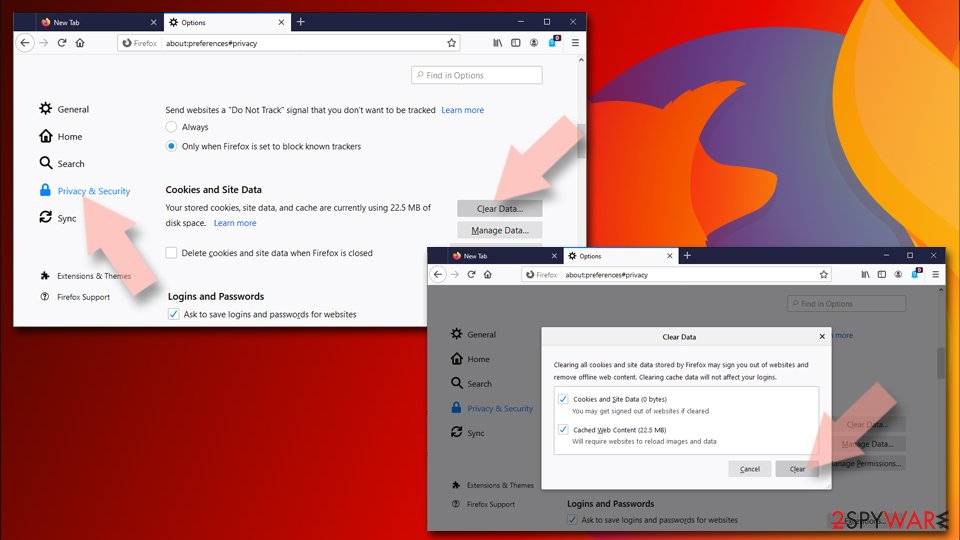
Clear cookies and site data:
- Click Menu and pick Settings.
- Go to Privacy & Security section.
- Scroll down to locate Cookies and Site Data.
- Click on Clear Data...
- Select Cookies and Site Data and Temporary cached files and pages, then click Clear.
Reset Mozilla Firefox
If clearing the browser as explained above did not help, reset Mozilla Firefox:
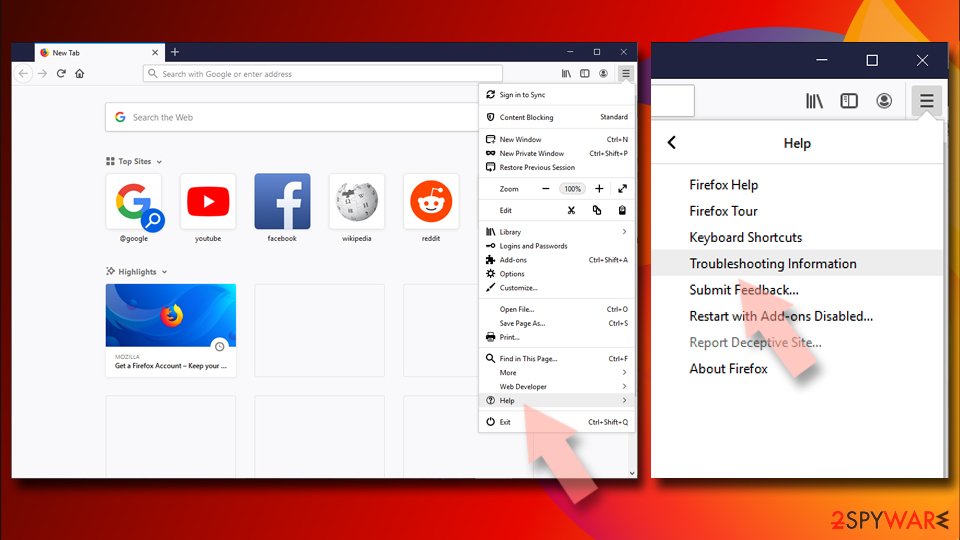
- Open Mozilla Firefox browser and click the Menu.
- Go to Help and then choose Troubleshooting Information.
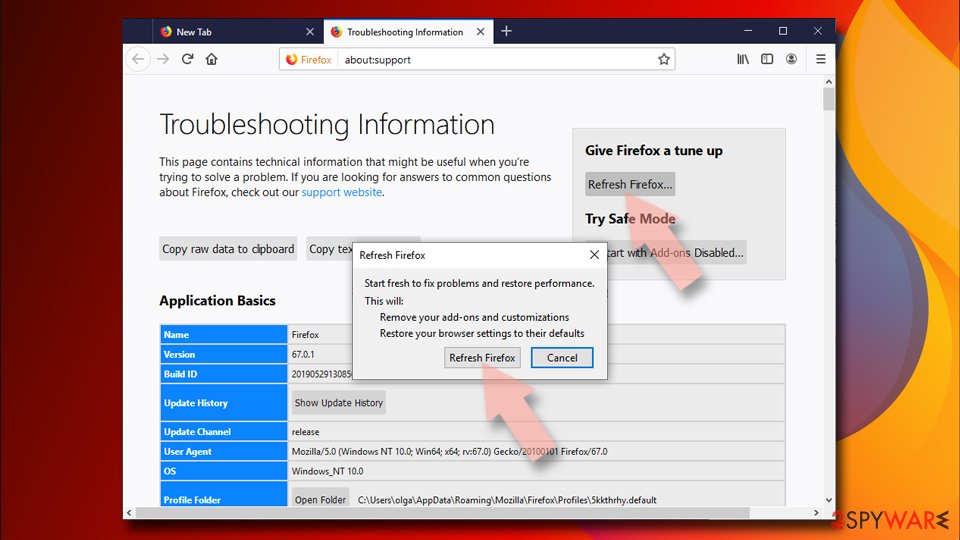
- Under Give Firefox a tune up section, click on Refresh Firefox...
- Once the pop-up shows up, confirm the action by pressing on Refresh Firefox.
Our tested steps are for Windows 11 and 10. For Safari (Mac), use the instructions below.
Instructions for Safari (Mac)
Delete from Safari
Remove dangerous extensions:
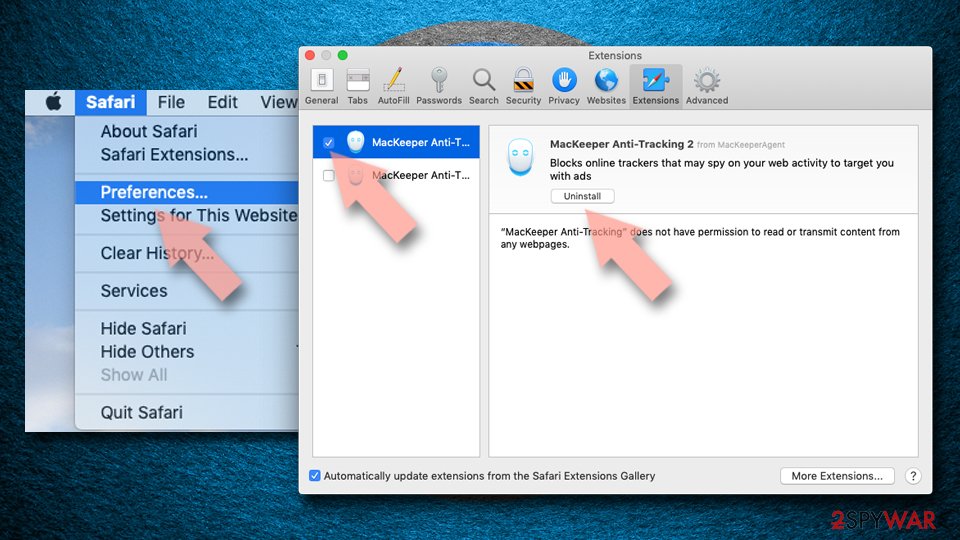
- Open Safari, click Safari in the menu at the top-left of the screen, and select Preferences.
- Go to the Extensions tab, look for any suspicious entries, and click Uninstall to remove them.
Clear history and website data:
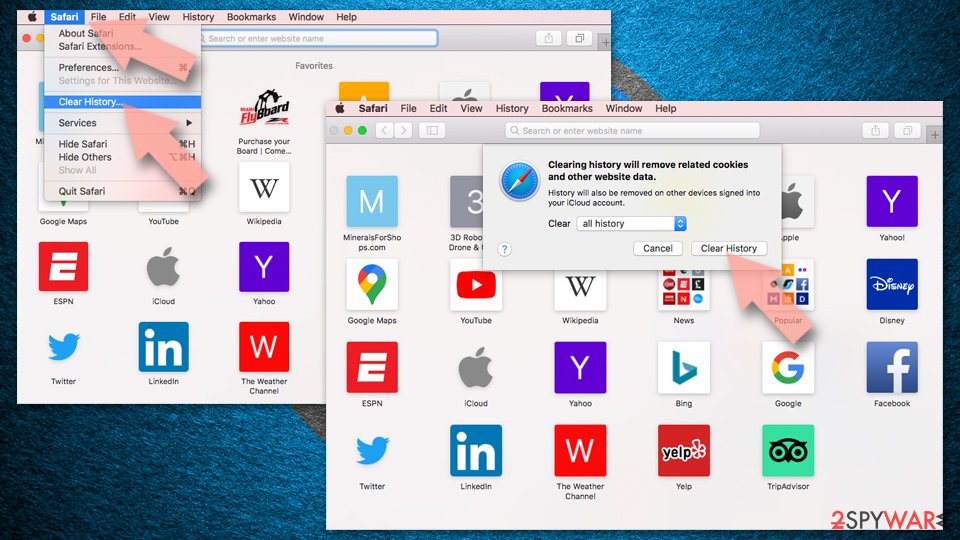
- Click Safari in the menu and pick Clear History.
- Set Clear to all history and confirm with Clear History.
Reset Safari:
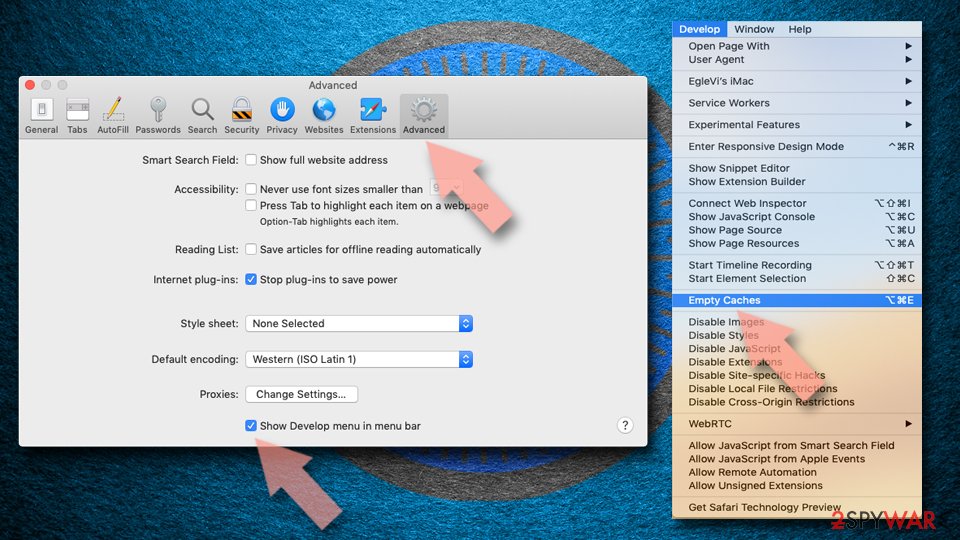
- Click Safari in the menu and select Preferences > Advanced.
- Enable Show Develop menu in menu bar.
- From the menu bar, click Develop and select Empty Caches.
Delete from macOS
Remove the unwanted application:
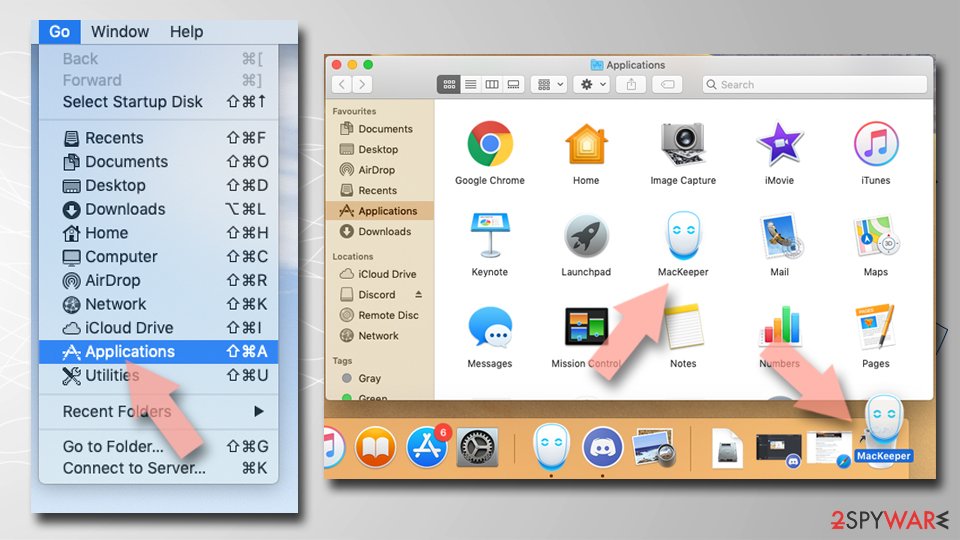
- From the menu bar, select Go > Applications.
- In the Applications folder, look for any suspicious entries, then drag them to Trash (or right-click and pick Move to Trash).
Delete leftover files and folders:
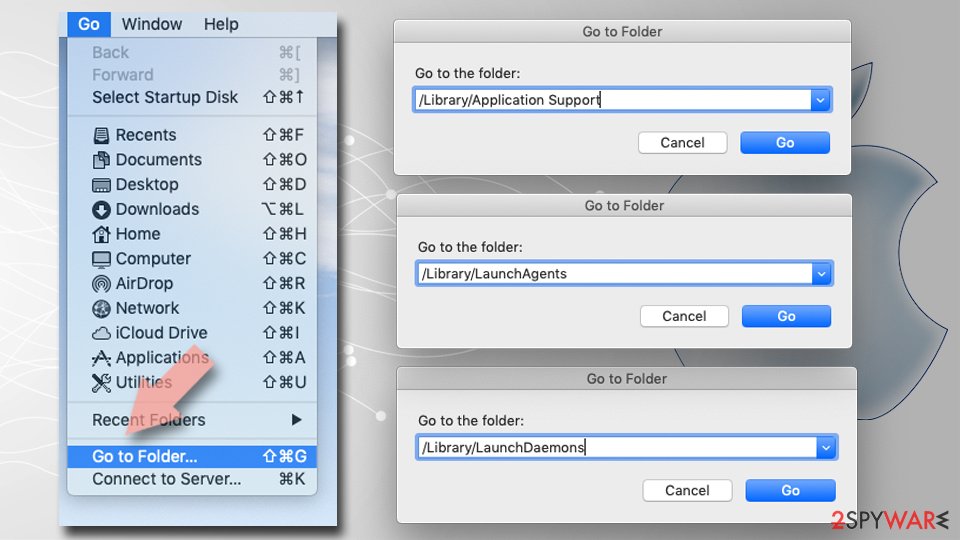
- Select Go > Go to Folder.
- Enter /Library/Application Support and remove any suspicious folders related to the unwanted program.
- Repeat the same check in the /Library/LaunchAgents and /Library/LaunchDaemons folders, deleting any suspicious entries.
- Finally, empty the Trash to permanently remove the leftovers.
Then, whichever browser you use
Step 2: Scan the PC if you downloaded anything from the ads
Most people who only saw the notifications can skip this step. If a notification or the page it opened made you download or run a file, delete the file and run a full scan, then a Microsoft Defender Offline scan.
In Windows 11 and Windows 10 open Windows Security > Virus & threat protection > Scan options, select Microsoft Defender Antivirus (offline scan) and click Scan now. The PC restarts and the scan takes about 15 minutes, so save your work first.
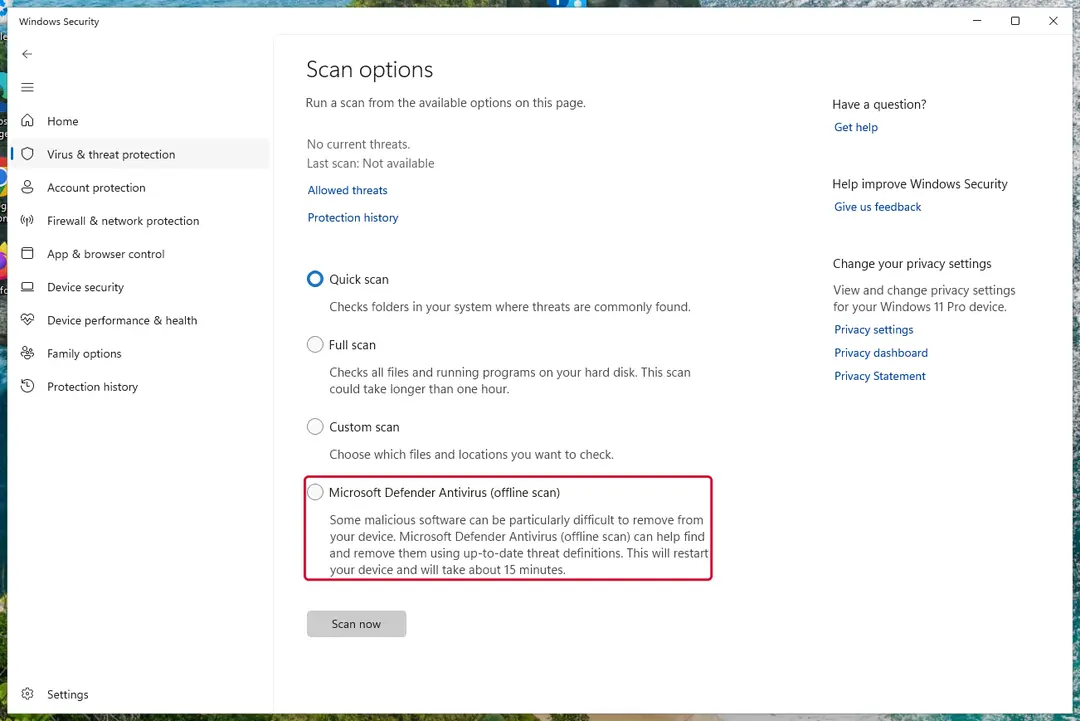
Windows 11: Windows Security > Virus & threat protection > Scan options. Full procedure with screenshots: Run a Microsoft Defender Offline scan
More removal instructions
For programs installed on the PC and older browsers. Open the one you need.
Arcade Swim removal strategies
There are several steps to the Arcade Swim removal.
First, you have to decontaminate the adware itself by locating all of its related components and deleting them from your PC. This can be done using automatic utilities, such as anti-malware or anti-spyware. Then, follows the extension removal.
Antivirus software may be able to fix that for you but, more likely, you will have to deal with this part of the removal yourself. If you are not sure where to start, follow the instructions we have prepared for you below.
Uninstall from Windows
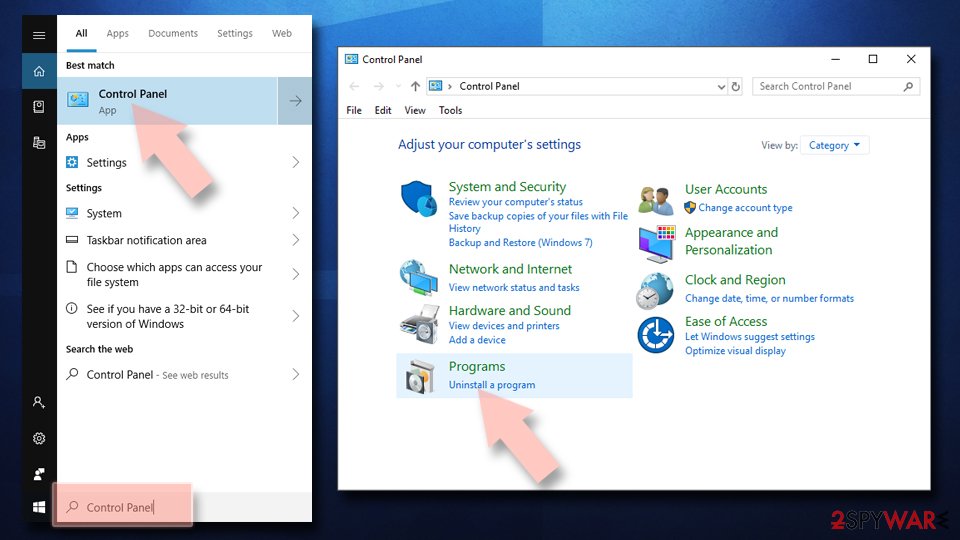
Uninstall from Windows 10/8:
- Type Control Panel into the Windows search box and open the result.
- Under Programs, select Uninstall a program.
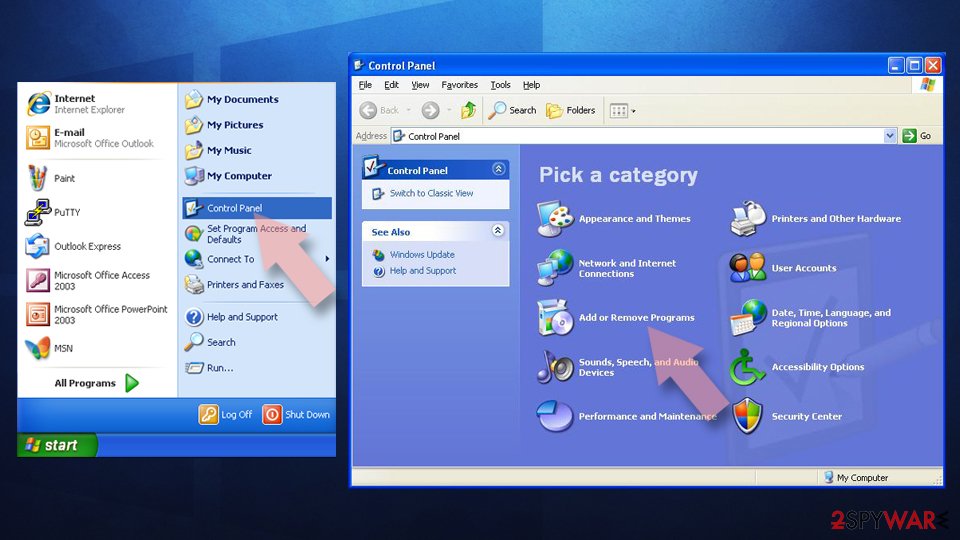
Uninstall from Windows 7/XP:
- Click on Windows Start > Control Panel (Windows XP users should click on Add/Remove Programs).
- In Control Panel, select Programs > Uninstall a program.
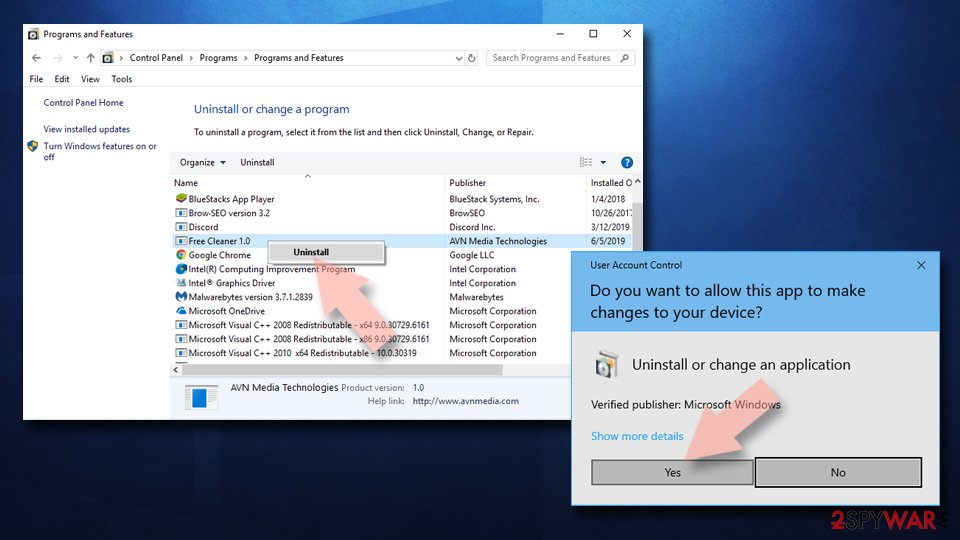
Remove the unwanted program:
- In the Programs and Features window, look for any recently installed suspicious entries, select them, and click Uninstall.
- If User Account Control appears, click Yes to confirm, then complete the removal.
Choose a proper web browser and improve your safety with a VPN tool
Online spying has got momentum in recent years and people are getting more and more interested in how to protect their privacy online.
One of the basic means to add a layer of security - choose the most private and secure web browser. Although web browsers can't grant full privacy protection and security, some of them are much better at sandboxing, HTTPS upgrading, active content blocking, tracking blocking, phishing protection, and similar privacy-oriented features.
However, if you want true anonymity, we suggest you employ a powerful VPN - it can encrypt all the traffic that comes and goes out of your computer, preventing tracking completely.
Lost your files? Use data recovery software
While some files located on any computer are replaceable or useless, others can be extremely valuable.
Family photos, work documents, school projects - these are types of files that we don't want to lose. Unfortunately, there are many ways how unexpected data loss can occur:
- power cuts
- Blue Screen of Death errors
- hardware failures
- crypto-malware attack
- even accidental deletion
To ensure that all the files remain intact, you should prepare regular data backups. You can choose cloud-based or physical copies you could restore from later in case of a disaster. If your backups were lost as well or you never bothered to prepare any, can be your only hope to retrieve your invaluable files.
Questions about Arcade Swim ads
arcadeswim.com keeps sending notifications. Is it a virus?
No. Notifications from arcadeswim.com come from a permission stored in the browser, not from a program installed in Windows. Someone clicked Allow on a prompt from that site, usually without realising what it meant, and the site now sends ads through the browser's notification system.
Antivirus scans often find nothing because there is nothing to find on the disk. Removing arcadeswim.com from the browser's list of allowed sites stops the messages for good. A scan is still useful if you clicked a notification and downloaded or ran something from the page it opened, because those downloads can be unwanted programs.
Did a notification from arcadeswim.com infect my computer?
A notification cannot infect a PC. It is a short text with a link that the browser displays. Clicking it opens a page, and a page cannot install anything unless you agree to a download and run the file.
So the answer depends on what you did after clicking. Looked and closed: you are fine. Downloaded but did not open: delete the file.
Opened a downloaded file: uninstall what it added and scan the PC. Typed card or login details: contact the bank and change the password. In every case, remove arcadeswim.com from the browser's allowed notifications so the messages stop.
What is Arcade Swim ads?
Arcade Swim ads is a push-notification spam site, a kind of adware. It earns money by showing desktop notifications, and each view, click or redirect pays whoever runs it. It is not something people usually choose; it arrives through a free download, a fake button or a misleading prompt.
Arcade Swim ads does not encrypt files or take control of Windows, but its ads are sold to anyone, including scam operators, so they can lead to fake virus warnings and unwanted downloads. The steps in this guide remove it from Windows and from each browser.
Why does arcadeswim.com keep showing up?
There are two possible reasons. If it appears as desktop notifications, a browser on this PC was given permission to receive them from arcadeswim.com, usually through a misleading prompt. That permission stays until you remove it in the browser's site settings.
If it appears as tabs or redirects, an ad on a site you visit is opening it, or an extension or program on the PC is. Test a private window: if arcadeswim.com never appears there, an extension is the likely cause. The plan above covers each case.
Do I have to change settings in every browser?
Only in the browsers that allowed arcadeswim.com, but checking all of them takes a minute and is worth it. We saw the notifications in Chrome, Edge and Firefox. Chrome and Edge keep their notification lists under site settings, and Firefox under Privacy & Security > Permissions.
Remove arcadeswim.com and any other unfamiliar site from each list, then turn off new notification requests if you do not need them. Remember that every browser profile has its own list, so a second profile can keep the messages coming after you clean the first.
Are the pop-ups I see really from Arcade Swim ads?
Compare them with the details in the table above. Arcade Swim ads produces desktop notifications, and the clearest sign of it is notifications from arcadeswim.com. Other adware looks similar, so check the name of the sending site at the bottom of a notification, the address in the tab that opened, or the newest entries on the extensions page.
If those match, this guide fits. If you see a different name, the same kind of steps apply, but remove the item you actually find rather than guessing.
Can I turn off the pop-ups in Windows settings instead?
You can hide them, but that is not the fix. In Windows 11, Settings > System > Notifications lets you switch off notifications for a whole browser, which silences the spam together with every useful notification from that browser.
The site keeps its permission and can still send messages when you switch them back on. It is better to remove the specific site in the browser's own notification settings and block new requests. That stops the messages at the source and leaves the rest of your notifications working.
My scan found nothing, but the ads continue. Why?
Because the source may not be a file a scanner looks for. Browser notifications are a permission stored in the browser, and many adware extensions are not flagged because they come from an official store.
Some ad-supported programs are only reported if you enable detection of potentially unwanted apps. So a clean scan does not mean the job is done. Check each browser's notification permissions and extension list by hand, and turn on Potentially unwanted app blocking in Windows Security before scanning again.
Can an adware pop-up infect my PC just by appearing?
No. A pop-up, a notification or a new tab is only a web page or a message. It cannot run programs on Windows by itself, provided the browser and Windows are up to date. Infection needs a step from you:
- running a downloaded file
- installing an extension
- giving a stranger remote access
That is why scam pages work so hard to make you click. Close such pages with the tab's X or by closing the browser, not with buttons inside the page, which may start a download.
Will Fortect remove Arcade Swim ads?
No program removes Arcade Swim ads itself, because there is nothing on the PC to remove: the notifications come through a permission saved in the browser, and only the browser's settings take it away, as the steps above show.
What Fortect can do is check the rest of Windows. Its free scan looks for malware, unwanted programs and damaged system files, which is useful if you clicked the ads, downloaded something from the pages they opened, or are not sure what else changed on the PC.
If the scan finds nothing and the notifications stopped after you removed the permission, this problem is solved. Use Microsoft Defender as a second opinion whenever you have downloaded files from pages like these.
Sources
- Google Chrome Help: Use notifications to get alerts (no longer online) (read October 6, 2026)
- FTC: How to recognize, remove and avoid malware (read October 6, 2026)
- Microsoft Learn: Microsoft Defender Offline (read October 6, 2026)
- Microsoft Learn: How Microsoft names malware (read October 6, 2026)