
Libruies.com ads: what it is and how to remove it
Libruies.com is a questionable website that often becomes noticeable when unexpected pop-ups start appearing on the desktop. Many users are caught off guard by this behavior, as the notifications seem to show up regardless of the website they are currently browsing.
Facts checked October 7, 2026. Removal steps tested on Windows 11 (26H2) and checked against Microsoft's and the browser makers' current documentation. Sections marked as our earlier report are the original text: they describe the threat as it was then and have not been reviewed since. The 2026 status, the removal steps and the questions are current.
Automatic
Get a free scan and check if your PC is infected.
Fortect finds malware, unwanted programs and the Windows damage they leave behind, and repairs it in one pass.
A quick scan confirms that the libruies.com notifications did not lead to anything being installed.
Do it yourself · free Remove Libruies.com ads yourself 2 steps, about 6 minutes, no software needed.
Libruies.com ads: summary
| Distribution | The website gains access to deliver any information as soon as the "Allow" button is pressed within the push notification prompt |
|---|---|
| Damage | If you click on links provided by the website, you might end up infecting your system with malware/PUPs, disclosing your personal information to cybercriminals, or losing money for useless services |
| Name | Libruies.com |
| Type | Push notifications, ads, scam, pop-ups |
| Symptoms | Notifications show up at the bottom-right corner of the screen – these include fraudulent content and links to potentially dangerous websites |
| Detection names | No Microsoft detection name is known |
| Removal | Scan the PC with security software to find and remove the malware and anything installed with it. Fortect scans Windows for malware and repairs the system files and settings it damaged. Remove it nowTo use the full-featured product, you have to purchase a license for Fortect. The scan is free. |
Show 7 more facts
| Evidence | One write-up by a security site; details still limited |
|---|---|
| Domains | libruies.com |
| Ads shown as | Desktop notifications |
| Browsers | Chrome, Edge and Firefox |
| Installed on the PC | Nothing; a browser notification permission only |
| First seen | 24 February 2025 |
| Facts checked | 7 October 2026 |
Is Libruies.com ads dangerous?
From our report of Feb 2025 · not reviewed since
Libruies.com is a misleading website that shows unwanted ads on your desktop
Libruies.com is a questionable website that often becomes noticeable when unexpected pop-ups start appearing on the desktop.
Many users are caught off guard by this behavior, as the notifications seem to show up regardless of the website they are currently browsing.
The reason behind these Libruies.com ads lies in previously granted permission for push notifications. Users often allow this unintentionally, as the site relies on misleading tactics to convince them to click the "Allow" button. Since the consequences don't appear immediately, it's common for users to overlook the connection between their earlier interaction and the intrusive notifications.
What makes Libruies.com notifications particularly concerning is not just their persistent nature but also the content they promote. These alerts may lead users to scam websites, expose them to potentially harmful software, or even trick them into sharing sensitive information, ultimately resulting in financial losses.
From our report of Feb 2025 · not reviewed since
What are push notifications?
Many users might find it difficult to distinguish between pop-up ads and push notifications, and it's easy to understand why.
Both appear as separate windows, often showing commercial content at unexpected times. While their primary aim is the same - to generate ad revenue - the way they function is quite different.
Typically, pop-up ads are triggered when users visit specific websites that host such advertisements. In this case, avoiding the website in question usually stops the ads from appearing. However, Libruies.com operates differently because it relies on the browser's push notification API (Application Programming Interface).
This distinction means that Libruies.com notifications are not tied to any specific website. They can show up regardless of which sites users are currently visiting, and the browser itself doesn't even need to be actively in use. In some cases, users might even get pulled out of full-screen mode while watching videos or playing games if the browser is running quietly in the background.
From our report of Feb 2025 · not reviewed since
Push Notifications from fake websites
Push notifications themselves are not harmful; they were introduced to web browsers in 2015 as a convenient way for websites to share updates with users.
This system requires users to voluntarily accept notifications from a specific site. Typically, trustworthy websites use this feature responsibly, avoiding spam or any content that could pose a risk to users.
However, sites like Libruies.com exploit this system for deceptive purposes. These websites don't provide any legitimate content - instead, their sole objective is to get users to click the "Allow" button. Once permission is granted, they can flood the user's device with intrusive advertisements. Here are some common examples of the misleading prompts users might encounter when visiting such sites:
These messages are designed to mislead users by disguising the purpose of the "Allow" button. The tactic works because users often see similar prompts on legitimate sites but under completely different circumstances. The same deceptive alerts can appear across various scam websites, not just Libruies.com.
Ultimately, scammers prioritize ad revenue over user safety. They rely on poorly regulated advertising networks, which often deliver low-quality, misleading, or even harmful content. Users subjected to Libruies.com notifications should remain cautious, as interacting with these ads could lead to exposure to scams, malware, or phishing attempts.
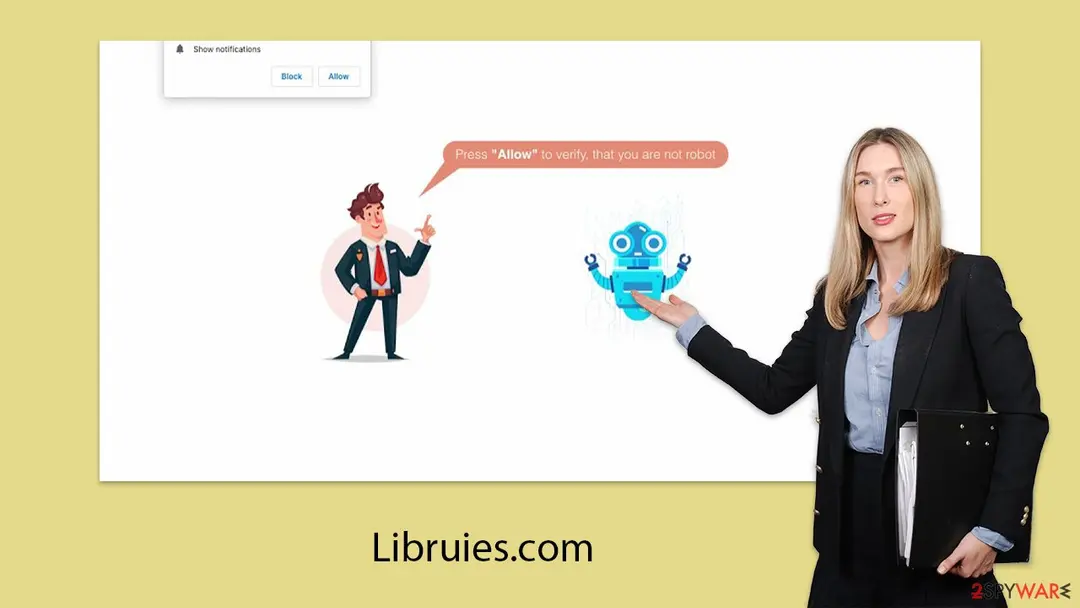
- Click "Allow" if you are not a robot.
- Just one more step! Click "Allow" to continue.
- If you are 18+, tap "Allow."
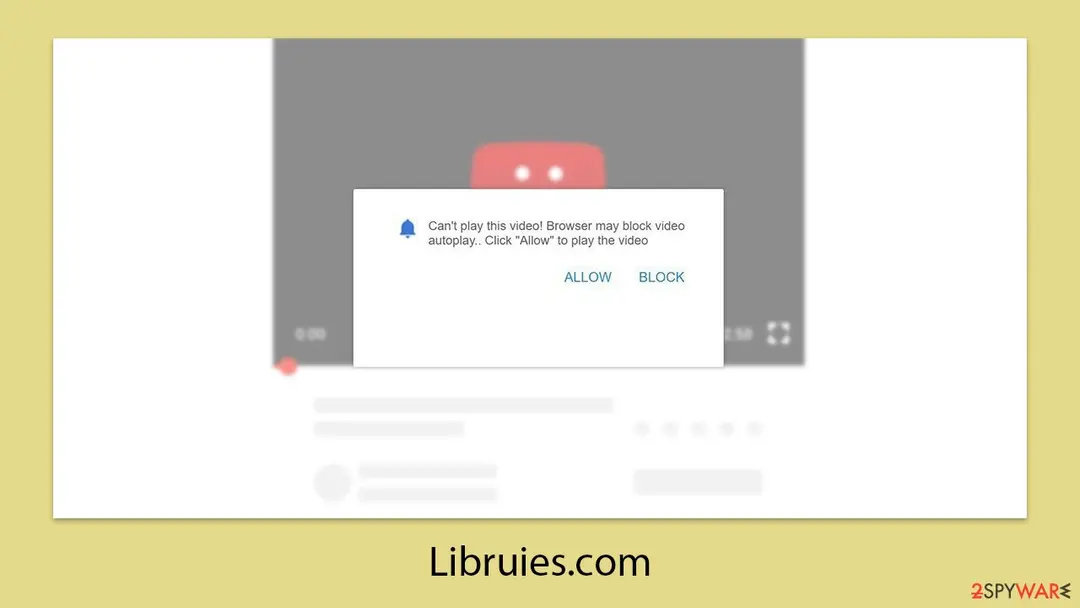
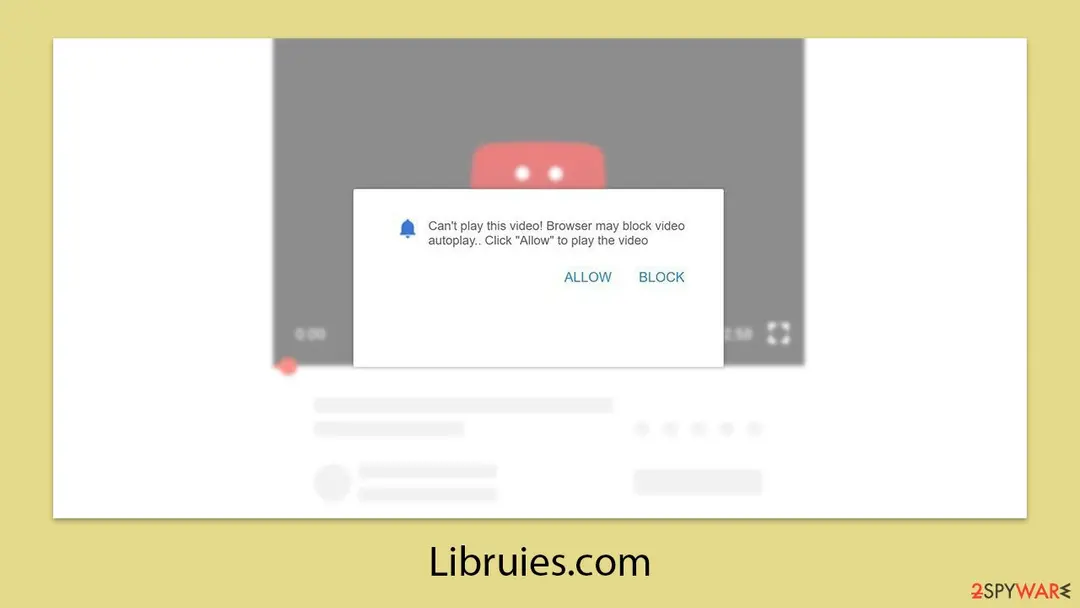
- Can't play this video! Perhaps, your browser doesn't allow video playback. Click "Allow" button to play video
- Click "Allow" to win a prize and claim it in our store!
From our report of Feb 2025 · not reviewed since
More from our earlier report on Libruies.com
- Access browser settings to stop intrusive push notifications.
- After that, make sure that your system is not infected with adware or malware - scan it with
- Third parties can use cookies to continue tracking your online activities, so you should browser caches and other leftover files with to secure your privacy
Check your browser and PC
- Address:
libruies.com
How to remove Libruies.com ads
How to stop Libruies.com notifications
Do this in every browser you use, and in every profile inside it: each keeps its own list of sites allowed to send notifications.
Nothing has to be uninstalled for the notifications themselves.
Which browser shows the ads?
Step 1: Remove libruies.com from Chrome's notification list
Open More (the three dots) > Settings > Privacy and security > Site settings > Notifications, or paste
chrome://settings/content/notificationsinto the address bar.Under Allowed to send notifications, open the menu next to
libruies.comand choose Remove or Block, and do the same for any other address you do not recognise.Next to Not allowed to send notifications, click Add and enter libruies.com, so the site cannot ask again. The menus are the same in Chrome on Windows 11 and Windows 10, and each Chrome profile keeps its own list.
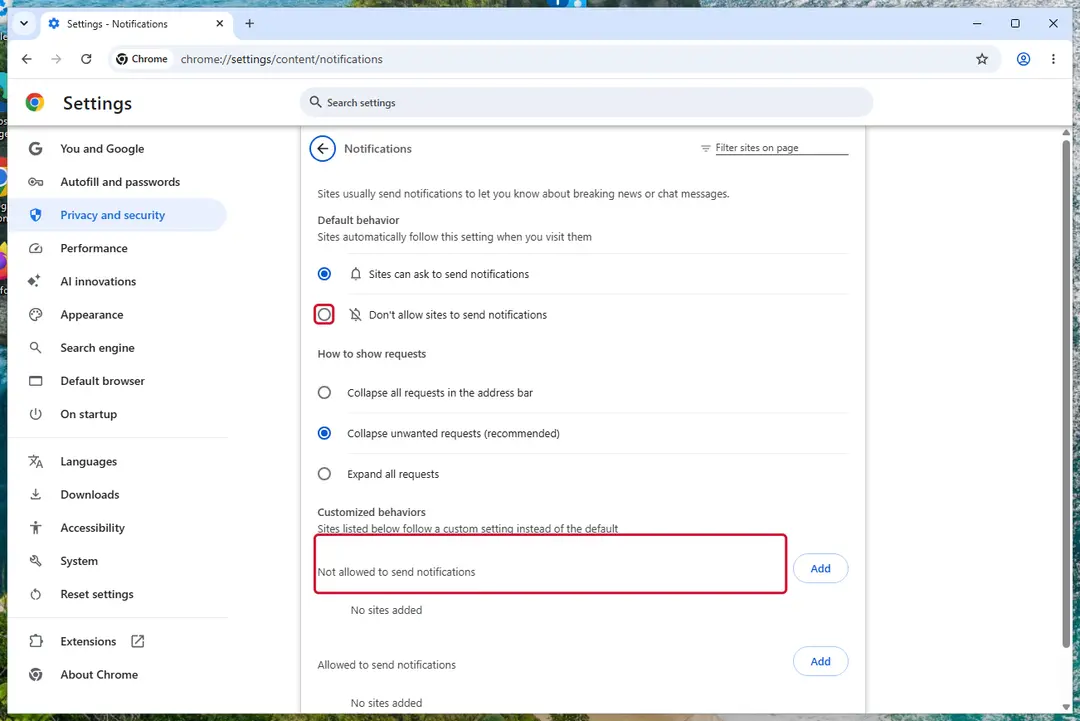
Chrome on Windows 11: Settings > Privacy and security > Site settings > Notifications. Full procedure with screenshots: Stop website notifications and pop-ups
Step 1: Remove libruies.com from Edge's notification list
Edge stores its own permission list, separate from Chrome's, and it is often the browser behind these pop-ups on Windows 11 and Windows 10.
Go to Settings > Privacy, search, and services > Site permissions > All permissions > Notifications, or paste
edge://settings/content/notifications. Removelibruies.comfrom Allowed, then add it under Not allowed to send notifications. Notifications that show the Edge logo come from this list.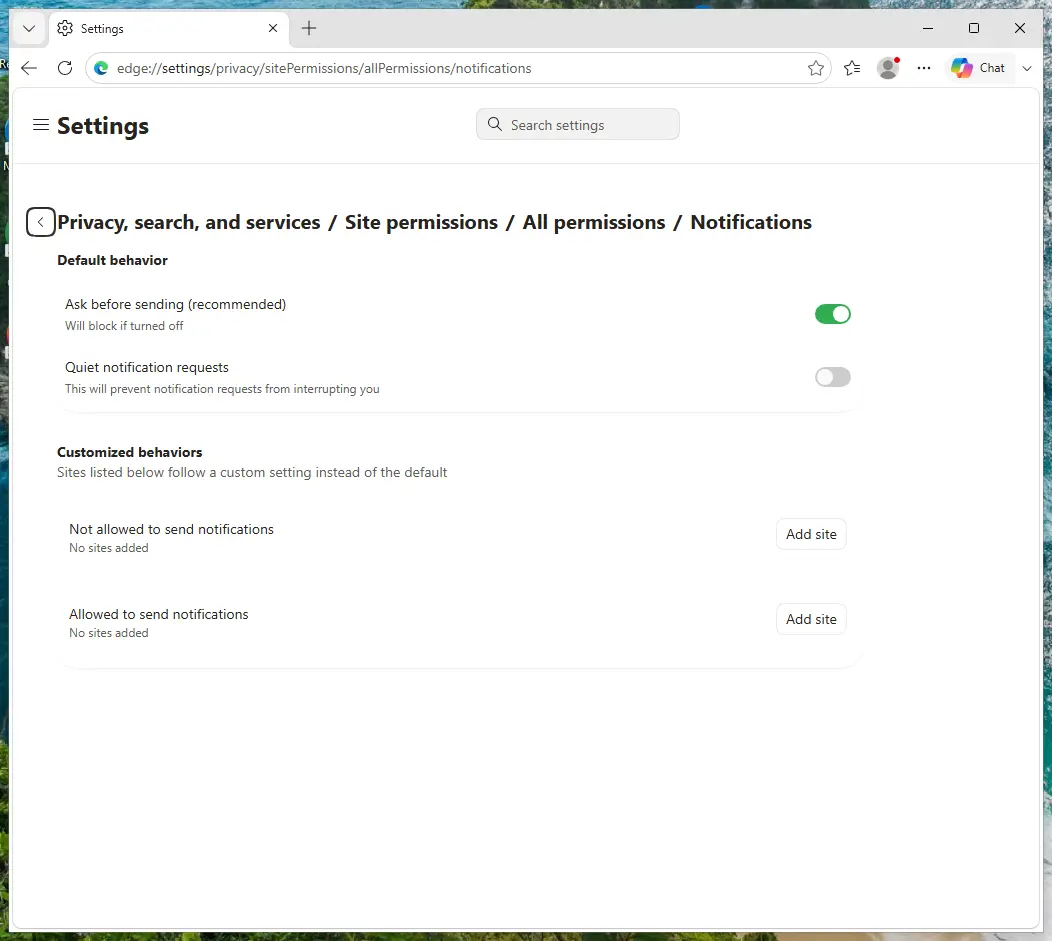
Edge on Windows 11: Site permissions > All permissions > Notifications. Full procedure with screenshots: Stop website notifications and pop-ups
Step 1: Remove libruies.com from Firefox's notification permissions
In Firefox the permission sits in Settings > Permissions and data > Notifications (in older versions Privacy & Security > Notifications > Settings). Select
libruies.comin the list, click Remove Website, and confirm with Save Changes.Firefox only shows these notifications while it is open, so if they stopped after closing Firefox, this is the browser to clean. The steps are the same on Windows 11 and Windows 10.
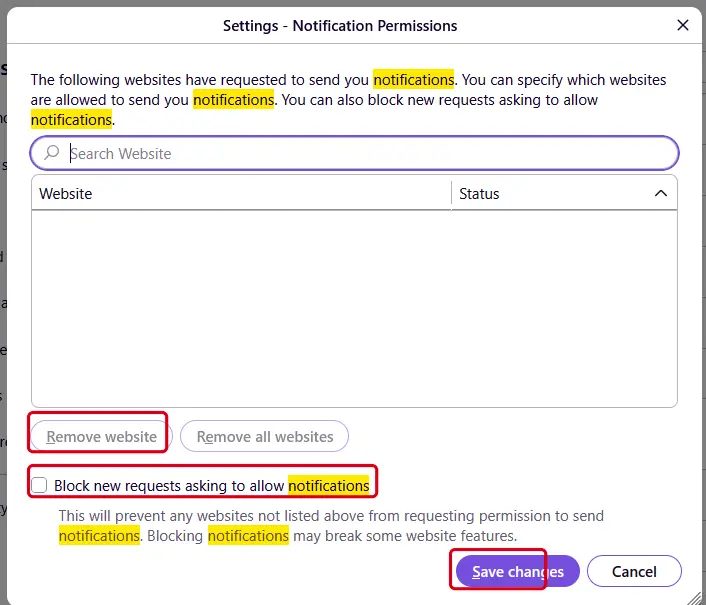
Firefox on Windows 11: the Notification Permissions window. Full procedure with screenshots: Stop website notifications and pop-ups
Then, whichever browser you use
Step 2: Scan the PC if you downloaded anything from the ads
Most people who only saw the notifications can skip this step. If a notification or the page it opened made you download or run a file, delete the file and run a full scan, then a Microsoft Defender Offline scan.
In Windows 11 and Windows 10 open Windows Security > Virus & threat protection > Scan options, select Microsoft Defender Antivirus (offline scan) and click Scan now. The PC restarts and the scan takes about 15 minutes, so save your work first.

Windows 11: Windows Security > Virus & threat protection > Scan options. Full procedure with screenshots: Run a Microsoft Defender Offline scan
More removal instructions
For programs installed on the PC and older browsers. Open the one you need.
Libruies.com ads removal explained
It's worth noting that push notifications cannot be removed by security software or automated tools - they require manual intervention.
Many users, after unknowingly subscribing to Libruies.com notifications, remain unaware of the cause behind the persistent alerts or how to put an end to them. Fortunately, the solution is simple: blocking the site's URL through the browser's site settings will immediately stop the unwanted notifications. Here's how you can do it:
Google Chrome (desktop)
Google Chrome (Android)
MS Edge (Chromium)
- Open the Google Chrome browser and go to Menu > Settings.
- Locate the Privacy and security section and pick Site Settings > Notifications.
- Look at the Allow section and look for a suspicious URL.
- Click the three vertical dots next to it and pick Block. This should remove unwanted notifications from Google Chrome.
- Open Google Chrome and tap on Settings (three vertical dots).
- Select Notifications.
- Locate the unwanted URL and toggle the button to the left (Off setting).
- Open Mozilla Firefox and go to Menu > Options.
- Click on Privacy & Security section.
- Under Permissions, you should be able to see Notifications. Click the Settings button next to it.
- In the Settings – Notification Permissions window, click on the drop-down menu by the URL in question.
- Select Block and then click on Save Changes. This should remove unwanted notifications from Mozilla Firefox.
- Open Microsoft Edge, and go to Settings.
- Select Site permissions.
- Go to Notifications on the right.
- Under Allow, you will find the unwanted entry.
- Click on More actions and select Block.
- Click on Safari > Preferences...
- Go to the Websites tab and, under General, select Notifications.
- Select the web address in question, click the drop-down menu and select Deny.
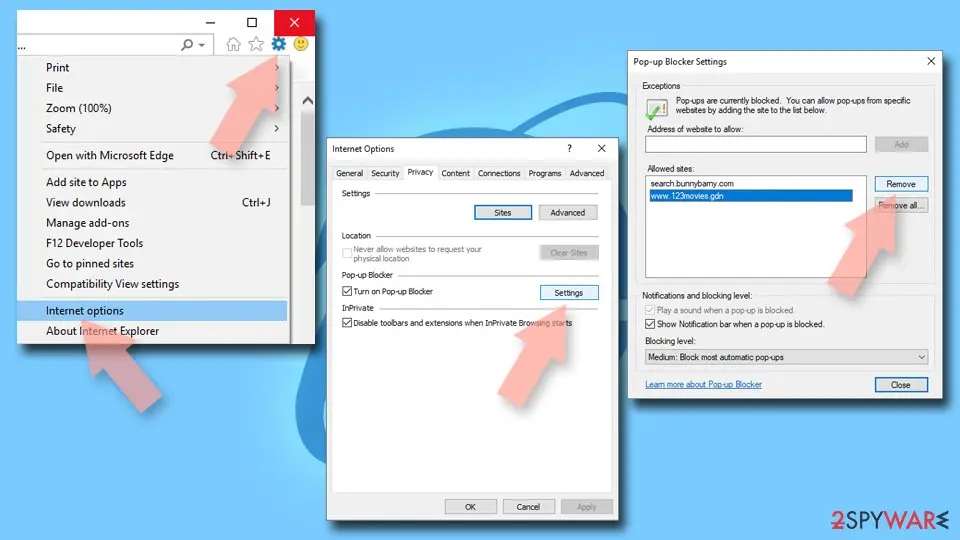
- Open Internet Explorer, and click on the Gear icon at the top-right of the window.
- Select Internet options and go to the Privacy tab.
- In the Pop-up Blocker section, click on Settings.
- Locate the web address in question under Allowed sites and pick Remove.
Don't forget to check for infections
After removing Libruies.com notifications, it's essential to ensure that your system is not compromised by adware or other malicious software that might be contributing to the problem.
Threats like these often spread through deceptive methods, such as fake updates, software bundles, or misleading advertisements. Since such programs are designed to run quietly in the background, users might not immediately recognize their presence.
Adware often installs itself as a browser extension, making the extensions menu the best place to start your inspection. Open your browser settings, navigate to the "Extensions" section, and remove any suspicious or unfamiliar add-ons.
However, some adware may install at the system level, allowing it to affect more than just the browser. To address this thoroughly, performing a full system scan with , , or another reputable anti-malware program is highly recommended. After ensuring that all malicious components have been removed, using can help clean browser caches, such as cookies, and repair any potential damage caused by the unwanted software.
Protect your privacy - employ a VPN
There are several ways how to make your online time more private - you can access an incognito tab.
However, there is no secret that even in this mode, you are tracked for advertising purposes. There is a way to add an extra layer of protection and create a completely anonymous web browsing practice with the help of VPN. This software reroutes traffic through different servers, thus leaving your IP address and geolocation in disguise.
Besides, it is based on a strict no-log policy, meaning that no data will be recorded, leaked, and available for both first and third parties. The combination of a secure web browser and VPN will let you browse the Internet without a feeling of being spied or targeted by criminals.
No backups? No problem. Use a data recovery tool
If you wonder how data loss can occur, you should not look any further for answers - human errors, malware attacks, hardware failures, power cuts, natural disasters, or even simple negligence.
In some cases, lost files are extremely important, and many straight out panic when such an unfortunate course of events happen. Due to this, you should always ensure that you prepare proper data backups on a regular basis.
If you were caught by surprise and did not have any backups to restore your files from, not everything is lost. is one of the leading file recovery solutions you can find on the market - it is likely to restore even lost emails or data located on an external device.
Questions about Libruies.com ads
How do I stop notifications from libruies.com?
Remove its permission in the browser. The bottom line of each notification names the browser, so open that browser's notification settings and look under Allowed. Remove libruies.com and any other site you do not recognise.
In Chrome and Edge this is under the site settings for notifications; in Firefox it is under Settings, Permissions and data, Notifications. Do this in every browser profile, because each one keeps its own list.
Restart the browser and wait a few minutes. If a message still arrives, read its bottom line again: the sending address can differ from the site you remember, and that is the entry still left in the list.
I clicked a notification from libruies.com. What should I do?
If you only opened the page and closed it, nothing else is needed besides removing the permission from libruies.com. If the page asked for card details, a phone number or a password and you entered them, act on that: call the bank to block the card, or change the password from another device.
If it offered a download, delete the file unopened, or uninstall it from Installed apps if you ran it, then run a full scan. If you called a number shown on the page, follow the steps for callers in this guide. Finally, remove the permission so that no more messages arrive.
What is Libruies.com?
Libruies.com is a push-notification spam site, a kind of adware. It earns money by showing desktop notifications, and each view, click or redirect pays whoever runs it. It is not something people usually choose; it arrives through a free download, a fake button or a misleading prompt.
Libruies.com does not encrypt files or take control of Windows, but its ads are sold to anyone, including scam operators, so they can lead to fake virus warnings and unwanted downloads. The steps in this guide remove it from Windows and from each browser.
Why does libruies.com keep showing up?
There are two possible reasons. If it appears as desktop notifications, a browser on this PC was given permission to receive them from libruies.com, usually through a misleading prompt. That permission stays until you remove it in the browser's site settings.
If it appears as tabs or redirects, an ad on a site you visit is opening it, or an extension or program on the PC is. Test a private window: if libruies.com never appears there, an extension is the likely cause. The plan above covers each case.
Do I have to change settings in every browser?
Only in the browsers that allowed libruies.com, but checking all of them takes a minute and is worth it. We saw the notifications in Chrome, Edge and Firefox. Chrome and Edge keep their notification lists under site settings, and Firefox under Privacy & Security > Permissions.
Remove libruies.com and any other unfamiliar site from each list, then turn off new notification requests if you do not need them. Remember that every browser profile has its own list, so a second profile can keep the messages coming after you clean the first.
Are the pop-ups I see really from Libruies.com?
Compare them with the details in the table above. Libruies.com produces desktop notifications, and the clearest sign of it is notifications from libruies.com. Other adware looks similar, so check the name of the sending site at the bottom of a notification, the address in the tab that opened, or the newest entries on the extensions page.
If those match, this guide fits. If you see a different name, the same kind of steps apply, but remove the item you actually find rather than guessing.
Can an adware pop-up infect my PC just by appearing?
No. A pop-up, a notification or a new tab is only a web page or a message. It cannot run programs on Windows by itself, provided the browser and Windows are up to date. Infection needs a step from you:
- running a downloaded file
- installing an extension
- giving a stranger remote access
That is why scam pages work so hard to make you click. Close such pages with the tab's X or by closing the browser, not with buttons inside the page, which may start a download.
I let a "support technician" from an ad connect to my PC. What should I do?
Act quickly but calmly. Disconnect the PC from the internet first, so the connection ends. Uninstall the remote access tool they asked you to install and check Installed apps for anything else added during the call.
Run a Microsoft Defender full scan and offline scan. From another device, change your e-mail and banking passwords and sign out of all sessions.
If you paid by card, bank transfer or gift card, contact your bank or the card issuer immediately, and report the scam to the police. Do not answer if they call back.
My scan found nothing, but the ads continue. Why?
Because the source may not be a file a scanner looks for. Browser notifications are a permission stored in the browser, and many adware extensions are not flagged because they come from an official store.
Some ad-supported programs are only reported if you enable detection of potentially unwanted apps. So a clean scan does not mean the job is done. Check each browser's notification permissions and extension list by hand, and turn on Potentially unwanted app blocking in Windows Security before scanning again.
Will Fortect remove Libruies.com?
No program removes Libruies.com itself, because there is nothing on the PC to remove: the notifications come through a permission saved in the browser, and only the browser's settings take it away, as the steps above show.
What Fortect can do is check the rest of Windows. Its free scan looks for malware, unwanted programs and damaged system files, which is useful if you clicked the ads, downloaded something from the pages they opened, or are not sure what else changed on the PC.
If the scan finds nothing and the notifications stopped after you removed the permission, this problem is solved. Use Microsoft Defender as a second opinion whenever you have downloaded files from pages like these.
Sources
- Google Chrome Help: Use notifications to get alerts (no longer online) (read October 7, 2026)
- FTC: How to recognize, remove and avoid malware (read October 7, 2026)
- Microsoft Learn: Microsoft Defender Offline (read October 7, 2026)
- Microsoft Learn: How Microsoft names malware (read October 7, 2026)