

Adload is the Mac adware campaign that triggers installations of random useless apps
| Name | Adload virus |
|---|---|
| Type | Mac adware application[2] |
| Purpose | This is the threat that triggers installations of macOS intruders |
| Distribution | The program itself is distributed via deceptive sites, advertisements, other online content, and with the help of PUP that exposes users to direct download of the shady application |
| Elimination | You should remove Adload virus fro the system and make sure to run a proper anti-malware tool to search for additional PUAs that run in the background |
| Repair | Make sure to run a tool that can fix the damage and indicate any corruption on the machine. We would recommend FortectIntego |
Adload virus can bypass the protection since there are no programs installed directly on the machine, so users cannot see the intruder at all, only experience symptoms after the malicious intervention. Apple system cannot distinguish between malware infections downloaded by the trojan or a legitimate app that users downloaded themselves, so you need to run additional programs that can find threats and remove them properly.
Even though some may claim that macOS devices are immune to viruses, you need anti-malware tools, additional security programs help to remove Adload virus from the system and avoid other possible intruders related to this adware campaign. Removing the program is the best approach to keeping your Mac safe.
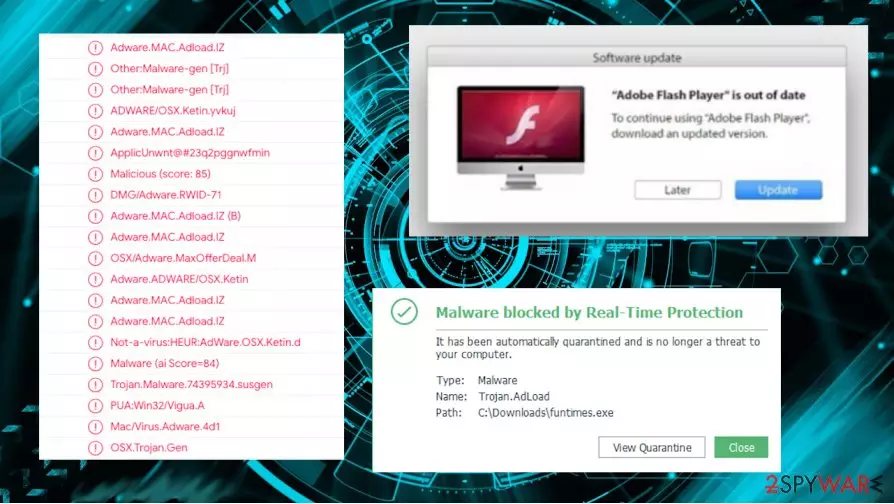
Adload virus can be removed using an antivirus program, some of them have options for Apple products, try SpyHunterCombo Cleaner or MalwarebytesMalwarebytes, but always base your selection on detection rate[3] and reputability of the distributor and program developer. Detect names are changing because of the databases AV tools use, so can be very different:
- Adware.MAC.Adload.IZ;
- OSX/Adware.MaxOfferDeal.M;
- Mac/Virus.Adware.4d1;
- Adware.MaxOfferDeal.OSX.66.

Adload macOS adware is the more general term used to describe the potentially unwanted program that triggers changes on the machine, so this intrusive program leads to various unwanted sites and triggers installations of possibly hazardous apps. This intruder can work alongside various ad-supported sites and promote anything from adware to rogue system tools or AV programs.
Adload adware – a method for intrusive application distribution
Adload App forces users to visit sites, click on advertisements, trigger malicious downloads, and enable revenue generation this way. There are many versions of these AdLoad Mac Applications that get installed on the machine behind your back:
|
|
|
Adload virus removal success is strongly related to the distribution of this Mac Virus and other programs that can get installed behind your back. When there are many PUAs on the machine, you cannot find the infection and remove it easily. Those additional applications that PUP triggers to appear all make sure to keep the PUP persistent and more intrusive.
MacOffers and Adload programs, all the applications that get to interfere with your online experiences get distributed via those deceptive pop-ups with claims about Adode Flash installers and updates. There are many programs that rely on this popular software and pop-up, redirect, push notification techniques.
You should be aware that macOS is not immune to any threats. Adware and potentially unwanted programs can target these devices especially. There are many issues that Adload creates, so AV vendors include the programing their databases, you can properly remove the threat using such applications.
Adload malware can be installed as an additional piece of the software bundle when you skip important steps during the freeware installations. If the installer for the free program is already tampered with, you might not even notice the additional app listed, so choosing Advanced or Custom options might be crucial.

Get rid of the unsafe programs and terminate Adload virus itself
Adload is a campaign that helps distribute various shady programs, rogue system tools, and adware applications. This is the intruder that shouldn't be considered useful or harmless. You cannot know what programs get installed and what processes get triggered behind your back.
Make sure to remove Adload virus fully. Since it is a browser-based threat that can affect your device's speed and performance, it sometimes interferes with web browsers. If you need to reset, your online browsing tools rely on the guide for the browser resting below. You might find intruders directly on Google Chrome, Safari, or different tools, so make sure to eliminate them.
Adload virus removal can improve the performance, too, if you run a proper system scan using the application designed to clear the machine and terminate malware or PUPs. Make sure to choose trustworthy programs, so you can be sure that bundling or additional apps installation is not a risk.
Delete from macOS
Remove the unwanted application:
- From the menu bar, select Go > Applications.
- In the Applications folder, look for any suspicious entries, then drag them to Trash (or right-click and pick Move to Trash).


Delete leftover files and folders:
- Select Go > Go to Folder.
- Enter /Library/Application Support and remove any suspicious folders related to the unwanted program.
- Repeat the same check in the /Library/LaunchAgents and /Library/LaunchDaemons folders, deleting any suspicious entries.

- Finally, empty the Trash to permanently remove the leftovers.

Remove from Mozilla Firefox (FF)
Remove dangerous extensions:
- Open Mozilla Firefox browser and click on the Menu (three horizontal lines at the top-right of the window).
- Select Add-ons.
- In here, select the unwanted extension and click Remove.


Reset the homepage:
- Click three horizontal lines at the top right corner to open the menu.
- Choose Settings.
- Under Home, set your preferred homepage and new tab settings.
Clear cookies and site data:
- Click Menu and pick Settings.
- Go to Privacy & Security section.
- Scroll down to locate Cookies and Site Data.
- Click on Clear Data...
- Select Cookies and Site Data and Temporary cached files and pages, then click Clear.


Reset Mozilla Firefox
If clearing the browser as explained above did not help, reset Mozilla Firefox:
- Open Mozilla Firefox browser and click the Menu.
- Go to Help and then choose Troubleshooting Information.

- Under Give Firefox a tune up section, click on Refresh Firefox...
- Once the pop-up shows up, confirm the action by pressing on Refresh Firefox.



Remove from Google Chrome
Delete malicious extensions from Google Chrome:
- Open Google Chrome, click on the Menu (three vertical dots at the top-right corner) and select More tools > Extensions.
- In the newly opened window, you will see all the installed extensions. Uninstall all suspicious extensions related to the unwanted program by clicking Remove.


Clear cache and web data from Chrome:
- Click on Menu and pick Settings.
- Under Privacy and security, select Clear browsing data.
- Select Browsing history, Cookies and other site data, as well as Cached images and files.
- Click Clear data.


Change your homepage:
- Click menu and choose Settings.
- Look for a suspicious site in the On startup section.
- Click on Open a specific or set of pages and click on three dots to find the Remove option.
Reset Google Chrome:
If the previous methods did not help you, reset Google Chrome to eliminate all the unwanted components:
- Click on Menu and select Settings.
- In the Settings, scroll down and click Advanced.
- Scroll down and locate Reset and clean up section.
- Now click Restore settings to their original defaults.
- Confirm with Reset settings.


Delete from Safari
Remove dangerous extensions:
- Open Safari, click Safari in the menu at the top-left of the screen, and select Preferences.
- Go to the Extensions tab, look for any suspicious entries, and click Uninstall to remove them.


Clear history and website data:
- Click Safari in the menu and pick Clear History.
- Set Clear to all history and confirm with Clear History.


Reset Safari:
- Click Safari in the menu and select Preferences > Advanced.
- Enable Show Develop menu in menu bar.
- From the menu bar, click Develop and select Empty Caches.


Did this guide help?
Be the first to comment