
Ads by RocketSale: what it is and how to remove it
If you are receiving tons of commercial messages during your browsing, it might be a serious sign indicating that your cyber security might be at the risk. We say so because the emergence of various pop-ups, pop-unders, banners, in-text links, interstitials and other forms of advertisements within Google Chrome, Mozilla Firefox, Internet Explorer, and Safari mean that an adware hides in your computer.
Facts checked October 6, 2026. Removal steps tested on Windows 11 (26H2) and checked against Microsoft's and the browser makers' current documentation. Sections marked as our earlier report are the original text: they describe the threat as it was then and have not been reviewed since. The 2026 status, the removal steps and the questions are current.
Automatic
Get a free scan and check if your PC is infected.
Fortect finds malware, unwanted programs and the Windows damage they leave behind, and repairs it in one pass.
Programs like Ads by RocketSale usually arrive in groups; a free scan lists the companions that are easy to miss.
Do it yourself · free Remove Ads by RocketSale yourself 5 steps, about 15 minutes, no software needed.
Start the steps
Ads by RocketSale: summary
| Detection names | No Microsoft detection name is known |
|---|---|
| Distribution | Not recorded in the old report |
| Damage | Not recorded in the old report |
| Name | Ads by RocketSale |
| Type | Ad-supported program |
| Symptoms | An unknown program in Installed apps |
| Removal | Scan the PC with security software to find and remove the malware and anything installed with it. Fortect scans Windows for malware and repairs the system files and settings it damaged. Remove it nowTo use the full-featured product, you have to purchase a license for Fortect. The scan is free. |
Show 4 more facts
| Evidence | One write-up by a security site; details still limited |
|---|---|
| Program | Ads by RocketSale |
| First seen | 26 April 2021 |
| Facts checked | 6 October 2026 |
Is Ads by RocketSale dangerous?
From our report of Apr 2021 · not reviewed since
What is RocketSale?
If you are receiving tons of commercial messages during your browsing, it might be a serious sign indicating that your cyber security might be at the risk.
We say so because the emergence of various pop-ups, pop-unders, banners, in-text links, interstitials and other forms of advertisements within Google Chrome, Mozilla Firefox, Internet Explorer, and Safari mean that an adware hides in your computer. If you have started seeing pop-ups labeled as 'Ads by RocketSale' or ' RocketSale Ads', then there is no doubt that this adware infiltrated your computer.
In most of the cases, it is usually distributed using 'bundling', which means that it may spread via other freewares and sharewares. Therefore, most probably you did not notice the presence of this adware. Security experts highly recommend getting rid of this ad-supported extension from your computer as soon as possible since by keeping it on your computer you risk experiencing various inconveniences.
For example, RocketSale virus may slow down your computer, initiate tons of useless advertisements and may continuously redirect you to unknown websites. However, such activities may not only annoy you and disrupt your browsing. RocketSale redirects may lead to serious computer-related issues because you may be forced to visit suspicious or even unsafe websites. Consequently, you may be tricked into installing a virus or malware on your computer.
In addition to that, this adware may also be related to privacy related issues. That's because it is known for using cookies and accumulating information related to people's browsing (search terms, websites visited, data entered, clicks, etc.). However, it seems that it may also collect some pieces of sensitive data as well, for instance, IP address, PC's location, email address, and so on.
Thus, if you want to stay safe, you should remove RocketSale virus without any delay. The quickest and the most reliable way to fix your computer completely is to run a full system scan with a reputable anti-spyware, such as (Windows OS) or (Mac OS X).
From our report of Apr 2021 · not reviewed since
How can RocketSale hijack my computer?
If you want to keep your computer PUP-free, you should stop thinking that feeware's installation can easily be accomplished by clicking the 'next' button all the time.
In fact, such thinking is absolutely wrong because hundreds of freewares are filled with third party apps (add-ons, plug-ins, toolbars, and extensions). Therefore, if you want to prevent inadvertent installation of adwares and other PUPs, such as RocketSale or other similar apps, you need to check every freeware before installing it.
For that, we highly recommend reading EULA, Privacy Policy, and other accessible information about the free program that you are going to install. Besides, avoid Quick or Basic installation because it is usually concise and set not to disclose 'additional components'.
In contrast, select Advanced or Custom installation option, read every notification and try to find out whether the freeware contains 'optional downloads'. If it does, make sure that you opt out of them all. Have you already ended up with RocketSale virus? If yes, then you should follow the guide, which is given below and remove this adware right away:
From our report of Apr 2021 · not reviewed since
More from our earlier report on Ads by RocketSale
- How to remove RocketSale virus?
How to remove Ads by RocketSale
Uninstall first, then remove what stays behind, so the ads do not come back after a restart.
Step 1: Uninstall Ads by RocketSale
Open Settings > Apps > Installed apps in Windows 11, or Settings > Apps > Apps & features in Windows 10.
Sort the list by install date and find Ads by RocketSale, then choose Uninstall from the three-dot menu next to it (in Windows 10, click the entry and then Uninstall).
Remove anything else installed on the same day that you do not recognise, because such programs usually arrive together in one installer. If the uninstaller opens a browser page with an offer or a survey, close it: the program is removed either way.
Full procedure with screenshots: Uninstall a program or app in Windows On uGetFix
Step 2: Remove it from startup
Whatever Ads by RocketSale installed usually starts with Windows.
Open Task Manager with Ctrl + Shift + Esc, go to Startup apps in Windows 11 or the Startup tab in Windows 10, and disable what you do not know, starting with entries that have an empty Publisher column.
Open file location on the right-click menu shows the file, which helps you decide and tells you what to delete later. Disabling is safe: if something you need stops working, switch it back on.
Full procedure with screenshots: Stop apps from opening at startup On uGetFix
Step 3: Delete the folders left behind
What the uninstaller leaves behind is usually in the user folders. Open File Explorer, switch on View > Show > Hidden items (in Windows 10 View > Hidden items), and go through
%LocalAppData%,%AppData%, %ProgramData% and the two Program Files folders.Sort by Date modified and delete folders that appeared together with the problem and belong to no program you use. Folders with random names that hold
.exe,.dll, .js or .ps1 files are the strongest sign.Full procedure with screenshots: Remove what malware leaves behind in Windows
Step 4: Reset the browser
Finish the browser part with a reset, which puts the search engine, start page, new tab page and site permissions back to their defaults and switches extensions off. Chrome: Settings > Reset settings > Restore settings to their original defaults.
Edge: Settings > Reset settings. Firefox: Help > More troubleshooting information > Refresh Firefox, which also removes its extensions. Your bookmarks and saved passwords are kept, and the menus are the same on Windows 11 and Windows 10.
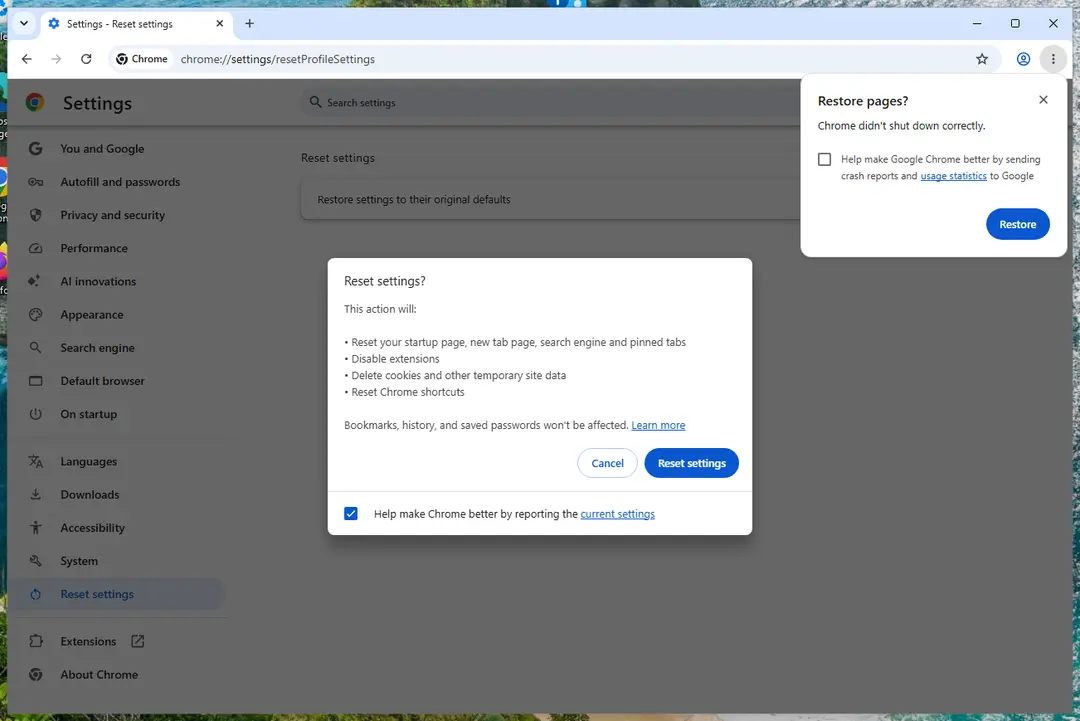
Chrome on Windows 11: Settings > Reset settings. Full procedure with screenshots: Reset a browser and fix a hijacked search engine
Step 5: Scan the PC, then run the offline scan
Open Windows Security > Virus & threat protection > Scan options, run a Full scan and remove everything it finds. Then select Microsoft Defender Antivirus (offline scan) and click Scan now: the PC restarts and scans before Windows loads, which finds files that hide while Windows runs.
Save your work first, because the offline scan takes about 15 minutes. Both scans are built into Windows 11 and Windows 10, and a second scanner from another vendor is a useful extra opinion.
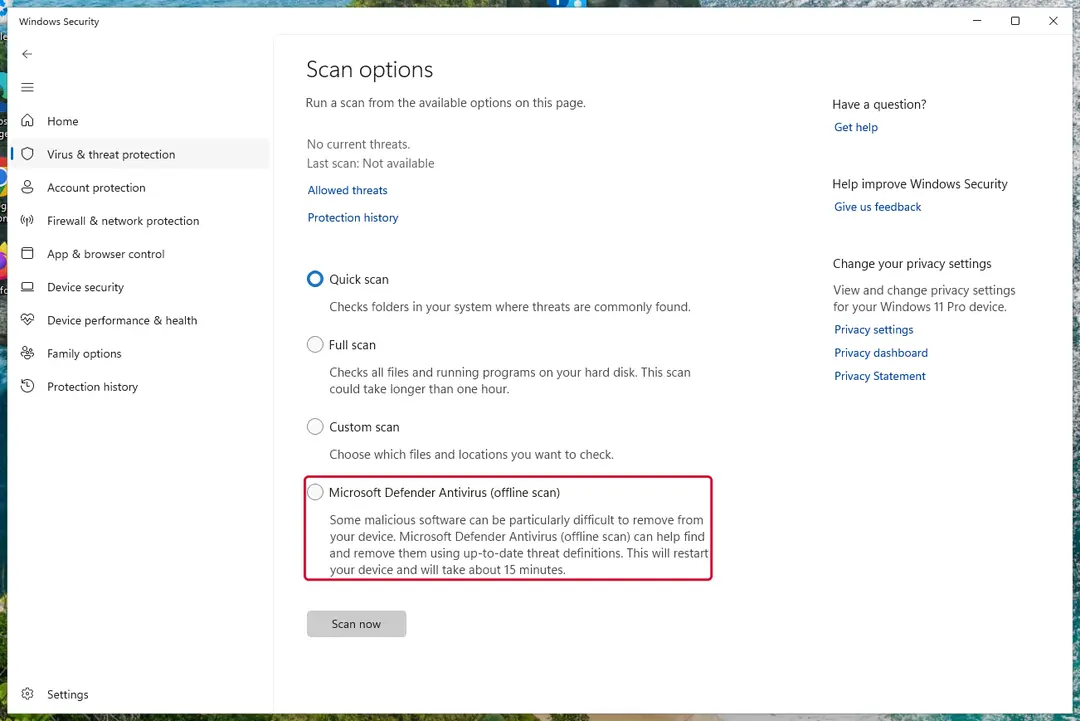
Windows 11: Windows Security > Virus & threat protection > Scan options. Full procedure with screenshots: Run a Microsoft Defender Offline scan
Instructions for each browser and system
The detailed steps for every browser and system this guide covers. Open the one you use.
Uninstall from Windows
Uninstall from Windows 10/8:
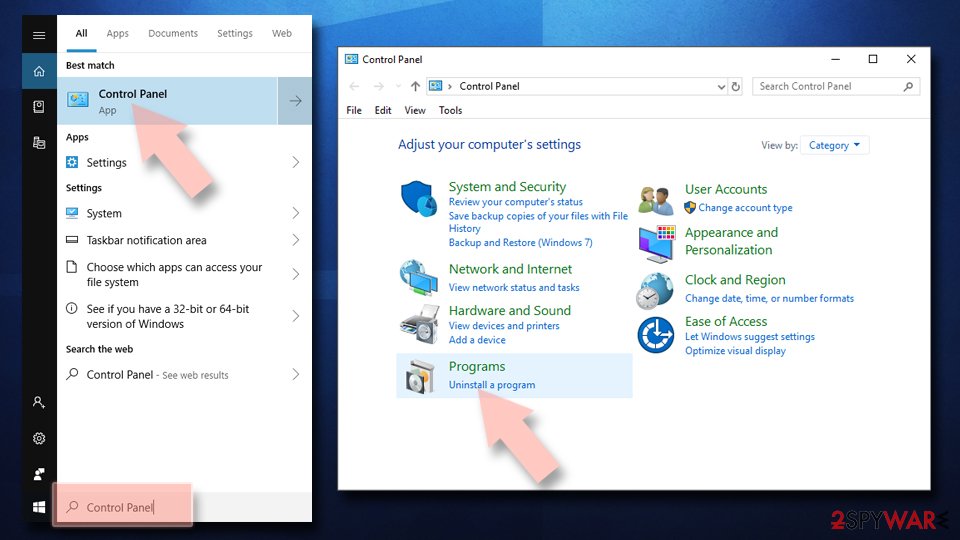
- Type Control Panel into the Windows search box and open the result.
- Under Programs, select Uninstall a program.
Uninstall from Windows 7/XP:
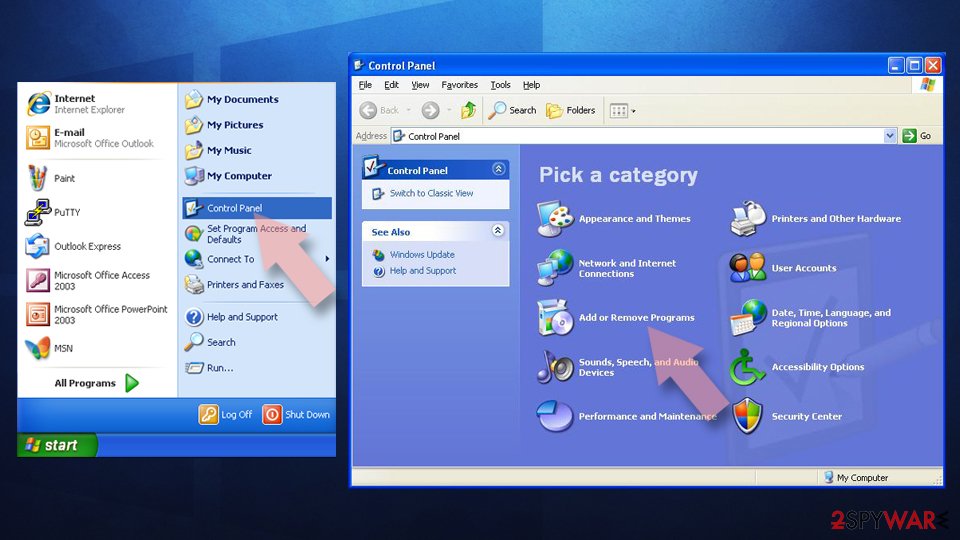
- Click on Windows Start > Control Panel (Windows XP users should click on Add/Remove Programs).
- In Control Panel, select Programs > Uninstall a program.
Remove the unwanted program:
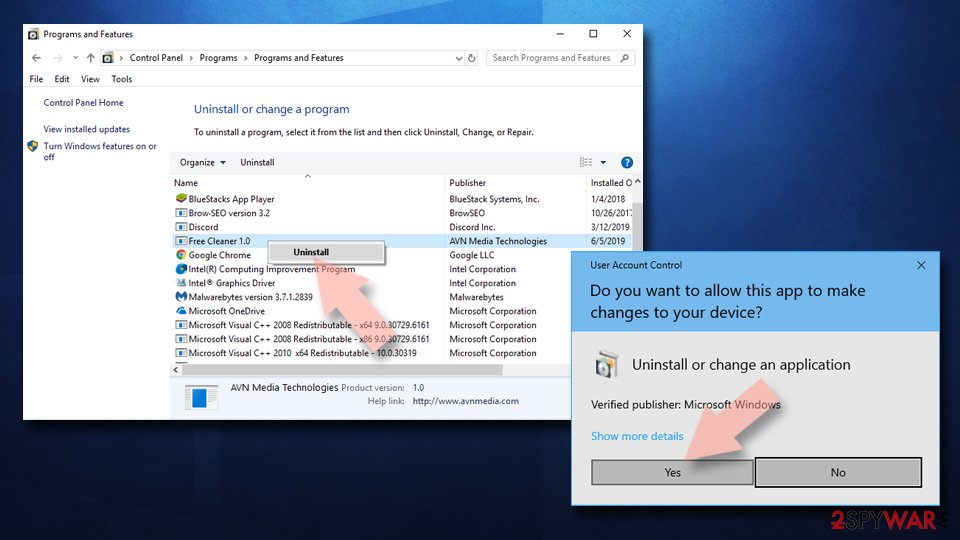
- In the Programs and Features window, look for any recently installed suspicious entries, select them, and click Uninstall.
- If User Account Control appears, click Yes to confirm, then complete the removal.
Remove from Google Chrome
Delete malicious extensions from Google Chrome:
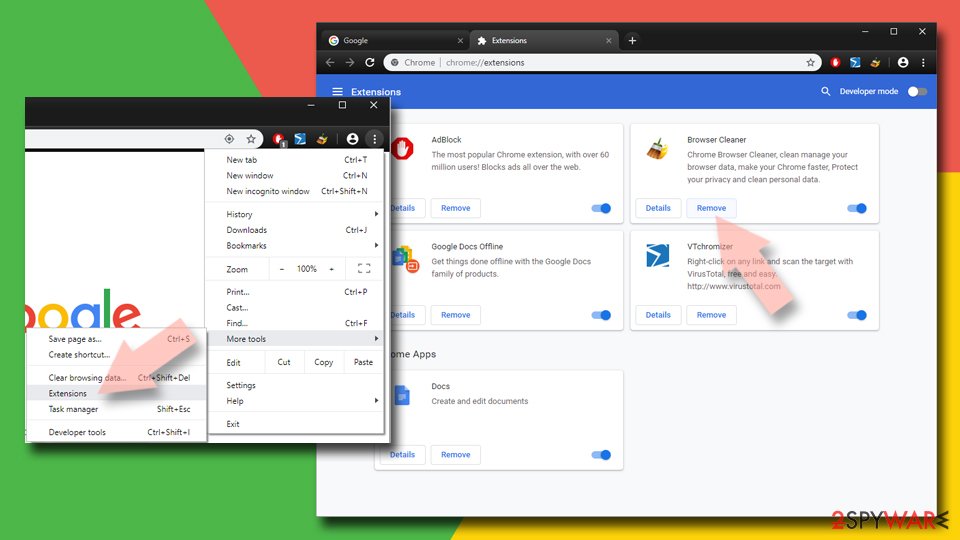
- Open Google Chrome, click on the Menu (three vertical dots at the top-right corner) and select More tools > Extensions.
- In the newly opened window, you will see all the installed extensions. Uninstall all suspicious extensions related to the unwanted program by clicking Remove.
Clear cache and web data from Chrome:
- Click on Menu and pick Settings.
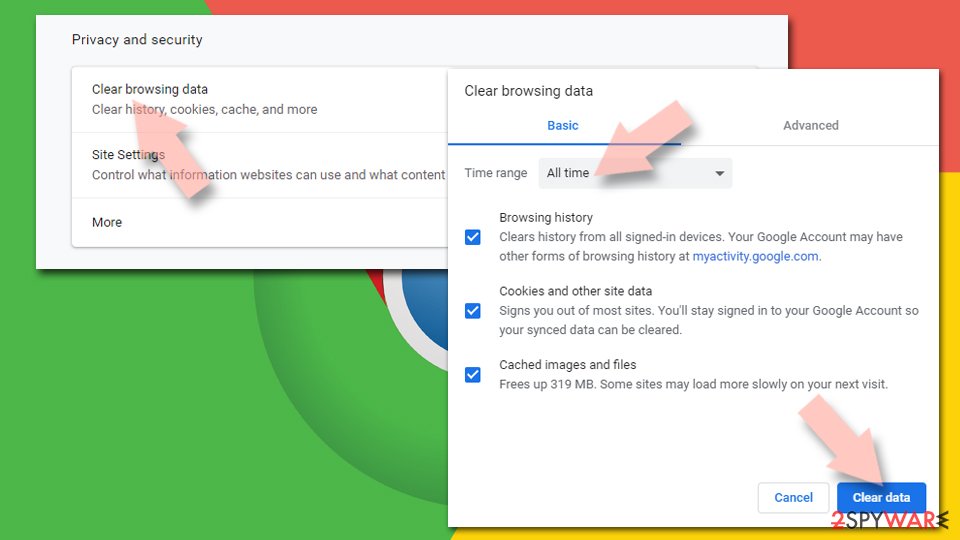
- Under Privacy and security, select Clear browsing data.
- Select Browsing history, Cookies and other site data, as well as Cached images and files.
- Click Clear data.
Change your homepage:
- Click menu and choose Settings.
- Look for a suspicious site in the On startup section.
- Click on Open a specific or set of pages and click on three dots to find the Remove option.
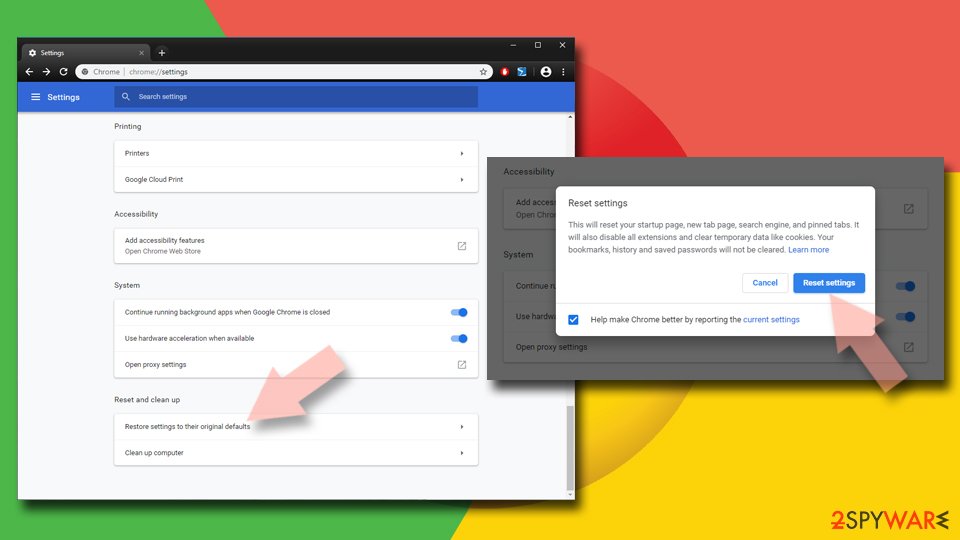
Reset Google Chrome:
If the previous methods did not help you, reset Google Chrome to eliminate all the unwanted components:
- Click on Menu and select Settings.
- In the Settings, scroll down and click Advanced.
- Scroll down and locate Reset and clean up section.
- Now click Restore settings to their original defaults.
- Confirm with Reset settings.
Remove from Microsoft Edge
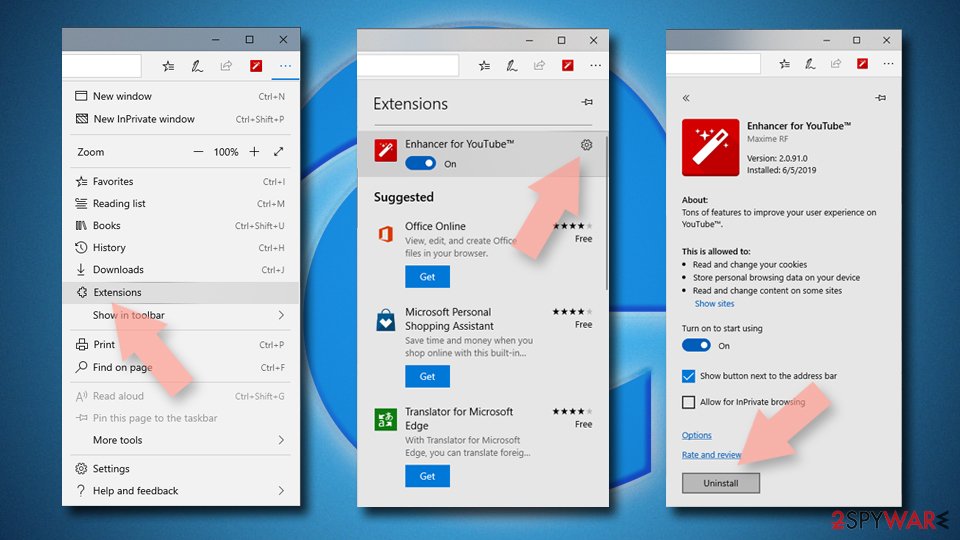
Delete unwanted extensions from MS Edge:
- Select Menu (three horizontal dots at the top-right of the browser window) and pick Extensions.
- From the list, pick the extension and click on the Gear icon.
- Click Remove.
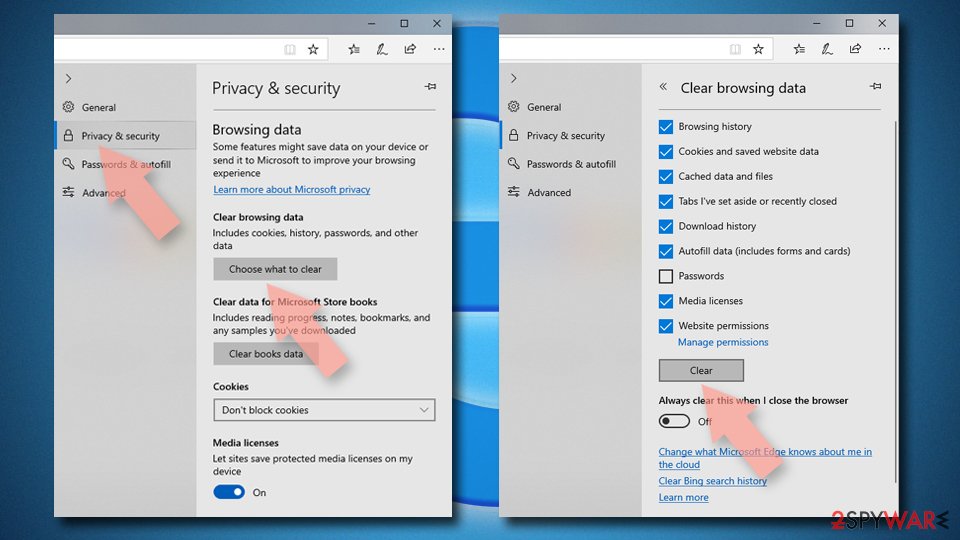
Clear cookies and other browser data:
- Click on the Menu (three horizontal dots at the top-right of the browser window) and select Settings > Privacy, search, and services..
- Under Clear browsing data, pick Choose what to clear.
- Select Cookies and other site data and Cached images and files. (apart from passwords, although you might want to include Media licenses as well, if applicable) and click on Clear.
Restore new tab and homepage settings:
- Click the menu icon and choose Settings.
- Then find On startup section.
- Click Remove next to any suspicious startup page.
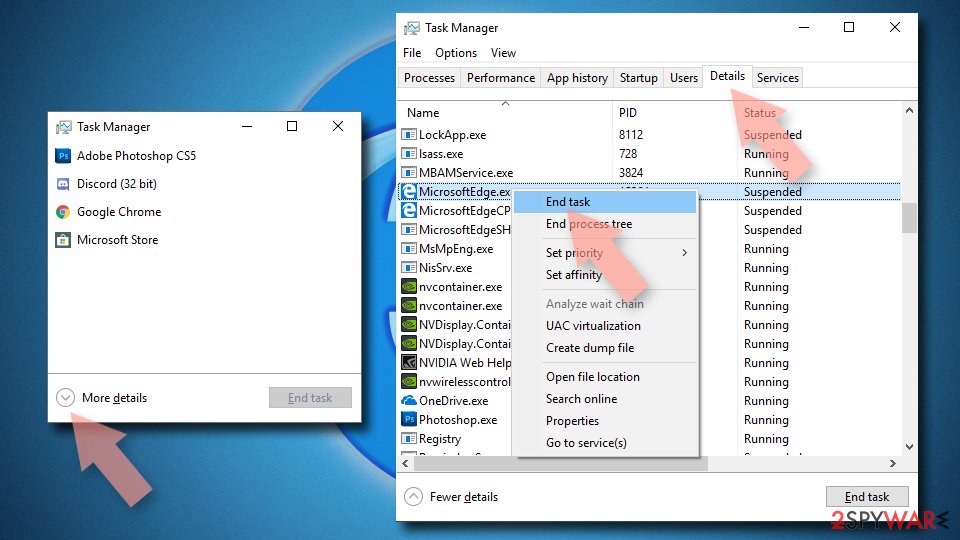
Reset MS Edge if the above steps did not work:
- Press on Ctrl + Shift + Esc to open Task Manager.
- Click on More details arrow at the bottom of the window.
- Select Details tab.
- Now scroll down and locate every entry with Microsoft Edge name in it. Right-click on each of them and select End Task to stop MS Edge from running.
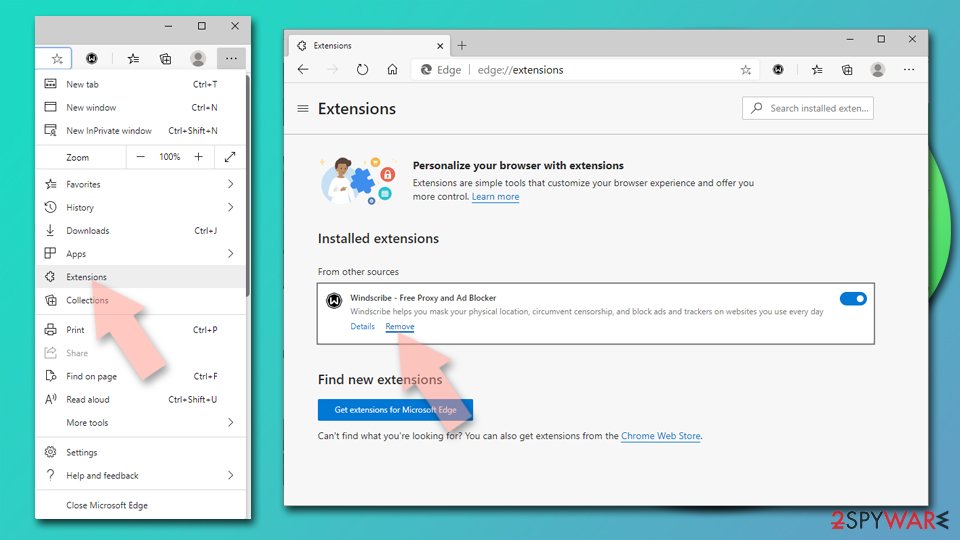
Delete extensions from MS Edge (Chromium):
- Open Edge and click select Settings > Extensions.
- Delete unwanted extensions by clicking Remove.
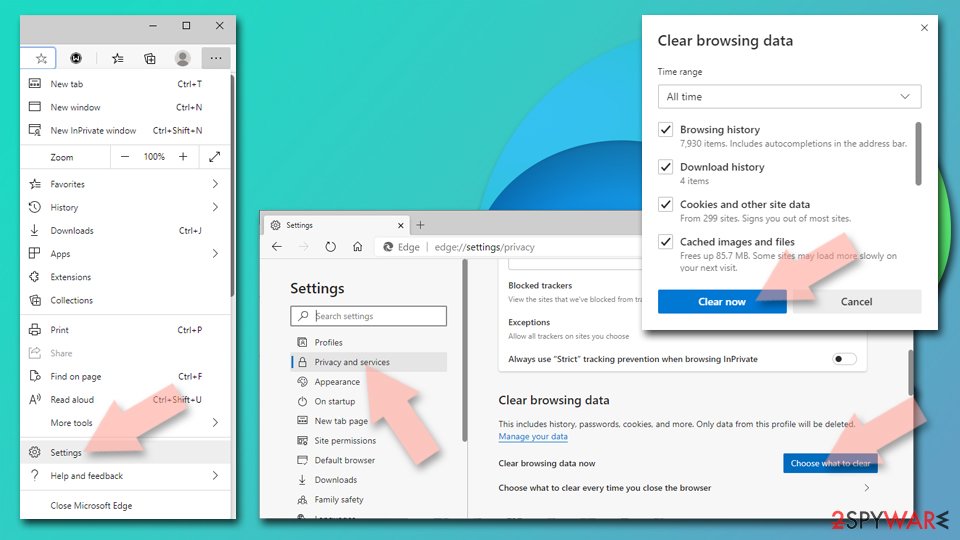
Clear cache and site data:
- Click on Menu and go to Settings.
- Select Privacy, search and services.
- Under Clear browsing data, pick Choose what to clear.
- Under Time range, pick All time.
- Select Clear now.
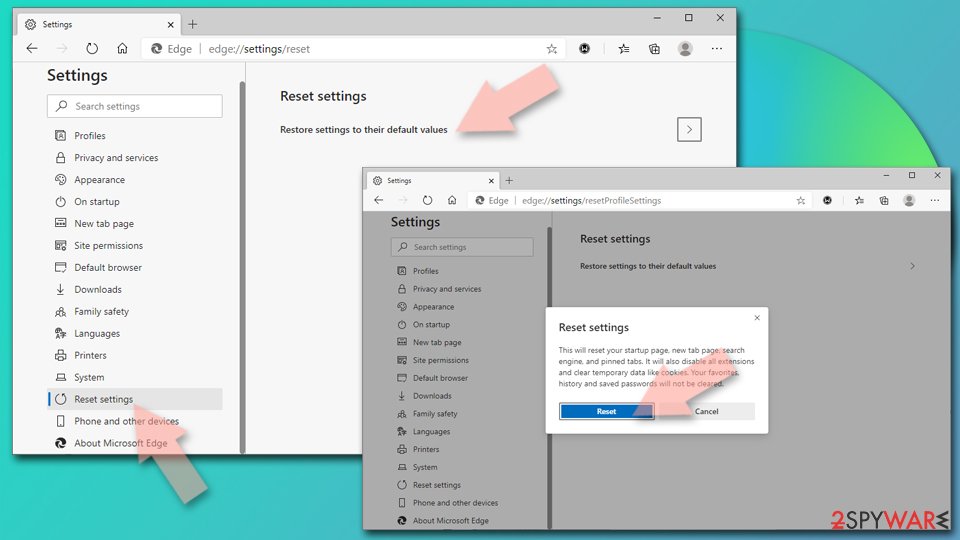
Reset Chromium-based MS Edge:
- Click on Menu and select Settings.
- On the left side, pick Reset settings.
- Select Restore settings to their default values.
- Confirm with Reset.
- This will disable extensions and reset startup pages but will not delete bookmarks, saved passwords, or browsing history.
Remove from Mozilla Firefox (FF)
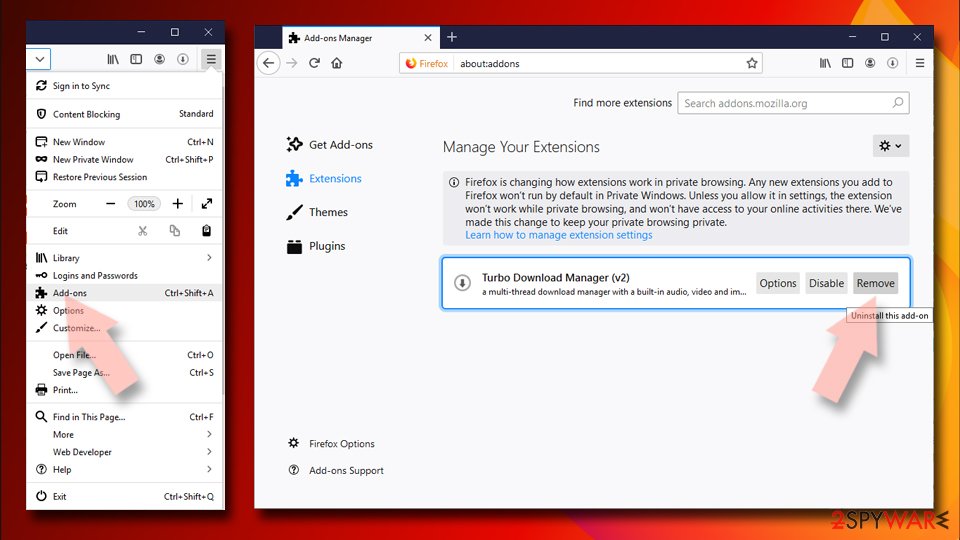
Remove dangerous extensions:
- Open Mozilla Firefox browser and click on the Menu (three horizontal lines at the top-right of the window).
- Select Add-ons.
- In here, select the unwanted extension and click Remove.
Reset the homepage:
- Click three horizontal lines at the top right corner to open the menu.
- Choose Settings.
- Under Home, set your preferred homepage and new tab settings.
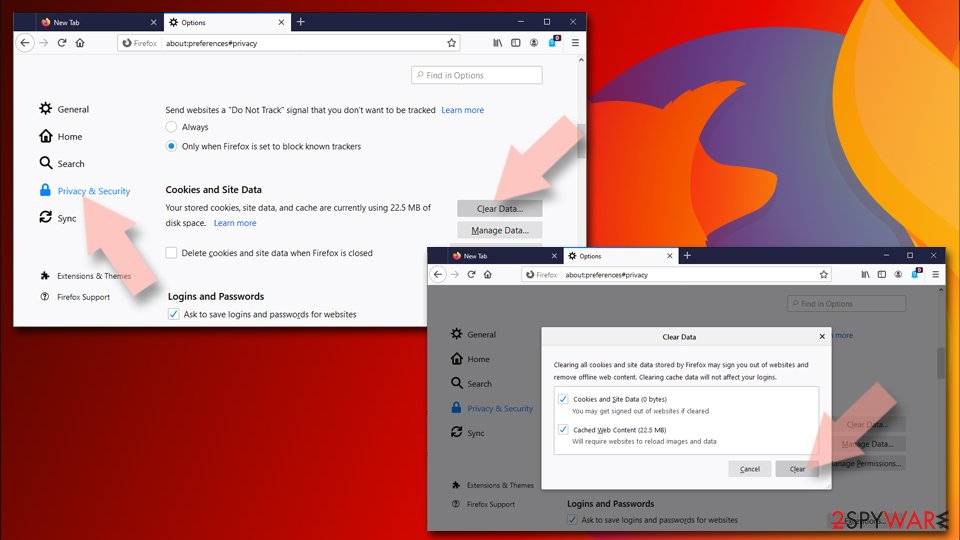
Clear cookies and site data:
- Click Menu and pick Settings.
- Go to Privacy & Security section.
- Scroll down to locate Cookies and Site Data.
- Click on Clear Data...
- Select Cookies and Site Data and Temporary cached files and pages, then click Clear.
Reset Mozilla Firefox
If clearing the browser as explained above did not help, reset Mozilla Firefox:
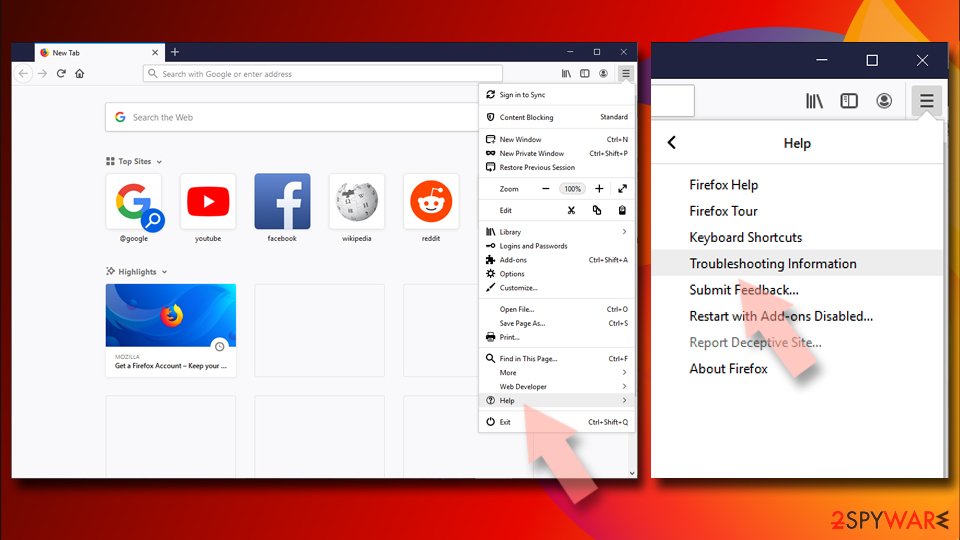
- Open Mozilla Firefox browser and click the Menu.
- Go to Help and then choose Troubleshooting Information.
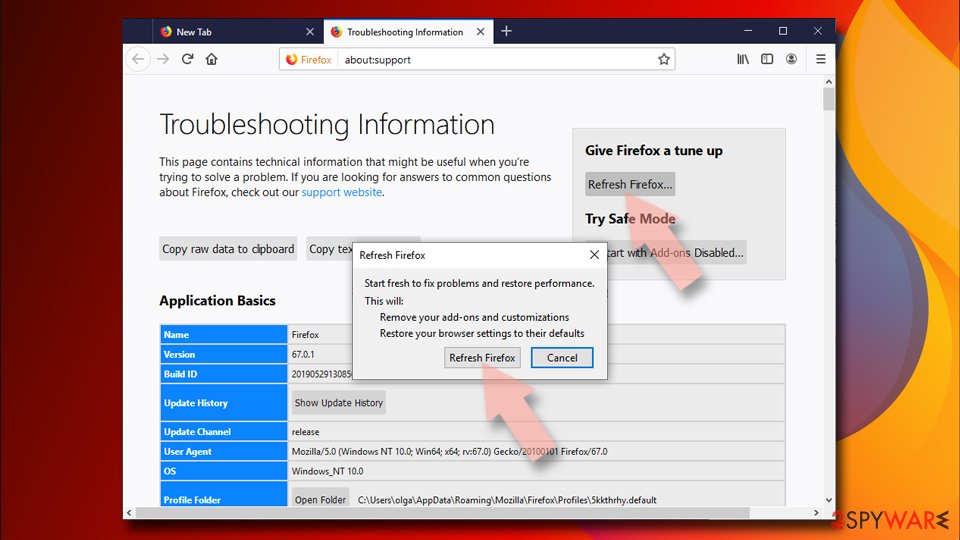
- Under Give Firefox a tune up section, click on Refresh Firefox...
- Once the pop-up shows up, confirm the action by pressing on Refresh Firefox.
Delete from Safari
Remove dangerous extensions:
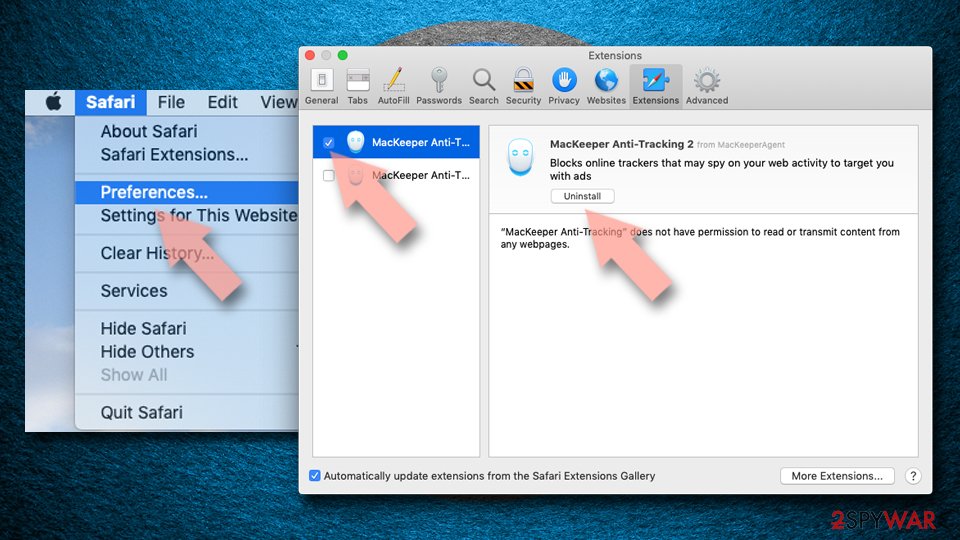
- Open Safari, click Safari in the menu at the top-left of the screen, and select Preferences.
- Go to the Extensions tab, look for any suspicious entries, and click Uninstall to remove them.
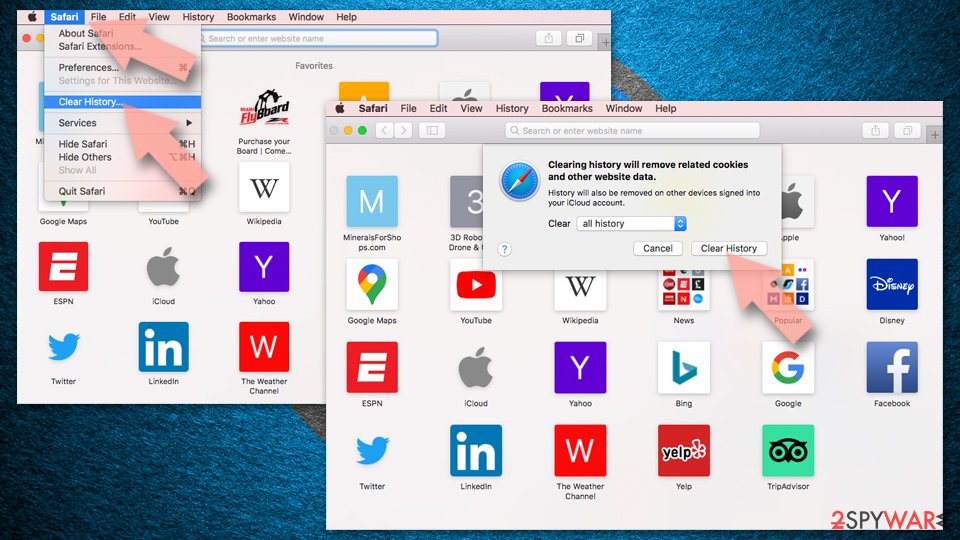
Clear history and website data:
- Click Safari in the menu and pick Clear History.
- Set Clear to all history and confirm with Clear History.
Reset Safari:
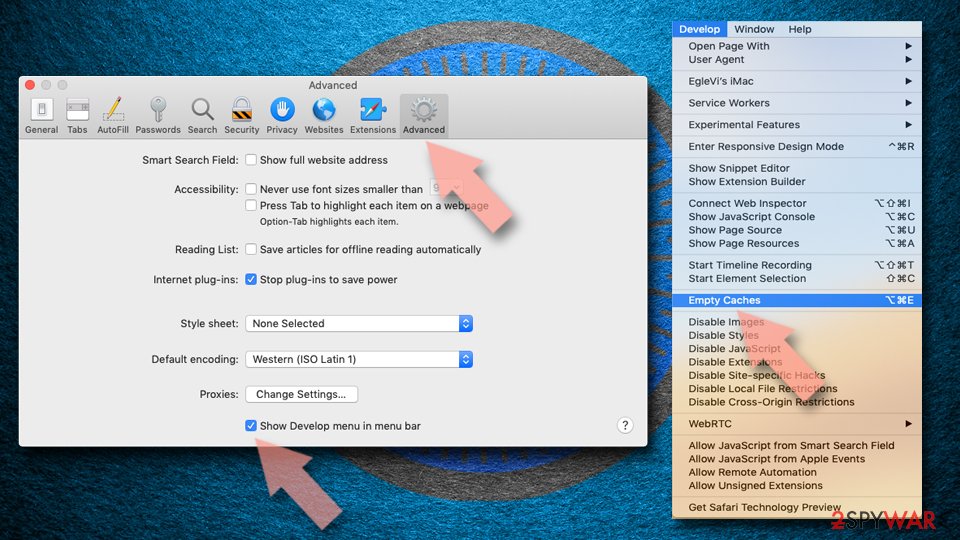
- Click Safari in the menu and select Preferences > Advanced.
- Enable Show Develop menu in menu bar.
- From the menu bar, click Develop and select Empty Caches.
Delete from macOS
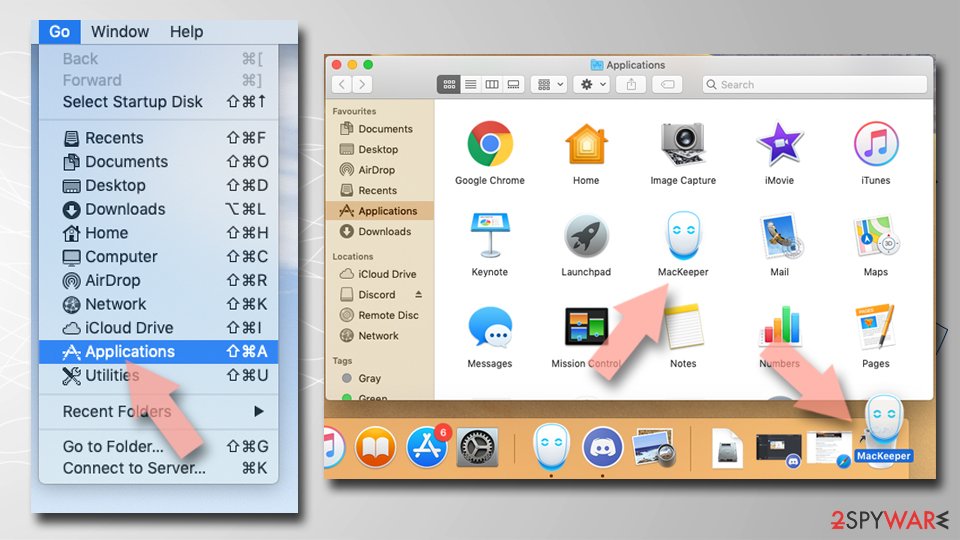
Remove the unwanted application:
- From the menu bar, select Go > Applications.
- In the Applications folder, look for any suspicious entries, then drag them to Trash (or right-click and pick Move to Trash).
Delete leftover files and folders:
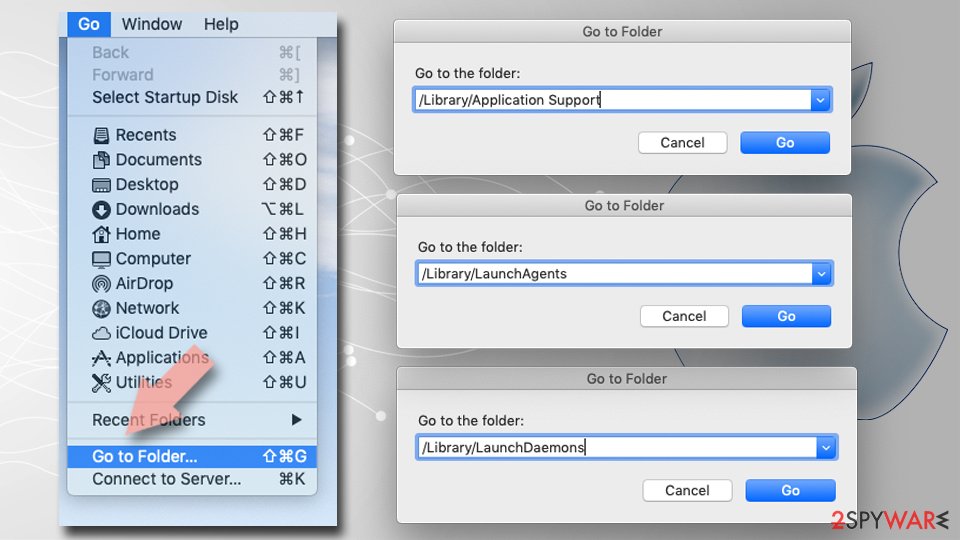
- Select Go > Go to Folder.
- Enter /Library/Application Support and remove any suspicious folders related to the unwanted program.
- Repeat the same check in the /Library/LaunchAgents and /Library/LaunchDaemons folders, deleting any suspicious entries.
- Finally, empty the Trash to permanently remove the leftovers.
Stream videos without limitations, no matter where you are
There are multiple parties that could find out almost anything about you by checking your online activity.
While this is highly unlikely, advertisers and tech companies are constantly tracking you online. The first step to privacy should be a secure browser that focuses on tracker reduction to a minimum.
Even if you employ a secure browser, you will not be able to access websites that are restricted due to local government laws or other reasons. In other words, you may not be able to stream Disney+ or US-based Netflix in some countries. To bypass these restrictions, you can employ a powerful VPN, which provides dedicated servers for torrenting and streaming, not slowing you down in the process.
Data backups are important - recover your lost files
Ransomware is one of the biggest threats to personal data.
Once it is executed on a machine, it launches a sophisticated encryption algorithm that locks all your files, although it does not destroy them. The most common misconception is that anti-malware software can return files to their previous states. This is not true, however, and data remains locked after the malicious payload is deleted.
While regular data backups are the only secure method to recover your files after a ransomware attack, tools such as can also be effective and restore at least some of your lost data.
Questions about Ads by RocketSale
Is Ads by RocketSale a virus?
Most programs that appear the way Ads by RocketSale did are not viruses in the strict sense. They are potentially unwanted programs:
- real software that arrives bundled with other downloads and then shows offers
- changes browser settings
- starts with Windows
Some are harmless, some are annoying and a few carry adware. What makes it worth removing is that you did not choose it.
Uninstall it from Installed apps and check the startup list and the browsers for anything added the same day. If it refuses to uninstall or returns after a restart, treat it as more serious and run a Microsoft Defender offline scan.
Ads by RocketSale came back after I uninstalled it. Why?
Something else is reinstalling it. Common causes are a second program from the same publisher, a scheduled task that downloads it again, or a browser extension that keeps prompting for it. Sort Installed apps by install date and uninstall each entry from the same day that you did not choose.
Then open Task Scheduler and look in the Task Scheduler Library for tasks with updater-style names that you do not recognise. Check Startup apps in Task Manager too. If Ads by RocketSale still returns, start Windows in Safe Mode, uninstall it there and run a Microsoft Defender offline scan, which looks for loaders that ordinary scans can miss.
Is uninstalling Ads by RocketSale enough?
Often, but not always. Uninstalling Ads by RocketSale through Settings > Apps > Installed apps removes the main part. Ad-supported programs, however, frequently arrive together with others from the same installer, and some leave a scheduled task or a browser extension behind.
After uninstalling, sort the list of installed apps by date and look at what else appeared that day, check Task Manager > Startup apps, and open the extension page in every browser. A Microsoft Defender full scan at the end catches leftover files.
My scan found nothing, but the ads continue. Why?
Because the source may not be a file a scanner looks for. Browser notifications are a permission stored in the browser, and many adware extensions are not flagged because they come from an official store.
Some ad-supported programs are only reported if you enable detection of potentially unwanted apps. So a clean scan does not mean the job is done. Check each browser's notification permissions and extension list by hand, and turn on Potentially unwanted app blocking in Windows Security before scanning again.
I let a "support technician" from an ad connect to my PC. What should I do?
Act quickly but calmly. Disconnect the PC from the internet first, so the connection ends. Uninstall the remote access tool they asked you to install and check Installed apps for anything else added during the call.
Run a Microsoft Defender full scan and offline scan. From another device, change your e-mail and banking passwords and sign out of all sessions.
If you paid by card, bank transfer or gift card, contact your bank or the card issuer immediately, and report the scam to the police. Do not answer if they call back.
Did Ads by RocketSale collect my data?
Adware typically collects what it needs to choose ads:
- the sites you visit
- search terms
- approximate location
- browser and system details
Extensions with permission to read and change data on all websites can technically see everything on those pages, including forms. That is a privacy problem rather than proof of theft.
If you typed card details or passwords while it was active, changing the most important passwords is a reasonable precaution. Clearing cookies after removal ends the tracking sessions it may have started.
Why is my browser so slow since the ads started?
Each page now does extra work. An adware extension reads the page, decides where to put ads, loads them from ad servers and reports your visit, and that happens on every tab. Ad-supported programs add their own background activity.
Removing the extension or program usually makes the browser fast again at once. If it stays slow, open the browser's own task manager with Shift+Esc in Chrome or Edge and look for extensions using a lot of memory or processor time.
Can an adware pop-up infect my PC just by appearing?
No. A pop-up, a notification or a new tab is only a web page or a message. It cannot run programs on Windows by itself, provided the browser and Windows are up to date. Infection needs a step from you:
- running a downloaded file
- installing an extension
- giving a stranger remote access
That is why scam pages work so hard to make you click. Close such pages with the tab's X or by closing the browser, not with buttons inside the page, which may start a download.
Will Fortect remove Ads by RocketSale?
Fortect scans Windows for malware and unwanted programs and repairs the system files and settings they change, and its free scan shows what it finds on your PC before you decide anything.
For Ads by RocketSale, follow the plan above as well: the browser steps take back permissions and settings that no scanner treats as a threat, and uninstalling the program that brought it removes the source.
Run Microsoft Defender's full scan and, if anything was found, its offline scan as a second opinion. If the symptoms are gone after the plan and both scans are clean, there is nothing more to do.
Sources
- Google Chrome Help: Use notifications to get alerts (no longer online) (read October 6, 2026)
- FTC: How to recognize, remove and avoid malware (read October 6, 2026)
- Microsoft Learn: Microsoft Defender Offline (read October 6, 2026)
- Microsoft Learn: How Microsoft names malware (read October 6, 2026)