
How-to
How to reset your browser after adware or a hijacker
A browser hijacker changes your search engine, homepage or new tab page. Removing the program or extension that did it comes first; then you put the settings back, or reset the browser as a whole. What each browser's reset removes and keeps is listed below, because it differs a lot.
When you need this
- Searches go through a search engine you did not choose, or the homepage or new tab page changed by itself.
- You already removed the extension or program and the settings are still wrong.
- A removal guide on this site tells you to reset the browser.
Chrome
Written for Google Chrome on Windows (screenshots: Windows 11 26H2, 2026-10-03). Steps checked against Google's Chrome Help on October 3, 2026.
First remove the program or extension that caused it (Uninstall a program or app in Windows On uGetFix, remove an extension); otherwise it can change the settings back.
Open More (the three dots) > Settings > Reset settings.
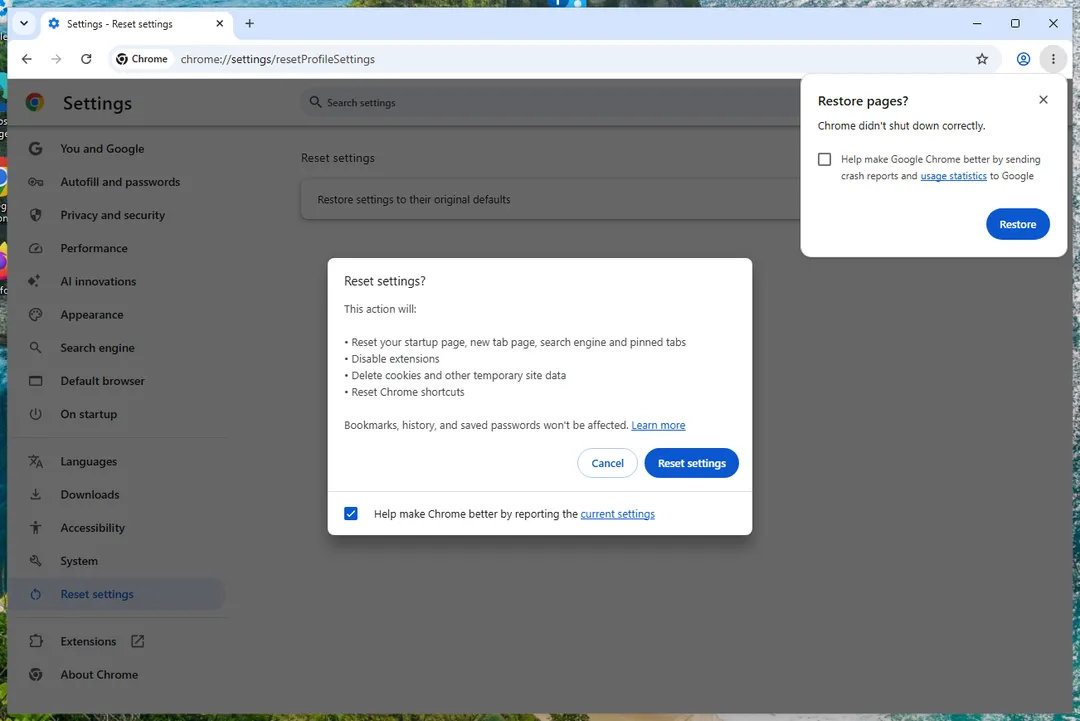
Chrome on Windows 11: Chrome Settings, Reset settings. Click Restore settings to their original defaults, then Reset settings.
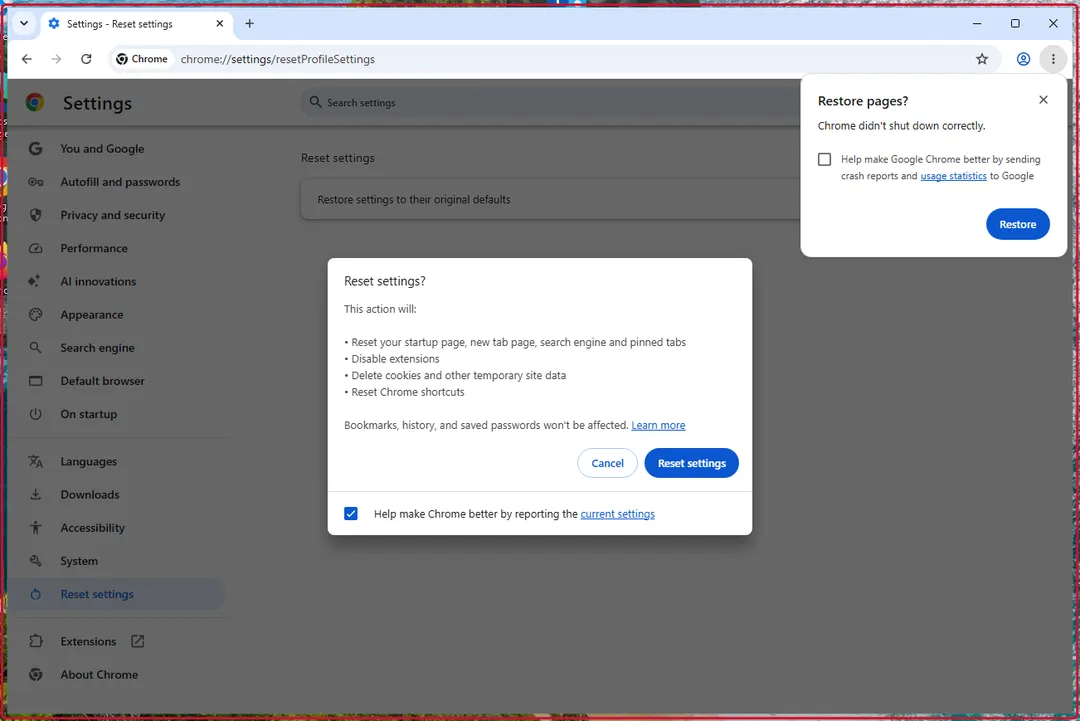
Chrome on Windows 11: The Reset settings confirmation. Open Extensions > Manage extensions and switch back on only the extensions you trust.
The reset switches extensions off, it does not remove them.
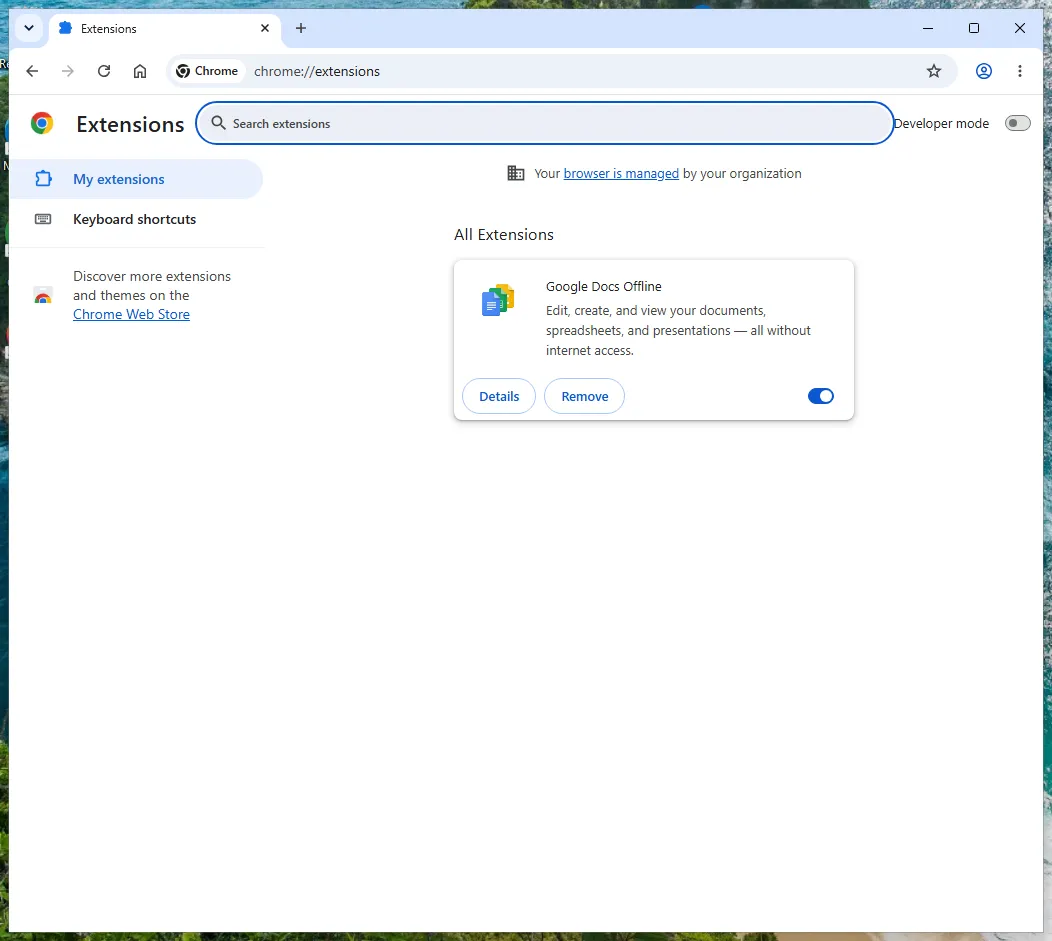
Chrome on Windows 11: Extensions after the reset. Check Settings > Search engine and On startup.
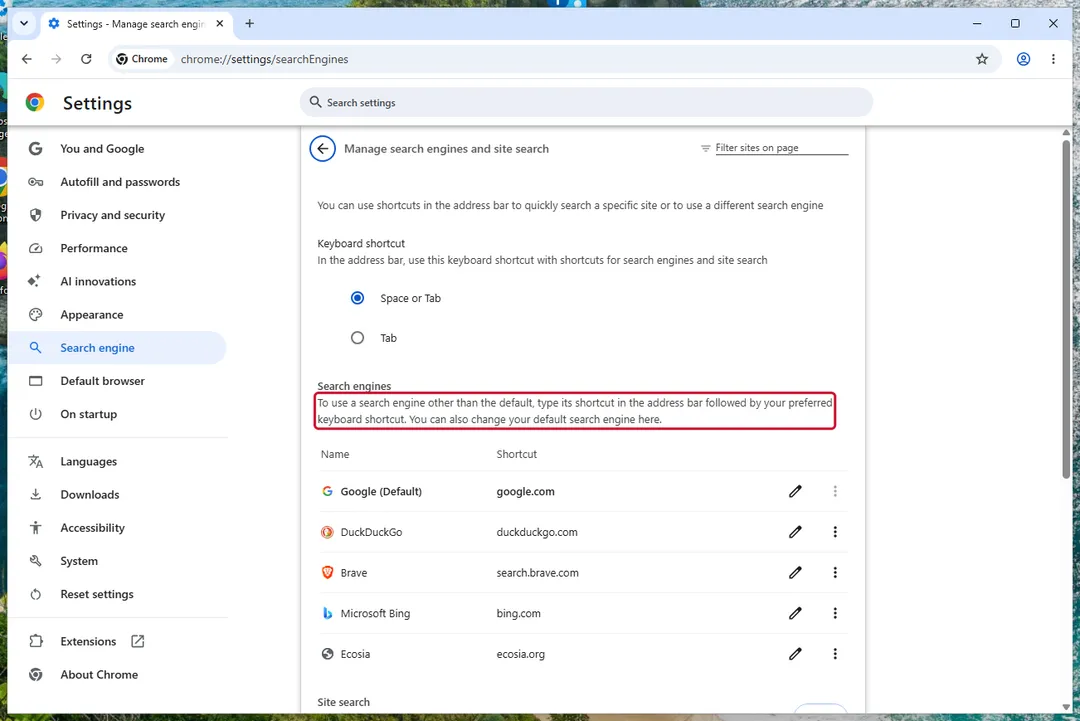
Chrome on Windows 11: Settings, Search engine.
What the reset changes: the default search engine, homepage and startup tabs, the New Tab page, pinned tabs, site permissions, cookies and site data, and extensions and themes (switched off). What it keeps: bookmarks and saved passwords; fonts and accessibility settings are not reset. If you are signed in, the reset applies to Chrome on all your devices.
Prefer not to reset everything? Fix only the changed items: under On startup delete the unwanted page (its three-dot menu > Delete); under Search engine click Change and pick another default; under Manage search engines and site search delete the leftover entry.
Chrome can also undo hijacked settings by itself when it starts; it then shows a short notice with Got it on the search results page.
Sources
- Google Chrome Help: Reset Chrome settings to default (read October 3, 2026)
- Google Chrome Help: Set your homepage and startup page (read October 3, 2026)
- Google Chrome Help: Set default search engine and site search shortcuts (read October 3, 2026)
- Google Chrome Help: Remove unwanted ads, pop-ups & malware (read October 3, 2026)
Edge
Written for Microsoft Edge on Windows (screenshots: Windows 11 26H2, 2026-10-03). Steps checked against Our screenshots of Edge on Windows 11 26H2 on October 3, 2026.
First remove the program or extension that caused it (remove an extension).
Search engine: Settings and more (the three dots) > Settings > Privacy, search, and services > Search and connected services > Address bar and search, and choose under Search engine used in the address bar.
An engine appears in that list only after you have searched with it once.
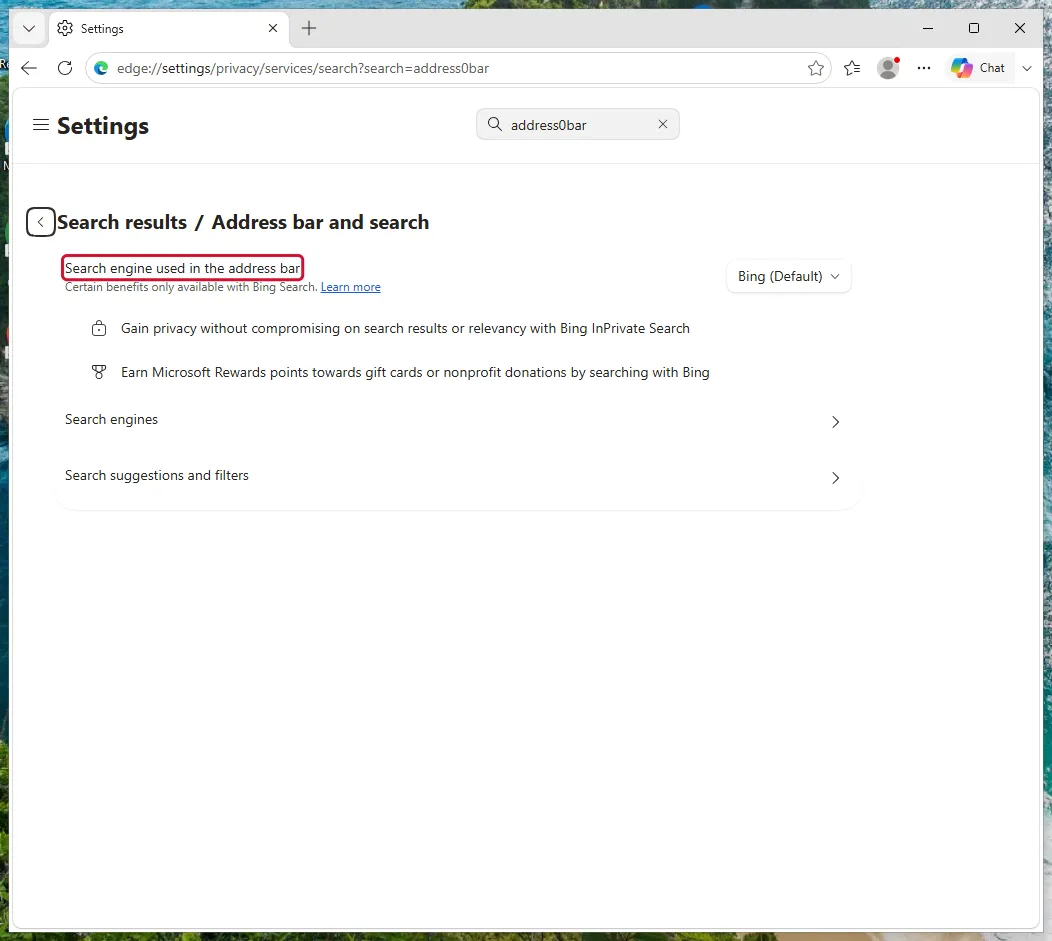
Edge on Windows 11: Search engine used in the address bar. Homepage: Settings > Start, home, and new tabs. Under Home button, choose New tab page or enter the address you want.
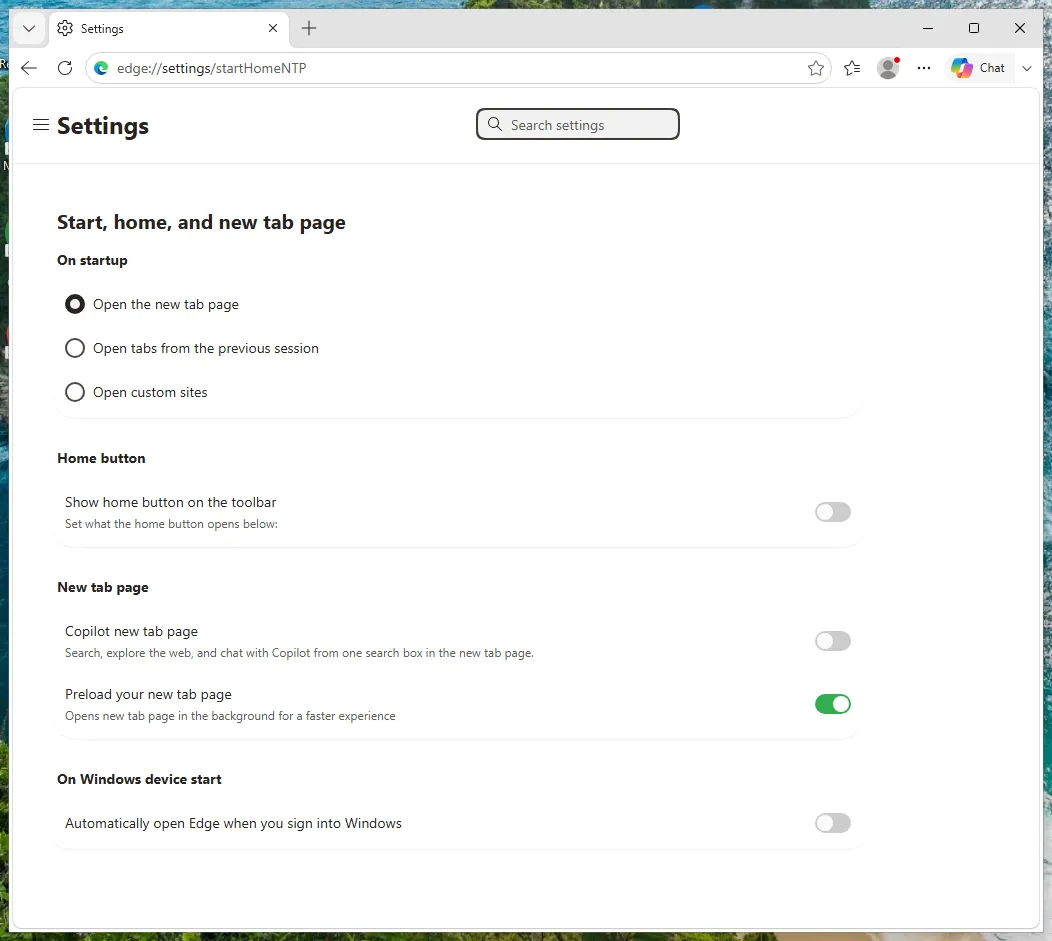
Edge on Windows 11: Settings, Start, home, and new tabs. Full reset: Settings > Reset settings > Restore settings to their default values > Reset.
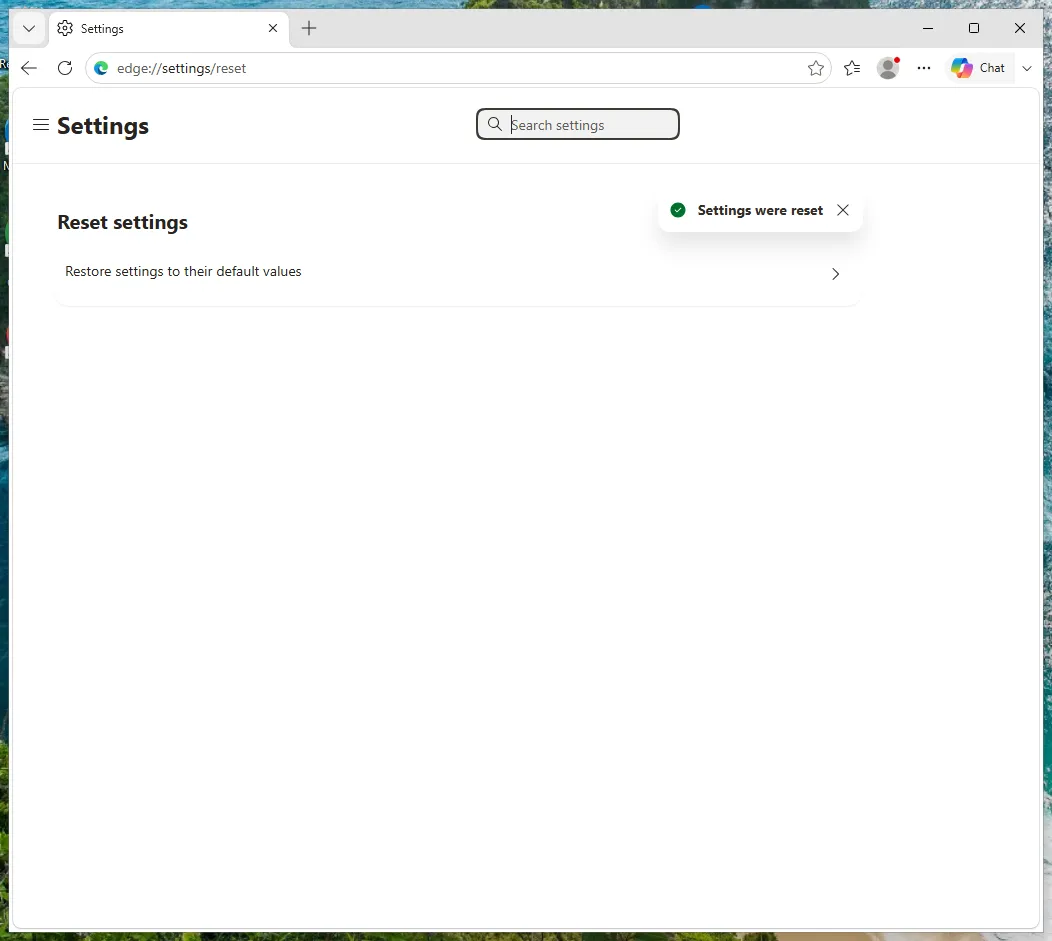
Edge on Windows 11: Settings, Reset settings.
Microsoft currently has no help page for the full reset (its former article is no longer online), so step 3 and what the reset keeps are not confirmed by Microsoft documentation. We will add a dated screenshot of the dialog.
If Edge itself is broken, Microsoft's official fallback is Repair: Windows Settings > Apps > Installed apps > Microsoft Edge > Modify > Repair. Microsoft says this does not affect your browsing data. A missing Modify button suggests Edge is managed by an organisation or a policy.
Sources
- Microsoft Support: Change your default search engine in Microsoft Edge (read October 3, 2026)
- Microsoft Support: Change your browser home page (read October 3, 2026)
- Microsoft Support: What to do if Microsoft Edge isn't working (read October 3, 2026)
Firefox
Written for Firefox 150 and later on Windows (screenshots: Windows 11 26H2, 2026-10-03). Steps checked against Mozilla Support on October 3, 2026.
Open Help > More troubleshooting information.
Menu button (three lines) > Help. Older versions call the page Troubleshooting Information.
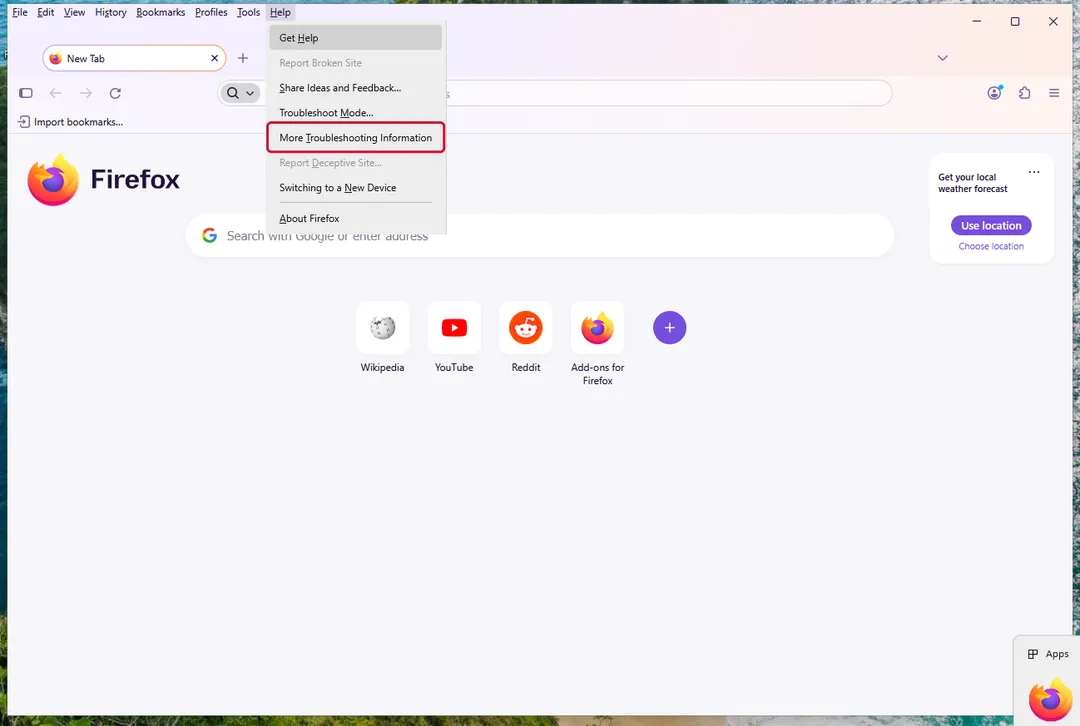
Firefox on Windows 11: Help, More troubleshooting information. Click Refresh Firefox… and confirm with Refresh Firefox.
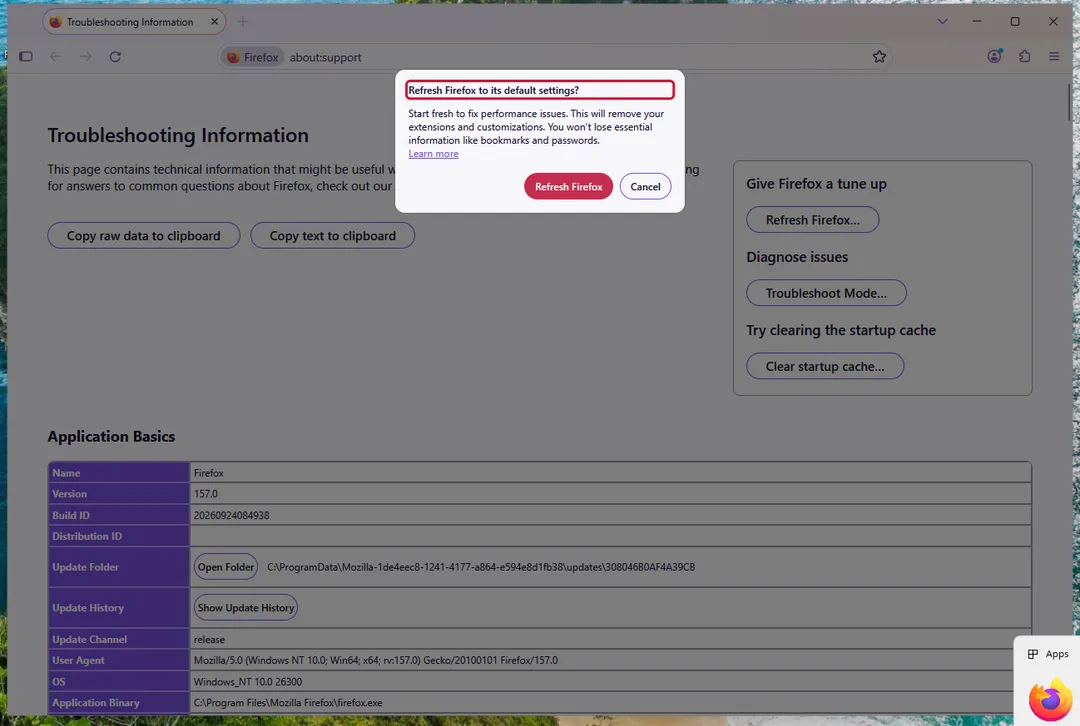
Firefox on Windows 11: The Refresh Firefox confirmation. When Firefox lists what it imported, click Finish, choose whether to restore your windows and tabs, and click Let's go!.
Check the homepage: Settings > Home and startup (called Home before Firefox 152) and the default search engine under Settings > Search.
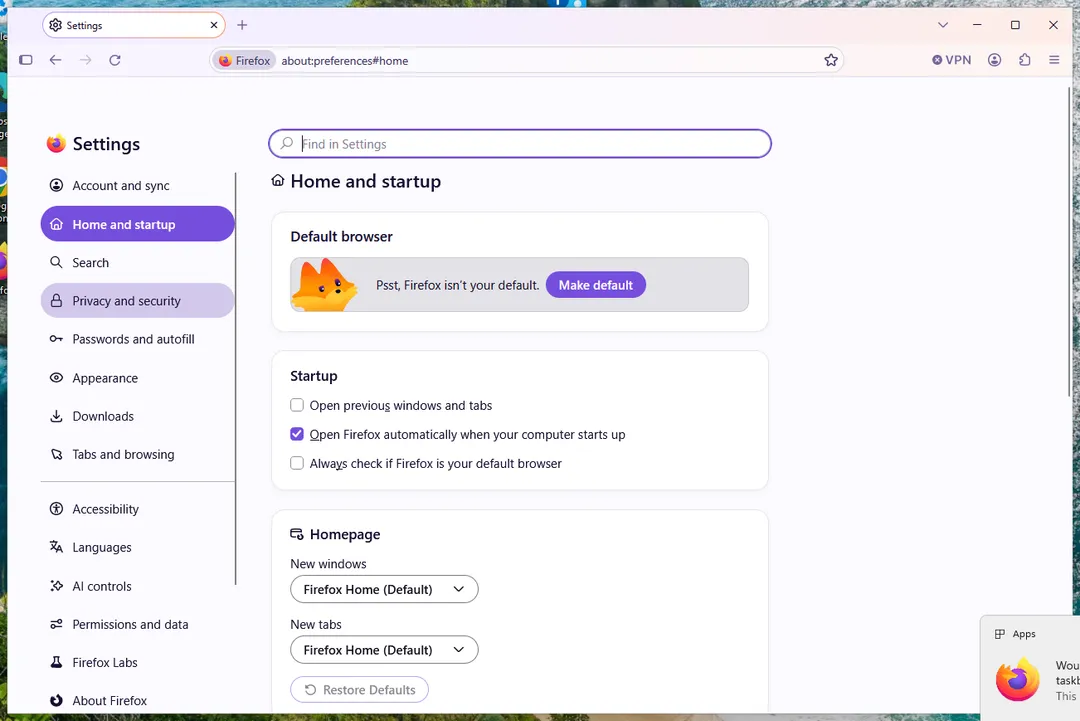
Firefox on Windows 11: Settings, Home. Delete the Old Firefox Data folder that Firefox leaves on the desktop once everything works.
It holds your old profile, including sensitive data and possibly the hijacker's files.
What Refresh removes: extensions and themes, website permissions, changed preferences, added search engines, toolbar customisations. What it keeps: bookmarks, browsing and download history, passwords, cookies, form autofill and the personal dictionary. Cookies survive a Refresh: clear them separately (Settings > Privacy & Security > Cookies and Site Data) if you signed in to anything while the hijacker was active.
Unlike Chrome, Firefox removes extensions completely during a Refresh, so reinstall the ones you want.
Sources
- Mozilla Support: Refresh Firefox - reset add-ons and settings (read October 3, 2026)
- Mozilla Support: How to set the home page (read October 3, 2026)
- Mozilla Support: Change your default search settings in Firefox (read October 3, 2026)
If the steps did not help
The hijacked search engine comes back
- A program changes it back. Uninstall it first: Uninstall a program or app in Windows On uGetFix, then reset again.
- An extension is still installed. Remove the extension.
- A policy forces it. If Chrome's menu shows Managed by your organization, open
chrome://managementandchrome://policy; in Firefox, "Your browser is being managed by your organization" at the top of Settings leads to the policy details. A reset does not remove a policy. See managed by your organization. - Sync brings it back. A Chrome reset applies to all your signed-in devices, but a synced device that is still infected can push settings and extensions back. Clean every device.
Questions
Will resetting my browser delete my bookmarks and passwords?
No. The Chrome, Edge and Firefox steps above keep bookmarks and saved passwords. Firefox's Refresh also keeps history and cookies; Chrome's reset clears cookies and site data.
Do I have to reset, or can I fix only the search engine?
If only the search engine or homepage changed and you already removed the cause, fixing those settings is enough. Reset when several things changed or you cannot find where the change is.
Does resetting remove the hijacker itself?
Not necessarily. The reset puts settings back; the program, extension or policy that changed them has to be removed separately, otherwise it changes them again.