
SaveTogo Ads: what it is and how to remove it
SaveTogo is a very questionable program that may flood you with annoying advertisements that look like ads helping people to save the money. No matter how tempting these ads look, you should know that they are sponsored and displayed just for causing redirects to affiliate websites.
Facts checked October 7, 2026. Removal steps tested on Windows 11 (26H2) and checked against Microsoft's and the browser makers' current documentation. Sections marked as our earlier report are the original text: they describe the threat as it was then and have not been reviewed since. The 2026 status, the removal steps and the questions are current.
Automatic
Get a free scan and check if your PC is infected.
Fortect finds malware, unwanted programs and the Windows damage they leave behind, and repairs it in one pass.
An automatic scan checks installed programs, startup items and browser extensions for anything that came with SaveTogo Ads.
Do it yourself · free Remove SaveTogo Ads yourself 5 steps, about 15 minutes, no software needed.
Start the steps
SaveTogo Ads: summary
| Detection names | No Microsoft detection name is known |
|---|---|
| Distribution | Not recorded in the old report |
| Damage | Not recorded in the old report |
| Name | SaveTogo Ads |
| Type | Ad-supported program |
| Symptoms | An unknown program in Installed apps |
| Removal | Scan the PC with security software to find and remove the malware and anything installed with it. Fortect scans Windows for malware and repairs the system files and settings it damaged. Remove it nowTo use the full-featured product, you have to purchase a license for Fortect. The scan is free. |
Show 4 more facts
| Evidence | One write-up by a security site; details still limited |
|---|---|
| Program | SaveTogo Ads |
| First seen | 11 September 2015 |
| Facts checked | 7 October 2026 |
Is SaveTogo Ads dangerous?
From our report of Sep 2015 · not reviewed since
What is SaveTogo?
SaveTogo is a very questionable program that may flood you with annoying advertisements that look like ads helping people to save the money.
No matter how tempting these ads look, you should know that they are sponsored and displayed just for causing redirects to affiliate websites. If you want to avoid SaveTogo redirects to unknown and suspicious sites that may be used for spreading other suspicious applications, you should stay away from this adware.
Besides, if it manages to infiltrate the system, it may hijack all of your web browsers by dropping its own browser add-on. This program is capable of hijacking Internet Explorer, Mozilla Firefox, Google Chrome, Safari or other Internet browsers that are used for searching the web.
As soon as it does that, it may start what it was created for - affiliate marketing. Therefore, no matter what browser you decide to use, you may be forced to see commercial pop-ups, banner ads, in-text links and other commercial content, which belongs to SaveTogo adware.
This doubtful program may also track and record your browsing habits and then use this valuable information for targeted advertising and other aims. No matter that it is widely believed that such personally identifiable information can be used for nothing, it's not true. You may spot more spam in your email inbox and run into similar issues.
That's why we highly recommend not to install SaveTogo. If you have a suspicion that this useless extension has been added to your system without your direct approval, do not waste time and remove it. For that you can use anti-spyware tools, such as , or manual removal guide given below.

From our report of Sep 2015 · not reviewed since
How can SaveTogo hijack my computer?
As we have mentioned before, this program can enter your computer with a help of very questionable ways.
The most popular method that is used by SaveTogo to enter computers unnoticed is called bundling. In most of the cases, this infiltration is fulfilled behind people's back, therefore they sometimes thing that SaveTogo is a virus. This questionable application is also promoted as a helpful tool that enhances people's browser. Allegedly, this program should display coupons and comparison deals for online shoppers.
Sounds like a useful feature, right? Unfortunately, we have to disappoint you. SaveTogo is yet another program that is designed for advertising. It may manipulate your browsing experience and redirect you to affiliate websites.
If you want to avoid SaveTogo ads, make sure that you select Custom or Advanced installation of the freeware to get ability to see optional components. In addition, you should uncheck them to prevent the appearance of this PUP. It is has recently appeared on your computer, you should scan it with reliable anti-spyware program.
How to remove SaveTogo Ads
Uninstall first, then remove what stays behind, so the ads do not come back after a restart.
Step 1: Uninstall SaveTogo Ads
SaveTogo Ads is removed like any other program, from the list of installed apps. In Windows 11 that is Settings > Apps > Installed apps, in Windows 10 Settings > Apps > Apps & features, and in both you can also use Control Panel > Programs and Features.
Select SaveTogo Ads, click Uninstall and follow the uninstaller to the end. Then look at the entries just above and below it when the list is sorted by date: bundled programs install at the same minute.
Full procedure with screenshots: Uninstall a program or app in Windows On uGetFix
Step 2: Remove it from startup
Press Ctrl + Shift + Esc to open Task Manager and select Startup apps (Windows 11) or the Startup tab (Windows 10). Disable entries you do not recognise, especially ones with no publisher or with a name that copies a Windows component.
Right-click an entry and choose Open file location to see where it runs from: programs in
%AppData%or%Temp%deserve a closer look. Some entries are not listed there but in the registry Run keys, which the procedure below shows how to check.Full procedure with screenshots: Stop apps from opening at startup On uGetFix
Step 3: Delete the folders left behind
Uninstalling often leaves the program's folders, and some threats reinstall themselves from them.
Press Windows + R, type
%LocalAppData%and press Enter, then do the same for%AppData%and %ProgramData%, and look for folders named after SaveTogo Ads, its publisher or created on the day the problem started.Delete those folders, and check
C:\Program FilesandC:\Program Files (x86)too.If Windows says a file is in use, end it in Task Manager or delete the folder after a restart in Safe Mode. The folders are the same in Windows 11 and Windows 10.
Full procedure with screenshots: Remove what malware leaves behind in Windows
Step 4: Reset the browser
A reset removes what the steps above could miss:
- changed start pages
- site permissions
- hidden settings
In Chrome open Settings > Reset settings > Restore settings to their original defaults; in Edge Settings > Reset settings; in Firefox Help > More troubleshooting information > Refresh Firefox.
Tip: Bookmarks and saved passwords stay, while extensions are turned off and the search engine and start page return to the defaults.
Reset every browser on the PC, including Edge, which Windows 11 and Windows 10 always have.
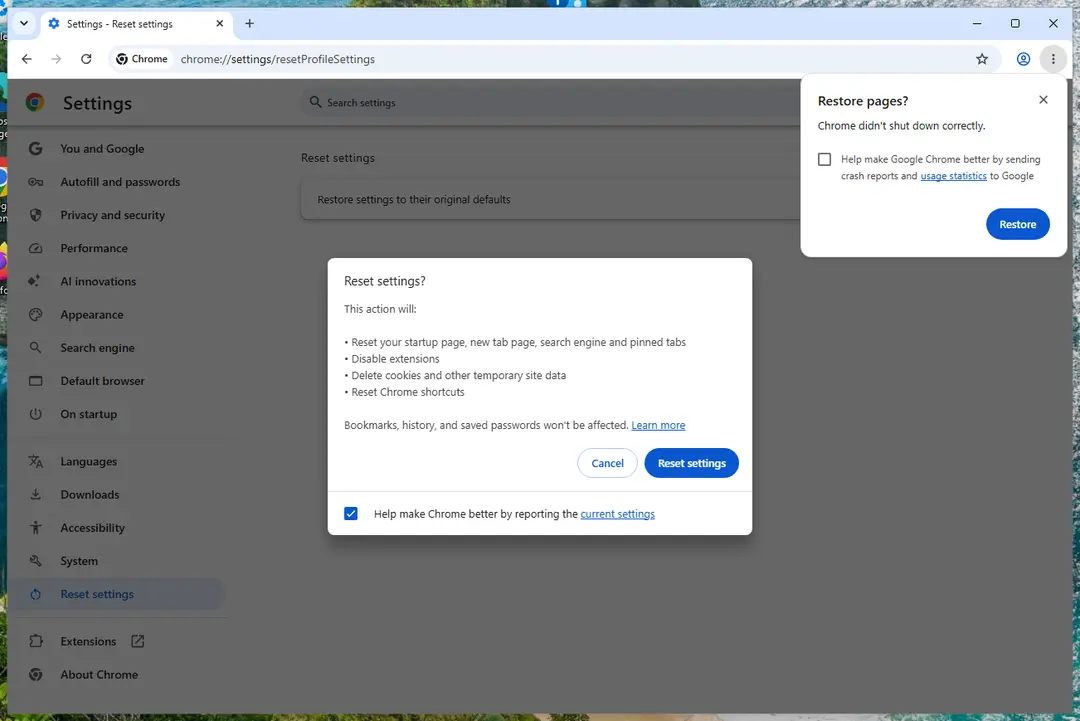
Chrome on Windows 11: Settings > Reset settings. Full procedure with screenshots: Reset a browser and fix a hijacked search engine
Step 5: Scan the PC, then run the offline scan
A scan finds the parts of SaveTogo Ads that the manual steps cannot see. In Windows Security > Virus & threat protection > Scan options, start a Full scan and quarantine what it reports.
Follow it with Microsoft Defender Antivirus (offline scan) > Scan now, which restarts the PC and checks the disk while Windows and the malware are not running.
It takes about 15 minutes and works the same in Windows 11 and Windows 10. If either scan finds something, run the full scan again after removal until it comes back clean.
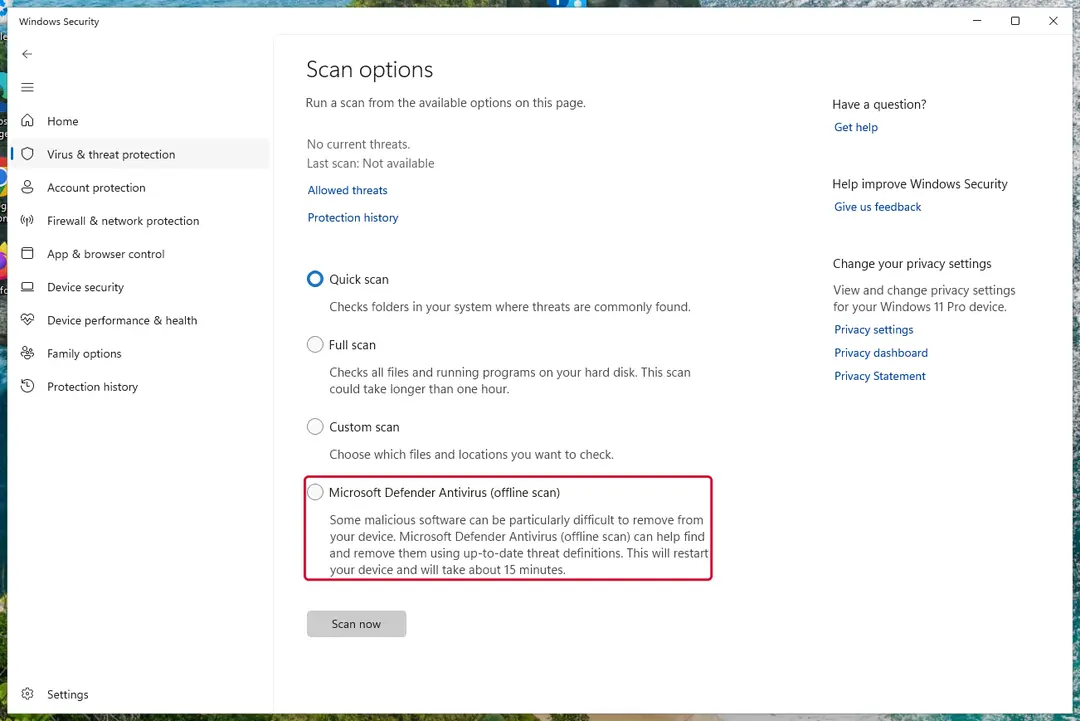
Windows 11: Windows Security > Virus & threat protection > Scan options. Full procedure with screenshots: Run a Microsoft Defender Offline scan
Instructions for each browser and system
The detailed steps for every browser and system this guide covers. Open the one you use.
Uninstall from Windows
Uninstall from Windows 10/8:
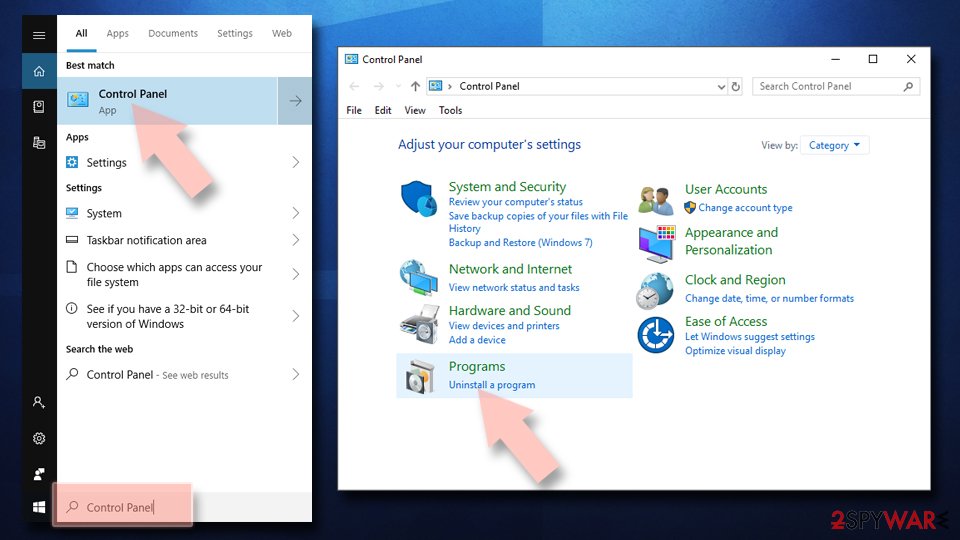
- Type Control Panel into the Windows search box and open the result.
- Under Programs, select Uninstall a program.
Uninstall from Windows 7/XP:
- Click on Windows Start > Control Panel (Windows XP users should click on Add/Remove Programs).
- In Control Panel, select Programs > Uninstall a program.
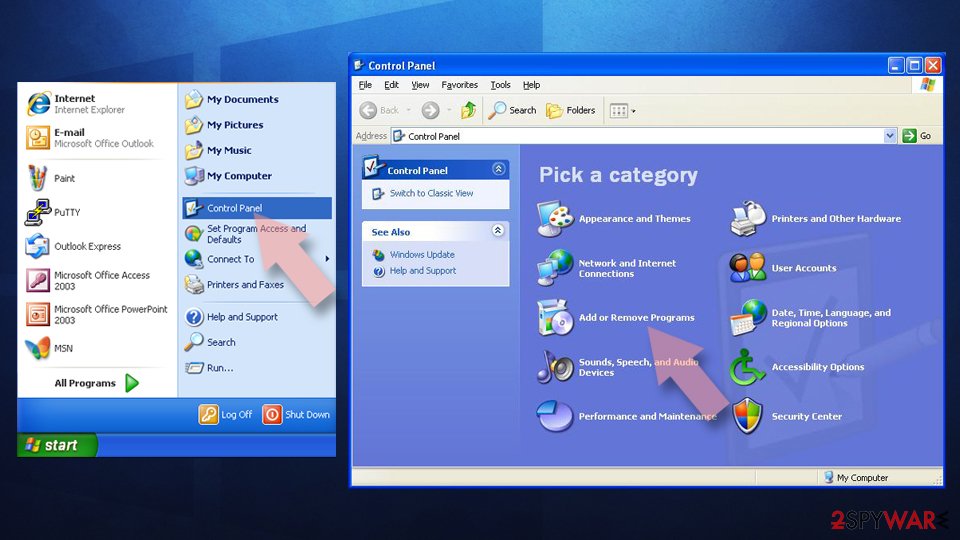
Remove the unwanted program:
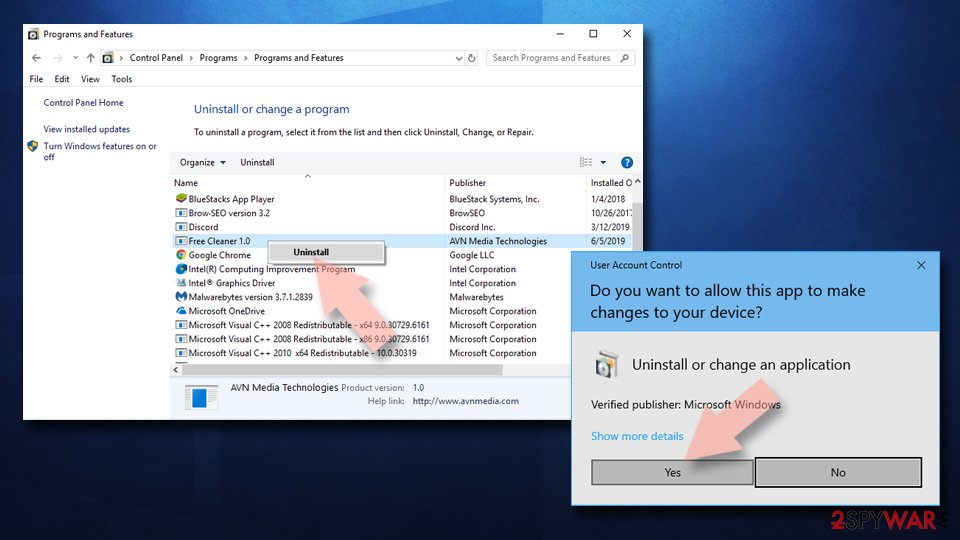
- In the Programs and Features window, look for any recently installed suspicious entries, select them, and click Uninstall.
- If User Account Control appears, click Yes to confirm, then complete the removal.
Remove from Google Chrome
Delete malicious extensions from Google Chrome:
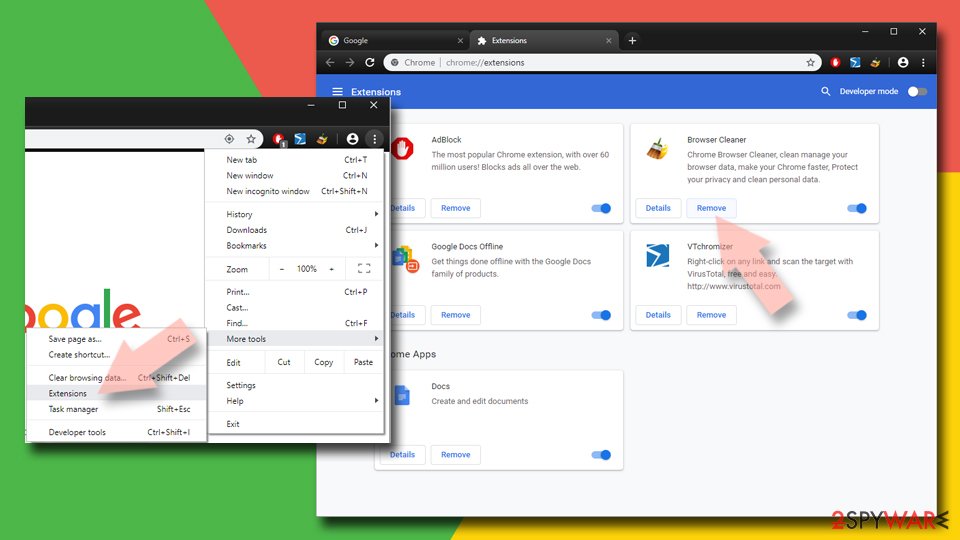
- Open Google Chrome, click on the Menu (three vertical dots at the top-right corner) and select More tools > Extensions.
- In the newly opened window, you will see all the installed extensions. Uninstall all suspicious extensions related to the unwanted program by clicking Remove.
Clear cache and web data from Chrome:
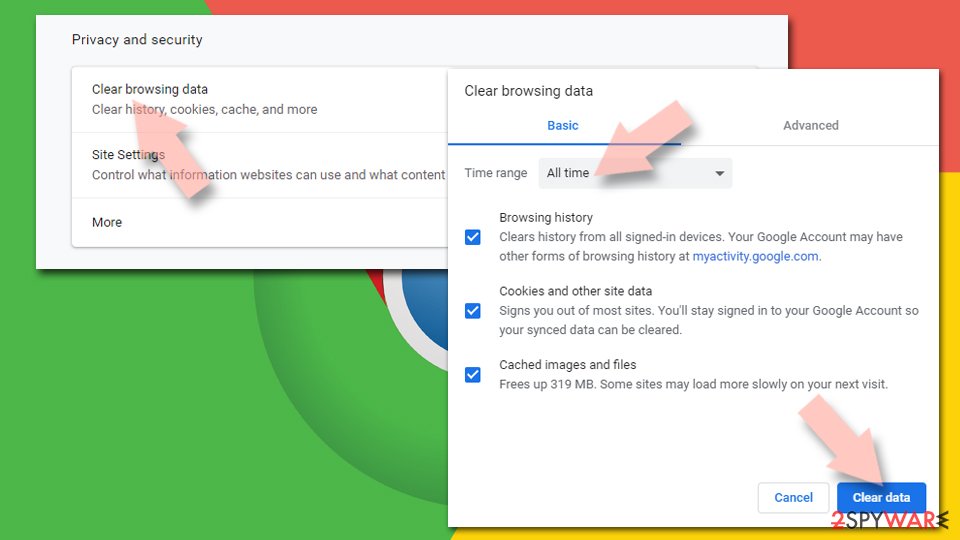
- Click on Menu and pick Settings.
- Under Privacy and security, select Clear browsing data.
- Select Browsing history, Cookies and other site data, as well as Cached images and files.
- Click Clear data.
Change your homepage:
- Click menu and choose Settings.
- Look for a suspicious site in the On startup section.
- Click on Open a specific or set of pages and click on three dots to find the Remove option.
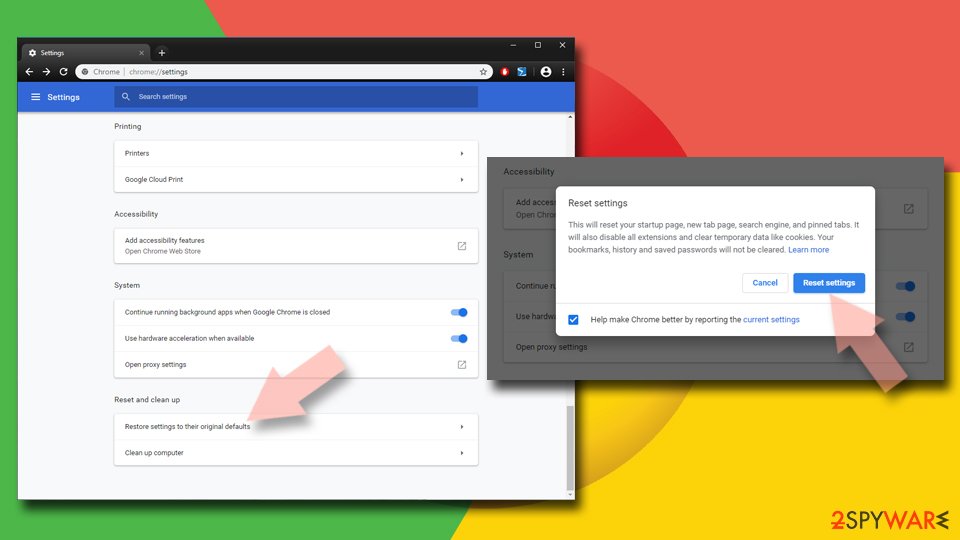
Reset Google Chrome:
If the previous methods did not help you, reset Google Chrome to eliminate all the unwanted components:
- Click on Menu and select Settings.
- In the Settings, scroll down and click Advanced.
- Scroll down and locate Reset and clean up section.
- Now click Restore settings to their original defaults.
- Confirm with Reset settings.
Remove from Microsoft Edge
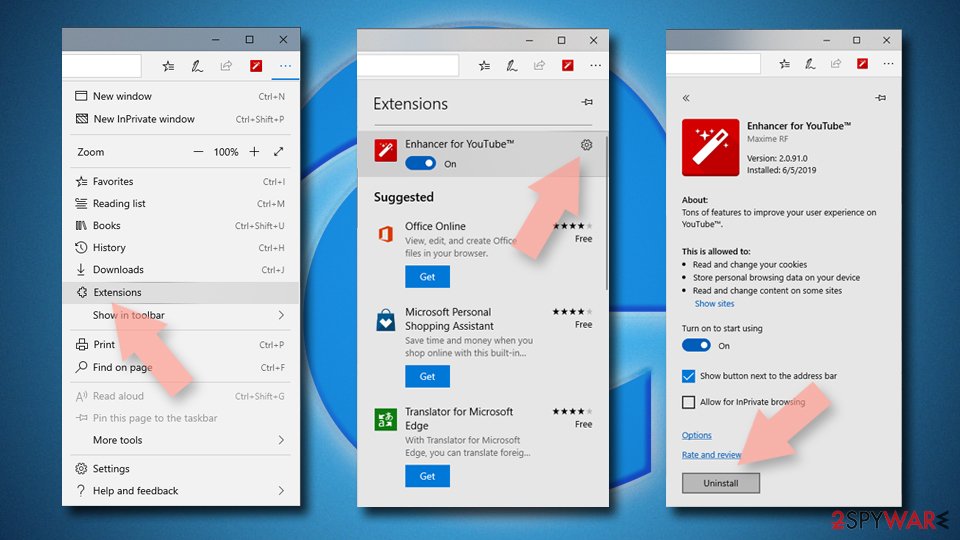
Delete unwanted extensions from MS Edge:
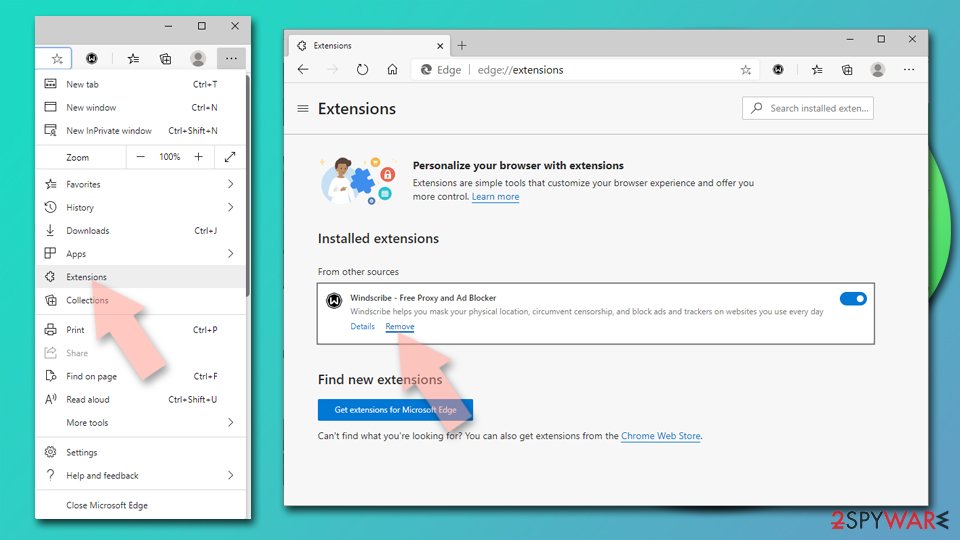
- Select Menu (three horizontal dots at the top-right of the browser window) and pick Extensions.
- From the list, pick the extension and click on the Gear icon.
- Click Remove.
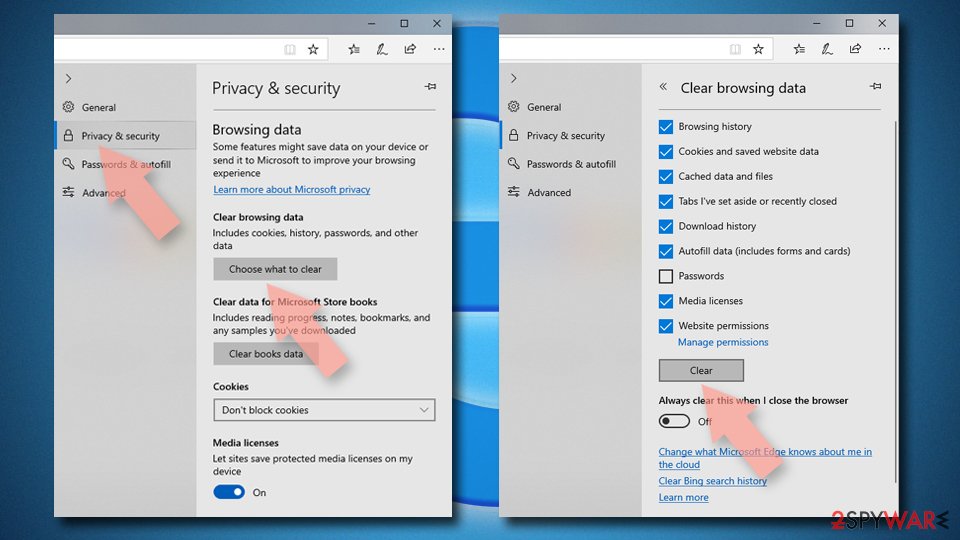
Clear cookies and other browser data:
- Click on the Menu (three horizontal dots at the top-right of the browser window) and select Settings > Privacy, search, and services..
- Under Clear browsing data, pick Choose what to clear.
- Select Cookies and other site data and Cached images and files. (apart from passwords, although you might want to include Media licenses as well, if applicable) and click on Clear.
Restore new tab and homepage settings:
- Click the menu icon and choose Settings.
- Then find On startup section.
- Click Remove next to any suspicious startup page.
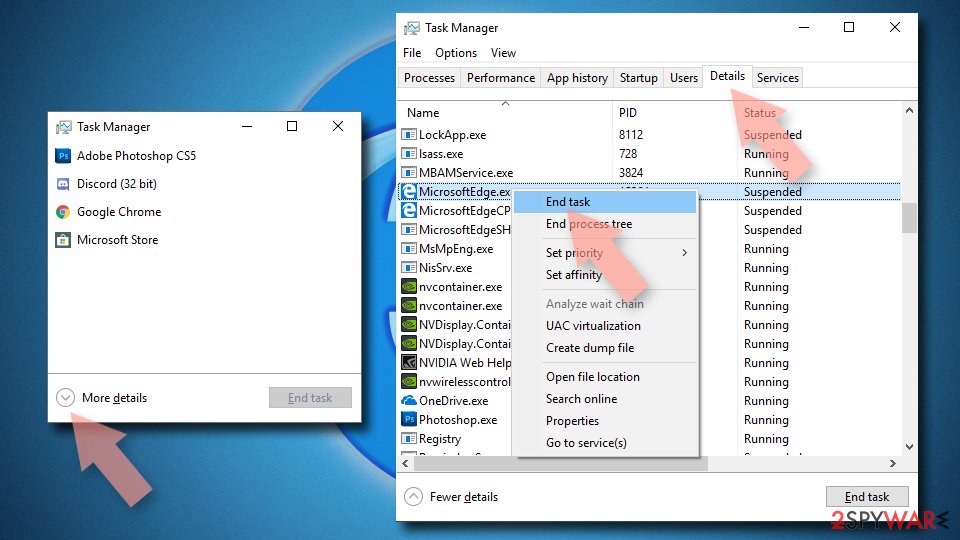
Reset MS Edge if the above steps did not work:
- Press on Ctrl + Shift + Esc to open Task Manager.
- Click on More details arrow at the bottom of the window.
- Select Details tab.
- Now scroll down and locate every entry with Microsoft Edge name in it. Right-click on each of them and select End Task to stop MS Edge from running.
Delete extensions from MS Edge (Chromium):
- Open Edge and click select Settings > Extensions.
- Delete unwanted extensions by clicking Remove.
Clear cache and site data:
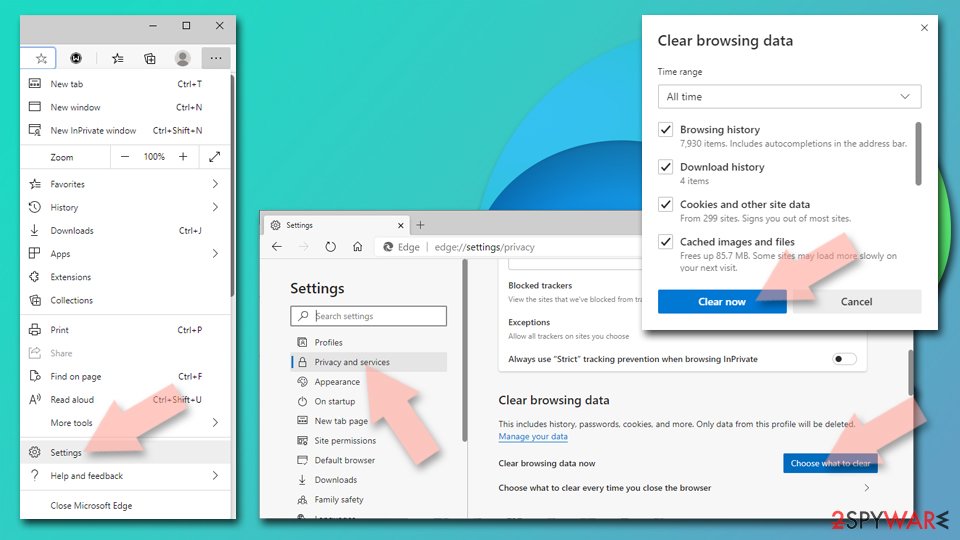
- Click on Menu and go to Settings.
- Select Privacy, search and services.
- Under Clear browsing data, pick Choose what to clear.
- Under Time range, pick All time.
- Select Clear now.
Reset Chromium-based MS Edge:
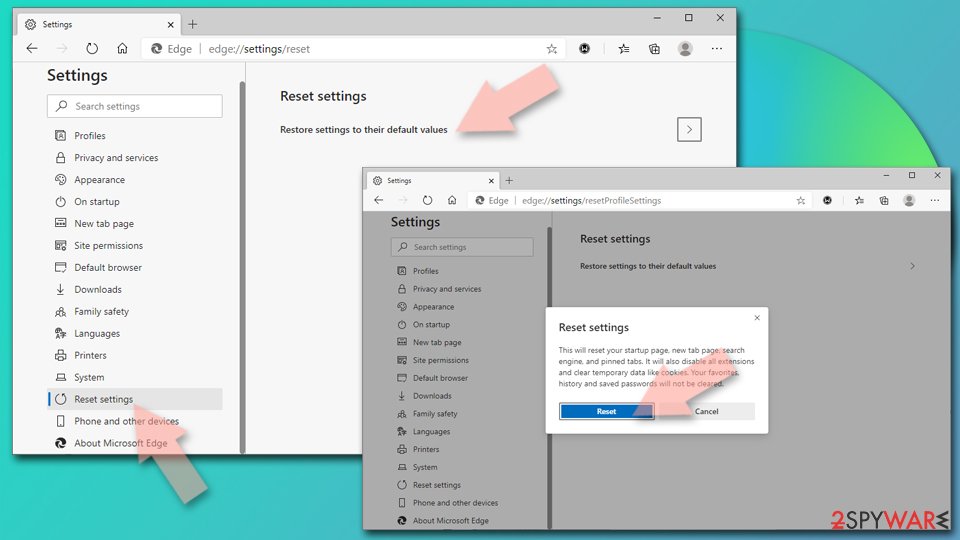
- Click on Menu and select Settings.
- On the left side, pick Reset settings.
- Select Restore settings to their default values.
- Confirm with Reset.
- This will disable extensions and reset startup pages but will not delete bookmarks, saved passwords, or browsing history.
Remove from Mozilla Firefox (FF)
Remove dangerous extensions:
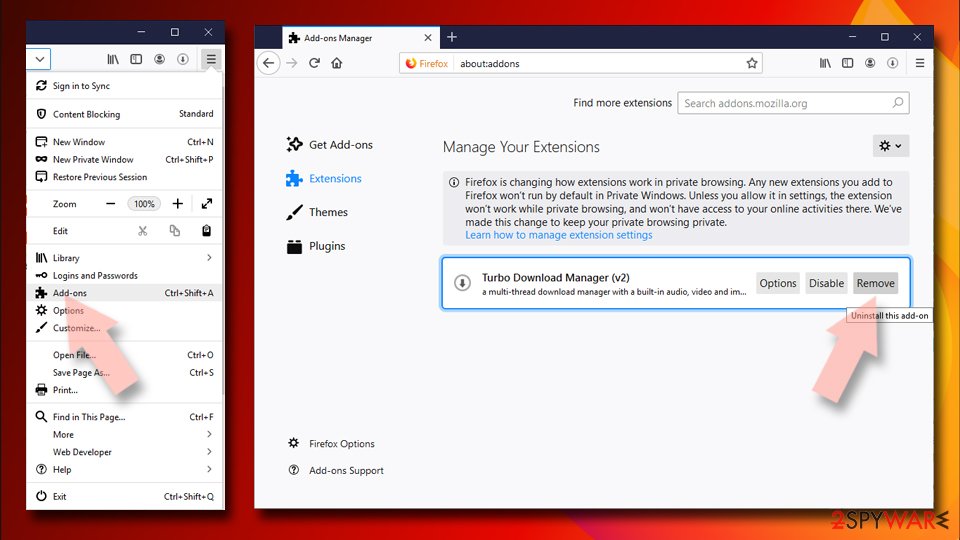
- Open Mozilla Firefox browser and click on the Menu (three horizontal lines at the top-right of the window).
- Select Add-ons.
- In here, select the unwanted extension and click Remove.
Reset the homepage:
- Click three horizontal lines at the top right corner to open the menu.
- Choose Settings.
- Under Home, set your preferred homepage and new tab settings.
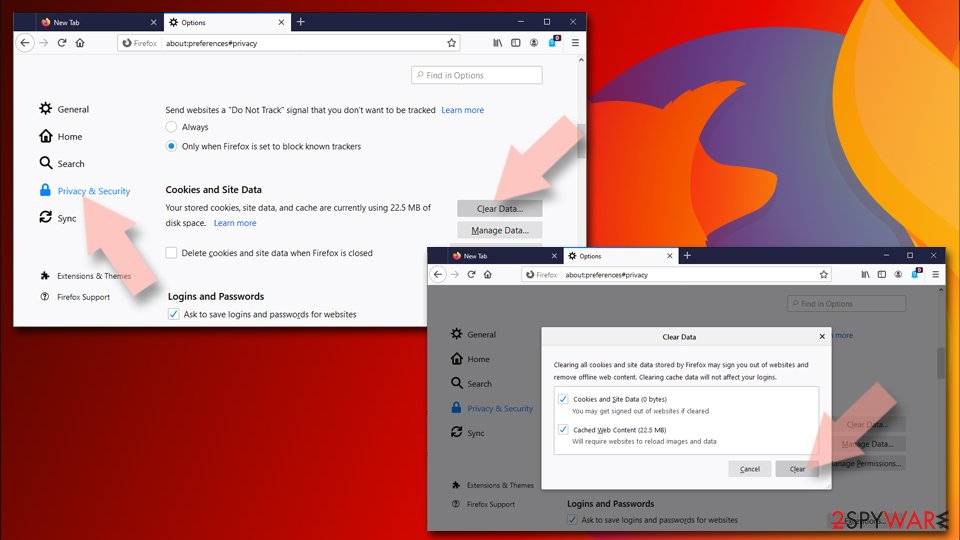
Clear cookies and site data:
- Click Menu and pick Settings.
- Go to Privacy & Security section.
- Scroll down to locate Cookies and Site Data.
- Click on Clear Data...
- Select Cookies and Site Data and Temporary cached files and pages, then click Clear.
Reset Mozilla Firefox
If clearing the browser as explained above did not help, reset Mozilla Firefox:
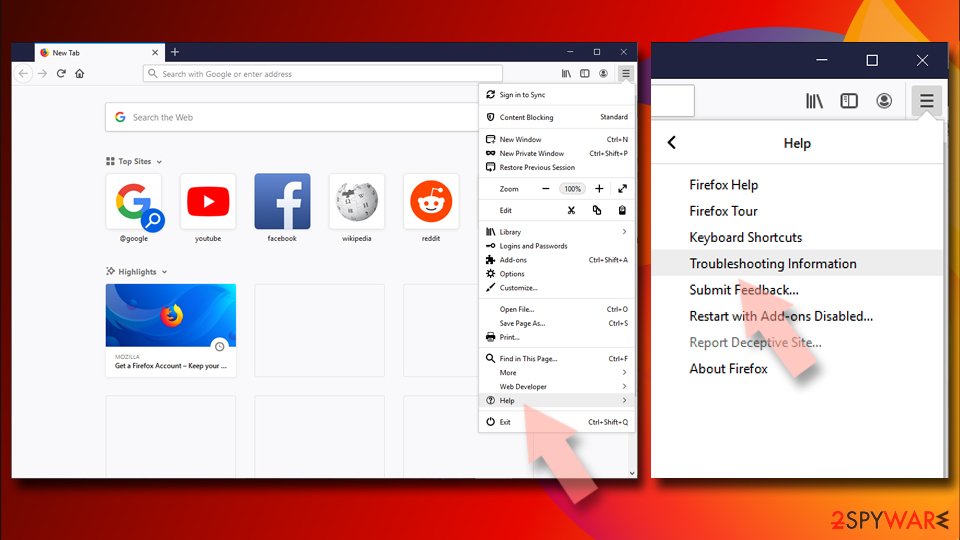
- Open Mozilla Firefox browser and click the Menu.
- Go to Help and then choose Troubleshooting Information.
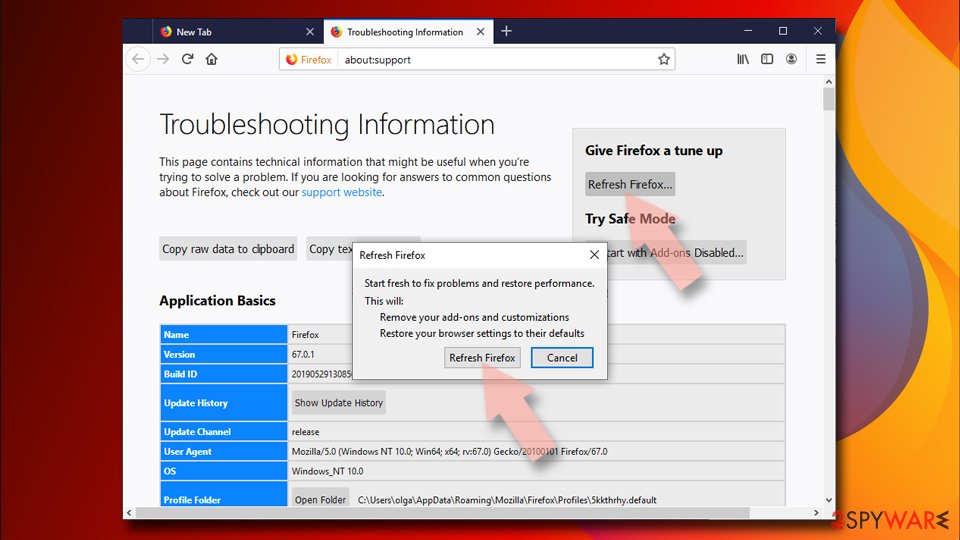
- Under Give Firefox a tune up section, click on Refresh Firefox...
- Once the pop-up shows up, confirm the action by pressing on Refresh Firefox.
Delete from Safari
Remove dangerous extensions:
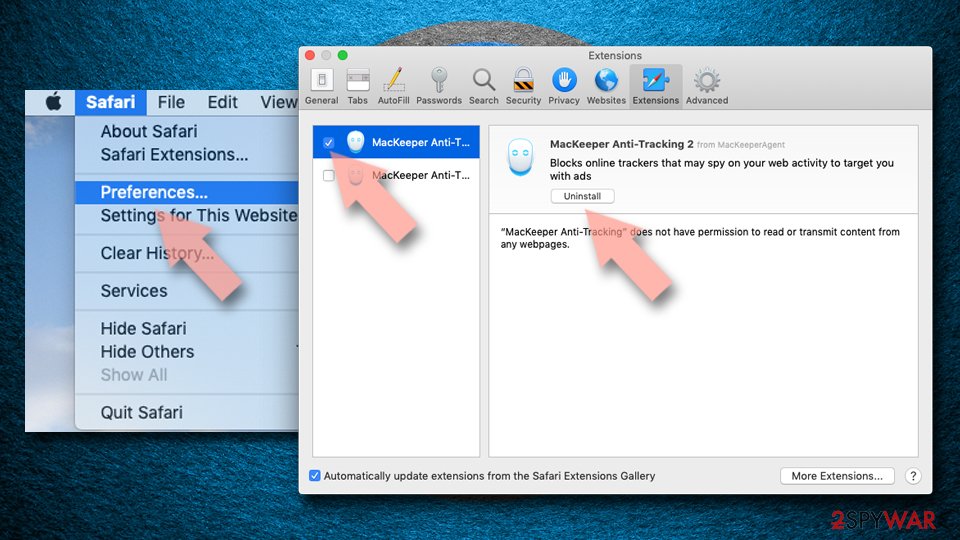
- Open Safari, click Safari in the menu at the top-left of the screen, and select Preferences.
- Go to the Extensions tab, look for any suspicious entries, and click Uninstall to remove them.
Clear history and website data:
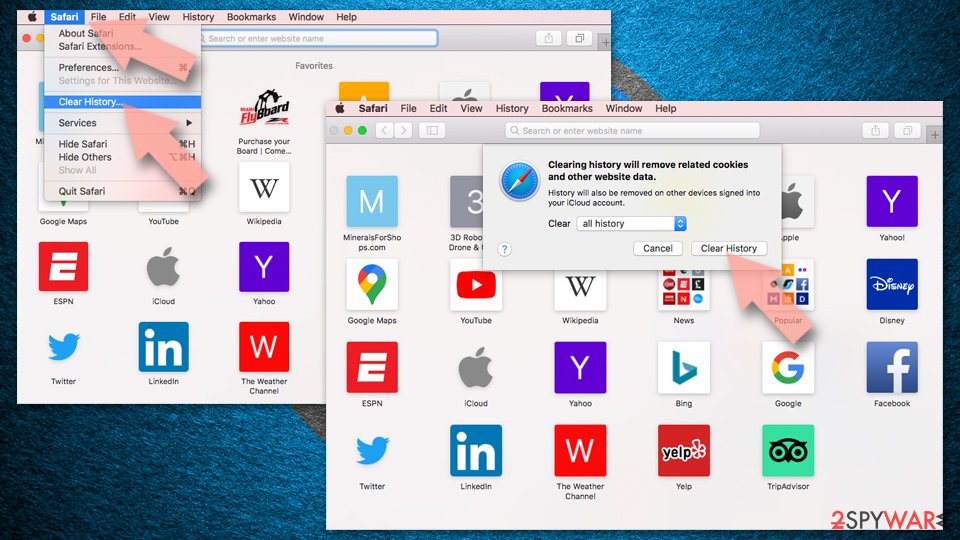
- Click Safari in the menu and pick Clear History.
- Set Clear to all history and confirm with Clear History.
Reset Safari:
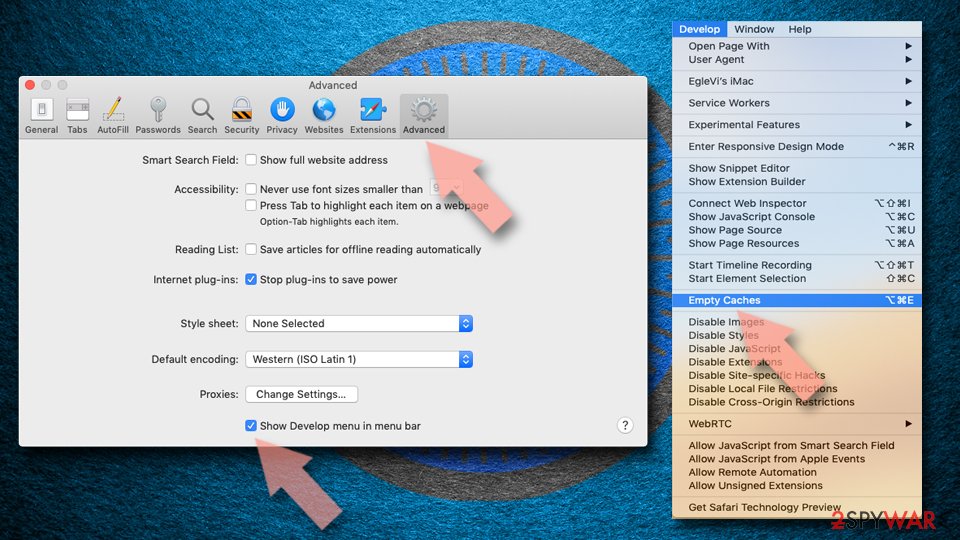
- Click Safari in the menu and select Preferences > Advanced.
- Enable Show Develop menu in menu bar.
- From the menu bar, click Develop and select Empty Caches.
Delete from macOS
Remove the unwanted application:
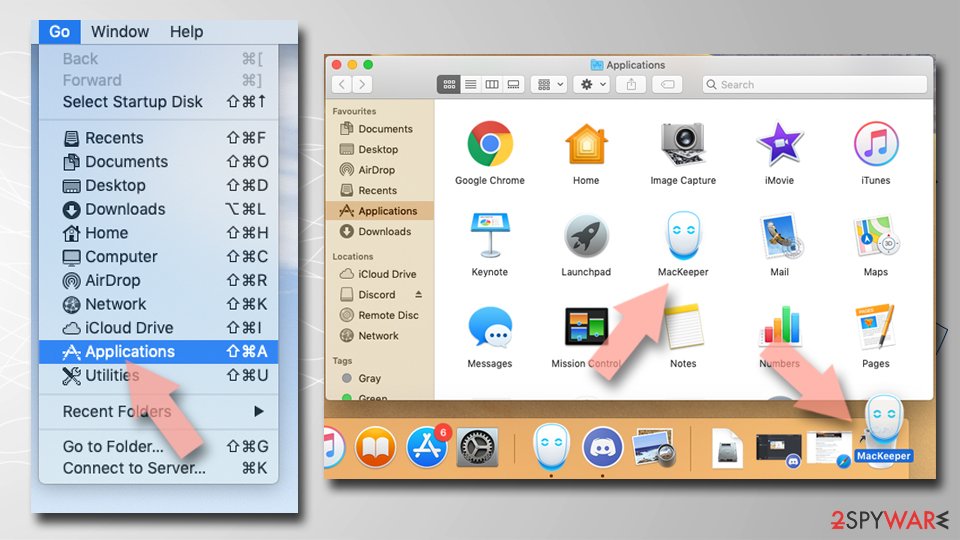
- From the menu bar, select Go > Applications.
- In the Applications folder, look for any suspicious entries, then drag them to Trash (or right-click and pick Move to Trash).
Delete leftover files and folders:
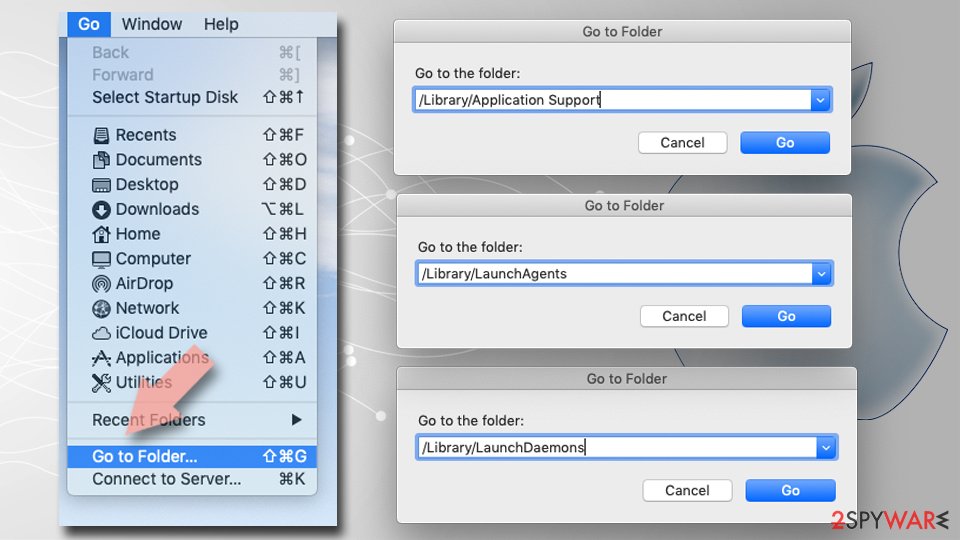
- Select Go > Go to Folder.
- Enter /Library/Application Support and remove any suspicious folders related to the unwanted program.
- Repeat the same check in the /Library/LaunchAgents and /Library/LaunchDaemons folders, deleting any suspicious entries.
- Finally, empty the Trash to permanently remove the leftovers.
Do not let government spy on you
The government has many issues in regards to tracking users' data and spying on citizens, so you should take this into consideration and learn more about shady information gathering practices.
Avoid any unwanted government tracking or spying by going totally anonymous on the internet.
You can choose a different location when you go online and access any material you want without particular content restrictions. You can easily enjoy internet connection without any risks of being hacked by using VPN.
Control the information that can be accessed by government any other unwanted party and surf online without being spied on. Even if you are not involved in illegal activities or trust your selection of services, platforms, be suspicious for your own security and take precautionary measures by using the VPN service.
Backup files for the later use, in case of the malware attack
Computer users can suffer from data losses due to cyber infections or their own faulty doings.
Ransomware can encrypt and hold files hostage, while unforeseen power cuts might cause a loss of important documents. If you have proper up-to-date backups, you can easily recover after such an incident and get back to work. It is also equally important to update backups on a regular basis so that the newest information remains intact - you can set this process to be performed automatically.
When you have the previous version of every important document or project you can avoid frustration and breakdowns. It comes in handy when malware strikes out of nowhere. Use for the data restoration process.
From our report of Sep 2015 · not reviewed since
How to remove SaveTogo ads?
First of all, if you want to avoid similar unwanted intruders, you should be very careful when installing free programs.
Read end-user license agreement policy section and monitor the entire installation process if you have even the slightest doubt about the program you are going to install. If you are annoyed by SaveTogo ads, act now and remove this useless program. These steps will help you to do that:
Questions about SaveTogo Ads
Is SaveTogo Ads a virus?
Most programs that appear the way SaveTogo Ads did are not viruses in the strict sense. They are potentially unwanted programs:
- real software that arrives bundled with other downloads and then shows offers
- changes browser settings
- starts with Windows
Some are harmless, some are annoying and a few carry adware. What makes it worth removing is that you did not choose it.
Uninstall it from Installed apps and check the startup list and the browsers for anything added the same day. If it refuses to uninstall or returns after a restart, treat it as more serious and run a Microsoft Defender offline scan.
How do I stop programs like SaveTogo Ads from being installed again?
Most unwanted programs arrive through installers, so the fix is in how you install software. Download programs from their official sites or the Microsoft Store, not from download portals or ads above search results. During setup, choose Custom or Advanced installation and untick every extra offer, including browsers, toolbars and optimizers.
Decline update prompts that appear inside other programs unless you know them. In Windows Security, turn on reputation-based protection and potentially unwanted app blocking. These steps would most likely have stopped SaveTogo Ads before it reached the app list.
SaveTogo Ads has no uninstaller. What now?
Some adware does not register itself properly, or its uninstaller only opens a web page. First try Settings > Apps > Installed apps and the older Control Panel > Programs and Features; one may list it when the other does not.
If neither works, disable its entry in Task Manager > Startup apps, restart, and run a Microsoft Defender full scan and offline scan, which remove known adware files. Then, if anything is left, delete the folder it ran from, which you can find by right-clicking the process in Task Manager and choosing Open file location.
I clicked on one of the ads. Am I infected?
Probably not. Clicking an ad usually only opens a page, and a page cannot install programs on an up-to-date Windows PC without your help.
You are at risk only if you then downloaded and ran a file, allowed notifications, entered card or login details, or called a phone number shown on the page. Delete any download and run a full and offline scan.
Change passwords you typed, from a clean device. Call your bank if you gave card details. If you called a number or allowed remote access, see the next question.
Does adware steal passwords?
Ordinary adware is built to show ads, not to steal logins, and most of it never touches saved passwords. The line is blurry, though. Extensions that can read every page could capture what you type, and adware ads sometimes lead to phishing pages that ask for passwords directly.
If you entered credentials on a page reached through an ad, change that password from a clean device and turn on two-step verification. Otherwise, removing ad-supported program and clearing cookies is usually enough.
An ad showed a phone number and I called it. What now?
The number belongs to scammers, not to Microsoft or an antivirus company. If you only talked, hang up and do not call back. If you let them connect to the PC, disconnect it from the internet, uninstall the remote access program they used, such as AnyDesk, TeamViewer, ScreenConnect or UltraViewer, and run a full and offline scan.
If you paid or gave bank details, call your bank at once on the number printed on your card. Change any passwords you typed while they were connected, and report the call.
Can adware slow down my PC?
Yes. Adware runs in the background, loads ad scripts, opens extra tabs and contacts its servers, all of which use processor time, memory and bandwidth. Ad-heavy extensions also slow down every page, because they inspect and change it before you see it.
The effect is strongest on older PCs and when several adware programs arrived together. After removal, restart the PC and check Task Manager for anything still using a lot of resources that you do not recognise. Speed usually returns to normal once the ads stop.
Why didn't my antivirus catch SaveTogo Ads?
Many security products do not block adware or notification sites by default, because users often agreed to them, even through a misleading prompt. Notification spam installs nothing at all, so there is no file to detect.
In Windows 11 you can make Microsoft Defender block potentially unwanted apps: open Windows Security > App & browser control > Reputation-based protection settings and turn on Potentially unwanted app blocking. If notifications caused the pop-ups, no scanner will report them; the fix is in the browser's site settings.
Will Fortect remove SaveTogo Ads?
Fortect scans Windows for malware and unwanted programs and repairs the system files and settings they change, and its free scan shows what it finds on your PC before you decide anything.
For SaveTogo Ads, follow the plan above as well: the browser steps take back permissions and settings that no scanner treats as a threat, and uninstalling the program that brought it removes the source.
Run Microsoft Defender's full scan and, if anything was found, its offline scan as a second opinion. If the symptoms are gone after the plan and both scans are clean, there is nothing more to do.
Sources
- Google Chrome Help: Use notifications to get alerts (no longer online) (read October 7, 2026)
- FTC: How to recognize, remove and avoid malware (read October 7, 2026)
- Microsoft Learn: Microsoft Defender Offline (read October 7, 2026)
- Microsoft Learn: How Microsoft names malware (read October 7, 2026)